

The Sort & Style Delivery Tabs feature allows you to customize how shipping, store pickup, and local delivery options appear in your cart, enhancing the customer experience. You can choose from three layouts—tabs, radio buttons, or a dropdown list—and adjust the arrangement and colors to align with your store's branding. To access this feature, log in to your Shopify admin, open the Delivery & Pickup app, and navigate to the General tab under Settings.
You can rearrange delivery methods by dragging tabs and set custom colors for backgrounds and icons. Remember, changing the layout only affects appearance, not the delivery settings or availability. If you reset color settings, you cannot recover your previous choices, so proceed with caution.
In this article, you’ll learn how to access this feature, see what each layout option looks like, and walk through every setting inside it.
How to access
- Log in to your Shopify admin.
- Open the Delivery & Pickup app from your app list.
- Go to the Settings menu.
- Click the General tab.
- Look for the Sort & Style delivery tabs.
How this feature works
The app gives you three ways to display your delivery methods. Each one changes how shipping, store pickup, and local delivery appear to your customers at checkout.
Feature settings explained
Style delivery tab Layout
Choose how shipping, store pickup, and local delivery are presented to your customers. Each layout displays the same delivery methods but in a different style, so you can select the one that best fits you and customer experience.
Switching between layouts only changes the appearance of the delivery methods. It does not affect your delivery settings, available methods, or scheduling rules.
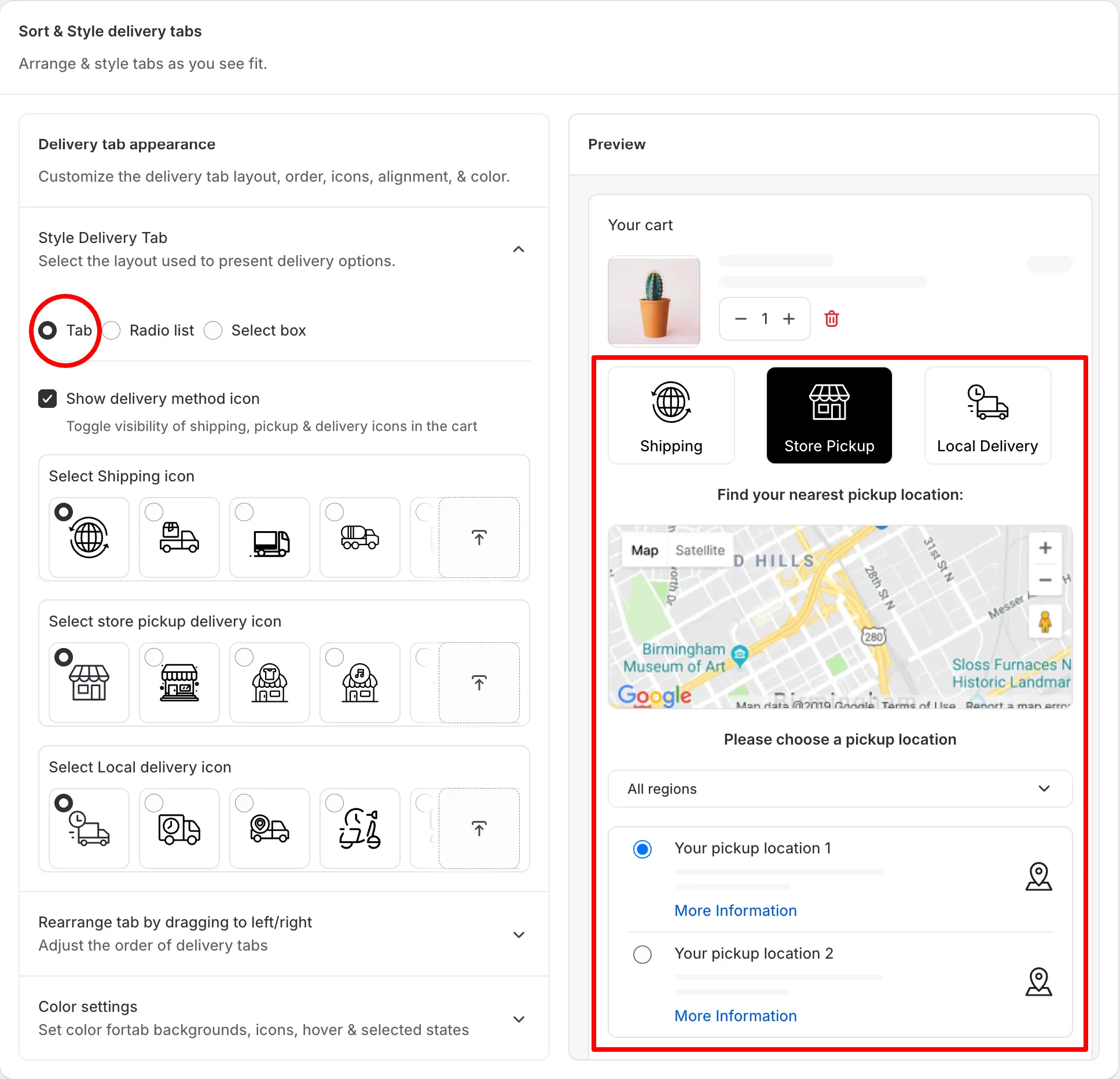
Tab Layout
You can also display an icon beside each tab label to make the options easier to recognize. App includes a collection of free default icons, or you can upload your own custom icons to match your store’s branding.
If you prefer a cleaner design, you can disable icons and display text labels only.
Radio list Layout
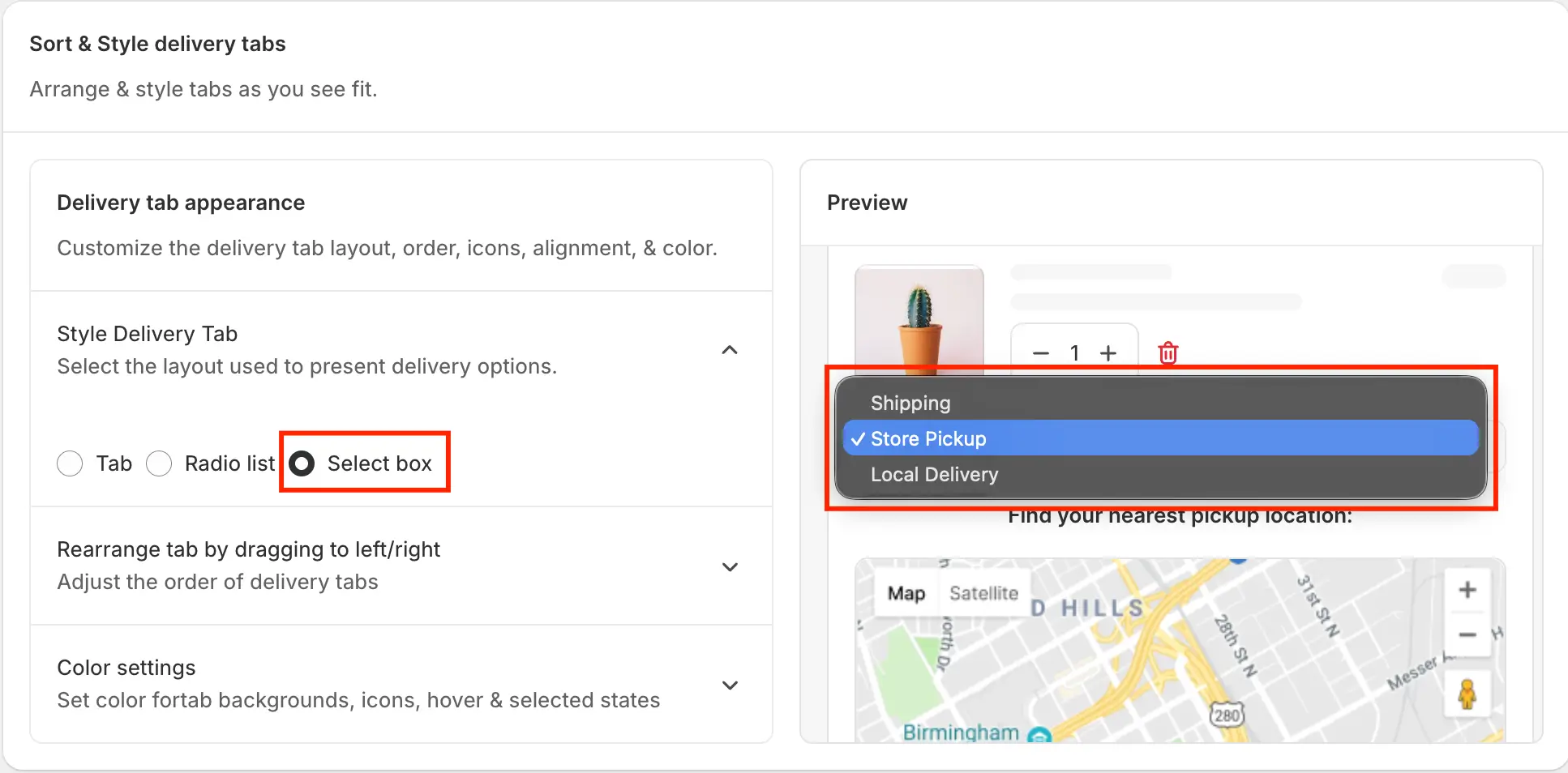
Select box Layout
The select box layout is ideal if you want a compact delivery selector that occupies minimal space on the page.
Arrange tab Order
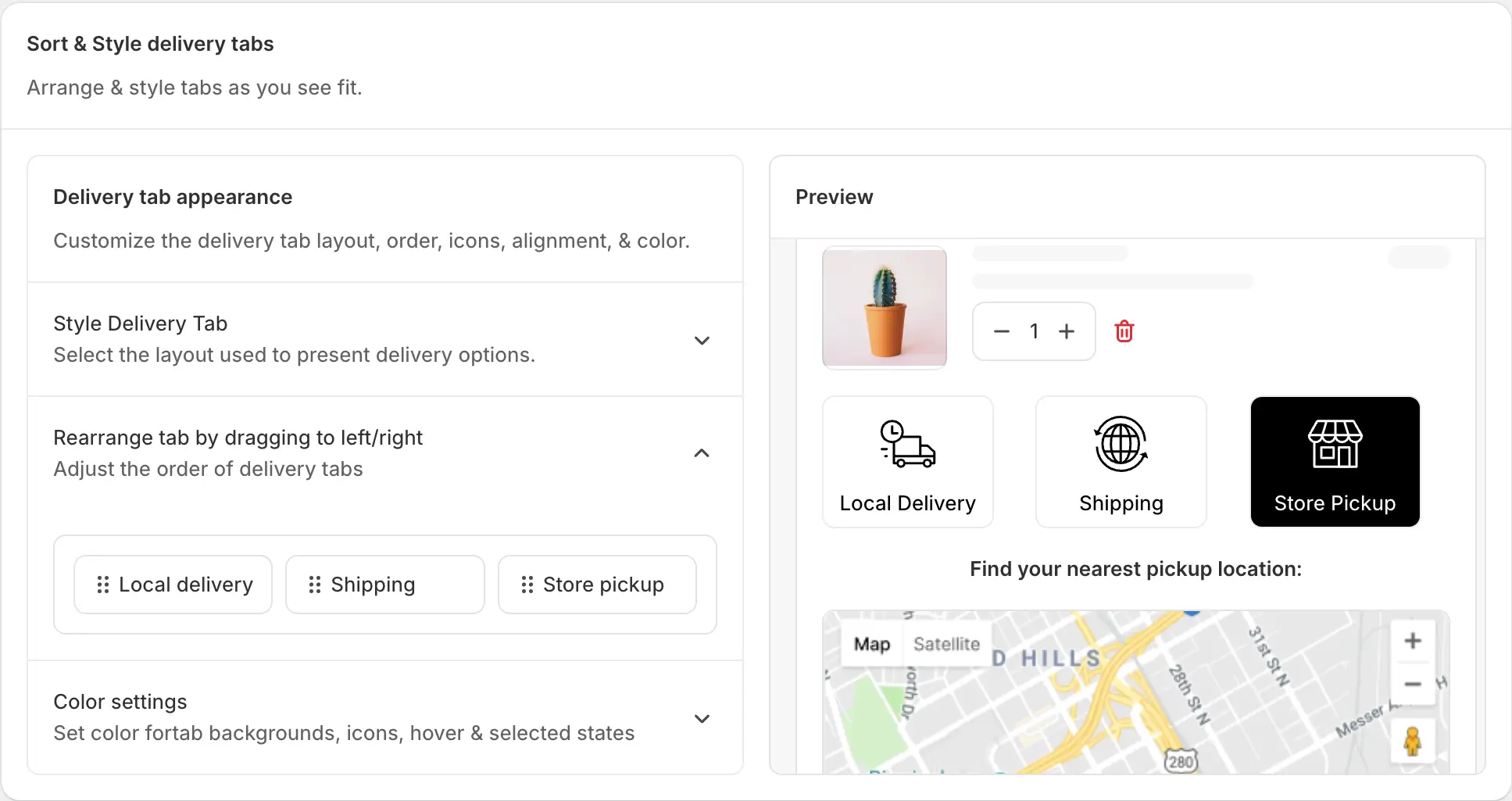
By default, the app shows the delivery methods in this order: shipping first, store pickup second, and local delivery last. To change it, just drag a tab left or right until it sits where you want. For example, if most of your customers pick up their orders in-store, you could drag Store Pickup to the front so it’s the first thing they see.
Color settings Color
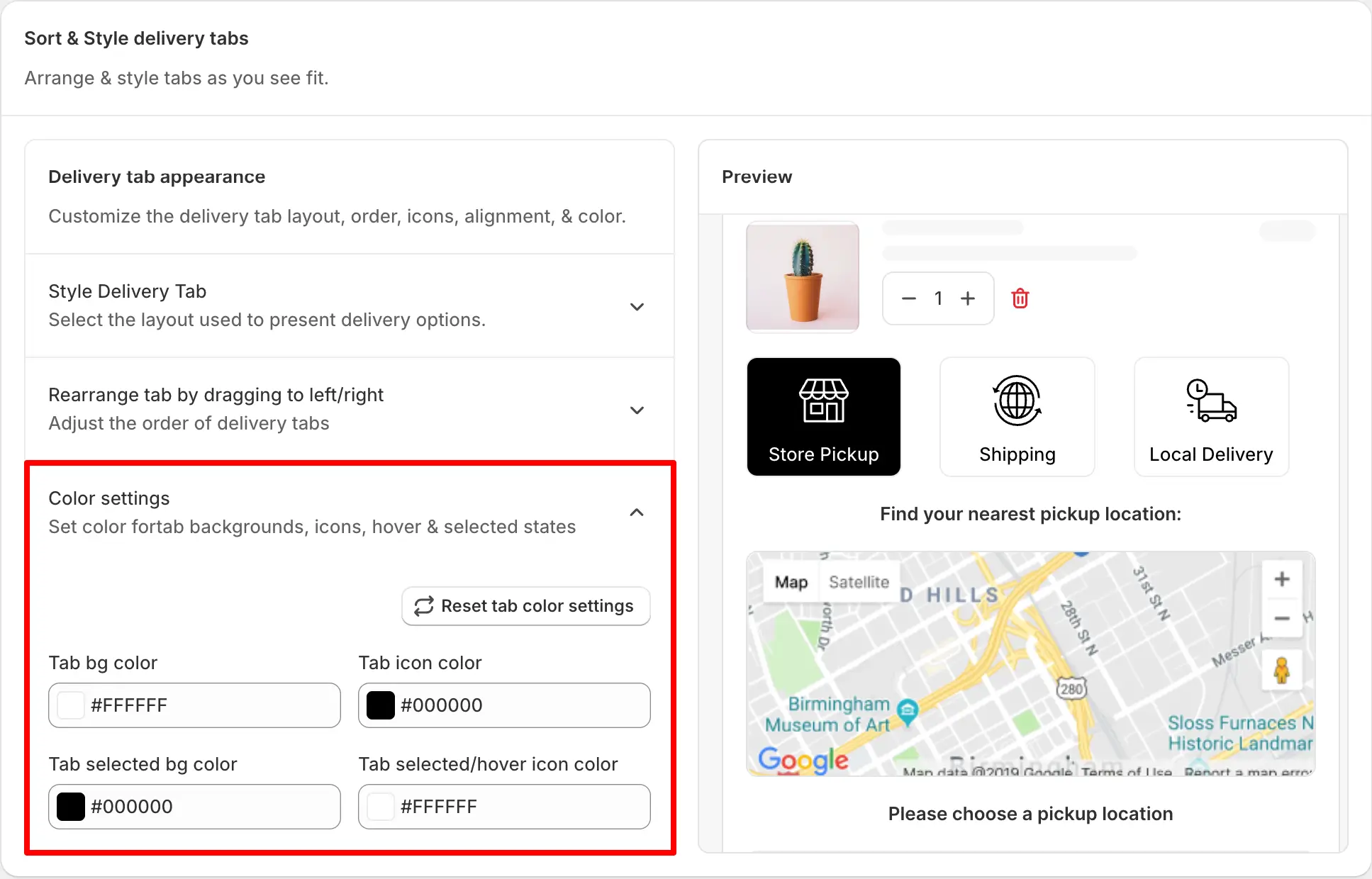
Sets the background color for each delivery tab.
Tab icon color Color
Sets the color of the icon shown inside each tab.
Tab selected background color Color
Sets the background color for whichever tab a customer has selected. For example, if your store’s brand color is black, you could set this to black, the same way Store Pickup appears in the preview above.
Tab selected/hover icon color Color
Sets the icon color for a tab that’s selected or being hovered over.
Tips & best practices
2. Lead with your most-used method — if local delivery gets picked more than shipping in your area, drag it to the front of the order.
3. Keep icons on for the Tab layout — icons help customers scan their options faster, especially on smaller mobile screens.


