

The cutoff time feature in a delivery app for a Shopify store allows you to manage same-day delivery effectively by defining a deadline time each day. Here’s how it works:
Purpose
It ensures that you have enough time to fulfill same-day delivery orders placed before a certain time of day (for example, 11:40 AM). Orders placed after this time will not be eligible for same-day delivery, helping you manage logistics more smoothly.
How it works
Before Cutoff Time: Customers see all available same-day delivery slots and can select one at checkout.
After Cutoff Time: The app hides all same-day delivery slots, so customers can only choose delivery slots for the next day or later.
To activate cutoff time for shipping feature
Step 1: Go to your Shopify Admin.
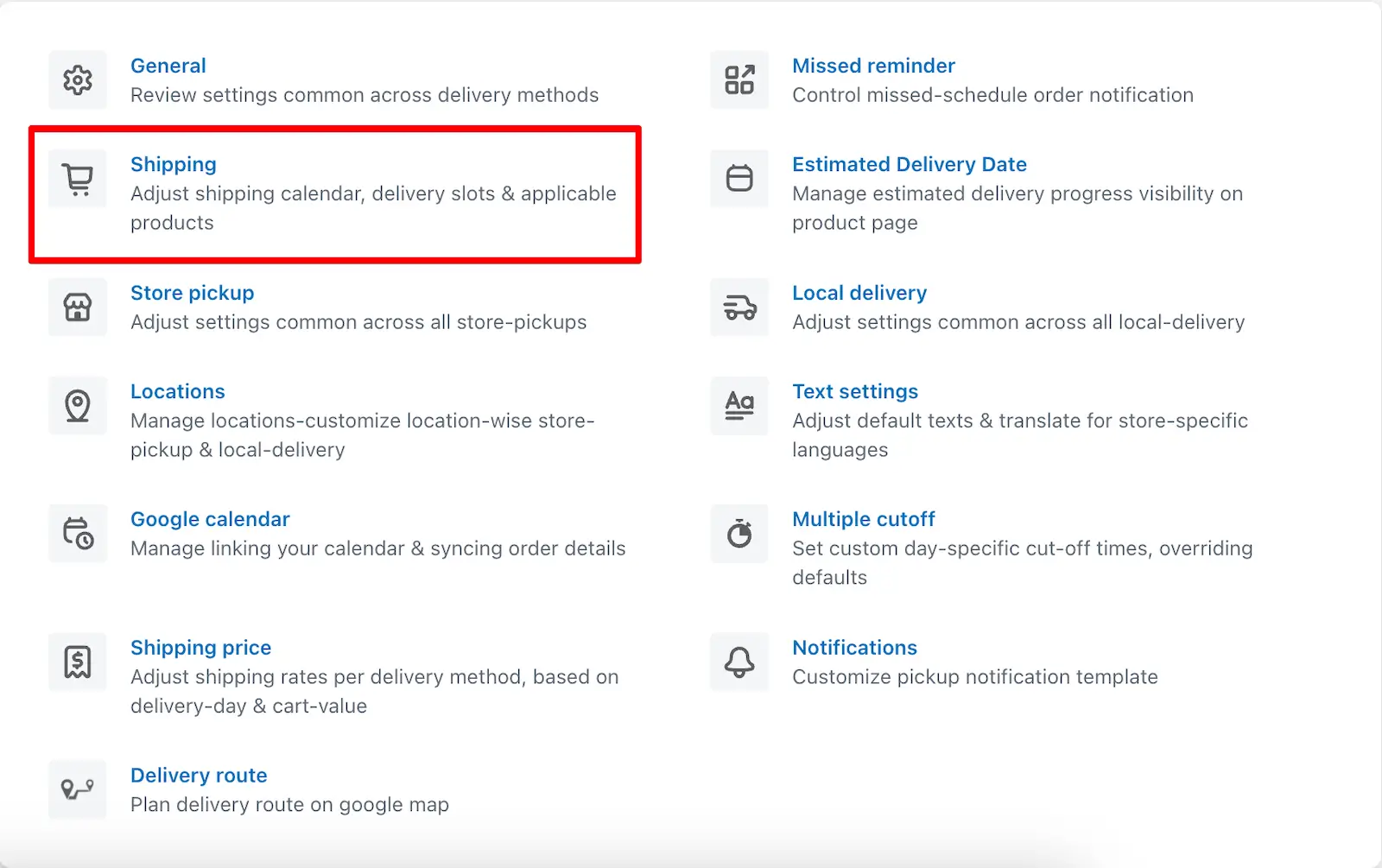
Step 2: Open the app and navigate to the General Settings.
Step 3: Click on Shipping Settings.
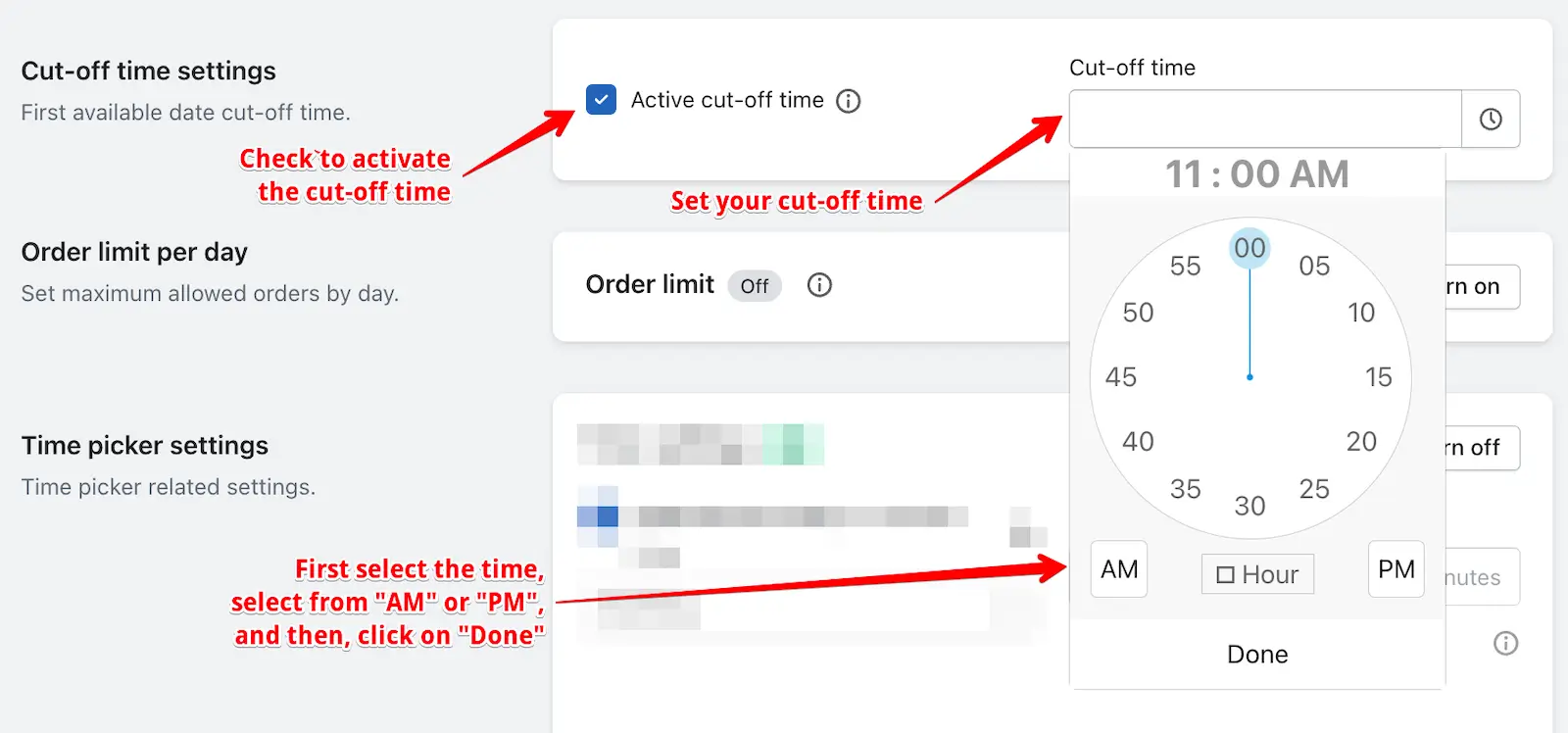
Step 4: Go to the Cut-off Time Settings option.
Step 5: Enable the Active Cut-off Time and set the cut-off time as per your preference.
Step 6: Save the settings.
To activate cutoff time for Store pickup And local delivery
Step 1: Go to your Shopify Admin.
Step 2: Click on Locations from settings.
Step 3: Edit the location, then edit Store Pickup or Local Delivery as needed.
Step 4: Next, go to Calendar and Checkout Button Settings.
Step 5: Enable the Cutoff Time feature, set the desired cutoff time.
Step 6: Save the settings.
Enable cut-off for store pickup
Enable cut-off for local delivery
To activate cutoff time for Product Calendar
Step 1: Go to your Shopify Admin.
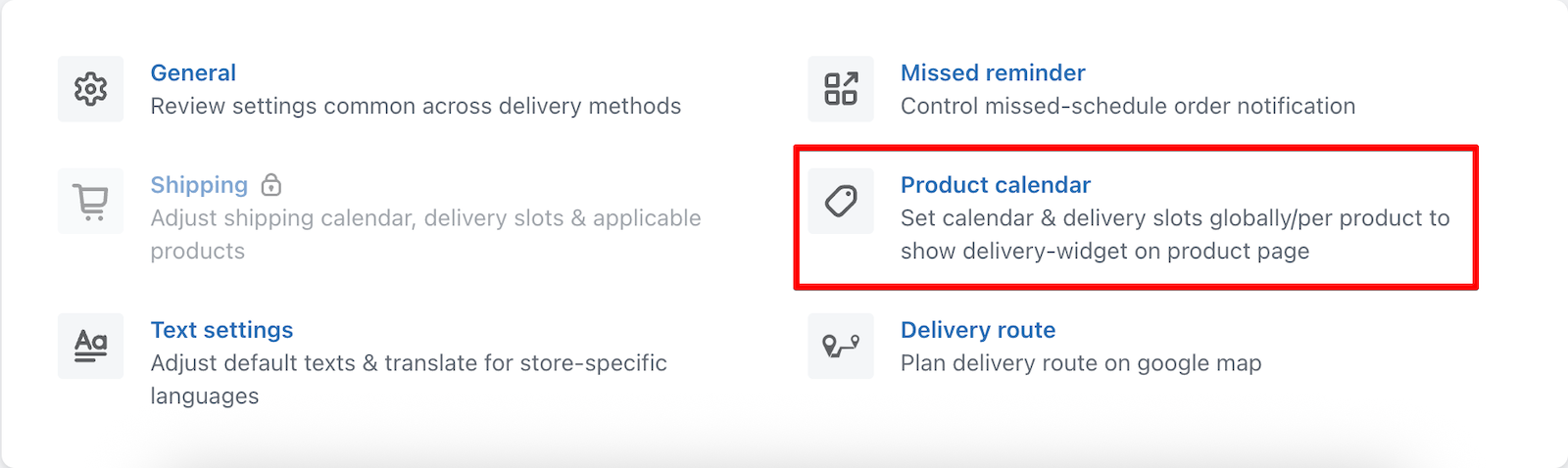
Step 2: Click on Product Calendar.
Step 3: Global settings > Enable cutoff time and save the settings.
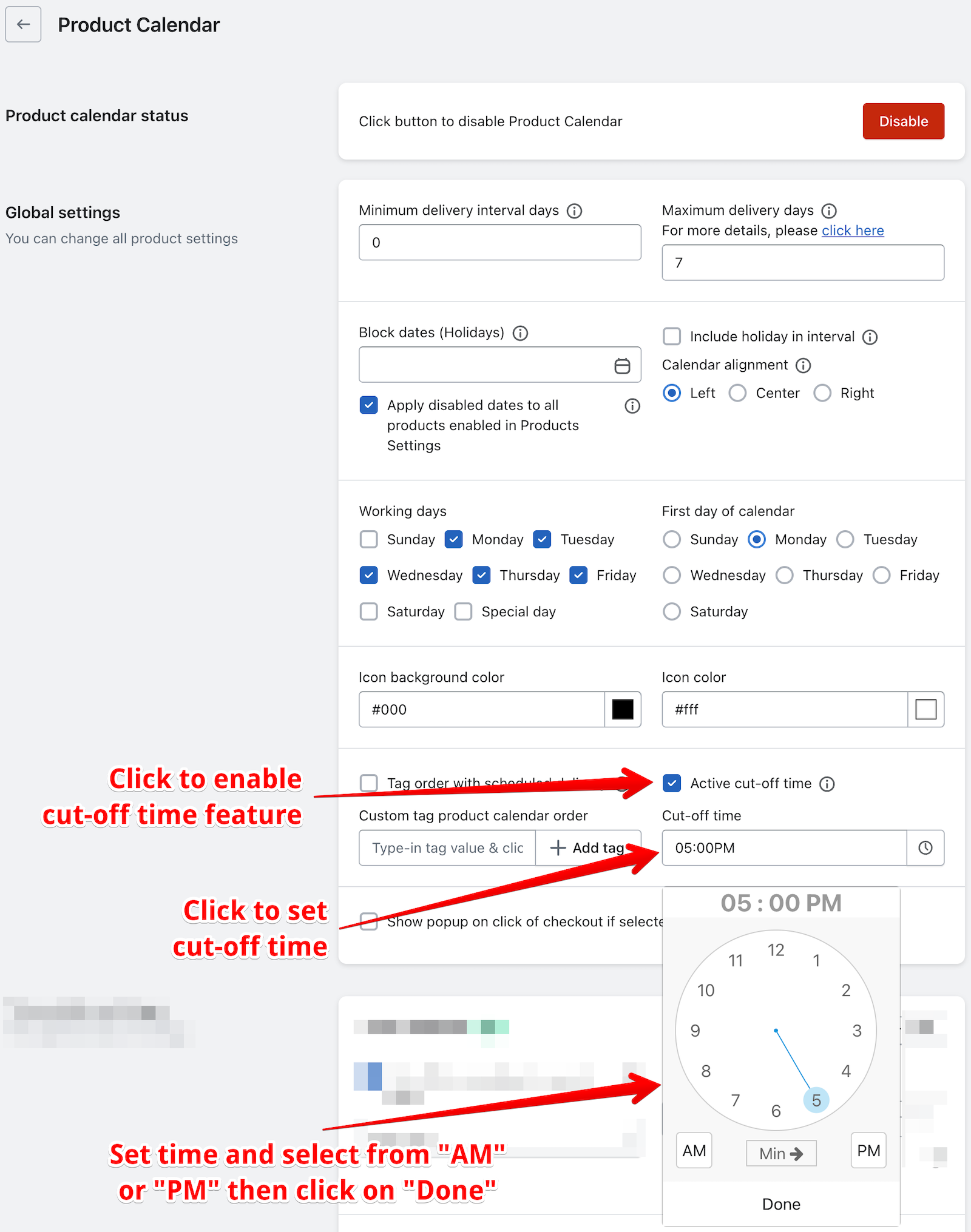
➞ If you want to set a different cut-off time for different products, you can do this using the Product Settings feature. Open the specific product from the Product Settings and enable the Active Cut-off Time option for that particular product.
➞ Activate cut-off in individual product:
Read the complete guide on Stellar Delivery Date & Pickup.