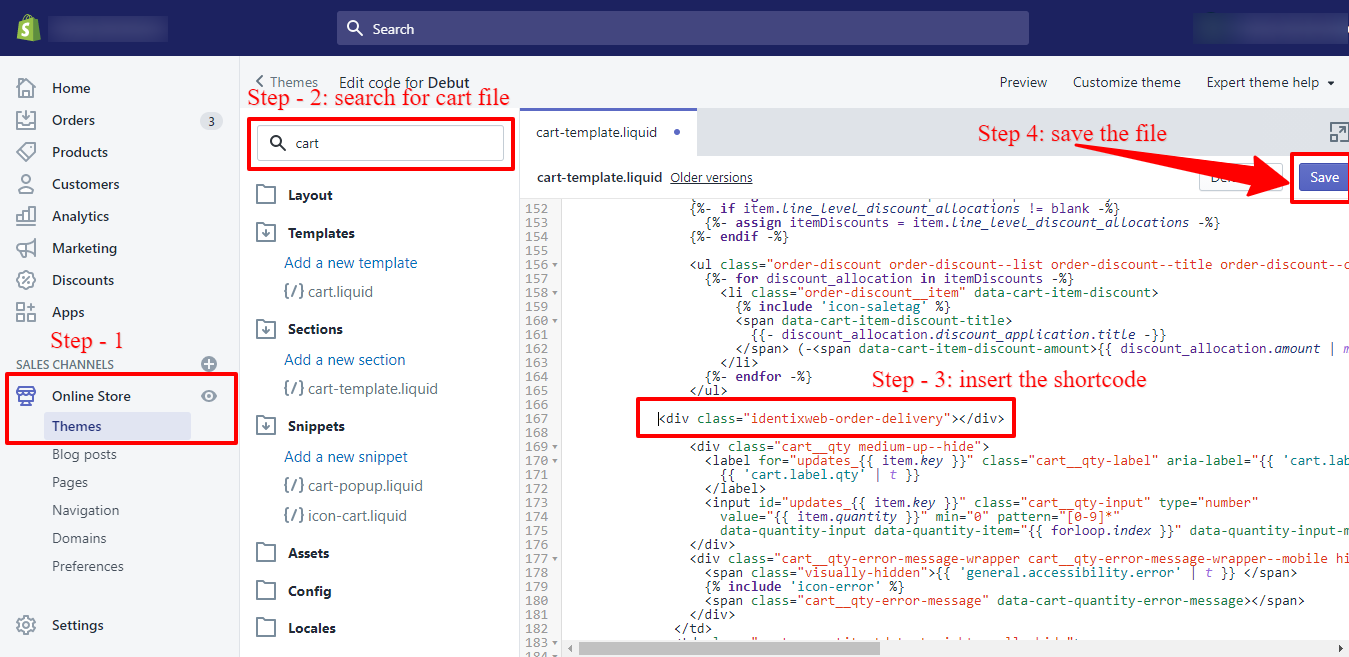
You can change the position of the delivery date calendar in your cart by using either the Calendar placement option or by adding a shortcode to your cart page file. To do this, you need to access your Shopify account, navigate to the Online Store, and edit your theme's code. Most themes utilize the cart-template. liquid file, which you can modify to insert the necessary code for the delivery date calendar. To add the calendar, locate the cart.
liquid file or the cart-template. liquid file in your theme's code editor. Insert the code at the desired position within the file and save your changes. Ensure that you are editing the correct file to display the calendar properly on your cart page.
Change Delivery Date Position
There are 2 ways to change the position of the calendar:
- By using the Calendar placement option.
- By adding the shortcode in the cart page file.
By using the Calendar placement option.
By adding the shortcode in the cart page file.
→ To show the delivery date calendar at a specific position on your cart page, insert the following code in the cart.liquid file.
→ Most themes are using the cart-template.liquid file to show the content on the cart page.
→ To find the cart.liquid file of your store theme, please follow the below steps:
- Go to Shopify Account > Online Store > Themes > Theme library
- Click on the ‘Action’ button given in the ‘Theme Library’ section
- Click on the ‘Edit Code’ from the options, and it will take you to the page where you can edit your template files.
- On the right side of this page, you will see all the liquid files and a Search Bar
- Use the search bar to find the cart.liquid file
- Click the cart.liquid file from the templates menu and open the file
- Add the code if that file has all codes to show the cart content cart.liquid file
- If the cart.liquid file have the code
{% section 'cart-template' %}, then select cart-template.liquid file from the search result
→ Now insert the below code in the file in the proper position where you want to show Delivery Datepicker and save the file.
→ <div class="identixweb-order-delivery"></div>
→ In our debut theme, the cart-template.liquid file is the correct file that is using cart content.
→ For a quick view of all the above steps, please check the below image.