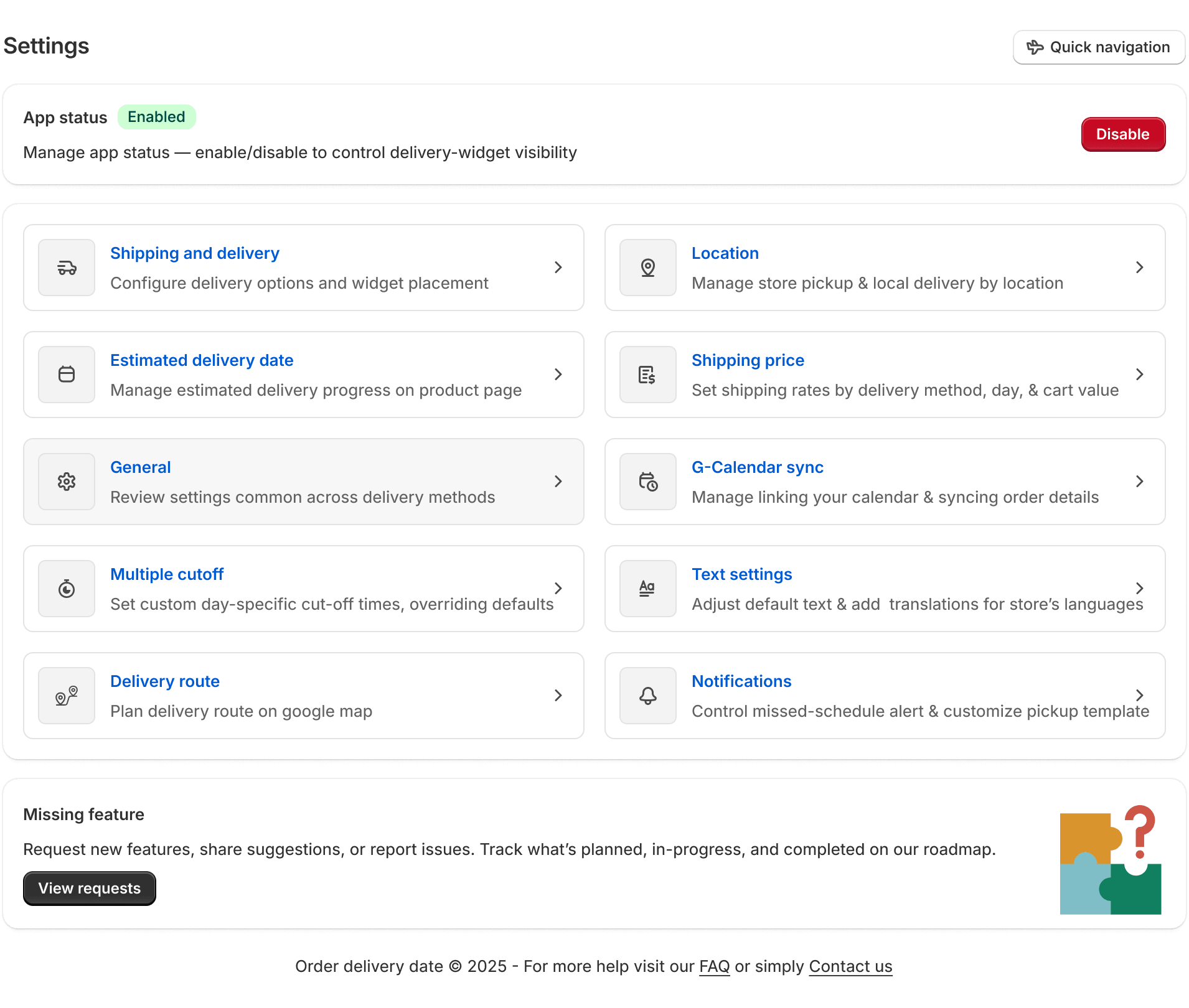
The App Status in the Delivery Date & Pickup Stellar app allows you to control whether the app is enabled or disabled on your store. When enabled, customers can access the app, while disabling it removes their access without altering your existing settings. You should use this feature after completing your initial setup to start accepting scheduled orders or temporarily disable it during maintenance or testing.
Before changing the App Status, ensure that the App Embed status in your Shopify theme matches it to avoid functionality issues. You can manage the App Status during onboarding, from the app dashboard (when disabled), or through the Settings page at any time. Remember, disabling the app does not erase your saved settings, allowing you to re-enable it whenever needed.
In this article, you will learn when to use App Status, what to check before changing it, and the exact steps to enable or disable the app.
When should you use this
Use the App Status setting whenever you need to enable or disable the Delivery Date & Pickup app for your store.
You can enable the app after completing your initial setup to start accepting scheduled delivery or pickup orders. If you temporarily do not want customers to use the app, you can disable it without changing your existing configuration. When you enable the app again, your previous settings remain available.
Common situations include:
- Enable the app after completing onboarding and configuration.
- Temporarily disable the app during store maintenance or theme updates.
- Disable the app while testing changes or troubleshooting issues.
- Re-enable the app when you are ready to make delivery scheduling available to customers again.
Before you begin
Before changing the App Status, make sure the App Embed status in your Shopify theme matches the app status.
The app status and the Theme App Embed work together. If the app is Enabled but the Theme App Embed is Disabled, the delivery scheduling widget will not appear on your storefront, and the app will not function correctly.
Likewise, if you disable the app, it is recommended to disable the Theme App Embed as well to keep both settings synchronized.
When and where to manage App Status
You can manage the App Status from different places in the app depending on where you are in the setup process.
01. During onboarding Enable Only
After completing the default onboarding settings, you can quickly enable the app directly from the onboarding flow. This lets you activate the app immediately and verify how the delivery scheduling widget appears on your storefront without navigating to another page.
New to onboarding? Read our Onboarding article for full setup steps.
02. App dashboard Enable Only
You will find the app status option on your app dashboard, but only when the app is disabled. Once you enable the app, this option no longer shows up on the dashboard. From the dashboard using App Status, you can enable it with a single click. This provides a quick way to activate the app without opening the Settings page.
Want to explore the dashboard in detail? Check out our App Dashboard article.
03. Settings page Enable / Disable
The Settings page is the only place where you can both enable and disable the app status. Use this option any time you want to turn the app off after it has been enabled. The Settings page always includes the App Status option. You can enable or disable the app from here at any time, regardless of its current status.
This is the primary location for managing the app status after onboarding.
- Log in to your Shopify account.
- Open the Delivery & Pickup app from your Apps list.
- Go to the Settings page from the menu navigation.
- Find the App Status option and enable or disable it as needed.