

The Order Limit feature allows you to manage how many orders your store can accept each day or during specific time slots for shipping, store pickup, and local delivery. This is particularly useful during busy times or when your delivery capacity is constrained, helping you avoid overbooking and ensuring smoother operations. To set order limits, access your Shopify Admin and navigate to the relevant settings for shipping, store pickup, or local delivery.
You can establish daily limits and set specific limits for time slots by enabling the appropriate options and entering the desired numbers. Remember, you can customize limits for each location independently, giving you comprehensive control over your order capacity.
The Order Limit feature allows merchants to control how many orders can be accepted per day or per time slot for:
- Shipping
- Store Pickup
- Local Delivery
This feature is especially helpful during busy periods, holidays, or when staff or delivery capacity is limited.
📌 Why Use This Feature?
With order limits, you can:
- Avoid overbooking and manage your operational capacity.
- Allocate resources better by limiting orders per time slot.
- Set different limits per location, so each store or warehouse handles its own capacity.
💡Example
Let’s say your bakery can handle only:
- 20 deliveries per day, and
- Only 5 orders per delivery slot (e.g., 10 AM – 12 PM, 12 PM – 2 PM).
By setting day-wise and slot-wise limits, you ensure:
- No more than 20 orders are accepted in one day.
- No more than 5 orders are booked per time slot.
This keeps operations smooth and customer expectations realistic.
📦 Steps to Set Order Limit for Shipping Orders
A) Set Order Limit per Day
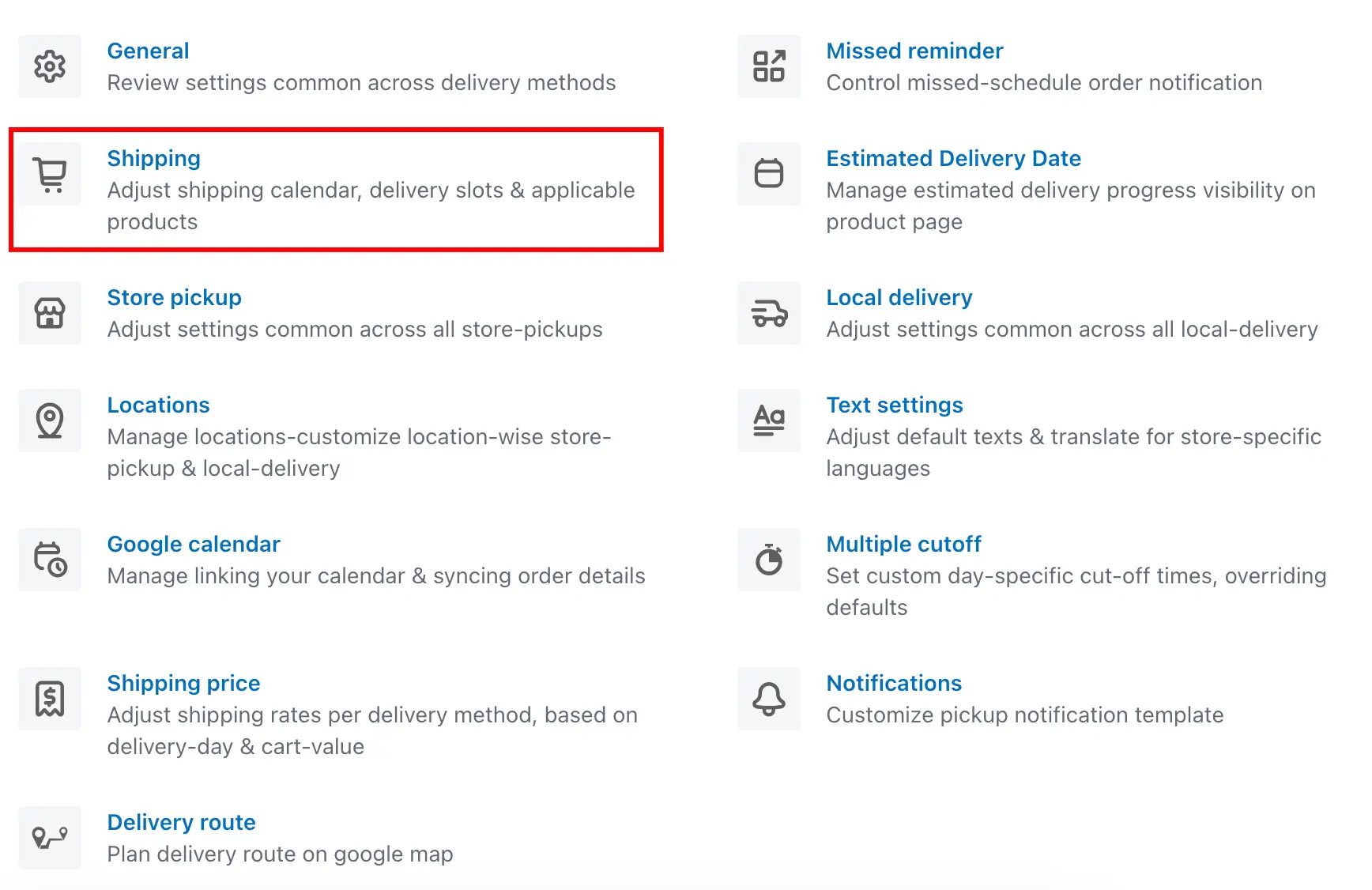
- Go to your Shopify Admin > Open the app.
- Navigate to Shipping Settings.
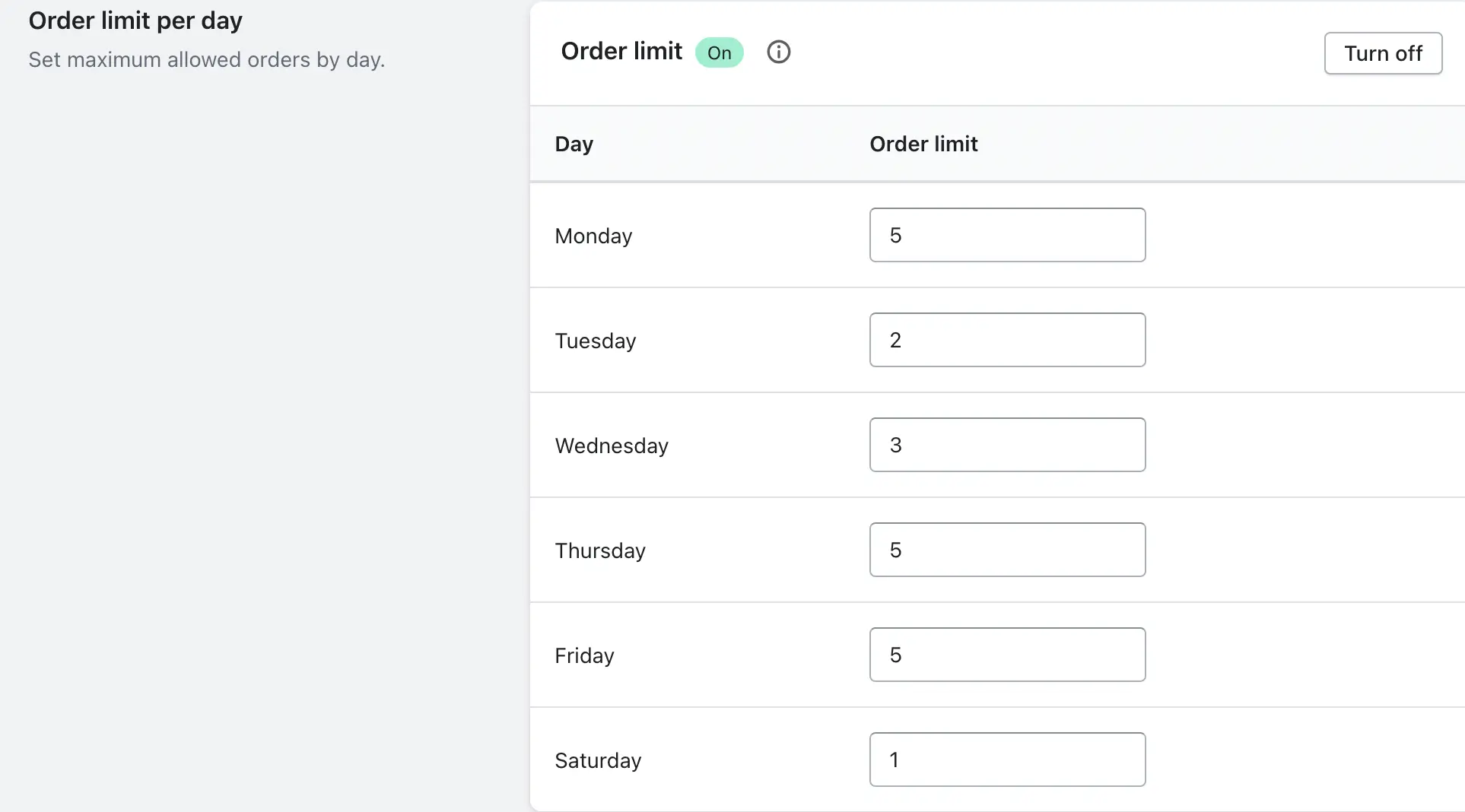
- Turn ON the “Order Limit per Day” option.
- Enter the maximum number of shipping orders allowed per day.
- Click Save.
B) Set Order Limit per Time Slot (for different days)
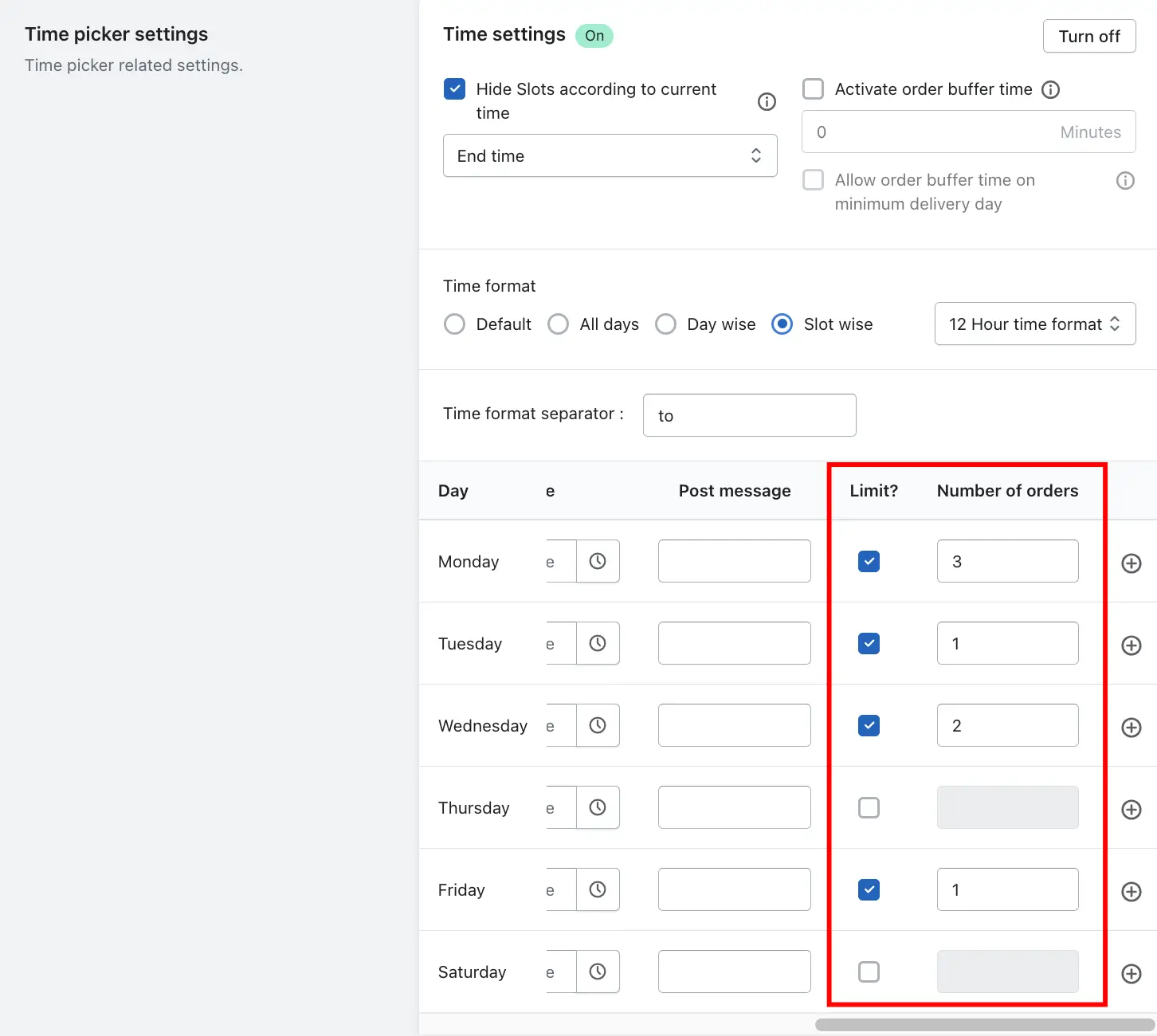
🔸 Time Picker Format must be set to “Slot Wise”
- Go to Shipping Settings > Time Picker Settings.
- Select “Slot Wise” time format.
- Add time slots for each day (e.g., 10 AM–12 PM, 12 PM–2 PM).
- Once added, you’ll see the “Limit” toggle for each slot—enable it.
- Set the order limit for each slot as needed.
- Click Save.
🏪 Steps to Set Order Limit for Store Pickup
A) Set Order Limit per Day
- Go to your Shopify Admin > Open the app.
- Navigate to Location Settings.
- Choose the store location and click Edit.
- Open Store Pickup Settings.
- Enable the “Order Limit per Day” option.
- Set the number of pickup orders allowed per day.
- Click Save.
B) Set Order Limit per Time Slot
🔸 Requires “Slot Wise” time picker
- Go to Location Settings > Edit a location.
- Open Store Pickup Settings.
- Under Time Picker Settings, choose “Slot Wise” format.
- Add time slots for different days.
- Enable the Limit toggle for each slot.
- Set the maximum pickup orders for each time slot.
- Click Save.
🚗 Steps to Set Order Limit for Local Delivery
A) Set Order Limit per Day:
- In the app, go to Location Settings.
- Edit the desired location.
- Open the Local Delivery Settings.
- Turn on Order Limit per Day.
- Set the daily limit.
- Click Save.
B) Set Order Limit per Time Slot (for different days):
- Go to Location Settings and edit the desired location.
- Open Local Delivery Settings.
- Under Time Picker Settings, choose “Slot Wise” format.
- Add time slots for each day.
- Enable the Limit option for each time slot.
- Enter the limit for each slot as needed.
- Click Save.
- You can set different order limits for each location separately.
- Limits can be applied to Store Pickup and Local Delivery independently per location.
- Combining day-wise and slot-wise settings gives you full control over your order capacity.