

The calendar view in the Order listing page allows you to see all your orders based on their scheduled shipping, pickup, or delivery dates, providing a clear overview of what needs your attention each day. This feature helps you avoid scrolling through long tables by presenting your orders in a visually organized calendar format. To access the calendar view, log in to your Shopify admin, open the Delivery & Pickup app, and click on Order listing, then select the calendar view button. You can navigate through months using the arrows or return to the current month with a single click.
Each order is color-coded by delivery type and includes a status icon for easy identification. Remember, only orders with a scheduled date will appear in the calendar; check the Table view for your complete order list. You can also update an order’s delivery status directly from the calendar without needing to open it separately in Shopify.
In this article, we will walk through how to open the calendar view, what each toolbar option does, and how to read the order details on any date.
How to access this page
- Log in to your Shopify admin.
- Open the Delivery & Pickup app.
- In the app menu, click Order listing.
- Click the calendar view button on the top right corner to switch views.
Calendar toolbar explained
Before we look at the orders themselves, let’s cover the buttons at the top of the calendar. These help you move around and organize what you see.
As you move forward or backward through months, you may end up far from today’s date. Clicking this button takes you straight back to the current month. For example, if you have navigated all the way to September 2028 and today is August 2026, one click brings you right back to August 2026. This saves you from clicking back through every month one at a time.
Month navigation Arrows
Use the left and right arrows next to the month name to move to the previous or next month. This is how you check orders scheduled for a different month. You can also click on the month to go on year and month directly.
Month list / Week list Toggle
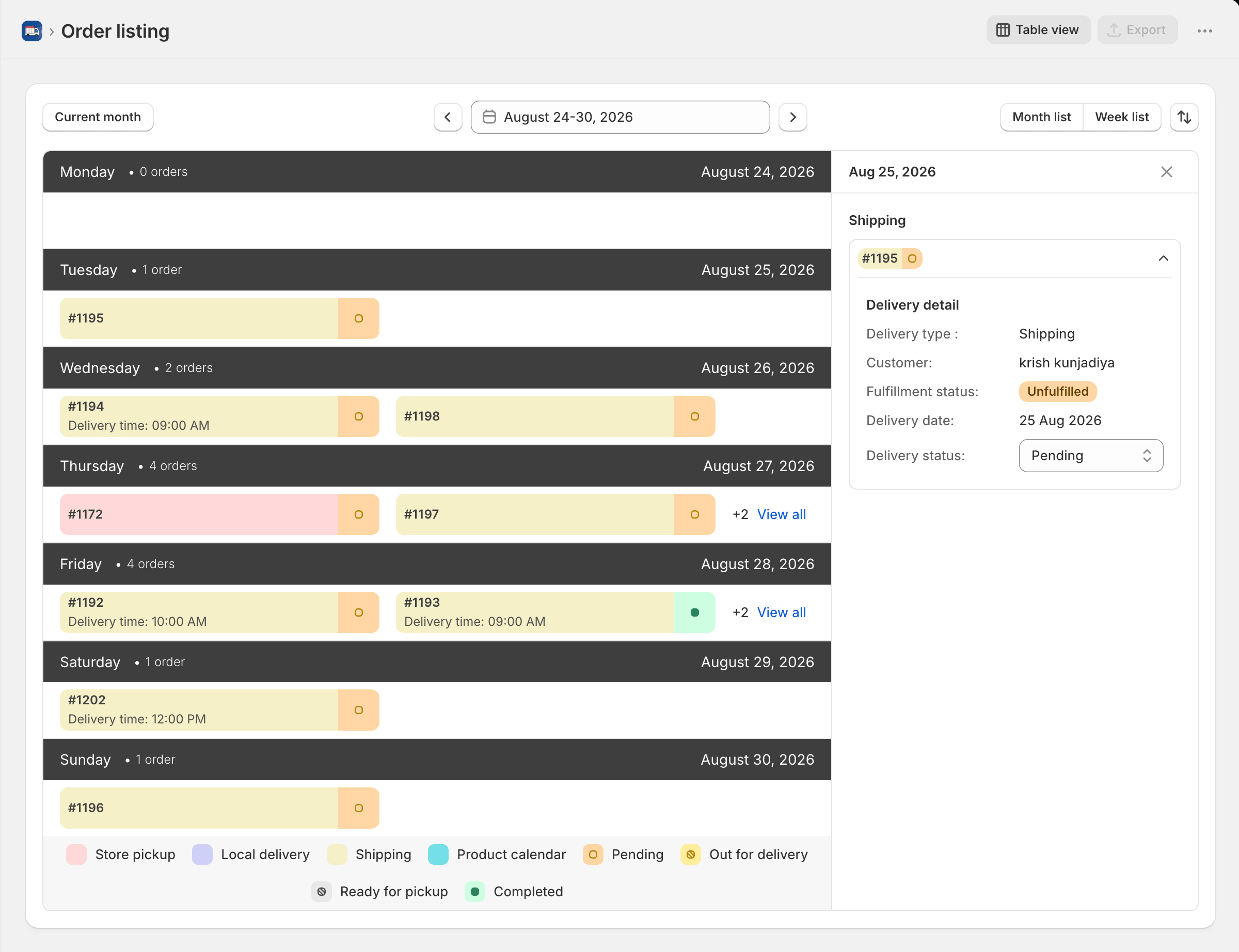
The calendar opens in Month list view by default, showing the whole month at once. Click Week list to narrow the view down to a single week. Once you switch, the button changes back to Month list so you can return to the full month view whenever you want.
Sort by Icon
This button lets you sort the orders shown on each date, either by order number or by delivery time. Use this to control the order in which orders appear inside each date cell.
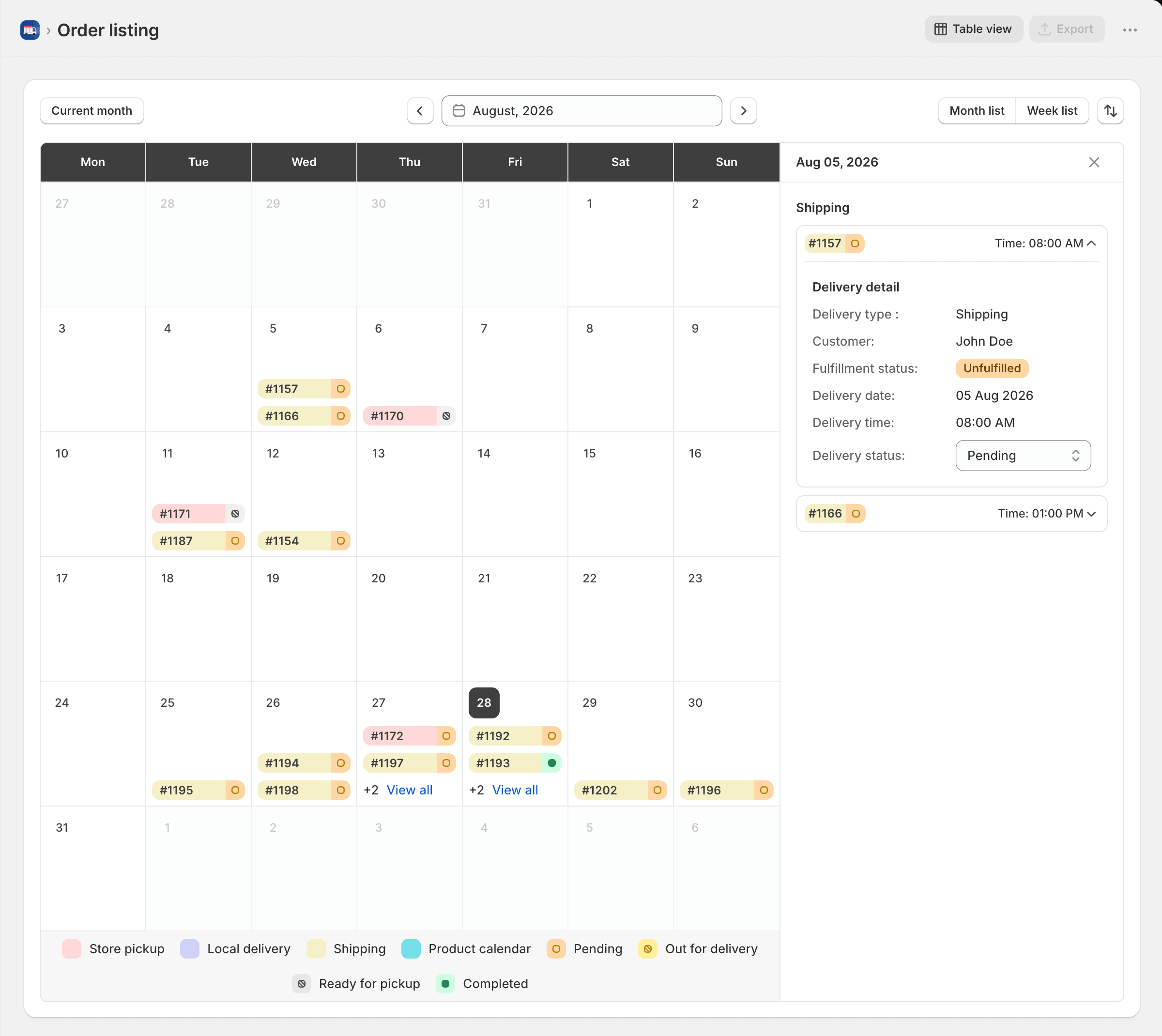
Month list
Week list
Reading orders on the calendar
Every order placed with a shipping, store pickup, local delivery, or product calendar date shows up on its scheduled date. Each order appears as a small colored tag with its order number, so you can see at a glance how many orders fall on any given day.
Each order list is colored based on its delivery type: shipping, store pickup, local delivery, or product calendar. A small status icon next to the order number shows whether it is pending, out for delivery, ready for pickup, or completed.
Click an order Detail panel
Clicking any order opens its full details on the right side of the calendar. Orders for that date are grouped by delivery method, for example, all shipping orders for that day are listed together and can be expanded or collapsed one by one.
Delivery detail panel Info
Once expanded, an order shows its full delivery information:
- Delivery type — Shipping, Store pickup, Local delivery, or Product calendar
- Customer — the name on the order
- Fulfillment status — for example, Fulfilled or Unfulfilled
- Delivery date — the scheduled date
- Delivery time — the scheduled time slot
- Delivery status — an editable dropdown you can update directly from here
Delivery status options Dropdown
The available statuses change depending on the delivery type:
- Shipping — Pending, Out for delivery, Delivered
- Store pickup — Pending, Ready for pickup, Handed
- Local delivery — Pending, Out for delivery, Delivered
- Product calendar — Pending, Out for delivery, Delivered
View all Link
If a date has more than two orders, the calendar shows a +2 View all label instead of listing every order in the cell. Click it to see the complete list of orders for that date.
Colour legend explained
At the bottom of the calendar, you will find a legend. It explains what each color and icon means, so you can scan the calendar quickly without opening every order.
- Pink — Store pickup
- Purple — Local delivery
- Yellow — Shipping
- Teal — Product calendar
Status icons Legend
- Orange circle — Pending
- Yellow icon — Out for delivery
- Grey icon — Ready for pickup
- Green dot — Completed


