

The Missing feature section in the Delivery Date & Pickup Stellar app allows you to request new features, suggest improvements, or report bugs. You can also view what other stores have requested. To access this section, go to your Shopify admin, open the Delivery & Pickup app, and click on the Missing feature link. Here, you will find two tabs: Feature requests, where you can submit and browse requests, and Roadmap, which shows the progress of these requests.
When submitting a request, provide a clear title and detailed description, and choose the appropriate request type. Before submitting, search existing requests to avoid duplicates. The Roadmap tab categorizes requests into Pipeline, In Development, and Done, allowing you to track their status. Regularly checking the Roadmap helps you stay updated on your requests, and remember to attach screenshots for bug reports to clarify issues effectively.
In this article, you will learn how to submit a request, how to filter and search existing requests, and how the Roadmap shows you where each request progress stands.
How to access this page
- Go to your Shopify admin.
- Open the Delivery & Pickup app.
- Look for the Missing feature link, usually in the app menu.
- You will land on a page with two tabs: Feature requests and Roadmap.
How this section works
This section has two tabs. Each one shows you something different. Together, they help you track feature requests from start to finish.
Feature requests tab explained
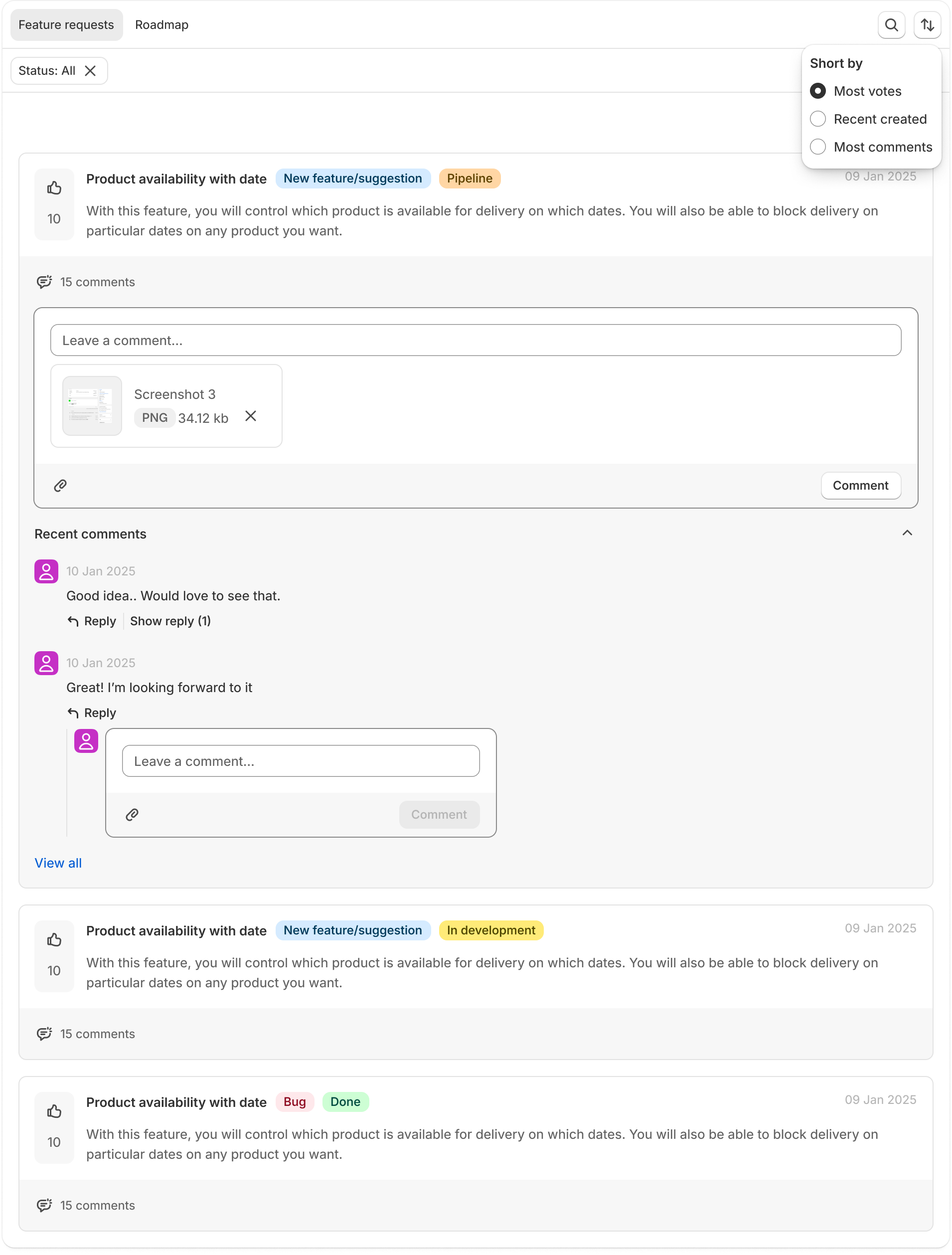
The Feature Requests tab has two parts. On the left, you can submit a new request. On the right, you can browse and filter all existing requests. Click on any request in the list to view detailed information, including comments, and other relevant details.
Submitting a new request
Write a short, clear title for your request. For example, “Add SMS reminders for pickup orders.” A good title helps our team understand your request at a glance.
Description Text
Describe your request in more detail here. Explain what you need and why it would help your store. The more details you add, the easier it is for us to build the right solution.
Request Type Radio
Choose New feature/suggestion if you want something added or improved. Choose Report Bug if something in the app is not working as expected.
Upload File Attachment
Attach a screenshot or file if it helps explain your request. This is optional, but it often makes bug reports much clearer.
Browsing and filtering requests
Sort the request list by Most votes, Recently created, or Most comments. Use “Most votes” to see what other stores want the most. Use “Recently created” to see the newest ideas first.
Status Dropdown
Filter requests by their current stage: All, Pending, Published, Pipeline, In development, or Done. This helps you quickly find requests at a specific stage, without scrolling through the full list.
My Posts Checkbox
Check this box to see only the requests and bugs you have submitted yourself. All other requests will be hidden from the list. Uncheck it to see everyone’s requests again.
Search Text
Type a keyword to find a specific request. For example, search “SMS” to see every request related to text message notifications. This saves you from scrolling through long lists.
Roadmap tab explained
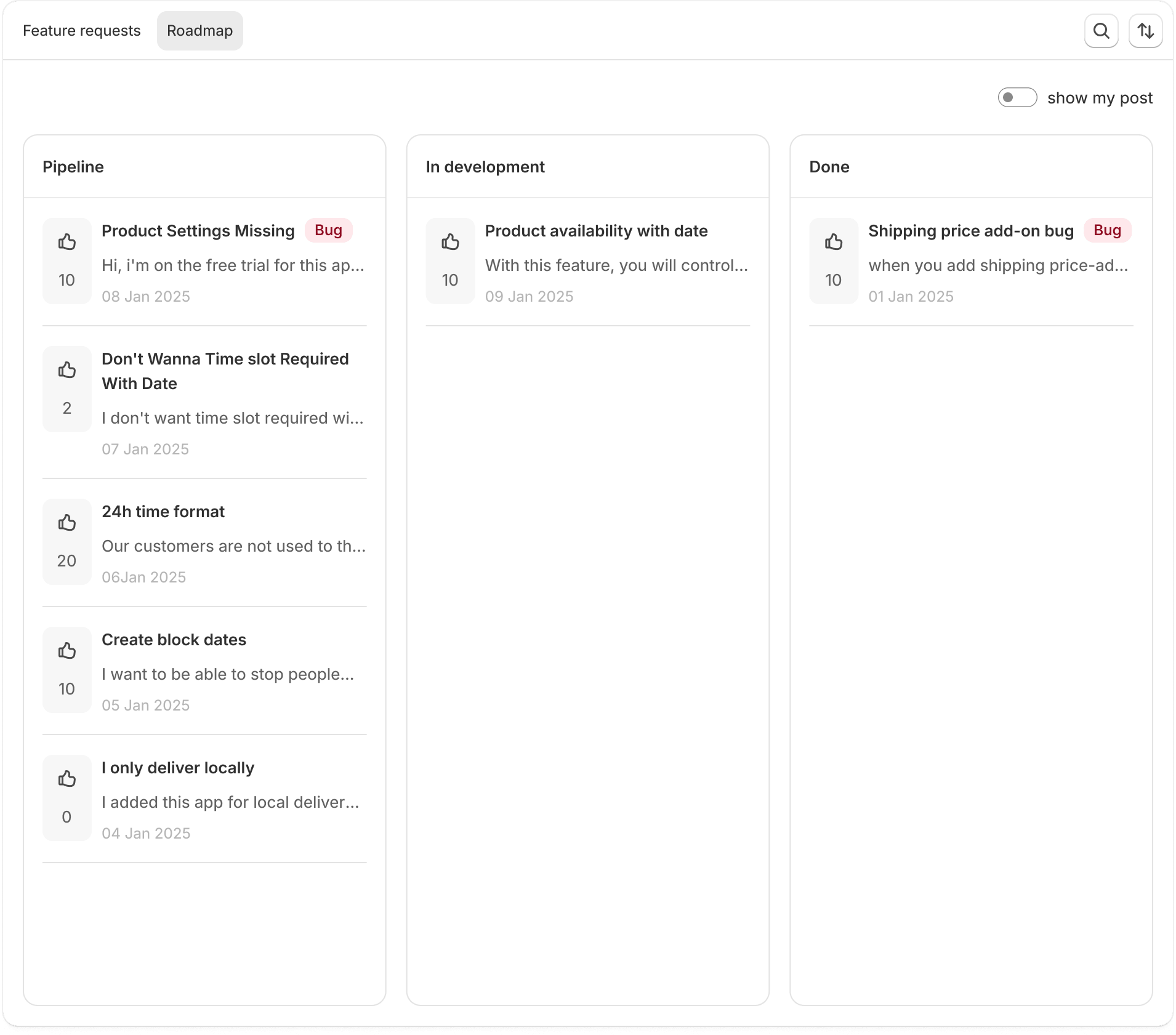
Tracking Request Progress
Pipeline Column
Requests here are approved and waiting to be picked up by our development team. They have not started yet.
In Development Column
Requests here are actively being built right now.
Done Column
Requests here are complete and already live in the app.
Just like the Feature Requests tab, you can use the Order dropdown, the Search bar, and the My Posts checkbox here too. This makes it easy to check the status of only the requests you have submitted.
Tips & best practices
2. Write a clear title — A specific title, like “Add pickup reminders 2 hours before slot,” helps our team understand your need right away.
3. Add details in the description — Explain your use case. This helps us build a solution that truly fits your store.
4. Attach a screenshot for bugs — A screenshot often explains a bug faster than words alone.
5. Check the Roadmap regularly — Use the Roadmap tab to follow your request from Pipeline to Done.


