

The cutoff time feature in your delivery app allows you to manage same-day delivery by setting a daily deadline for orders. This ensures you have sufficient time to fulfill orders placed before the cutoff, while those made after will only be eligible for next-day delivery, streamlining your logistics. To set the cutoff time, access your Shopify Admin, navigate to the app's General Settings, and adjust the Cut-off Time Settings under Shipping Settings.
You can also set cutoff times for store pickup and local delivery by editing the location settings. If needed, different products can have unique cutoff times through the Product Settings feature. Remember to save your changes to activate the settings effectively.
The cutoff time feature in a delivery app for a Shopify store allows you to manage same-day delivery effectively by defining a deadline time each day. Here’s how it works:
Purpose
It ensures that you have enough time to fulfill same-day delivery orders placed before a certain time of day (for example, 11:40 AM). Orders placed after this time will not be eligible for same-day delivery, helping you manage logistics more smoothly.
How it works
Before Cutoff Time: Customers see all available same-day delivery slots and can select one at checkout.
After Cutoff Time: The app hides all same-day delivery slots, so customers can only choose delivery slots for the next day or later.
To activate cutoff time for shipping feature
Step 1: Go to your Shopify Admin.
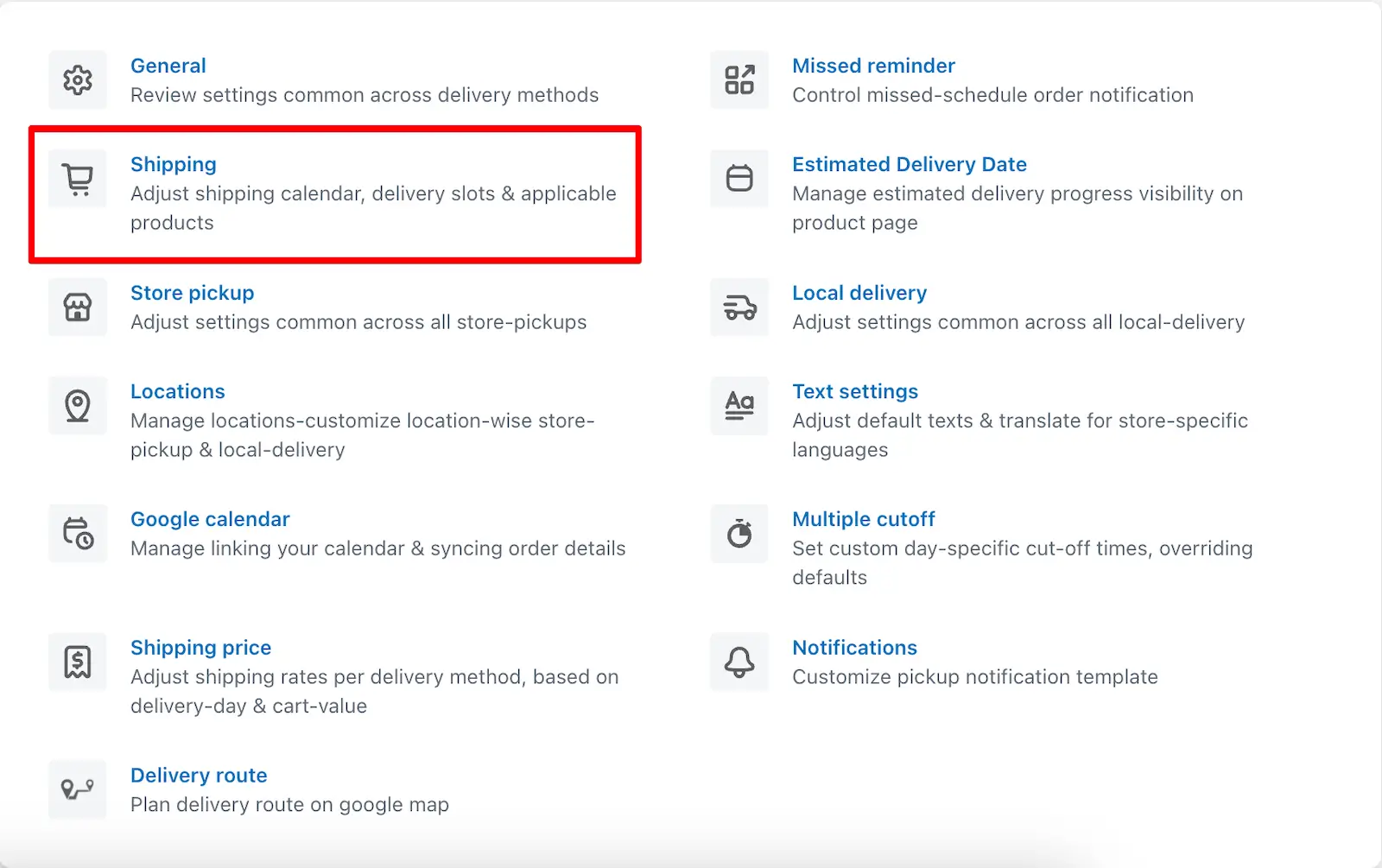
Step 2: Open the app and navigate to the General Settings.
Step 3: Click on Shipping Settings.
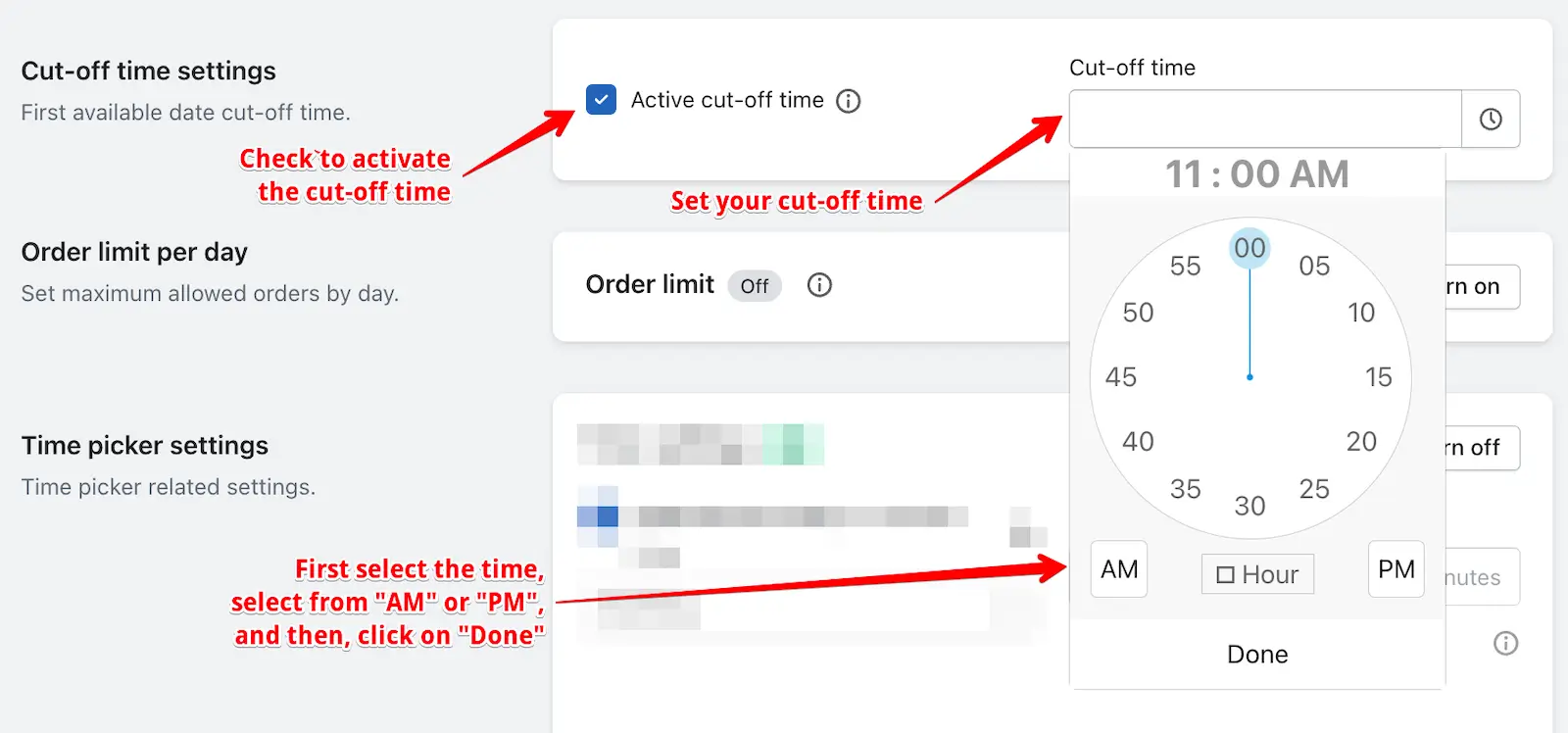
Step 4: Go to the Cut-off Time Settings option.
Step 5: Enable the Active Cut-off Time and set the cut-off time as per your preference.
Step 6: Save the settings.
To activate cutoff time for Store pickup And local delivery
Step 1: Go to your Shopify Admin.
Step 2: Click on Locations from settings.
Step 3: Edit the location, then edit Store Pickup or Local Delivery as needed.
Step 4: Next, go to Calendar and Checkout Button Settings.
Step 5: Enable the Cutoff Time feature, set the desired cutoff time.
Step 6: Save the settings.
Enable cut-off for store pickup
Enable cut-off for local delivery
To activate cutoff time for Product Calendar
Step 1: Go to your Shopify Admin.
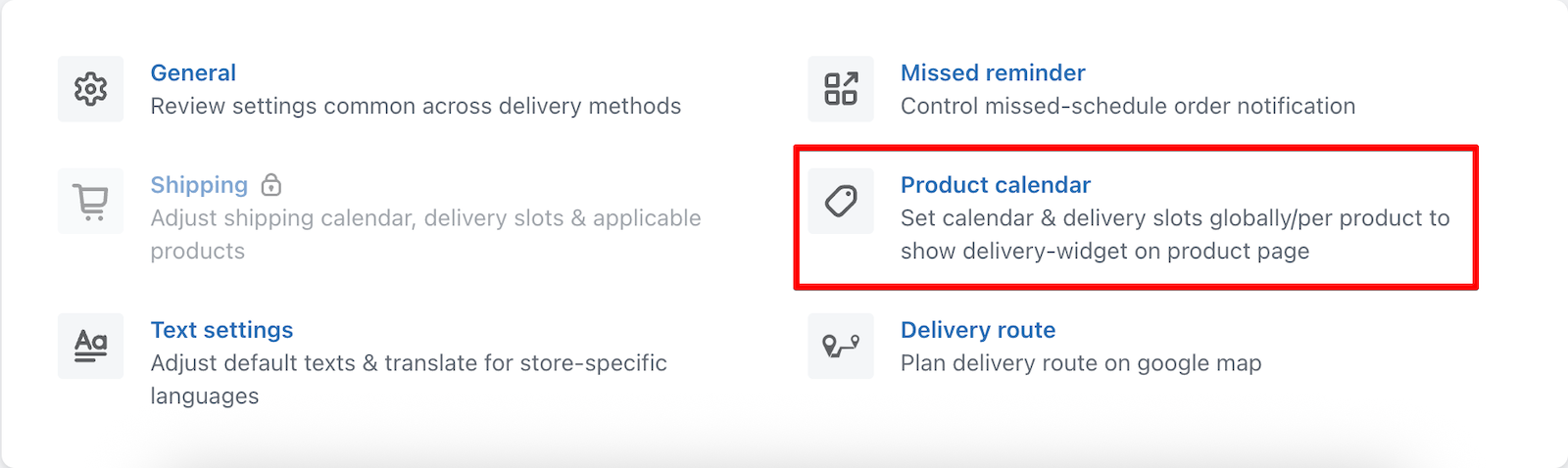
Step 2: Click on Product Calendar.
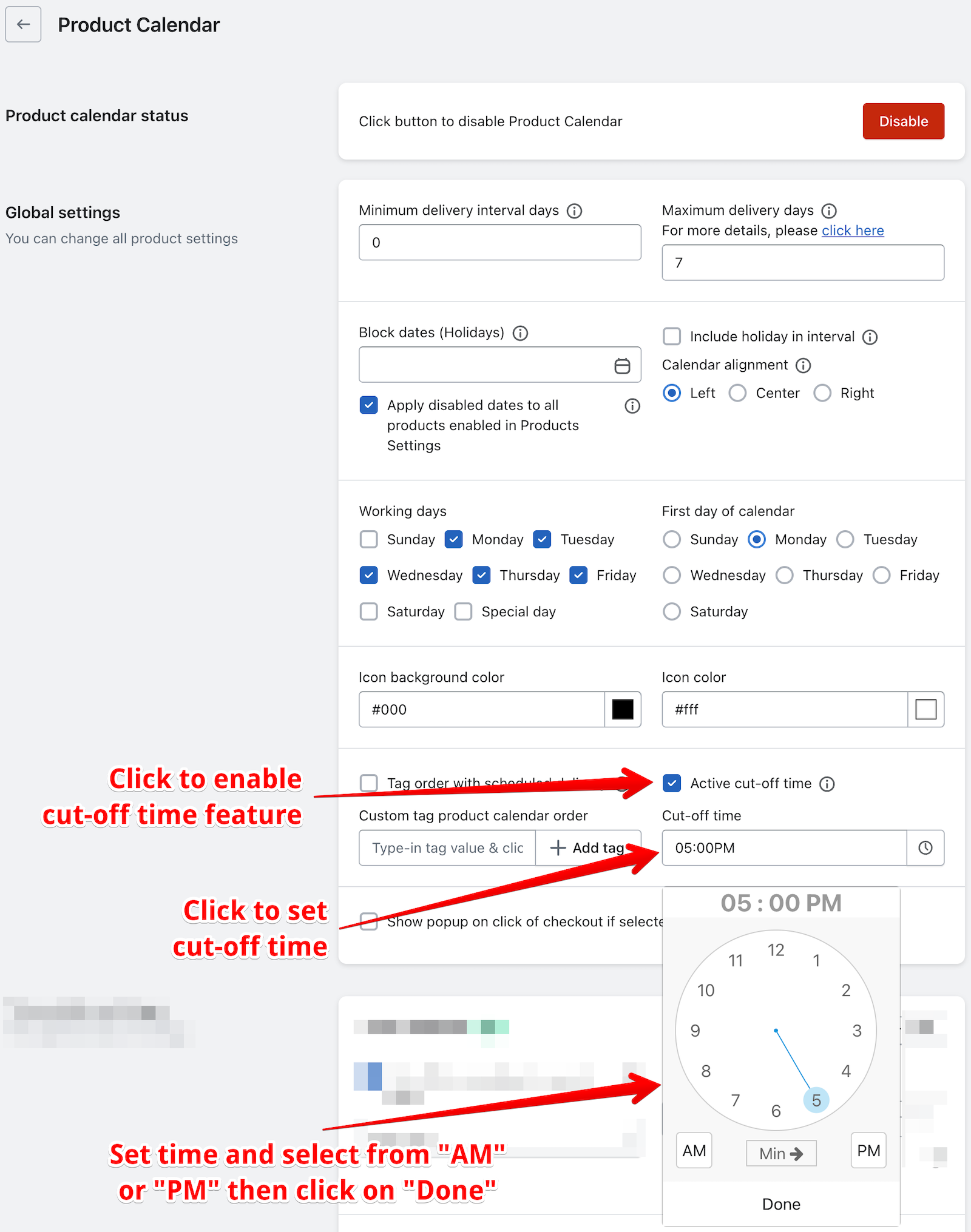
Step 3: Global settings > Enable cutoff time and save the settings.
➞ If you want to set a different cut-off time for different products, you can do this using the Product Settings feature. Open the specific product from the Product Settings and enable the Active Cut-off Time option for that particular product.
➞ Activate cut-off in individual product:
Read the complete guide on Stellar Delivery Date & Pickup.