

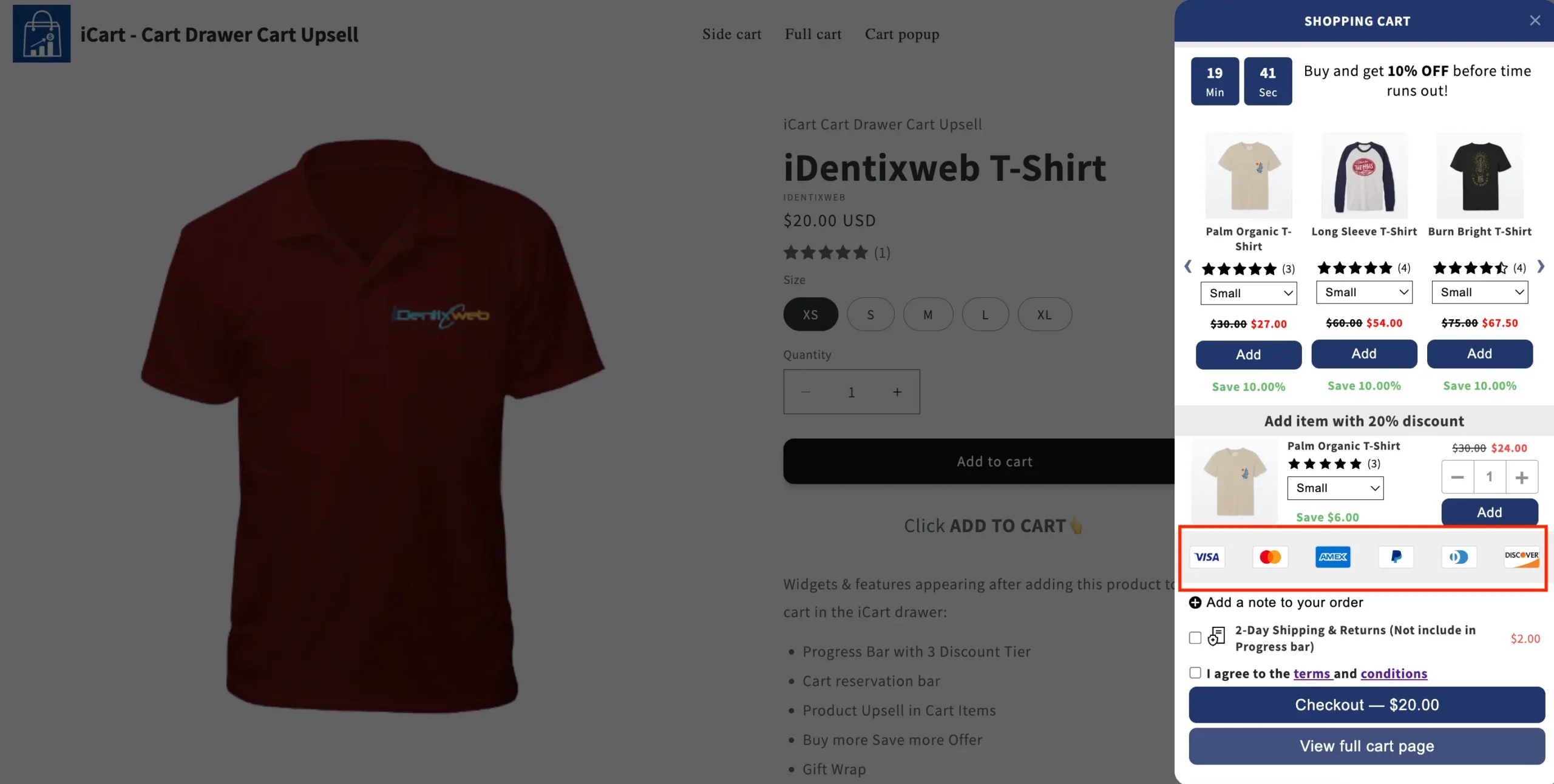
Adding payment icons to your cart page enhances customer trust and confidence by displaying familiar payment methods like Visa, Mastercard, and PayPal directly within the cart. This feature allows customers to see accepted payment options without navigating to the checkout page, streamlining the purchasing process and giving your store a more professional appearance. To add payment icons, you will use the Custom HTML widget in the iCart Cart Drawer Cart Upsell app.
First, identify the payment methods your store accepts and obtain the corresponding SVG/HTML code for those icons. Then, log in to your Shopify Admin, open the iCart app, and customize either the Quick Cart or Full Cart by adding the Custom HTML widget and pasting your payment icon code. Remember to position the widget appropriately and save your changes to ensure the icons are displayed correctly.
With the iCart Cart Drawer Cart Upsell app, you can easily display payment icons inside your cart using the Custom HTML widget.
In this guide, you’ll learn how to add payment icons to your Quick (Side) Cart and Full Cart — step by step.
Why Add Payment Icons to Your Cart?
Showing payment icons inside the cart has real benefits for your store:
- Builds trust — Customers recognize familiar payment logos and feel confident purchasing.
- Reduces friction — Customers don’t need to visit the checkout page just to check which payment methods you accept.
- Smoother checkout — When payment options are visible early, customers can move through checkout without hesitation.
- Professional appearance — A cart with payment icons looks polished and complete.
How It Works
iCart allows you to customize the cart layout using widgets. The Custom HTML widget lets you paste any HTML — including payment icon SVG code — directly into your cart.
Here’s the overall process:
- Step 1 — Identify which payment methods your store accepts.
- Step 2 — Get the SVG/HTML code for those payment icons.
- Step 3 — Add the HTML to your cart using the Custom HTML widget in iCart.
Steps to Add Payment Icons
🛒 Quick (Side) Cart Cart Drawer
- Log in to your Shopify Admin.
- Open the iCart Cart Drawer Cart Upsell app from your admin panel.
- On the app dashboard, find Quick Cart and click the Customize button.
- Once the customizer loads, go to the Widgets tab on the left-hand side.
- Click Add Widget to open the widget list.
- Find Custom HTML in the list and click Add to insert it into your cart.
- Paste your payment icon HTML code into the HTML field of the widget.
- Drag and drop the widget to position it where you’d like the icons to appear.
- Click Save to apply your changes.
📄 Full Cart Cart Page
- Log in to your Shopify Admin.
- Open the iCart Cart Drawer Cart Upsell app from your admin panel.
- On the app dashboard, find Full Cart and click the Customize button.
- Once the customizer loads, go to the Widgets tab on the left-hand side.
- Click Add Widget to open the widget list.
- Find Custom HTML in the list and click Add to insert it into your cart.
- Paste your payment icon HTML code into the HTML field of the widget.
- Drag and drop the widget to position it where you’d like the icons to appear.
- Click Save to apply your changes.
Example Code
Below is an example HTML snippet that adds payment icons for Visa, Mastercard, American Express, PayPal, Diners Club, and Discover. You can see this in action on our demo store.
Paste this inside the Custom HTML widget:
<div class="footer__payment">
<span class="visually-hidden">Payment methods</span>
<ul class="list list-payment payment-icons" role="list"><li class="list-payment__item">
        <svg class="icon icon--full-color" viewBox="0 0 38 24" xmlns="http://www.w3.org/2000/svg" role="img" width="38" height="24" aria-labelledby="pi-visa"><title id="pi-visa">Visa</title><path opacity=".07" d="M35 0H3C1.3 0 0 1.3 0 3v18c0 1.7 1.4 3 3 3h32c1.7 0 3-1.3 3-3V3c0-1.7-1.4-3-3-3z"></path><path fill="#fff" d="M35 1c1.1 0 2 .9 2 2v18c0 1.1-.9 2-2 2H3c-1.1 0-2-.9-2-2V3c0-1.1.9-2 2-2h32"></path><path d="M28.3 10.1H28c-.4 1-.7 1.5-1 3h1.9c-.3-1.5-.3-2.2-.6-3zm2.9 5.9h-1.7c-.1 0-.1 0-.2-.1l-.2-.9-.1-.2h-2.4c-.1 0-.2 0-.2.2l-.3.9c0 .1-.1.1-.1.1h-2.1l.2-.5L27 8.7c0-.5.3-.7.8-.7h1.5c.1 0 .2 0 .2.2l1.4 6.5c.1.4.2.7.2 1.1.1.1.1.1.1.2zm-13.4-.3l.4-1.8c.1 0 .2.1.2.1.7.3 1.4.5 2.1.4.2 0 .5-.1.7-.2.5-.2.5-.7.1-1.1-.2-.2-.5-.3-.8-.5-.4-.2-.8-.4-1.1-.7-1.2-1-.8-2.4-.1-3.1.6-.4.9-.8 1.7-.8 1.2 0 2.5 0 3.1.2h.1c-.1.6-.2 1.1-.4 1.7-.5-.2-1-.4-1.5-.4-.3 0-.6 0-.9.1-.2 0-.3.1-.4.2-.2.2-.2.5 0 .7l.5.4c.4.2.8.4 1.1.6.5.3 1 .8 1.1 1.4.2.9-.1 1.7-.9 2.3-.5.4-.7.6-1.4.6-1.4 0-2.5.1-3.4-.2-.1.2-.1.2-.2.1zm-3.5.3c.1-.7.1-.7.2-1 .5-2.2 1-4.5 1.4-6.7.1-.2.1-.3.3-.3H18c-.2 1.2-.4 2.1-.7 3.2-.3 1.5-.6 3-1 4.5 0 .2-.1.2-.3.2M5 8.2c0-.1.2-.2.3-.2h3.4c.5 0 .9.3 1 .8l.9 4.4c0 .1 0 .1.1.2 0-.1.1-.1.1-.1l2.1-5.1c-.1-.1 0-.2.1-.2h2.1c0 .1 0 .1-.1.2l-3.1 7.3c-.1.2-.1.3-.2.4-.1.1-.3 0-.5 0H9.7c-.1 0-.2 0-.2-.2L7.9 9.5c-.2-.2-.5-.5-.9-.6-.6-.3-1.7-.5-1.9-.5L5 8.2z" fill="#142688"></path></svg>
    </li><li class="list-payment__item">
        <svg class="icon icon--full-color" viewBox="0 0 38 24" xmlns="http://www.w3.org/2000/svg" role="img" width="38" height="24" aria-labelledby="pi-master"><title id="pi-master">Mastercard</title><path opacity=".07" d="M35 0H3C1.3 0 0 1.3 0 3v18c0 1.7 1.4 3 3 3h32c1.7 0 3-1.3 3-3V3c0-1.7-1.4-3-3-3z"></path><path fill="#fff" d="M35 1c1.1 0 2 .9 2 2v18c0 1.1-.9 2-2 2H3c-1.1 0-2-.9-2-2V3c0-1.1.9-2 2-2h32"></path><circle fill="#EB001B" cx="15" cy="12" r="7"></circle><circle fill="#F79E1B" cx="23" cy="12" r="7"></circle><path fill="#FF5F00" d="M22 12c0-2.4-1.2-4.5-3-5.7-1.8 1.3-3 3.4-3 5.7s1.2 4.5 3 5.7c1.8-1.2 3-3.3 3-5.7z"></path></svg>
    </li><li class="list-payment__item">
        <svg class="icon icon--full-color" xmlns="http://www.w3.org/2000/svg" role="img" viewBox="0 0 38 24" width="38" height="24" aria-labelledby="pi-american_express"><title id="pi-american_express">American Express</title><g fill="none"><path fill="#000" d="M35,0 L3,0 C1.3,0 0,1.3 0,3 L0,21 C0,22.7 1.4,24 3,24 L35,24 C36.7,24 38,22.7 38,21 L38,3 C38,1.3 36.6,0 35,0 Z" opacity=".07"></path><path fill="#006FCF" d="M35,1 C36.1,1 37,1.9 37,3 L37,21 C37,22.1 36.1,23 35,23 L3,23 C1.9,23 1,22.1 1,21 L1,3 C1,1.9 1.9,1 3,1 L35,1"></path><path fill="#FFF" d="M8.971,10.268 L9.745,12.144 L8.203,12.144 L8.971,10.268 Z M25.046,10.346 L22.069,10.346 L22.069,11.173 L24.998,11.173 L24.998,12.412 L22.075,12.412 L22.075,13.334 L25.052,13.334 L25.052,14.073 L27.129,11.828 L25.052,9.488 L25.046,10.346 L25.046,10.346 Z M10.983,8.006 L14.978,8.006 L15.865,9.941 L16.687,8 L27.057,8 L28.135,9.19 L29.25,8 L34.013,8 L30.494,11.852 L33.977,15.68 L29.143,15.68 L28.065,14.49 L26.94,15.68 L10.03,15.68 L9.536,14.49 L8.406,14.49 L7.911,15.68 L4,15.68 L7.286,8 L10.716,8 L10.983,8.006 Z M19.646,9.084 L17.407,9.084 L15.907,12.62 L14.282,9.084 L12.06,9.084 L12.06,13.894 L10,9.084 L8.007,9.084 L5.625,14.596 L7.18,14.596 L7.674,13.406 L10.27,13.406 L10.764,14.596 L13.484,14.596 L13.484,10.661 L15.235,14.602 L16.425,14.602 L18.165,10.673 L18.165,14.603 L19.623,14.603 L19.647,9.083 L19.646,9.084 Z M28.986,11.852 L31.517,9.084 L29.695,9.084 L28.094,10.81 L26.546,9.084 L20.652,9.084 L20.652,14.602 L26.462,14.602 L28.076,12.864 L29.624,14.602 L31.499,14.602 L28.987,11.852 L28.986,11.852 Z"></path></g></svg>
    </li><li class="list-payment__item">
        <svg class="icon icon--full-color" viewBox="0 0 38 24" xmlns="http://www.w3.org/2000/svg" width="38" height="24" role="img" aria-labelledby="pi-paypal"><title id="pi-paypal">PayPal</title><path opacity=".07" d="M35 0H3C1.3 0 0 1.3 0 3v18c0 1.7 1.4 3 3 3h32c1.7 0 3-1.3 3-3V3c0-1.7-1.4-3-3-3z"></path><path fill="#fff" d="M35 1c1.1 0 2 .9 2 2v18c0 1.1-.9 2-2 2H3c-1.1 0-2-.9-2-2V3c0-1.1.9-2 2-2h32"></path><path fill="#003087" d="M23.9 8.3c.2-1 0-1.7-.6-2.3-.6-.7-1.7-1-3.1-1h-4.1c-.3 0-.5.2-.6.5L14 15.6c0 .2.1.4.3.4H17l.4-3.4 1.8-2.2 4.7-2.1z"></path><path fill="#3086C8" d="M23.9 8.3l-.2.2c-.5 2.8-2.2 3.8-4.6 3.8H18c-.3 0-.5.2-.6.5l-.6 3.9-.2 1c0 .2.1.4.3.4H19c.3 0 .5-.2.5-.4v-.1l.4-2.4v-.1c0-.2.3-.4.5-.4h.3c2.1 0 3.7-.8 4.1-3.2.2-1 .1-1.8-.4-2.4-.1-.5-.3-.7-.5-.8z"></path><path fill="#012169" d="M23.3 8.1c-.1-.1-.2-.1-.3-.1-.1 0-.2 0-.3-.1-.3-.1-.7-.1-1.1-.1h-3c-.1 0-.2 0-.2.1-.2.1-.3.2-.3.4l-.7 4.4v.1c0-.3.3-.5.6-.5h1.3c2.5 0 4.1-1 4.6-3.8v-.2c-.1-.1-.3-.2-.5-.2h-.1z"></path></svg>
    </li><li class="list-payment__item">
        <svg class="icon icon--full-color" viewBox="0 0 38 24" xmlns="http://www.w3.org/2000/svg" role="img" width="38" height="24" aria-labelledby="pi-diners_club"><title id="pi-diners_club">Diners Club</title><path opacity=".07" d="M35 0H3C1.3 0 0 1.3 0 3v18c0 1.7 1.4 3 3 3h32c1.7 0 3-1.3 3-3V3c0-1.7-1.4-3-3-3z"></path><path fill="#fff" d="M35 1c1.1 0 2 .9 2 2v18c0 1.1-.9 2-2 2H3c-1.1 0-2-.9-2-2V3c0-1.1.9-2 2-2h32"></path><path d="M12 12v3.7c0 .3-.2.3-.5.2-1.9-.8-3-3.3-2.3-5.4.4-1.1 1.2-2 2.3-2.4.4-.2.5-.1.5.2V12zm2 0V8.3c0-.3 0-.3.3-.2 2.1.8 3.2 3.3 2.4 5.4-.4 1.1-1.2 2-2.3 2.4-.4.2-.4.1-.4-.2V12zm7.2-7H13c3.8 0 6.8 3.1 6.8 7s-3 7-6.8 7h8.2c3.8 0 6.8-3.1 6.8-7s-3-7-6.8-7z" fill="#3086C8"></path></svg>
    </li><li class="list-payment__item">
        <svg class="icon icon--full-color" viewBox="0 0 38 24" width="38" height="24" role="img" aria-labelledby="pi-discover" fill="none" xmlns="http://www.w3.org/2000/svg"><title id="pi-discover">Discover</title><path fill="#000" opacity=".07" d="M35 0H3C1.3 0 0 1.3 0 3v18c0 1.7 1.4 3 3 3h32c1.7 0 3-1.3 3-3V3c0-1.7-1.4-3-3-3z"></path><path d="M35 1c1.1 0 2 .9 2 2v18c0 1.1-.9 2-2 2H3c-1.1 0-2-.9-2-2V3c0-1.1.9-2 2-2h32z" fill="#fff"></path><path d="M3.57 7.16H2v5.5h1.57c.83 0 1.43-.2 1.96-.63.63-.52 1-1.3 1-2.11-.01-1.63-1.22-2.76-2.96-2.76zm1.26 4.14c-.34.3-.77.44-1.47.44h-.29V8.1h.29c.69 0 1.11.12 1.47.44.37.33.59.84.59 1.37 0 .53-.22 1.06-.59 1.39zm2.19-4.14h1.07v5.5H7.02v-5.5zm3.69 2.11c-.64-.24-.83-.4-.83-.69 0-.35.34-.61.8-.61.32 0 .59.13.86.45l.56-.73c-.46-.4-1.01-.61-1.62-.61-.97 0-1.72.68-1.72 1.58 0 .76.35 1.15 1.35 1.51.42.15.63.25.74.31.21.14.32.34.32.57 0 .45-.35.78-.83.78-.51 0-.92-.26-1.17-.73l-.69.67c.49.73 1.09 1.05 1.9 1.05 1.11 0 1.9-.74 1.9-1.81.02-.89-.35-1.29-1.57-1.74zm1.92.65c0 1.62 1.27 2.87 2.9 2.87.46 0 .86-.09 1.34-.32v-1.26c-.43.43-.81.6-1.29.6-1.08 0-1.85-.78-1.85-1.9 0-1.06.79-1.89 1.8-1.89.51 0 .9.18 1.34.62V7.38c-.47-.24-.86-.34-1.32-.34-1.61 0-2.92 1.28-2.92 2.88zm12.76.94l-1.47-3.7h-1.17l2.33 5.64h.58l2.37-5.64h-1.16l-1.48 3.7zm3.13 1.8h3.04v-.93h-1.97v-1.48h1.9v-.93h-1.9V8.1h1.97v-.94h-3.04v5.5zm7.29-3.87c0-1.03-.71-1.62-1.95-1.62h-1.59v5.5h1.07v-2.21h.14l1.48 2.21h1.32l-1.73-2.32c.81-.17 1.26-.72 1.26-1.56zm-2.16.91h-.31V8.03h.33c.67 0 1.03.28 1.03.82 0 .55-.36.85-1.05.85z" fill="#231F20"></path><path d="M20.16 12.86a2.931 2.931 0 100-5.862 2.931 2.931 0 000 5.862z" fill="url(#pi-paint0_linear)"></path><path opacity=".65" d="M20.16 12.86a2.931 2.931 0 100-5.862 2.931 2.931 0 000 5.862z" fill="url(#pi-paint1_linear)"></path><path d="M36.57 7.506c0-.1-.07-.15-.18-.15h-.16v.48h.12v-.19l.14.19h.14l-.16-.2c.06-.01.1-.06.1-.13zm-.2.07h-.02v-.13h.02c.06 0 .09.02.09.06 0 .05-.03.07-.09.07z" fill="#231F20"></path><path d="M36.41 7.176c-.23 0-.42.19-.42.42 0 .23.19.42.42.42.23 0 .42-.19.42-.42 0-.23-.19-.42-.42-.42zm0 .77c-.18 0-.34-.15-.34-.35 0-.19.15-.35.34-.35.18 0 .33.16.33.35 0 .19-.15.35-.33.35z" fill="#231F20"></path><path d="M37 12.984S27.09 19.873 8.976 23h26.023a2 2 0 002-1.984l.024-3.02L37 12.985z" fill="#F48120"></path><defs><linearGradient id="pi-paint0_linear" x1="21.657" y1="12.275" x2="19.632" y2="9.104" gradientUnits="userSpaceOnUse"><stop stop-color="#F89F20"></stop><stop offset=".25" stop-color="#F79A20"></stop><stop offset=".533" stop-color="#F68D20"></stop><stop offset=".62" stop-color="#F58720"></stop><stop offset=".723" stop-color="#F48120"></stop><stop offset="1" stop-color="#F37521"></stop></linearGradient><linearGradient id="pi-paint1_linear" x1="21.338" y1="12.232" x2="18.378" y2="6.446" gradientUnits="userSpaceOnUse"><stop stop-color="#F58720"></stop><stop offset=".359" stop-color="#E16F27"></stop><stop offset=".703" stop-color="#D4602C"></stop><stop offset=".982" stop-color="#D05B2E"></stop></linearGradient></defs></svg>
    </li></ul>
</div>
Fixing Alignment with Custom CSS
After adding the code, the payment icons might appear in a single column or look misaligned depending on your store’s theme. This is normal — a small CSS adjustment will fix it.
You can add custom CSS inside the iCart customizer to style the icons to match your store’s design. If you’re not comfortable writing CSS, feel free to contact our support team and we’ll help you get the alignment right.
Here is the code we used in our demo store
.icart .footer__payment {
    margin-top: 1rem;
    margin-bottom: 1rem;
}
.icart .list-payment {
    justify-content: space-between;
}


