

The Full Cart feature in iCart Cart Drawer Cart Upsell replaces your Shopify theme’s default cart page entirely and loads a fully customizable version powered by iCart. With this, you can add dynamic widgets like Progress Bar, Cart Items, Checkout Button, Product Upsell, and more — giving you full control to design a high-converting cart experience.
🚀 Getting started with the full cart builder
To start customizing your cart:
- Login into your Shopify admin
- From the admin menu, click on the Apps
- Click on the iCart Cart Drawer Cart Upsell
- From the dashboard, click on the customize button right to the Full cart from Cart type
You’ll now be inside the Full Cart builder, where you can access widget options.
🧭 Control panel
When you open the Full Cart Builder, you’ll see two main sections in the control panel:
Widgets
This section shows the list of all widgets you’ve currently configured in your full cart layout. Each widget is fully customizable, and you can edit, reorder, or remove them (except mandatory widgets).
By default, you’ll find widgets like:
- Progress Bar
- Cart Items
- Product Upsell
- Product Recommendations
- Checkout Button
- Custom HTML, and more
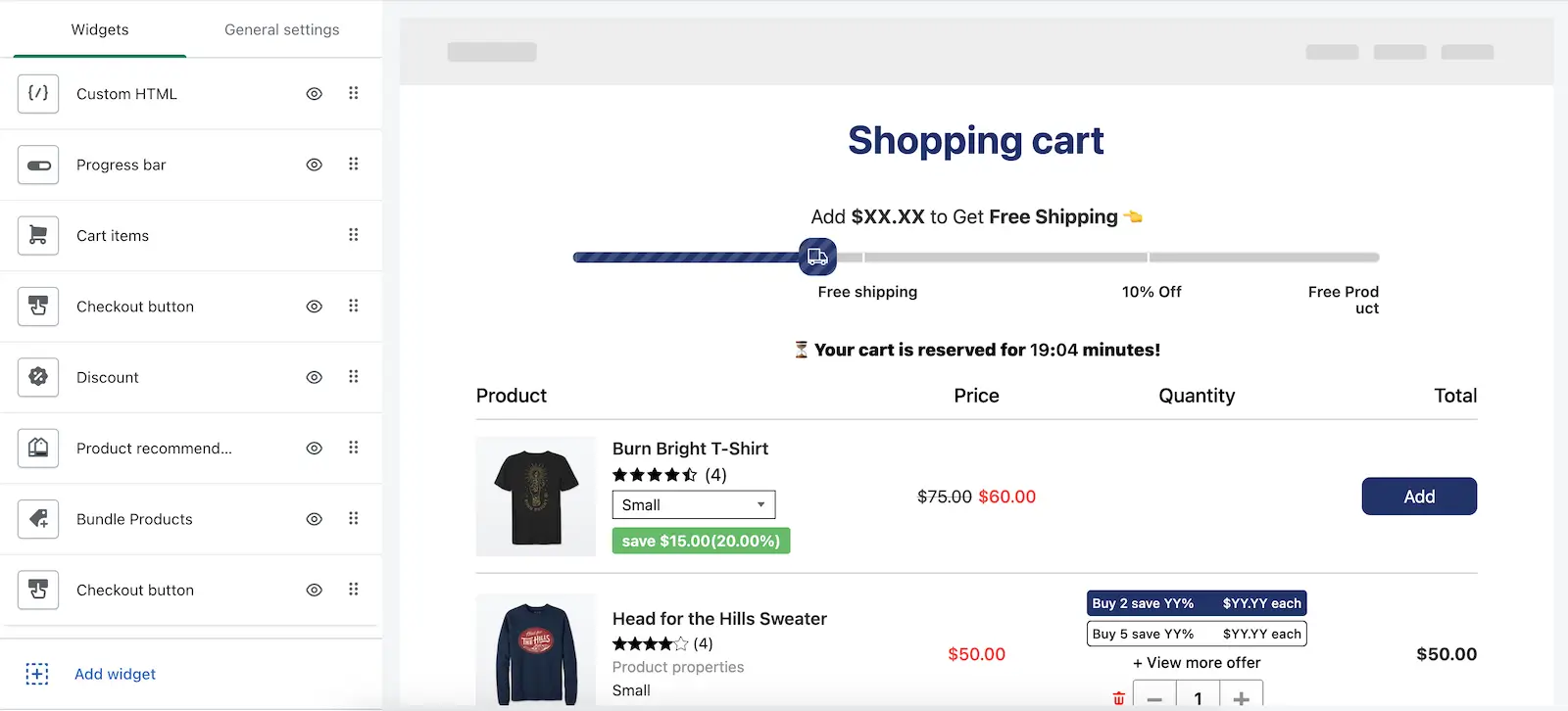
➞ The Cart Items and Checkout Button widgets cannot be removed as they are essential for cart functionality.
➞ You can add multiple Checkout Buttons, but at least one must always be present.
General settings
This section controls styling and behavior that applies to the entire full cart. Here, you can:
- Change button styles
- Add custom CSS
- Control layout-related settings
👉 For a detailed walkthrough of these settings, check our Editor’s General Settings guide.
➕ Adding a Widget
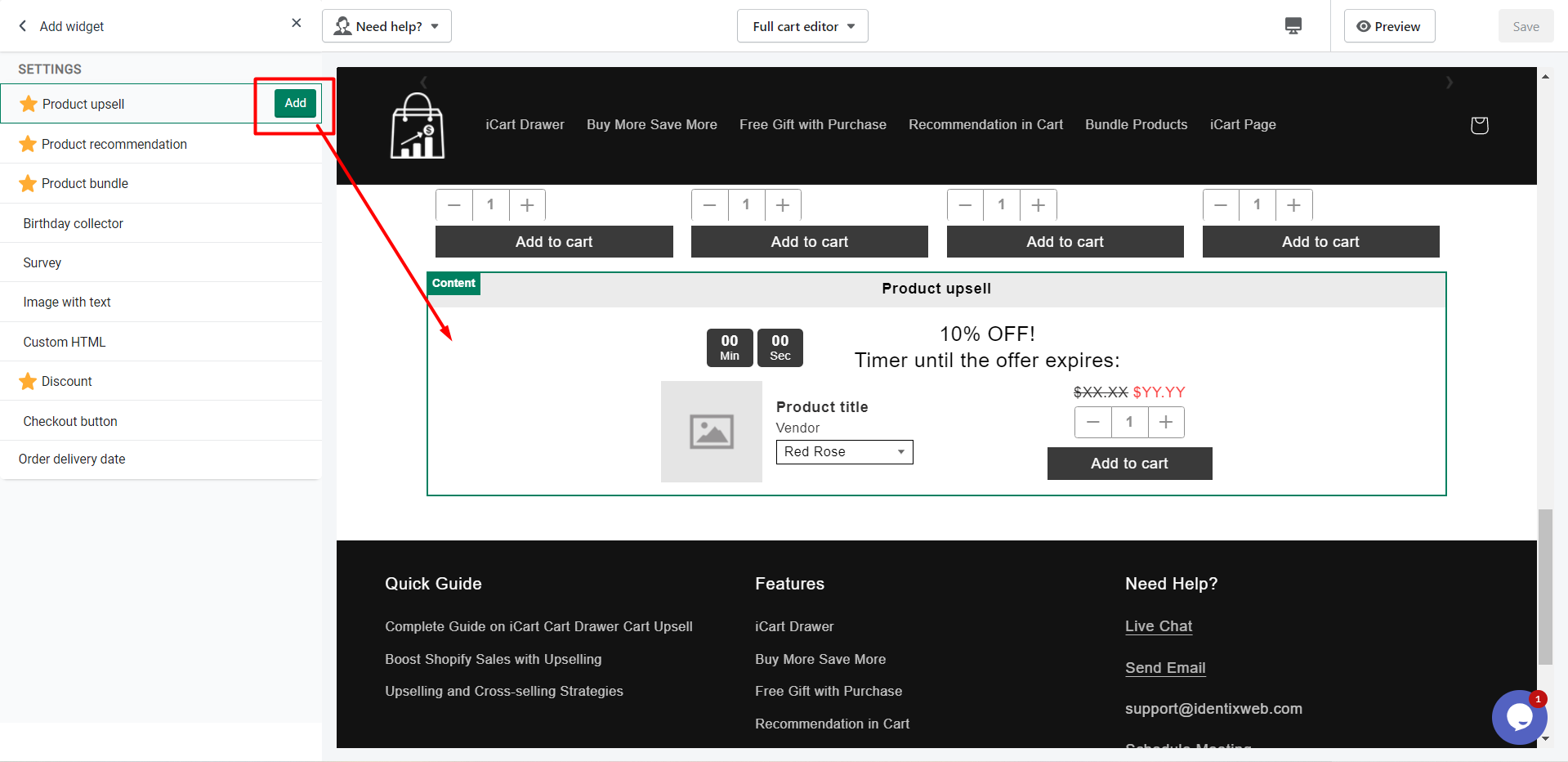
Want to add a new widget to your cart? iCart allows you to add any number of widgets to your cart through the control panel.
- Click the Add Widget button at the bottom of the widget list
- Browse through the available widgets
- Click on your preferred widget
- Hit the Add button to insert it into your cart layout
This flexibility allows you to test different upsell strategies, show custom messages, or personalize your cart layout easily.
🔃 Reordering Widget Positions
Reordering widgets helps you optimize the visual flow of your cart and prioritize key actions like checkout or upsell visibility.
To change a widget’s position:
- Hover over the widget in the list
- Click and hold the six-dot handle
- Drag and drop the widget to your desired position
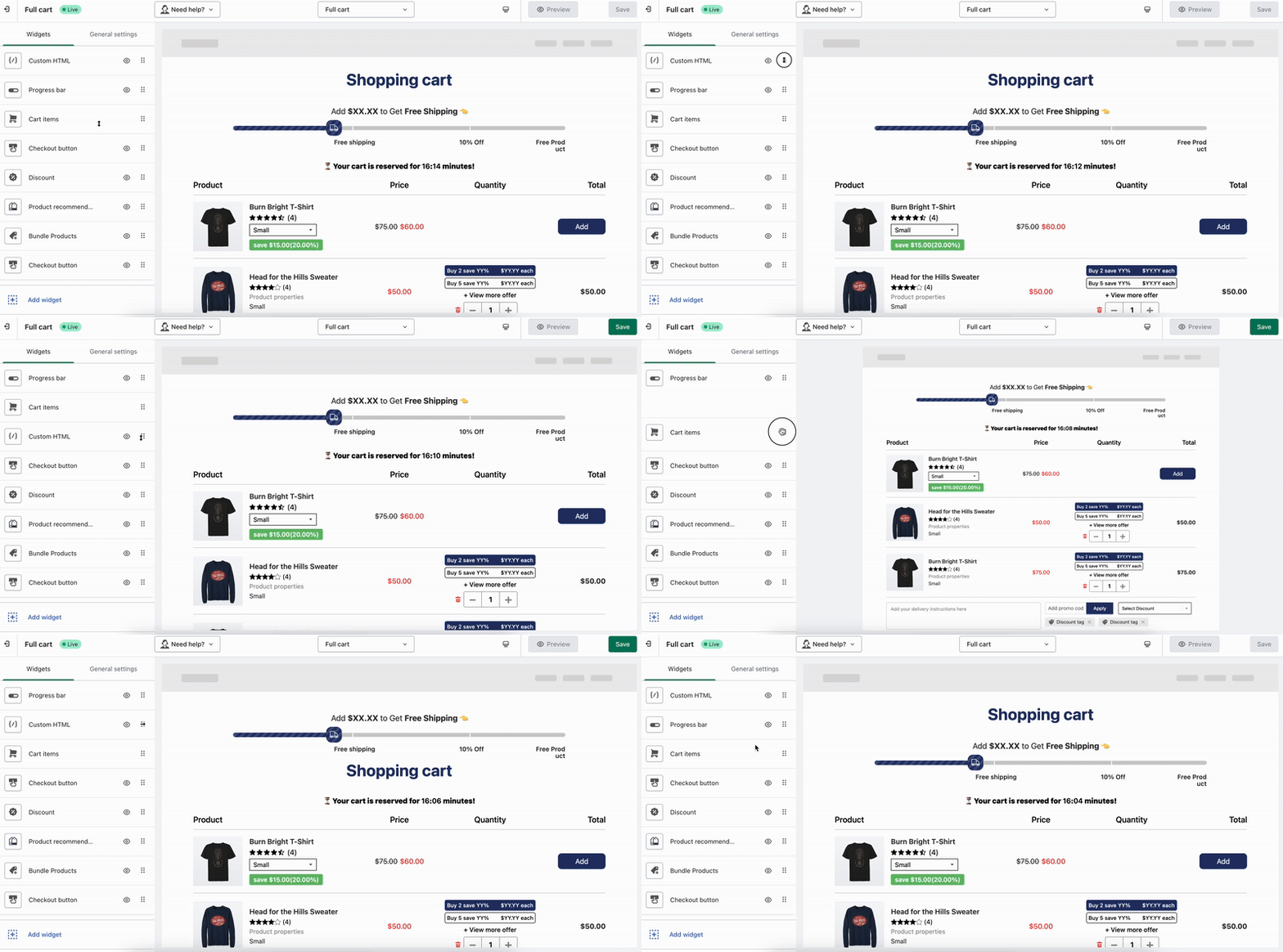
This lets you decide what your customers see first — enhancing the likelihood of conversions and increasing AOV (average order value).
💬 Need Help?
If you’re not sure how to structure your Full Cart layout or run into any issues while customizing, feel free to email us or chat with us. We’re here to help you make the most out of your iCart experience!