

The Survey widget helps you collect customer feedback directly from the cart. You can use it to ask questions about their shopping experience, product preferences, or any other insights you’d like to gather. It’s a great way to improve customer satisfaction and tailor your offerings based on real input.
🔧 Creating a Survey
Follow these steps to create or manage a survey in iCart:
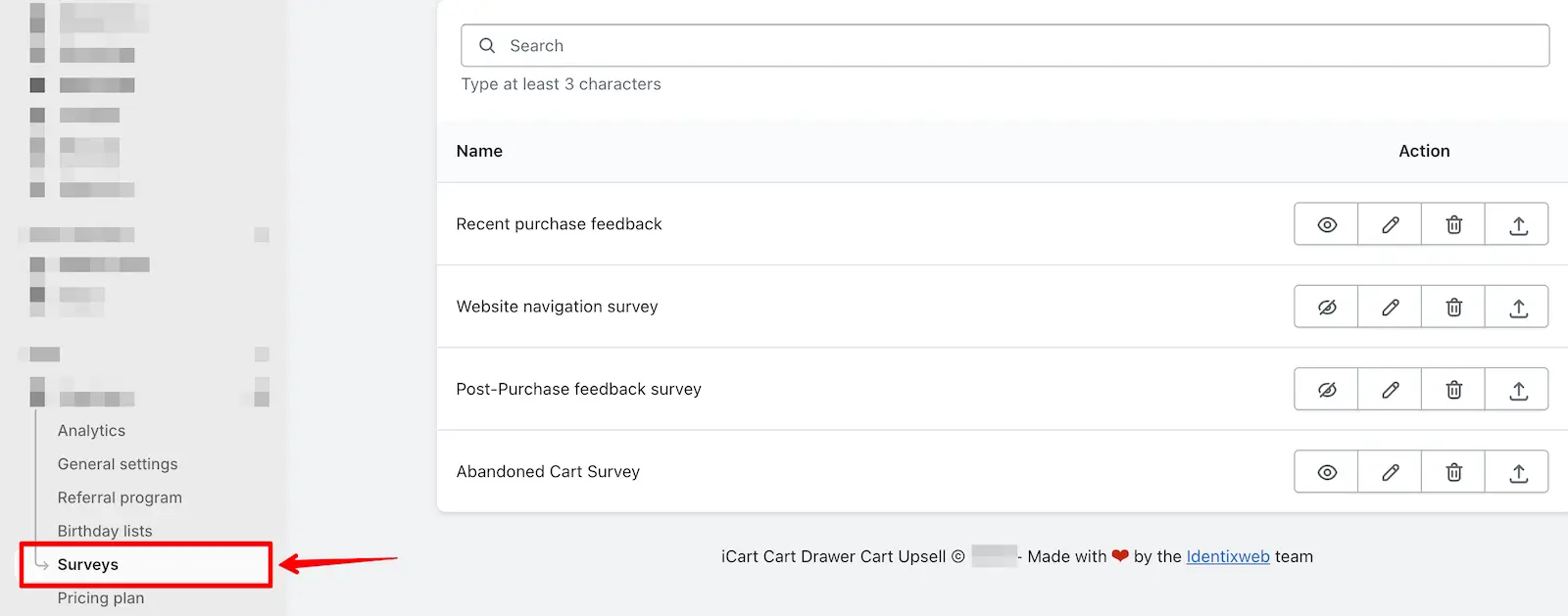
➤ How to open the survey page:
- Go to the App Dashboard
- Click the Survey menu from left side
- You’ll see the list or created Survey
- Search a survey from the list using search bar
➤ To create a new survey:
If you have not created any survey or coming first time in survey page, you can create a new survey by following the below steps.
- Click Create survey button on top right
- Enter a Survey Title, then click Save
- Type your question
- Choose an Answer Type: Textarea, Radio, or Checkbox
- If you select Radio or Checkbox, click Add Options to enter multiple answers. You can remove any option using the red minus button.
- Click Save
➤ To edit an existing survey:
- Click Edit next to the survey you want to change
- Update the question or answer options, or disable options as needed
- Click Save
- If you updated the title, click Save
➞ Edit survey from list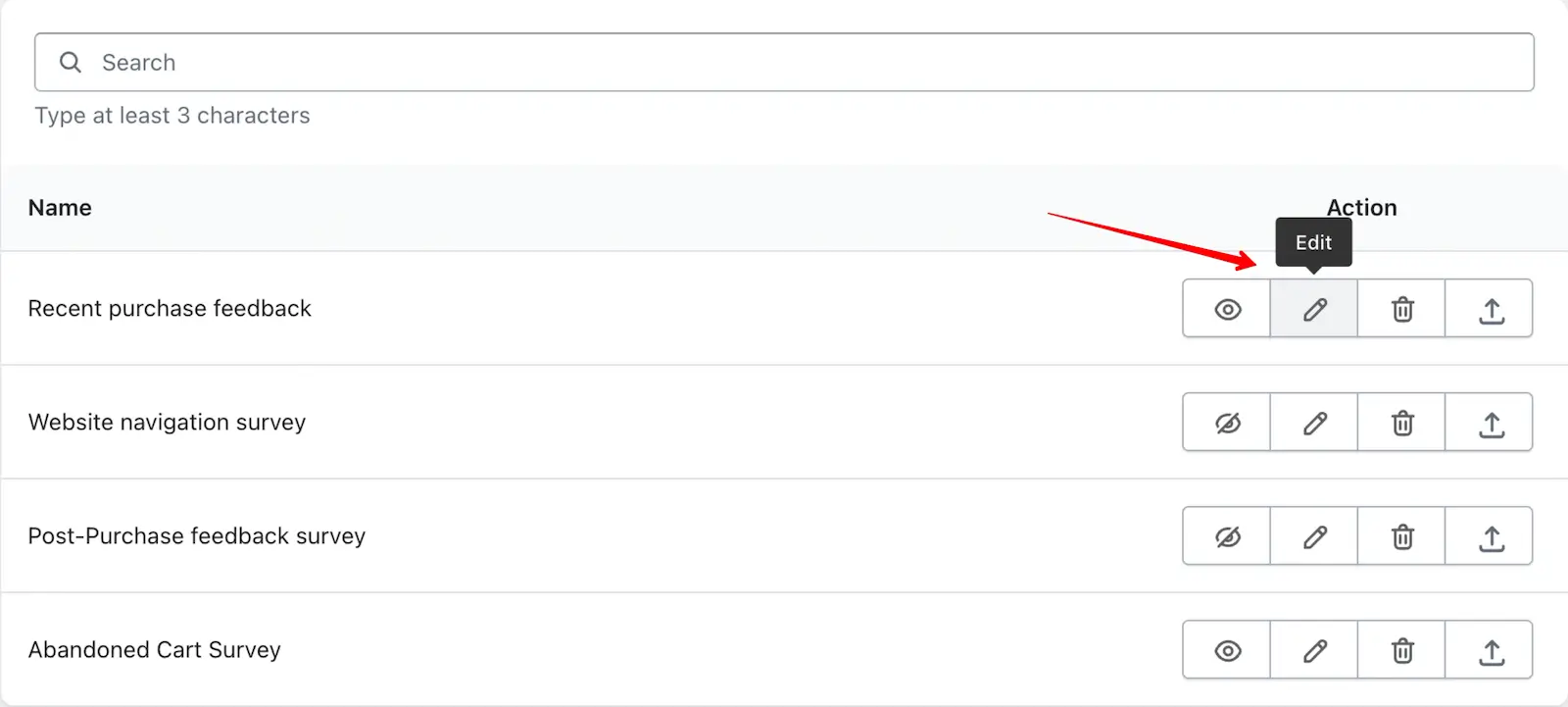
➞ Edit survey inside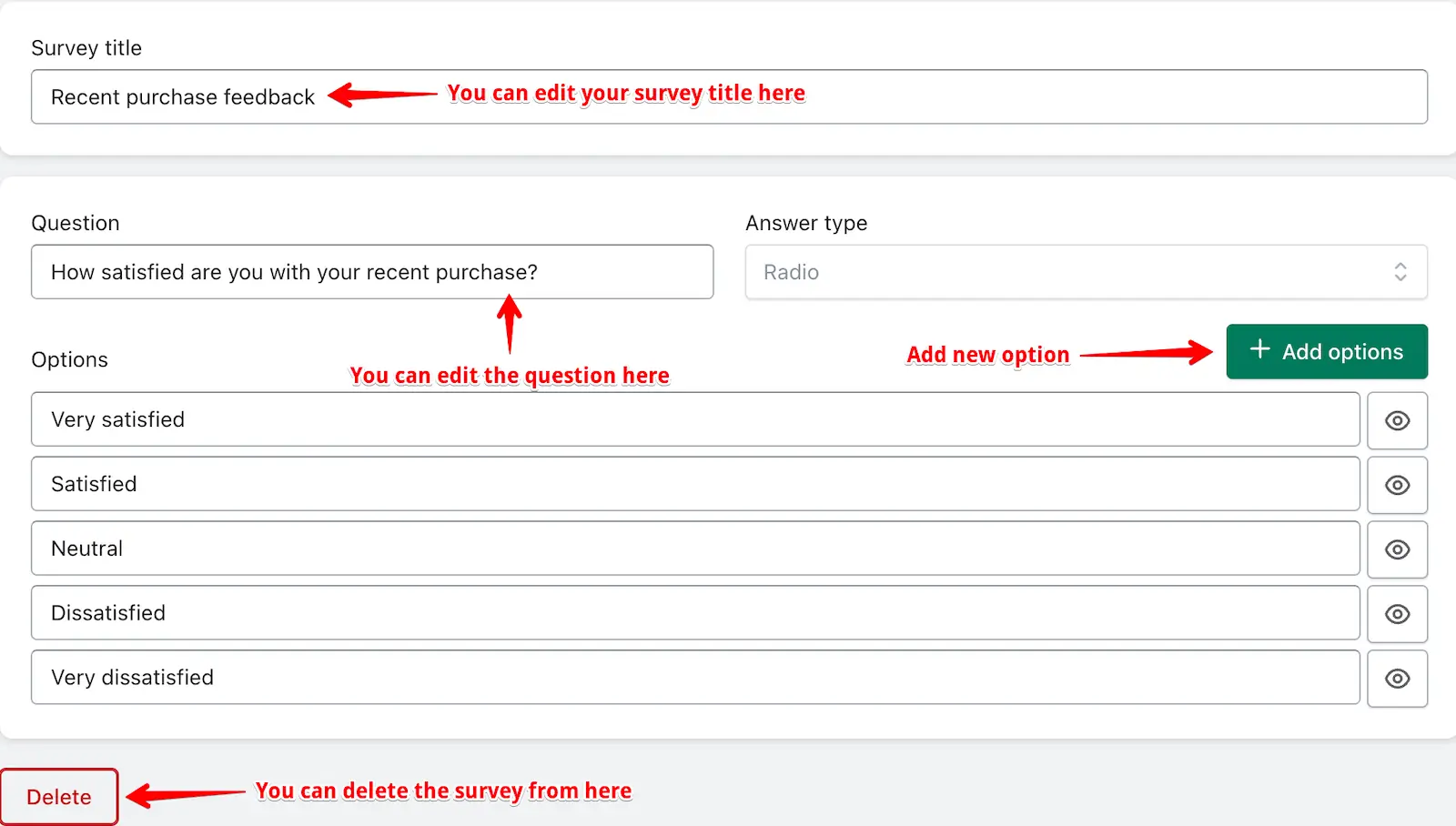
📥 Download survey
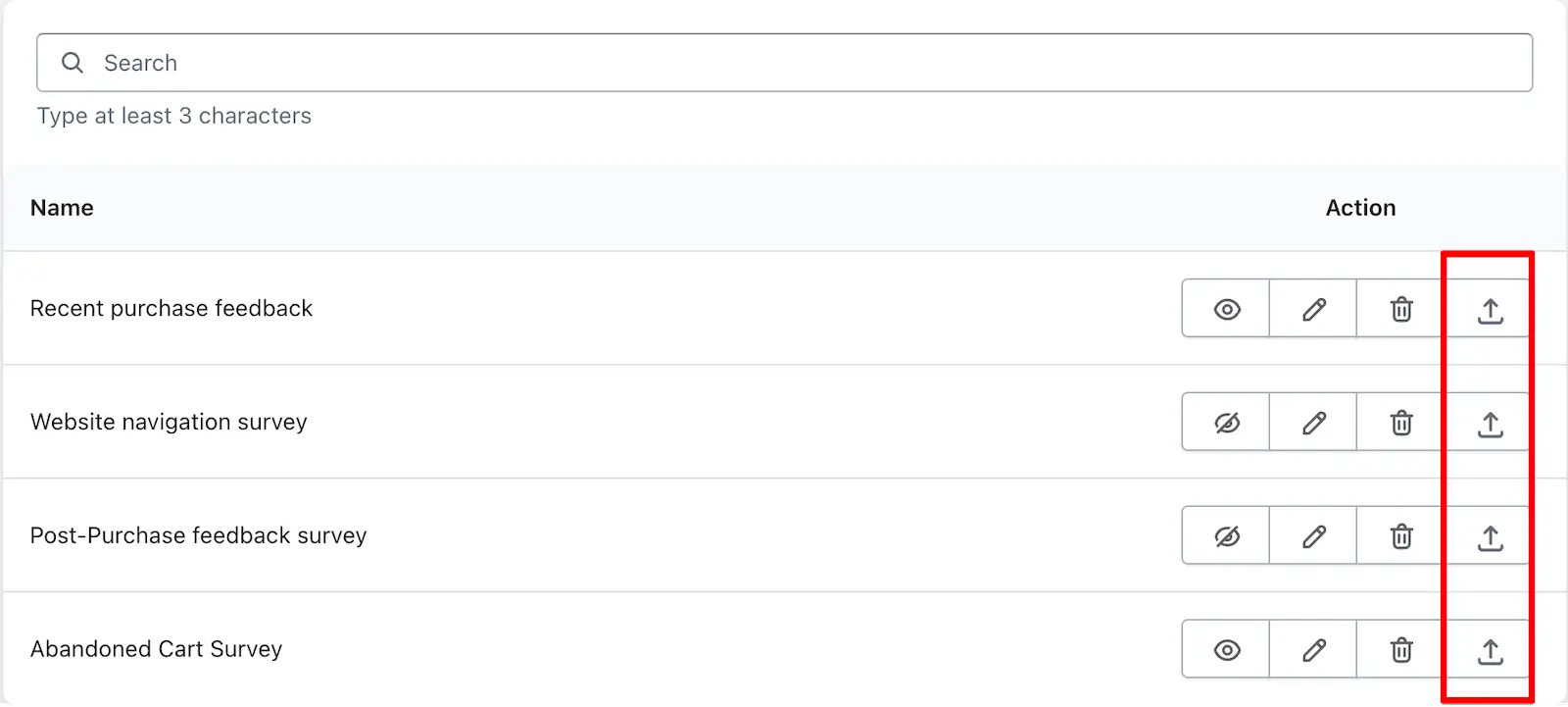
You can export survey as a CSV file by clicking the Export icon next to the desired survey.
🚫 Disable or delete survey
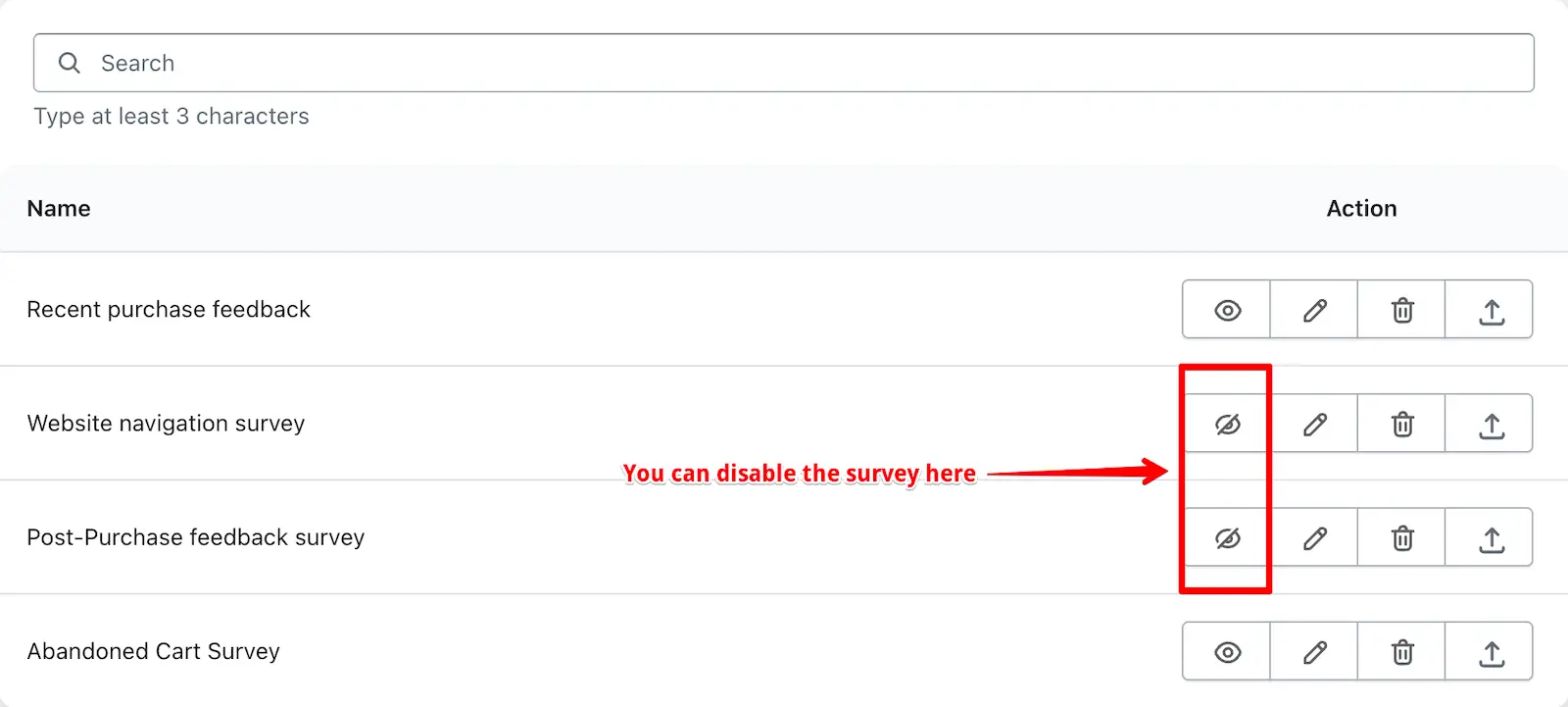
• Disable a survey by clicking the Disable icon. You can re-enable it the same way.
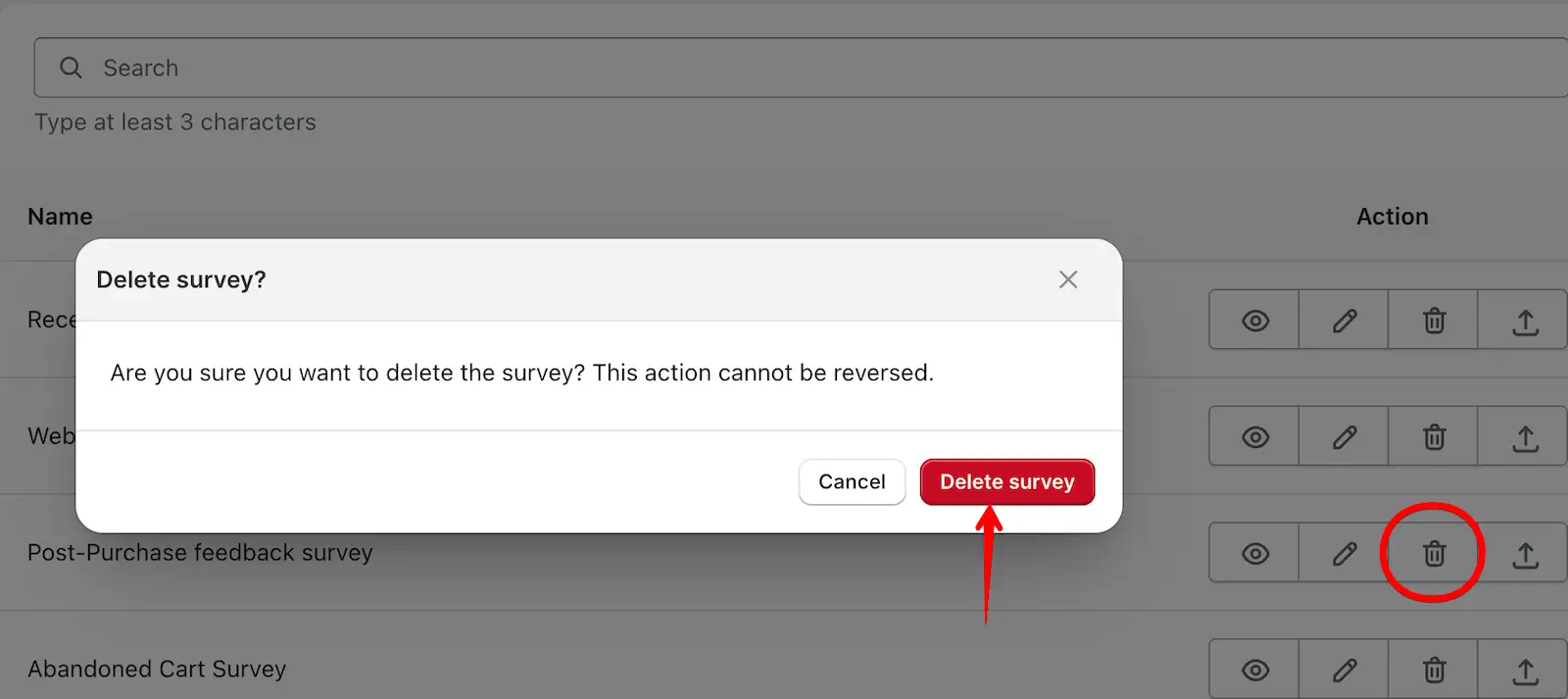
• Delete a survey by clicking the Delete icon. Confirm your action in the popup by clicking Delete survey button.
⚙️ Widget settings
Let’s understand the widget options in detail.
🏷️ Widget heading
This allows you to add a title to your widget for better identification in the cart drawer. Learn more →
📝 Title
Use this field to display a short heading above your survey question to introduce the context. Learn more →
📊 Survey Settings
These options let you customise the behaviour and appearance of the survey in your cart drawer:
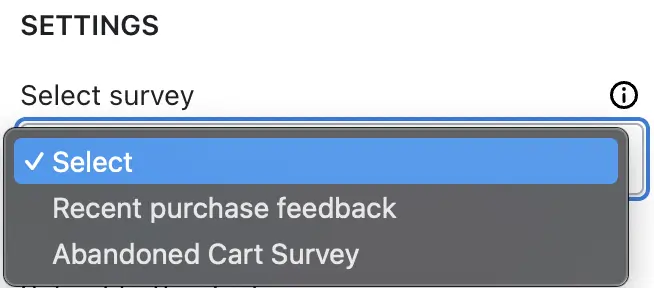
• Select survey
Choose a survey you’ve already created. If you haven’t created one, click the link provided here to open the survey creation page.
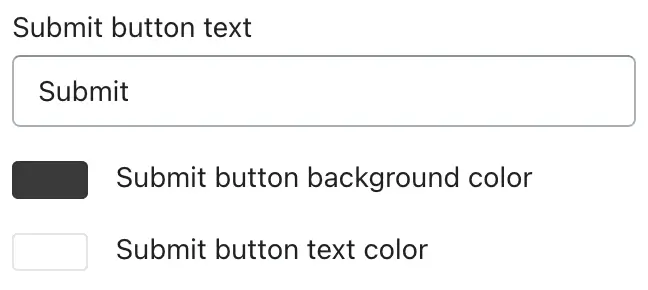
• Submit button text
Add your own text label for the submit button (e.g. “Submit”, “Send”, “Vote”).
• Submit button background color
Choose the background color for the submit button to match your store’s design.
• Submit button text color
Set the color of the text on the submit button.
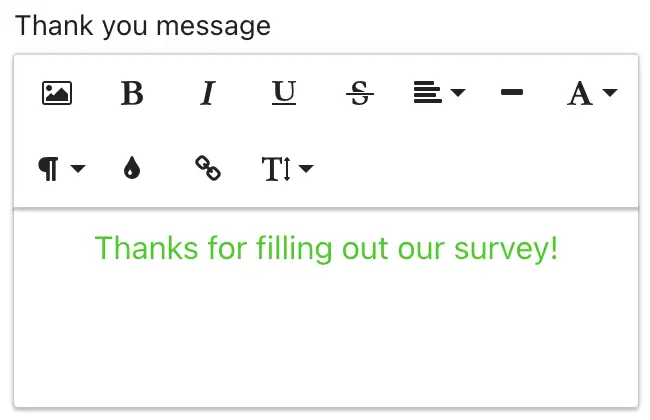
• Thank you message text
Show a confirmation message after the survey is submitted.
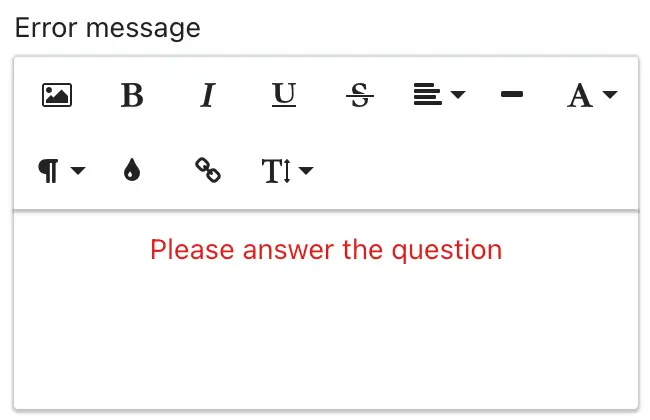
• Error message text
Display a custom message if there’s an error while submitting the form.
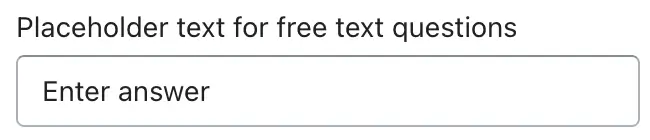
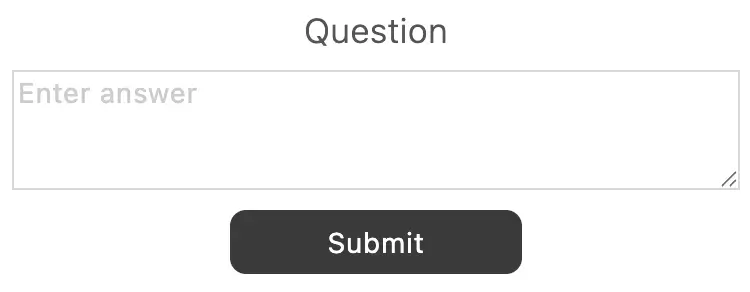
• Placeholder text for free text message
Add custom placeholder text for free-text input fields.
➞ Setting
➞ Result
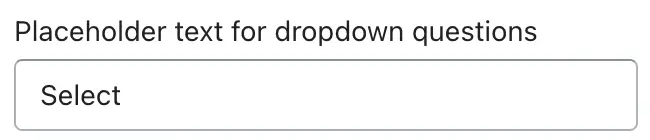
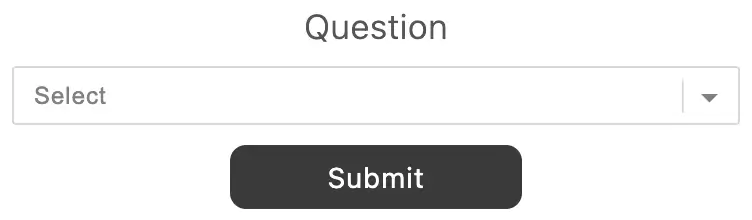
• Placeholder text for dropdown question
Set a placeholder for dropdown-style survey questions.
➞ Setting
➞ Result
💸 Discount
If you’d like to offer a discount after customers complete the survey, you can configure this option. Learn more →
⏱️ Timer Limited Offer
Use this to display a countdown timer on the widget to create urgency. Learn more →
🧩 Rules
Set visibility rules to control when and to whom this widget appears. Learn more →
🗑️ Delete Widget
You can delete this widget if needed.
🙋♂️ Need help?
If you have any questions about setting up the Survey widget or anything else in iCart, feel free to email us or live chat with our support team — we’re always here to assist you!
To learn more about the Survey widget, read this guide.