

This article explains how the setting works, what each order type supports, and how to pick the right one for your store.
How to Access This Setting
- Go to your iCart app dashboard.
- Navigate to General Settings.
- Scroll to the section “Discount settings & error messages.”
- Use the dropdown to choose between Draft order or Normal order.
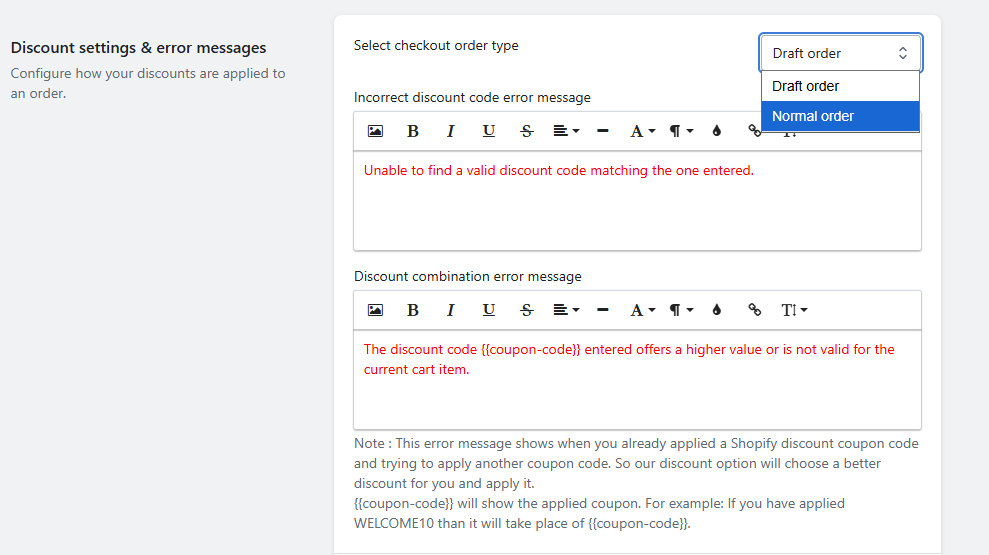
You will also see additional settings here for enabling a free shipping coupon combination and customizing error messages for invalid or overlapping discount codes.
Comparison: Draft Order vs. Normal Order
This table shows what each order type supports, so you can quickly compare them before making a choice.
| Feature / Support | Draft Order | Normal Order |
|---|---|---|
| Multi-currency support | ✅ | ✅ |
| Free shipping with fixed/percentage discount | ✅ | ❌ |
| Gift wrap (custom product upsell) | ✅ | ❌ |
| Abandoned checkout support | ❌ | ✅ |
| Supports Delivery & Pickup app’s shipping | ✅ | ❌ |
| Subscription app support | ❌ | ✅ |
Draft Order – Key Points
Choose Draft Order if you want to:
- Free shipping discounts — allow these in the progress bar and widgets
- Custom product upsells — enable them in cart item or checkout button widgets
- Combined discount logic — use Shopify automatic discounts alongside iCart’s discount logic
Our app’s discount still applies if you have selected either Apply both discounts, or Apply only our app discount, from General Settings → Choose Discount Type.
Normal Order – Key Points
Choose Normal Order if you want full support for multi-currency, abandoned checkout, and subscription apps. With this option, discounts combine into a single visible coupon code on the checkout page.
However, some limitations apply. Free shipping discounts are not supported, and these settings will auto-adjust:
- Progress bar — “Select discount” becomes “No discount”
- Other widgets — “Free shipping” is removed
Also, custom product upsells are not available. Instead, they are replaced with a “Specific product” upsell.
2. Choose Normal Order — if your store relies on subscriptions, currency conversion, or automated Shopify flows.
Discount Error Message Settings
You can customize the messages that appear when:
- A discount code is invalid or not found
- A second discount code is attempted, but the first one has a higher priority
Use {{coupon-code}} to dynamically insert the discount code into your error message.
Final Notes
You can switch between order types anytime. However, make sure your settings and upsell features stay compatible with the selected order type.
Consider your store’s needs — for example, international selling, subscriptions, or upselling custom gift items — when deciding which order type to use.


