

The Side cart editor’s General Settings in the iCart Cart Drawer Cart Upsell app allow you to customize your cart’s style, layout, and appearance, enhancing the shopping experience for your customers. You can choose between a side cart or a popup cart, adjust header styles, configure the cart bubble, and apply custom CSS to achieve the desired look for your store. To set up your cart, select the cart style, customize the header text and colors, and adjust button styles.
You can also control the visibility and position of the cart bubble, as well as apply custom CSS for further styling options. If you need assistance with any settings, you can reach out to the support team for help.
The Side cart editor’s General Settings in the iCart Cart Drawer Cart Upsell app give you full control over your cart’s style, layout, and appearance—helping you create a seamless and branded shopping experience for your customers. This guide will walk you through each setting available under the Quick Cart (Side cart) > General Settings tab, including how to change the cart type, adjust header and button styles, configure the cart bubble, apply custom CSS, and more—whether you’re using a side cart or popup cart.
Let’s walk through each setting available:
🛒 Select cart style
Choose the cart style you want to display in your store’s quick cart:
- Cart Drawer – the side cart that slides from the left or right of the screen.
- Cart Popup – a popup cart that appears from the bottom-center of the screen.
App Settings > Cart Types > Select your desired option under Quick Cart
🧾 Cart header
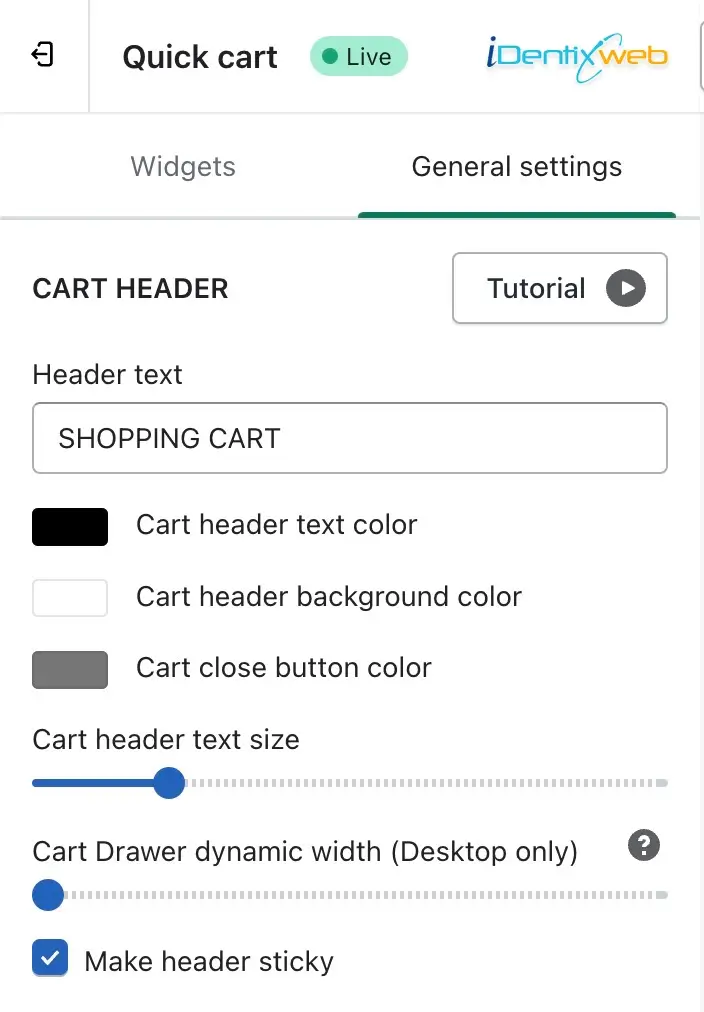
Customize the cart header text and style using the following options:
- Header text – Change the label for your cart (e.g., “Shopping Cart”).
- Cart header text color – Pick a color for the header text.
- Cart header background color – Choose the header’s background color.
- Cart close button color – Adjust the color of the cart’s close button.
- Cart header text size – Resize the cart header text with an easy slider.
- Cart Drawer dynamic width (Desktop only) – Set the width of the side cart for desktop users. You can make the drawer cover up to 50% of the screen.
- Make header sticky – Enable this to keep the cart header visible while scrolling.
🎨 General cart styling
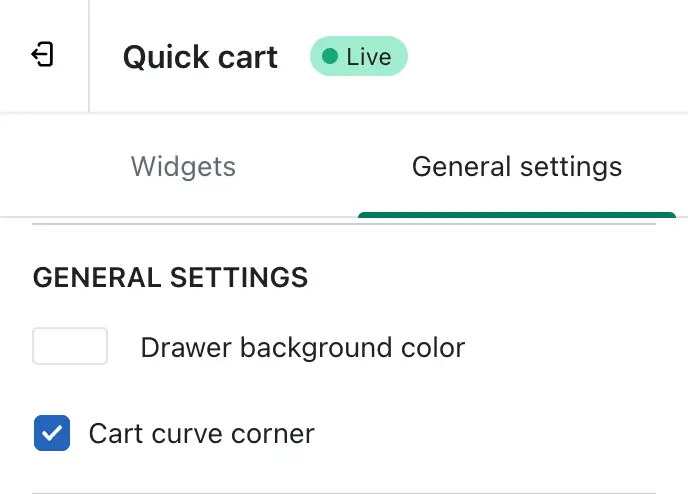
- Drawer background color – Set the background color of the entire cart.
- Cart curve corner – Enable to apply rounded corners to the cart for a smoother, modern look.
🔘 Button Style
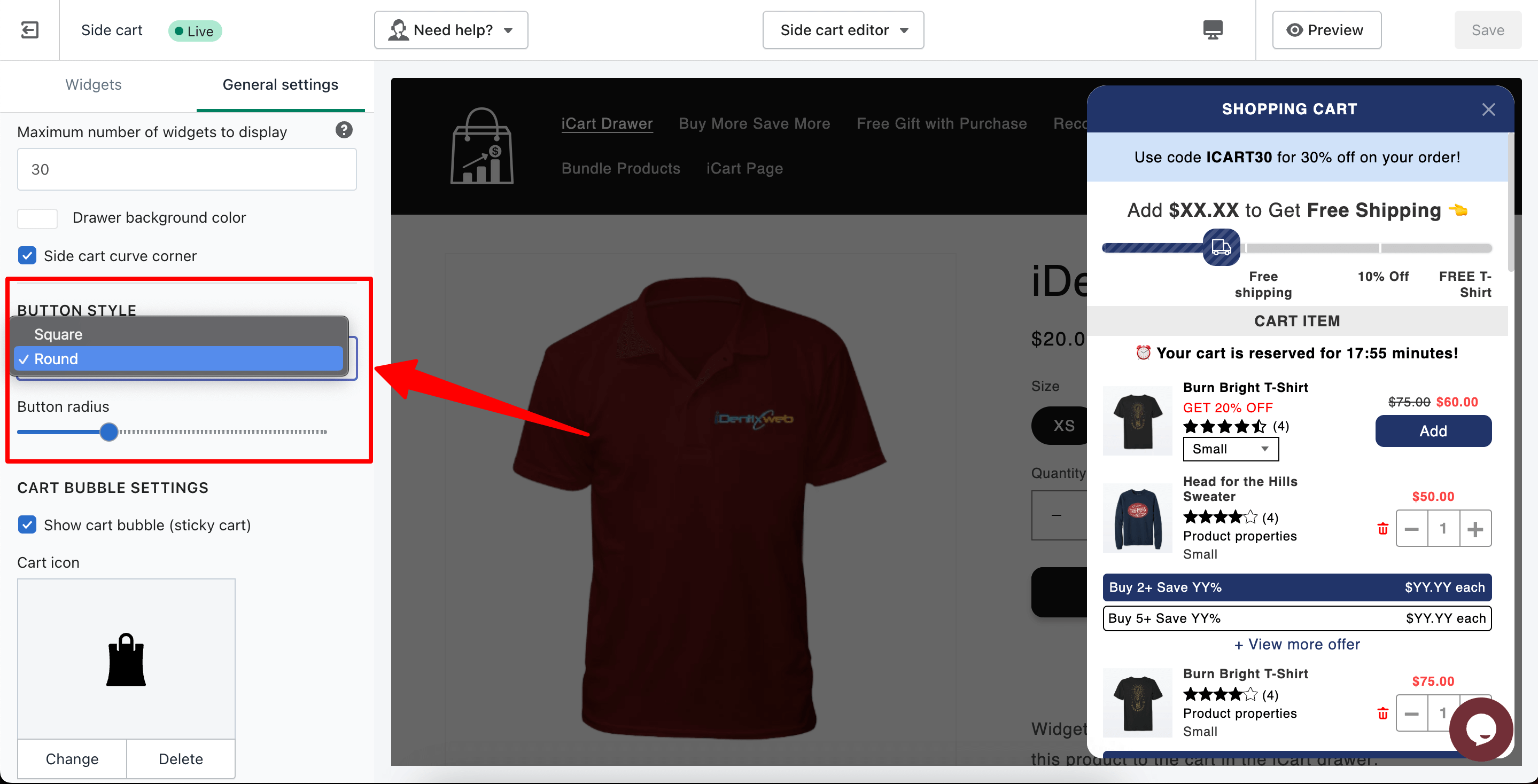
Choose how your cart’s action buttons appear:
- Button style – Pick between Square and Round button shapes.
- Button radius – Fine-tune the border radius to achieve a custom look.
🛍️ Cart Bubble Settings
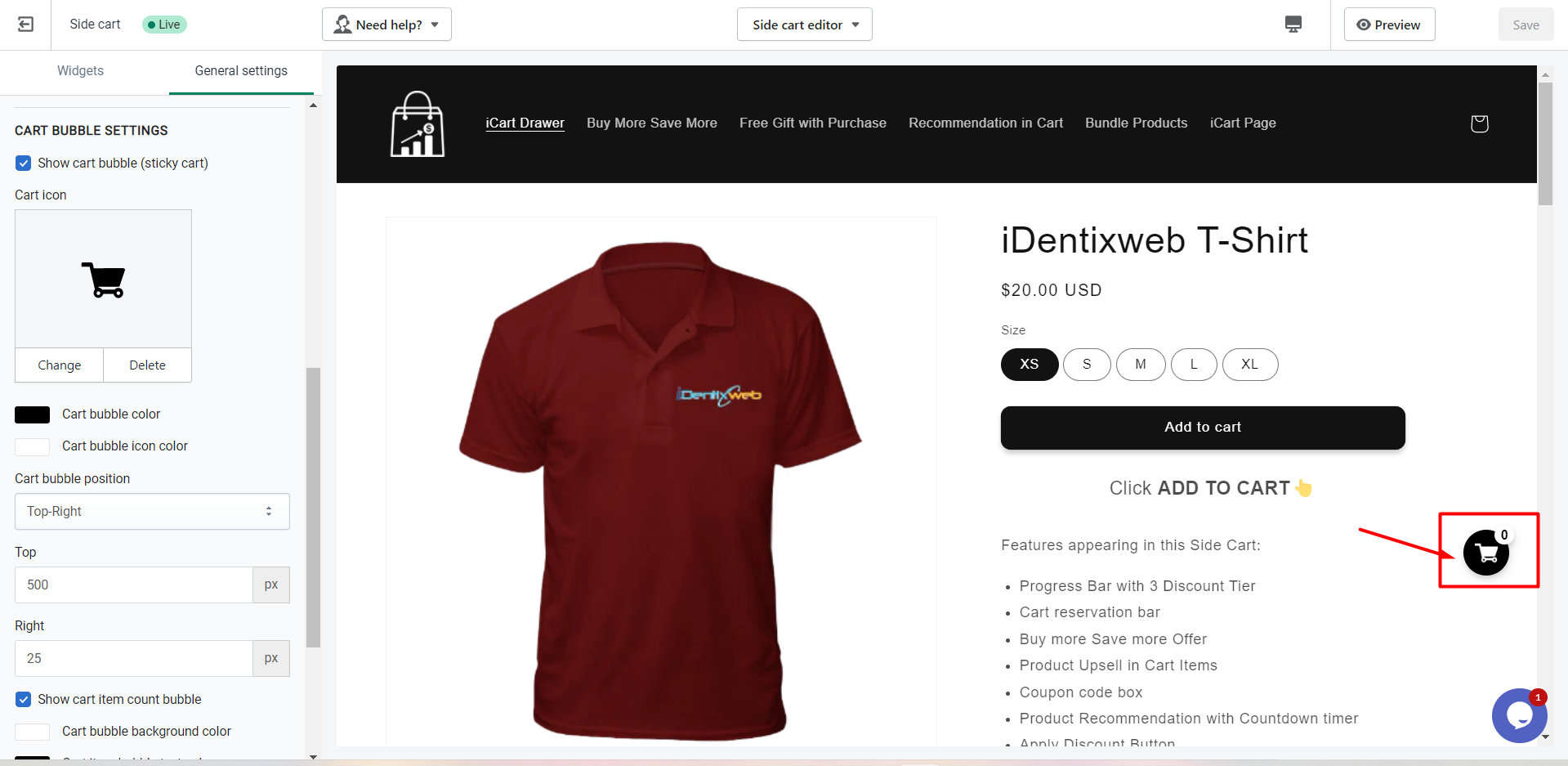
These settings control the floating cart bubble icon on your storefront:
- Show cart bubble – Use this option to toggle the visibility of the cart bubble on your storefront. When enabled, the cart icon bubble will be visible to customers; otherwise not.
- Cart icon – Choose or change the icon image.
- Bubble background color – Set the background color of the cart bubble.
- Bubble icon color – Customize the icon color inside the bubble.
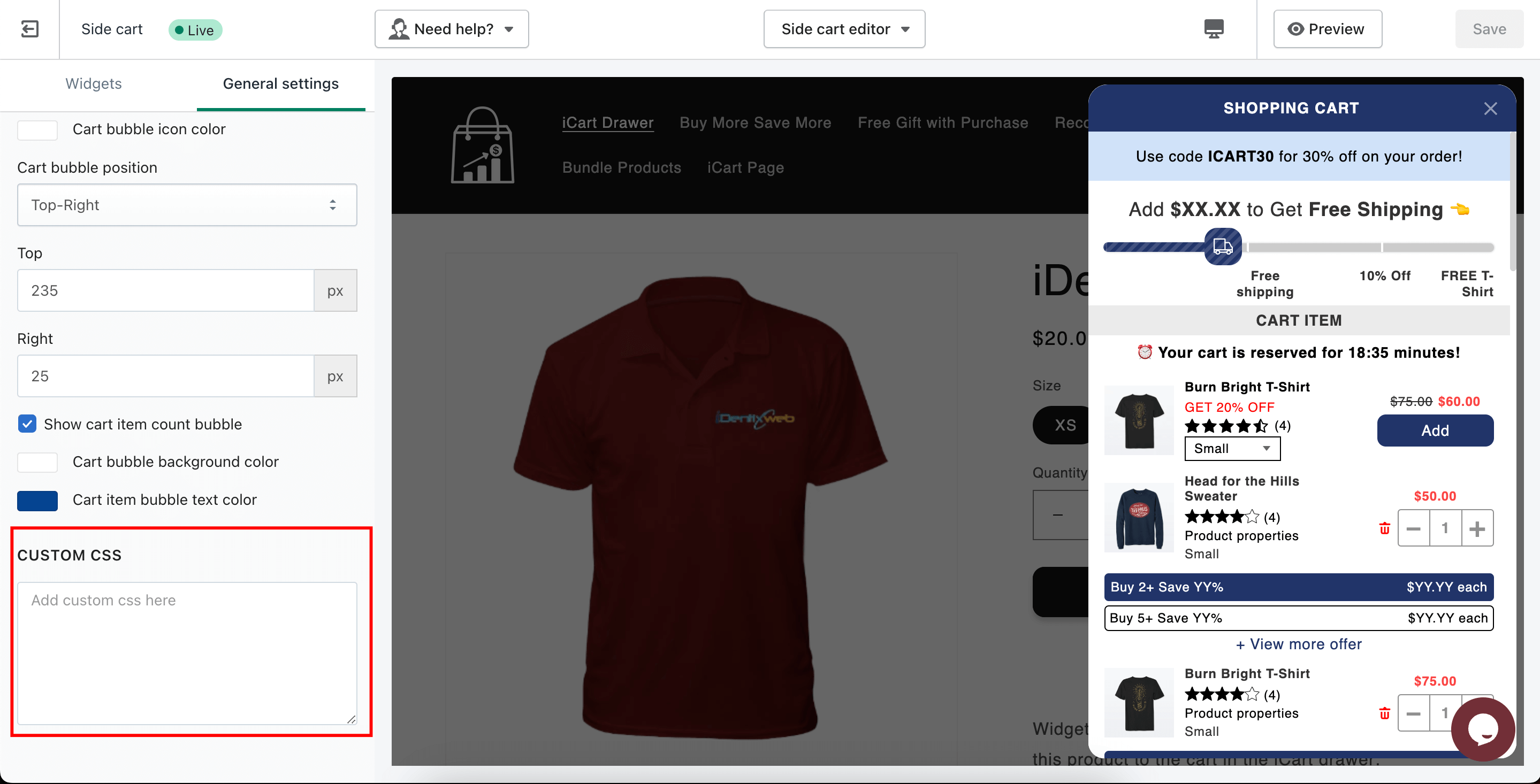
- Cart bubble position – This setting allows you to choose where the cart bubble appears on your store (e.g., top-right, top-left, bottom-right, and bottom-left ). Depending on the position selected, the cart drawer will slide in from the corresponding side—right for top/bottom-right and left for top/bottom-left. This setting controls both the bubble’s placement and the direction from which the drawer opens.
- Top/Right positioning – Adjust the exact position using pixel values.
- Show bubble cart item count – Display the number of items in the bubble cart.
- Bubble cart item count background color – Set background color for the cart item count.
- Bubble cart item text color – Change the text color for item count.
🧩 Custom CSS
Need more styling flexibility?
Use the Custom CSS field to:
- Apply your own font styles
- Change text sizes, colors
- Add animations or hover effects
- Override default styles applied by the app
This is ideal for developers or store owners with a bit of CSS knowledge who want full control over cart appearance.
Please refer to the below video tutorial on general settings to get detailed information.