

The Settings Validations feature in iTable Compare & Pricing Table Size Chart & Guide ensures your page rules are correctly configured before saving. It prevents you from saving rules with missing required fields or invalid configurations, displaying validation messages to guide you in resolving issues. This feature is crucial for maintaining the visibility and functionality of your size charts across various pages of your store. To successfully save your rules, ensure you fill in the Select Placement Block field and, if applicable, the Select Theme Template field.
You must also select at least one product, collection, or tag if you choose specific targeting options. Be aware that a compatibility warning may appear if your selected template is not linked to the chosen page, which could affect the display of your size chart. It's best to address these validations to avoid any issues with your store's setup.
Some fields are required to create a valid rule. If a required field is left empty or an invalid configuration is detected, the app displays a validation message and prevents the rule from being saved until the issue is resolved.
This article explains the different validation messages you may encounter while configuring page rules and how to resolve them.
Overview
Every rule type in the app, whether it is for your Home page, Product page, Collection page, or other pages, follows the same idea. Some fields are required before you can save.
This keeps your Display table rules working correctly. A rule with missing setup, like no placement chosen or no products selected, would simply not show up on your store. The validations catch this early, so you do not need to troubleshoot later.
There are three types of validations used across rule setups:
- Required field validations — basic fields every rule type needs
- Resource selection validations — choosing at least one product, collection, or tag
- Template compatibility validation — checking that your selected template is actually linked to the page you picked
Required field validations
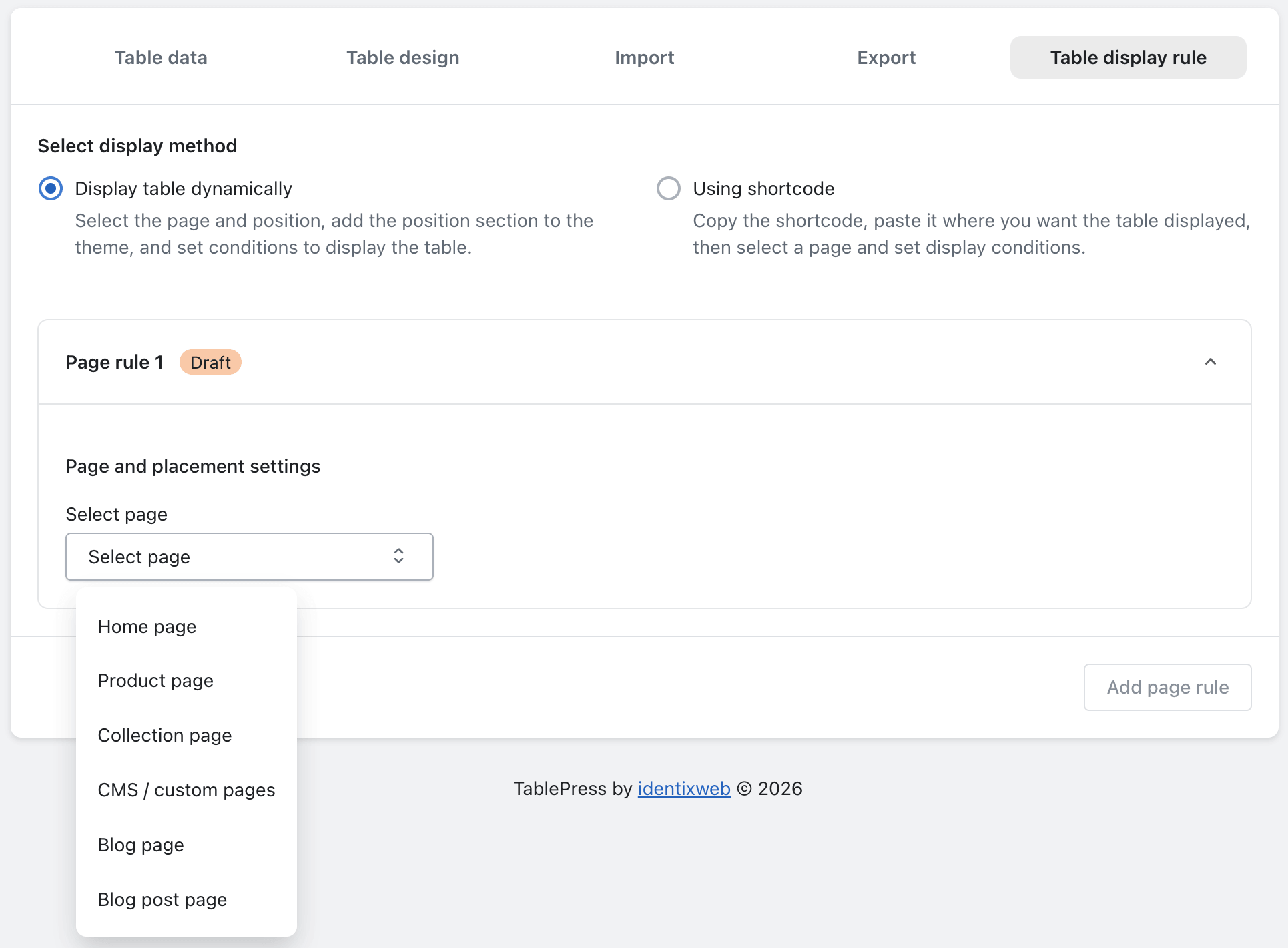
These are the core fields you must fill in before saving any rule. Two fields appear again and again across rule types.
Select placement block Required on all rules
Select placement block Dropdown
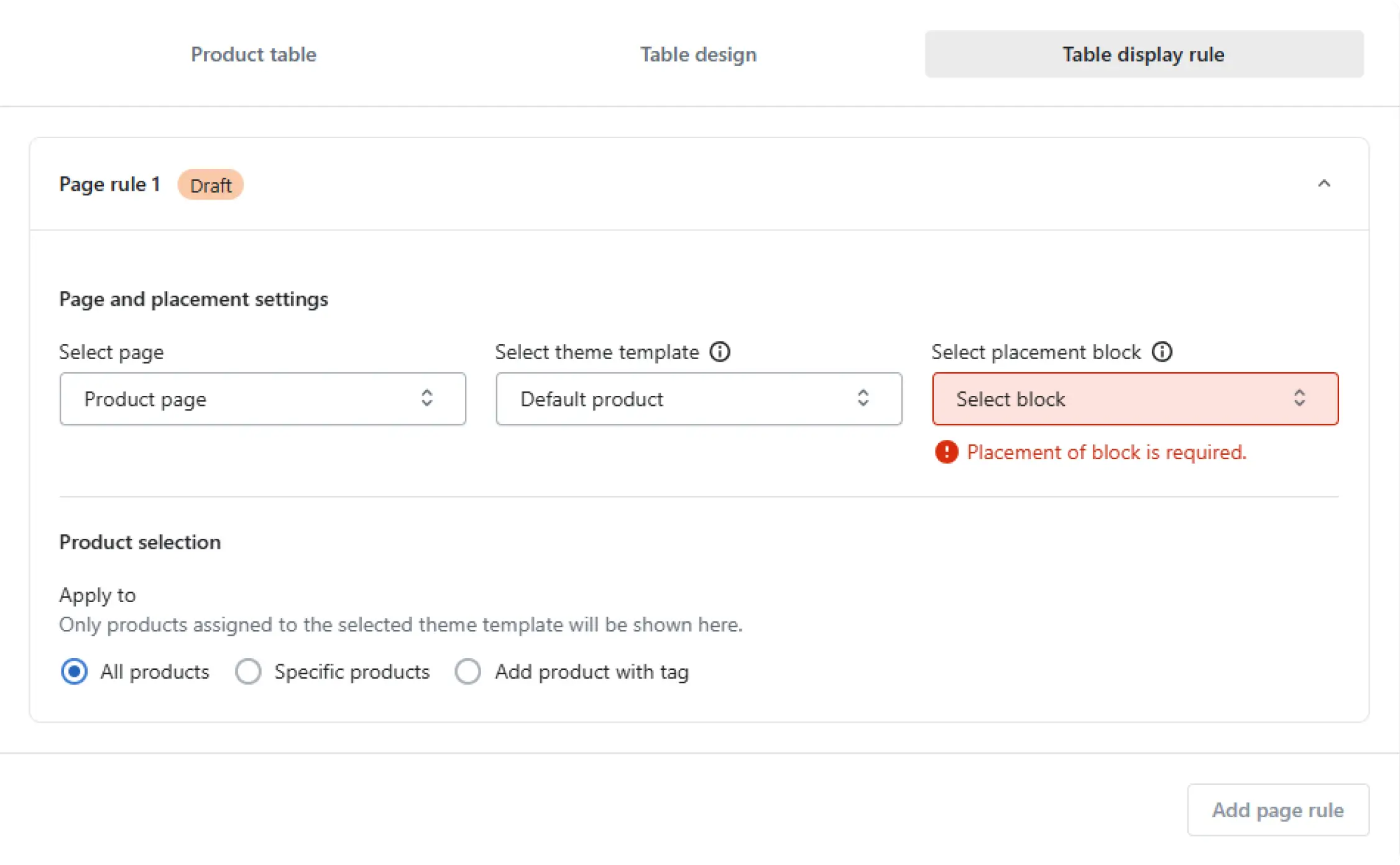
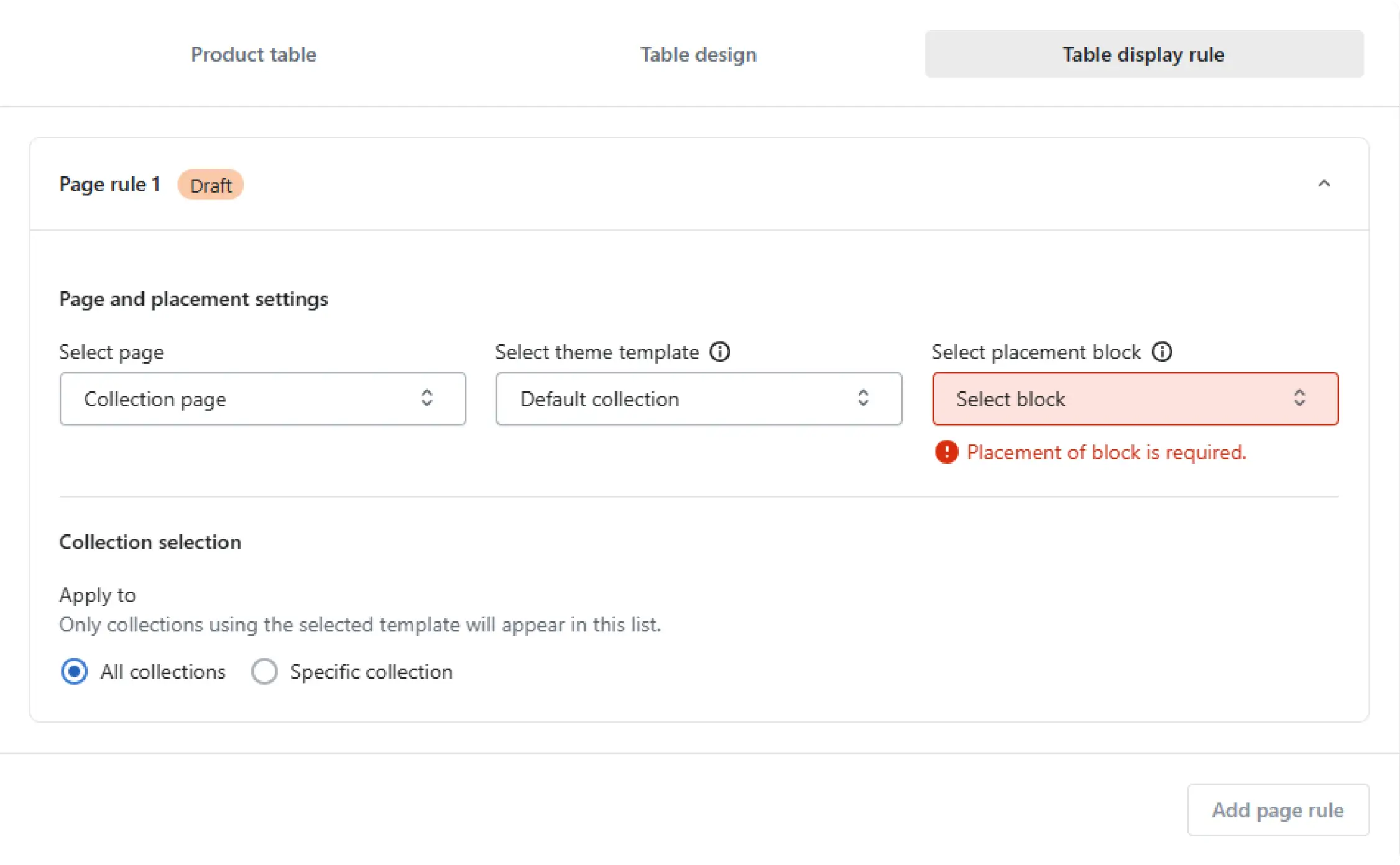
This tells the app where to show your size chart or guide on the page. Every single rule type, including Home page, Product page, Collection page, CMS page, Blog page, and Blog post page, needs this field filled in. If you leave it empty, the app will not let you save the rule.
Select theme template Required on most rules
Select theme template Dropdown
This field controls which template design is used to display your size chart. It is required for Product page, Collection page, CMS page, Blog page, and Blog post page rules. The Home page rule is the only one that does not need this field, since it does not display a size chart template in the same way.
Resource Selection Validations
When you choose to target specific items instead of all items, the app needs you to actually pick at least one. Otherwise, your rule would have nothing to apply to.
Specific Products Product Page
Specific Products Selection
If you choose this option while setting up a Product page rule, you must select at least one product. If you try to save without picking one, you will see the message “Please select at least 1 product.”
Add Product with Tag Selection
This option lets you target products by tag instead of selecting them one by one. You still need to add at least one tag. If you skip this step, the app shows “Please add at least 1 tag.”
Specific Collections Collection Page
Specific Collections Selection
This works the same way as product selection. If you choose to target specific collections in your Collection page rule, you must pick at least one. Leaving this empty triggers the message “Please select at least 1 collection.”
Template compatibility validation
This validation works a little differently. It does not block your save right away. Instead, it warns you when the page you picked is not actually connected to your selected template.
This applies to three rule types: CMS / Custom page, Blog page, and Blog post page. For example, suppose you select a specific CMS page, but the theme template you chose is not assigned to that page. As a result, you will see a warning message as soon as you make that page selection.
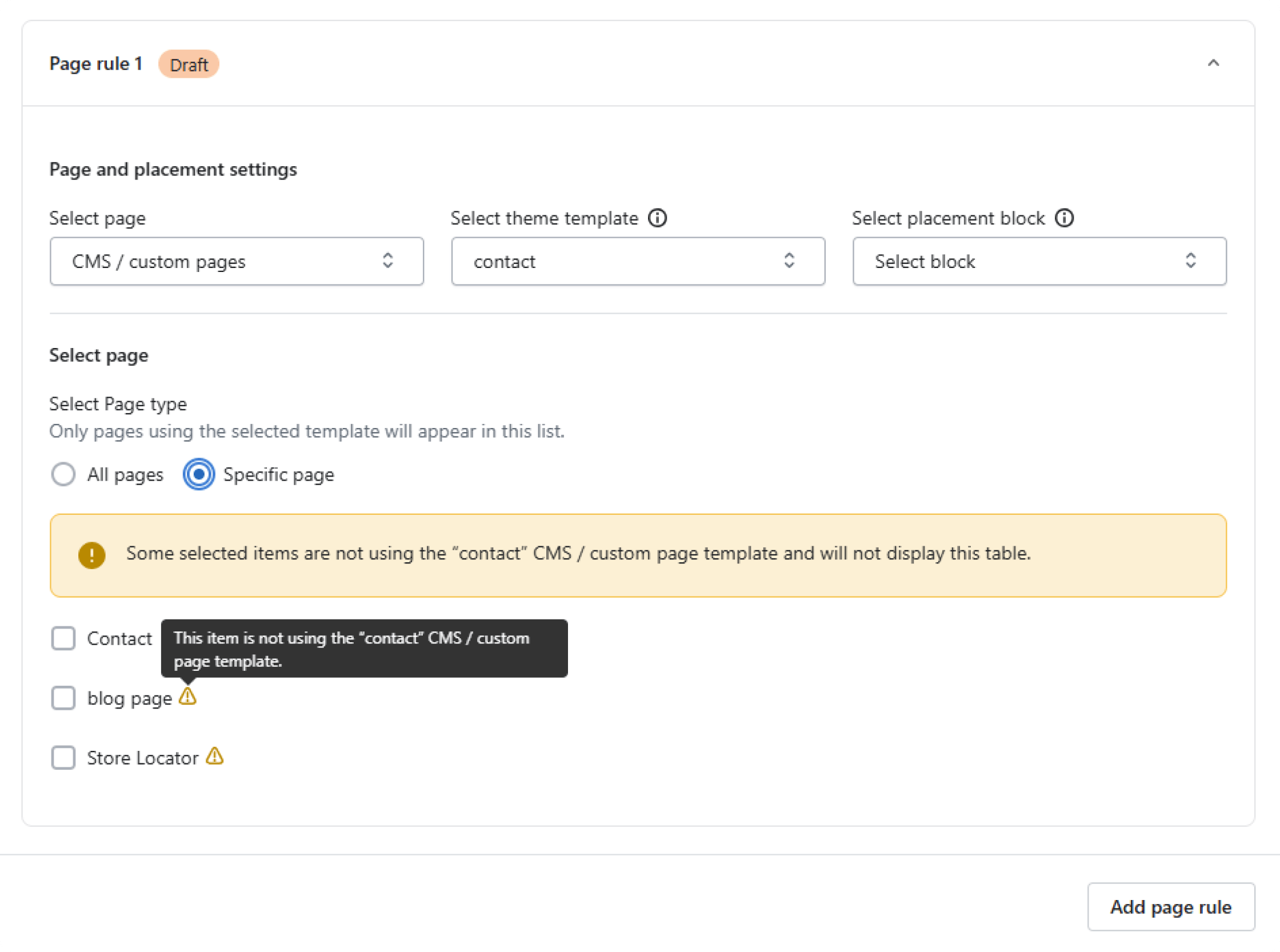
To fix this, either choose a different page that is already linked to your template, or update your template assignment so it includes the page you want.
Why these validations matter
These checks exist to protect your store experience. Without them, you could accidentally save a rule that does nothing visible to your customers.
- Prevents broken rules — a rule without a placement block or template has nowhere to display
- Saves troubleshooting time — you catch setup mistakes immediately, not after checking your live store
- Keeps targeting accurate — required product, collection, or tag selections make sure your size chart reaches the right pages
- Confirms template and page match — the compatibility warning stops mismatched setups before they go live


