

The Select App Theme option in iTable Compare & Pricing Table allows you to designate the specific theme in your store where the app will operate. This feature is crucial as it ensures your size charts and tables display correctly, but note that the app can only function on one theme at a time. Depending on when you installed the app, the steps to set this up will differ. To access this setting, go to your Shopify Admin, open the iTable Compare & Pricing Table app, and click on Settings.
If you installed the app before June 25, 2026, you will see an Application status option to enable or disable the app, while newer installations will only show the Select App Theme dropdown. After selecting a theme, ensure you follow the appropriate steps to either enable the app embed or add an app block, as required by your installation date. Remember, switching themes requires you to revisit this setting and reconfigure the app accordingly.
In this article, you will learn where to find this option, how it works, and what steps to follow based on when you installed the app.
How to Access This Setting
- Go to your Shopify Admin.
- Open the iTable Compare & Pricing Table app from your apps list.
- Click Settings in the app navigation.
- Find the Select App Theme section near the top of the page.
How This Feature Works
Your setup depends on when you installed iTable Compare & Pricing Table. As a result, the steps after selecting a theme are different for older and newer stores.
Feature Settings Explained
For Existing Stores Installed Before June 25, 2026
Application status Toggle
This option shows whether iTable Compare & Pricing Table is active on your store. Click Enable to turn it on. If the app is not active, your tables will not display, even if you have set up a theme.
Select App Theme Dropdown
Choose the theme where you want iTable Compare & Pricing Table to run. When you pick a theme from this dropdown, Shopify takes you straight to that theme’s app embeds section. From there, you turn the iTable Compare & Pricing Table app embed on or off.
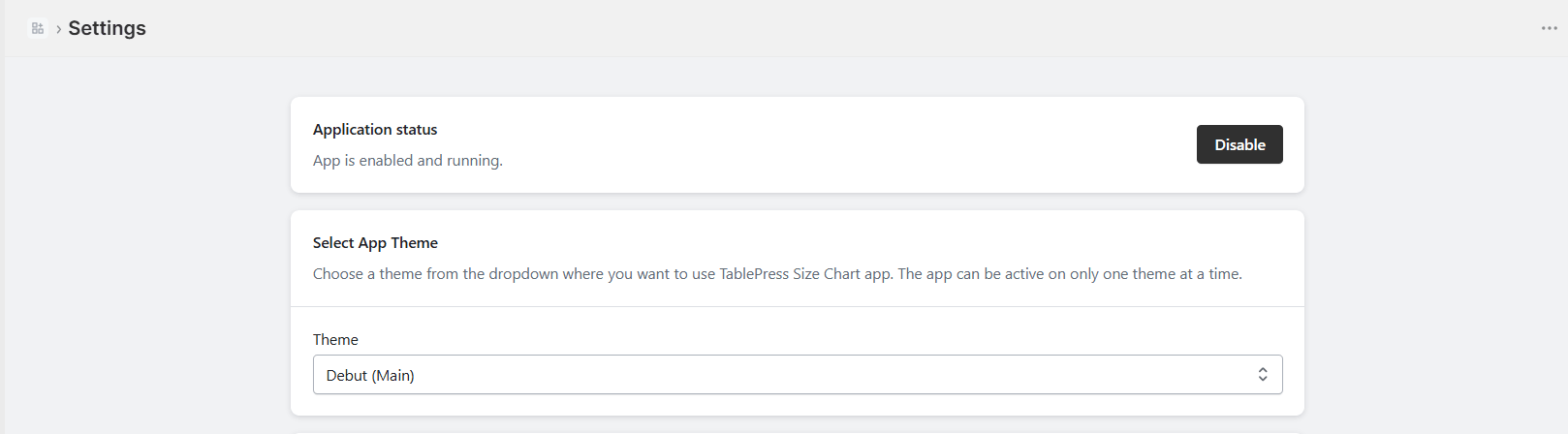
For New Stores Installed After June 25, 2026
Select App Theme Dropdown
Choose the theme where you want to use iTable Compare & Pricing Table. Unlike older stores, you will not see an app embed option here. Instead, you add an app block directly on the selected theme to display your tables.

Things to Keep in Mind
2. Check your install date — If you are unsure which flow applies to you, look for the Application status option. If you see that means your first installation was before 25th June .
3. New users need the app block — If your first installation is after 25th June then, your tables will not show until you add the app block using our integration guide.


