

The Display Rule feature in the iTable Compare & Pricing Table app allows you to dynamically show tables across various areas of your Shopify store. By adding the app block to your desired page template, you can create specific display rules based on page type and block placement, ensuring that tables appear automatically where needed without the hassle of manually inserting shortcodes. To implement this, log in to your Shopify Admin, navigate to Online Store → Themes, and edit the theme where you want to add the table.
After adding the app block, configure the Page and Placement Settings to determine where the table should display. Remember, tables will only appear on pages where the app block is added, and if you add the block multiple times on the same page, the table will show up for each instance. Existing users of the app may still see the Copy Shortcode option, but the Theme App Block method is the preferred approach for new installations.
Supported pages
You can use the iTable Compare & Pricing Table app block to display tables on different areas of your Shopify store. Simply add the app block to the desired page from the theme editor and configure its settings to control which table should be displayed.
The Theme App Block supports the following page types:
How the theme app block works
The Theme App Block lets you display tables directly within your Shopify store without manually adding shortcodes.
After adding the app block from the theme editor, you can configure its settings to control which table should be displayed on that page.
The app block works together with the Page and Placement Settings, allowing you to dynamically show tables across different pages and templates in your store.
Note for existing merchants: Stores that were using previous versions of the app may still see the Copy Shortcode option. The Theme App Block method is primarily intended for new installations.
Add the Theme App Block
Follow these steps to add the iTable Compare & Pricing Table app block to your Shopify theme.
- Log in to your Shopify Admin.
- Go to Online Store → Themes.
- Click Edit theme on the theme where you want to display the table.
- Open the page template where you want to add the table.
- Click Add Block.
- Select the Block from apps.
- Add the app block to the desired section of the page.
- Click Save to apply the changes.
Configure page and placement settings
After adding the iTable Compare & Pricing Table app block to your theme, you can configure the Page and Placement Settings to control where the table should appear.
Each page type has its own configuration options. Depending on the selected page, you can choose a theme template, select a placement block, and specify which resources should display the table.
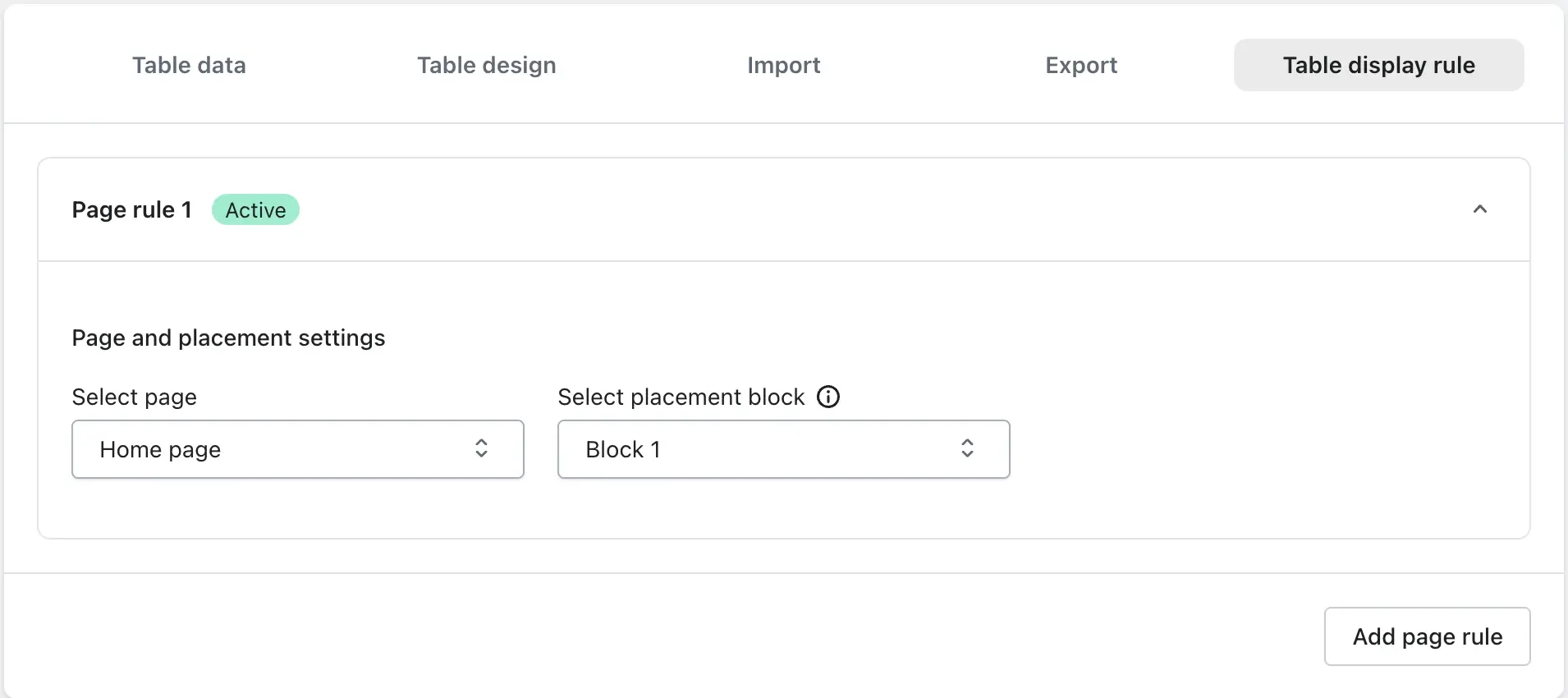
Home Page All table type
Choose the block where you want the table to appear. The table will be displayed on the Home page at the selected position.
Product Page All table type
- Select Theme Template – Choose the product template where you want to display the table.
- Select Placement Block – Select the app block position within the chosen template.
- Product Selection – Decide which products should display the table.
Apply to All Products
Selecting this option displays the table on all products that use the selected product template.
Specific Products
Use the Browse Products option to select individual products. The table will only be shown on the selected products that belong to the chosen template.
Add Product with Tag
Enter one or more product tags. The table will automatically appear on products containing those tags and using the selected template.
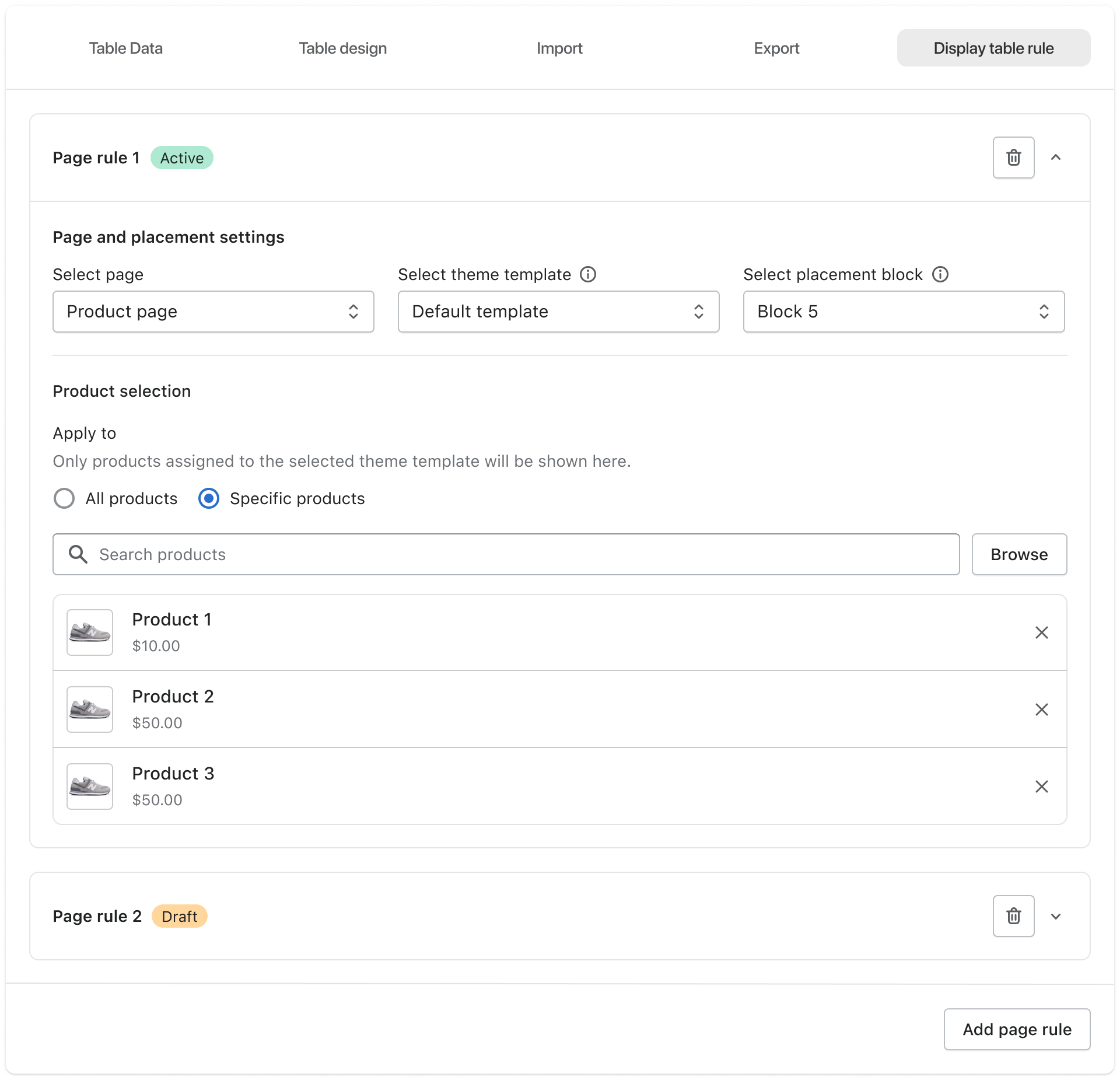
Table Display Type Size chart
You can choose how the size chart should be displayed on the storefront.
Always Visible
Displays the size chart table directly on the page at the selected block position without requiring any customer interaction.
Inline & Floating Button
Displays the size chart through buttons instead of showing it directly on the page. Customers can open the size chart by clicking the size chart inline button or floating button.
Choose placement type Size chart
When Inline & Floating Button is selected, you can choose one or both button types.
Inline button
Displays a button inside the page content near the selected app block position. Customers can click the button to view the size chart.
Floating button
Displays a floating button on the side of the screen, allowing customers to access the size chart from anywhere on the page.
Modal Type Size chart
You can choose how the size chart popup should appear when customers open it.
Center
Opens the size chart in a centered popup window.
Left Drawer
Displays the size chart in a sliding drawer from the left side of the screen.
Right Drawer
Displays the size chart in a sliding drawer from the right side of the screen.
Collection Page All table type
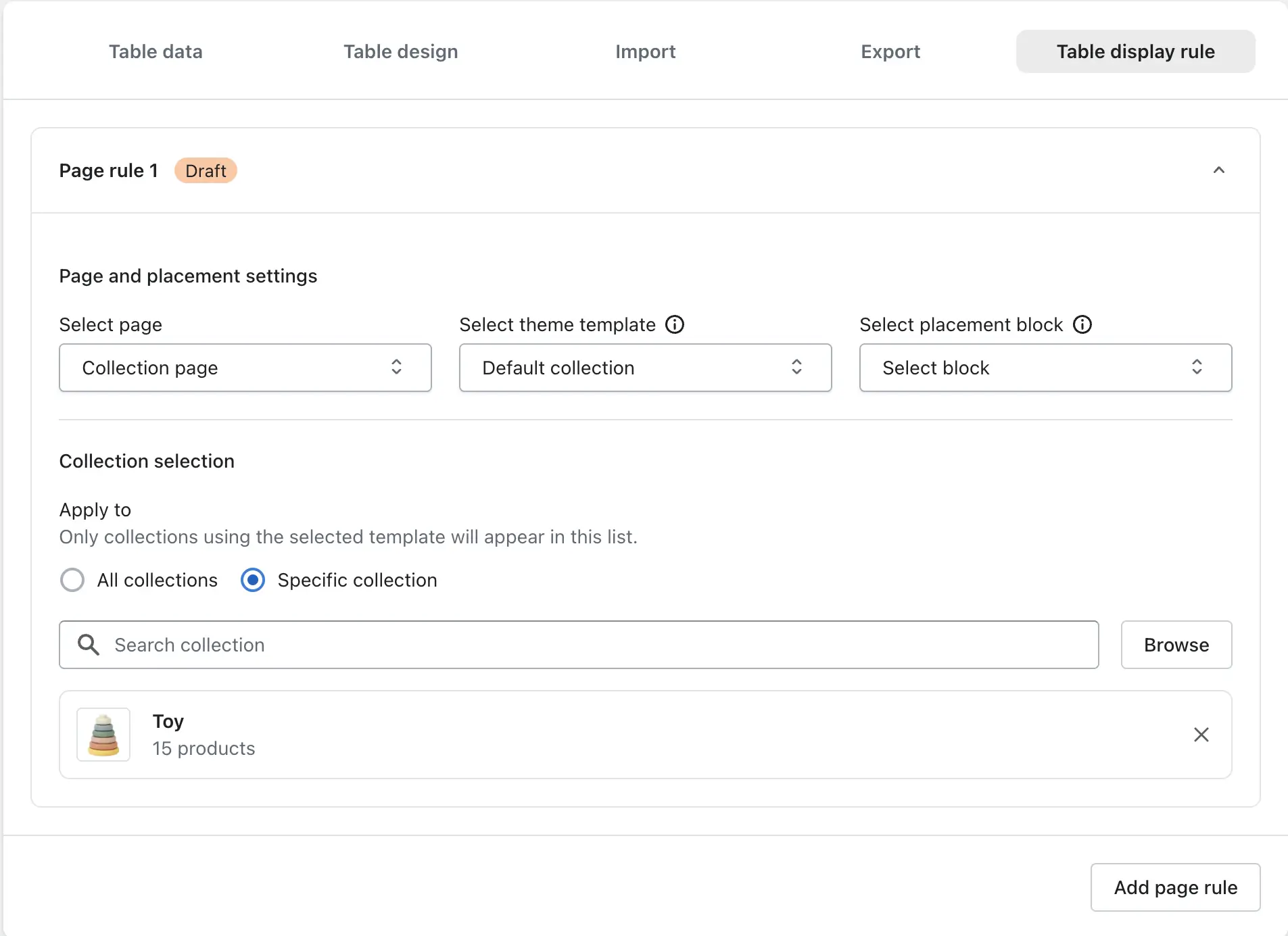
- Select Theme Template – Choose the collection template.
- Select Placement Block – Select where the table should appear.
- Apply To – Choose whether the table should appear on all collections or only selected collections.
All Collections
Displays the table on every collection using the selected template.
Specific Collections
Use the browse option to select individual collections. The table will only appear on the selected collections.
CMS / Custom Page All table type
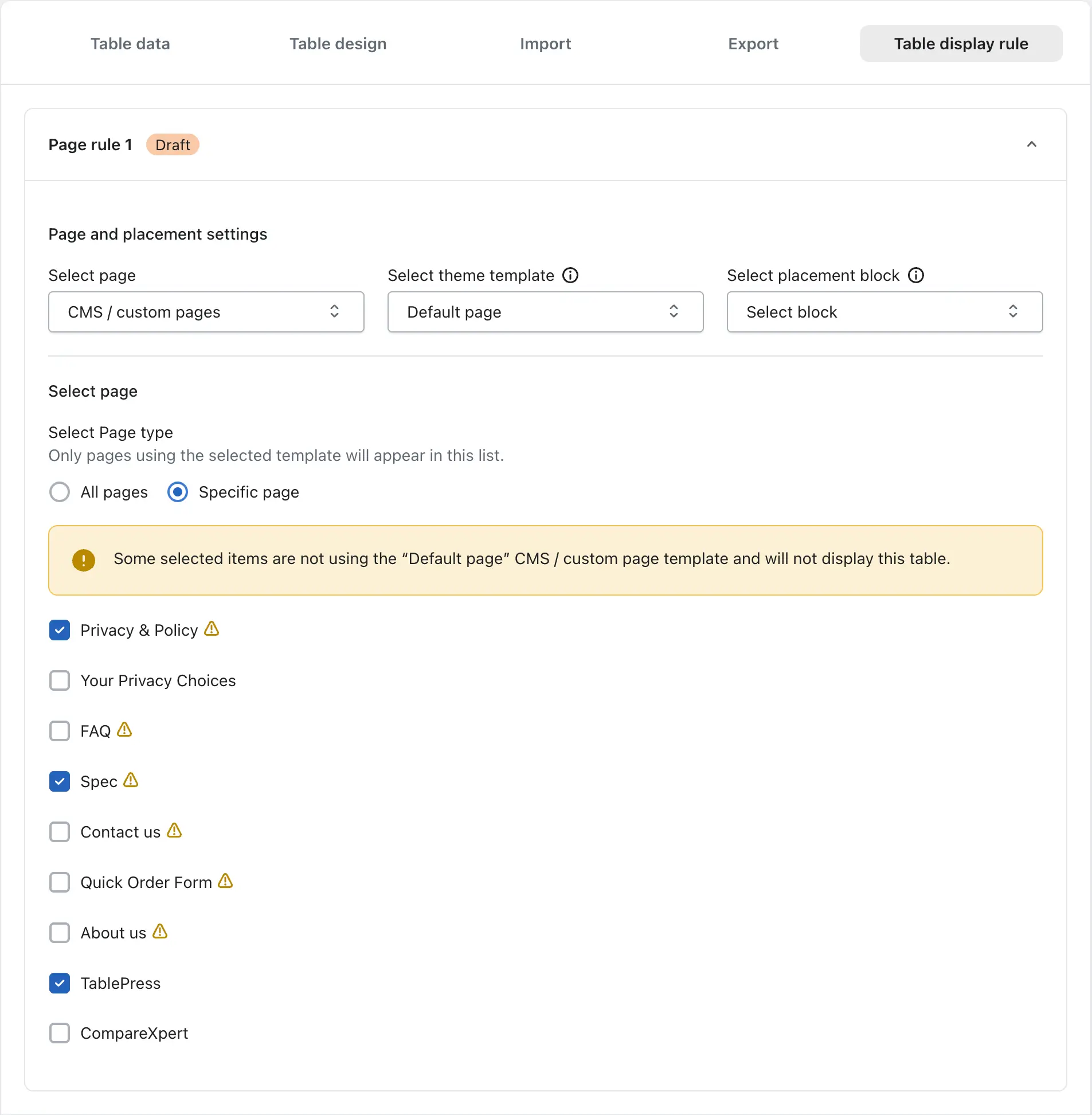
- Select Theme Template – Choose the page template.
- Select Placement Block – Select the app block position.
- Select Page Type – Decide whether the table should appear on all pages or only selected pages.
All Pages
Displays the table on every page using the selected template.
Specific Page
After selecting this option, a list of all created pages in your store will be available. Choose the pages where you want to display the table.
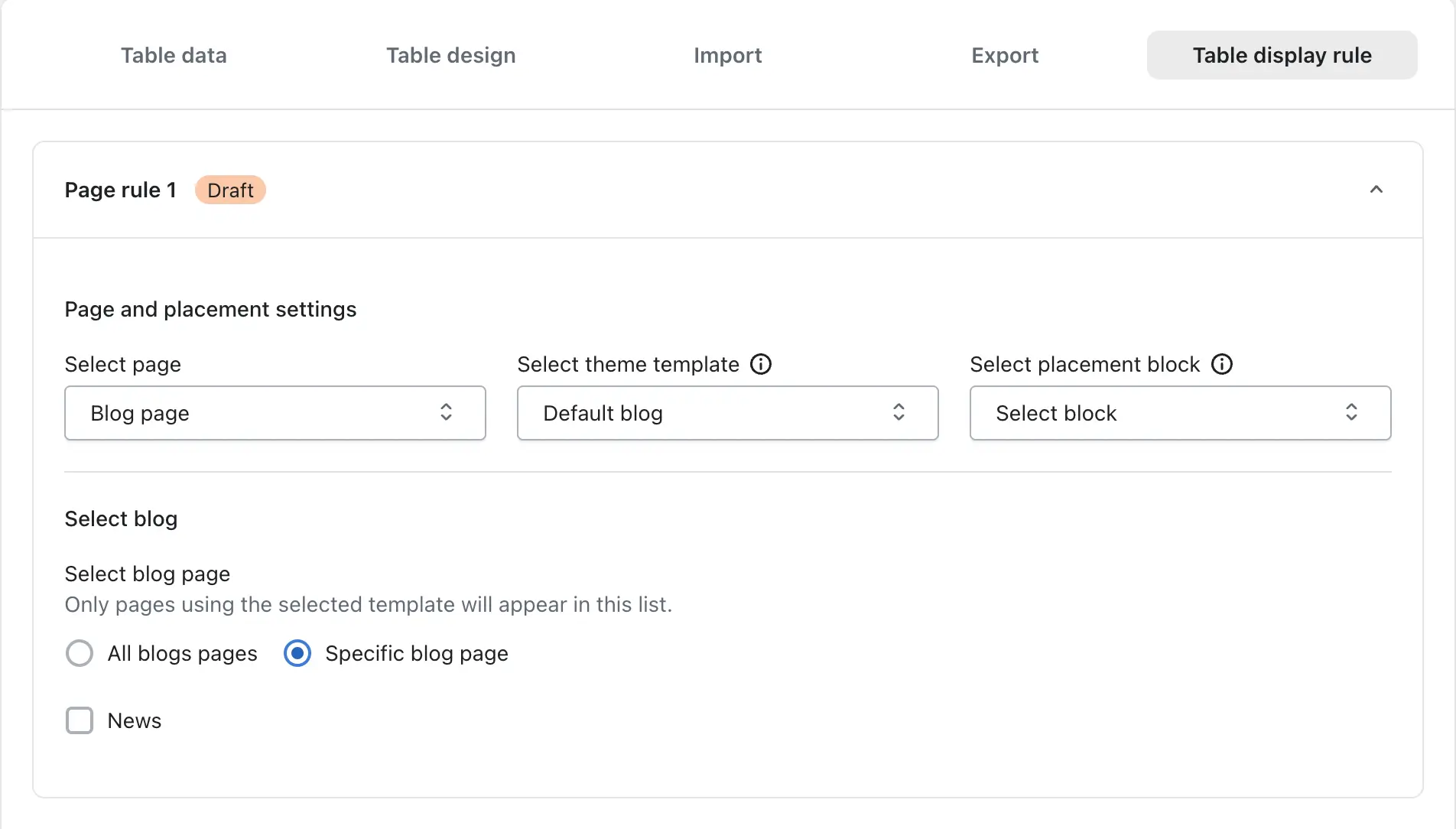
Blog Page All table type
- Select Theme Template
- Select Placement Block
- Select Blog Page
All Blog Pages
Displays the table on all blog listing pages that use the selected template.
Specific Blog Page
Choose individual blog pages from the available list to display the table only on those blogs.
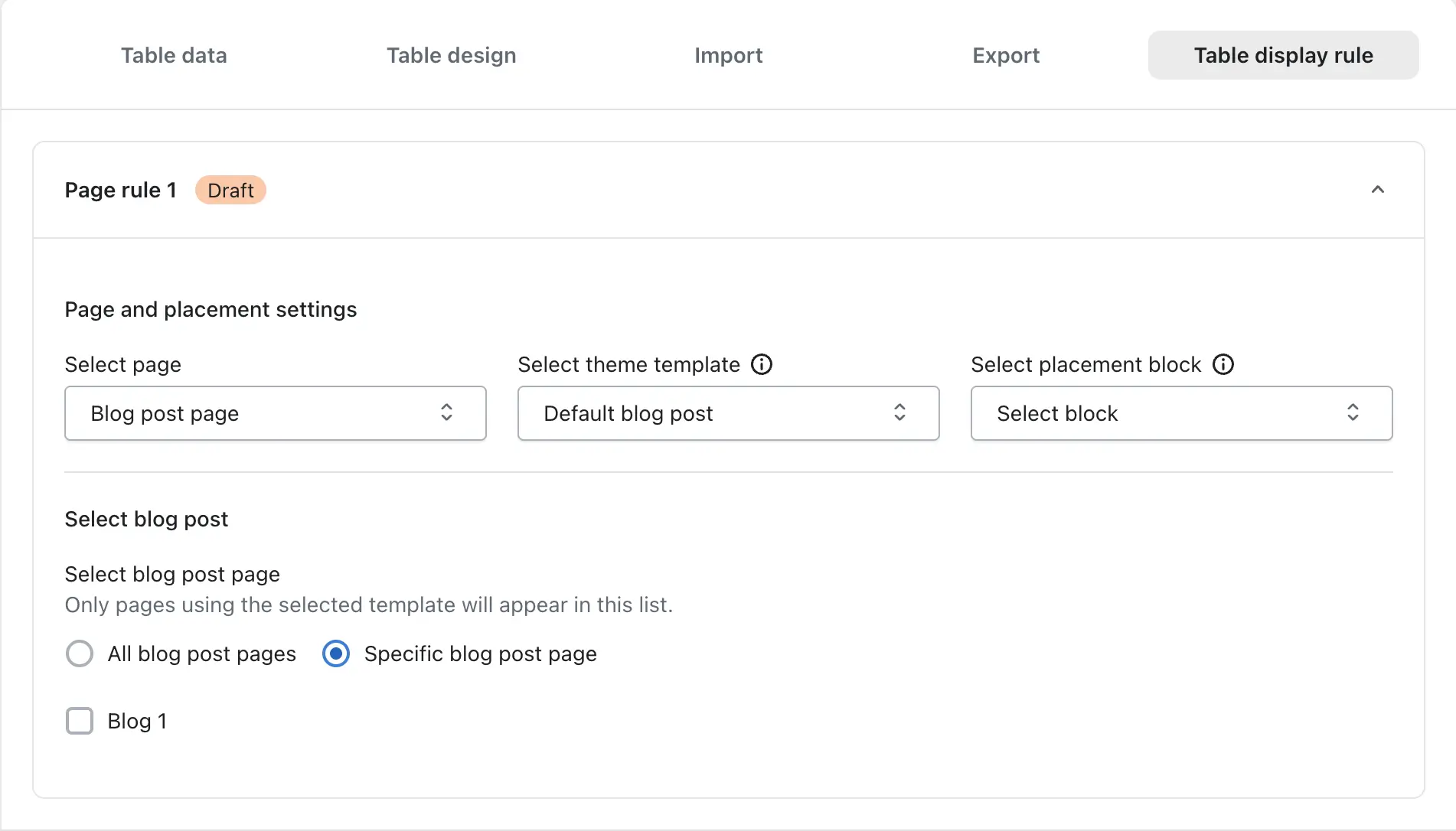
Blog Post Page All table type
- Select Theme Template
- Select Placement Block
- Select Blog Post Page
All Blog Post Pages
Displays the table on every blog article using the selected template.
Specific Blog Post Page
Select individual blog posts from the available list. The table will only appear on those selected blog posts.
Things to Know
Before using the Theme App Block feature, keep the following points in mind.
Tables are displayed only where the app block is added.
Adding a page rule alone will not display the table. The iTable Compare & Pricing Table app block must also be added to the corresponding page or template from the Shopify theme editor.
Multiple app blocks create multiple table positions.
If you add the app block multiple times on the same page, the table will appear multiple times, once for each selected block.
Different pages support different configuration options.
Depending on the selected page type, additional options such as product selection, collection selection, page selection, or blog selection may be available.


