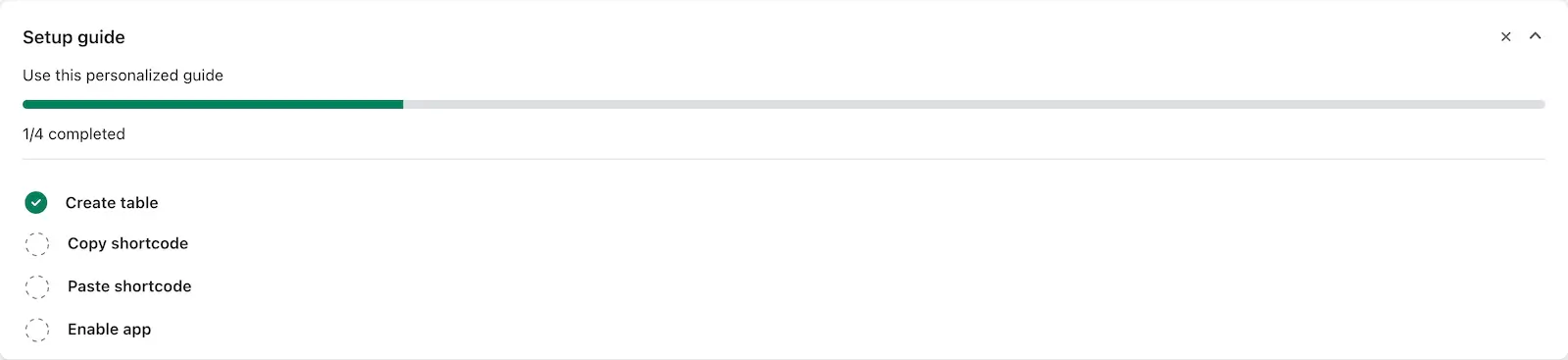
The Dashboard provides a setup guide for managing your app. You can create tables, copy or paste shortcodes, and enable the app directly from this interface. If the app is not enabled, you'll see an "Enable App" feature on the dashboard, which allows you to activate it easily.
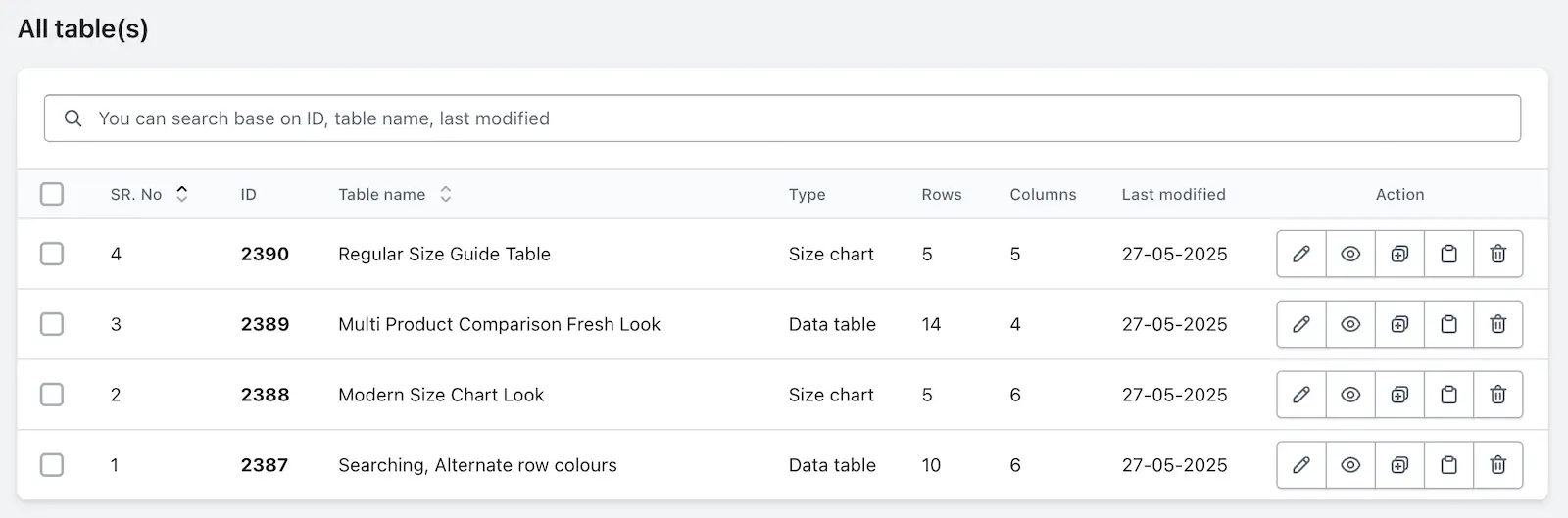
In the Dashboard, you will find a list of all the tables you have created, displaying details like Table ID, Table Name, Rows, Columns, and Last Modified Date. You can perform various actions on each table, including editing, enabling or disabling, duplicating, copying the shortcode, and deleting the table as needed.
The Dashbaord is displaying the setup guide. To let us know how to set up the app, you can create the table, then copy or paste the shortcode and enable the app.
Application status
When the app is not enabled, the “Enable App” feature will appear on the dashboard page. Although the app can be enabled from the app settings, this feature will show up on the dashboard when the app is not yet enabled.

All table(s)
In Dashboard, you will see a list of all the tables you have previously created. Each table entry includes details such as the SR.No., Table ID, Table Name and type, Rows, Columns, Last Modified Date, and available Actions.
In the Actions section, you can:
1. Edit the table
2. Enable – Disable the table
3. Duplicate the table
4. Copy shortcode
5. Delete the table.