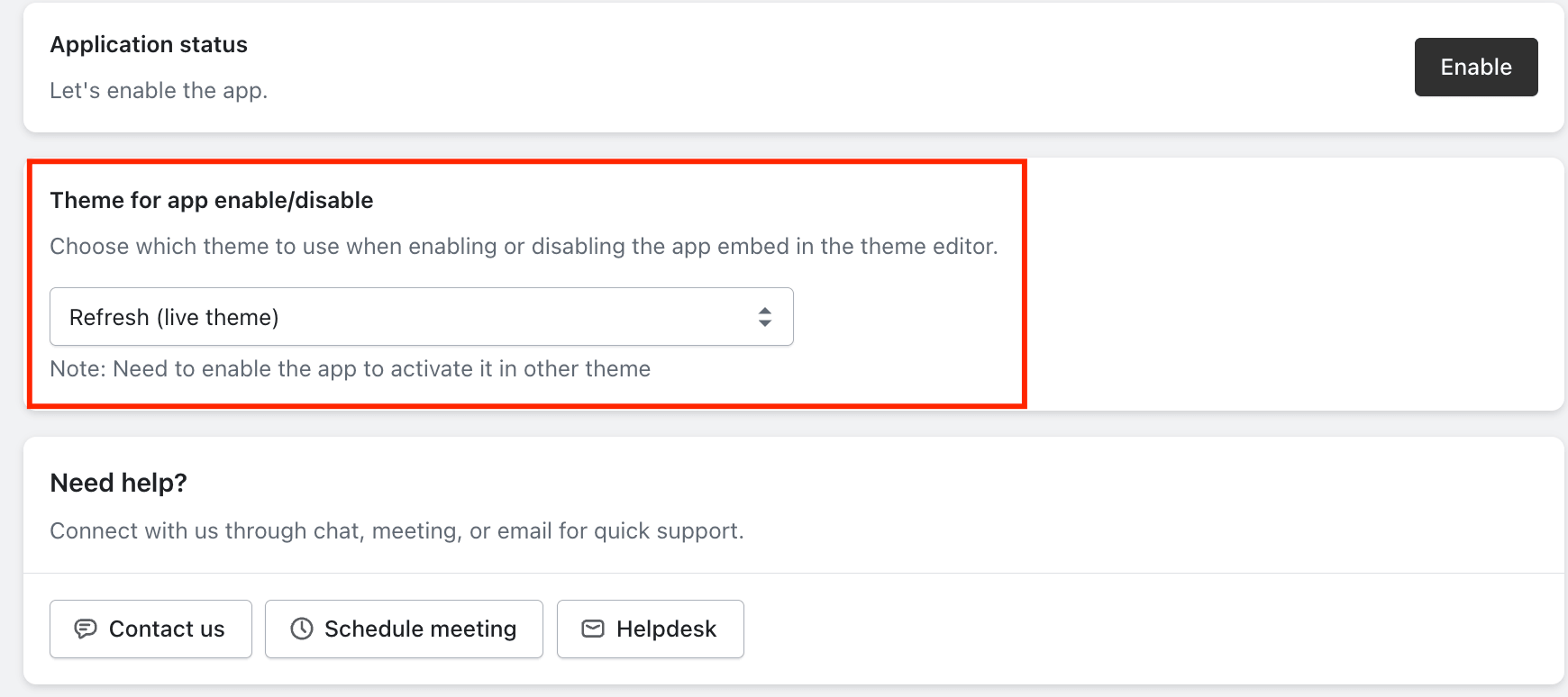
The Theme for App Enable/Disable setting allows you to select which Shopify theme LaunchX should use to check the app’s App Embed status. By default, it operates with your published theme, but you can choose a preview or unpublished theme from the dropdown to test how features like the coming soon or age verification pages will function before going live. After testing, remember to switch back to your live theme to ensure LaunchX continues working properly.
To set this up, access your LaunchX app, navigate to Settings, and select the desired theme from the Theme for App Enable/Disable dropdown. After selecting a theme, you must enable the LaunchX App Embed for that theme in the Shopify Theme Editor for it to work. Note that only one theme can be selected at a time, and if the app is not showing after a theme change, ensure that the app embed is activated in the new theme's editor.
By default, LaunchX works with your published (live) theme. If you want to test the app on a preview or unpublished theme, simply select that theme from the dropdown. This allows you to verify how the coming soon page or age verification page will work before publishing the theme.
Once your testing is complete, switch the selection back to your live theme so LaunchX continues working on your published store.
Note: Selecting a theme does not automatically activate LaunchX on that theme. After changing the theme, you must enable the LaunchX App Embed for the selected theme in the Shopify Theme Editor. The app will only work after the App Embed is enabled.
In this article, you will learn where to find this setting and how to set it up correctly.
How to Access This Feature
- Go to your LaunchX app.
- Open Settings.
- Find Theme for App Enable/Disable.
- Choose a theme from the list.
- Enable the app emebed for that selected theme
- Click Save.
Feature Settings Explained
Theme Selection Dropdown
Theme for App Enable/Disable Dropdown
Choose the Shopify theme where you want LaunchX to work. By default, your live (published) theme is selected.
LaunchX can work with only one theme at a time. If you select a different theme, the app will stop working on the previously selected theme and will only work on the newly selected theme.