The Alignment feature lets you control the horizontal display of content on your Under Construction or Coming Soon page, ensuring it matches your desired layout for visitors. You can customize the alignment through your Shopify admin by accessing the app, selecting the Under Construction option, and adjusting the settings under the General Settings tab. You have three alignment options: Left, Center, and Right.
Choosing Left aligns all elements to the left, Center positions them in the middle for a balanced look, and Right aligns them to the right, catering to specific design preferences. Make sure to save your changes to maintain a consistent user experience that reflects your brand's style.
The Alignment feature allows you to control how the content on your Under Construction or Coming Soon page is displayed horizontally. This ensures your page layout looks exactly how you want it to appear to your visitors.
Steps to Open Alignment:
1. Go to your Shopify admin.
2. Open the app and customize the Under Construction option.
3. Click on the General Settings tab on the right.
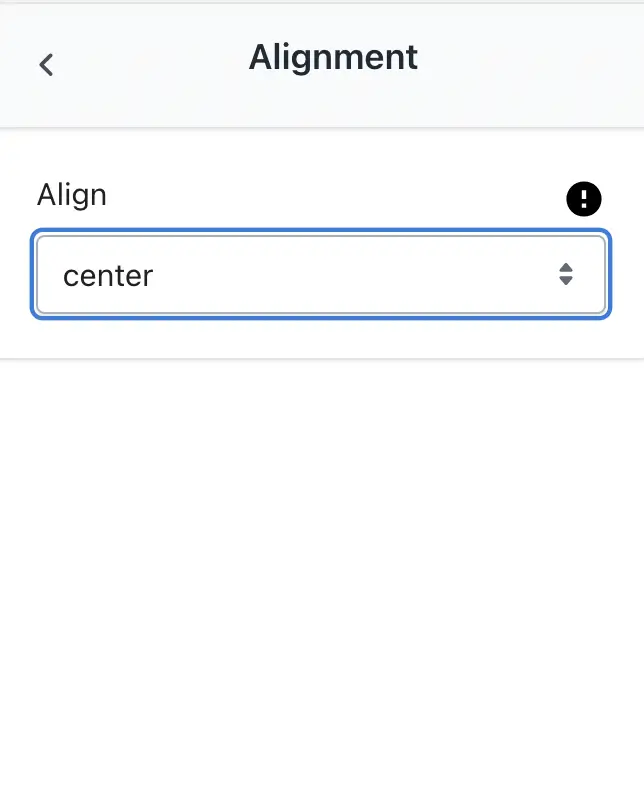
4. Open the Alignment, make changes as per your choice, and save the settings.
You can choose from three alignment options:
Left – All elements on the page, such as the heading, description, countdown timer, or subscription form, will be aligned to the left side of the screen.
Center – All elements will be perfectly centered on the page, creating a balanced and clean design that is visually appealing.
Right – All elements will be aligned to the right side of the screen, which can be useful for certain design styles or branding needs.
Example:
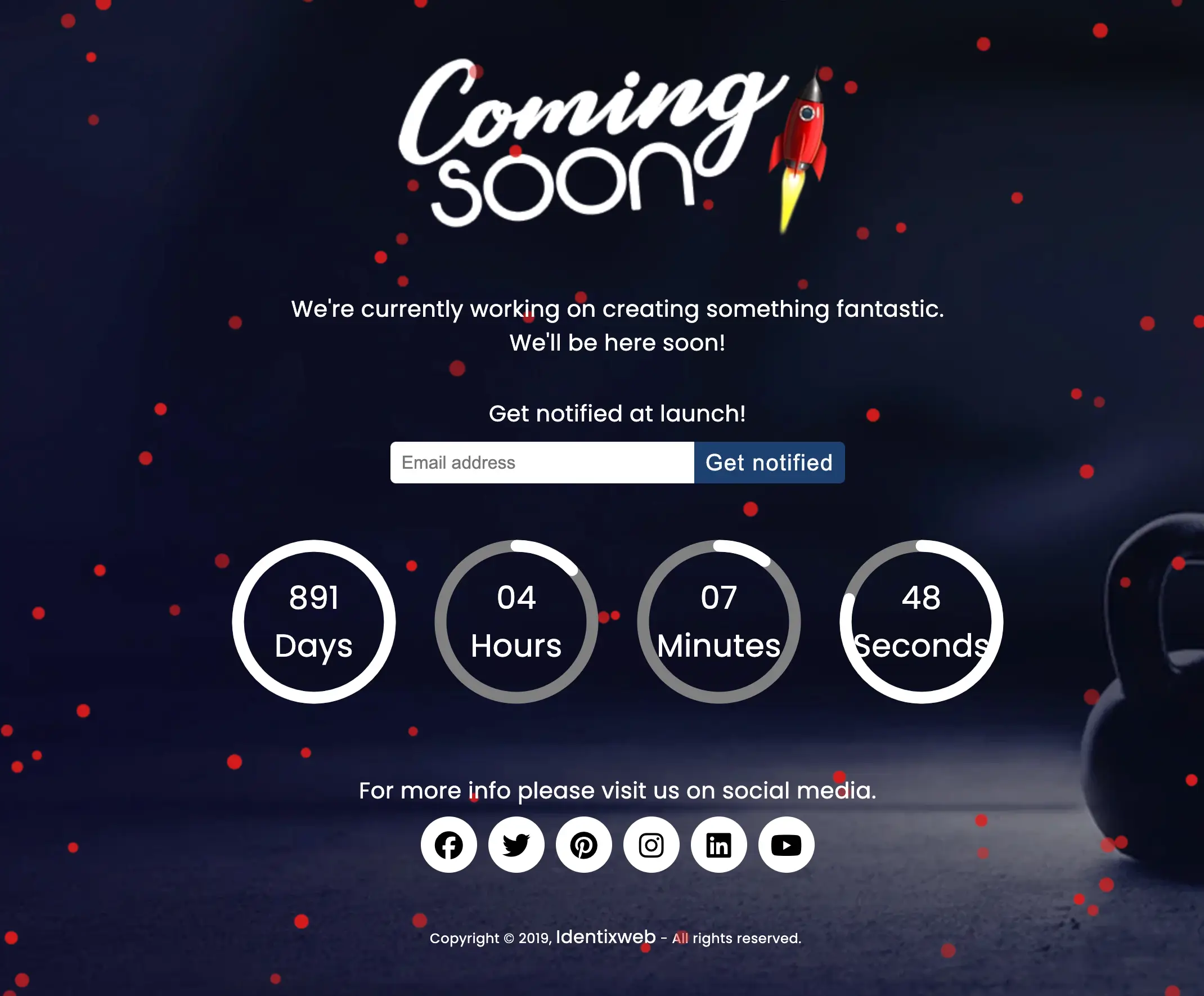
If you select Left alignment, the entire content (e.g., “Coming Soon” message, and form) will appear starting from the left margin. Similarly, selecting Center or Right will shift the entire block of content to the respective position.
This setting helps match the overall layout of your brand’s look and feel, ensuring a consistent user experience.
➞ Setting
➞ Result