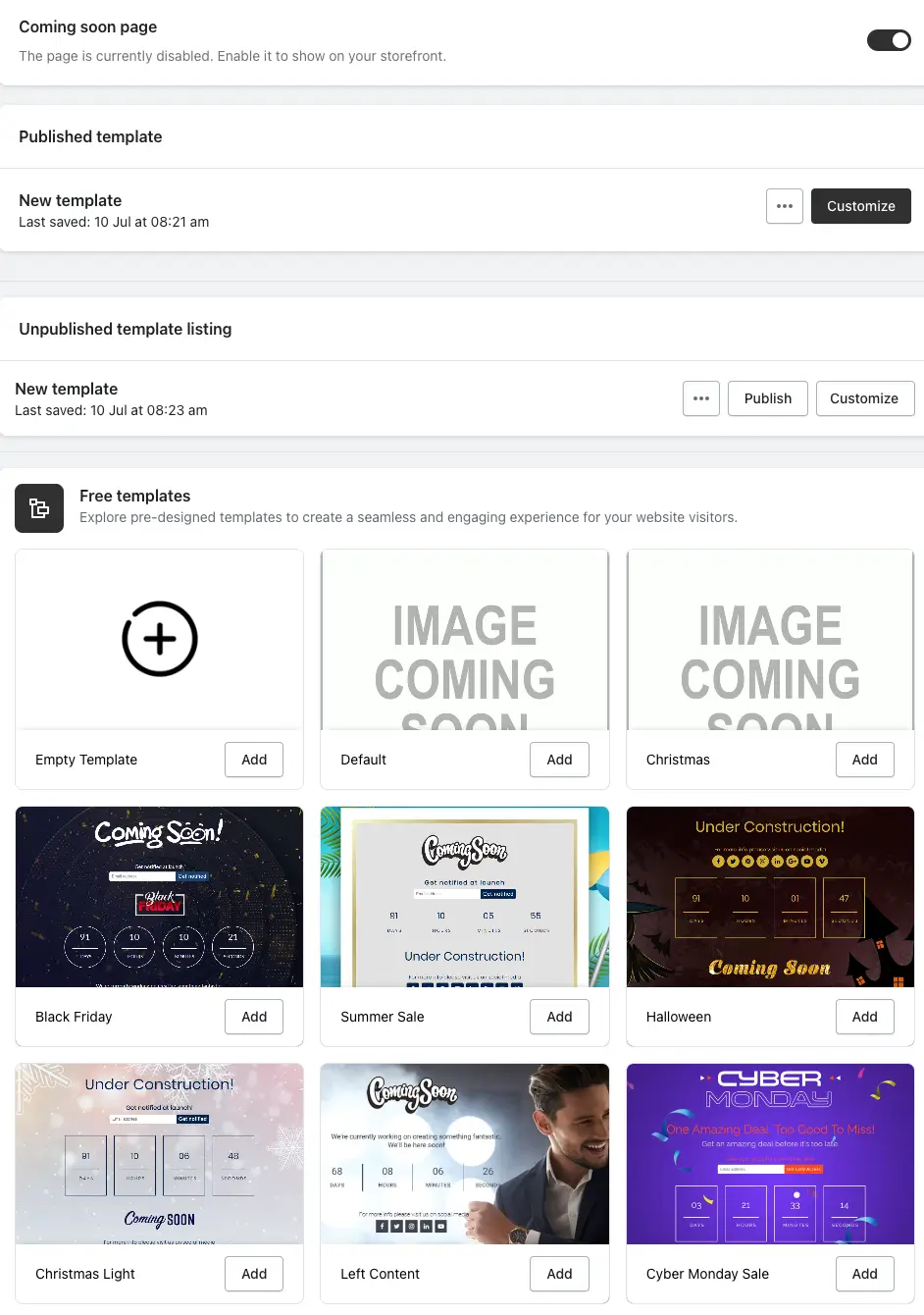
The Coming Soon Page feature allows you to display an “Under Construction” page while your store is being built or updated. You can easily enable or disable this page using a toggle switch. You can customize the published template by selecting it in your Shopify Admin, navigating to the Coming Soon Page section, and using the template editor to design your page. Remember to save your changes, and you can also preview, rename, or duplicate templates as needed.
In addition to the active template, you can manage unpublished templates saved as drafts for later editing or publishing. You have the option to create new templates or access a collection of professionally designed free templates for quick setup. To use these, simply explore the free templates, choose one that fits your brand, customize it, and save it for later use.
The Coming Soon Page feature allows you to display an “Under Construction” page while your Shopify store is being built or updated. This page can be easily enabled or disabled with a simple toggle.
🔘 Enable/Disable Coming Soon Page
Use the toggle switch to turn ON or OFF the Coming Soon page display on your storefront.
✅ Published Template
This section displays the currently active template that is visible on your storefront.
How to Customize the Published Template:
1. Go to your Shopify Admin and open the app.
2. Navigate to the Coming Soon Page section.
3. Select a template and click Customize.
4. A blank template editor will open, allowing you to fully design your Under Construction page.
5. After making your changes, click Save.
You will also see the last modified date and time of the active template.
Example: Last saved: 10 Jul at 08:21 am
Actions Available:
Customize the active template.
Preview, Rename, or Duplicate the template via the Action dropdown.
📄 Unpublished Templates
This section displays all your saved templates that are not currently published.
-> If you create or edit a template but don’t publish it, it will be saved here as a draft.
-> You can keep multiple unpublished templates to:
- Edit later
- Publish when needed
- Delete if not required
Options Available:
1. New Template – Create a new custom template, and choose to publish, duplicate, or rename it.
2. Free Templates – Access pre-designed templates to quickly launch a Coming Soon page with minimal effort.
🎨 Explore Free Templates
LaunchX offers a collection of professionally designed free templates.
To use them:
1. Click on the Explore Free Templates button.
2. Browse through the available designs.
3. Select a template that fits your brand.
4. Customize it as needed and save it.
-> These templates provide a fast and easy way to create an engaging Under Construction page without starting from scratch.
-> You can fully edit any of these templates later to match your store’s branding.