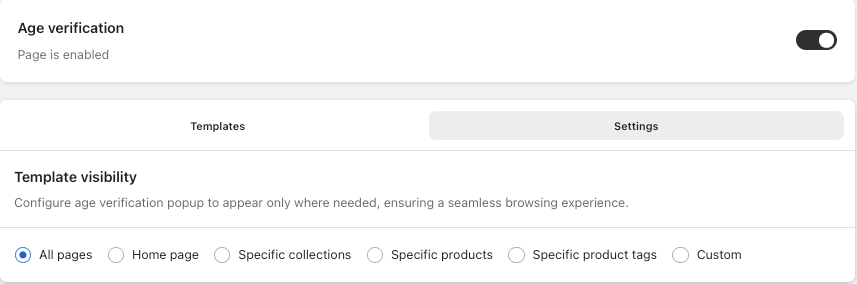
The Age Verification feature in the LaunchX app allows you to restrict access to your store based on visitors' ages, ensuring compliance with legal or brand guidelines, especially for products like alcohol or adult items. You can enable or disable the Age Verification page, customize its design, and control its visibility across your store or specific pages. To configure the Age Verification settings, access the LaunchX app from your Shopify admin, navigate to Age Verification, and adjust the Template Visibility options.
Remember, the visibility settings only apply when your template is set to Popup View; if it's in Page View, the rules won't take effect. Ensure you select the appropriate visibility options to display the popup on desired products or pages.
The Age Verification feature in the LaunchX app allows you to restrict access to your store based on the visitor’s age, helping ensure compliance with legal or brand guidelines (e.g., for alcohol, vape, or adult product stores).
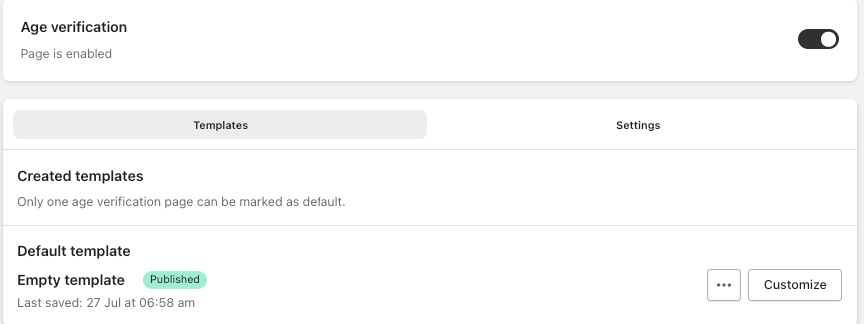
Display Toggle
-> You can enable or disable the Age Verification page using the toggle button.
-> When enabled, visitors will see the age verification prompt before accessing your store.
-> When disabled, the verification step is skipped, and the storefront loads normally.
Published Template
-> The Published Template section displays the current active template used for the Age Verification page.
-> You will see the “Published” label along with the date and time the template was last saved.
Available Actions:
Customize – Modify the design, text, and layout of the verification page.
Preview – See how the Age Verification page will appear to visitors.
Duplicate – Create a copy of the template for backup or to make variations.
Rename – Update the template name to keep things organized based on use cases or designs.
Create a New Template:
This feature allows you to create an additional template with a different design. You can find the “Create New Template” button on the top-right corner of the Age Verification page.
After clicking the button, you’ll be redirected to the customization page, where you can make all the changes as per your needs. Once you’re done, you can publish the template whenever you like.
Template Visibility for Age Verification Popup
The Template Visibility setting gives you more control over where the Age Verification popup should appear on your storefront.
You can choose whether the popup should be displayed across your entire store or only on specific pages, products, collections, tags, or URLs.
This setting is available under:
Age Verification → Settings → Template Visibility
When Does Template Visibility Work?
The Template Visibility setting works only when your Age Verification template is configured with Popup View.
If your template uses Page View, the Template Visibility settings will not apply.
With Popup View, you can precisely control which parts of your storefront should display the Age Verification popup.
Available Visibility Options
You can choose from the following options:
- All Pages – Display the Age Verification popup across all pages of your storefront.
- Home Page – Display the popup only on your store’s homepage.
- Specific Products – Display the popup only on selected products.
- Specific Collections – Display the popup only on selected collections.
- Specific Product Tags – Display the popup on products that have specific product tags.
- Custom URLs – Display the popup only on specific URLs that you define.
How to Configure Template Visibility
- Open the LaunchX – Under Construction app from your Shopify admin.
- Go to Age Verification.
- Open Settings.
- Find the Template Visibility setting.
- Select where you want the Age Verification popup to appear.
- Configure the required products, collections, product tags, or URLs based on the selected visibility option.
- Save your changes.
Important Note
Template Visibility only works with Popup View.
If your Age Verification template is set to Page View, the visibility rules will not affect where the Age Verification page is displayed.
For example, if you want to show an age verification popup only on specific products, first make sure that the template’s Template View Type is set to Popup View. Then, use Template Visibility → Specific Products to select the products where you want the popup to appear.