



Your Shopify inventory report is one of the most underused tools in your admin. Most store owners check stock levels manually and have no real visibility into which products are helping them get conversions.
The reports sitting inside your analytics section can fix that, but only if you know which one to open and what to do with the numbers.
Shopify has multiple built-in inventory reports, each answering a different question about your stock. Some show you the end-of-month snapshots while others give you a permanent audit trail of every adjustment ever made to your inventory.
The 2026 Winter and Spring editions added real-time intelligence on top of all of this through Sidekick.
Here is a full breakdown of every report type, how to access them, what each column actually means, and how to turn the data into action.
What is a Shopify inventory report?
A Shopify inventory report is a structured data view inside your analytics section that tracks the quantity, value, velocity, and history of your stock. These reports are generated from your store's live inventory data at the variant level, so every size, color, and option gets tracked independently.
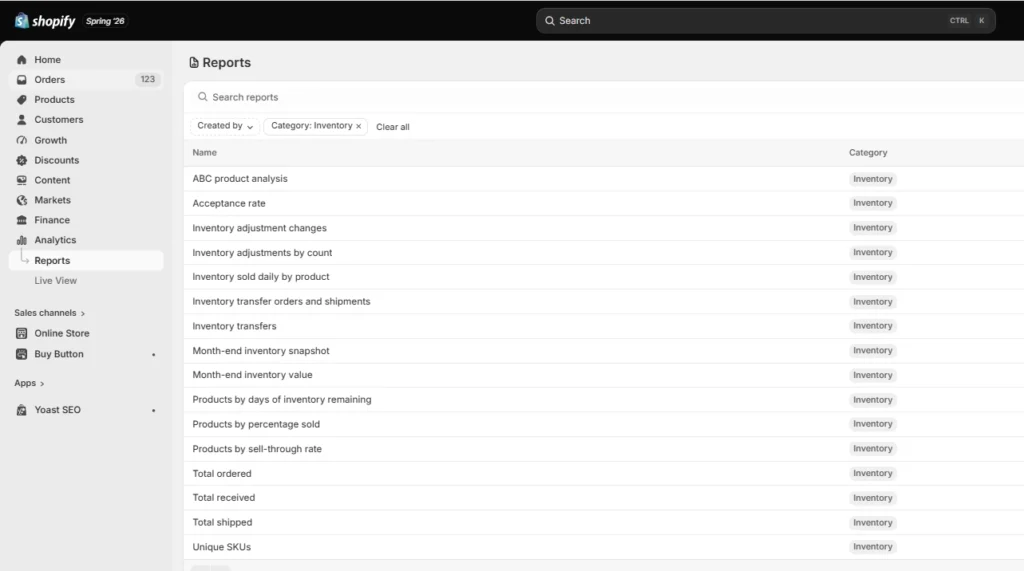
Here’s how an inventory looks inside the Shopify admin
Shopify’s inventory reports show you how fast a product sells per day or what percentage of your stock you have moved. We will discuss the types of inventory in the coming section.
How to pull an inventory report from Shopify?
Both mobile and desktop have the same workflow to pull inventory reports
- Log in to your Shopify admin.
- Go to Analytics in the left navigation.
- Click Reports.
- Click the Category filter at the top of the report list.
- Select Inventory.
- The list now shows only inventory-related reports. Click any one to open it.
The different inventory reports available in Shopify: Explained

1. Month-end inventory snapshot
The month-end inventory snapshot shows the ending available quantity of every product variant at the close of each month.
Available quantity means your on-hand stock minus committed units (orders placed but not yet shipped)
Key columns: Product title, Variant title, Variant SKU, Ending quantity.
When to use it: Use this report at the end of every month to confirm stock levels and catch variants that sold more units than you physically had in stock. If you see negative ending quantities, a product was oversold, or inventory tracking was disabled on that variant.
2. Month-end inventory value
The month-end inventory value report functions like the report above, but it layers in the cost per item assigned to each variant at the time of sale. The result is the total dollar value of your available inventory at the end of the month.
Key columns: Product title, Variant title, SKU, Cost, Ending quantity, Total inventory value.
When to use it: Use it to understand how much capital you have in your warehouse. For Shopify inventory management, this report is the foundation of any cost-of-goods-sold analysis.
3. Inventory sold daily by product
Shopify's daily inventory sold report calculates the average number of units sold per day for each variant over your selected period.
The formula is simple: total units sold divided by the number of days in the range.
Key columns: Product title, Variant title, SKU, Quantity sold, Ending quantity, Quantity sold per day.
When to use it: Set this report to the last 30 days and sort by Quantity sold per day. The top rows are your bestsellers. For example, if a variant has 50 units remaining and a sell rate of 10 per day, you have five days of stock left.
4. Products by percentage sold
The percentage sold report shows what share of each variant's opening stock you moved during the selected period. It divides total units sold by the starting quantity.
Key columns: Product title, Variant title, SKU, Quantity sold, Starting quantity, Percent sold.
A percent sold value above 100% means the variant was oversold. A value below 0% means the starting quantity was already negative when the period began. N/A displays when the starting quantity is zero.
When to use it: Use this for seasonal planning. A summer product at 95% sold through by mid-July tells you to reorder urgently.
5. ABC product analysis
The ABC analysis report assigns each variant a grade based on its contribution to revenue over the last 28 days. Shopify updates it daily.
- A-grade: The variants that collectively account for 80% of your revenue.
- B-grade: The next 15% of revenue.
- C-grade: The bottom 5%.
Key columns: Product title, Variant title, SKU, Product grade, Ending quantity, Total value (cost), Total value (price).
When to use it: Focus your restocking budget on A-grade variants first. This is what I always do. If an A-grade product that goes out of stock will negatively affect your sales.
6. Products by sell-through rate
The sell-through rate report measures the percentage of total inventory you have sold during the selected period. The formula is:
Units sold / (Units sold + Units still in inventory)
Shopify displays results with a two-day lag (three days for UTC+14:00 time zones) to account for data processing.
Key columns: Product title, Variant title, SKU, Sell-through rate.
When to use it: A high sell-through rate confirms strong demand. A low rate signals potential unsold merchandize. Use this report monthly to identify which variants are not moving and decide whether to run a promotion or discontinue the SKU entirely.
7. Inventory remaining per product
This is the report I use the most. Shopify's inventory remaining report gives you an estimated number of days before each variant runs out based on current sales. It combines current stock levels with the average daily sell rate to produce a days-remaining figure.
When to use it: I view this report weekly. Any variant with fewer than 14 days of stock remaining should trigger a purchase order, assuming a minimum 7-day supplier lead time. For products with longer lead times, adjust your reorder threshold accordingly.
8. Inventory adjustment changes
For me, this report is the most powerful and least-read report in Shopify. It logs every single manual inventory adjustment made to your store: who made it, when, on which variant, at which location, what the adjustment reason was, and the before and after quantities.
Key columns: Date, Location, Staff/app that made the change, SKU, Variant, Adjustment reason, Quantity change.
When to use it: I pull this report when inventory numbers do not match expectations. A sudden drop in stock for a variant you have not fulfilled could mean a team member corrected a count error, or a receiving entry was incorrectly processed.
9. Inventory adjustments by count
Where the adjustment changes report logs every individual change, the adjustments by count report rolls them up. It shows the total number of adjustments per SKU and location over a selected period.
When to use it: A variant with dozens of small adjustments in a short window points to a process problem in your warehouse. A variant with one large adjustment deserves a conversation with whoever made it.
Shopify inventory history report: How to track adjustment changes over time
I use two reports for this purpose. Inventory Adjustment Changes (detailed, per-entry log) and Inventory Adjustments by Count (rolled-up totals). Together, they can form your inventory history analytics.
An important limitation to know: historical data for inventory-based metrics only goes back to October 1, 2023, in Shopify's system. Data before that date is not available for inventory metrics.
For deleted products, the rule changed in January 2026. Products deleted on or before January 14, 2026, still display their inventory data up to that date. Products deleted after January 14, 2026, no longer display inventory data past their deletion date.
If you need to create custom inventory reports that go beyond these defaults, Shopify supports custom data explorations using ShopifyQL.
On Advanced and Plus plans, you can build tailored views that filter by location, adjustment reason, date range, or specific SKUs.
I actually use Sidekick AI assistant to write ShopifyQL queries in plain English without touching the query syntax myself. Merchants will definitely prefer this method.
What plan do you need for Shopify inventory reports?
All paid Shopify plans include the core inventory reports. Here is how access breaks down:
- Starter: Analytics are limited. Inventory reports are not accessible on the Starter plan.
- Basic ($39/month): Full access to all nine native inventory reports plus date filtering and CSV exports.
- Grow ($105/month): All Basic features plus more detailed financial reports and additional data exploration options.
- Advanced ($399/month) and Plus: Full Shopify/SQL access, custom data explorations, and the ability to build and save custom inventory report views.
If you are on Basic or Grow and need custom reporting, apps like Report Pundit, Better Reports, and Glew can help you with custom reports.
What changed in 2026: Upgrades in Shopify inventory reports
- Permanent adjustment history: The prior 180-day cap on inventory adjustment data is gone. All adjustment history is now stored indefinitely, which helps with annual audits.
- Real-time sell-through and days-of-stock calculations: Shopify's analytics now updates the sell-through rate and days of stock remaining on a near-real-time basis. This is a significant improvement over the older reporting cycle, where data could lag by days.
- Sidekick for inventory intelligence. Sidekick monitors your inventory data proactively. Instead of waiting for you to open a report and look for a problem, it surfaces inventory alerts and restock recommendations directly in your admin panel. You can also ask Sidekick directly: "Which products need reordering?" and get a prioritized list.
- ShopifyQL for inventory queries: Sidekick can now write ShopifyQL queries for inventory data, including pulling sales, sessions, and inventory data into workflows.
- 2,048 product variants. Shopify increased the maximum variants per product from 100 to 2,048. If you run a catalogue with complex size/color/material combinations, your inventory reports now cover the full range of variants.
- Flexible inventory transfers. You can now edit shipment details during transit and receive inventory from unspecified origin locations. Inventory adjustments also give a complete audit history, tracking who changed what, when, and by how much.
When Shopify's native inventory reports are not enough
For most stores under 500 SKUs, Shopify's built-in inventory reports cover the essentials. The problems appear for stores with 500+ products. Shopify's native reports do not include:
- Demand forecasting based on seasonal trends, external signals, or promotional lift.
- Multi-channel inventory sync reporting across Amazon, wholesale, and other platforms.
- Inventory value by supplier or vendor is segmented for purchasing analysis.
- Open purchase order tracking versus what has been received.
- Reorder point automation based on lead time and safety stock calculations.
If you are managing 100+ SKUs or selling across multiple channels, a dedicated inventory planning tool will help. Shopify apps like Sumtracker and Prediko integrate directly with your inventory data and layer on the forecasting and multi-source visibility that native reports do not provide.
For B2B and wholesale operations, inventory reporting is more important: visibility into PO status, and bulk order impact on available-to-sell stock all require tools that are not available in native Shopify reports.
How I perform a weekly inventory review
Every Monday:
- Open the Inventory Remaining per Product report. Flag everything under 14 days of stock.
- Open the Inventory Adjustment Changes report. Review the last seven days for any unusual adjustments.
End of each month:
- Pull the Month-End Inventory Snapshot and Month-End Inventory Value reports. Save the CSV.
- Review the ABC Product Analysis for any grade shifts. An A-grade product that dropped to a B is worth investigating.
- Check the Products by Sell-Through Rate against your seasonal expectations.
Automating these reviews with Shopify Flow makes the process even faster.
FAQs regarding Shopify inventory reports
1. What is a Shopify inventory report?
A Shopify inventory report is a built-in analytics view inside your Shopify admin that tracks stock quantities, sales velocity, percentage sold, product value, and adjustment history at the variant level. You access them through Analytics > Reports > Category: Inventory.
2. Does Shopify have an inventory report?
Yes. Shopify has built-in inventory reports that help merchants track stock levels, inventory value, sell-through rate, days of stock remaining, and inventory adjustments. These reports are enough for most small to mid-sized stores that need basic inventory visibility without adding another app.
3. How to print an inventory report in Shopify?
To print an inventory report in Shopify, go to Analytics > Reports, open the inventory report you want, click the three-dot menu, and choose Print. You can either print it directly or save it as a PDF, depending on your device settings.
4. How do I pull an inventory report from Shopify?
Go to your Shopify admin, click Analytics, then Reports, then use the Category filter to select Inventory. Choose the specific report you need, set your date range, and optionally export it as a CSV using the Export button in the top right corner.
5. What are the different types of Shopify inventory reports?
Shopify includes nine native inventory reports: Month-End Inventory Snapshot, Month-End Inventory Value, Inventory Sold Daily by Product, Products by Percentage Sold, ABC Product Analysis, Products by Sell-Through Rate, Inventory Remaining per Product, Inventory Adjustment Changes, and Inventory Adjustments by Count.
6. What is the Shopify inventory history report?
Shopify does not have a single report named "inventory history." The history functionality lives in the Inventory Adjustment Changes report, which logs every manual and automated stock change with a full audit trail. As of the Winter 2026 edition, this history is stored permanently with no cap.
7. What is the best inventory app for Shopify?
For small and mid-sized stores, Shopify’s native inventory tools are enough. For stores with 500+ SKUs, apps like Stock Sync, EasyScan, Syncio, Cin7, or SKULabs are worth considering.




About the author
Vineet Nair
Vineet is an experienced content strategist with expertise in the ecommerce domain and a keen interest in Shopify. He aims to help Shopify merchants thrive in this competitive environment with technical solutions and thoughtfully structured content.