

The dashboard provides you with essential tools and quick access to manage your store's orders effectively. It includes a setup guide to help you complete onboarding, options to print various documents like invoices and packing slips, and analytics to track your order activity. You can also view a complete list of your orders, including their status and payment details, and utilize filtering and sorting options for efficient order management.
To get started, follow the setup guide to select document types and customize templates. You can print documents directly from Shopify or manage them through the app, with a limit of printing 10 orders in bulk. The analytics section allows you to monitor your store's performance over customizable time ranges, while the orders section provides comprehensive details and bulk action capabilities for managing your store's orders efficiently.
This page provides you with various options. Here, you can access important information and take quick actions within the app. You will find features such as the setup guide, quick actions to navigate to the Orders Page, analytics, and order lists.
Setup guide
The setup guide provides you with another opportunity to complete the onboarding process.
Key features:
- If you skipped template creation or any other essential step, you can complete it here.
- If you skipped the entire onboarding process, this section allows you to restart it.
- For additional settings, you can collapse or hide this section. To do this, click on the three-dot menu located at the top-right corner.
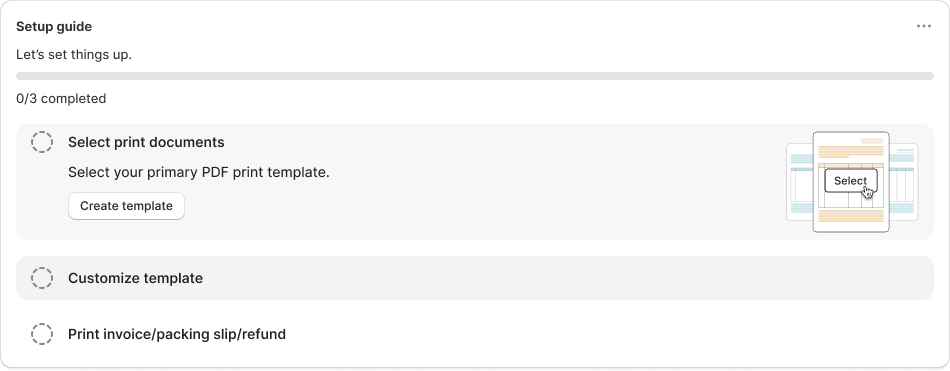
01. Select Print Documents
- Choose the types of documents you want to print, such as invoices, packing slips, or refund receipts.
- This step ensures that the necessary print options are available when processing orders.
- If you skip this, we’ll still create invoice document to start the app.
02. Customize Template
- Personalize the invoice, packing slip, or refund template to match your business branding.
- Click the “Set up template” button to modify the basic details of the document.
03. Print Invoice/Packing Slip/Refund
- Once the setup is complete, print invoices, packing slips, or refund documents through the app.
- This step ensures smooth document generation for order processing.
- To edit the whole document, please visit the template page for further configuration.
Each step is designed to help you streamline your invoicing and printing workflow. Once all three steps are completed, your setup progress will reach 100%.
Information banner
The information banner informs users that they can print or download invoices directly from Shopify’s Orders Listing Page.

Available Print Options
You can print different types of documents from Shopify, including:
- Order Invoice
- Packing Slip
- Refund Slip
There are two methods for printing from the Shopify Orders page:
01. Link Extension
- Clicking Print redirects you to the iWeb Order Printer app, where you can generate and manage invoices.
- You’ll redirect on the app to see the preview, print, and download the slips.
02. Print Extension
- Clicking Print keeps you on the same Shopify page and allows you to print directly.
- When using the print extension, you will be able to view the preview and download directly on the same page within Shopify’s order listing and details page.
This ensures flexibility in printing invoices directly or managing them through the app. You’ll get this feature on order listing page as well as on the order details page.
Analytics
The Analytics section provides insights into your store’s order activity.

You can track:
- The total number of orders placed in your store.
- The number of documents that have been printed.
- The number of documents that have been downloaded.
- The number of documents that have been downloaded from email.
You can also filter the data by selecting a specific time range. The filter options are available in the top-right corner, allowing you to choose:
- This Month – View data for the current month.
- Last Month – Analyze data from the previous month.
- Custom – Select a custom date range to retrieve specific data.
Orders
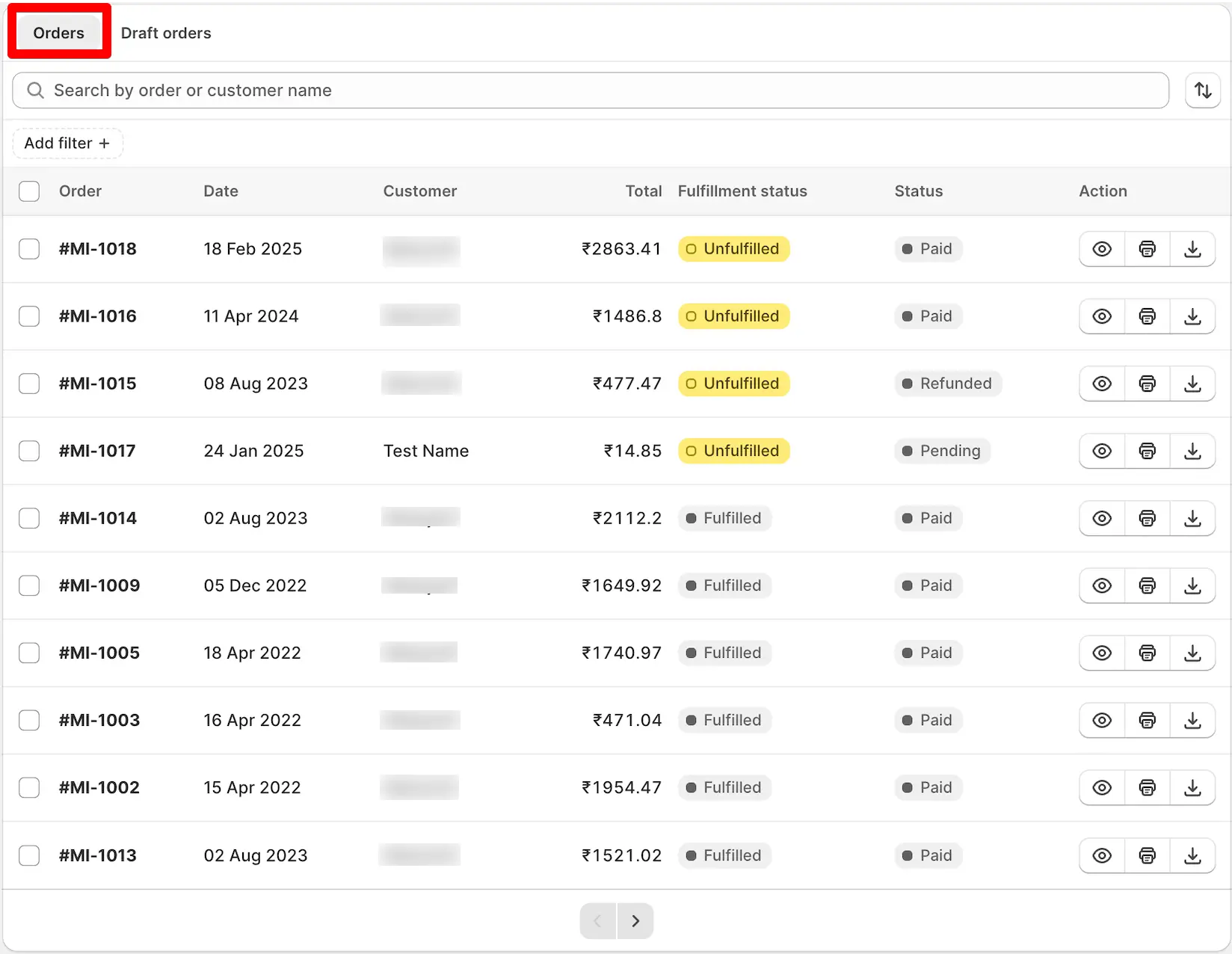
The Orders section provides a complete list of all your store orders. The order list includes the following columns:
01. Order ID – Displays the unique order identification number.
02. Order Date – Shows the date when the order was placed.
03. Customer Name – Displays the name of the customer who placed the order.
04. Total Amount – Indicates the total order value.
05. Fulfillment Status – Shows whether the order has been fulfilled or is still pending.
06. Payment Status – Displays whether the order payment is completed or pending.
07. Actions – Provides three quick actions:
- Preview – View the invoice before printing or downloading.
- Print – Directly print the order invoice.
- Download – Download the invoice as a PDF.
Bulk Actions
If you need to preview, print, or download multiple orders, you can select multiple orders using the provided checkboxes and perform bulk actions.
Filters
The filter options allow you to search for orders using Order ID or Customer Name. Additional filter options include:
- Order Status
- Payment Status
- Delivery Method
- Date Range
These filters help you quickly find and manage specific orders.
Sorting Options
Located in the top-right corner, the sorting feature allows you to organize orders based on various criteria:
- Sort by Updated Date – Oldest First or Newest First.
- Sort by Order Number – Ascending or Descending.
- Sort by Total Price – Low to High or High to Low.
- Sort by Payment Status – A-Z or Z-A.
- Sort by Fulfillment Status – A-Z or Z-A.
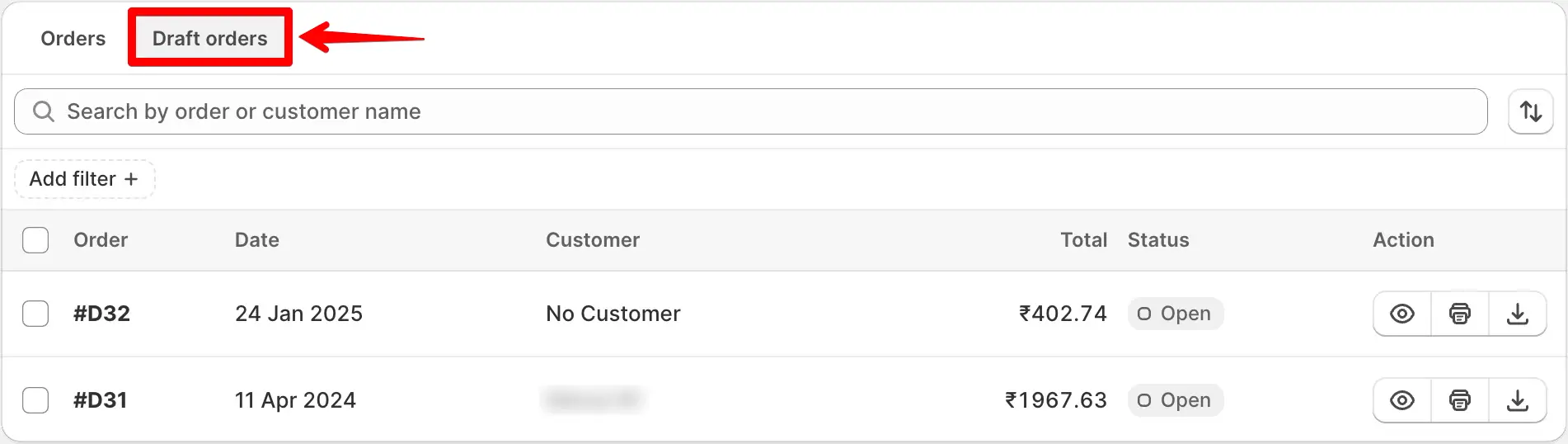
Draft orders
The Draft Orders section functions similarly to the Orders section. It displays all draft orders with the same structure and features.
These sorting options help streamline order management, making it easier to access relevant orders efficiently. To check more about the orders, please visit link here.