

The Order Preview feature allows you to print or download a PDF for any order using any saved template, including unpublished ones. This flexibility enables you to test new designs, create one-off PDFs for specific customers, or generate alternate document versions without altering your store's default template settings. To use this feature, access the Order Preview screen from your Shopify Admin and select your desired template from the Select PDF Template panel.
Remember that selecting a Created template only affects the current print or download action, leaving your published default template unchanged. Be cautious with the "Use template" button, as it will publish the selected Created template as your new default, impacting all future automated invoice emails and bulk actions.
This guide explains how template selection works in the Order Preview screen, what the difference is between a published and an unpublished (Created) template, and how to use either one to print or download — all without touching your store’s default template settings.
Feature Overview
When you open an order and view its invoice, you land on the Order Preview screen. On the right side, you will find a Select PDF Template panel that lists every template you have created.
From here, you can switch to any template to instantly preview how the PDF will look for that order. Then you can print or download using that selected template. The key benefit is simple: selecting a template in Order Preview only affects that single print or download action. It does not change which template is used for automated invoice emails or any other order.
How Template Selection Works in Order Preview
The Select PDF Template panel sits on the right side of the Order Preview screen. It is split into two groups: Published templates and Created template.
Published Templates Active Default
What appears here Auto-selected
This is the template currently set as your default. It is pre-selected every time you open Order Preview and shows a Selected indicator. Clicking Customize takes you to the template editor.
Behavior across your store Always Active
This template is used for all automated invoice emails, manual send-invoice actions, and bulk PDF downloads — anywhere outside the Order Preview screen. It stays active until you explicitly publish a different template.
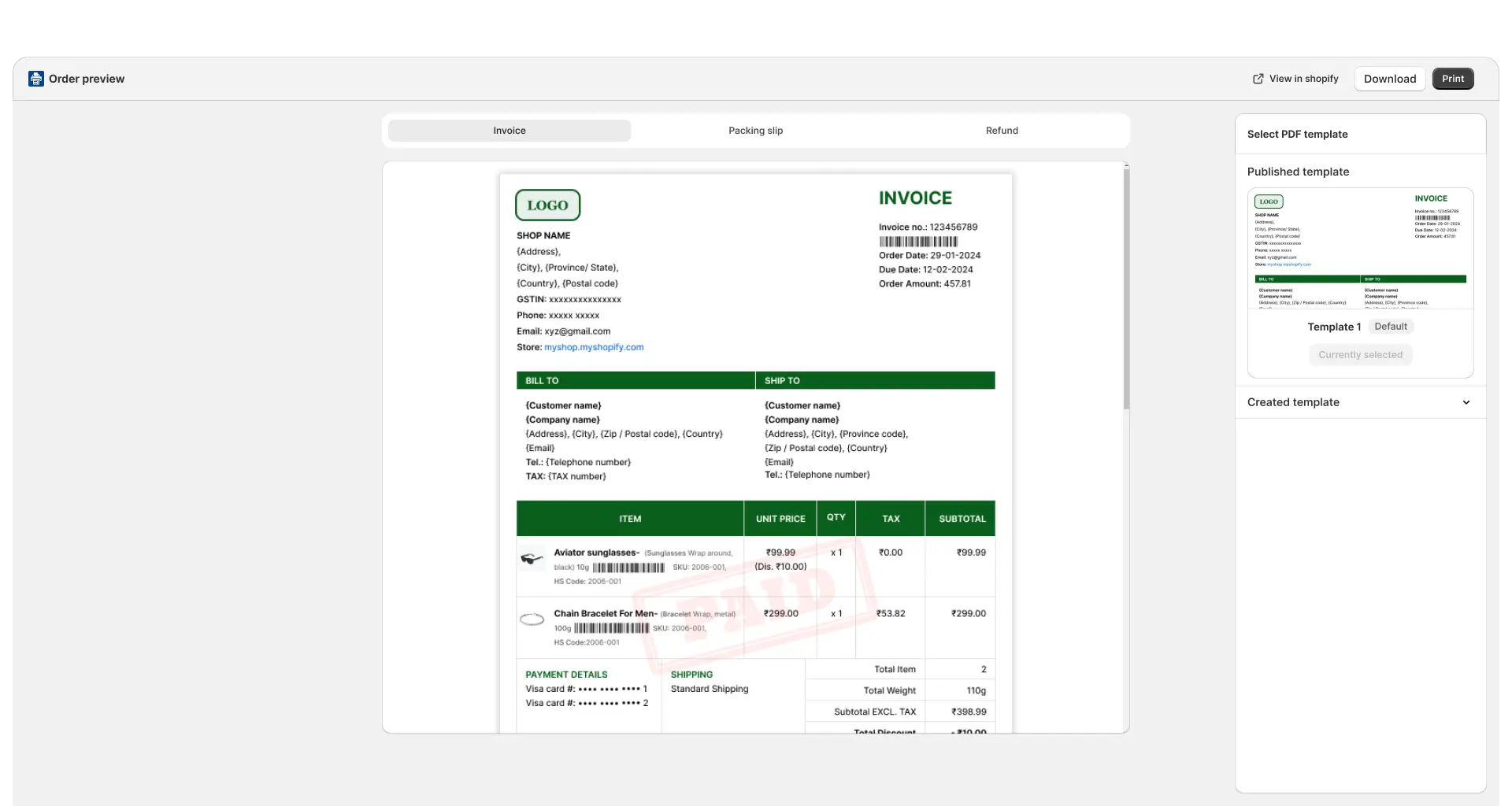
Created Templates Unpublished
What appears here Available on demand
All templates you have saved that are not currently the default. These are listed under the Created template section.
Selecting a Created template Preview Only
Click any Created template to select it for the current preview. The pane on the left updates immediately to show how the PDF will look. The template is now ready to print or download — but it is still not published.
“Use template” vs “Selected” button Action
When a Published template is active, you see Selected (greyed out) and Customize. When you switch to a Created template, the panel shows Use template (to publish it as default) and Customize (to edit it). To simply print or download, skip the Use template button — just use Print or Download at the top of the screen.
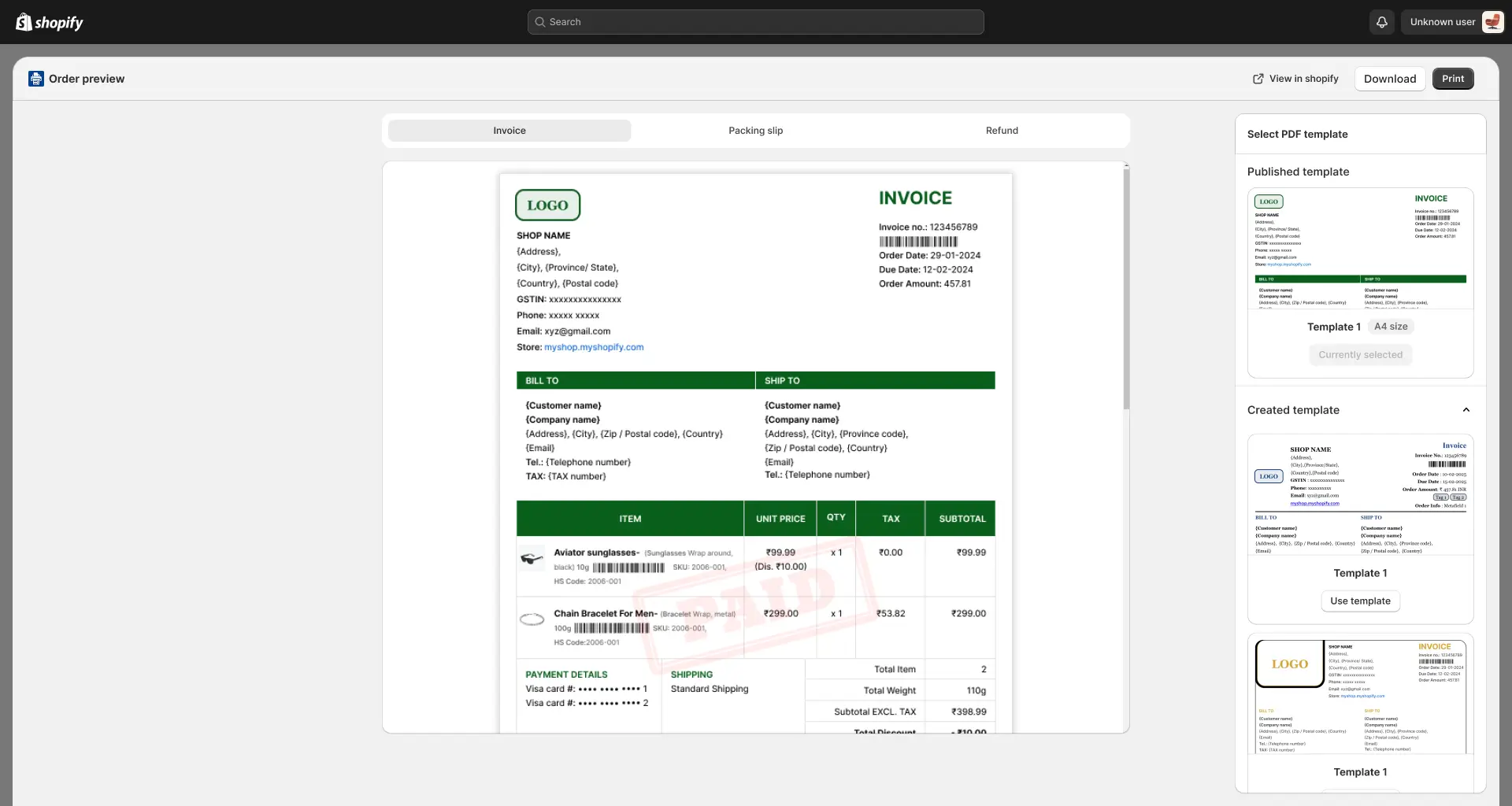
Published vs Unpublished Templates — Key Differences
Understanding these two template states helps you use the right one without accidentally changing your store’s live invoice design.
| Feature / Behavior | Published Template | Created (Unpublished) Template |
|---|---|---|
| Used for automated invoice emails | Yes | No |
| Used for bulk PDF downloads | Yes | No |
| Selectable in Order Preview | Yes | Yes |
| Can be used to print a single order | Yes | Yes |
| Can be used to download a single order PDF | Yes | Yes |
| Selecting it in Order Preview changes the store default | — | No |
| Shown in “Published templates” panel | Yes | No |
| Shown in “Created template” panel | No | Yes |
How to Print or Download Using a Created Template
Follow these steps to print or download a single order PDF using any Created (unpublished) template.
- Go to your Shopify Admin and open Orders.
- Open the order you want to print or download.
- Click the Order Printer PDF Invoice app action (or “More actions” → Invoice) to open Order Preview.
- In the Select PDF Template panel, scroll to the Created template section.
- Click the template you want to use. The preview updates right away to show how the PDF will look.
- To download, click Download in the top-right corner. The file saves using your chosen Created template.
- To print, click Print in the top-right corner. Your browser’s print dialog opens with the Created template applied.
- Your published default template stays unchanged. It will keep being used for all other orders and automated flows.
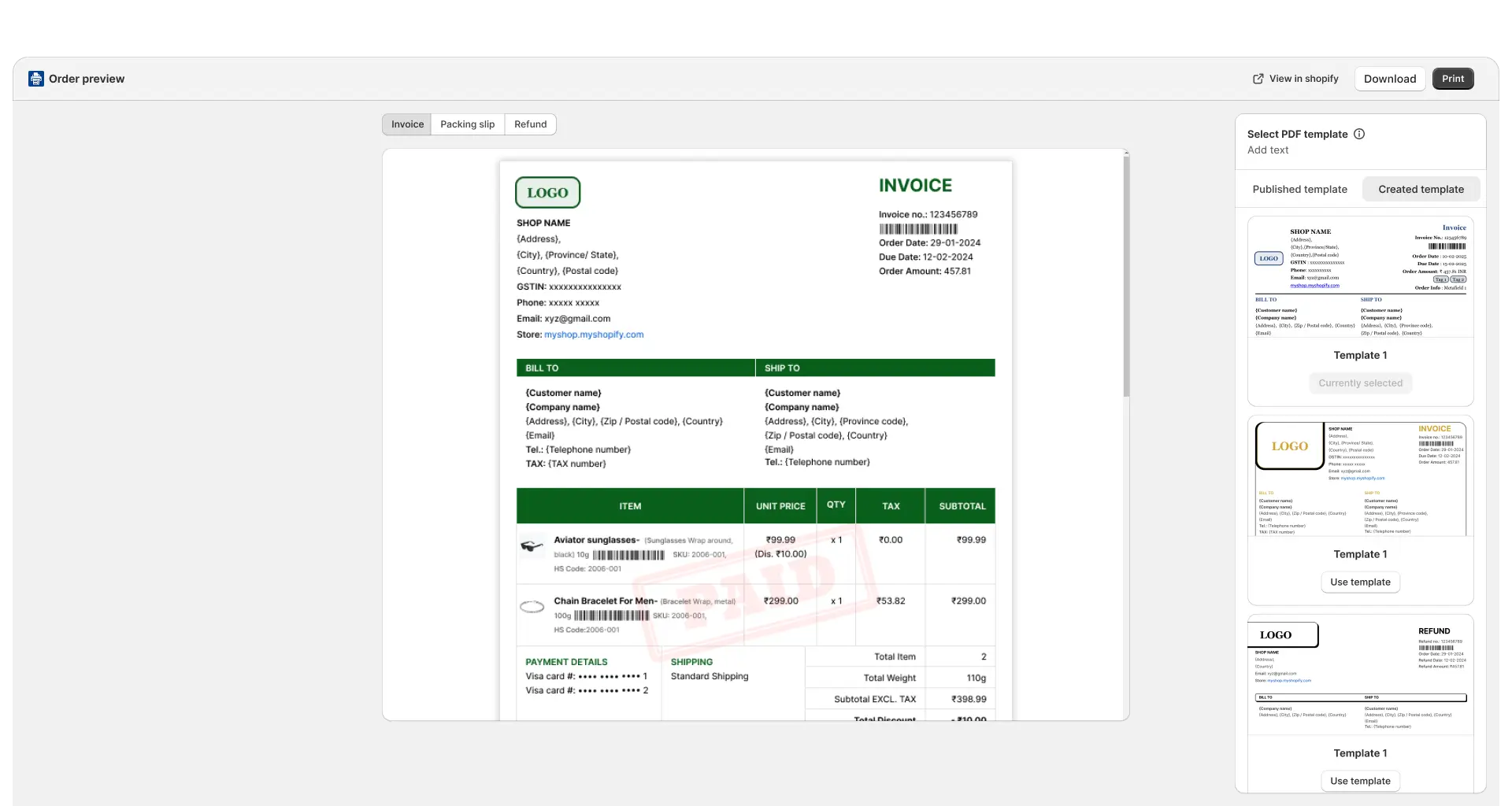
When Would You Use This?
Testing a New Design
You’ve created a new branded invoice template and want to see how it looks on a real order before going live. Select it in Order Preview and download a sample — with no risk to your live template.
One-Off Custom Invoices
A specific customer or B2B client needs a different invoice format. Use a Created template for just that order without disrupting the standard invoice everyone else receives.
Seasonal or Promotional PDFs
You have a festive invoice template for the holidays. Use it selectively for certain orders during that period, without publishing it as your permanent default.
Internal Copies & Records
Generate an internal version of an invoice, such as one with cost price or supplier notes, for your own records using a Created template. Your customers keep receiving the standard public invoice.
Limitations & Fallback Behavior
What Created Templates Cannot Do
Not used in automated email flows Limitation
When the app sends an invoice email automatically, such as on order confirmation or fulfilment, it always uses the published default template. Created templates never apply to automated emails, no matter which one you last selected in Order Preview.
Not used in bulk PDF downloads Limitation
If you select multiple orders and use a bulk “Download PDF” or “Print PDF” action, the app uses the published default template for the whole batch. To use a Created template, open each order individually in Order Preview.
Selection is not remembered between sessions Behavior
Each time you open Order Preview, the published default template is pre-selected again. If you want a Created template, you need to select it once more. The app does not remember your last choice between orders or browser sessions.
Only one template active per action Behavior
You can only use one template per print or download action. If you need two different formats for the same order, complete one action, switch templates, then repeat for the other.
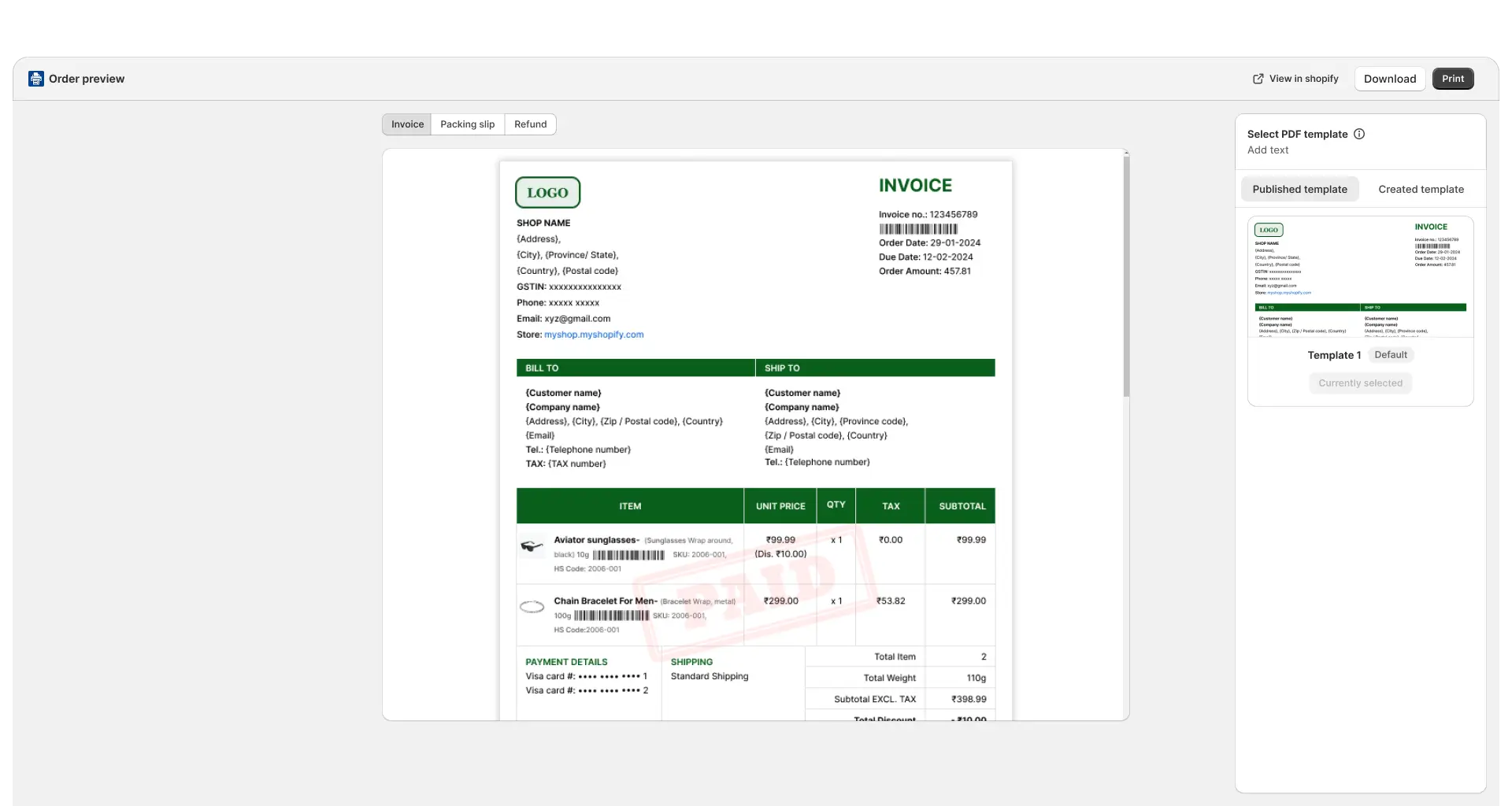
Tips & Best Practices
2. Check the highlighted template before printing — a blue border and checkmark show which template is currently selected.
3. Use “Use template” only when you mean it — this button changes your default for all future automated flows and bulk actions right away.
4. Switch tabs for each document type — the Invoice, Packing Slip, and Refund tabs each let you pick a template independently in the same session.
5. Save as many templates as you need — only one can be published at a time, but the rest stay ready for on-demand use in Order Preview.
Contact Support


