

Ecommerce
Gather knowledge about the latest insights, updates, tips, and tricks in the Ecommerce industry.

5 Min • 29 April 2026
How Anua Unlocked 5X AOV Growth with iCart’s Smart Cart Features
delivery customization Challenges Solutions drive results Scale business delivery customization Challenges Solutions drive results Scale business delivery customization Challenges Solutions drive results Scale business delivery customization Challenges Solutions drive results Scale business Anua is a globally recognized Korean skincare brand known for its minimalist philosophy and focus on gentle yet effective formulations. Built on the idea of simplifying skincare routines, Anua develops products that deliver visible results while avoiding harsh or irritating components, making them suitable for sensitive skin types. Initially using a traditional full cart experience, Anua transitioned to iCart’s side cart solution in August 2025, to create a more seamless and engaging shopping journey. This shift allowed customers to easily explore complementary skincare products without disrupting their browsing flow, making it more intuitive to discover items that fit into a complete routine. By surfacing relevant recommendations directly within the cart, the brand enhanced product visibility across its range. Challenges Before implementing iCart’s side cart solution, Anua faced limitations with their existing full cart experience, which created friction in the customer journey. The traditional cart setup redirected users away from product pages, interrupting their browsing flow and reducing opportunities to explore additional products. As a skincare brand built around routines rather than single-item purchases, this made it difficult to effectively showcase complementary products and encourage customers to build complete regimens. Additionally, the lack of in-cart personalization and strategic upsell opportunities meant that customers were often unaware of related products that could enhance their skincare results. This limited the brand’s ability to increase average order value (AOV) and fully leverage its diverse product range. Anua needed a more dynamic and intuitive cart experience that could seamlessly introduce relevant recommendations while maintaining a smooth and engaging shopping journey. ❌ Cart Value Barriers Low average order value (AOV) due to single-item focus Most customers completed purchases with one primary product instead of building multi-step routines. Cart abandonment near shipping thresholds Customers were not clearly informed or motivated to reach free shipping or discount thresholds. Missed savings opportunities Customers were unaware of potential value in purchasing bundled routines or multiple complementary products. ❌ Absence of Progress-Based Incentives No free shipping or discount progress bar Customers were not motivated to increase their cart value due to lack of visible incentives. Missing tiered rewards system There were no structured milestones (e.g., “Spend more to unlock offers”), reducing upsell opportunities. ❌ Ineffective Cart UI/UX (Pre-Side Cart) Full-page cart disrupted shopping flowCustomers had to leave their browsing journey, increasing friction and drop-offs. No quick add/remove functionality Users couldn’t easily modify their cart or add suggested products without navigating away. Solution To overcome these challenges, Anua implemented iCart’s side cart solution to transform their traditional cart into a high-converting, interactive experience. By replacing the full-page cart with a seamless side cart, the brand ensured that customers could continue browsing while viewing their cart, significantly reducing friction in the shopping journey. Additionally, features like product recommendations & progress bars for free shipping and discounts motivated customers to increase their cart value. By combining personalization, incentive-driven messaging, and a user-friendly interface, Anua successfully turned their cart into a powerful revenue-driving touchpoint rather than just a checkout step. To maximize their cart effectiveness, they implemented two powerful features: ✅ Progress Bar with Multi-Reward Incentives Implemented a tiered progress bar to encourage higher cart value Customers are guided with a clear message like “Add $3.10 to unlock secret offer,” motivating them to continue adding products. Generated over $5M+ in revenue through incentive-driven cart progression Used product-based rewards to align with customer intent Instead of generic discounts, Anua incentivized purchases with relevant skincare items like Dark Spot Pads and mini serums. Built visual motivation for routine expansion As customers add products, they can clearly track progress toward unlocking multiple rewards, encouraging them to build a complete skincare routine. ✅ Product Recommendations Implemented “Frequently Bought Together” recommendations Customers adding a single product (e.g., toner) are shown complementary items like serums, moisturizers, or pads to complete their routine. Generated over 275K revenue through in-cart recommendations Encouraged full skincare regimen building Instead of isolated purchases, the cart suggests step-by-step product combinations aligned with common skincare routines. Increased product discovery at the final stage By surfacing relevant items directly in the cart, Anua ensured customers explore more of their catalog without leaving the checkout flow. Results Achieved in Last 180 Days 22932 Total Store Orders 45101 Total iCart Orders 5X iCart Generated AOV 65.70% Upsell Affected Conversion Rate These improvements reflect a clear shift in customer behavior on Anua’s store. Cart abandonment reduced as shoppers discovered complementary skincare products and felt encouraged to build complete routines. Engagement also increased, with customers interacting more with in-cart recommendations and exploring relevant product pairings. Results & Impact And...Results is Our Main Clarification By implementing iCart’s cart drawer, product recommendations, and progress bar, Anua transformed its cart into a high-performing conversion touchpoint. Shopping Experience Enhancement The improved cart experience encouraged customers to discover complementary products and understand the value of sustainable beauty routines. For instance, the clear presentation of subscription savings alongside one-time purchase options helped customers make more informed decisions about their long-term hair care needs. As Anua continues to optimize its cart experience, the brand is closely monitoring: Routine-based purchasing behavior - tracking how customers move from single items to multi-step regimens Engagement with in-cart recommendations - measuring interaction with suggested products Cart value progression - analyzing how incentives influence higher spending [related_cases_slider] Ready to Write Your Success Story? Try icart App Join successful businesses like Anua and Master your delivery scheduling Delight customers with precise timing Grow your special occasion orders Expand your delivery reach
Read Blog
10 Min • 21 August 2026
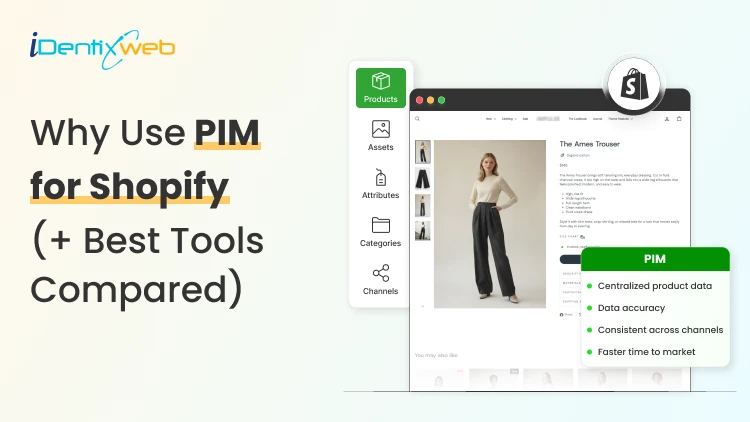
PIM for Shopify: Benefits, Costs & Best Tools for Merchants
PIM (Product Information Management) for Shopify is a centralized system that helps merchants manage, enrich, and distribute accurate product data across Shopify, marketplaces, and other sales channels. It improves data consistency, reduces missing product information, supports faster catalog updates, lowers return risks, and strengthens multi-channel selling. Popular PIM options for Shopify include Plytix, Sales Layer, Apimio, Jasper PIM, Akeneo, Salsify, inRiver, and Pimcore. Most Shopify stores lose sales because the information around their products is inconsistent or confusing to customers. A PIM for Shopify fixes that by giving you one clean source of info for every title, spec, image, and attribute, then pushing it out everywhere you sell. Better product data helps you get more revenue, fewer returns, and products that actually show up when a shopper asks an AI what to buy. I'll walk you through what a PIM really does for a Shopify store, whether you need one yet, and what the good options cost in 2026. What is a PIM for Shopify? A PIM (product information management) system is a central hub where you create, enrich, and manage all your product data. For a Shopify store, a PIM sits alongside your admin and gives clean, complete, consistent product content into Shopify and out to marketplaces, feeds, and AI channels. Shopify already stores product data. A PIM is different because it's built for scale and structure. You get flexible attribute models, validation rules that catch missing or wrong fields, and digital asset management for images and videos. The reason store owners search for a PIM is that their catalog has grown, the channels multiplied, and keeping product data accurate has become difficult. How does better product information turn into more sales? 1. Fewer returns and refunds Returns are one of the first places where inconsistent product data starts eating into margins. The National Retail Federation estimates the average retail return rate at nearly 17%, with returns costing retailers close to $850 billion annually. Accurate sizing, specifications, images, and product descriptions reduce the gap between what customers expect and what they actually receive. 2. Higher conversion and less abandonment Incomplete product information can send shoppers directly to a competitor. Akeneo found that: 70% of consumers would choose a different product when information is missing. 65% would abandon the purchase completely. This is where a Product Information Management (PIM) system becomes useful. A PIM can enforce mandatory product attributes before a SKU is published. For example, every product can be required to include: Dimensions Materials Care instructions Product specifications Multiple product images Instead of relying on someone to notice missing information manually, the system helps prevent incomplete product listings from reaching the storefront. 3. Better Visibility in AI Shopping Channels In 2026, consistent product data matters beyond your Shopify storefront. It also affects how products appear in AI-powered shopping experiences. Shopify has expanded product discovery through channels such as: ChatGPT Perplexity Microsoft Copilot Google AI Mode These systems rely heavily on structured and complete product information to understand what a product is, who it is suitable for, and when it should be recommended. A product with: A vague description, missing GTIN, limited specifications, and a few structured attributes gives an AI shopping assistant far less information to work with. For a deeper understanding of how to rank in AI engines, read my breakdown on best practices for AEO in Shopify stores in 2026. Do you actually need a PIM for Shopify yet? A lot of Shopify stores don't need a standalone PIM. If you sell a few hundred products on one or two channels and your data is manageable, Shopify's native tools should be your choice. Shopify's metafields and metaobjects are the reason. Metafields let you add structured custom fields to products, variants, collections, and more, so you can store specs, size guides, and warranty details that Shopify's default fields don't cover. Metaobjects let you build reusable content objects, like a brand or a care guide, and connect them across many products. If you're not using them yet, here are a few of my guides and articles you can go through. Shopify metafields guide How to add product metafields Shopify metaobjects guide What to look for in a PIM for Shopify? Focus on five things: How does it connect to Shopify? How flexible is its data model? How well does it handle assets? How does it syndicate to channels? How does it keep data clean? Connection comes first, and it splits into two camps. Some PIMs offer a native Shopify integration or a listed Shopify app, so product data flows straight into your store with minimal setup. Others connect through a middleware layer or a third-party connector, which works but adds a moving part to maintain. If you search "PIM for Shopify app," you're looking for that first camp, and it's the smoother path for most stores that don't have a developer on call. Check the current Shopify App Store listing and recent reviews before you commit, since integrations and pricing change often. Beyond the connection, here's what actually matters: A flexible data model and taxonomy, so you can define the exact attributes your products need and enforce them. Data validation and governance, so incomplete or malformed data can't reach your storefront. Digital asset management for images and video, ideally with variant-level control. If you want icons and trust badges on product pages, our guide on displaying images with metafields shows the native version of the same idea. Channel syndication and localization, so one enriched record can publish to Shopify, marketplaces, feeds, and AI channels in the right format each time. Automation and AI enrichment to fill gaps, generate copy, and score data quality, which saves the most tedious hours. If a tool nails those five and connects cleanly to Shopify, it'll serve you far longer than one that just has a long feature list. A PIM Is Only as Good as Its Integration The value of a PIM also depends heavily on how well it connects with Shopify and the rest of a merchant's technology stack. When a native connection does not cover the required workflow, Identixweb develops custom Shopify integrations that help businesses connect product data and other systems around their specific operational requirements. Best PIM for Shopify in 2026 Plytix Plytix is a common starting point for growing brands because it offers a free tier for smaller catalogs and supports unlimited users. Its paid plans scale based on SKU requirements, making it suitable for businesses that expect their catalogs to grow over time. Akeneo Akeneo is designed for businesses that need advanced product information management across large catalogs, teams, markets, and languages. Salsify Salsify combines product information management with broader product experience and syndication capabilities, making it more suitable for brands distributing product data across multiple channels. Pimcore Pimcore supports sophisticated product data models and is often considered when businesses need greater flexibility around product information, digital assets, and other connected data. Sales Layer, Apimio, and Jasper PIM Sales Layer, Apimio, and Jasper PIM target a similar segment. They are generally suited to brands that need: Centralized product information Better product data consistency Multi-channel syndication Easier catalog management Shopify integration without a complex enterprise implementation What does a PIM for Shopify actually cost in 2026? PIM pricing in 2026 runs from free to well over $50,000 a year, and the plan name matters less than your catalog complexity. Most SaaS PIMs price by the number of SKUs, users, channels, and outputs, while enterprise platforms quote custom deals you won't see without a demo. Here's the rough shape of the market, based on current published pricing and PIM cost breakdowns from vendors like Plytix and Akeneo: Free and entry SaaS tiers cover small catalogs, often up to around 1,000 SKUs, with limited features. Good for testing the idea. Mid-market SaaS plans commonly start in the few-hundred-dollars-a-month range and scale with SKU count. Plytix, for example, publishes a Pro tier starting around $499 a month for larger catalogs, and other SaaS PIMs sit in a similar band. Enterprise platforms like Akeneo, Salsify, and inRiver don't publish full pricing. Budgeting guidance from these vendors points to five figures a year and up once services are added, and first-year totals can climb much higher with implementation. PIM for Shopify Plus and high-volume catalogs For Shopify Plus and high-volume stores, a PIM shifts from optional to close to essential, because the whole reason you're on Plus is scale, and scale is where manual product data breaks. The specific wins for a PIM on Shopify Plus: One source of truth across multiple Plus storefronts and regions, so a single edit propagates everywhere instead of being redone per store. Localization at scale, with translated attributes and region-specific data flowing to the right storefront automatically. B2B and wholesale support, where different buyers need different data, pricing, and catalogs from the same underlying products. Governance and workflows, so a team of merchandisers, marketers, and suppliers can all contribute without corrupting the catalog. How to roll out a PIM the right way? To close out this blog, here's the sequence I'd follow: Audit your current data first. Pull your catalog, find the gaps, the duplicates, and the inconsistencies. You'll fix these no matter which tool you pick, so do it before you buy. Design your attribute model before importing anything. Decide the fields every product must have, the allowed values, and the rules. A governed model is what keeps a PIM clean six months later. Start with a pilot, not the whole catalog. Migrate one category or your best-sellers, get the Shopify sync working end-to-end, and confirm the data lands correctly on your storefront and channels. Assign ownership. Someone has to own product data quality, or the system slowly drifts back to the mess you were escaping. Then scale. Roll out category by category, syndicate to your channels, and layer in automation and AI enrichment once the foundation is solid. FAQs 1. What is PIM for Shopify? A PIM system for Shopify is software that centralizes, organizes, and manages product data such as titles, descriptions, specifications, images, variants, and attributes before syncing it to your Shopify store and other sales channels. It is useful for merchants with large catalogs because it helps maintain accurate, consistent product information across channels. 2. Is Shopify a PIM system? No. Shopify stores and manages product data, and its metafields and metaobjects add structured custom fields, but it lacks the multi-channel syndication of a dedicated PIM. For a single store with a small catalog, native Shopify is often enough. For large catalogs across many channels, a PIM will help. 3. What is the best PIM for Shopify? For most small and mid-sized stores, Plytix, Sales Layer, or Apimio fit well and connect to Shopify easily. For large, complex catalogs, enterprise platforms like Akeneo, Salsify, or inRiver are a better choice. 4. Do I need a PIM system for Shopify multi-channel selling? If you have thousands of SKUs, multiple variants of products, and content that is localized and sold across global markets, you need a PIM system for Shopify multi-channel selling.
10 Min • 9 July 2026
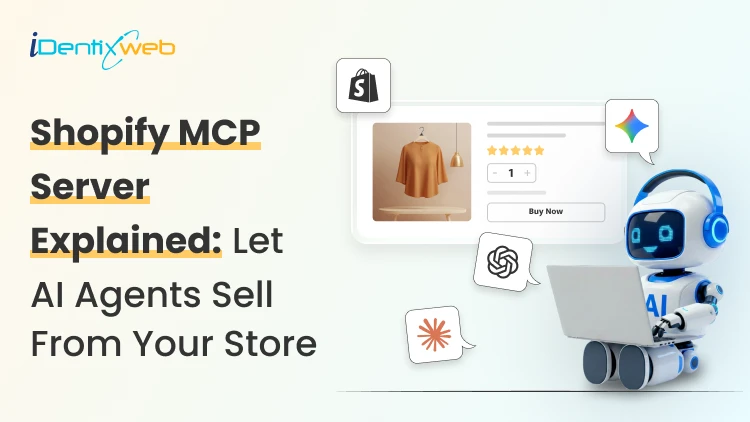
How AI Agents Can Sell From Your Shopify Store (Shopify MCP Server Explained)
Your next shopper may not start on your homepage. They may start in ChatGPT, Microsoft Copilot, Google AI Mode, Gemini, or the Shop app. Shopify Agentic Storefronts and MCP make it possible for these AI experiences to discover products, understand store data, and guide shoppers toward checkout. This is a connective layer that lets AI agents search your catalog, build a cart, and hand a shopper straight to checkout. I have spent the past few months testing this setup on live stores, and this guide covers exactly where things stand today. What is a Shopify MCP server? A simple explanation Model Context Protocol, or MCP, is an open standard from Anthropic that lets AI models talk to outside tools and data using one shared format. In simple terms, UCP defines the shopping flow, and MCP gives AI agents a standard way to call those shopping tools. Shopify uses UCP as the commerce rulebook and exposes those UCP-powered shopping capabilities through Shopify MCP servers. In simple terms, UCP defines the shopping flow, and MCP gives AI agents a standard way to call those shopping tools. UCP is an open framework Shopify co-developed with Google, and it defines how an agent proves who it is, searches a catalog, builds a cart, checks out, and tracks an order, all through a consistent set of rules. Shopify's MCP servers are the implementation of that framework. Here is where a lot of confusion starts. There is no single "Shopify MCP." There are two different things people usually mean when they say “Shopify MCP.” Storefront MCP is for shopping agents. It helps AI agents search products, manage carts, answer policy questions, and move shoppers toward checkout. Shopify AI Toolkit / Dev MCP is for developers. It helps Claude Code, Cursor, Codex, VS Code, and similar tools work with Shopify docs, GraphQL schemas, Liquid validation, CLI workflows, apps, and themes. How does the Shopify MCP server power AI agents? Every eligible Shopify store gets a live Storefront MCP endpoint by default, reachable at https://{yourstore}.myshopify.com/api/mcp, with a second UCP-specific endpoint at /api/ucp/mcp for catalog search. No developer, code, or apps are required here. This single server handles the entire buyer journey in four stages. Stage 1: Negotiate and authenticate Every agent presents a profile that tells Shopify who it is. Based on that profile, Shopify assigns a trust tier, and the tier decides how much an agent can do on its own. Stage 2: Discover products Agents search your catalog through search_catalog, lookup_catalog, and get_product. Shopify also runs a cross-store Global Catalog, so an agent can search millions of products from every Shopify merchant at once, then narrow down to yours. Stage 3: Build a cart and check out The get_cart and update_cart tools let an agent add items and fetch pricing. When the shopper is ready, create_checkout converts that cart into a real checkout session, calculating tax, shipping, and totals against your live store settings. Stage 4: Monitor the order After purchase, get_order and order webhooks let an agent or the shopper check fulfillment status, refunds, and shipping updates without emailing your support team. For the vast majority of agents today, checkout does not complete inside the chat window. The agent receives a continue_url and hands the shopper to your actual Shopify checkout to finish paying. If the shopper is redirected to your Shopify checkout, your normal checkout experience is mostly preserved. But if the shopper uses an AI channel’s Shopify-powered direct checkout, some checkout customizations may not appear, especially upsells, custom fields, loyalty blocks, custom pixels, subscriptions, bundles, digital products, pickup, and local delivery. Shopify storefront MCP vs the Shopify AI toolkit Storefront MCP is consumer-facing. It is what powers a shopper's conversation with an AI agent that wants to buy something from your store. You do not build this. Shopify runs it for you. The Shopify AI Toolkit is a developer-facing project. Shopify open-sourced it in April 2026, and it connects coding assistants like Claude Code, Cursor, and VS Code to Shopify's documentation, GraphQL schema, and CLI so a developer can build themes, apps, and integrations faster. The Toolkit's Dev MCP server gives an AI coding agent live access to Shopify's platform knowledge. This does not include your storefront's live sales data. If someone asks you about MCP for Shopify and mentions building an app or theme, they mean the AI Toolkit. If they mean letting ChatGPT or Claude sell your products to a shopper, they mean Storefront MCP. Shopify's own AI assistant lives inside your admin and helps you run the store rather than helping outside agents sell from it. I go deeper on what Sidekick can actually do in my Shopify Sidekick use case guide if you want the full picture of Shopify's native AI tools. How to get started with Shopify MCP: For store owners Go to Sales channels > Agentic in your Shopify admin. From there you can: See which AI channels have access to your products through Shopify Catalog. This can be ChatGPT, Microsoft Copilot, Google AI Mode, Gemini, and Shopify's own Shop app. Turn off Allow Shopify to manage for me if you want manual control instead of automatic enrollment in new AI channels. Deactivate direct checkout on channels that support it, so shoppers are always redirected to your own checkout instead. Preview how your products actually appear in AI catalog search results. A few requirements gate eligibility: You need your Terms of Service, Privacy Policy, and Return and Refund Policy filled out under Settings > Policies, Your products need to sell to US buyers, You need to accept Shopify's Agentic Storefronts Supplemental Terms of Service. B2B-only products and anything on OpenAI's prohibited list will not surface in ChatGPT results. An agent can only sell what it can understand, so titles, descriptions, variant details, and policy answers need to be complete and specific. This overlaps heavily with answer engine optimization work, and I have a full breakdown of that in my Shopify AEO and GEO guide if you want to tighten up how your store reads to any AI system. Claude Code Shopify MCP: Setup for developers and agencies If you are building something custom, testing the protocol directly, or wiring Claude into your day-to-day store management, this is the section for you. For coding work, the recommended path is the Shopify AI Toolkit plugin. Inside a Claude Code session. claude plugin install shopify-ai-toolkit@claude-plugins-official claude mcp add --transport stdio shopify-dev-mcp -- npx -y @shopify/dev-mcp@latest Restart Claude Code, and the plugin gives your session access to Shopify's live GraphQL schema, Liquid validation, and CLI commands. You need Node.js 18 or higher. The Dev MCP server does not require authentication because it connects to Shopify developer resources such as docs and schemas. However, if you use Shopify CLI or store-execution capabilities to work with a real store, you should expect authentication and permissions to matter. I walked through that exact process end to end, screenshots included, in my Claude and Shopify connection guide. This includes how to scope the token to read-only access so Claude can answer questions without being able to change anything until you are ready to grant write access. What happens at checkout when an AI agent buys from you Merchants ask me this more than anything else. In almost every real case today, the buyer finishes payment on your Shopify checkout, either inside an in-app browser (ChatGPT) or a new browser tab. You remain the merchant of record. The order lands in your admin with channel attribution showing it came from an AI referral, same as any other sales channel. But some checkout blocks, particularly custom fields, upsell prompts, or specific validation rules, may not render inside an agentic storefront's direct checkout the same way they do on your normal storefront checkout. The purchase still completes correctly, but any app-based messaging tied to those blocks might not show up. If you rely heavily on checkout customization for revenue, it is worth auditing this now. My Shopify Checkout Blocks guide covers what each block type does if you need to check what is at risk. To wrap it up, here’s a checklist to get started with Shopify MCP AreaWhat to checkAgentic settingsGo to Sales channels > Agentic and review which channels have Shopify Catalog access.Product dataMake titles, descriptions, variants, images, price, and availability complete. Shopify says these fields are structured for AI channels through Shopify Catalog. PoliciesAdd Terms of Service, Privacy Policy, and Return/Refund Policy. These are required for ChatGPT and direct checkout eligibility.US sellingCheck whether the store sells to US customers. ChatGPT and Copilot require selling to US buyers; Google/Gemini direct checkout is more limitedCheckout customizationsAudit checkout apps, upsells, custom fields, validation rules, local delivery, pickup, subscriptions, bundles, and custom pixels.B2B productsMake sure B2B-only products are not accidentally exposed if using custom B2B logic. Shopify says agentic storefronts support D2C sales only.AI discoverabilityUse Shopify’s Agentic preview/search tool as a directional signal, not a guaranteed ranking result. FAQs 1. What is Shopify MCP? Shopify MCP refers to Shopify's Model Context Protocol servers. It is a layer that lets AI agents like Claude, ChatGPT, and Copilot search a store's product catalog, manage a cart, and complete a checkout using natural language. 2. How to get started with Shopify MCP? Most merchants do not need to build anything. Check Sales channels > Agentic in your Shopify admin to see which AI platforms already have access to your catalog, confirm your store policies are complete, and review your product descriptions so agents have accurate information to work with. 3. What is the difference between Shopify Storefront MCP and the Shopify AI Toolkit? Storefront MCP is the consumer-facing server that lets AI shopping agents browse and buy from your live store. The Shopify AI Toolkit is a separate, developer-facing tool that connects coding assistants to Shopify's documentation and schema so developers can build apps and themes faster. 4. How does Claude Code connect to Shopify MCP? For development work, install the Shopify AI Toolkit plugin inside Claude Code with /plugin marketplace add Shopify/shopify-ai-toolkit followed by /plugin install shopify-plugin@shopify-ai-toolkit. Connecting Claude to your live store data for admin tasks uses a separate Admin API token setup instead. 5. Do AI agents complete checkout without a shopper ever visiting my store? In most current cases, no. Shoppers are handed a link back to your own Shopify checkout to finish payment, so your branding and payment methods stay intact. Only a small number of vetted, high-trust agent partners can complete a purchase directly inside their own interface. 6. Can I stop AI platforms from selling my products? You can turn off Shopify Catalog access per channel from Sales channels > Agentic and disable direct checkout where it is offered. Fully hiding a product from all AI discovery requires Unlisted status or the seo.hidden metafield, both of which also remove it from regular search engines, so it is rarely the right tool for a partial opt-out.
10 Min • 25 August 2026
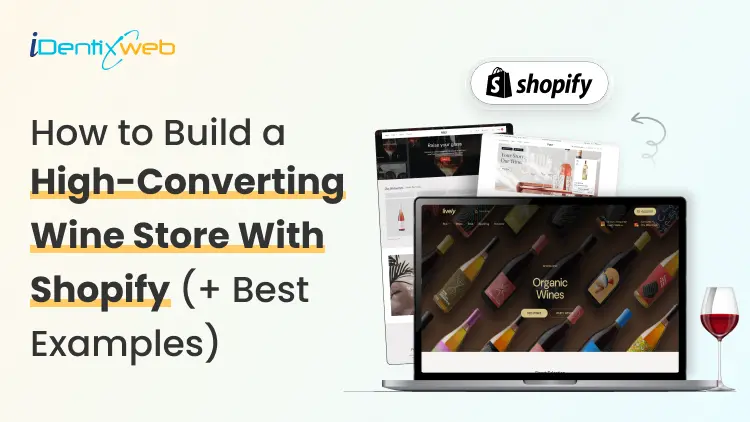
Shopify for Wineries: Features, Costs, Themes, and Examples for Selling Wine
Shopify gives wineries the core tools to sell wine online and in person, including a customizable storefront, secure checkout, Shopify POS, local pickup, subscriptions, and app integrations. Wine stores should also add age verification, product filtering, cross-selling, recommendations, memberships, wine clubs, and product allocations. Advanced wine-specific compliance, shipping rules, and club management typically require dedicated third-party apps alongside Shopify. If you're looking at Shopify for your winery in 2026, chances are you're trying to work out whether Shopify can handle the way a wine business operates. That means more than selling bottles online. You have age verification, state-by-state shipping restrictions, carrier requirements, wine clubs, subscriptions, POS, and compliance tools. I've spent the last few years working with Shopify wine stores, wine-specific apps, shipping requirements, carrier rules, and the limitations wineries are most likely to run into. In this guide, I'm breaking down what Shopify for wineries actually costs, what you'll need to make it work, and where it still falls short before you commit to a migration. Can I sell wine on Shopify? Yes, and Shopify publishes the rules You can sell wine on Shopify. Shopify maintains a dedicated alcohol compliance page in its Help Center covering the US, Canada, the EU, the UK, Australia, and New Zealand. For US merchants, Shopify lists four common requirements: Acquire and maintain every license needed to produce, market, sell, and deliver your products. Stay in full compliance with license requirements, including record-keeping. Run effective age verification so alcohol can't be bought or received by anyone under 21. Ship in full compliance with the laws of both your state and your customer's state. California sellers can also display a Prop 65 alcohol warning through Shopify's product disclosures feature. If you're new to the platform generally, my beginner's guide to how Shopify works covers the basics before you start your wine store. Selling wine on Shopify: The real monthly cost A Shopify wine store with one tasting room can realistically run $140 to $370+ a month in software before card fees. The Shopify plan itself is one of the smaller line items. Compliance can become the highest cost. Here's how the stack builds up on current 2026 US pricing: Shopify Basic is $19/month, or $14 billed annually. Grow is $52/month, or $39 annually. Advanced is $399/month, or $299 annually. Shopify's standard POS features are included with its plans. POS Pro is $89/month per location, or $79/month with annual billing. DRINKS ASSURE, the established alcohol tax and compliance app, is $250/month plus 1% of sales above $25,000. This comes with custom pricing above $200,000 in monthly sales and extra fees for third-party age verification. Wineport, a newer DTC wine compliance app. This runs $49/month for a single winery or $99/month for multi-brand, with a 15-day trial and agency-verified excise rates for 44+ states. Shopify's native Subscriptions app is free, which can cover straightforward recurring wine orders but isn't a replacement for a full winery-specific club and hospitality platform. Shopify for wineries: Online sales features you should have Wine subscriptions and recurring orders Shopify’s free Subscriptions app can handle straightforward recurring wine purchases, making it useful for repeat orders or simple subscription programs. Age verification Age-verification features can help stop underage visitors from entering the storefront. Wineries may need dedicated verification tools or checkout validation rules. Local pickup and tasting room sales If you sell both online and from a physical winery or tasting room, Shopify supports local pickup and Shopify POS. Product filtering and wine discovery Wine shoppers often browse by type, vintage, collection, price, or other bottle attributes. Strong product filtering and search make it easier for customers to find the right wine. Wine clubs, memberships, and allocations More established wineries may need features beyond basic subscriptions, including member pricing, loyalty tiers, club benefits, product allocations, and referrals. Shopify can support these through third-party apps like Winehub Commerce. Does the age-verification pop-up work? That pop-up asking visitors whether they're 21 is useful as a storefront warning. But it isn't the same thing as verifying someone's age. Most age-verification apps simply remember that a visitor clicked "Yes" using a cookie. That becomes even less reliable when customers reach checkout through custom storefronts. For rules that actually need to stop an order, Shopify's stronger option is Cart and Checkout Validation Functions. These validations run on Shopify's servers and can block checkout when a requirement isn't met. Shopify even lists age or ID verification as a use case. If you're building custom checkout rules yourself, my guide to how Shopify Functions work covers the architecture for customizing checkout. Best Shopify wine store examples for inspiration Splash Wines What I liked about Splash Wines is how quickly the store gets the important details out of the way. Its welcome pop-up asks visitors to select where they are shipping and confirm that they are 21 or older before they start shopping. The main navigation is also very purchase-focused, with options such as Curated Cases, Build Your Own Case, and Subscriptions. Robert Mondavi Winery The Robert Mondavi Winery store feels more like a premium winery experience than a typical ecommerce site. I liked how the navigation keeps things simple with Story, Shop, Visit, and Club, making it easy for someone to move between buying wine and exploring the physical winery experience. The homepage also gives equal importance to the brand story, estate visits, wine collection, and wine club. The Prisoner Wine Company What stands out about The Prisoner Wine Company is its bold, product-first approach. The homepage moves visitors quickly from its seasonal message into Best Sellers, with clear labels such as Best Seller, Exclusive, and New Release. I also liked how ecommerce and the winery experience are connected. Alongside wine shopping, visitors can explore tastings, events, and pairing experiences. SommPicks SommPicks does a great job with navigation for a store carrying a very large wine catalogue. Shoppers can browse by wine type, country, region, producer, and vintage, while the search bar specifically encourages searches by wine, region, or producer. I particularly liked the separate Producer Index and Vintage Index, which make exploring thousands of wines much easier. Choosing a Shopify wine theme Shopify's own Theme Store now has a theme built specifically with wineries in mind. Vincent Vincent, particularly its Oakland preset, is designed for wineries, vineyards, liquor, and wine stores and currently costs $340 USD. It includes a built-in age verifier without requiring a separate app and supports taste charts to make wine discovery easier. Area Area’s Winery preset comes with a built-in age verifier and advanced product filtering and search, both useful for wine stores. It also supports in-store pickup, which is useful for wineries selling both online and from a tasting room. Price: $100 USD Local Local’s Lively preset is designed specifically with food, beverage, and local retail businesses in mind. Its age verifier adds a 21+ entry check, while cross-selling and recommended products can help wineries suggest another bottle, complementary product, or gift alongside the shopper’s original choice Price: $380 USD Loka Pour is a wine-focused preset designed for wine, champagne, and premium bottle brands. Its age verifier gives wineries a built-in age-gate option, while product filtering and wine-focused collection layouts make it easier for shoppers to browse bottles by attributes such as vintage or collection. Price: $140 USD What Shopify can't do for a wine store? Shopify can run the storefront, checkout, and POS side of a wine business. But some of its biggest discovery channels still have limits around alcohol. Start with Shop. Age-restricted products, including alcohol, are prohibited on the Shop app. Your winery can still sell wine through its own Shopify storefront, but those products aren't eligible to be sold through Shop. Shopify's Agentic Storefronts can send eligible catalog data to ChatGPT, Microsoft Copilot, Google AI Mode, and Gemini. But each destination applies its own product rules. For example, OpenAI currently prohibits age-restricted products such as alcohol from ChatGPT commerce, and Google also excludes products requiring ID verification, including alcohol and tobacco, from direct purchases in AI Mode and Gemini. My breakdown of the Shopify Spring '26 Edition covers how Agentic Storefronts and the wider Catalog infrastructure work. The Right Setup Goes Beyond the Theme For wineries, the final Shopify setup often involves combining the storefront with apps and custom configurations for subscriptions, pickup, shipping, age verification and other wine-specific requirements. Identixweb provides Shopify store design and development around these operational needs instead of relying only on a standard theme setup. Before you launch: Wine compliance basics Shopify lets you sell wine online, but your winery is responsible for meeting the alcohol laws that apply where you operate and ship. Before launching, make sure you have the required licenses, age-verification process, and shipping setup for the states or regions you serve. Wine shipping rules can vary by location, and carriers such as UPS and FedEx also have specific requirements for licensed alcohol shippers. Once you're choosing carriers, my roundup of Shopify shipping apps covers label printing, shipping workflows, and carrier-calculated rates inside Shopify. Shopify for wineries: Deciding before December Shopify makes the most sense when you want more design freedom, a flexible app stack, and costs that don't rise as sharply with DTC revenue. I would ask three things before starting my Shopify wine shop What's your DTC revenue? How complex is your wine club? And who will own compliance when state rules change? Get your permits and compliance setup sorted before worrying about the perfect theme. A beautiful Shopify store is no help if your shipping rules aren't ready on launch day. FAQs 1. Can I sell wine on Shopify? Yes. Shopify allows alcohol sales, but you are responsible for meeting the licensing, age-verification, shipping, record-keeping, and other legal requirements in every jurisdiction where you sell. Alcohol products are prohibited from the Shop sales channel, so wine should be sold through your Shopify storefront. 2. What are some online sales features if I open a Shopify winery? A Shopify winery can use subscriptions for recurring wine orders, in-store pickup, Shopify POS, product filtering, cross-selling, recommended products, and age-verification features through compatible themes and apps. 3. Is Shopify good to start a wine store? Yes, especially if you want control over your storefront design, ecommerce experience, POS, and app integrations. The con is that Shopify is not winery-compliance software by itself, so you still need the right licenses, age-verification setup, shipping rules, and a dedicated compliance solution. 4. Which are the best Shopify wine themes to start my store? Three strong options in the Shopify Theme Store are Area – Winery ($100), Local – Lively ($380), and Loka – Pour ($140). All three include built-in age verifiers. Area focuses on conversion and product discovery. Local is strong for wineries combining ecommerce with physical locations, and Pour is designed specifically around wine and champagne merchandising. 5. What is Shopify Winehub Commerce? Winehub Commerce is a third-party Shopify app, built specifically for wine and beverage DTC businesses. It adds wine clubs, subscriptions, loyalty and membership tiers, product allocations, referrals, Shopify POS integration, and integrations with services such as ShipCompliant.
Vineet Nair
10 Min • 9 July 2026
123 Views
Vineet Nair
8 Min • 3 July 2026
144 Views

Vineet Nair
10 Min • 1 July 2026
155 Views
Vineet Nair
11 Min • 29 June 2026
144 Views
Vineet Nair
11 Min • 24 June 2026
140 Views
Vineet Nair
12 Min • 23 June 2026
170 Views
Vineet Nair
9 Min • 19 June 2026
183 Views
Vineet Nair
13 Min • 18 June 2026
176 Views
Vineet Nair
13 Min • 17 June 2026
169 Views
Vineet Nair
14 Min • 16 June 2026
182 Views

Vineet Nair
10 Min • 1 July 2026
261 Views
Vineet Nair
11 Min • 9 June 2026
208 Views