

Ecommerce
Gather knowledge about the latest insights, updates, tips, and tricks in the Ecommerce industry.

5 Min • 29 April 2026
How Anua Unlocked 5X AOV Growth with iCart’s Smart Cart Features
delivery customization Challenges Solutions drive results Scale business delivery customization Challenges Solutions drive results Scale business delivery customization Challenges Solutions drive results Scale business delivery customization Challenges Solutions drive results Scale business Anua is a globally recognized Korean skincare brand known for its minimalist philosophy and focus on gentle yet effective formulations. Built on the idea of simplifying skincare routines, Anua develops products that deliver visible results while avoiding harsh or irritating components, making them suitable for sensitive skin types. Initially using a traditional full cart experience, Anua transitioned to iCart’s side cart solution in August 2025, to create a more seamless and engaging shopping journey. This shift allowed customers to easily explore complementary skincare products without disrupting their browsing flow, making it more intuitive to discover items that fit into a complete routine. By surfacing relevant recommendations directly within the cart, the brand enhanced product visibility across its range. Challenges Before implementing iCart’s side cart solution, Anua faced limitations with their existing full cart experience, which created friction in the customer journey. The traditional cart setup redirected users away from product pages, interrupting their browsing flow and reducing opportunities to explore additional products. As a skincare brand built around routines rather than single-item purchases, this made it difficult to effectively showcase complementary products and encourage customers to build complete regimens. Additionally, the lack of in-cart personalization and strategic upsell opportunities meant that customers were often unaware of related products that could enhance their skincare results. This limited the brand’s ability to increase average order value (AOV) and fully leverage its diverse product range. Anua needed a more dynamic and intuitive cart experience that could seamlessly introduce relevant recommendations while maintaining a smooth and engaging shopping journey. ❌ Cart Value Barriers Low average order value (AOV) due to single-item focus Most customers completed purchases with one primary product instead of building multi-step routines. Cart abandonment near shipping thresholds Customers were not clearly informed or motivated to reach free shipping or discount thresholds. Missed savings opportunities Customers were unaware of potential value in purchasing bundled routines or multiple complementary products. ❌ Absence of Progress-Based Incentives No free shipping or discount progress bar Customers were not motivated to increase their cart value due to lack of visible incentives. Missing tiered rewards system There were no structured milestones (e.g., “Spend more to unlock offers”), reducing upsell opportunities. ❌ Ineffective Cart UI/UX (Pre-Side Cart) Full-page cart disrupted shopping flowCustomers had to leave their browsing journey, increasing friction and drop-offs. No quick add/remove functionality Users couldn’t easily modify their cart or add suggested products without navigating away. Solution To overcome these challenges, Anua implemented iCart’s side cart solution to transform their traditional cart into a high-converting, interactive experience. By replacing the full-page cart with a seamless side cart, the brand ensured that customers could continue browsing while viewing their cart, significantly reducing friction in the shopping journey. Additionally, features like product recommendations & progress bars for free shipping and discounts motivated customers to increase their cart value. By combining personalization, incentive-driven messaging, and a user-friendly interface, Anua successfully turned their cart into a powerful revenue-driving touchpoint rather than just a checkout step. To maximize their cart effectiveness, they implemented two powerful features: ✅ Progress Bar with Multi-Reward Incentives Implemented a tiered progress bar to encourage higher cart value Customers are guided with a clear message like “Add $3.10 to unlock secret offer,” motivating them to continue adding products. Generated over $5M+ in revenue through incentive-driven cart progression Used product-based rewards to align with customer intent Instead of generic discounts, Anua incentivized purchases with relevant skincare items like Dark Spot Pads and mini serums. Built visual motivation for routine expansion As customers add products, they can clearly track progress toward unlocking multiple rewards, encouraging them to build a complete skincare routine. ✅ Product Recommendations Implemented “Frequently Bought Together” recommendations Customers adding a single product (e.g., toner) are shown complementary items like serums, moisturizers, or pads to complete their routine. Generated over 275K revenue through in-cart recommendations Encouraged full skincare regimen building Instead of isolated purchases, the cart suggests step-by-step product combinations aligned with common skincare routines. Increased product discovery at the final stage By surfacing relevant items directly in the cart, Anua ensured customers explore more of their catalog without leaving the checkout flow. Results Achieved in Last 180 Days 22932 Total Store Orders 45101 Total iCart Orders 5X iCart Generated AOV 65.70% Upsell Affected Conversion Rate These improvements reflect a clear shift in customer behavior on Anua’s store. Cart abandonment reduced as shoppers discovered complementary skincare products and felt encouraged to build complete routines. Engagement also increased, with customers interacting more with in-cart recommendations and exploring relevant product pairings. Results & Impact And...Results is Our Main Clarification By implementing iCart’s cart drawer, product recommendations, and progress bar, Anua transformed its cart into a high-performing conversion touchpoint. Shopping Experience Enhancement The improved cart experience encouraged customers to discover complementary products and understand the value of sustainable beauty routines. For instance, the clear presentation of subscription savings alongside one-time purchase options helped customers make more informed decisions about their long-term hair care needs. As Anua continues to optimize its cart experience, the brand is closely monitoring: Routine-based purchasing behavior - tracking how customers move from single items to multi-step regimens Engagement with in-cart recommendations - measuring interaction with suggested products Cart value progression - analyzing how incentives influence higher spending [related_cases_slider] Ready to Write Your Success Story? Try icart App Join successful businesses like Anua and Master your delivery scheduling Delight customers with precise timing Grow your special occasion orders Expand your delivery reach
Read Blog
10 Min • 9 July 2026
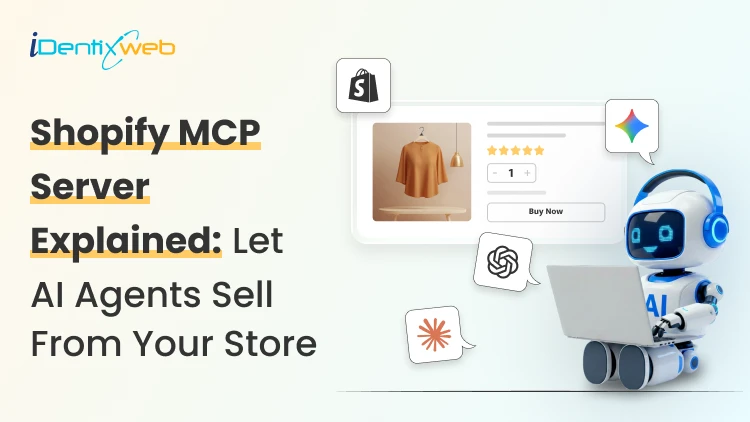
How AI Agents Can Sell From Your Shopify Store (Shopify MCP Server Explained)
Your next shopper may not start on your homepage. They may start in ChatGPT, Microsoft Copilot, Google AI Mode, Gemini, or the Shop app. Shopify Agentic Storefronts and MCP make it possible for these AI experiences to discover products, understand store data, and guide shoppers toward checkout. This is a connective layer that lets AI agents search your catalog, build a cart, and hand a shopper straight to checkout. I have spent the past few months testing this setup on live stores, and this guide covers exactly where things stand today. What is a Shopify MCP server? A simple explanation Model Context Protocol, or MCP, is an open standard from Anthropic that lets AI models talk to outside tools and data using one shared format. In simple terms, UCP defines the shopping flow, and MCP gives AI agents a standard way to call those shopping tools. Shopify uses UCP as the commerce rulebook and exposes those UCP-powered shopping capabilities through Shopify MCP servers. In simple terms, UCP defines the shopping flow, and MCP gives AI agents a standard way to call those shopping tools. UCP is an open framework Shopify co-developed with Google, and it defines how an agent proves who it is, searches a catalog, builds a cart, checks out, and tracks an order, all through a consistent set of rules. Shopify's MCP servers are the implementation of that framework. Here is where a lot of confusion starts. There is no single "Shopify MCP." There are two different things people usually mean when they say “Shopify MCP.” Storefront MCP is for shopping agents. It helps AI agents search products, manage carts, answer policy questions, and move shoppers toward checkout. Shopify AI Toolkit / Dev MCP is for developers. It helps Claude Code, Cursor, Codex, VS Code, and similar tools work with Shopify docs, GraphQL schemas, Liquid validation, CLI workflows, apps, and themes. How does the Shopify MCP server power AI agents? Every eligible Shopify store gets a live Storefront MCP endpoint by default, reachable at https://{yourstore}.myshopify.com/api/mcp, with a second UCP-specific endpoint at /api/ucp/mcp for catalog search. No developer, code, or apps are required here. This single server handles the entire buyer journey in four stages. Stage 1: Negotiate and authenticate Every agent presents a profile that tells Shopify who it is. Based on that profile, Shopify assigns a trust tier, and the tier decides how much an agent can do on its own. Stage 2: Discover products Agents search your catalog through search_catalog, lookup_catalog, and get_product. Shopify also runs a cross-store Global Catalog, so an agent can search millions of products from every Shopify merchant at once, then narrow down to yours. Stage 3: Build a cart and check out The get_cart and update_cart tools let an agent add items and fetch pricing. When the shopper is ready, create_checkout converts that cart into a real checkout session, calculating tax, shipping, and totals against your live store settings. Stage 4: Monitor the order After purchase, get_order and order webhooks let an agent or the shopper check fulfillment status, refunds, and shipping updates without emailing your support team. For the vast majority of agents today, checkout does not complete inside the chat window. The agent receives a continue_url and hands the shopper to your actual Shopify checkout to finish paying. If the shopper is redirected to your Shopify checkout, your normal checkout experience is mostly preserved. But if the shopper uses an AI channel’s Shopify-powered direct checkout, some checkout customizations may not appear, especially upsells, custom fields, loyalty blocks, custom pixels, subscriptions, bundles, digital products, pickup, and local delivery. Shopify storefront MCP vs the Shopify AI toolkit Storefront MCP is consumer-facing. It is what powers a shopper's conversation with an AI agent that wants to buy something from your store. You do not build this. Shopify runs it for you. The Shopify AI Toolkit is a developer-facing project. Shopify open-sourced it in April 2026, and it connects coding assistants like Claude Code, Cursor, and VS Code to Shopify's documentation, GraphQL schema, and CLI so a developer can build themes, apps, and integrations faster. The Toolkit's Dev MCP server gives an AI coding agent live access to Shopify's platform knowledge. This does not include your storefront's live sales data. If someone asks you about MCP for Shopify and mentions building an app or theme, they mean the AI Toolkit. If they mean letting ChatGPT or Claude sell your products to a shopper, they mean Storefront MCP. Shopify's own AI assistant lives inside your admin and helps you run the store rather than helping outside agents sell from it. I go deeper on what Sidekick can actually do in my Shopify Sidekick use case guide if you want the full picture of Shopify's native AI tools. How to get started with Shopify MCP: For store owners Go to Sales channels > Agentic in your Shopify admin. From there you can: See which AI channels have access to your products through Shopify Catalog. This can be ChatGPT, Microsoft Copilot, Google AI Mode, Gemini, and Shopify's own Shop app. Turn off Allow Shopify to manage for me if you want manual control instead of automatic enrollment in new AI channels. Deactivate direct checkout on channels that support it, so shoppers are always redirected to your own checkout instead. Preview how your products actually appear in AI catalog search results. A few requirements gate eligibility: You need your Terms of Service, Privacy Policy, and Return and Refund Policy filled out under Settings > Policies, Your products need to sell to US buyers, You need to accept Shopify's Agentic Storefronts Supplemental Terms of Service. B2B-only products and anything on OpenAI's prohibited list will not surface in ChatGPT results. An agent can only sell what it can understand, so titles, descriptions, variant details, and policy answers need to be complete and specific. This overlaps heavily with answer engine optimization work, and I have a full breakdown of that in my Shopify AEO and GEO guide if you want to tighten up how your store reads to any AI system. Claude Code Shopify MCP: Setup for developers and agencies If you are building something custom, testing the protocol directly, or wiring Claude into your day-to-day store management, this is the section for you. For coding work, the recommended path is the Shopify AI Toolkit plugin. Inside a Claude Code session. claude plugin install shopify-ai-toolkit@claude-plugins-official claude mcp add --transport stdio shopify-dev-mcp -- npx -y @shopify/dev-mcp@latest Restart Claude Code, and the plugin gives your session access to Shopify's live GraphQL schema, Liquid validation, and CLI commands. You need Node.js 18 or higher. The Dev MCP server does not require authentication because it connects to Shopify developer resources such as docs and schemas. However, if you use Shopify CLI or store-execution capabilities to work with a real store, you should expect authentication and permissions to matter. I walked through that exact process end to end, screenshots included, in my Claude and Shopify connection guide. This includes how to scope the token to read-only access so Claude can answer questions without being able to change anything until you are ready to grant write access. What happens at checkout when an AI agent buys from you Merchants ask me this more than anything else. In almost every real case today, the buyer finishes payment on your Shopify checkout, either inside an in-app browser (ChatGPT) or a new browser tab. You remain the merchant of record. The order lands in your admin with channel attribution showing it came from an AI referral, same as any other sales channel. But some checkout blocks, particularly custom fields, upsell prompts, or specific validation rules, may not render inside an agentic storefront's direct checkout the same way they do on your normal storefront checkout. The purchase still completes correctly, but any app-based messaging tied to those blocks might not show up. If you rely heavily on checkout customization for revenue, it is worth auditing this now. My Shopify Checkout Blocks guide covers what each block type does if you need to check what is at risk. To wrap it up, here’s a checklist to get started with Shopify MCP AreaWhat to checkAgentic settingsGo to Sales channels > Agentic and review which channels have Shopify Catalog access.Product dataMake titles, descriptions, variants, images, price, and availability complete. Shopify says these fields are structured for AI channels through Shopify Catalog. PoliciesAdd Terms of Service, Privacy Policy, and Return/Refund Policy. These are required for ChatGPT and direct checkout eligibility.US sellingCheck whether the store sells to US customers. ChatGPT and Copilot require selling to US buyers; Google/Gemini direct checkout is more limitedCheckout customizationsAudit checkout apps, upsells, custom fields, validation rules, local delivery, pickup, subscriptions, bundles, and custom pixels.B2B productsMake sure B2B-only products are not accidentally exposed if using custom B2B logic. Shopify says agentic storefronts support D2C sales only.AI discoverabilityUse Shopify’s Agentic preview/search tool as a directional signal, not a guaranteed ranking result. FAQs 1. What is Shopify MCP? Shopify MCP refers to Shopify's Model Context Protocol servers. It is a layer that lets AI agents like Claude, ChatGPT, and Copilot search a store's product catalog, manage a cart, and complete a checkout using natural language. 2. How to get started with Shopify MCP? Most merchants do not need to build anything. Check Sales channels > Agentic in your Shopify admin to see which AI platforms already have access to your catalog, confirm your store policies are complete, and review your product descriptions so agents have accurate information to work with. 3. What is the difference between Shopify Storefront MCP and the Shopify AI Toolkit? Storefront MCP is the consumer-facing server that lets AI shopping agents browse and buy from your live store. The Shopify AI Toolkit is a separate, developer-facing tool that connects coding assistants to Shopify's documentation and schema so developers can build apps and themes faster. 4. How does Claude Code connect to Shopify MCP? For development work, install the Shopify AI Toolkit plugin inside Claude Code with /plugin marketplace add Shopify/shopify-ai-toolkit followed by /plugin install shopify-plugin@shopify-ai-toolkit. Connecting Claude to your live store data for admin tasks uses a separate Admin API token setup instead. 5. Do AI agents complete checkout without a shopper ever visiting my store? In most current cases, no. Shoppers are handed a link back to your own Shopify checkout to finish payment, so your branding and payment methods stay intact. Only a small number of vetted, high-trust agent partners can complete a purchase directly inside their own interface. 6. Can I stop AI platforms from selling my products? You can turn off Shopify Catalog access per channel from Sales channels > Agentic and disable direct checkout where it is offered. Fully hiding a product from all AI discovery requires Unlisted status or the seo.hidden metafield, both of which also remove it from regular search engines, so it is rarely the right tool for a partial opt-out.
![The Best Shopify Grocery Theme for Your Store in 2026 [Tried & Tested]](https://www.identixweb.com/wp-content/uploads/2026/07/10-Grocery-Store-Shopify-Themes-for-Faster-Orders.webp)
9 Min • 24 July 2026
The Best Shopify Grocery Theme for Your Store in 2026 [Tried & Tested]
A grocery store lives or dies on how fast a shopper finds what's on their list and gets to checkout. Pick the wrong grocery store Shopify theme and your sales will definitely drop. The theme decision shapes almost everything that comes after it, from how customers browse to how fast you can add new product categories. Here's a walkthrough of the best Shopify themes for grocery stores that I have come across as a Shopify expert. This is a mix of both free and paid themes. Grocery store Shopify theme comparison in 2026 ThemeTypePriceRatingBest forCraveFree Free33%New food and drink stores testing the marketTasteFree Free54%Smaller SKU count, story-driven brandsSavorFree Free21%Visual, magazine-style food brandingLocalPaid $38098%Stores with a physical location tooCanopyPaid $40095%Full-line supermarkets, large SKUsExpansePaid $40093%Multipurpose growth beyond groceriesEmpirePaid $34079%Large catalogs across multiple categoriesTaigaPaid $490100%Premium build, smaller review baseGroca / Vegist / OrganiciMarketplaceVariesVariesBudget-friendly, style-specific templates Free grocery store Shopify themes worth starting with 1. Crave When I evaluate free Shopify themes for grocery stores, Crave is usually one of the first options I consider. Its bold colors, prominent product cards, and mobile-optimized layout work well for stores selling snacks, beverages, fresh produce, packaged foods, or other visually appealing products. Key features: Mobile-optimized layouts Quick-buy functionality In-store pickup support Mega menu Product filtering and sorting Recommended products and cross-selling Shipping and delivery information Product videos, image zoom, and galleries Color swatches and swatch filters Rating: 33% Price: Free 2. Taste I recommend Taste when the grocery store needs to communicate product quality, sourcing, ingredients, or craftsmanship. Its spacious layout, large product cards, bold headings, and built-in FAQ capabilities make it especially suitable for specialty coffee, organic foods, gourmet products, bakeries, premium beverages, and artisan grocery brands. Key features: Large product cards and product highlights Custom FAQ pages Quick buy In-store pickup support Product recommendations and cross-selling Mega menu Product filtering and sorting Sticky header High-resolution images, galleries, and image zoom Product videos and slideshows Shipping and delivery information Rating: 54% Price: Free 3. Savor I would consider Savor for a grocery or food brand that wants a newer, more immersive storefront. As part of Shopify’s Horizon collection, it supports nested theme blocks, edge-to-edge imagery, large flexible product cards, and more advanced merchandising layouts. I find it particularly suitable for recipe-driven brands, speciality foods, premium ingredients, meal kits, beverages, and stores that rely heavily on visual storytelling. Key features: Flexible nested theme blocks Large, immersive product imagery Quick view and quick buy Slide-out cart In-store pickup support Product badges and stock counter Recently viewed products Infinite scroll Mega menu and in-menu promotions Product filtering, sorting, and swatch filters Recommended products and cross-selling Product videos, animations, and image galleries Rating: 21% Price: Free 4. Dawn Dawn is not designed specifically for grocery stores, but I still see it as one of the safest starting points for merchants who prioritize simplicity and flexibility. It keeps attention on product photography and can be adapted for produce, pantry products, beverages, household essentials, or smaller grocery catalogs. Key features: Minimalist, product-focused design Quick buy In-store pickup support Cart notes Mega menu Product filtering and sorting Recommended products and cross-selling Sticky header Product videos and high-resolution images Image zoom, rollover, and galleries Shipping and delivery information Color swatches and swatch filters Rating: 35% Price: Free To see successful stores using Dawn, here's my list of the best Shopify Dawn theme examples in 2026. If you're brand new to Shopify and want the fundamentals on themes, my guide on how to choose a Shopify theme for your online store covers the basics for merchants. Let Customers Choose When Their Groceries Arrive Stellar Delivery Date & Pickup helps grocery merchants who want customers to choose a convenient date and time for local delivery, store pickup, or shipping directly from the product or cart page. Losing orders because buyers want flexible delivery? A simple calendar at checkout fixes that. Start Your Free Plan You can also manage cut-off times, unavailable dates, delivery schedules, and pickup slots without rebuilding your theme. Best paid grocery store Shopify themes for bigger catalogs 1. Local When I evaluate premium Shopify themes for grocery businesses with physical locations, Local is usually the first one I recommend testing. It is designed specifically for food, beverage, and local retail businesses that sell online and in person. Its combination of in-store pickup, quick-buy tools, nutritional information, cross-selling, age verification, and flexible store sections makes it especially useful for grocery stores, cafés, bakeries, specialty food shops, and beverage brands. Key features: In-store pickup Quick buy Slide-out and sticky carts Pre-orders Cross-selling and recommended products Age-verification popup Back-in-stock alerts Product badges and stock counter Enhanced search Mega menu Product filtering and sorting More than 30 customizable sections Five ready-made presets Rating: 98% Price: $380 USD 2. Canopy I recommend Canopy when a grocery store has a large inventory, and shoppers need to find products quickly. Its Amazon-inspired layout places search and product discovery at the center of the experience, while the optional always-visible cart sidebar works well for customers building larger grocery orders. Key features: Prominent enhanced search Quick-order list Quick buy and quick view Slide-out and sticky carts In-store pickup Pre-orders Product filtering and sorting Infinite scroll Mega menu Collection-page navigation Recently viewed products Recommended products and cross-selling Back-in-stock alerts Product badges and stock counter Rating: 95% Price: $420 USD 3. Expanse Expanse stands out for its balance of merchandising, promotions, and large-inventory navigation. I would consider it for grocery businesses planning to expand into household essentials, personal care, kitchen products, or other adjacent categories because its design is not restricted to food alone. Key features: Cart upsells and cross-selling Recommended products Quick buy and quick view Slide-out cart In-store pickup Advanced promotional banners and tiles Product badges and stock counter Enhanced search Multi-category product filtering Mega menu Recently viewed products Product tabs and product videos Five ready-made presets Rating: 93% Price: $420 USD 4. Empire I usually shortlist Empire when a grocery store has hundreds or thousands of products and needs more structured catalog navigation. It is optimized for large collections and includes advanced filters, product comparison, a prominent mega menu, quick ordering, and shoppable imagery. In my assessment, its biggest strength is versatility: the same catalog-first structure can support groceries, household supplies, wholesale products, electronics, or fashion without forcing the merchant into a highly niche visual style. Key features: Advanced product filtering and sorting Product comparison Bold mega menu Slide-out cart In-store pickup Pre-orders Recently viewed products Product badges and stock counter Shoppable image hotspots Shipping and delivery information Multi-language and multi-currency support Rating: 79% Price: $360 USD 5. Taiga I would consider Taiga for a premium grocery or food brand that relies heavily on photography, video, and visual storytelling. It combines a modern, conversion-focused layout with more than 10 video sections and separate presentation controls for desktop and mobile. This makes it a strong option for premium beverages, organic foods, meal kits, supplements, specialty ingredients, and visually led direct-to-consumer food brands. Key features: More than 10 video-focused sections Separate visual controls for desktop and mobile Ingredients and nutritional information Quick buy and quick view Slide-out and sticky carts Pre-orders Cross-selling and recommended products Enhanced search Infinite scroll Mega menu Product filtering and sorting Recently viewed products Four ready-made presets Rating: 100% Price: $500 USD If $340 to $490 is more than your starting budget allows, my roundup of the cheapest Shopify themes worth buying in 2026 has lower-cost picks that still hold up for a smaller grocery catalog. Shopify grocery store templates from theme marketplaces Marketplaces like Envato are great for buying premium Shopify themes. The four below are the best ones for grocery stores. Groca, built specifically for grocery and supermarket stores, with multiple mega menu styles and built-in newsletter popups. Vegist, aimed at organic and vegetable-focused stores, with more than a dozen homepage layout variations. Organici, a newer Shopify 2.0 compatible option built for organic food and general grocery, with SEO-focused setup out of the box. Appetiza, designed around supermarket and delivery use cases, with a bright, multipurpose layout that can flex beyond food if needed. What to look for in a Shopify theme for grocery stores Advanced filtering and search. Shoppers need to narrow by category, brand, or price without loading a new page each time. Quick buy from the collection page. Grocery is list-shopping. Forcing every add-to-cart through a full product page slows people down and costs you sales. Clear variant display. A theme should show pack sizes, weights, or flavors without extra clicks. Mobile-first layout. Most grocery orders start on a phone, often while someone is standing in their kitchen checking what's missing. Room for delivery and pickup messaging. Shoppers want to know how they'll get their order before they finish checkout. Reorder-friendly structure. Best-selling grocery products get bought weekly. A layout that supports ‘buy again’ or subscription blocks pays off fast. Wrapping up The right grocery store Shopify theme is the one that matches your catalog size and your delivery model. Start free with Crave or Taste if you're testing the market. Move to Local, Canopy, or Empire once your SKU count increases, or look at a marketplace template if budget matters more than official support. FAQs 1. Where to find Shopify themes for grocery stores? Go to the official Shopify theme store and in the ‘Industry’ section on the left, select Food and drink. There will be 100+ themes you can choose from for your grocery store. 2. What is the best Shopify theme for a grocery store? For a smaller grocery store, Crave or Taste (both free) cover most needs. For a large, multi-category supermarket, Local, Canopy, or Empire handle bigger catalogs with stronger filtering and search. 3. Are there free Shopify themes built for grocery stores? Yes. Shopify offers Crave and Taste as free themes designed specifically for food and drink stores, along with a newer option called Savor. All three support features like nutritional information display and quick buy. 4. How much do paid grocery Shopify themes cost? Most paid themes for grocery stores range from around $150 for simpler options up to $490 for premium picks like Taiga. Local, Canopy, and Expanse typically fall between $380 and $420.
8 Min • 24 July 2026
Shopify vs Volusion: The Full 2026 Comparison (And Where BigCommerce Fits In)
Shopify is a much better choice as compared to Volusion because of its superior features. Shopify offers unlimited products, a much larger app and theme ecosystem, stronger POS tools, and no GMV-based sales caps. Volusion is suitable for smaller stores that prefer simpler operations. Shopify vs Volusion comes up constantly when store owners start comparing ecommerce platforms. The gap between them has only gotten wider in 2026. Volusion still works for a small, specific type of merchant. Shopify has spent the past year adding AI-driven selling tools, a much bigger app store, and pricing built for real growth. I'll walk through pricing, features, and reliability for both platforms, and I'll show you exactly where BigCommerce lands if you're weighing all three. Shopify vs Volusion at a glance If you want the short version: Shopify is the better pick for almost every new store in 2026. Volusion still makes sense for merchants already running on it who don't want the hassle of switching or who genuinely need its low-transaction-fee structure at low sales volume. Here's the quick breakdown before we get into details. #ShopifyVolusionBigCommerceStarting price$39/mo ($29 annual)$35/mo$39/mo ($29 annual)Product limitUnlimited, all plans100 on entry planUnlimited, all plansPlatform transaction feesYes, unless using Shopify PaymentsNo gateway maintenance fee with preferred providers; 1.25%–0.35% on non-preferred gateways, depending on plan 0% with Embedded Payment Providers; 2%, 1% or 0.6% with Open Payment Providers, depending on plan App marketplace16,000+ apps84 marketplace listings, including integrations and services1,200+ appsSales cap per planNoneYes, by GMVYes, by GMV Shopify vs Volusion pricing compared Shopify costs more upfront. It does remove the sales caps that Volusion's plans have. Volusion is cheaper at the entry level and skips platform transaction fees entirely, but it locks lower tiers behind strict yearly revenue limits. Here's how the current plans stack up. Shopify Plans in 2026 PlanMonthly costAnnual costNotesStarter$5/moN/ABuy Button and social selling only, no full storefrontBasic$39/mo$29/moFull store, unlimited productsGrow$105/mo$79/moFormerly called the "Shopify" planAdvanced$399/mo$299/moLower card rates, more staff accountsPlusFrom $2,300/mo3-year termEnterprise checkout and B2B tools If you want a complete pricing breakdown, my guide to Shopify pricing breaks down which plan actually fits your store size. Volusion pricing in 2026 PlanMonthly costMax GMV/yearProduct limitStaff accountsPersonal$35/mo$50K1001Professional$79/mo$100K5,0005Business$299/mo$400KUnlimited15PrimeCustomUnlimitedUnlimitedUnlimited Pricing changes over time on every platform, so treat these numbers as a snapshot and confirm current rates before you commit. Volusion vs Shopify vs BigCommerce: Where does BigCommerce fit? BigCommerce sits in an interesting spot between the two. It matches Shopify's unlimited products and staff accounts, but it shares Volusion's feature of capping plans by yearly sales volume. If you're deciding between Shopify, Volusion, or BigCommerce, BigCommerce is usually the pick for merchants who want more built-in functionality and don't mind installing fewer apps overall. BigCommerce pricing in 2026 PlanMonthly costAnnual costGMV thresholdCore$39/mo$29/moAuto-upgrades above $30KGrowth$105/mo$79/moAuto-upgrades above $100KScale$399/mo$299/mo0.9% overage above $33,333/moPerformanceCustom pricingStarts at $1,499/month, billed annually Custom BigCommerce added a new Open Payment Provider Fee on self-service plans: 2% on Core, 1% on Growth, and 0.6% on Scale, charged on orders processed through a gateway outside its approved list (Stripe, PayPal/Braintree, Adyen, and Checkout.com are exempt). I don’t think BigCommerce's old "we never charge transaction fees" pitch against Shopify fully holds anymore unless you stick to an approved processor. I cover the full breakdown in my BigCommerce vs Shopify comparison if you want to weigh it against Shopify specifically. Features compared: Apps, payments, themes, and POS Shopify's app ecosystem is the biggest gap between all three platforms. Shopify's App Store now lists more than 16,000 apps. Volusion has more than 80 native integrations. BigCommerce lands in the middle with over 1,000+ marketplace apps and stronger native features that reduce how many apps you need in the first place. I noted a few other differences as well: > Payment gateways Shopify integrates with more than 100 payment providers. BigCommerce supports over 130 payment solutions, including 21 Embedded Payment Providers that avoid its Open Payment Provider Fee. Volusion also supports several established gateways. > Point of sale Shopify has the most developed POS ecosystem, with hardware you can buy directly and a POS Pro add-on for multi-location retail. Volusion's POS support exists but is far less polished. > Themes Shopify has the largest overall theme ecosystem, with 1,000+ free and premium themes. BigCommerce offers a smaller selection of free and paid themes, while Volusion provides 24 no-cost themes but has a more limited overall third-party theme ecosystem. Platform reliability and company history Shopify is publicly traded, has been profitable for several years, and continues investing heavily in its platform. Volusion filed for Chapter 11 in 2020 and was acquired by Newfold Digital, the company behind Bluehost and HostGator, in 2021. It's continued operating since under new leadership, and it's still PCI DSS compliant with a full security program in place, but that history is worth knowing if platform longevity factors into your decision. BigCommerce is also publicly traded and posted its first full year of GAAP profitability in 2026, which gives it a similar stability profile to Shopify. None of this means Volusion is unsafe to build on today. It means you're choosing a platform with a smaller team and a narrower recovery margin if things go wrong again. Shopify, Volusion, or BigCommerce: Which one is better? Choose Shopify if: You're starting a new store and want the largest app and theme selection. You plan to sell through multiple channels. You want built-in POS for a physical retail location. You expect meaningful growth and don't want a sales cap slowing you down. Pick Volusion if: Your sales volume is modest and predictable, and avoiding transaction fees matters more than app selection. You don't need a built-in blog or a large third-party app catalog. Choose BigCommerce if: You want more features built in in exchange for installing fewer apps. Your store has strong B2B or wholesale requirements. You're comfortable managing GMV thresholds and the new payment provider fee structure. Migrating to Shopify in 2026 If you are on Volusion and planning to migrate to Shopify, it’s easier than most merchants expect. You'll want to export your product catalog, customer records, and order history from Volusion, then map that data into Shopify's format before import. Rebuilding your theme and setting up 301 redirects for every changed URL protects the SEO equity you've already built. Most small to mid-sized stores complete this in two to four weeks. I've written a full walkthrough covering migrating from Volusion to Shopify step by step, from backup through launch. If BigCommerce is the platform you're leaving instead, my BigCommerce to Shopify migration guide covers that path in the same level of detail. The bottom line Shopify vs Volusion isn't really a close contest anymore. Shopify wins on apps, themes, payment flexibility, and growth. On the other hand, BigCommerce is a legitimate alternative if you want more built-in in exchange for a smaller app catalog. Volusion still has a place for merchants already comfortable there or who do not want transaction-fee-free sales. Whichever direction you go, run the numbers on your actual sales volume and app needs before committing. The up-front price rarely tells the whole story. FAQs 1. How to migrate from Volusion to Shopify? Export your products and customer records from Volusion, format them using Shopify’s CSV templates, and import them into your new Shopify store. For order history, custom fields or a large catalogue, use a Shopify migration app, then rebuild your theme, configure payments and shipping. Add 301 redirects and test the store before transferring your domain. 2. Who is Shopify's biggest competitor? WooCommerce is Shopify’s biggest competitor when measured by overall website adoption. BigCommerce is one of Shopify’s closest direct competitors in the hosted SaaS ecommerce market because both provide managed hosting, built-in commerce tools and plans for growing and enterprise businesses. 3. How much does it cost to migrate to Shopify? Shopify does not charge a fixed migration fee. A small store can migrate manually with CSV files at no additional cost beyond its subscription, which starts at $39 per month or $29 per month with annual billing. Migration apps will charge according to the number of products, customers and orders transferred, while Shopify Partners set their own prices for custom migrations. 4. Is Shopify better than Volusion in 2026? For most ecommerce businesses, Shopify is a better choice because it supports unlimited products across its main plans and offers more than 16,000 apps for extending store functionality. Volusion is a good fit for smaller stores, but its lower plans limit the number of products you can sell and how much revenue your store can generate
Vineet Nair
10 Min • 27 August 2026
146 Views
Vineet Nair
10 Min • 25 August 2026
159 Views
Vineet Nair
7 Min • 25 August 2026
148 Views
Vineet Nair
10 Min • 25 August 2026
167 Views
Vineet Nair
10 Min • 21 August 2026
157 Views
Vineet Nair
9 Min • 21 August 2026
170 Views
Vineet Nair
9 Min • 21 August 2026
162 Views
Vineet Nair
8 Min • 31 July 2026
151 Views
Vineet Nair
8 Min • 24 July 2026
146 Views
Vineet Nair
9 Min • 24 July 2026
159 Views
Vineet Nair
7 Min • 27 July 2026
185 Views
Vineet Nair
12 Min • 13 July 2026
145 Views