

Shopify Apps
Gather knowledge about the latest insights, updates, tips, and tricks in the Ecommerce industry.

5 Min • 29 April 2026
How Anua Unlocked 5X AOV Growth with iCart’s Smart Cart Features
delivery customization Challenges Solutions drive results Scale business delivery customization Challenges Solutions drive results Scale business delivery customization Challenges Solutions drive results Scale business delivery customization Challenges Solutions drive results Scale business Anua is a globally recognized Korean skincare brand known for its minimalist philosophy and focus on gentle yet effective formulations. Built on the idea of simplifying skincare routines, Anua develops products that deliver visible results while avoiding harsh or irritating components, making them suitable for sensitive skin types. Initially using a traditional full cart experience, Anua transitioned to iCart’s side cart solution in August 2025, to create a more seamless and engaging shopping journey. This shift allowed customers to easily explore complementary skincare products without disrupting their browsing flow, making it more intuitive to discover items that fit into a complete routine. By surfacing relevant recommendations directly within the cart, the brand enhanced product visibility across its range. Challenges Before implementing iCart’s side cart solution, Anua faced limitations with their existing full cart experience, which created friction in the customer journey. The traditional cart setup redirected users away from product pages, interrupting their browsing flow and reducing opportunities to explore additional products. As a skincare brand built around routines rather than single-item purchases, this made it difficult to effectively showcase complementary products and encourage customers to build complete regimens. Additionally, the lack of in-cart personalization and strategic upsell opportunities meant that customers were often unaware of related products that could enhance their skincare results. This limited the brand’s ability to increase average order value (AOV) and fully leverage its diverse product range. Anua needed a more dynamic and intuitive cart experience that could seamlessly introduce relevant recommendations while maintaining a smooth and engaging shopping journey. ❌ Cart Value Barriers Low average order value (AOV) due to single-item focus Most customers completed purchases with one primary product instead of building multi-step routines. Cart abandonment near shipping thresholds Customers were not clearly informed or motivated to reach free shipping or discount thresholds. Missed savings opportunities Customers were unaware of potential value in purchasing bundled routines or multiple complementary products. ❌ Absence of Progress-Based Incentives No free shipping or discount progress bar Customers were not motivated to increase their cart value due to lack of visible incentives. Missing tiered rewards system There were no structured milestones (e.g., “Spend more to unlock offers”), reducing upsell opportunities. ❌ Ineffective Cart UI/UX (Pre-Side Cart) Full-page cart disrupted shopping flowCustomers had to leave their browsing journey, increasing friction and drop-offs. No quick add/remove functionality Users couldn’t easily modify their cart or add suggested products without navigating away. Solution To overcome these challenges, Anua implemented iCart’s side cart solution to transform their traditional cart into a high-converting, interactive experience. By replacing the full-page cart with a seamless side cart, the brand ensured that customers could continue browsing while viewing their cart, significantly reducing friction in the shopping journey. Additionally, features like product recommendations & progress bars for free shipping and discounts motivated customers to increase their cart value. By combining personalization, incentive-driven messaging, and a user-friendly interface, Anua successfully turned their cart into a powerful revenue-driving touchpoint rather than just a checkout step. To maximize their cart effectiveness, they implemented two powerful features: ✅ Progress Bar with Multi-Reward Incentives Implemented a tiered progress bar to encourage higher cart value Customers are guided with a clear message like “Add $3.10 to unlock secret offer,” motivating them to continue adding products. Generated over $5M+ in revenue through incentive-driven cart progression Used product-based rewards to align with customer intent Instead of generic discounts, Anua incentivized purchases with relevant skincare items like Dark Spot Pads and mini serums. Built visual motivation for routine expansion As customers add products, they can clearly track progress toward unlocking multiple rewards, encouraging them to build a complete skincare routine. ✅ Product Recommendations Implemented “Frequently Bought Together” recommendations Customers adding a single product (e.g., toner) are shown complementary items like serums, moisturizers, or pads to complete their routine. Generated over 275K revenue through in-cart recommendations Encouraged full skincare regimen building Instead of isolated purchases, the cart suggests step-by-step product combinations aligned with common skincare routines. Increased product discovery at the final stage By surfacing relevant items directly in the cart, Anua ensured customers explore more of their catalog without leaving the checkout flow. Results Achieved in Last 180 Days 22932 Total Store Orders 45101 Total iCart Orders 5X iCart Generated AOV 65.70% Upsell Affected Conversion Rate These improvements reflect a clear shift in customer behavior on Anua’s store. Cart abandonment reduced as shoppers discovered complementary skincare products and felt encouraged to build complete routines. Engagement also increased, with customers interacting more with in-cart recommendations and exploring relevant product pairings. Results & Impact And...Results is Our Main Clarification By implementing iCart’s cart drawer, product recommendations, and progress bar, Anua transformed its cart into a high-performing conversion touchpoint. Shopping Experience Enhancement The improved cart experience encouraged customers to discover complementary products and understand the value of sustainable beauty routines. For instance, the clear presentation of subscription savings alongside one-time purchase options helped customers make more informed decisions about their long-term hair care needs. As Anua continues to optimize its cart experience, the brand is closely monitoring: Routine-based purchasing behavior - tracking how customers move from single items to multi-step regimens Engagement with in-cart recommendations - measuring interaction with suggested products Cart value progression - analyzing how incentives influence higher spending [related_cases_slider] Ready to Write Your Success Story? Try icart App Join successful businesses like Anua and Master your delivery scheduling Delight customers with precise timing Grow your special occasion orders Expand your delivery reach
Read Blog
7 Min • 8 January 2026
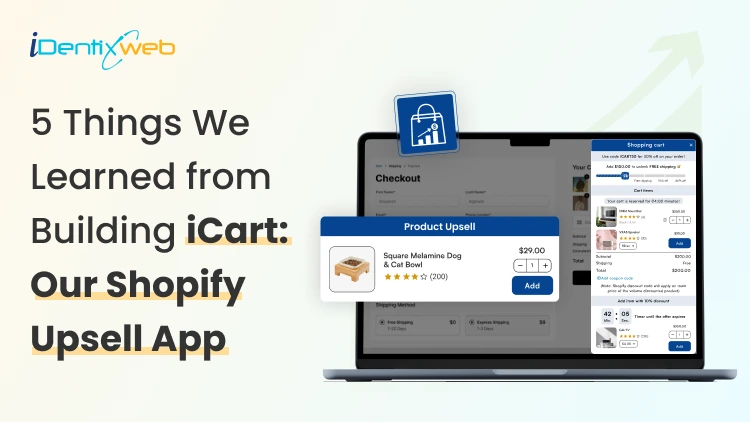
5 Things We Learned from Building iCart: Our Shopify Upsell App
New Shopify merchants usually jump into ads because it feels like the fastest way to get sales. But traffic does not fix a weak cart. If your cart is not optimized, customers will bounce. In fact, the top reason for cart abandonment is that customers are just browsing. But even if that’s the case, they do have an intent to buy. Here’s a simple example. A shopper adds a $40 face moisturizer to their cart. If your cart suggests a discount with a countdown timer, many shoppers add it. This is because they don’t want to miss out on the offer before it runs out, even if they are just browsing. This and many more reasons are why we built iCart. In our experience of shopper behaviour, the cart is one of the elements you need to optimize to increase AOV. You earn more from the same ad spend without changing your products. What does a Shopify upsell app do? A Shopify upsell app like iCart shows relevant add-ons, bundles, or incentives in the cart so customers add more items before checkout. Here’s one of our customers, Swad. It’s a food & beverage store famous for its pickles. Look at how adding an item to the cart suggests their ‘Bestseller products’. The cart also has an incentive at the top (Add X amount for free shopping). Source: Swad This is how you turn window browsers into genuine customers. Features like a progress bar and a frequently bought together section nudge customers to complete their checkout. Progress bar does wonders to your Shopify cart. Learn why you need progress bar in your online store. Where do upsells convert best? There are two places where upsell converts best. Pre-purchase and post-purchase. Upsell typeWhen it showsWhere it showsGoalWhy it convertsPre-purchase upsellBefore paymentProduct page, cart drawer, checkoutIncrease cart value before orderShopper is still deciding and can add in one clickPost-purchase upsellAfter paymentThank-you page, post-checkout offerAdd extra items after the orderPurchase is done, so adding a simple offer feels easy Shopify apps like iCart fall in the pre-purchase category, while apps like SellMore fall in the post-purchase category. 5 Lessons We Learned Building iCart Lesson 1: Shoppers respond to simple goals like free shipping In the recent Statista report on cart abandonment, 40% of customers left their cart because the shipping price was too high. Shoppers love simple goals. “Free shipping at $75” feels clear, and it gives them a reason to add one more item to the cart. That’s why we leaned hard into progress bar tiers and cart milestones in iCart. A progress bar shows how close someone is to unlocking a reward. In iCart, you can set milestones like “Spend $75 to unlock free shipping,” and the cart updates in real time. Here’s how Garb Classics is using iCart’s progress bar to offer free shipping. Source: Garb Classics Lesson 2: One cart UI does not fit every store When we started building iCart, we learned this fast. Merchants want a cart that matches how their shoppers buy. Some stores need a cart drawer because it keeps people shopping without sending them to a new page. Others need a cart pop-up for a quick, clean checkout moment. And some stores still convert best with a full cart page that feels detailed and familiar. That’s why iCart supports multi-cart options. You can add a cart drawer, a cart popup, or replace your default cart with a full cart page. You can even add a cart drawer and a full cart together. Here’s the store Green Room using the full cart feature on their website. Source: Green Room Lesson 3: Upsells only work when they feel helpful A pushy upsell feels like you are interrupting the buyer. A helpful upsell feels like you are guiding them. That difference decides if they add more or abandon the cart. That’s why iCart helps you build your cart with widgets like: Progress Bar Product Upsell AI-powered Recommendations Custom HTML Cart Items Checkout Button Product Bundle A back-end view of iCart’s settings Merchants can enable or disable each feature to customize their cart. Moreover, we also learned that stores need custom HTML features for deeper customization. It was one of the most recommended features when we built the app. Lesson 4: Merchants want AI recommendations We kept hearing the same thing from merchants. “I want upsells, but I don’t want to manually pick products forever.” They wanted the cart to recommend smarter. So we added AI-powered recommendations inside iCart. Our goal was simple: help merchants save time by automating product recommendations in the cart. You can still manually pick products for upsells when you want full control. But AI-powered recommendations help merchants drive sales by showing products based on the customer’s shopping behaviour. Lesson 5: Stores going international need multi-currency A lot of stores start locally, then suddenly get orders from other countries. The storefront may show prices in the shopper’s currency, but if the cart does not match, it feels inconsistent. That mismatch can create doubt right before checkout. A lot of our customers have stores that are multinational. So we made sure iCart supports Shopify’s multi-currency setup in both draft and normal orders. Conclusion If you are running a Shopify store, you just need a cart that is easy to set up with helpful features for your shoppers. That’s what we learned while solving real merchant problems while building iCart. Start simple. Add the features that fit your store (progress bar or product recommendations), then add one clear goal, like free shipping. Use iCart’s analytics to measure the data and customize your cart accordingly. We provide the first 100 orders free for life, with all features included. Your traffic already costs you time and money, so make the cart do more work for you. FAQs 1. How do I add a cart on Shopify? Shopify gives you a cart by default, so you usually do not “add a cart,” you just make sure your theme has an Add to cart button and a working cart page or cart drawer. If you want deeper customization to your cart drawer, install apps like iCart. 2. Why do users add to cart but not checkout? Most of the time, it’s unexpected shipping costs, forced account creation, confusing checkout steps, or trust concerns right before payment. 3. What is the best place to upsell on Shopify? Pre-purchase spots like the product page and cart work well because shoppers are still deciding and can add items before paying. Post-purchase offers work right after checkout on the thank-you page, and Shopify supports adding apps to these pages depending on your setup. 4. How do cart drawers increase AOV? A cart drawer keeps shoppers on the same page, so it’s easier to add a product without breaking the shopping flow. Merchants customize their cart drawer with features like a free shipping bar, which nudges customers to add more items to hit a threshold. 5. Do bundles work better than discounts? Bundles can work better when you want to raise AOV through a curated set, because bundles can increase AOV and provide value through curation. Discounts can convert fast, but they can also hit your margin depending on your pricing and goals. 6. Will an upsell app slow down my store? It can, especially if it loads heavy scripts or adds extra requests. You should monitor storefront performance whenever you install any Shopify app.
6 Min • 18 April 2026
Best Single Click Checkout Plugins for Shopify (Top 5 Picks from Experts)
Single-click checkout plugins for Shopify mean enabling accelerated checkout like Shop Pay, so returning customers can pay faster with saved details. It also means one-click post-purchase offers, where customers add an extra item after they’ve paid without re-entering payment info. The top 5 single click checkout plugins for Shopify include: Shop Pay for speed, SellMore and AfterSell for post-purchase upsells, and Qikify plus Shopify Checkout Blocks for checkout customization depending on your plan. If you just launched your Shopify store, you’re probably doing the same thing everyone does first. You’re optimizing your storefront, posting on socials, and praying your cart abandonment rate is less. Here’s the truth: most stores don’t lose money because of bad products. They lose money because checkout feels like work. In this guide, I’ll show you the top 5 single click checkout plugins for Shopify, plus how to pick the right one without installing a bunch of random apps. What Does Single Click Checkout Mean on Shopify? On Shopify, single click checkout usually means the accelerated checkout feature. These feature options save the buyer’s details so returning shoppers can complete checkout in just a tap or two. For a new store, this is the simplest way to reduce checkout friction for returning customers. For Shopify merchants, single click checkout also means a post-purchase one-click offer. This means the customer completes the checkout, sees an offer in the thank-you page, and buys it without re-entering payment details. That’s why many single click checkout apps focus on post-purchase and thank-you page upsells. It keeps checkout upsells simple, feels low effort for the buyer, and helps you lift AOV without risking more drop-offs before payment. Shopify One Click Checkout Solutions Comparison AppKey featuresBest suited forRatingReviewsShop Pay (Shopify Native)Saved checkout details for faster repeat buys. Shop tracking updates. Shop Pay checkout linksNew stores that want faster checkout with minimal setup, especially for mobile-heavy trafficN/AN/ASellMoreOne-click post-purchase upsellsThank-you + order status page upsells, no-code upsell funnelsNew stores that want post-purchase upsells without adding checkout friction5.03AfterSellOne-click upsells + downsellsSmart targeting (product, cart, tags, UTM), A/B testing + thank-you page editsStores that want testing + targeting for higher AOV4.8700+Qikify Checkout CustomizerConditional checkout fields, Validation rules + widgets, Advanced checkout controlStores needing checkout rules/fields (Plus, B2B, Markets)4.850+Shopify Checkout Blocks (Shopify Native)Thank-you + order status blocksPlus: checkout blocks + custom fieldsPlus: payment/delivery rulesStores that want Shopify-native checkout/post-purchase control4.2150+ Top 5 Single Click Checkout Plugins for Shopify Shop Pay (Shopify Native) Shop Pay is Shopify’s native accelerated checkout that lets shoppers save their email, shipping, and payment details so they can check out faster on your store and across other Shop Pay-enabled stores. You can enable it inside Shopify Payments, or you need to turn it on via the app store. Key features: Saved shopper details for faster repeat checkout Order tracking and post-purchase updates via the Shop tracking experience Shop Pay checkout links for fast “2-tap” purchases Best suited for: New stores that want faster checkout with minimal setup, especially for mobile-heavy traffic. Note: Only available for merchants who use Shopify Payments Learn more about how Shop Pay works for Shopify stores. SellMore Category: Post-purchase one-click upsell SellMore is one of the best one click checkout tools for Shopify stores that focuses on one-click offers after the customer pays. For a new store, the big benefit is that you can start with one clean post-purchase offer and build from there as you get more orders and data. Key features: One-click post-purchase upsells (no re-entering payment details) Thank-you page and order status page upsells Create upsell funnels with no coding in a few clicks Best suited for: New Shopify stores that want a simple post-purchase upsell flow to lift AOV without adding friction before payment. Rating: 5.0 Reviews: 3 Should you go for in-cart upsell or post-purchase upsell? Read Shopify upsell in cart vs post-purchase upsell to find out. Aftersell Category: Post-purchase one-click upsell AfterSell is a post-purchase upsell app that helps you add one-click upsells and downsells after checkout. It also turns the thank-you page into a revenue driver with cross-sells and content blocks. Key features: One-click post-purchase upsells and downsells Targeting by product, cart value, customer tags, UTMs, and more Thank-you page customization and A/B testing Best suited for: Stores that want a single click checkout plugin with testing and targeting features Rating: 4.8 Reviews: 700+ Qikify Checkout Customizer Category: Checkout This app is built to personalize and control checkout behavior with Checkout Extensibility, including custom fields, validation rules, and checkout widgets. It provides a more advanced checkout control for merchants. Key features: Conditional checkout fields and validation rules Checkout customization widgets plus fraud-prevention style rules Best suited for: Merchants who need checkout customization, rules, and extra fields (especially Shopify Plus and B2B/Markets setups). Rating: 4.8 Reviews: 50+ Shopify Checkout Blocks Category: Checkout Checkout Blocks is Shopify’s native app for adding and arranging content blocks across checkout-related pages. Key features: Content blocks for Thank you and Order status pages Shopify Plus: custom checkout blocks, custom fields, and more Shopify Plus: hide, rename, reorder payment and delivery methods, plus validations and limits Best suited for: New stores that want Shopify-native control over post-purchase pages, and Plus stores that want deeper checkout customization without third-party apps. Rating: 4.2 Reviews: 150+ In Conclusion If you’re a new Shopify store owner, don’t chase “one-click” as a buzzword. First, make checkout faster with Shop Pay, because it removes typing and makes buying feel effortless on mobile. Then add a checkout upsell app only if you have a clear add-on that fits the main product, so you increase AOV without adding friction before payment. FAQs for Single Click Checkout Plugins for Shopify 1. What does one-click checkout mean? On Shopify, ‘one-click checkout’ usually means accelerated checkout like Shop Pay, Apple Pay, or Google Pay. These options save a customer’s payment and shipping details so returning buyers can complete checkout much faster. 2. What are the top 5 single click checkout plugins for Shopify? For new stores, a practical top 5 would be Shop Pay, SellMore, AfterSell, Qikify Checkout Customizer, and Shopify Checkout Blocks. 3. What is the fastest way to checkout in Shopify? The fastest option is enabling accelerated checkout methods (especially Shop Pay) so customers can use saved details instead of typing everything again. 4. Can I customize my Shopify checkout? Yes. The best way to customize your Shopify checkout is to use the Shopify native app, Shopify Checkout Blocks. 5. Do I need Shopify Plus to use single click checkout plugins on Shopify? You don’t need Shopify Plus to use accelerated checkout like Shop Pay. But if you want to do deep checkout customization, the Shopify Plus plan is necessary.
6 Min • 13 August 2026
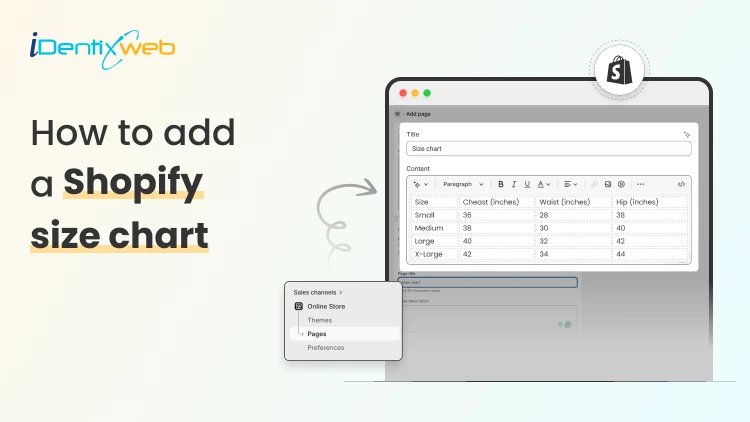
How to Add a Shopify Size Chart Within 5 Minutes
To add a size chart in Shopify under 5 minutes, use Shopify apps like TablePress where you can just select the template, the page on which the tables are to be displayed and add the details. This quick guide is perfect for Shopify store owners who want to reduce returns and boost customer confidence without the technical headache. We will walk you through choosing the right method for your store and show you exactly how to install your solution step-by-step. Plus, you will discover simple tweaks to make your size charts work harder for your business and keep customers happy. What is a Sizing Chart? A sizing chart (or size chart) is a structured reference table that helps customers determine which product size fits them based on body measurements or product dimensions. It translates abstract size labels (S, M, L, 8, 42, etc.) into specific numerical measurements, such as inches or centimeters, so shoppers can choose the correct size before purchasing. Why Every Shopify Store Needs a Size Chart 1. Reduces Costly Returns and Exchanges Sizing issues are one of the leading causes of ecommerce returns, especially in apparel, footwear, and accessories. A clear, accurate size chart minimizes uncertainty and reduces reverse logistics costs, restocking labor, and refund processing fees. 2. Increases Customer Confidence Online shoppers cannot try products before purchasing. A detailed Shopify size chart replaces the in-store fitting room experience with structured measurement guidance. When customers feel confident about fit, hesitation decreases and purchase intent increases. 3. Improves Conversion Rates When sizing information is easy to access, especially near the size selector, customers can make faster decisions. This reduces bounce rates and shortens the buying cycle. For fashion and footwear stores, clear sizing guidance often becomes a decisive conversion factor. 4. Enhances Mobile Shopping Experience The majority of ecommerce traffic comes from mobile devices. On smaller screens, shoppers are even less likely to search through long product descriptions for sizing information. A visible, mobile-optimized size chart (such as a popup or collapsible guide) ensures customers can quickly verify fit without disrupting their browsing flow. 5. Builds Brand Trust and Professionalism Professional stores provide detailed product information. A well-designed size chart signals that your brand is organized, customer-focused, and transparent. 6. Reduces Customer Support Load Without size charts, customers frequently contact support asking: “Does this run small?” “Should I size up?” “What’s the inseam length?” By proactively answering these questions on the product page, you reduce repetitive support tickets and free up operational resources. 7. Supports International Sales If you sell globally, customers may use different sizing systems (US, UK, EU, CM) for scenarios like converting size chart from asian size to US size. A comprehensive size chart that includes measurement conversions removes confusion and expands your international conversion potential. How to Add a Size Chart to Shopify Visit Shopify app store and install Tablepress app in your store. Log in to your Shopify admin account. From the left-hand menu, click on Apps. Select TablePress from the list of installed apps. You will be redirected to the dashboard page and enable the app. Click on Add table. Now, click on the create size chart button. Next, you need to select any one template that you want to create from the available templates. Or else you can create a custom table using the create custom option. To see what each template looks like, you can hover over the templates and click on Preview, where you can see the preview of that particular template. If you liked any template after previewing, you can click on use button and edit the table by adding the details of your choice in the fields given, as shown below: After adding all the details, click on the Save button and that’s it, your size chart will be live on your storefront. How to Test if your Shopify Size Chart is Working A size chart is only effective if it reduces returns, increases confidence, and supports conversions. Testing its performance requires measurable ecommerce metrics not guesswork. Below is a structured evaluation framework. 1. Monitor Return Rate Trends The primary KPI is size-related return rate. Track: Overall return rate (before vs after implementation) Percentage of returns due to “wrong size” Return rate by product category (e.g., dresses vs shoes) Benchmark goal: If sizing was a major issue, you should see measurable improvement within 30–60 days. If returns remain unchanged, the issue may be: Inaccurate measurements Confusing layout Poor chart visibility 2. Track Conversion Rate Changes A good size chart reduces hesitation. Monitor: Product page conversion rate Add-to-cart rate Checkout completion rate Compare data before and after adding or improving the size chart. If conversions improve without increased returns, the chart is functioning properly. 3. Measure Size Chart Click Engagement If you use an app or custom event tracking in Google Analytics, monitor: Size chart click rate Time spent viewing chart Conversion after size chart interaction 4. Analyze Customer Support Data Track how often customers ask: “Does this run small?” “Should I size up?” “What’s the inseam?” Conclusion Getting a size chart up and running on your Shopify store really doesn't have to be complicated. By following these straightforward steps you can have everything working smoothly in just minutes. Once your size charts are live, you will likely see fewer returns and happier customers who feel confident about their purchases.Remember to test everything on mobile devices too, since that's where most of your shoppers are probably browsing. People Also Ask 1. Can I use multiple size charts for different product types in Shopify? Yes. You can create and assign different size charts for categories like tops, bottoms, shoes, and accessories to ensure the right sizing guidance matches each product type. 2. Can I include international sizes in my Shopify size chart? Yes. Including conversions for different sizing systems (e.g., US, UK, EU) makes your size charts useful for global customers and helps them match their usual size more accurately. 3. How do I add a size chart on Shopify? You can add a size chart on Shopify using either built-in features or third-party app to get more additional features. 4. How can I make my size chart more visible on product pages? Place the size chart near the size selector or as a clear “Size Guide” popup so customers can find it easily while making a purchase decision. This increases usability and reduces friction.
Sajini Annie John
9 Min • 30 June 2026
143 Views
Sajini Annie John
3 Min • 5 June 2026
171 Views
Sajini Annie John
5 Min • 28 May 2026
166 Views
Sajini Annie John
2 Min • 29 April 2026
221 Views
Sajini Annie John
1 Min • 15 April 2026
260 Views
Sajini Annie John
6 Min • 31 March 2026
298 Views
![How to Create Upsell in Shopify Without an App [2026 Tested]](https://www.identixweb.com/wp-content/uploads/2026/02/27-02-Fri-Blog-How-to-Create-Upsells-in-Shopify-Without-an-App_.webp "How to Create Upsell in Shopify Without an App [2026 Tested]")
Vineet Nair
5 Min • 28 February 2026
340 Views
Sajini Annie John
6 Min • 13 August 2026
323 Views
Sajini Annie John
4 Min • 27 March 2026
307 Views
![Which Shopify Cart Type Works Best In 2026? [Backed by Real Merchant Data]](https://www.identixweb.com/wp-content/uploads/2026/02/13-02-Fri-Blog-Which-Shopify-Cart-Type-Sells-More_-Based-on-Merchant-Data-Compressify.io_.webp "Which Shopify Cart Type Works Best In 2026? [Backed by Real Merchant Data]")
Vineet Nair
7 Min • 19 February 2026
338 Views
Vineet Nair
6 Min • 18 April 2026
406 Views
Vineet Nair
7 Min • 8 January 2026
363 Views