



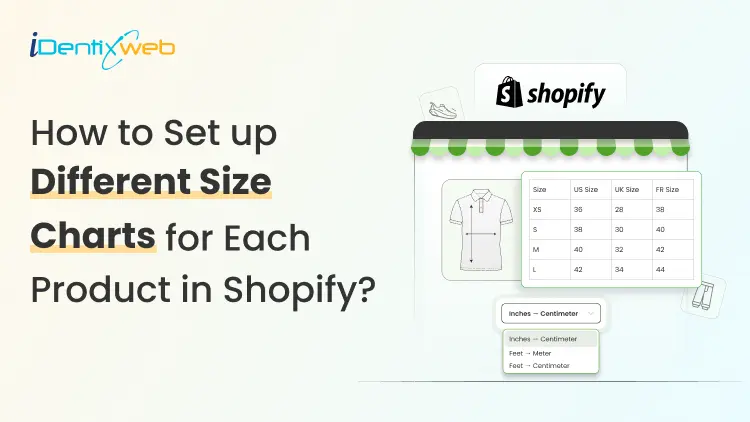
You sell tees, hoodies, sneakers, and pet collars in one store. Using one generic size chart for all of them? This increases your return rate significantly.
Almost all fashion returns come down to fit. Good news: you can show a different size guide for every product without an app, without code, and without hiring a developer.
I've built this setup on Dawn, Sense, Crave, and a couple of custom themes. The steps below work on any Online Store 2.0 theme.
You can skip the heavy lifting with TablePress
TablePress Size Chart & Guide is the best size chart app for Shopify. You can add a clean, mobile-responsive size chart in one click. No code, no theme edits. Pick a template, match your brand, and ship in minutes.
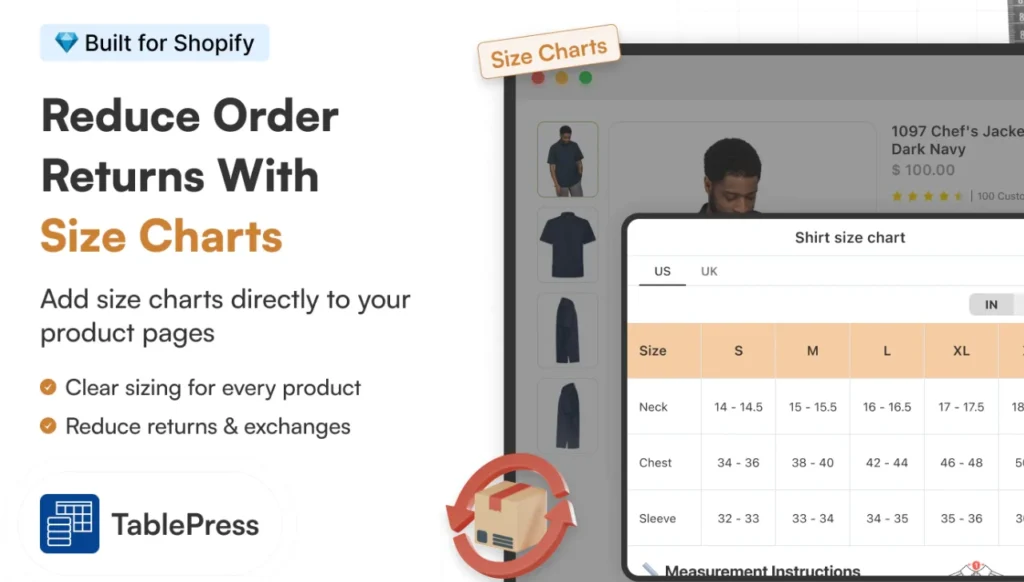
Worth a look before you commit to the manual metafield route below.
What's a size chart metafield in Shopify?
A metafield is a custom field you add onto a product, collection, or page to store extra info that Shopify doesn't capture by default.
Pair one with a size chart, and you get a single definition that pulls the right chart for each product. Edit once, and you don't need to copy-paste the same chart into 40 product descriptions.
Think of the metafield as a quiet label telling your theme: "for this product, show that chart."
Apps vs metafields: Which one do you actually need?
Quick rule from my own builds:
- Under 50 SKUs, English-only store, simple measurements: stick with metafields.
- 100+ SKUs, multi-language. AI fit recommendations, or bulk CSV uploads: An app is what I would recommend.
If you are a new store in 2026, start with metafields. You can always migrate to an app later when the catalog grows.
Quick eligibility check before you add different size guides
Three boxes to tick:
- Your theme is Online Store 2.0 (Dawn, Sense, Refresh, Crave, Impulse, Studio, and most modern free or paid themes qualify).
- Your Size option is already set up on the product. If not, sort that first using my Shopify size variants guide.
- You have admin access to Settings > Custom data.
How to add different size guides with metafields in Shopify?
Step 1: Plan the size guides you actually need
List the product groups that need their own chart. Here’s an example list from a recent client build:
- Men's t-shirts
- Women's dresses
- Kids' hoodies
- Unisex sneakers
- Pet collars
Now pick a format:
- Rich text table inside a Shopify page (easiest to edit)
- Image upload (good for design-heavy charts)
- PDF (works, but not good for mobile)
Step 2: Build a page for each size chart
Shopify admin > Online Store > Pages > Add page.
Name each page by category, not by product. For example: "Men's Tee Size Chart" works.
Build the chart inside the rich text editor or upload your image. Set visibility to Visible. Hidden pages will break the metafield link.
Repeat for every chart you listed in Step 1.
Step 3: Create the size chart metafield definition
Settings > Custom data > Products > Add definition.
Fill in:
- Name: Size chart
- Namespace and key: custom.size_chart (Shopify usually auto-fills)
- Type: Page reference (my default for the page method)
- Storefront access: keep it enabled
Click Save.
Quick note for the File method: pick File instead of Page reference and accept image files only. The display step changes a bit. Covered below.
Step 4: Connect the metafield to your theme
Open the theme editor on the Default product template.
Click into the product information section. Add a new block, pick Pop-up. Click the dynamic source icon (looks like a small database icon next to the heading field). Pick the size chart from the list.
Customize the link label. "View size guide" or "Find your fit" reads better than the default for shoppers.
Save this template.
Step 5: Assign a unique chart to each product
Products > pick a product > scroll to the Metafields box > Size chart.
Select the matching page from Step 2. Then click Save.
Bulk tip: Use Shopify's bulk editor to assign the same chart to a full collection. This saves time if you've got 30 men's tees that share one chart.
Step 6: Preview, test, catch edge cases
Open the storefront. Check 3 products with different charts assigned. Click the size guide link on each one.
Test on mobile too. Almost half of Shopify's traffic is mobile now. Your size chart for different products needs to look good on mobile.
3 ways to show different size guides for different products
Picked the page method above? You're golden. Skip ahead to troubleshooting.
Wanted options? Here are all three.
Method 1: Page reference metafield (my default)
Best for: 90% of new Shopify stores.
How it works: one page per chart, metafield points to the right page per product.
Wins: no code, mobile-friendly, edit once and updates everywhere.
Drawback: needs an Online Store 2.0 theme with dynamic source support.
Method 2: File metafield with a Liquid snippet
Best for: Stores where size charts already live as PNGs from your designer.
How it works: upload the chart as an image file in the metafield, drop a Liquid snippet in the product template.
Paste into a Custom Liquid block:
liquid
{% if product.metafields.custom.size_chart.value != blank %}
{{ product.metafields.custom.size_chart | image_url: width: 600 | image_tag }}
{% endif %}
Wins: works on vintage themes, fits design-heavy charts.
Drawback: You need to code, and the chart sits inline instead of in a pop-up.
Common issues when adding a size chart in shopify (And fixes)
Real problems I've debugged on real client stores:
The size guide link shows on products with no chart assigned
Cause: the theme block doesn't check if the metafield is blank.
Fix: wrap the block in a conditional Liquid check, or assign a default "general" chart page to every product.
Metafield missing from the theme editor
Cause: theme isn't Online Store 2.0.
Fix: switch to Dawn (free) or any 2.0-compatible theme, or use the Liquid snippet method instead.
Chart looks fine on desktop, breaks on mobile
Cause: the chart image is too wide, or the rich text table has no responsive styling.
Fix: keep tables under 5 columns. Compress images. Test on a phone, not just Chrome DevTools.
Image won't load
Cause: file is too large (over 20MB) or is in an unsupported format.
Fix: stick with JPG, PNG, or WebP. Keep under 2MB.
Pop-up opens blank
Cause: the linked page is hidden, or the page is empty.
Fix: re-open the page, set visibility to Visible, and confirm content is saved.
Where metafields stop working (and you'll want an app)
Honest limits I've hit on bigger client stores:
- No built-in cm to inches conversion. International shoppers do the math.
- No fit quiz or AI size recommendation.
- No CSV import for hundreds of charts. You'll click through every product manually.
- Per-product assignment gets tedious past 100 SKUs.
- Multi-language stores need translation workarounds since pages don't auto-translate cleanly.
Hit two or more of these? Time to look at apps.
Which is the best size chart app for Shopify?
TablePress Size Chart and Guide, Kiwi Size Chart & Recommender, MP Size Chart & Size Guide (formerly Avada), BF Size Charts & Size Guide, Jotly Size Chart & Size Guide, and Clothes Size Chart & Size Guide are a few of the apps for adding size charts I recommended for merchants.
Pro tips before adding a size chart in Shopify?
- Embed a "How to measure" graphic inside every chart page. Saves customers from guessing.
- Match the chart's tone with your product copy. I have seen a lot of mismatched brand tone and size chart copy.
- Sync the chart with your returns policy. Both should reference the same body measurements.
- Mention sizing in product photography (For example, Model is 5'10", wearing size M).
- Review return data monthly. Whichever product gets the most sizing-related returns, rework that chart first.
Quick recap
The metafield method is free, native, and good enough for most new Shopify stores. Apps earn their fee once you hit 100+ SKUs, go multi-language, or need AI fit features.
Got questions? Drop them, and I'll cover the most common ones in the FAQ section below.
FAQs
1. How to add a size chart to Shopify?
You can add size charts in Shopify using size chart apps or metafields inside the Shopify settings.
2. How to add different size guides with metafields in Shopify?
Create a separate page for each size chart, then build a Page reference metafield under Settings > Custom data > Products called Size chart. Connect it to your product template using a Pop-up block with a dynamic source, and assign the right chart page to each product from the Metafields box. Edit once and apply everywhere.
3. Which is the best size chart app for Shopify?
TablePress Size Chart & Guide is my top pick for new stores. It has a ‘built for Shopify’ badge and lets you add a fully responsive size chart in one click without code. For larger stores that need AI fit recommendations or unit conversion, Kiwi Size Chart & Recommender is a solid alternative.
4. What are the benefits of using a size chart in online stores?
A clear size chart cuts returns, boosts conversion rates, and builds shopper trust before they even hit Add to Cart. Most of the fashion stores get returns because of size issues. An accurate size reduces both returns and customer service tickets, which frees up hours for actually growing the store.




About the author
Vineet Nair
Vineet is an experienced content strategist with expertise in the ecommerce domain and a keen interest in Shopify. He aims to help Shopify merchants thrive in this competitive environment with technical solutions and thoughtfully structured content.