

Author: Sajini Annie John
Gather knowledge about the latest insights, updates, tips, and tricks in the Ecommerce industry.

5 Min • 20 March 2026
How Anua Unlocked 5X AOV Growth with iCart’s Smart Cart Features
delivery customization Challenges Solutions drive results Scale business delivery customization Challenges Solutions drive results Scale business delivery customization Challenges Solutions drive results Scale business delivery customization Challenges Solutions drive results Scale business Anua is a globally recognized Korean skincare brand known for its minimalist philosophy and focus on gentle yet effective formulations. Built on the idea of simplifying skincare routines, Anua develops products that deliver visible results while avoiding harsh or irritating components, making them suitable for sensitive skin types. Initially using a traditional full cart experience, Anua transitioned to iCart’s side cart solution in August 2025, to create a more seamless and engaging shopping journey. This shift allowed customers to easily explore complementary skincare products without disrupting their browsing flow, making it more intuitive to discover items that fit into a complete routine. By surfacing relevant recommendations directly within the cart, the brand enhanced product visibility across its range. Challenges Before implementing iCart’s side cart solution, Anua faced limitations with their existing full cart experience, which created friction in the customer journey. The traditional cart setup redirected users away from product pages, interrupting their browsing flow and reducing opportunities to explore additional products. As a skincare brand built around routines rather than single-item purchases, this made it difficult to effectively showcase complementary products and encourage customers to build complete regimens. Additionally, the lack of in-cart personalization and strategic upsell opportunities meant that customers were often unaware of related products that could enhance their skincare results. This limited the brand’s ability to increase average order value (AOV) and fully leverage its diverse product range. Anua needed a more dynamic and intuitive cart experience that could seamlessly introduce relevant recommendations while maintaining a smooth and engaging shopping journey. ❌ Cart Value Barriers Low average order value (AOV) due to single-item focus Most customers completed purchases with one primary product instead of building multi-step routines. Cart abandonment near shipping thresholds Customers were not clearly informed or motivated to reach free shipping or discount thresholds. Missed savings opportunities Customers were unaware of potential value in purchasing bundled routines or multiple complementary products. ❌ Absence of Progress-Based Incentives No free shipping or discount progress bar Customers were not motivated to increase their cart value due to lack of visible incentives. Missing tiered rewards system There were no structured milestones (e.g., “Spend more to unlock offers”), reducing upsell opportunities. ❌ Ineffective Cart UI/UX (Pre-Side Cart) Full-page cart disrupted shopping flowCustomers had to leave their browsing journey, increasing friction and drop-offs. No quick add/remove functionality Users couldn’t easily modify their cart or add suggested products without navigating away. Solution To overcome these challenges, Anua implemented iCart’s side cart solution to transform their traditional cart into a high-converting, interactive experience. By replacing the full-page cart with a seamless side cart, the brand ensured that customers could continue browsing while viewing their cart, significantly reducing friction in the shopping journey. Additionally, features like product recommendations & progress bars for free shipping and discounts motivated customers to increase their cart value. By combining personalization, incentive-driven messaging, and a user-friendly interface, Anua successfully turned their cart into a powerful revenue-driving touchpoint rather than just a checkout step. To maximize their cart effectiveness, they implemented two powerful features: ✅ Progress Bar with Multi-Reward Incentives Implemented a tiered progress bar to encourage higher cart value Customers are guided with a clear message like “Add $3.10 to unlock secret offer,” motivating them to continue adding products. Generated over $5M+ in revenue through incentive-driven cart progression Used product-based rewards to align with customer intent Instead of generic discounts, Anua incentivized purchases with relevant skincare items like Dark Spot Pads and mini serums. Built visual motivation for routine expansion As customers add products, they can clearly track progress toward unlocking multiple rewards, encouraging them to build a complete skincare routine. ✅ Product Recommendations Implemented “Frequently Bought Together” recommendations Customers adding a single product (e.g., toner) are shown complementary items like serums, moisturizers, or pads to complete their routine. Generated over 275K revenue through in-cart recommendations Encouraged full skincare regimen building Instead of isolated purchases, the cart suggests step-by-step product combinations aligned with common skincare routines. Increased product discovery at the final stage By surfacing relevant items directly in the cart, Anua ensured customers explore more of their catalog without leaving the checkout flow. Results Achieved in Last 180 Days 22932 Total Store Orders 45101 Total iCart Orders 5X iCart Generated AOV 65.70% Upsell Affected Conversion Rate These improvements reflect a clear shift in customer behavior on Anua’s store. Cart abandonment reduced as shoppers discovered complementary skincare products and felt encouraged to build complete routines. Engagement also increased, with customers interacting more with in-cart recommendations and exploring relevant product pairings. Results & Impact And...Results is Our Main Clarification By implementing iCart’s cart drawer, product recommendations, and progress bar, Anua transformed its cart into a high-performing conversion touchpoint. Shopping Experience Enhancement The improved cart experience encouraged customers to discover complementary products and understand the value of sustainable beauty routines. For instance, the clear presentation of subscription savings alongside one-time purchase options helped customers make more informed decisions about their long-term hair care needs. As Anua continues to optimize its cart experience, the brand is closely monitoring: Routine-based purchasing behavior - tracking how customers move from single items to multi-step regimens Engagement with in-cart recommendations - measuring interaction with suggested products Cart value progression - analyzing how incentives influence higher spending [related_cases_slider] Ready to Write Your Success Story? Try icart App Join successful businesses like Anua and Master your delivery scheduling Delight customers with precise timing Grow your special occasion orders Expand your delivery reach
Read Blog
11 Min • 15 September 2026
How to Migrate WooCommerce to Shopify in 2026 Without Losing Orders or SEO
Migrating from WooCommerce to Shopify can be done through Shopify’s Store Migration app, CSV imports, third-party migration tools, or a custom API setup. Products, customers, and selected order data can move, while themes, plugins, and URLs need rebuilding or redirecting. After migration, configure payments, shipping, taxes, and checkout, test orders and key store functions, and verify and monitor SEO. Moving from WooCommerce to Shopify involves more than transferring your products. You’ll also need to migrate customer and order data, recreate key store features, maintain important URLs, and make sure your search rankings are not affected during the move. If you're moving from WooCommerce to Shopify in 2026, keeping your existing store running while you prepare, migrate, and test the new Shopify store can help prevent data loss and launch-day issues. This guide walks through the migration process, with particular attention to products, customers, orders, functionality, redirects, and SEO. Why do store owners migrate from WooCommerce to Shopify? Most people we consult aren't unhappy with WooCommerce. It is a very capable e-commerce platform. They move because managing hosting, plugin updates, security, and ongoing maintenance becomes increasingly time-consuming. Shopify is a hosted platform, so hosting and much of the underlying maintenance are handled for you. Features such as Shop Pay, Shopify POS, and its app ecosystem can also simplify day-to-day operations. If you're still weighing it up, my WooCommerce vs Shopify guide walks you through the complete comparison. What moves when you migrate WooCommerce to Shopify Not everything in a WooCommerce store is migrated in the same way. Products, customers, and some order data can be transferred, while themes and plugins need to be rebuilt or replaced, and existing URLs need to be redirected. DataWhat happens during migrationProducts and variantsStore Migration app, CSV import, or a migration appCustomersCustomer CSV, Store Migration app, or a migration appOrdersMigration app or the Shopify API onlyReviewsA reviews app like Judge.me, Loox, or YotpoBlog posts and pagesMatrixify, or copied over by handCouponsA migration app, or rebuilt in DiscountsTheme and designRebuilt on a Shopify themePluginsReplaced with Shopify apps or native featuresURLsNew format, so you need 301 redirects What to do before you move from WooCommerce to Shopify Back up everything. Use your host's backup or a plugin like UpdraftPlus to perform a full data export. Record your URLs and traffic. Export your top landing pages from Google Search Console for the last 90 days. You'll need them for redirects. List every active plugin. These can become Shopify apps or native settings, depending on the functionality it was used for in your store. Check your product attributes. Shopify allows three options per product. Flag anything using four or more. Review and clean your data. Remove duplicate or outdated records where appropriate, review discontinued products, and standardize complicated variant names before importing your data. How to migrate from WooCommerce to Shopify step by step 1. Build your Shopify store Set up your Shopify store, but keep your WooCommerce store live while you work. You still need the old store for checking data, URLs, images, and functionality during the migration. Shopify lets you select WooCommerce during signup. It also creates a starter theme based on your existing store URL. The generated theme uses Dawn and recreates parts of your current storefront. 2. Decide what you are moving and how Make a list of everything that needs to move: products, variants, customers, historical orders, reviews, pages, blog content, discounts, and any other store data you still use. Then choose the migration method for each. Shopify's Store Migration app is currently in early access for certain stores and can import WooCommerce products from the original WooCommerce CSV. For everything else, you can use Shopify CSV imports where supported, a third-party migration tool like Cart2Cart or LitExtension, a custom API migration, or a Shopify migration agency. If you cannot manage the move, Identixweb can handle the migration for you. Our Shopify migration service helps move your store data, rebuild required functionality, map redirects, review SEO risks, and test the new Shopify store before launch. 3. Export and prepare your WooCommerce data WooCommerce has a built-in CSV exporter for products under Products > All Products > Export. You can choose the products, columns, categories, and whether to include custom metadata in the export. What happens next depends on your migration method. The Store Migration app will accept the WooCommerce product CSV without reformatting it. If you use Shopify's product CSV importer, the WooCommerce columns need to be mapped to Shopify's format first. For customers, export their data and format it using Shopify’s Customer CSV template. Import them through Shopify Admin > Customers > Import. Historical orders need a migration app such as Matrixify, LitExtension, or Ablestar WooCommerce Importer. This is because Shopify does not offer a native order CSV importer. 4. Migrate products, customers, and orders in that order Move your products first, customers second, and historical orders last. We recommend this sequence so imported orders can connect to the right products and customers. Validate each data set immediately after importing it rather than waiting until the entire migration is complete. After the product import, compare prices, SKUs, variants, inventory, weights, images, and descriptions against WooCommerce. Shopify specifically recommends reviewing product data after import because incorrect data like prices can affect the store immediately. 5. Rebuild your storefront and replace WooCommerce plugins Your WooCommerce theme does not become a Shopify theme, and your WordPress plugins do not become Shopify apps. Build the storefront on a Shopify theme and recreate the parts of your WooCommerce setup that customers actually use. Go through the plugin list you made earlier and match each important function with a Shopify feature, app, or custom solution. Don't migrate plugins one-to-one. Instead, identify what each WooCommerce plugin does and determine whether the same functionality can be handled by Shopify's native features, an app, or a custom solution. 6. Set up payments, shipping, taxes, and checkout Set up your locations, shipping zones and rates, payment provider, tax settings, checkout preferences, store policies, fulfillment process, and customer notifications. Don't assume your WooCommerce settings can simply be copied to Shopify. Review each payment, shipping, tax, checkout, and fulfillment setting based on how the new store will operate. 7. Testing Before launch, test the Shopify store from the customer's perspective. Place test orders, check successful and failed payments, refunds, cancellations, fulfillment, customer emails, navigation, search, forms, product variants, discount codes, and shipping rates. 8. Run a final data check and switch the domain If your WooCommerce store remained open during the migration, check for products, customers, and orders created after your first transfer. Compare record counts and spot-check important orders before you switch traffic to Shopify. Once the Shopify store is ready, connect or transfer your existing domain and make Shopify the live storefront. After the switch, test your old URLs again to make sure the redirects reach the correct Shopify pages rather than returning 404 errors. How to migrate products from WooCommerce to Shopify The best migration method depends on your catalog size, product complexity, and the data you need to preserve. You can use Shopify's supported migration options, CSV imports, a third-party migration tool, or an API-based migration. WooCommerce columnShopify columnNameTitleDescriptionBody (HTML)Attribute 1 name/value (s)Option1 Name / Option1 ValueSKUVariant SKURegular priceVariant PriceStockVariant Inventory QtyWeight (lbs)Variant Grams (multiply by 453.6)ImagesImage Src WooCommerce can hold several attribute values in one cell. Shopify wants one option value per row, so each variant needs its own line. Shopify also raised the cap to 2,048 variants per product, so catalogs with lots of sizes and colors fit easily now. The limit of three options per product didn't change. If a product uses four attributes, move the extras into product metafields or use a product options app. Watch your images too. Product images are imported from their WordPress URLs, so keep the old site online until the import finishes. Images inside descriptions still point at your WordPress server. Matrixify can move them into Shopify Files, or they'll break when you cancel hosting. How to migrate orders from WooCommerce to Shopify Shopify's native CSV import can't handle orders, and the Store Migration app skips them too. You'll need a migration app like Matrixify, LitExtension, Ablestar, or Cart2Cart, or a custom build on the Shopify API. Order history is worth moving. Your team keeps a full buying history for support, returns, and reporting. But the export can fool you. A few months ago, I was on a call with a store owner. He sells coffee gear and has run WooCommerce for about eight years. He wanted every order moved, and he'd already done the export himself. His file had around 1,900 orders. His dashboard showed more than 11,000. He assumed the export had timed out. His export plugin hadn't been updated in years and was still reading WooCommerce's old order tables. We dropped the plugin and pulled orders through the WooCommerce API with a migration app. The counts matched on the first run. We also talked about what he actually needed. Failed checkouts from earlier years weren't helping anyone. We completed and refunded orders from the last three years, kept his original order numbers, and archived a full export of the rest. Before the real import, we switched off staff order notifications. Otherwise, his inbox would have taken thousands of "new order" emails in one afternoon. A few rules I follow on every order migration: Filter by status and date. Decide which order statuses and date ranges you actually need before importing historical orders. Silence notifications first. Prevent staff from receiving thousands of new-order emails during the import. Account for guest orders. Guest shoppers may not exist as customer records in WooCommerce, so check how your chosen migration method handles customer information stored against guest orders. Plan for order numbers. Check how your migration method handles existing WooCommerce order numbers and how new Shopify order numbers will be generated. Protect your SEO with a 301 redirect map Your URLs will change, and there's no way around it. Shopify uses fixed paths, so a clean 301 redirect map is what protects your traffic. WooCommerce URLShopify URL/product/mug//products/mug/product-category/mugs//collections/mugs/about//pages/about/pourover//blogs/news/pourover Keep your product slugs identical to your Shopify handles, so each redirect is a simple prefix swap. Build the map from a site crawl plus your Search Console export. Import it in bulk under Content > Menus > View URL redirects. Cover blog posts and category pages, not just products. Missed blog URLs are the gap I see most often. After launch, submit your sitemap and watch Search Console for 404s. Migrate your store, not the issues A meaningful WooCommerce to Shopify migration is a chance to clean up old data, replace unnecessary plugins, and simplify your store setup. It also makes sure customers and search engines land where they should after the switch. If your store has years of order history, custom WooCommerce functionality, a large catalog, or organic traffic, treat the migration as a proper project. FAQs 1. How to migrate from WooCommerce to Shopify? Create your Shopify store, export and prepare your WooCommerce data, then migrate products, customers, and historical orders using Shopify’s supported import options or a migration app. After that, rebuild your storefront, replace WooCommerce plugins, configure payments and shipping, set up 301 redirects, test the store, and switch your domain to Shopify. 2. How to import products from WooCommerce to Shopify? Export your products from WooCommerce > Products > Export as a CSV file. You can import that file using Shopify’s Store Migration app, or reformat the data to Shopify’s product CSV structure and upload it through Shopify Admin > Products > Import. 3. Should I move from WooCommerce to Shopify? Consider moving to Shopify if you want a hosted ecommerce platform where hosting, maintenance, and the technical infrastructure are managed for you. If you depend heavily on WordPress, need backend customization, or want direct control over hosting and code, WooCommerce is a better fit. 4. How much will it cost to migrate my store from WooCommerce to Shopify? There is no fixed migration cost because it depends on your product count, customers, historical orders, functionality, design work, apps, and SEO requirements. DIY migrations can use CSV imports and migration tools at relatively low cost, while the charges of apps such as Matrixify and Ablestar depend on the data being migrated. 5. Can WooCommerce work together with Shopify? Yes, but WooCommerce and Shopify don't natively operate as one shared ecommerce backend. You can, for example, add Shopify Buy Buttons to a WordPress site or use third-party integrations to sync selected products, inventory, customers, or orders between the two platforms.
10 Min • 27 August 2026
Is Your Shopify Store Slow After Installing Apps? Here’s What to Check
You may have experienced your Shopify store loading slowly just after you have installed a few apps. But owners need apps to run their store. Maybe the store needs product reviews, or they need upselling, a chatbot, a loyalty program, or an analytics app. Individually, each one solves a problem. But after a few installations, the store suddenly feels heavier. Product pages take longer to appear, buttons respond slowly, or content jumps around while loading. This is common when I audit Shopify stores, but I just don't immediately start deleting apps. If you're wondering why Shopify is so slow after adding apps, the first step is to identify what changed on the storefront. Shopify itself lists installed apps, theme code, and manually added third-party code among the major factors that can affect online-store performance. The right approach is to identify what is actually slowing the store, decide whether the app provides enough business value, and then optimize, or remove it. TL;DR: What should you check first? If a Shopify store became slow after installing apps, check: Whether the slowdown started at the same time as an app installation Which apps load JavaScript or CSS on the storefront Whether apps are loading on pages where they aren't needed Whether multiple apps perform the same function Whether app widgets are causing layout shifts Whether previously removed apps left legacy code in the theme There is no number on how many apps a merchant can use. I have seen stores with revenue > $1M use more than 20 apps. What matters is what those apps load and how efficiently they do it. First, I would confirm that the apps are the problem It's always easy to blame the newest app for a slow store. But a Shopify store can load slowly for several reasons at the same time. A theme update, new tracking pixel, oversized media, extra theme sections, or manually added JavaScript. Start with Shopify's own performance data. Go to: Shopify Admin → Online Store → Themes The Themes page includes a performance metric summary for the store's Core Web Vitals. More detailed performance reports are available under: You may not be able to see it if: Your online store is password-protected. The store does not yet have enough real visitor traffic to generate the metrics. You are trying to access the detailed reports without the required Reports staff permission. The detailed reports are available through: Shopify Admin → Analytics → Reports From there, you can search for: Largest Contentful Paint Interaction to Next Paint Cumulative Layout Shift Shopify's Web Performance reports can show performance over time, by page URL, and by page type. They also provide info on changes such as app installations, theme updates, and new code. This makes the report particularly useful when investigating a recent slowdown. One limitation is that this isn't instant monitoring. Shopify says Web Performance data can be delayed by up to 36 hours, so don't expect a change made five minutes ago to immediately appear in the real-user report. For a broader speed audit, my guide on how to speed up a Shopify store covers other common performance problems beyond apps. Know the three performance metrics that matter Shopify currently uses the same three Core Web Vitals Google focuses on: LCP, INP, and CLS. MetricWhat It MeasuresGood TargetWhat Apps Can AffectLCPHow quickly the main visible content loads≤ 2.5 secondsRender-blocking scripts, stylesheets, slow widgets, third-party resourcesINPHow quickly the page responds after interaction≤ 200 msHeavy JavaScript, long-running tasks, multiple interactive widgetsCLSHow much content unexpectedly shifts≤ 0.1Late-loading banners, reviews, popups, badges or other widgets You can check the target number by clicking each report I have mentioned earlier. Here’s my checklist on whether you feel Shopify app bloat in your current store. The complete checklist if you have Shopify App bloat 1. Separate the apps that load on the storefront or backend Not every Shopify app slows down the storefront. Some apps operate almost entirely inside Shopify Admin or in backend workflows. Others directly add content, JavaScript, CSS, tracking, popups, recommendations, reviews, or widgets to customer-facing pages. Start by separating installed apps into two groups: Storefront-impacting apps Examples of these apps include reviews, upsells, chat, personalization, recommendations, subscriptions, popup tools, search widgets, badges, analytics, and visual merchandising features. For example, Anua, a Korean Skincare brand, uses iCart, an upsell app, to show upselling products in their cart. Backend/admin apps Examples might include certain reporting, inventory, workflow, fulfillment, or administrative tools that don't need to render customer-facing code. This immediately narrows down where to investigate. 2. Look for too much JavaScript JavaScript is one of the first places I check if I feel too many apps are slowing down your store. Apps can use JavaScript for: Recommendations Sliders Popups Cart drawers Reviews Personalization Chat Analytics Event tracking Dynamic discounts Interactive widgets None of these features are bad, but Shopify states that poor INP is often caused by too much JavaScript coming from theme code, app code, third-party code, or tag managers. How to check it Open Chrome DevTools and inspect the Performance and Network panels. Look for: Long-running JavaScript tasks Unusually large script files The same third-party library loaded more than once If you notice these issues but the fixes involve editing theme code, it may be time to involve a developer. Small changes made without knowing how an app or theme works can sometimes affect store functionality or customer experience. A Shopify developer can help identify which scripts are necessary, remove unnecessary code safely, and optimize store performance. At Identixweb, we provide Shopify Speed Optimization Services to help merchants improve store performance without compromising the features their customers rely on. 3. Check whether apps load on pages where they aren't needed This is one of the most important checks I do. Imagine a product-review app. The full reviews widget may matter on product pages. But does all its JavaScript need to load on the homepage, blog articles, contact page, cart page, and every collection? The same question applies to: Product recommendations Size charts Wishlist tools Product badges Delivery widgets Cart tools Popup tools Ask your developer: Does this app load storefront assets globally or only where its functionality is used? That question can reveal a lot about how efficiently the app was built. 4. Review your app embeds Go into the Shopify Admin > Online Store > Edit Theme > App Embeds App embed blocks are commonly used for functionality such as: Chat bubbles Product badges Analytics Tracking SEO integrations Floating storefront elements You can activate or deactivate individual app embeds from the Theme Editor. Before disabling any app embed, check its features and how it affects customer experience, tracking, or store operations. Review the app name, understand its purpose, and confirm whether it is connected to tools like analytics. If you are unsure, test the change on a duplicate theme first instead of turning it off directly on your live store. An embed may power tracking, accessibility features, consent management, or another business-critical function. Instead, identify what each embed does and test changes individually. 5. Look for multiple apps doing the same job App overlap is the most common problem I encounter that slows down the store. For example, a store might have: An email app with a popup A separate popup app Each tool may have been added at a different point in the store's growth. For each installed app, document: Business purpose → feature actually used → storefront resources → monthly cost → overlapping apps Then decide whether one well-built tool could replace two or three separate apps. 6. Check whether an app is causing layout shifts Have you ever opened a product page and watched this happen? The title appears first, then the reviews widget loads, and after that a promotional bar appears. That is called a layout shift. Shopify considers a CLS of 0.1 or lower good. Late-loading app elements such as banners, reviews, badges, recommendations, and widgets can contribute to CLS when the page hasn't reserved enough space for them. Ask your developer to check apps that contribute to CLS. 7. Don't assume the app is the only problem Sometimes an app gets blamed because it was the most visible recent change. But Shopify identifies three major areas merchants should examine: Theme code Installed apps Manually added third-party code such as tag managers and tags. For example, you may install an app and simultaneously add a Meta pixel or add another analytics script through GTM. If speed drops, the app could be only one part of the problem. A safe way to audit Shopify apps Don't uninstall five apps and then check CoreWebVitals. Even if the score improves, you won't know which change caused it. Use this process instead. Step 1: Record a baseline Measure the CWV performance for: Homepage Collection page Popular product page Step 2: Back up your theme Duplicate the current theme before touching theme files or legacy app integrations. Step 3: Test one app at a time Where possible, disable an app embed or storefront feature individually. Keep everything else unchanged. Step 4: Run several tests This is what you want from your developer. Do not make a decision based on a single score. Shopify warns that a single Lighthouse run can vary by 5–10 points because of CPU and network conditions and recommends comparing median results from multiple runs. Step 5: Compare the right metric If the page loads slowly, investigate LCP. If clicks feel delayed, investigate INP. If widgets move content around, investigate CLS. Step 6: Remove or combine only after confirming the cause If an app provides little value, duplicates functionality, and creates measurable storefront overhead, then removal becomes a much easier business decision. Can't find which app is slowing your Shopify store? When multiple apps, theme changes, and third-party scripts are affecting your storefront, finding the exact cause of slow performance can be difficult. Identixweb’s Shopify Store Performance and Speed Optimization service helps identify performance bottlenecks, reduce unnecessary code and scripts, and improve storefront speed without removing functionality your store still needs. FAQs 1. Can installing too many Shopify apps make a store slower? Yes, particularly when an app adds customer-facing JavaScript, CSS, third-party requests, widgets, or tracking code. However, not every app affects the storefront, so the app's integration and resources matter more than simply whether it is installed. 2. What is a good Shopify speed score? Rather than relying on one speed score, merchants should monitor Shopify's Core Web Vitals. Shopify considers LCP of 2.5 seconds or less, INP of 200 ms or less, and CLS of 0.1 or less good performance thresholds. 3. How many Shopify apps are there? There isn't a useful universal number. A smaller number of poorly chosen apps will still create problems. Audit what each app loads, where it loads, and the value it provides instead of relying on app count alone. 4. How can I tell which Shopify app is slowing my store? Start with Shopify's Web Performance reports, then test the same homepage, product, and collection pages while disabling one storefront app feature or embed at a time. 5. Does uninstalling a Shopify app remove all its code? Not always. Older or manually integrated apps can leave theme changes behind. For apps built with Theme App Extensions, Shopify says that the app code is removed when the app is uninstalled.
8 Min • 29 July 2026
How to Use the Shopify and Perplexity Integration to Drive Sales?
Buyers have stopped going to Google and searching for products to buy. They ask Perplexity and other AI platforms one question and buy whatever it recommends. The Perplexity Computer Shopify connection now works in two directions: Your catalog can appear inside Perplexity answers, Perplexity Computer can run store tasks on your behalf. Most merchants have set up neither, which is exactly why I’m adding this guide. What does the Shopify and Perplexity integration mean? Perplexity and Shopify connect in two separate ways. One is a sales channel. The other is an agent that works inside your store data. The sales channel side is Perplexity Shopping. Your product data reaches Perplexity through Shopify Catalog, and shoppers see products with images, pricing, and review summaries inside the answer. The agent side is Perplexity Computer. Computer connects to hundreds of tools, and Shopify is one of them. You give it a task in plain language, it breaks the job into subtasks across multiple models, and it delivers finished work. How does Perplexity decide which products to recommend? Perplexity pulls product data from retailer feeds, merchant sites, and reviews, then builds its answer. For Shopify merchants, Shopify Catalog automatically syncs your product data to connected AI platforms, including Perplexity, ChatGPT, and Google AI Mode. Product information is more important. If a SKU has no GTIN, a vague description, and four reviews, Perplexity has almost nothing to work with, and it will favour a competitor with complete data. I look for three signals. Structured product data. Product identifiers, Google product category, materials, dimensions, and accurate price and availability. Review depth. Perplexity summarizes pros and cons from customer reviews. Contextual descriptions. A spec list tells the model what the product is made of. A description that names the buyer and the use case tells it who the product is for. Shopify’s own insight says that AI-referred shoppers convert at almost 50% higher rate than organic. Set up the Perplexity and Shopify connection step by step 1. Run an agentic readiness check Shopify has a free tool to check if your product page is ready for AI-selling. Do an agentic readiness check first. 2. Confirm Shopify Catalog is populated Catalog is the delivery mechanism. It syndicates whatever sits in your product records, so incomplete records travel straight into AI answers as incomplete records. 3. Open Agentic Storefronts in your Shopify admin Catalog makes products discoverable. Go to Settings > Sales Channels, and review each AI channel individually. Agentic has been rolled out for merchants this year. 4. Add Perplexity Make Perplexity a sales channel in Agentic. You can also add other AI platforms like Copilot and ChatGPT. 5. Let AI crawlers through Check robots.txt and any bot-blocking rules in your CDN or security app. Blocking AI crawlers will impact your sales significantly when customers are searching for your product on AI platforms. 6. Test with real buyer prompts Pick fifteen questions your customers actually ask, run them in Perplexity, and note where you appear and where a competitor does. I do this every week for stores that I’m working for. Manual testing gives you ground truth that no dashboard provides yet. If you are working through the same setup for OpenAI's ecosystem, my ChatGPT Shopify integration guide covers Instant Checkout and the merchant application side in detail. Optimize your Shopify store for AI search engines like Perplexity and SearchGPT The work that helps you optimize your Shopify store for AI search engines like Perplexity and SearchGPT is the same, which is the good news. Start with product pages. Replace generic claims with specifics a model can extract: who it suits, what problem it solves, what size or spec range it covers, and how it compares to the obvious alternative. Add a short FAQ block to product and collection pages, with the question as a heading and the answer in two or three sentences. Mark it up with an FAQ schema. Collection pages deserve real text. A collection with a title and nothing else gives Perplexity no reason to understand your products. Write a minimum of 150 words explaining what belongs in the collection and who buys from it. In my experience in 2026, comparison content is the strongest lever most stores ignore. Buying guides, category comparisons, and honest product versus product pages match the exact shape of questions people bring to AI search. My full walkthrough on answer engine optimization for Shopify stores breaks down the schema types, FAQ patterns, and topical clusters worth building first. What does the Perplexity Computer Shopify connector do for merchants? The Perplexity Computer Shopify connector gives an agent read and write access to your store data. You enable it once from the Connectors panel and complete OAuth. Computer treats work as tasks rather than chats. You describe an outcome, it plans the subtasks, routes each one to a suitable model, and hands back a finished deliverable. Tasks can run on a schedule whether or not your laptop is open. Here are the five tasks I always set up first: Weekly catalog gap audit. Ask it to list every product missing a GTIN, product category, or description longer than a set word count. An updated catalog is the biggest factor in AI visibility. Bulk description rewrites. Feed it your brand voice rules and let it draft AI-readable descriptions for your products. Review everything before publishing. Competitor price and positioning monitoring. Set a recurring task that checks competitors and flags where you are underperforming. Review mining. Have it read recent reviews, add the common reviews together, and turn them into FAQ entries for the matching product pages. Monday morning report. Orders, refunds, stock risks, and the best-sellers, delivered as a document before you open the admin. Turn High-Intent AI Traffic Into Bigger Orders Visitors arriving from AI search platforms are often ready to buy, making the cart the perfect place to increase order value. Most carts only show products... iCart can show revenue-boosting offers. Try Free Till 100 Orders iCart Cart Drawer Cart Upsell helps you convert that intent with relevant upsells, product bundles, and free-shipping progress bars built directly into the cart. Measure whether Perplexity is actually driving sales I track these four things for Perplexity and any other AI platforms when it comes to tracking sales. Citation rate. Your appearance counts across your fifteen test prompts, checked monthly. Referral sessions from perplexity.ai in GA4, segmented separately from other AI referrers. PayPal Instant Buy orders, reconciled against your Shopify revenue so nothing goes uncounted. Catalog completeness, as a percentage of SKUs with full required fields. It is the leading indicator for everything above. Movement in citation rate usually shows up thirty to sixty days after catalog fixes land. Judge the channel on that timeline, not on week two. Where to start this week Perplexity Computer for Shopify work pays off fastest when you focus on what you want. Run the readiness check, fix your best-sellers, add it as a sales channel, and set one recurring Computer task to update your catalogue. The merchants who benefit from AI recommendations right now are the ones whose product data is clean when the channel opens. FAQs 1. What is the Perplexity Computer Shopify connector? The Perplexity Computer Shopify connector is an integration that lets Perplexity's agent platform read and act on your Shopify store data. You enable it from the Connectors panel in Computer. Once connected, you can assign store tasks such as auditing product data, drafting descriptions, or generating sales reports. 2. What is the price of Perplexity Computer to run a Shopify store? The Computer is available to Perplexity Pro, Max, and Enterprise subscribers. Pro subscribers receive full access, while Max subscribers get monthly credits and higher spend limits. Pro is priced at $20/month, and Max costs $200/month. 3. How is optimizing for Perplexity different from optimizing for ChatGPT or SearchGPT? The underlying work overlaps almost entirely. Complete structured data, genuine reviews, contextual descriptions, and FAQ content improve visibility across Perplexity, ChatGPT, and Google AI Mode. The differences sit in checkout infrastructure and opt-in requirements, not in content strategy. 4. How long before the Shopify and Perplexity integration shows results? Expect thirty to sixty days between catalog improvements and a measurable change in citation rate. Feed syndication is fast, but AI engines need time to re-crawl, re-evaluate, and accumulate review signals before they start recommending a store consistently. 5. Can Perplexity Computer make changes to my store without approval? It can if you grant write scope and do not require confirmation. Configure Computer to check in before executing write actions, start with read-only reporting tasks, and expand permissions only after you trust the output.
Sajini Annie John
September 24, 2019
19421 Views
Sajini Annie John
January 31, 2020
25540 Views
![The Ultimate Shopify Migration Guide From an Expert [Updated 2026 Steps]](https://www.identixweb.com/wp-content/uploads/2022/04/The-Ultimate-Shopify-Migration-Guide.webp "The Ultimate Shopify Migration Guide From an Expert [Updated 2026 Steps]")
Sajini Annie John
April 22, 2022
7426 Views
Sajini Annie John
July 1, 2026
141 Views
Sajini Annie John
June 30, 2026
123 Views
Sajini Annie John
June 30, 2026
135 Views
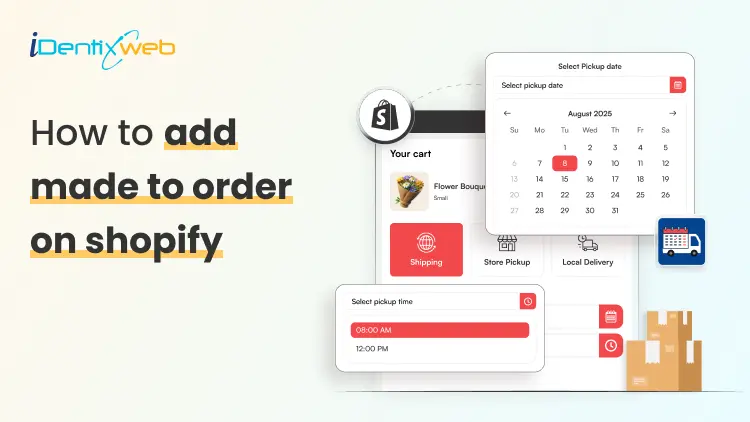
Sajini Annie John
June 30, 2026
129 Views
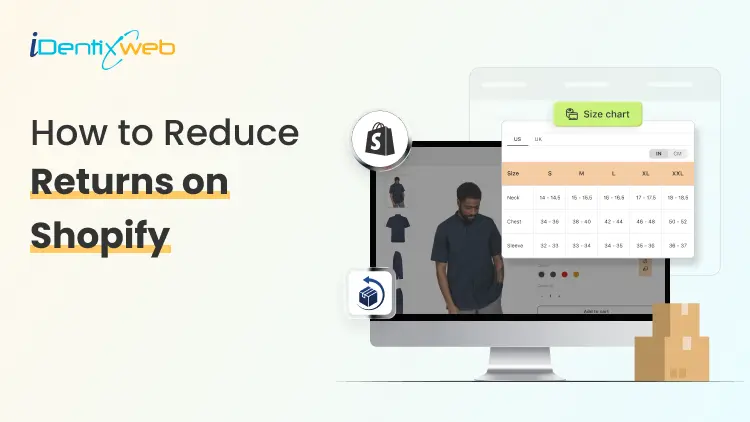
Sajini Annie John
June 28, 2026
122 Views
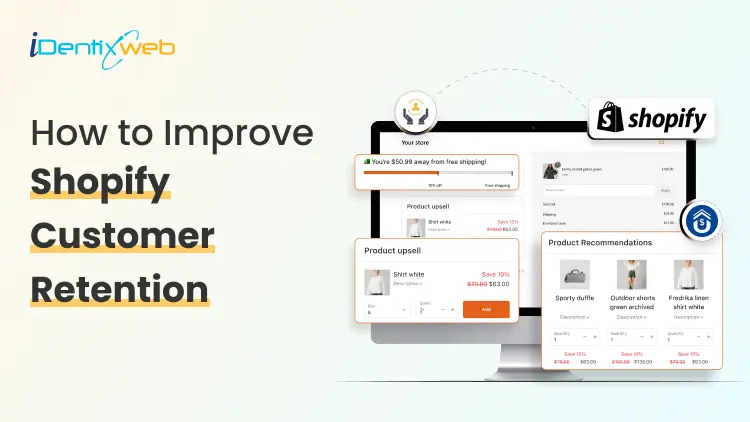
Sajini Annie John
June 27, 2026
132 Views
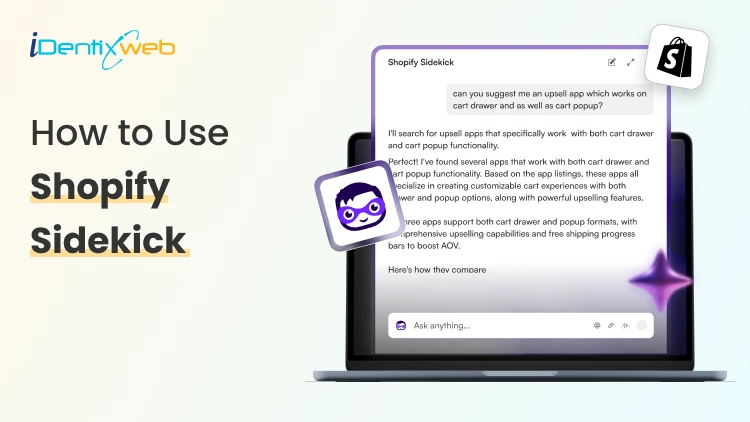
Sajini Annie John
December 19, 2025
584 Views
Sajini Annie John
September 27, 2019
24683 Views

Sajini Annie John
February 12, 2026
320 Views