Author: Nici Pillemer
Gather knowledge about the latest insights, updates, tips, and tricks in the Ecommerce industry.

5 Min • 20 March 2026
How Anua Unlocked 5X AOV Growth with iCart’s Smart Cart Features
delivery customization Challenges Solutions drive results Scale business delivery customization Challenges Solutions drive results Scale business delivery customization Challenges Solutions drive results Scale business delivery customization Challenges Solutions drive results Scale business Anua is a globally recognized Korean skincare brand known for its minimalist philosophy and focus on gentle yet effective formulations. Built on the idea of simplifying skincare routines, Anua develops products that deliver visible results while avoiding harsh or irritating components, making them suitable for sensitive skin types. Initially using a traditional full cart experience, Anua transitioned to iCart’s side cart solution in August 2025, to create a more seamless and engaging shopping journey. This shift allowed customers to easily explore complementary skincare products without disrupting their browsing flow, making it more intuitive to discover items that fit into a complete routine. By surfacing relevant recommendations directly within the cart, the brand enhanced product visibility across its range. Challenges Before implementing iCart’s side cart solution, Anua faced limitations with their existing full cart experience, which created friction in the customer journey. The traditional cart setup redirected users away from product pages, interrupting their browsing flow and reducing opportunities to explore additional products. As a skincare brand built around routines rather than single-item purchases, this made it difficult to effectively showcase complementary products and encourage customers to build complete regimens. Additionally, the lack of in-cart personalization and strategic upsell opportunities meant that customers were often unaware of related products that could enhance their skincare results. This limited the brand’s ability to increase average order value (AOV) and fully leverage its diverse product range. Anua needed a more dynamic and intuitive cart experience that could seamlessly introduce relevant recommendations while maintaining a smooth and engaging shopping journey. ❌ Cart Value Barriers Low average order value (AOV) due to single-item focus Most customers completed purchases with one primary product instead of building multi-step routines. Cart abandonment near shipping thresholds Customers were not clearly informed or motivated to reach free shipping or discount thresholds. Missed savings opportunities Customers were unaware of potential value in purchasing bundled routines or multiple complementary products. ❌ Absence of Progress-Based Incentives No free shipping or discount progress bar Customers were not motivated to increase their cart value due to lack of visible incentives. Missing tiered rewards system There were no structured milestones (e.g., “Spend more to unlock offers”), reducing upsell opportunities. ❌ Ineffective Cart UI/UX (Pre-Side Cart) Full-page cart disrupted shopping flowCustomers had to leave their browsing journey, increasing friction and drop-offs. No quick add/remove functionality Users couldn’t easily modify their cart or add suggested products without navigating away. Solution To overcome these challenges, Anua implemented iCart’s side cart solution to transform their traditional cart into a high-converting, interactive experience. By replacing the full-page cart with a seamless side cart, the brand ensured that customers could continue browsing while viewing their cart, significantly reducing friction in the shopping journey. Additionally, features like product recommendations & progress bars for free shipping and discounts motivated customers to increase their cart value. By combining personalization, incentive-driven messaging, and a user-friendly interface, Anua successfully turned their cart into a powerful revenue-driving touchpoint rather than just a checkout step. To maximize their cart effectiveness, they implemented two powerful features: ✅ Progress Bar with Multi-Reward Incentives Implemented a tiered progress bar to encourage higher cart value Customers are guided with a clear message like “Add $3.10 to unlock secret offer,” motivating them to continue adding products. Generated over $5M+ in revenue through incentive-driven cart progression Used product-based rewards to align with customer intent Instead of generic discounts, Anua incentivized purchases with relevant skincare items like Dark Spot Pads and mini serums. Built visual motivation for routine expansion As customers add products, they can clearly track progress toward unlocking multiple rewards, encouraging them to build a complete skincare routine. ✅ Product Recommendations Implemented “Frequently Bought Together” recommendations Customers adding a single product (e.g., toner) are shown complementary items like serums, moisturizers, or pads to complete their routine. Generated over 275K revenue through in-cart recommendations Encouraged full skincare regimen building Instead of isolated purchases, the cart suggests step-by-step product combinations aligned with common skincare routines. Increased product discovery at the final stage By surfacing relevant items directly in the cart, Anua ensured customers explore more of their catalog without leaving the checkout flow. Results Achieved in Last 180 Days 22932 Total Store Orders 45101 Total iCart Orders 5X iCart Generated AOV 65.70% Upsell Affected Conversion Rate These improvements reflect a clear shift in customer behavior on Anua’s store. Cart abandonment reduced as shoppers discovered complementary skincare products and felt encouraged to build complete routines. Engagement also increased, with customers interacting more with in-cart recommendations and exploring relevant product pairings. Results & Impact And...Results is Our Main Clarification By implementing iCart’s cart drawer, product recommendations, and progress bar, Anua transformed its cart into a high-performing conversion touchpoint. Shopping Experience Enhancement The improved cart experience encouraged customers to discover complementary products and understand the value of sustainable beauty routines. For instance, the clear presentation of subscription savings alongside one-time purchase options helped customers make more informed decisions about their long-term hair care needs. As Anua continues to optimize its cart experience, the brand is closely monitoring: Routine-based purchasing behavior - tracking how customers move from single items to multi-step regimens Engagement with in-cart recommendations - measuring interaction with suggested products Cart value progression - analyzing how incentives influence higher spending [related_cases_slider] Ready to Write Your Success Story? Try icart App Join successful businesses like Anua and Master your delivery scheduling Delight customers with precise timing Grow your special occasion orders Expand your delivery reach
Read Blog
3 Min • 5 June 2026
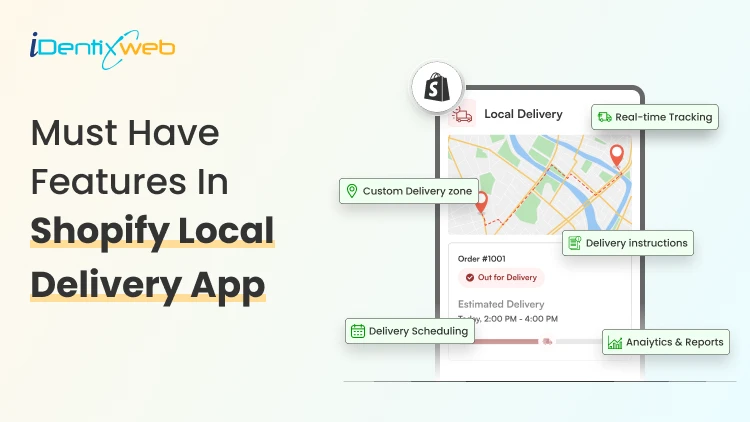
Shopify Delivery Route Planner: How to Manage Local Deliveries Faster
A Shopify delivery route planner can be the difference between a calm delivery day and a stressful one. If you run a local Shopify store, you already know the feeling: orders pile up, drivers leave late, customers call asking where their package is, and fuel costs keep climbing. The good news? A smart route planner solves most of these problems in one go. In this guide, you will learn what a Shopify delivery route planner does, why it matters for your store, how to set it up, the best practices to follow, and the top apps you can pick from. By the end, you will know exactly how to manage your local deliveries faster and with less stress. What Is a Shopify Delivery Route Planner? A Shopify delivery route planner is a tool or app that connects with your Shopify store, pulls in your local orders, and arranges them into the fastest, most fuel-friendly driving route for your drivers. Instead of typing addresses into Google Maps one by one, the planner does it in seconds and sends the route straight to your driver's phone. Think of it as a smart assistant that sits between your Shopify admin and your delivery van. It looks at every order, considers traffic, delivery windows, and driver schedules, then builds a route that saves time and money. Why Local Shopify Merchants Need a Route Planner Local delivery sounds simple until you try doing 20 stops a day with one driver. Suddenly, missed addresses, wrong-order doorsteps, and angry customer DMs become your morning routine. Here is why a Shopify delivery route planner is worth the spend. 1. Last mile delivery is the most expensive part of shipping Studies show last mile delivery can eat up more than half of your total shipping cost. A route planner cuts the time drivers spend on the road, which directly lowers your fuel and labor bill. Let Customers Choose Their Delivery Date Before You Plan Routes Route planning becomes much easier when customers select their preferred delivery date and time slot before they checkout. Instead of manually organizing delivery requests, merchants can collect delivery preferences upfront and build routes around confirmed schedules. Apps like Delivery Date & Pickup Stellar allow customers to choose delivery dates, time slots, local delivery, or store pickup options directly on the storefront, helping merchants create more predictable delivery routes. Losing orders because buyers want flexible delivery? A simple calendar at checkout fixes that.
9 Min • 5 June 2026
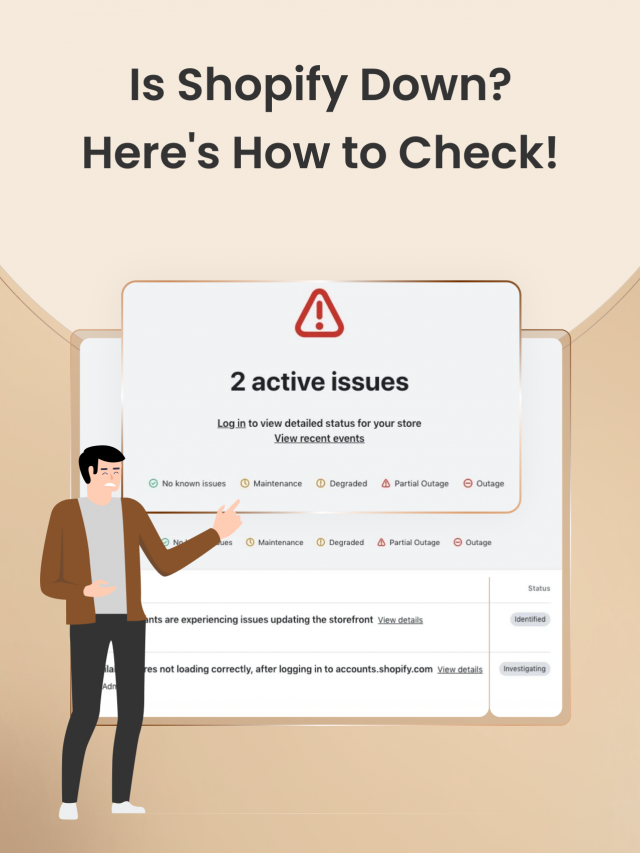
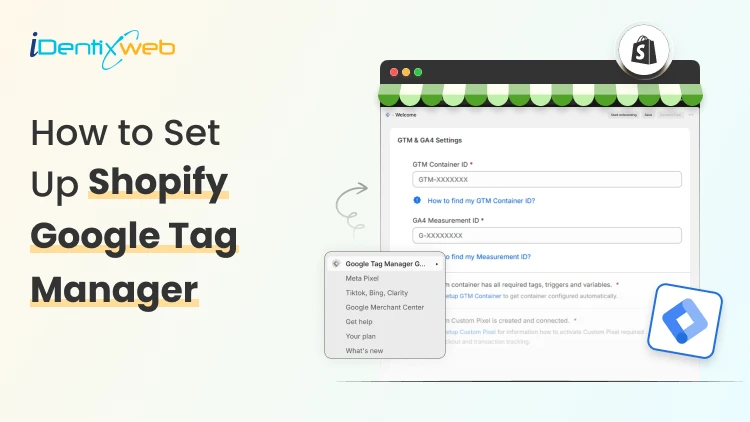
How to Add Google Tag Manager to Shopify in Just 4 Steps (Track Everything in 2026)
You pasted your GTM snippet into Shopify, saw it fire on your homepage, and assumed you were done. Then you checked your purchase data and found nothing. Sales were happening, but your conversion tags were silent. That gap is the single most common mistake I see when installing Google Tag Manager in Shopify, and it got worse in 2026. The old method of dropping one GTM code block into your theme still loads the container on storefront pages. It no longer fires on checkout or the thank-you page. So you can add Google Tag Manager in Shopify in five minutes and still miss the only event that pays your bills: the purchase Here is the short answer. To connect Google Tag Manager to Shopify correctly today, you need two installs working together. GTM goes in your theme code for storefront tracking, and a separate Custom Pixel handles checkout and purchase events inside Shopify's sandboxed environment. Custom Pixels are available on all Shopify plans, including Basic, Shopify, Advanced, and Plus. You do not need Shopify Plus. I'll walk you through the full setup, show you exactly where to add the Google Tag Manager code in Shopify, and help you verify nothing is double-counting before you trust the numbers. What Changed in 2026 With Google Tag Manager in Shopify For years, the standard approach was simple. Paste your GTM container into theme.liquid, and Plus merchants paste a second copy into checkout.liquid. In February 2023, Shopify announced that checkout.liquid is deprecated, moving to a new foundation for checkout and accounts that is more secure, upgrade-safe, and customized using apps. The replacement is Checkout Extensibility, and tracking now runs through Custom Pixels instead of injected scripts. The deadline matters. Shopify Plus merchants had until August 28, 2025, to migrate, and non-Plus merchants had until August 26, 2026. If your checkout pages have not been upgraded, your Custom Pixel will not fire on checkout or thank-you pages, and your purchase data will stay incomplete. Why the change? Checkout used to allow arbitrary scripts, which created security and performance risks. The new model runs your tracking code in a sandboxed iframe. It is safer, but it means your old single-snippet setup no longer covers the full customer journey. GTM vs GA: Know the difference People mix these two up constantly, and it leads to broken setups. Google Analytics is the tool that provides reports about activity in your store. Google Tag Manager is a tool that triggers your tracking codes based on defined rules. GTM is the container. It holds and fires your tags. GA4 is one of the things it can fire. Adding Google Analytics to Google Tag Manager in addition to using Shopify's built-in integration can result in duplicate tracking. If you have already connected GA4 through Shopify's native integration and then also fire GA4 through GTM, you will double-count everything. Pick one path per tag. I'll come back to this when we verify the setup. If you are optimizing your store beyond just tracking, you should check out my Ultimate Shopify SEO Guide for 2026. The above breakdown will help you measure your content and conversion strategy. Don't Want to Touch Code? We'll Handle the Whole Setup Our Shopify development team installs and configures GTM correctly across your storefront and checkout, no guesswork on your end. Your Store Is Leaking Data. We'll Fix That Schedule a Free Strategy Call How to add Google Tag Manager code in Shopify: Step-by-step Step 1: Create Your GTM Container Go to tagmanager.google.com and sign in with your Google account. Create an account, name your container after your store, and set the target platform to Web. Accept the terms, and GTM hands you two code snippets: One for the <head> and one right after the opening <body> tag. Copy your container ID too. It looks like GTM-XXXXXXX. If you already have a container, skip ahead to Step 2. Step 2: Add the GTM code to your theme This covers your storefront: product pages, collections, cart, blog posts, everything before checkout. In your Shopify admin, go to Online Store > Themes > Edit code. Open the theme.liquid file in the Layout folder. Paste the first GTM snippet immediately after the opening <head> tag, and paste the second snippet immediately after the opening <body> tag. Save. That answers the "where to add Google Tag Manager code in Shopify" question for the storefront half. But you are only halfway done. Step 3: Add a custom pixel for checkout and purchases The theme code stops at checkout. To track checkout and purchase events, you create a Custom Pixel. Go to Settings > Customer events in your admin and click Add custom pixel. Name it something clear, like "GTM Checkout." Inside the pixel, you load GTM and subscribe to Shopify's standard customer events, pushing them to the data layer. Shopify gives you the event subscription pattern directly. You subscribe to standard events like product_viewed, and when the event triggers, it pushes the event to the dataLayer. Here is the shape of that code: analytics.subscribe("checkout_completed", (event) => {window.dataLayer = window.dataLayer || [];window.dataLayer.push({event: "purchase",transaction_id: event.data.checkout.order.id,value: event.data.checkout.totalPrice.amount,currency: event.data.checkout.currencyCode});}); Step 4: Consider the Google & YouTube App If your priority is Google Ads conversion tracking rather than full custom GTM control, Shopify and Google recommend a managed route. Shopify is deprecating mechanisms like checkout.liquid and additional scripts, and recommends migrating your tags to the Google-developed Google & YouTube app on Shopify. The app handles the migration for you and preserves your measurement through the checkout upgrade. For merchants who want granular control over every tag and trigger, the manual GTM-plus-Custom-Pixel route above gives you more flexibility. For merchants who mostly run Google Ads, the app is less to maintain. Where to add Google Tag Manager code in Shopify GTM in Shopify lives in two places. The theme.liquid install covers storefront pages. The Custom Pixel covers checkout and the thank-you page. Storefront code does not reach checkout, and the Custom Pixel does not reach your storefront. One critical caution. Do not fire the same conversion from both locations. Some merchants add GTM to their theme.liquid file and also install it as a Custom Pixel, which is a common configuration error. If your purchase tag exists in both, every sale counts twice. Keep storefront events in the theme container and checkout events in the pixel. How to verify your GTM setup fires correctly? Open GTM's Preview mode and connect it to your store URL. Browse a few product pages and confirm your storefront tags fire. The harder test is checkout. Because the pixel runs sandboxed, you verify it differently. Place a real test order. Open GA4 DebugView and your browser's DevTools Network tab, filtered for the collect request. You want to see exactly one purchase event with a stable transaction ID. Two purchase events mean you have a duplicate firing somewhere, usually from running both Shopify's native GA4 integration and a GTM-based GA4 tag at once. Check the transaction ID specifically. If it changes on page refresh, your deduplication will fail, and you will inflate conversions. A stable order ID is what keeps your reporting honest. If you are testing checkout behavior, here’s a complete breakdown of Shopify checkout upsell strategies for merchants. Also, read these breakdowns GTM is one tool in a larger SEO and conversion measurement ecosystem. You might also find these topics relevant: How to Improve SEO on Shopify: Once you have GTM firing correctly, use the data to identify which pages and products drive traffic and conversions. SEO improvements compound when informed by real user behavior. Shopify A/B Testing Guide: With GTM tracking reliably, run controlled experiments on your store. GTM tags fire the same way regardless of variant, so your test results stay clean. How to Reduce Shopify Customer Acquisition Cost: GTM feeds data to Google Ads, which in turn helps you measure and optimize CAC. The feedback loop only works if GTM is set up correctly. Shopify Sales Funnel Guide: Understanding your full funnel (awareness → consideration → conversion) starts with accurate event tracking in GTM. Without it, you can't measure funnel leakage. Connect Google Tag Manager to Shopify the right way The Google Tag Manager Shopify setup is no longer a single paste-and-forget snippet in 2026. It is a theme install for your storefront and a Custom Pixel for checkout. Get those two pieces talking, and your conversion data finally matches your actual sales. Run your test order today. Open GA4 DebugView, place one order, and confirm a single purchase event fires with a stable transaction ID. If it does, your tracking is sound, and you can start building the tags that actually grow the store. FAQs 1. What is GTM in Shopify? GTM in Shopify means Google Tag Manager, a tool that lets you manage tracking codes like GA4, Google Ads, Meta Pixel, TikTok Pixel, and other scripts from one place instead of adding each code manually to your theme. 2. Do I need Google Tag Manager for Shopify? You don’t need GTM for every Shopify store; Shopify’s built-in Google Analytics / Google channel setup is enough for many basic stores, and you can use its built-in Google Analytics integration to avoid duplicate tracking. But GTM is useful if you run multiple ad platforms, need custom event tracking, or want more control over tags. 3. Where to add Google Tag Manager code in Shopify? For the current Shopify setup, the recommended method is Shopify Admin → Settings → Customer events → Custom pixel, especially if you want GTM to work with modern Shopify checkout/customer events. Google’s normal GTM install uses one code in the <head>, and one after the opening <body>, but Shopify’s GTM custom pixel method is different from simply pasting code into theme.liquid. 4. How to add Google Tag Manager code in Shopify? Go to Google Tag Manager → Admin → Install Google Tag Manager, copy the code Shopify asks for, then in Shopify go to Settings → Customer events → Add custom pixel, paste the GTM custom pixel code, save it, and connect the pixel. After that, test it using Shopify Pixel Helper or GTM preview mode to make sure events are firing correctly.
13 Min • 12 June 2026
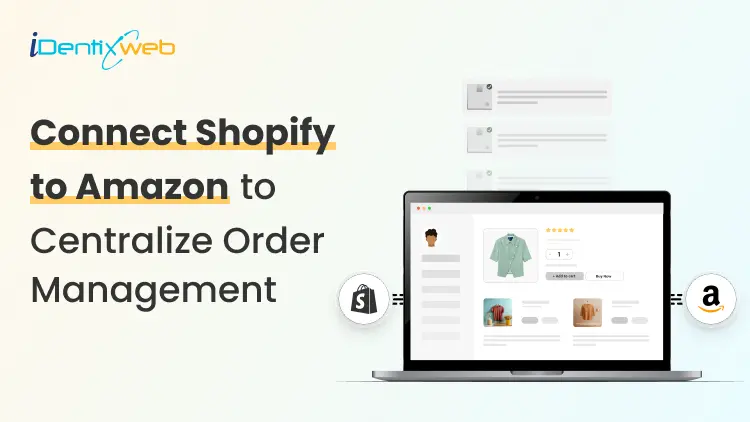
How to Connect Shopify to Amazon: The Complete 2026 Guide
To connect Shopify to Amazon, Shopify Marketplace Connect is the best option. It helps manage Amazon listings, inventory, orders, and pricing from inside Shopify. Amazon MCF and Buy With Prime' is better if you mainly want Amazon to fulfill your Shopify orders, while third-party apps work well for complex catalogs, multiple warehouses, and advanced automation needs. Yes, you can connect Shopify to Amazon and doing it right turns two separate platforms into a single, synchronized sales engine. The setup is faster than most merchants expect, but the details matter: wrong product identifiers, mismatched currencies, and picking the wrong integration method are the three most common reasons I have seen where it breaks down. This guide walks you through every method, every prerequisite, and every mistake to avoid so your connection stays clean from day one. ❓ Can you connect Shopify to Amazon You can. Shopify and Amazon have official support for integration through Shopify's native Shopify Marketplace Connect app, as well as several third-party tools and Amazon's own MCF app. The integration works in both directions. Shopify merchants can push their catalog to Amazon and sell there. Amazon-native sellers can pull Shopify in as an additional storefront. Either way, you manage everything from one admin instead of juggling two dashboards. The reason merchants do this goes beyond convenience. Amazon has over 300 million active customer accounts [Source: Forbes]. Selling on Amazon means you get discovered by buyers who will never find your Shopify store on their own. Your Shopify store still remains your brand home, where you control the experience, capture customer data, and earn higher margins. What do you need before you connect Shopify to Amazon? Get these in place before you touch the integration app. 1️⃣ An Amazon Professional Seller Account The free Individual plan does not support integration. You need an Amazon Professional Seller Account, which costs $39.99/month in the US. It gives you the API access that the integration apps require. 2️⃣ Valid Product Identifiers (GTINs) Amazon requires a GTIN, usually a UPC (12-digit) or EAN (13-digit), for most product categories. These must come from GS1, the global standards organization. Do not buy codes from cheap third-party resellers. Amazon cross-checks them against the GS1 database and will suppress listings that fail the check. On your Shopify product page, enter these in the "Barcode (ISBN, UPC, GTIN, etc.)" field before syncing. 3️⃣ Currency Alignment If you're selling on Amazon, your Shopify store's primary currency must be USD. Selling on Amazon.co.uk requires GBP. A mismatch kills the checkout. 4️⃣ Eligible Product Categories Not all products can be listed on Amazon. Certain categories require approval before selling. Review Amazon's restricted categories list in Seller Central and confirm your products qualify. How to connect Shopify to Amazon: 4 methods Each method serves a different business size and use case. Here's what actually separates them. Method 1️⃣: Shopify Marketplace Connect (Best for Most Merchants) Shopify Marketplace Connect is Shopify's official multichannel integration app. It connects your Shopify store to any global Amazon site, plus Walmart, eBay, and Etsy. It lives inside your Shopify admin, so you never need to leave the dashboard you already know. What it does: Real-time sync of prices, products, inventory, and orders Create new Amazon ASINs directly from Shopify, or match existing ones with built-in ASIN matching Flexible fulfillment: fulfill via Shopify, Amazon FBA, or Amazon MCF Set separate Amazon-specific titles, pricing rules, bullet points, and search terms Pricing: Free to install. First 50 orders/month on synced listings are free, then 1% per additional order, capped at $99/month. How to set it up: Open your Shopify admin and go to the Shopify App Store. Search for "Shopify Marketplace Connect" and install it. Connect your Amazon Professional Seller Account inside the app. Map your Shopify products to Amazon listings or create new ASINs. Configure your inventory sync rules and pricing rules. Choose your fulfillment method for each product (Shopify, FBA, or MCF). Activate the sync and monitor the first few orders manually. This is the method I recommend for most Shopify merchants. The setup is easy, the pricing is reasonable, and the real-time sync is genuinely reliable for catalogs up to a few thousand SKUs. For a deeper look at managing orders across multiple channels efficiently, check out my guide on the Shopify order management system for merchants. Method 2️⃣: Amazon MCF app for Shopify Amazon's "Built by Amazon" Multichannel Fulfillment (MCF) app is a free, direct connection built specifically to route your Shopify orders through Amazon's fulfillment network. You will use Amazon's warehouses, staff, and carriers to fulfill orders placed on your Shopify store. What it does: Routes Shopify orders to MCF automatically Syncs inventory between MCF and your Shopify store Supports Buy with Prime integration on your Shopify storefront Currently handles US orders only Reduces fulfillment costs up to 36% on multi-unit orders when combined with Buy with Prime Best for: Merchants who already store inventory in Amazon's warehouses via FBA and want to use that same inventory for Shopify orders without paying separate 3PL costs. How to set it up: Install the Amazon MCF and Buy with Prime app from the Shopify App Store. Connect your Amazon Seller Central account. Map your Shopify SKUs to your Amazon inventory items. Set fulfillment rules: when to use MCF versus in-house fulfillment. Optionally, enable Buy with Prime to display Prime badges on your Shopify store. If you're thinking about outsourcing fulfillment more broadly, my breakdown of the benefits of outsourcing order fulfillment for your Shopify store is worth reading before you commit to a model. Method 3️⃣: Third-party multichannel apps (Best for complex catalogs) For merchants with large catalogs, multiple warehouses, or advanced automation needs, third-party apps like WebBee and ByteStand provide capabilities the native apps don't have. What they add: Virtual bundle support International MCF availability (not just US) Ability to block Amazon Logistics as a carrier Finer-grained automation rules ERP integration support Trade-off: Most carry monthly subscription fees based on order volume. WebBee and ByteStand are the two most widely used. WebBee syncs Amazon inventory with Shopify orders for real-time visibility across all channels. ByteStand adds real-time shipping rate display at checkout and automatic customer tracking updates. Method 4️⃣: Manual export/import (Not recommended) Manual data export means downloading inventory from Shopify, downloading it from Amazon, and reconciling them by hand. The only scenario where this makes sense: a brand new store with fewer than 10 products that isn't planning to grow. For anyone else, the error rate and time cost make it untenable. A single oversell on Amazon can trigger a seller performance warning. Tired of managing Shopify and Amazon separately? Running your Shopify store, Amazon listings, inventory, orders, and fulfillment from different places can quickly become stressful. Identixweb helps Shopify merchants build smooth integrations that connect your store with marketplaces, fulfillment tools, ERPs, CRMs, and custom systems, so your operations stay organized as your business grows. Get Revenue From Both Platforms Schedule a Free Strategy Call Shopify Marketplace Connect vs. Amazon MCF App: FeatureShopify Marketplace ConnectAmazon MCF AppBest for Merchants who want to sell across Amazon and other marketplaces from Shopify Merchants who want Amazon to fulfill Shopify store orders using Amazon inventory Sell on Amazon marketplace✅ Yes❌ NoFulfill Shopify orders via Amazon✅ Yes (via Amazon MCF setup)✅ YesCreate Amazon product listings✅ Yes❌ NoCreate new Amazon ASINs ✅ Yes❌ No Buy with Prime integration❌ No✅ Yes, US onlyMatch Shopify products to existing Amazon listings ✅ Yes ❌ No, it maps Shopify SKUs to Amazon fulfillment inventory Other marketplaces (eBay, Walmart)✅ Yes❌ NoInternational support✅ Yes (global Amazon sites)⚠️ MCF supports selected countries; Buy with Prime is US only PriceFree + 1%/order after 50Free to install, but Amazon fulfillment fees apply per shipped order ❓ How to set up inventory sync the right way SKU consistency is non-negotiable. Your SKU in Shopify must exactly match your SKU in Amazon. It is case-sensitive and keeps an eye out for trailing spaces. If they don't match, the sync breaks silently. Set buffer stock. A sync delay of even a few seconds can cause oversells during peak traffic. Set a 2–5 unit safety buffer in your integration app settings. The app will treat stock as zero before it actually hits zero, preventing the last few units from being sold twice. Test with one product first. Before syncing your full catalog, connect one product and run a test order on each platform. Watch whether inventory decrements correctly on both sides. Only then scale the sync to your full catalog. Monitor sync failures actively. Most integration apps log sync errors. Set up email alerts for any failures. A broken sync that runs undetected for 12 hours during a sale can create dozens of unfulfillable orders. For a broader view of managing fulfillment across multiple locations and channels, my guide on distributed order management in Shopify shows how merchants route orders intelligently without manual decisions. Amazon listing requirements you must meet in Shopify Title formatting: Amazon has category-specific title character limits and banned characters. Keep titles clean. No promotional language like "Best" or "Sale." The integration apps usually flag these automatically. Images: Amazon requires a white background for the primary product image. Your Shopify lifestyle shots won't work as the main Amazon image. Prepare a separate set of white-background images before syncing. Required attributes by category: Electronics, clothing, and food each have mandatory attributes that Shopify products don't always have. Clothing needs size and color in specific formats. Food needs ingredient lists and allergen flags. Brand registry: If you sell branded products, enrolling in Amazon Brand Registry gives you better control over your listings and access to A+ content. It's worth doing before you connect Shopify to Amazon. Common problems when you connect Shopify to Amazon 1️⃣ "My products aren't appearing on Amazon" This is almost always a GTIN issue. Verify your UPC/EAN codes against the GS1 database. Also, check that your products are in eligible categories and that your Seller Central account is in good standing. 2️⃣ "Inventory isn't syncing in real time" Check your integration app's sync settings. Some apps default to hourly sync intervals unless you enable real-time mode. Also, verify that your Shopify product's "Track quantity" option is turned on for every variant that's connected. 3️⃣ "Orders aren't flowing from Amazon into Shopify" This usually means the integration app has lost authentication with your Amazon account. Reconnect the Amazon Seller Account inside the app settings and re-authorize. Amazon tokens expire periodically. 4️⃣ "I'm seeing duplicate orders" Duplicate orders usually happen when the same Amazon orders are being pulled into Shopify through more than one app or workflow. For example, if Marketplace Connect and a separate fulfillment or order management app are both connected directly to Amazon, the same order may be imported twice. To avoid this, use one clear order path: Amazon → Marketplace Connect → Shopify → fulfillment app. If you use a third-party fulfillment app, connect it to Shopify instead of connecting both Shopify and the fulfillment app directly to Amazon. ❓How does the integration affect your store’s performance Connecting Shopify to Amazon doesn't change your storefront experience for customers. The integration runs in the background. However, a few things shift operationally. Your Shopify store's average order value often behaves differently from your Amazon orders. Amazon customers tend to be more price-driven and less responsive to upsells. Shopify customers, who come to your brand directly, typically have higher intent and respond better to cross-sell offers and bundles. Keep your upsell funnels on Shopify, where they convert, and keep your Amazon listings clean and price-competitive. Watch your store's conversion rate separately from your Amazon sales. Mixing the two makes it hard to see what's actually working on your own storefront. Use Shopify Analytics segments or a separate UTM structure to keep the channels cleanly attributed. To wrap it up: Protect your brand across channels Here are the three rules I always use to protect brand identities and margins across both channels. Don't price lower on Amazon. It trains customers to go there instead of your store, where your margins are better. Match prices or price your Shopify store competitively with exclusive bundles that Amazon can't replicate. Use bundle exclusives on Shopify. A two-product bundle sold only on your Shopify store can't be directly compared to an Amazon listing. It protects the margin and gives customers a reason to buy directly. Own your customer emails from Shopify. Amazon does not share buyer emails with sellers. Every Shopify sale is a customer you can remarket to. Every Amazon sale isn't. Over time, this difference compounds significantly. FAQs 1. Can you connect Shopify to Amazon for free? Yes. Shopify Marketplace Connect is free to install, with no subscription fee. You pay 1% per order on Shopify-synced listings beyond the first 50 per month, capped at $99. The ‘Amazon MCF and Buy With Prime’ app is also free. 2. How long does it take to connect Shopify to Amazon? With all prerequisites in place, like a Professional Seller account, GTINs, and currency alignment, most merchants complete the connection in 2 to 4 hours. Large catalogs with complex attribute mapping can take longer. 3. Does connecting Shopify to Amazon sync inventory automatically? Yes, with real-time sync enabled in Shopify Marketplace Connect or the MCF app. Inventory decrements across both platforms when an order is placed on either. Always enable real-time sync and set a safety buffer to prevent oversells. 4. Do I need an Amazon Professional Seller Account to connect? Yes. The Individual plan does not support the API access needed for any integration app. Upgrade to a Professional account before attempting to connect. 5. Can I use FBA inventory to fulfill my Shopify orders? Yes. Through Amazon MCF, your FBA inventory fulfills orders placed on your Shopify store. The MCF app handles the routing automatically once set up. 6. What products can't be listed on Amazon through Shopify? Products in restricted categories (certain food items, weapons, adult content, etc.) cannot be listed without Amazon's explicit approval. Handmade items, heavily regulated items, and products requiring brand authorization also need separate review. 7. Will connecting to Amazon hurt my Shopify store's SEO? No. The integration runs server-side and has no effect on your Shopify storefront's front-end code, page speed, or search visibility. Shopify and Amazon function as completely separate entities in terms of organic search. 8. What happens if my inventory goes out of stock on one channel? With real-time sync enabled, the integration app automatically marks the product as out of stock on both platforms when inventory hits zero (or your safety buffer threshold). Amazon listings go into "unavailable" status automatically.

Nici Pillemer
January 21, 2021
7026 Views