





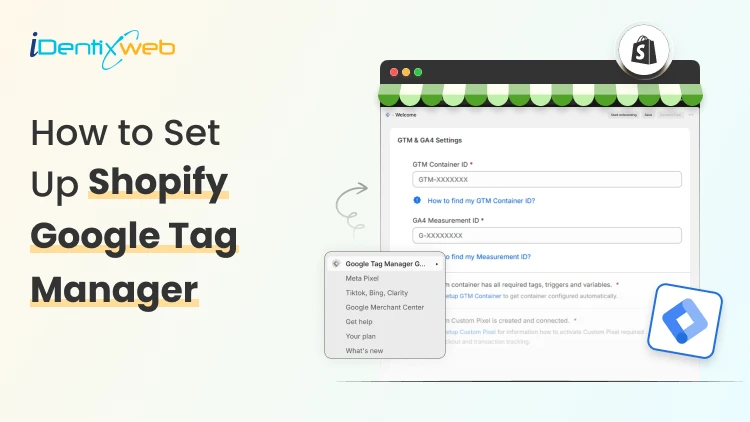
You pasted your GTM snippet into Shopify, saw it fire on your homepage, and assumed you were done.
Then you checked your purchase data and found nothing. Sales were happening, but your conversion tags were silent.
That gap is the single most common mistake I see when installing Google Tag Manager in Shopify, and it got worse in 2026. The old method of dropping one GTM code block into your theme still loads the container on storefront pages. It no longer fires on checkout or the thank-you page.
So you can add Google Tag Manager in Shopify in five minutes and still miss the only event that pays your bills: the purchase
Here is the short answer. To connect Google Tag Manager to Shopify correctly today, you need two installs working together.
GTM goes in your theme code for storefront tracking, and a separate Custom Pixel handles checkout and purchase events inside Shopify's sandboxed environment.
Custom Pixels are available on all Shopify plans, including Basic, Shopify, Advanced, and Plus. You do not need Shopify Plus.
I'll walk you through the full setup, show you exactly where to add the Google Tag Manager code in Shopify, and help you verify nothing is double-counting before you trust the numbers.
What Changed in 2026 With Google Tag Manager in Shopify
For years, the standard approach was simple. Paste your GTM container into theme.liquid, and Plus merchants paste a second copy into checkout.liquid.
In February 2023, Shopify announced that checkout.liquid is deprecated, moving to a new foundation for checkout and accounts that is more secure, upgrade-safe, and customized using apps. The replacement is Checkout Extensibility, and tracking now runs through Custom Pixels instead of injected scripts.
The deadline matters. Shopify Plus merchants had until August 28, 2025, to migrate, and non-Plus merchants had until August 26, 2026. If your checkout pages have not been upgraded, your Custom Pixel will not fire on checkout or thank-you pages, and your purchase data will stay incomplete.
Why the change? Checkout used to allow arbitrary scripts, which created security and performance risks. The new model runs your tracking code in a sandboxed iframe. It is safer, but it means your old single-snippet setup no longer covers the full customer journey.
GTM vs GA: Know the difference
People mix these two up constantly, and it leads to broken setups.
Google Analytics is the tool that provides reports about activity in your store. Google Tag Manager is a tool that triggers your tracking codes based on defined rules. GTM is the container. It holds and fires your tags. GA4 is one of the things it can fire.
Adding Google Analytics to Google Tag Manager in addition to using Shopify's built-in integration can result in duplicate tracking. If you have already connected GA4 through Shopify's native integration and then also fire GA4 through GTM, you will double-count everything.
Pick one path per tag. I'll come back to this when we verify the setup.
The above breakdown will help you measure your content and conversion strategy.
Don't Want to Touch Code? We'll Handle the Whole Setup
Our Shopify development team installs and configures GTM correctly across your storefront and checkout, no guesswork on your end.

Your Store Is Leaking Data. We'll Fix That
How to add Google Tag Manager code in Shopify: Step-by-step
Step 1: Create Your GTM Container
Go to tagmanager.google.com and sign in with your Google account. Create an account, name your container after your store, and set the target platform to Web.
Accept the terms, and GTM hands you two code snippets:
One for the <head> and one right after the opening <body> tag. Copy your container ID too. It looks like GTM-XXXXXXX.
If you already have a container, skip ahead to Step 2.
Step 2: Add the GTM code to your theme
This covers your storefront: product pages, collections, cart, blog posts, everything before checkout.
In your Shopify admin, go to Online Store > Themes > Edit code. Open the theme.liquid file in the Layout folder.
Paste the first GTM snippet immediately after the opening <head> tag, and paste the second snippet immediately after the opening <body> tag. Save.
That answers the "where to add Google Tag Manager code in Shopify" question for the storefront half. But you are only halfway done.
Step 3: Add a custom pixel for checkout and purchases
The theme code stops at checkout. To track checkout and purchase events, you create a Custom Pixel.
Go to Settings > Customer events in your admin and click Add custom pixel. Name it something clear, like "GTM Checkout."
Inside the pixel, you load GTM and subscribe to Shopify's standard customer events, pushing them to the data layer.
Shopify gives you the event subscription pattern directly. You subscribe to standard events like product_viewed, and when the event triggers, it pushes the event to the dataLayer. Here is the shape of that code:
analytics.subscribe("checkout_completed", (event) => {
window.dataLayer = window.dataLayer || [];
window.dataLayer.push({
event: "purchase",
transaction_id: event.data.checkout.order.id,
value: event.data.checkout.totalPrice.amount,
currency: event.data.checkout.currencyCode
});
});
Step 4: Consider the Google & YouTube App
If your priority is Google Ads conversion tracking rather than full custom GTM control, Shopify and Google recommend a managed route. Shopify is deprecating mechanisms like checkout.liquid and additional scripts, and recommends migrating your tags to the Google-developed Google & YouTube app on Shopify.
The app handles the migration for you and preserves your measurement through the checkout upgrade. For merchants who want granular control over every tag and trigger, the manual GTM-plus-Custom-Pixel route above gives you more flexibility. For merchants who mostly run Google Ads, the app is less to maintain.
Where to add Google Tag Manager code in Shopify
GTM in Shopify lives in two places.
The theme.liquid install covers storefront pages. The Custom Pixel covers checkout and the thank-you page.
Storefront code does not reach checkout, and the Custom Pixel does not reach your storefront.
One critical caution. Do not fire the same conversion from both locations. Some merchants add GTM to their theme.liquid file and also install it as a Custom Pixel, which is a common configuration error.
If your purchase tag exists in both, every sale counts twice. Keep storefront events in the theme container and checkout events in the pixel.
How to verify your GTM setup fires correctly?
Open GTM's Preview mode and connect it to your store URL. Browse a few product pages and confirm your storefront tags fire. The harder test is checkout. Because the pixel runs sandboxed, you verify it differently.
Place a real test order. Open GA4 DebugView and your browser's DevTools Network tab, filtered for the collect request. You want to see exactly one purchase event with a stable transaction ID.
Two purchase events mean you have a duplicate firing somewhere, usually from running both Shopify's native GA4 integration and a GTM-based GA4 tag at once.
Check the transaction ID specifically. If it changes on page refresh, your deduplication will fail, and you will inflate conversions. A stable order ID is what keeps your reporting honest.
Also, read these breakdowns
GTM is one tool in a larger SEO and conversion measurement ecosystem. You might also find these topics relevant:
- How to Improve SEO on Shopify: Once you have GTM firing correctly, use the data to identify which pages and products drive traffic and conversions. SEO improvements compound when informed by real user behavior.
- Shopify A/B Testing Guide: With GTM tracking reliably, run controlled experiments on your store. GTM tags fire the same way regardless of variant, so your test results stay clean.
- How to Reduce Shopify Customer Acquisition Cost: GTM feeds data to Google Ads, which in turn helps you measure and optimize CAC. The feedback loop only works if GTM is set up correctly.
- Shopify Sales Funnel Guide: Understanding your full funnel (awareness → consideration → conversion) starts with accurate event tracking in GTM. Without it, you can't measure funnel leakage.
Connect Google Tag Manager to Shopify the right way
The Google Tag Manager Shopify setup is no longer a single paste-and-forget snippet in 2026. It is a theme install for your storefront and a Custom Pixel for checkout.
Get those two pieces talking, and your conversion data finally matches your actual sales.
Run your test order today. Open GA4 DebugView, place one order, and confirm a single purchase event fires with a stable transaction ID. If it does, your tracking is sound, and you can start building the tags that actually grow the store.
FAQs
1. What is GTM in Shopify?
GTM in Shopify means Google Tag Manager, a tool that lets you manage tracking codes like GA4, Google Ads, Meta Pixel, TikTok Pixel, and other scripts from one place instead of adding each code manually to your theme.
2. Do I need Google Tag Manager for Shopify?
You don’t need GTM for every Shopify store; Shopify’s built-in Google Analytics / Google channel setup is enough for many basic stores, and you can use its built-in Google Analytics integration to avoid duplicate tracking. But GTM is useful if you run multiple ad platforms, need custom event tracking, or want more control over tags.
3. Where to add Google Tag Manager code in Shopify?
For the current Shopify setup, the recommended method is Shopify Admin → Settings → Customer events → Custom pixel, especially if you want GTM to work with modern Shopify checkout/customer events. Google’s normal GTM install uses one code in the <head>, and one after the opening <body>, but Shopify’s GTM custom pixel method is different from simply pasting code into theme.liquid.
4. How to add Google Tag Manager code in Shopify?
Go to Google Tag Manager → Admin → Install Google Tag Manager, copy the code Shopify asks for, then in Shopify go to Settings → Customer events → Add custom pixel, paste the GTM custom pixel code, save it, and connect the pixel. After that, test it using Shopify Pixel Helper or GTM preview mode to make sure events are firing correctly.



About the author
Vineet Nair
Vineet is an experienced content strategist with expertise in the ecommerce domain and a keen interest in Shopify. He aims to help Shopify merchants thrive in this competitive environment with technical solutions and thoughtfully structured content.