

Most Viewed Blogs
Gather knowledge about the latest insights, updates, tips, and tricks in the Ecommerce industry.

5 Min • 20 March 2026
How Anua Unlocked 5X AOV Growth with iCart’s Smart Cart Features
delivery customization Challenges Solutions drive results Scale business delivery customization Challenges Solutions drive results Scale business delivery customization Challenges Solutions drive results Scale business delivery customization Challenges Solutions drive results Scale business Anua is a globally recognized Korean skincare brand known for its minimalist philosophy and focus on gentle yet effective formulations. Built on the idea of simplifying skincare routines, Anua develops products that deliver visible results while avoiding harsh or irritating components, making them suitable for sensitive skin types. Initially using a traditional full cart experience, Anua transitioned to iCart’s side cart solution in August 2025, to create a more seamless and engaging shopping journey. This shift allowed customers to easily explore complementary skincare products without disrupting their browsing flow, making it more intuitive to discover items that fit into a complete routine. By surfacing relevant recommendations directly within the cart, the brand enhanced product visibility across its range. Challenges Before implementing iCart’s side cart solution, Anua faced limitations with their existing full cart experience, which created friction in the customer journey. The traditional cart setup redirected users away from product pages, interrupting their browsing flow and reducing opportunities to explore additional products. As a skincare brand built around routines rather than single-item purchases, this made it difficult to effectively showcase complementary products and encourage customers to build complete regimens. Additionally, the lack of in-cart personalization and strategic upsell opportunities meant that customers were often unaware of related products that could enhance their skincare results. This limited the brand’s ability to increase average order value (AOV) and fully leverage its diverse product range. Anua needed a more dynamic and intuitive cart experience that could seamlessly introduce relevant recommendations while maintaining a smooth and engaging shopping journey. ❌ Cart Value Barriers Low average order value (AOV) due to single-item focus Most customers completed purchases with one primary product instead of building multi-step routines. Cart abandonment near shipping thresholds Customers were not clearly informed or motivated to reach free shipping or discount thresholds. Missed savings opportunities Customers were unaware of potential value in purchasing bundled routines or multiple complementary products. ❌ Absence of Progress-Based Incentives No free shipping or discount progress bar Customers were not motivated to increase their cart value due to lack of visible incentives. Missing tiered rewards system There were no structured milestones (e.g., “Spend more to unlock offers”), reducing upsell opportunities. ❌ Ineffective Cart UI/UX (Pre-Side Cart) Full-page cart disrupted shopping flowCustomers had to leave their browsing journey, increasing friction and drop-offs. No quick add/remove functionality Users couldn’t easily modify their cart or add suggested products without navigating away. Solution To overcome these challenges, Anua implemented iCart’s side cart solution to transform their traditional cart into a high-converting, interactive experience. By replacing the full-page cart with a seamless side cart, the brand ensured that customers could continue browsing while viewing their cart, significantly reducing friction in the shopping journey. Additionally, features like product recommendations & progress bars for free shipping and discounts motivated customers to increase their cart value. By combining personalization, incentive-driven messaging, and a user-friendly interface, Anua successfully turned their cart into a powerful revenue-driving touchpoint rather than just a checkout step. To maximize their cart effectiveness, they implemented two powerful features: ✅ Progress Bar with Multi-Reward Incentives Implemented a tiered progress bar to encourage higher cart value Customers are guided with a clear message like “Add $3.10 to unlock secret offer,” motivating them to continue adding products. Generated over $5M+ in revenue through incentive-driven cart progression Used product-based rewards to align with customer intent Instead of generic discounts, Anua incentivized purchases with relevant skincare items like Dark Spot Pads and mini serums. Built visual motivation for routine expansion As customers add products, they can clearly track progress toward unlocking multiple rewards, encouraging them to build a complete skincare routine. ✅ Product Recommendations Implemented “Frequently Bought Together” recommendations Customers adding a single product (e.g., toner) are shown complementary items like serums, moisturizers, or pads to complete their routine. Generated over 275K revenue through in-cart recommendations Encouraged full skincare regimen building Instead of isolated purchases, the cart suggests step-by-step product combinations aligned with common skincare routines. Increased product discovery at the final stage By surfacing relevant items directly in the cart, Anua ensured customers explore more of their catalog without leaving the checkout flow. Results Achieved in Last 180 Days 22932 Total Store Orders 45101 Total iCart Orders 5X iCart Generated AOV 65.70% Upsell Affected Conversion Rate These improvements reflect a clear shift in customer behavior on Anua’s store. Cart abandonment reduced as shoppers discovered complementary skincare products and felt encouraged to build complete routines. Engagement also increased, with customers interacting more with in-cart recommendations and exploring relevant product pairings. Results & Impact And...Results is Our Main Clarification By implementing iCart’s cart drawer, product recommendations, and progress bar, Anua transformed its cart into a high-performing conversion touchpoint. Shopping Experience Enhancement The improved cart experience encouraged customers to discover complementary products and understand the value of sustainable beauty routines. For instance, the clear presentation of subscription savings alongside one-time purchase options helped customers make more informed decisions about their long-term hair care needs. As Anua continues to optimize its cart experience, the brand is closely monitoring: Routine-based purchasing behavior - tracking how customers move from single items to multi-step regimens Engagement with in-cart recommendations - measuring interaction with suggested products Cart value progression - analyzing how incentives influence higher spending [related_cases_slider] Ready to Write Your Success Story? Try icart App Join successful businesses like Anua and Master your delivery scheduling Delight customers with precise timing Grow your special occasion orders Expand your delivery reach
Read Blog
![How to Display Estimated Delivery Date in Shopify Store [Just 3 Simple Steps]](https://www.identixweb.com/wp-content/uploads/2021/06/How-to-Display-Estimated-Delivery-Date-in-Shopify.webp)
4 Min • 18 June 2021
How to Display Estimated Delivery Date in Shopify Store [Just 3 Simple Steps]
To display estimated delivery date and time on Shopify store, use built-in delivery date settings at checkout, install a delivery app on product and cart pages, or add custom code blocks to your theme. Apart from the product quality, what customers are more concerned about when buying any product is the estimated delivery date and time of that product. In this blog, we will learn how to display the estimated delivery date and time in your Shopify store. You may have gone through the product reviews like: “The product has been timely delivered”“Excellent product, very good quality, and quick delivery”“Good product with reliable delivery”“Good service, don't have to wait too long for delivery” This is how an estimated time of arrival looks in your product page When you commit to a more accurate delivery date and deliver the item or product on the same date or before, it proves that you care about your customers. Benefits of Showing ETA in Shopify Store: Improve the customer experience Enhance the reputation of your store Increase your sales and store profit Raise in your customer’s faith How to Add Estimated Delivery Date & Time in Shopify? The best way to add an ETA in your Shopify store is by using apps like Stellar Delivery Date & Pickup. You can use this app in two ways: Showing delivery date and time in the product page Letting the customer pick a convenient date and time with a calendar. Showing estimated delivery date on the product pages Step 1: Install the Stellar Delivery Date & Pickup App Install Stellar from the Shopify app store. Step 2: Go to Estimated Delivery Date section Enable the application status. Then navigate to Settings > Estimated Delivery Date. Step 3: Set the variabless First, enable the estimated delivery features from the settings. Once enabled, you can use different variables to display days, hours, and minutes. {{days_hours_minutes}} {{days_hours}} {{hours_minutes}} {{date_time}} {{progressbar}} You can also choose display position and customize countdown timer and progress bar in the settings. Once you have set the date, hours, and minutes, save the changes and look at the product page of the item you have selected. Allow customers to pick their convenient order delivery date and time Stellar allows customers to schedule local delivery, store pickup, and shipping using a delivery date calendar, which improves convenience and customer satisfaction. The calendar gives you more control over how orders are scheduled. Stellar supports features like: Date picker Time slots Cutoff times Block dates Preparation times Order limits Multi-location setup Wrapping Up! Showing a delivery date estimator on your Shopify store helps set clear expectations. It also builds trust faster and gives shoppers more confidence to complete their purchase. When customers know when to expect their order, they feel more comfortable buying from you. The best way to add this to the product page is to use apps like Stellar Delivery Date & Pickup. It gives you features like delivery date selection, time slots, cut-off times, holiday control, and post-purchase rescheduling. This gives your store a smoother buying experience and helps you manage delivery operations with less confusion. FAQs 1. How do I add an estimated delivery date & time on Shopify? You can add it in two main ways: either show a delivery estimate automatically on the store, or use a delivery date app that lets shoppers choose their preferred date and time. For stores that need more control over delivery slots, pickup, blackout dates, cut-off times, or rescheduling, an app-based setup is usually the better option. 2. Which is the best estimated delivery date app on Shopify? Stellar Delivery Date & Pickup is a strong choice because it does more than just show an ETA. It lets customers select delivery dates and time slots for shipping, local delivery, and store pickup. It also supports features like rescheduling and checkout-page display for Shopify Plus stores. 3. Which page should I add the ETA in my Shopify store? The best place to start is the product page, because shoppers can see delivery expectations before they add the item to the cart.
16 Min • 16 September 2021
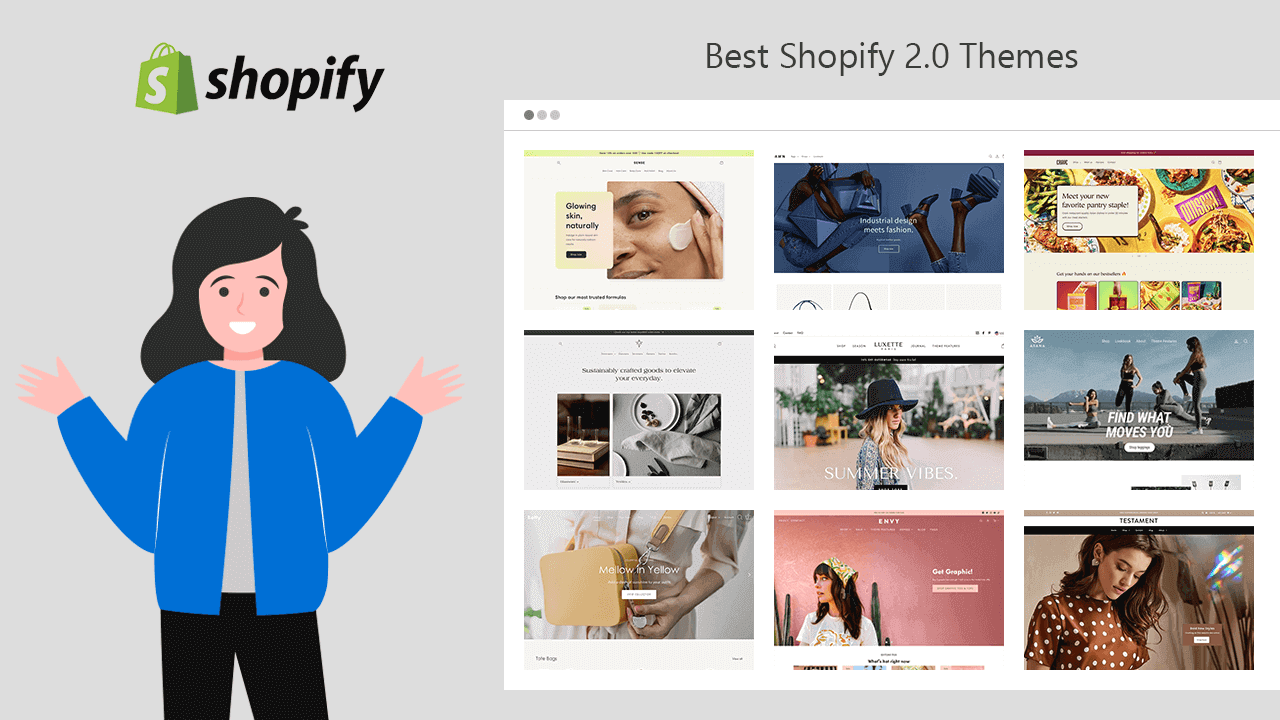
Best Shopify 2.0 Themes: Overview, Features & Review
Shopify 2.0 Themes Raise your hand if you want a better theme for your Shopify store. Therefore, you should go for Shopify Online Store 2.0 Themes. Shopify has launched Online Store 2.0 in Unite 2021, with some major changes in the vintage themes to improve the overall shopping experience of your customers. Shopify Online Store 2.0 Features See what additional you get when you choose Online Store 2.0 Themes for your Shopify store: Sections is available on every page like the Home page, product page, collection page, collection list page, cart page, etc. App Block helps you to relocate or move Shopify apps within the template without touching the code files. Shopify Metafields lets you add dynamic information about your products, variants, collections, customers, orders, blogs, and many more in your store. Collection and search filters allow to filter products and search results by availability, price, vendor (brand), color, and many more. Let’s learn more about the free and paid Online Store 2.0 Shopify Themes available in the Shopify theme store. Free Shopify Online Store 2.0 Themes Dawn Dawn theme is the first reference theme design of Online Store 2.0 by Shopify. It’s again the first free Online Store 2.0 Theme available in the Shopify theme store. Dawn offers you flexible design and customization options to create a store that looks sleek and elegant. Highlights of Dawn theme Free Online Store 2.0 Shopify Theme 1 Theme style Media-forward product page Cross-selling capabilities Store Categories: Clothing and accessories, Health and beauty, Home and garden Preview Get It Now Crave Next comes, the Shopify Crave theme is an ideal Online Store 2.0 theme for food and beverage businesses, no matter what size of product catalog you have. Its mobile-friendly layouts and dynamic checkout choices are ideal for on-the-go buying. Highlights of Crave theme Free Online Store 2.0 Shopify Theme 1 Theme style Flexible design and customization settings Cross-selling capabilities Product filtering and sorting Store Categories: Food and beverage Preview Get It Now Sense The Sense Shopify theme is the perfect OS 2.0 theme to build professional health and beauty stores. Sense theme offers new styling options to create a storefront that stands out of crowd. Highlights of Sense theme Free Online Store 2.0 Shopify Theme 1 Theme style Detailed product information Cross-selling capabilities Product filtering and sorting Store Categories: Health and beauty Preview Get It Now Craft The Shopify Craft theme is the best Shopify 2.0 theme for telling your narrative of creativity and excellence. Using this elegant theme, you can bring life to your home and garden stores of any size. Highlights of Craft theme Free Online Store 2.0 Shopify Theme 1 Theme style Visual brand storytelling Enhanced search Product filtering and sorting Store Categories: Home and garden Preview Get It Now Paid Shopify Online Store 2.0 Themes Impulse Impulse is a flexible fashionable Shopify theme designed by Archetype Themes, especially for high-volume stores. Impulse is a vintage theme recently updated for Online Store 2.0. Highlights of Impulse theme Paid theme with an unlimited free trial 3 Theme styles Powerful promoting options 96% Positive reviews Store Categories: Clothing and accessories, Health and beauty, Sports and recreation Preview Get It Now Top 6 Shopify Themes for Clothing Stores in 2024 Read Now Symmetry Symmetry is one of the popular themes by Clean Canvas that is updated for OS 2.0. It offers beautiful layouts and easy navigation for your online store that can make it look seamless. Highlights of Symmetry theme Paid theme with an unlimited free trial 4 Theme styles Cart upselling and Cross-selling options 94% Positive reviews Store Categories: Clothing and accessories, Health and beauty, Sports and recreation Preview Get It Now Streamline The Streamline theme, designed by Archetype Themes offers modern fonts, designs, and layouts for your Shopify store to give it a premium look. It helps you showcase your products and brand with style. Highlights of Streamline theme Paid theme with an unlimited free trial 3 Theme styles Powerful promoting options 94% Positive reviews Store Categories: Clothing and accessories, Health and beauty, Sports and recreation Preview Get It Now Showcase The Shopify Showcase theme, by Clean Canvas, offers you layouts for creating big product imagery that highlights every detail and craftsmanship of the product. Starting from the loading icon to every single corner of the page is made to give an elegant and sophisticated look to your brand. Highlights of Showcase theme Paid theme with an unlimited free trial 4 Theme styles Seamless video integration 97% Positive reviews Store Categories: Clothing and accessories, Health and beauty, Sports and recreation Preview Get It Now Venue Venue is a simply stunning theme designed by Safe As Milk. The Shopify Venue theme lets you create a visual storytelling experience with its video-text integration feature. Highlights of Venue theme Paid theme with an unlimited free trial 3 Theme styles Best compatible with age-restricted products 98% Positive reviews Store Categories: Clothing and accessories, Home and garden, Food and drink Preview Get It Now Envy Envy is one of the best OS 2.0 Shopify themes by Eight that adds style and luxury to online stores. It offers multi-level navigation options making it easy for your customers to browse your products easily. Highlights of Envy theme Paid theme with an unlimited free trial 4 Theme styles Flash deals and other promoting options Supports multiple languages 91% Positive reviews Store Categories: Clothing and accessories, Home and garden, Health and beauty Preview Get It Now Icon The Icon Shopify theme by We are Underground lets you create your exceptional online stores with its unparalleled layouts and features. Merchants who are willing to create dropshipping stores in Shopify can try this theme. Highlights of Icon theme Paid theme with an unlimited free trial 4 Theme styles Product pickup availability display Cross-selling options 92% Positive reviews Store Categories: Clothing and accessories, Health and beauty, Home and garden Preview Get It Now Canopy Canopy is an eye pleasing Shopify theme made by Clean Canvas specifically for physical stores. This theme will help you to build a clean, modern, and easy to navigate online store. Highlights of Canopy theme Paid theme with an unlimited free trial 3 Theme styles 97% Positive reviews Store Categories: Food and drink, Home and Garden, Health, and beauty Preview Get It Now Testament The Testament theme, designed by We are Underground, allows you to add high-resolution images to your storefront to give a bold look and create a great visual experience for online shoppers. Highlights of Testament theme Paid theme with an unlimited free trial 3 Theme styles Product 3D AR models Supports multiple languages Pickup location visibility 96% Positive reviews Store Categories: Clothing and accessories, Health and beauty, Home and garden Preview Get It Now Kingdom One more theme from Krown Themes, Kingdom, comes with 3 theme styles: King, Queen, and Prince giving a royal look and feel to the store. This theme offers a vertical sidebar for site navigation which makes your storefront distinguishable from thousands of other eCommerce sites. Highlights of Kingdom theme Paid theme with an unlimited free trial 3 Theme styles Signature sidebar and vertical slideshow 96% Positive reviews Store Categories: Business equipment and supplies, Clothing and accessories, Toys and games Preview Get It Now Fashionopolism The Fashionopolism theme, created by We are Underground, helps you make your store more appealing. Big product imagery will let your customers imagine themselves with the product. Highlights of Fashionopolism theme Paid theme with an unlimited free trial 4 Theme styles Sticky Navigation Surface pickup with locations 96% Positive reviews Store Clothing and accessories, Health and beauty, Home and garden Preview Get It Now Vantage Vantage, a Shopify theme by We are Underground, offers you smart layouts and a large number of customizable elements to create a great shopping experience for your online shoppers. Highlights of Vantage theme Paid theme with an unlimited free trial 4 Theme styles 93% Positive reviews Store Categories: Clothing and accessories, Food and drink, Sports and recreation Preview Get It Now Mr Parker The next theme by We are Underground is Mr. Parker, a beautiful and fully featured theme. It offers lots of in-build customization options with an easy setup so that you don't have to waste your time and money on third party apps. Highlights of Mr Parker theme Paid theme with an unlimited free trial 4 Theme styles Powerful promoting options Product page surface pickup with locations 94% Positive reviews Store Categories: Clothing and accessories, Home and Garden, Pet supplies Preview Get It Now Cascade Cascade, a theme by Switch, offers a unique way to represent your store and product collections. This theme has a big image carousel section on the homepage which makes it more attractive and appealing. Highlights of Cascade theme Paid theme with an unlimited free trial 3 Theme styles 100% Positive reviews Store Categories: Home and Garden, Clothing and accessories, Health and beauty Preview Get It Now Masonry The next Clean Canvas theme, Masonry helps fashion brands to create a classy storefront for their online customers. Masonry is an OS 2.0 Shopify theme with many design possibilities bringing the products to life. Highlights of Masonry theme Paid theme with an unlimited free trial 4 Theme styles 89% Positive reviews Store Categories: Clothing and accessories, Health and beauty, Business equipment and supplies Preview Get It Now Sunrise The Sunrise theme by Rawsterne Web Design & Illustration provides colorful and playful layouts to address your need for funky storefront design. With the side navigation bar of the Sunrise theme, you can help your customers browse the products easily. Highlights of Sunrise theme Paid theme with an unlimited free trial 4 Theme styles 96% Positive reviews Store Categories: Toys and games, Pet supplies, Sports and recreation Preview Get It Now Avatar Designed by Skup, Avatar is a simple and clean Shopify theme with a large search box on the header. The Avatar theme helps you to build a store that focuses more on conversion. Highlights of Avatar theme Paid Theme with an unlimited free trial 2 Theme styles 83% Positive reviews Store Categories: Art and entertainment, Clothing and accessories, Health and beauty Preview Get It Now Colors The Colors theme by Small Victories is my favorite one! It’s flawless, fantastic, and offers plenty of customization options for your store. This theme immediately adds modern design techniques to your website, while still giving you control. Highlights of Colors theme Paid theme with an unlimited free trial 3 Theme styles Powerful promoting options 92% Positive reviews Store Categories: Clothing and accessories, Sports and Recreation, Health, and beauty Preview Get It Now Baseline Baseline is a typography based theme by Switch specially designed for Shopify merchants who want a distinctive or extraordinary storefront. The bookstores can find it a good match for their storefronts. Highlights of Baseline theme Paid theme with an unlimited free trial 3 Theme styles 100% Positive reviews Store Categories: Art and entertainment, Clothing and accessories, Home and garden Preview Get It Now Boost The Boost theme made by Clean Canvas helps you to design a Shopify store that focuses more on conversion. The perfectly crafted layouts improve the shopping experience of the customers and take the brand to the next level. Highlights of Boost theme Paid theme with an unlimited free trial 3 Theme styles 98% Positive reviews Store Categories: Clothing and accessories, Sports and Recreation, Toys and games Preview Get It Now Motion More animation means more refreshment from the boring store layout. One more theme by Archetype Themes, the Motion Shopify theme offers you to add visual effects to your store with animations and videos that help you to grab the attention of your visitors. Highlights of Motion theme Paid theme with an unlimited free trial 3 Theme styles Eye-catching animation Flexible collection collage options 98% Positive reviews Store Categories: Clothing and accessories, Health and beauty, Business equipment and supplies Preview Get It Now Modular Spark is designed by Presidio Creative to appear excellent on the tablet, mobile, and desktop, responding to the needs of your customers. It's ideal for designers who want a storefront with a lot of high-quality images and a lot of granular customizations. Highlights of Modular theme Paid theme with an unlimited free trial 3 Theme styles 96% Positive reviews Store Categories: Clothing and accessories, Health and beauty Preview Get It Now Palo Alto One more theme by Presidio Creative, Palo Alto offers a professional look and feel to your store. This Shopify theme lets your customers know your brand and product's quality with big imagery. Highlights of Palo Alto theme Paid theme with an unlimited free trial 3 Theme styles 97% Positive reviews Store Categories: Clothing and accessories, Health and beauty, Business equipment and supplies Preview Get It Now Prestige The Prestige theme, designed by Maestro, helps you to create an elegant store. With the help of high quality pictures, you can enrich the storefront and overall shopping experience of your customers. In other words, the Prestige Shopify theme takes your brand to the next level. Highlights of Prestige theme Paid theme with an unlimited free trial 3 Theme styles Helps you bring your physical store online 92% Positive reviews Store Categories: Clothing and accessories, Health and beauty, Business equipment and supplies Preview Get It Now Highlight The Highlight theme, designed by Krown Themes, allows you to represent your brand and catalog in a unique way. The design-centric layouts and features create a sense of interaction for the store visitors. Consequently, it makes an overall remarkable impression of your store. Highlights of Highlight theme Paid theme with an unlimited free trial 3 Theme styles 89% Positive reviews Store Categories: Art and entertainment, Clothing and accessories, Health and beauty Preview Get It Now Editions One more theme from Pixel Union, the Edition Shopify theme gives a classy look to your store and takes your brand to the next level. With the gorgeous layouts of the Editions theme, you can offer a luxurious shopping experience to your customers. Highlights of Editions theme Paid theme with an unlimited free trial 3 Theme styles 95% Positive reviews Store Categories: Clothing and accessories, Food and drink, Health and beauty Preview Get It Now Foodie The Foodie theme by We are Underground is specially designed for Shopify merchants who have physical stores. It also supports the sale of age-restricted products such as lottery tickets, alcohol, tobacco, etc. Highlights of Foodie theme Paid theme with an unlimited free trial 3 Theme styles Powerful promoting options Store Categories: Business equipment and supplies, Food and drink, Home and garden Preview Get It Now Spark Are you new to the e-commerce industry? The Spark theme by Fluorescent Design Inc. is specially designed for you. Spark Shopify theme helps you to build a fully expressive website with stunning in-built features. Highlights of Spark theme Paid theme with an unlimited free trial 3 Theme styles Product Videos and 3D Models Product Reviews Integration 100% Positive reviews Store Categories: Clothing and accessories, Health and beauty, Sports and recreation Preview Get It Now Flow Flow is a theme by Eight that focuses more on storytelling yet a conversion-ready theme. With a sleek sticky header, customers can navigate your website no matter where they are. Highlights of Flow theme Paid theme with an unlimited free trial 3 Theme styles 90% Positive reviews Store Categories: Food and drink, Clothing and accessories Preview Get It Now Warehouse Are you a dropshipper? If yes, then the Warehouse Shopify Theme can be the best fit for your store. One more popular theme by Maestrooo, the Warehouse theme is specially designed for merchants who want to showcase large product collections. Highlights of Warehouse theme Paid theme with an unlimited free trial 3 Theme styles Supports flash deals options, international selling, etc. 87% Positive reviews Store Categories: Electronics, Home and Garden, Sports and recreation Preview Get It Now Expanse Want a template for huge product collections? You can go for the Expanse OS 2.0 Shopify theme by Archetype Themes. Expanse lets you create a clean and well-organized storefront for your customers. Highlights of Expanse theme Paid theme with an unlimited free trial 3 Theme styles 5 highly flexible promotion types 73% Positive reviews Store Categories: Food and drink, Health and beauty, Home and garden Preview Get It Now Empire Want to create a store like Amazon, Flipkart, etc.? The Empire theme can help in that as it’s an Amazon-inspired theme designed by Pixel Union. It offers mobile-optimized layouts for your online store that helps you to create a unique storefront for web as well as mobile shoppers. Highlights of Empire theme Paid theme with an unlimited free trial 3 Theme styles Customizable promotion tiles Instagram-inspired shoppable images 73% Positive reviews Store Categories: Business equipment and supplies, Electronics, Home and garden Preview Get It Now Broadcast Broadcast is a Shopify OS 2.0 theme by Invisible Themes that helps you to create a trustful online store. The Broadcast theme has unique layouts for product collections that let your store stand out from the crowd. Highlights of Broadcast theme Paid Theme with an unlimited free trial 3 Theme styles Product upsells and other promotional features Pre-built content pages for your store 92% Positive reviews Store Categories: Clothing and accessories, Health and beauty, Art and entertainment Preview Get It Now Pipeline The pipeline is a Shopify theme by Groupthought specially designed to enhance the shopping experience of mobile shoppers. Add this theme if you desire a clean and professional look for your store with advanced features. Highlights of Pipeline theme Paid Theme with an unlimited free trial 3 Theme styles Cart upsell options 100% Positive reviews Store Categories: Clothing and accessories, Health and beauty, Sports and recreation Preview Get It Now Avenue The Avenue OS 2.0 theme by Red Plug Design Co. is specialized in easy navigation. Avenue comes with swatches, filters, background videos, pop-ups, and more that reduce the need for third-party Shopify apps. Highlights of Avenue theme Paid theme with an unlimited free trial 3 Theme styles 97% Positive reviews Store Categories: Clothing and accessories, Food and drink, Hardware and automotive Preview Get It Now Capital One more theme from Eight, Capital allows you to build a stylish store. The Capital theme offers you many innovative layouts to showcase your product collections with more creativity. Highlights of Capital theme Paid theme with an unlimited free trial 3 Theme styles 93% Positive reviews Store Categories: Home and Garden, Clothing and accessories, Health and beauty Fresh A theme by Eight, Fresh is the perfect starting point for Shopify merchants who own food and drink stores. The Fresh Shopify theme helps you create a storefront that gives fresh vibes to the site visitors. Highlights of Fresh theme Paid theme with an unlimited free trial 3 Theme styles 100% Positive reviews Store Categories: Food and drink Preview Get It Now Focal One more theme by Maestro, Focal is a sleek theme perfect for lifestyle stores. Focal is a theme that combines elegance and need, allowing you to get things moving with only a few clicks. Highlights of Focal theme Paid theme with an unlimited free trial 2 Theme styles Cross-selling capabilities 99% Positive reviews Store Categories: Clothing and accessories, Electronics, Health and beauty Preview Get It Now
![Free Gift With Shopify Guide: Manual & Automatic Setup [2026 Updated]](https://www.identixweb.com/wp-content/uploads/2021/06/How-to-Add-Free-Gift-With-Purchase-on-Shopify.webp)
8 Min • 7 June 2021
Free Gift With Shopify Guide: Manual & Automatic Setup [2026 Updated]
Shopify merchants can offer a free gift in two ways. The native Buy X Get Y discount makes a selected product free after customers meet a quantity or spending condition, but shoppers must add the gift to their cart themselves. For a fully automatic method, apps such as iCart or BOGOS can track the cart threshold, display progress, and add the selected gift once the customer qualifies. You've probably added one extra item to your cart just to unlock a free gift a store promised you. This little nudge works on shoppers more often than Shopify merchants realize. If you run a Shopify store, you can set up free gift with purchase within minutes. The best part is none of this has to be manual. Once a customer's cart hits the amount you've set, the gift gets added on its own. This guide walks you through exactly how to set up a Shopify free gift with purchase this way: what it is, why it's worth doing, and a full step-by-step setup. What is Shopify free gift with purchase? Shopify allows you to offer complimentary items through its "Free Gifts" feature, either via built-in discounts or third-party apps. In the Shopify back-end, you can customize your gift and conditions to fit your needs. This includes setting minimum purchases, selecting specific products that trigger the gift, or running targeted promotions based on customer segments. With "Shopify free gift with purchase" offers, you can automate adding free items to customers' orders. Customers receive loyalty gifts without manual or extra steps during checkout. It's an e-commerce marketing automation tool that enhances customer satisfaction and can help achieve your conversion goals. You can add a free gift with Shopify using two methods: Using Shopify's native BXGY discount feature. This is manual Using a Shopify app. This will be automatic How to add a free gift with purchase on Shopify (Method 1) You can create a free-gift promotion using Shopify’s native Buy X get Y automatic discount. Step 1: Create the gift product Go to Products > Add product and create the product you want to offer as a gift. Add inventory and make the product available on your Online Store so customers can place it in their carts. Step 2: Open the Discounts section From your Shopify admin, go to Discounts > Create discount. Step 3: Select “Buy X get Y” Choose Buy X get Y from the available discount types. This option allows customers to receive a specific product for free after meeting your purchase requirements. Step 4: Choose the discount method Under Method, select Automatic discount. This applies the offer automatically when the cart qualifies. Step 5: Name the promotion Enter a clear title, such as: Free Gift on Orders Over $75 For an automatic discount, this title will be displayed to customers in the cart and at checkout. Step 6: Configure the purchase requirement Under Customer buys, choose one of the following: Minimum quantity of items: For example, buy two eligible products. Minimum purchase amount: For example, spend at least $75. Then select the specific products or collections that qualify for the offer. Step 7: Select the free gift Under Customer gets: Set the quantity to 1. Select Specific products or Specific collections. Add the product you created as the free gift. Under At a discounted value, select Free. Step 8: Limit the number of gifts Enable Set the maximum number of uses per order and enter 1 when customers should receive only one gift per order. Otherwise, the promotion may apply multiple times when customers meet the qualifying condition repeatedly. Step 9: Set eligibility and combinations Choose whether the offer applies to: All customers Specific customers Customer segments Selected markets Step 10: Set the promotion dates Select the start date and the end date. Without an end date, the promotion remains active until you deactivate it. Step 11: Save and test the offer Click Save, then test the promotion in your storefront. You can also run Buy One Get One sales on Shopify. Here's my complete guide to running BOGO sales with and without an app. In my experience running gift with purchase through apps gives the biggest returns. Apps like iCart can be used to run free gift with purchase campaigns for Shopify stores. Let's now look at how to set this up. How to automatically add a free gift to the cart in Shopify? (Method 2) Step 1: Log in to your Shopify store. Step 2: Go to Apps Navigate to the 'Apps' section on the left taskbar. Install iCart Cart Drawer Cart Upsell. Step 3: Activate the app in your theme The app should be activated in your theme. The free gift with purchase section will be added to one of the widgets. You can either add these widgets to the cart drawer or the full cart. Click on 'customize' in one of the cart types. Step 4: From the widget section, click on the Progress Bar widget. Step 5: Select the “Show widget title” checkbox Rename this title to FREE GIFT Step 6: Choose the layout Step 7: Select Cart price above $X in the Discount tier. Below you can see various Discount tiers that represent different discount offers in the progress bar. It allows you to manage the number of discount tiers you want to show on the cart. You can either add or delete the discount tiers as per your requirement. We shall keep only one discount tier to show our “Free Gift” and delete the rest. Step 8: Click on the Discount tier to modify the discount conditions and variables. Step 9: Enter the target cart value (X) in the Cart price above $X When the total cart amount is equal to or greater than this value (X), the customer will be eligible for a free gift or free product. Step 10: Enter the offer text that you want to show to the customer. Step 11: Select the “Free Product” option from the discount drop-down list. Step 12: Click on the “Select Product” button Choose the product that you want to give as a free gift with purchase to the customer. Step 13: Enter the discount name This will be visible to the customers when they are eligible for the free gift or the free gift is added to their shopping cart. If you want to add free shipping with the free gift, then you can tick the "Also Apply Free Shipping" checkbox. Step 14: Enter the success message that you want to show to your customers when they win the free gift. Step 15: Save the changes you’ve made in the app by clicking the Save button. This is how the output will look like. Why offer a free gift with purchase on Shopify? Increases average order value Setting a minimum cart value for the free gift naturally encourages customers to add one more item to qualify. This turns smaller carts into bigger ones. Builds repeat purchases and loyalty A well-timed freebie feels like a reward, not a discount, which makes customers more likely to come back to your store. Clears slow-moving inventory Turn overstocked or seasonal products into gifts, freeing up warehouse space without devaluing your catalog. Wrapping up! A free gift with purchase isn't complicated once it's set up. It's a small addition to your cart that consistently gets people to add one more item and feel good about it. If you're not sure where to start, keep it simple. Pick one product you'd like to move faster, set your cart threshold just above what your average order already is, and see how customers respond to it. You can always adjust the amount or swap the gift later. That's the advantage of running this through an app instead of a one-off discount code. FAQs 1. How to add a free gift with purchase on Shopify? In Shopify Admin, go to Discounts > Create discount > Buy X get Y. Set the required product quantity or minimum purchase amount, select the gift product under Customer gets, and apply a 100% discount. With Shopify’s native setup, customers must add the qualifying product and the gift product to their cart themselves. The gift is not automatically inserted. 2. How to automatically add a gift with purchase in Shopify? For automatic gifting, use a Shopify app that inserts the gift when conditions such as cart value, product, collection or customer eligibility are met. 3. Can you sell gift cards on Shopify? Yes, gift cards are available on all Shopify subscription plans and can be sold through your online store or Shopify POS. When the order is fulfilled, Shopify sends the customer or recipient a digital gift card containing a unique code that can be redeemed at checkout. 4. How to offer free shipping for orders over a certain amount on Shopify? Go to Settings > Shipping and delivery, edit the appropriate shipping profile and rate, enable Offer free shipping, and enter the minimum order value customers must reach. You can also create an automatic free-shipping discount from the Discounts section and add a minimum purchase requirement. 5. Which is the best gift with purchase apps for Shopify? BOGOs, iCart, and Monk are some of the best Shopify apps to add free gift with purchase on stores.