

Ecommerce
Gather knowledge about the latest insights, updates, tips, and tricks in the Ecommerce industry.

5 Min • 29 April 2026
How Anua Unlocked 5X AOV Growth with iCart’s Smart Cart Features
delivery customization Challenges Solutions drive results Scale business delivery customization Challenges Solutions drive results Scale business delivery customization Challenges Solutions drive results Scale business delivery customization Challenges Solutions drive results Scale business Anua is a globally recognized Korean skincare brand known for its minimalist philosophy and focus on gentle yet effective formulations. Built on the idea of simplifying skincare routines, Anua develops products that deliver visible results while avoiding harsh or irritating components, making them suitable for sensitive skin types. Initially using a traditional full cart experience, Anua transitioned to iCart’s side cart solution in August 2025, to create a more seamless and engaging shopping journey. This shift allowed customers to easily explore complementary skincare products without disrupting their browsing flow, making it more intuitive to discover items that fit into a complete routine. By surfacing relevant recommendations directly within the cart, the brand enhanced product visibility across its range. Challenges Before implementing iCart’s side cart solution, Anua faced limitations with their existing full cart experience, which created friction in the customer journey. The traditional cart setup redirected users away from product pages, interrupting their browsing flow and reducing opportunities to explore additional products. As a skincare brand built around routines rather than single-item purchases, this made it difficult to effectively showcase complementary products and encourage customers to build complete regimens. Additionally, the lack of in-cart personalization and strategic upsell opportunities meant that customers were often unaware of related products that could enhance their skincare results. This limited the brand’s ability to increase average order value (AOV) and fully leverage its diverse product range. Anua needed a more dynamic and intuitive cart experience that could seamlessly introduce relevant recommendations while maintaining a smooth and engaging shopping journey. ❌ Cart Value Barriers Low average order value (AOV) due to single-item focus Most customers completed purchases with one primary product instead of building multi-step routines. Cart abandonment near shipping thresholds Customers were not clearly informed or motivated to reach free shipping or discount thresholds. Missed savings opportunities Customers were unaware of potential value in purchasing bundled routines or multiple complementary products. ❌ Absence of Progress-Based Incentives No free shipping or discount progress bar Customers were not motivated to increase their cart value due to lack of visible incentives. Missing tiered rewards system There were no structured milestones (e.g., “Spend more to unlock offers”), reducing upsell opportunities. ❌ Ineffective Cart UI/UX (Pre-Side Cart) Full-page cart disrupted shopping flowCustomers had to leave their browsing journey, increasing friction and drop-offs. No quick add/remove functionality Users couldn’t easily modify their cart or add suggested products without navigating away. Solution To overcome these challenges, Anua implemented iCart’s side cart solution to transform their traditional cart into a high-converting, interactive experience. By replacing the full-page cart with a seamless side cart, the brand ensured that customers could continue browsing while viewing their cart, significantly reducing friction in the shopping journey. Additionally, features like product recommendations & progress bars for free shipping and discounts motivated customers to increase their cart value. By combining personalization, incentive-driven messaging, and a user-friendly interface, Anua successfully turned their cart into a powerful revenue-driving touchpoint rather than just a checkout step. To maximize their cart effectiveness, they implemented two powerful features: ✅ Progress Bar with Multi-Reward Incentives Implemented a tiered progress bar to encourage higher cart value Customers are guided with a clear message like “Add $3.10 to unlock secret offer,” motivating them to continue adding products. Generated over $5M+ in revenue through incentive-driven cart progression Used product-based rewards to align with customer intent Instead of generic discounts, Anua incentivized purchases with relevant skincare items like Dark Spot Pads and mini serums. Built visual motivation for routine expansion As customers add products, they can clearly track progress toward unlocking multiple rewards, encouraging them to build a complete skincare routine. ✅ Product Recommendations Implemented “Frequently Bought Together” recommendations Customers adding a single product (e.g., toner) are shown complementary items like serums, moisturizers, or pads to complete their routine. Generated over 275K revenue through in-cart recommendations Encouraged full skincare regimen building Instead of isolated purchases, the cart suggests step-by-step product combinations aligned with common skincare routines. Increased product discovery at the final stage By surfacing relevant items directly in the cart, Anua ensured customers explore more of their catalog without leaving the checkout flow. Results Achieved in Last 180 Days 22932 Total Store Orders 45101 Total iCart Orders 5X iCart Generated AOV 65.70% Upsell Affected Conversion Rate These improvements reflect a clear shift in customer behavior on Anua’s store. Cart abandonment reduced as shoppers discovered complementary skincare products and felt encouraged to build complete routines. Engagement also increased, with customers interacting more with in-cart recommendations and exploring relevant product pairings. Results & Impact And...Results is Our Main Clarification By implementing iCart’s cart drawer, product recommendations, and progress bar, Anua transformed its cart into a high-performing conversion touchpoint. Shopping Experience Enhancement The improved cart experience encouraged customers to discover complementary products and understand the value of sustainable beauty routines. For instance, the clear presentation of subscription savings alongside one-time purchase options helped customers make more informed decisions about their long-term hair care needs. As Anua continues to optimize its cart experience, the brand is closely monitoring: Routine-based purchasing behavior - tracking how customers move from single items to multi-step regimens Engagement with in-cart recommendations - measuring interaction with suggested products Cart value progression - analyzing how incentives influence higher spending [related_cases_slider] Ready to Write Your Success Story? Try icart App Join successful businesses like Anua and Master your delivery scheduling Delight customers with precise timing Grow your special occasion orders Expand your delivery reach
Read Blog
10 Min • 25 August 2026
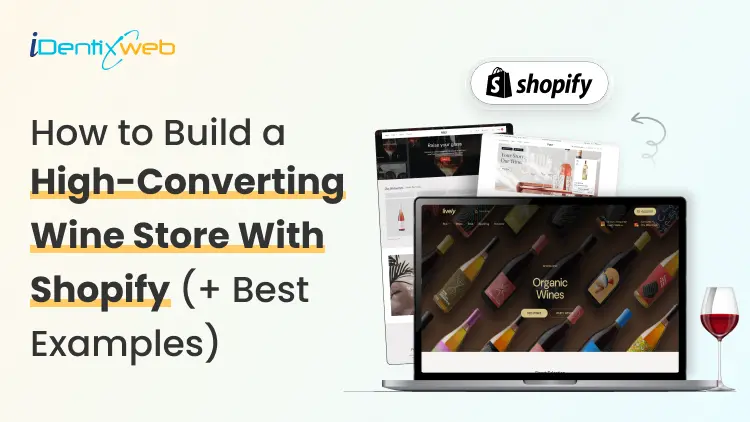
Shopify for Wineries: Features, Costs, Themes, and Examples for Selling Wine
Shopify gives wineries the core tools to sell wine online and in person, including a customizable storefront, secure checkout, Shopify POS, local pickup, subscriptions, and app integrations. Wine stores should also add age verification, product filtering, cross-selling, recommendations, memberships, wine clubs, and product allocations. Advanced wine-specific compliance, shipping rules, and club management typically require dedicated third-party apps alongside Shopify. If you're looking at Shopify for your winery in 2026, chances are you're trying to work out whether Shopify can handle the way a wine business operates. That means more than selling bottles online. You have age verification, state-by-state shipping restrictions, carrier requirements, wine clubs, subscriptions, POS, and compliance tools. I've spent the last few years working with Shopify wine stores, wine-specific apps, shipping requirements, carrier rules, and the limitations wineries are most likely to run into. In this guide, I'm breaking down what Shopify for wineries actually costs, what you'll need to make it work, and where it still falls short before you commit to a migration. Can I sell wine on Shopify? Yes, and Shopify publishes the rules You can sell wine on Shopify. Shopify maintains a dedicated alcohol compliance page in its Help Center covering the US, Canada, the EU, the UK, Australia, and New Zealand. For US merchants, Shopify lists four common requirements: Acquire and maintain every license needed to produce, market, sell, and deliver your products. Stay in full compliance with license requirements, including record-keeping. Run effective age verification so alcohol can't be bought or received by anyone under 21. Ship in full compliance with the laws of both your state and your customer's state. California sellers can also display a Prop 65 alcohol warning through Shopify's product disclosures feature. If you're new to the platform generally, my beginner's guide to how Shopify works covers the basics before you start your wine store. Selling wine on Shopify: The real monthly cost A Shopify wine store with one tasting room can realistically run $140 to $370+ a month in software before card fees. The Shopify plan itself is one of the smaller line items. Compliance can become the highest cost. Here's how the stack builds up on current 2026 US pricing: Shopify Basic is $19/month, or $14 billed annually. Grow is $52/month, or $39 annually. Advanced is $399/month, or $299 annually. Shopify's standard POS features are included with its plans. POS Pro is $89/month per location, or $79/month with annual billing. DRINKS ASSURE, the established alcohol tax and compliance app, is $250/month plus 1% of sales above $25,000. This comes with custom pricing above $200,000 in monthly sales and extra fees for third-party age verification. Wineport, a newer DTC wine compliance app. This runs $49/month for a single winery or $99/month for multi-brand, with a 15-day trial and agency-verified excise rates for 44+ states. Shopify's native Subscriptions app is free, which can cover straightforward recurring wine orders but isn't a replacement for a full winery-specific club and hospitality platform. Shopify for wineries: Online sales features you should have Wine subscriptions and recurring orders Shopify’s free Subscriptions app can handle straightforward recurring wine purchases, making it useful for repeat orders or simple subscription programs. Age verification Age-verification features can help stop underage visitors from entering the storefront. Wineries may need dedicated verification tools or checkout validation rules. Local pickup and tasting room sales If you sell both online and from a physical winery or tasting room, Shopify supports local pickup and Shopify POS. Product filtering and wine discovery Wine shoppers often browse by type, vintage, collection, price, or other bottle attributes. Strong product filtering and search make it easier for customers to find the right wine. Wine clubs, memberships, and allocations More established wineries may need features beyond basic subscriptions, including member pricing, loyalty tiers, club benefits, product allocations, and referrals. Shopify can support these through third-party apps like Winehub Commerce. Does the age-verification pop-up work? That pop-up asking visitors whether they're 21 is useful as a storefront warning. But it isn't the same thing as verifying someone's age. Most age-verification apps simply remember that a visitor clicked "Yes" using a cookie. That becomes even less reliable when customers reach checkout through custom storefronts. For rules that actually need to stop an order, Shopify's stronger option is Cart and Checkout Validation Functions. These validations run on Shopify's servers and can block checkout when a requirement isn't met. Shopify even lists age or ID verification as a use case. If you're building custom checkout rules yourself, my guide to how Shopify Functions work covers the architecture for customizing checkout. Best Shopify wine store examples for inspiration Splash Wines What I liked about Splash Wines is how quickly the store gets the important details out of the way. Its welcome pop-up asks visitors to select where they are shipping and confirm that they are 21 or older before they start shopping. The main navigation is also very purchase-focused, with options such as Curated Cases, Build Your Own Case, and Subscriptions. Robert Mondavi Winery The Robert Mondavi Winery store feels more like a premium winery experience than a typical ecommerce site. I liked how the navigation keeps things simple with Story, Shop, Visit, and Club, making it easy for someone to move between buying wine and exploring the physical winery experience. The homepage also gives equal importance to the brand story, estate visits, wine collection, and wine club. The Prisoner Wine Company What stands out about The Prisoner Wine Company is its bold, product-first approach. The homepage moves visitors quickly from its seasonal message into Best Sellers, with clear labels such as Best Seller, Exclusive, and New Release. I also liked how ecommerce and the winery experience are connected. Alongside wine shopping, visitors can explore tastings, events, and pairing experiences. SommPicks SommPicks does a great job with navigation for a store carrying a very large wine catalogue. Shoppers can browse by wine type, country, region, producer, and vintage, while the search bar specifically encourages searches by wine, region, or producer. I particularly liked the separate Producer Index and Vintage Index, which make exploring thousands of wines much easier. Choosing a Shopify wine theme Shopify's own Theme Store now has a theme built specifically with wineries in mind. Vincent Vincent, particularly its Oakland preset, is designed for wineries, vineyards, liquor, and wine stores and currently costs $340 USD. It includes a built-in age verifier without requiring a separate app and supports taste charts to make wine discovery easier. Area Area’s Winery preset comes with a built-in age verifier and advanced product filtering and search, both useful for wine stores. It also supports in-store pickup, which is useful for wineries selling both online and from a tasting room. Price: $100 USD Local Local’s Lively preset is designed specifically with food, beverage, and local retail businesses in mind. Its age verifier adds a 21+ entry check, while cross-selling and recommended products can help wineries suggest another bottle, complementary product, or gift alongside the shopper’s original choice Price: $380 USD Loka Pour is a wine-focused preset designed for wine, champagne, and premium bottle brands. Its age verifier gives wineries a built-in age-gate option, while product filtering and wine-focused collection layouts make it easier for shoppers to browse bottles by attributes such as vintage or collection. Price: $140 USD What Shopify can't do for a wine store? Shopify can run the storefront, checkout, and POS side of a wine business. But some of its biggest discovery channels still have limits around alcohol. Start with Shop. Age-restricted products, including alcohol, are prohibited on the Shop app. Your winery can still sell wine through its own Shopify storefront, but those products aren't eligible to be sold through Shop. Shopify's Agentic Storefronts can send eligible catalog data to ChatGPT, Microsoft Copilot, Google AI Mode, and Gemini. But each destination applies its own product rules. For example, OpenAI currently prohibits age-restricted products such as alcohol from ChatGPT commerce, and Google also excludes products requiring ID verification, including alcohol and tobacco, from direct purchases in AI Mode and Gemini. My breakdown of the Shopify Spring '26 Edition covers how Agentic Storefronts and the wider Catalog infrastructure work. The Right Setup Goes Beyond the Theme For wineries, the final Shopify setup often involves combining the storefront with apps and custom configurations for subscriptions, pickup, shipping, age verification and other wine-specific requirements. Identixweb provides Shopify store design and development around these operational needs instead of relying only on a standard theme setup. Before you launch: Wine compliance basics Shopify lets you sell wine online, but your winery is responsible for meeting the alcohol laws that apply where you operate and ship. Before launching, make sure you have the required licenses, age-verification process, and shipping setup for the states or regions you serve. Wine shipping rules can vary by location, and carriers such as UPS and FedEx also have specific requirements for licensed alcohol shippers. Once you're choosing carriers, my roundup of Shopify shipping apps covers label printing, shipping workflows, and carrier-calculated rates inside Shopify. Shopify for wineries: Deciding before December Shopify makes the most sense when you want more design freedom, a flexible app stack, and costs that don't rise as sharply with DTC revenue. I would ask three things before starting my Shopify wine shop What's your DTC revenue? How complex is your wine club? And who will own compliance when state rules change? Get your permits and compliance setup sorted before worrying about the perfect theme. A beautiful Shopify store is no help if your shipping rules aren't ready on launch day. FAQs 1. Can I sell wine on Shopify? Yes. Shopify allows alcohol sales, but you are responsible for meeting the licensing, age-verification, shipping, record-keeping, and other legal requirements in every jurisdiction where you sell. Alcohol products are prohibited from the Shop sales channel, so wine should be sold through your Shopify storefront. 2. What are some online sales features if I open a Shopify winery? A Shopify winery can use subscriptions for recurring wine orders, in-store pickup, Shopify POS, product filtering, cross-selling, recommended products, and age-verification features through compatible themes and apps. 3. Is Shopify good to start a wine store? Yes, especially if you want control over your storefront design, ecommerce experience, POS, and app integrations. The con is that Shopify is not winery-compliance software by itself, so you still need the right licenses, age-verification setup, shipping rules, and a dedicated compliance solution. 4. Which are the best Shopify wine themes to start my store? Three strong options in the Shopify Theme Store are Area – Winery ($100), Local – Lively ($380), and Loka – Pour ($140). All three include built-in age verifiers. Area focuses on conversion and product discovery. Local is strong for wineries combining ecommerce with physical locations, and Pour is designed specifically around wine and champagne merchandising. 5. What is Shopify Winehub Commerce? Winehub Commerce is a third-party Shopify app, built specifically for wine and beverage DTC businesses. It adds wine clubs, subscriptions, loyalty and membership tiers, product allocations, referrals, Shopify POS integration, and integrations with services such as ShipCompliant.
9 Min • 21 August 2026
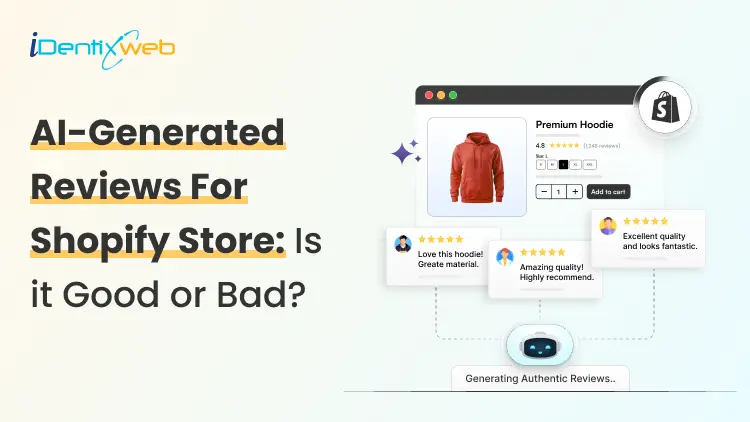
Risks of Using AI-Generated Product Reviews on Shopify
AI-generated product reviews may look like an easy way to build social proof, but the risks go far beyond customer skepticism. Fake or misleading reviews can damage brand trust, trigger refunds and chargebacks, put payment and advertising accounts at risk, violate review-app policies, and attract regulatory attention. In the US, FTC enforcement and state consumer-protection laws can also turn fabricated reviews into a costly legal and compliance problem. If you have just opened your store in 2026, you definitely need proof that real people actually buy from you. This gap is exactly where AI-generated reviews start to look like an easy fix. Here's the problem: The risks of using AI-generated product reviews on Shopify changed shape in the last year, and it goes beyond reviews just reading a little generic. Late previous year, the rules got sharper, real enforcement started, and both Shopify and Google made their positions harder to miss. Here's what's true right now if you are using or thinking about adding AI-generated product reviews on Shopify. What counts as an AI-Generated product review? An AI-generated product review is any review text a tool writes in place of a real customer. There are different types of reviews that I have come across. Fully invented reviews. The entire experience is made up. It's the version everyone pictures, and it's also the clearest violation of every policy I will cover below. AI-rewritten real feedback. You take genuine supplier reviews, marketplace comments, or old customer notes and ask AI to restyle them. If done carefully, this won’t be a problem. Issue arises when AI adds emotions, timelines, or outcomes that weren't in the original. AI-assisted, human-approved content. AI drafts a summary of reviews you've already collected, and the person checks it before anything goes live. It's the version that causes the least trouble. The difference between these three isn't how polished the writing sounds. It's whether the experience described actually happened to a real person. The Legal Risk Just Got Real Here's what I think most Shopify advice on this topic misses, and it's the part that matters most right now. The Federal Trade Commission has a specific rule about fake and AI-generated reviews, and as of the end of 2025, the agency started enforcing it for real. In the FTC's Rule on the Use of Consumer Reviews and Testimonials (16 C.F.R. Part 465) it bans. Reviews from people who don't exist, or who never actually used the product Buying reviews, or paying anyone to write only positive ones Suppressing or hiding negative reviews Reviews from employees or family members that don't disclose the connection Company-run "independent" review sites that aren't actually independent The rule specifically names AI-generated fake reviews as one of the practices it targets. Violations can carry civil penalties of up to $53,088 each, adjusted yearly for inflation. That figure is per violation, not per company. On December 22, 2025, the FTC sent its first wave of warning letters to 10 companies over likely violations. It wasn't the first time the FTC had gone after review manipulation, either. The message for merchants is clear: The FTC is chasing whoever publishes the fake content and presents it as a real customer's experience. The responsibility sits with the store owner. What Shopify and Google actually say Shopify has a plain standard for reviews shown through Shop: no fake ones, no conflicts of interest, no asking only happy customers to speak up. Shopify's Shop product review guidelines are direct about it. Merchants, employees, family members, and friends shouldn't review their own products, and store owners shouldn't solicit reviews in a way that pushes for a specific sentiment. Most stores today collect and display reviews through an app like Judge.me, Loox, or Yotpo. This means the risk usually sits with how you use that app. Google is more explicit about this. If you send product ratings into Google Shopping or run Shopping ads, Google Merchant Center's Product Ratings policy states plainly that it doesn't allow reviews generated by AI. It expects merchants to flag any they identify using the is_spam attribute in their feed. Humans and AI shopping agents both catch on AI-generated reviews are getting worse at their one job, which is making shoppers trust you. Reviews that all sound the same length, use the same phrases, or praise everything without mentioning a single specific detail read as suspicious faster than they used to. Shoppers have had years of practice spotting this pattern. A 2026 research report found that 43% of U.S. online shoppers had used an AI assistant like ChatGPT for product research. These tools focus on consistency across reviews over the internet. A group of generic five-star reviews with nothing to back it up reads as a weak signal to an AI agent, not a strong one. I have written a complete breakdown on how to rank in AI search engines with AEO for merchants. The real risks of AI-Generated product reviews on Shopify Loss of brand trust Fake reviews do not stay hidden for long. A review that doesn't match a real customer's actual experience gets noticed and gets screenshotted and shared on Reddit or TikTok. Once shoppers decide a brand faked its social proof, they stop trusting everything else offered by your brand. Refunds and chargeback disputes When a real customer's experience doesn't match what the reviews promised, they have grounds to dispute the charge. The review itself can end up as evidence in that dispute. Payment and ad account risk Payment processors and ad platforms both watch for mismatches between product claims and real customer experience. Either can freeze payouts or reject ads over it. Review app suspension Apps like Judge.me, Loox, and Yotpo remove fabricated reviews, and repeated violations can get your account suspended. Direct FTC exposure Given the warning letters sent by FTC, this can definitely happen. A new or small store isn't automatically off the FTC's radar just because of its size. Legal penalties A batch of fake reviews spread across even a small catalog becomes a real problem. Most states have their own consumer protection laws that mirror the FTC Act, so a state attorney general can pursue separate action on top of anything the FTC does. The right way to use AI for your reviews AI isn't off-limits here, and I wouldn't tell you to avoid it. The line I'd draw is simple: use it on reviews that already happened. If you've already collected real feedback, AI is genuinely useful for turning long reviews into short highlights. It can also draft a reply for you to check before it posts. Several Shopify review apps now build this in directly. If you are looking for tools to add reviews in your store, here’s my list of the best Shopify product reviews app in 2026. If you're dropshipping, label reviews clearly as sourced feedback rather than rewriting them into first-person claims about your own store's shipping or service. AI can also speed up the boring parts of getting real reviews, like personalizing post-purchase request emails or timing them around delivery data. If you're starting from zero, my article on how to add reviews to Shopify will give you insights on creating and adding reviews in your store. Use AI Where It Adds Real Value AI can still be useful in a Shopify business when it is applied to areas where automation does not misrepresent customer experiences. Identixweb works with Shopify businesses on AI automation and integrations for workflows, operations, and customer experiences where AI can reduce manual work without creating the trust risks associated with fabricated reviews. How to build trust other than reviews? Reviews aren't the only trust signal in your store. Using other signals takes pressure off needing reviews to do all the work. Here’s a few I use to build trust. Trust badges Clear shipping and return policies Teal product photos Detailed FAQs all add trust. Adding trust badges near your checkout button is a fast, low-effort update, and social proof placed at checkout works even before your review count builds up. A Fast pre-publish check Before you publish any batch of reviews, run through this: Did a real person actually buy or use this product? Is the reviewer's identity accurate, no invented names, no stock photos standing in for a customer? If there's an incentive attached, is it tied to leaving a review, not to what the review says? If this is a supplier or marketplace review, is the source labeled clearly? If it's heading into your Google Shopping feed, is any AI-generated content flagged or excluded? Would this hold up if you had to explain it next to your actual order data? If any answer is no, that review isn't ready to publish, no matter how good it reads. What’s next now? There are risks of using AI-generated product reviews on Shopify. There's a federal rule with real penalties behind it, policies from both Shopify's Shop channel and Google Merchant Center, and shoppers, who are getting better at spotting the difference. Real reviews take longer to build. They're also the only kind that hold up for a long term if you want to build trust and increase sales. FAQs 1. What are the risks of using AI-generated product reviews on Shopify? Publishing AI-generated reviews that pretend to come from real customers can violate Shopify’s Shop review requirements. This requires reviews to be authentic and not artificially created by bots or automation. It can also create legal risk under the FTC’s Consumer Review Rule in the US. Google Merchant Center explicitly prohibits reviews primarily generated by AI or automated programs. 2. Can AI detect fake reviews better than human moderators? AI can analyze large numbers of reviews and spot patterns, suspicious reviewer networks, and other signals much faster than human moderators. But it is not consistently better in every case. Recent research found that both humans and general-purpose LLMs can struggle to distinguish sophisticated AI-generated reviews from genuine ones. 3. How to add more product reviews on Shopify in 2026? The best approach is to request reviews from verified customers after their orders are delivered; Shopify lets merchants set Shop review requests from 1 to 180 days after delivery. For reviews on the online store, merchants can also use apps such as Judgeme or Loox, while keeping requests neutral and avoiding fake or improperly incentivized reviews.

7 Min • 27 July 2026
Are Pre-Built Shopify Stores Worth It in 2026? A Straight Answer
Yes. Pre-built Shopify stores are absolutely worth it. A pre-built Shopify store promises the one thing every new entrepreneur wants: a shortcut. Skip the setup and guesswork, and buy something that already looks finished. I have reviewed dozens of these listings over the years, and the honest answer is a bit complicated. This guide covers what these stores actually are and the most important question of all: Are pre built Shopify stores worth it? What are pre-built Shopify stores? A pre-built Shopify store is a store someone else designed, configured, then sells to you as a finished product. These listings fall into three real categories. Turnkey dropshipping stores. A provider builds a store around a niche, loads it with products, and hands you the login. No sales history, no customers, just a ready-to-market store. Custom-built stores. A freelancer or agency builds a store to your spec. You get more input on design and product selection, but you're still starting from zero revenue. Established stores. These come with real sales history, existing customers, and traffic. You're buying an operating business Do pre-built Shopify stores work? Yes, it does. A pre-built store gives you a working storefront on day one. But the traffic and customer base have to be earned after purchase. I have seen turnkey stores generate real revenue within weeks, and I have seen identical templates from the same provider sit at zero sales for months. The difference almost never comes down to the store itself. It comes down to what the buyer does with it afterwards: product testing, ad spend, and consistent marketing. If you buy a one-product turnkey store expecting it to sell itself, read my guide on building a one-product Shopify store first. It explains why focus and offer clarity matter more than the store's design. How to vet a seller before you pay? Ask for read-only access to Google Analytics and Search Console if the listing claims traffic. Screenshots can be faked; live dashboard access is much harder to fake convincingly. Check the domain's history using a WHOIS lookup tool. A domain registered last month can't have "three years of organic traffic." Request an export of order history if you're buying an established store with sales claims. Ask why they're selling. A vague or evasive answer about a declining niche is worth more than any pitch deck. Use a marketplace with built-in escrow whenever the deal size justifies it, rather than paying a stranger directly. Confirm what you're actually inheriting. Products, theme, apps, domain, social accounts, email list. Get it in writing. Once the store is yours, you'll want visibility into what you actually bought. Go through my guide to pulling a Shopify inventory report to do just that. Do not buy a pre-built Shopify store if you see these red flags The seller refuses to give you a live demo link or read-only admin access before purchase. Revenue or proof of traffic comes only as screenshots, with no way to verify them independently. Payment is only accepted via wire transfer or crypto, with no escrow option. The seller pressures you to decide within hours. You can't find any independent reviews of the provider outside their own website. Only the current store owner can transfer ownership, and a store can only have one owner at a time. Here’s my guide on how you can transfer Shopify store ownership in 2026. Best websites to buy pre-built Shopify stores in 2026 1. BeBiggy BeBiggy sells ready-made Shopify dropshipping stores across niches such as fashion, pets, beauty, home products and coffee. Its stores include a completed design, imported products and connections to dropshipping suppliers. This makes it suitable for beginners who do not want to build everything from the beginning. Best for: Beginners looking for an affordable, ready-to-launch dropshipping store. 2. Dropbuild Dropbuild provides custom Shopify dropshipping stores rather than selling the same basic template. Its packages include product research, suppliers, advertising materials and a strategy for launching the store. This may be a better choice when you want more assistance with product selection and store setup. However, carefully check exactly what is included in your package because advertising, content creation and ongoing store management may still require additional work. Best for: Merchants who want a more customized store with launch support. 3. Zendrop Zendrop offers AI-built Shopify dropshipping stores that come with a theme and products selected by its product discovery team. Its pre-built store service is connected to the wider Zendrop platform, which helps merchants source and fulfil dropshipping products. This option is useful when you want your store and supplier system in one place. However, being connected to one supplier platform can reduce your flexibility. So review product costs, shipping locations and delivery times before choosing your products. Best for: New dropshippers who want store creation and product fulfilment under one platform. 4. Flippa Flippa is different from basic pre-built store providers. It is a marketplace where you can find stores and other online businesses for sale. Some listings are new starter stores, while others have existing traffic, customers and revenue. The benefit is that you may be able to purchase more than a website design. You could acquire a domain, customer list, supplier relationships, social media accounts and sales history. However, Flippa is an open marketplace, so buyers must independently verify revenue, profit, traffic and ownership before making an offer. Best for: Buyers who want a wider range of starter and established Shopify stores. 5. Empire Flippers Empire Flippers focuses on established and profitable online businesses, including Shopify-based ecommerce stores. Its listings can include information about revenue, net profit, business age and operating model, and the platform follows a more selective vetting process than a general marketplace. Stores listed here usually cost significantly more than newly created turnkey stores because you are purchasing an operating business rather than just a Shopify theme with imported products. It is more suitable for experienced merchants or investors with enough capital to acquire a proven business. Best for: Buyers looking for a vetted Shopify business with real operating history. Are pre-built Shopify stores worth it? My verdict It depends on what you're optimizing for. If you want to skip the setup and you understand you're still doing the marketing work, a budget turnkey store can be a reasonable starting point. If you have a budget and want lower risk with proven numbers, buy an established store bought through a real business marketplace. What doesn't hold up anymore is buying a pre-built Shopify store to avoid technical setup. That specific problem is largely solved by Shopify itself now. Whatever you choose, treat the purchase like buying any small business. Verify everything, use Shopify's official transfer process, and budget for the marketing work that starts the day you take ownership. FAQs 1. Do pre-built Shopify stores work? They can, but they don't run themselves. A pre-built store gives you a working storefront, not traffic or customers. Success still depends on product validation, ad spend, and ongoing marketing after you take ownership. 2. Are pre-built Shopify stores worth it? It depends on your goal. They're worth it if you want to skip technical setup, but understand the marketing still falls on you. They're less worth it if avoiding setup work was your only reason to buy, since Shopify's own AI tools can now build a functional store in a fraction of the time. 3. What are the best websites to buy Shopify pre built stores? Some popular websites for buying pre-built Shopify stores include BeBiggy, Dropbuild, Zendrop, Flippa and Empire Flippers. BeBiggy, Dropbuild and Zendrop are better for new, ready-to-launch stores, while Flippa and Empire Flippers are more suitable for buying established ecommerce businesses. 4. Can I buy a pre-built Shopify store? Yes, you can buy a pre-built Shopify store that already includes a theme, products, supplier connections and basic store setup. However, always verify store ownership, app costs, supplier reliability, sales data and included assets before making the purchase.
Sajini Annie John
4 Min • 13 January 2026
337 Views
Vineet Nair
8 Min • 5 January 2026
446 Views
Vineet Nair
7 Min • 2 January 2026
402 Views
Sajini Annie John
6 Min • 2 January 2026
321 Views

Vineet Nair
5 Min • 19 March 2026
399 Views
Vineet Nair
8 Min • 29 July 2026
544 Views
![District Shopify Theme Review: Pros, Cons, & Features [2026]](https://www.identixweb.com/wp-content/uploads/2025/12/25-12-Thu-Blog-District-Shopify-Theme-Review-Pros-Cons-Rating.webp "District Shopify Theme Review: Pros, Cons, & Features [2026]")
Vineet Nair
7 Min • 25 December 2025
409 Views
Vineet Nair
9 Min • 3 July 2026
622 Views
![How to Add Products to Shopify [All Updated Steps]](https://www.identixweb.com/wp-content/uploads/2025/12/23-12-Fri-Blog-How-to-Add-Products-to-Shopify_-1.webp "How to Add Products to Shopify [All Updated Steps]")
Vineet Nair
4 Min • 29 December 2025
466 Views
![How to Help ChatGPT Discover Your Products? [Updated Methods]](https://www.identixweb.com/wp-content/uploads/2025/12/18-12-Thu-Blog-How-to-Make-Your-Shopify-Store-Appear-in-ChatGPT_-1.webp "How to Help ChatGPT Discover Your Products? [Updated Methods]")
Vineet Nair
7 Min • 28 December 2025
564 Views
![How to Lock a Shopify Store With a Password? A Complete Guide [2026]](https://www.identixweb.com/wp-content/uploads/2025/12/18-12-Thu-Blog-How-to-Set-up-Markets-on-Shopify.webp "How to Lock a Shopify Store With a Password? A Complete Guide [2026]")
Vineet Nair
4 Min • 28 December 2025
498 Views
Vineet Nair
4 Min • 28 December 2025
559 Views