Blog
Gather knowledge about the latest insights, updates, tips, and tricks in the Ecommerce industry.
5 Min • 20 March 2026
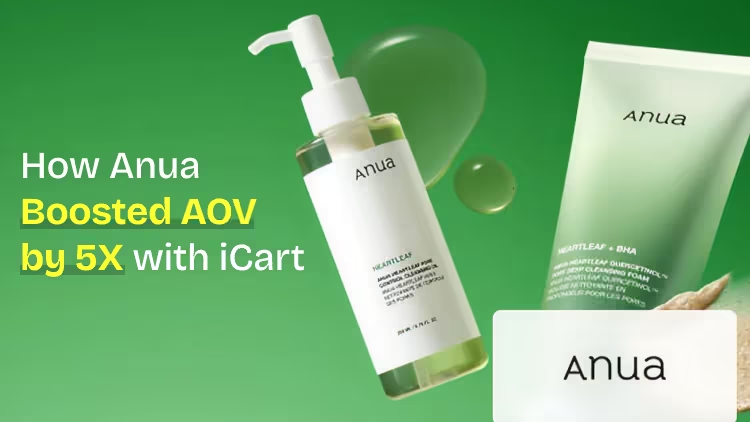
How Anua Unlocked 5X AOV Growth with iCart’s Smart Cart Features
delivery customization Challenges Solutions drive results Scale business delivery customization Challenges Solutions drive results Scale business delivery customization Challenges Solutions drive results Scale business delivery customization Challenges Solutions drive results Scale business Anua is a globally recognized Korean skincare brand known for its minimalist philosophy and focus on gentle yet effective formulations. Built on the idea of simplifying skincare routines, Anua develops products that deliver visible results while avoiding harsh or irritating components, making them suitable for sensitive skin types. Initially using a traditional full cart experience, Anua transitioned to iCart’s side cart solution in August 2025, to create a more seamless and engaging shopping journey. This shift allowed customers to easily explore complementary skincare products without disrupting their browsing flow, making it more intuitive to discover items that fit into a complete routine. By surfacing relevant recommendations directly within the cart, the brand enhanced product visibility across its range. Challenges Before implementing iCart’s side cart solution, Anua faced limitations with their existing full cart experience, which created friction in the customer journey. The traditional cart setup redirected users away from product pages, interrupting their browsing flow and reducing opportunities to explore additional products. As a skincare brand built around routines rather than single-item purchases, this made it difficult to effectively showcase complementary products and encourage customers to build complete regimens. Additionally, the lack of in-cart personalization and strategic upsell opportunities meant that customers were often unaware of related products that could enhance their skincare results. This limited the brand’s ability to increase average order value (AOV) and fully leverage its diverse product range. Anua needed a more dynamic and intuitive cart experience that could seamlessly introduce relevant recommendations while maintaining a smooth and engaging shopping journey. ❌ Cart Value Barriers Low average order value (AOV) due to single-item focus Most customers completed purchases with one primary product instead of building multi-step routines. Cart abandonment near shipping thresholds Customers were not clearly informed or motivated to reach free shipping or discount thresholds. Missed savings opportunities Customers were unaware of potential value in purchasing bundled routines or multiple complementary products. ❌ Absence of Progress-Based Incentives No free shipping or discount progress bar Customers were not motivated to increase their cart value due to lack of visible incentives. Missing tiered rewards system There were no structured milestones (e.g., “Spend more to unlock offers”), reducing upsell opportunities. ❌ Ineffective Cart UI/UX (Pre-Side Cart) Full-page cart disrupted shopping flowCustomers had to leave their browsing journey, increasing friction and drop-offs. No quick add/remove functionality Users couldn’t easily modify their cart or add suggested products without navigating away. Solution To overcome these challenges, Anua implemented iCart’s side cart solution to transform their traditional cart into a high-converting, interactive experience. By replacing the full-page cart with a seamless side cart, the brand ensured that customers could continue browsing while viewing their cart, significantly reducing friction in the shopping journey. Additionally, features like product recommendations & progress bars for free shipping and discounts motivated customers to increase their cart value. By combining personalization, incentive-driven messaging, and a user-friendly interface, Anua successfully turned their cart into a powerful revenue-driving touchpoint rather than just a checkout step. To maximize their cart effectiveness, they implemented two powerful features: ✅ Progress Bar with Multi-Reward Incentives Implemented a tiered progress bar to encourage higher cart value Customers are guided with a clear message like “Add $3.10 to unlock secret offer,” motivating them to continue adding products. Generated over $5M+ in revenue through incentive-driven cart progression Used product-based rewards to align with customer intent Instead of generic discounts, Anua incentivized purchases with relevant skincare items like Dark Spot Pads and mini serums. Built visual motivation for routine expansion As customers add products, they can clearly track progress toward unlocking multiple rewards, encouraging them to build a complete skincare routine. ✅ Product Recommendations Implemented “Frequently Bought Together” recommendations Customers adding a single product (e.g., toner) are shown complementary items like serums, moisturizers, or pads to complete their routine. Generated over 275K revenue through in-cart recommendations Encouraged full skincare regimen building Instead of isolated purchases, the cart suggests step-by-step product combinations aligned with common skincare routines. Increased product discovery at the final stage By surfacing relevant items directly in the cart, Anua ensured customers explore more of their catalog without leaving the checkout flow. Results Achieved in Last 180 Days 22932 Total Store Orders 45101 Total iCart Orders 5X iCart Generated AOV 65.70% Upsell Affected Conversion Rate These improvements reflect a clear shift in customer behavior on Anua’s store. Cart abandonment reduced as shoppers discovered complementary skincare products and felt encouraged to build complete routines. Engagement also increased, with customers interacting more with in-cart recommendations and exploring relevant product pairings. Results & Impact And...Results is Our Main Clarification By implementing iCart’s cart drawer, product recommendations, and progress bar, Anua transformed its cart into a high-performing conversion touchpoint. Shopping Experience Enhancement The improved cart experience encouraged customers to discover complementary products and understand the value of sustainable beauty routines. For instance, the clear presentation of subscription savings alongside one-time purchase options helped customers make more informed decisions about their long-term hair care needs. As Anua continues to optimize its cart experience, the brand is closely monitoring: Routine-based purchasing behavior - tracking how customers move from single items to multi-step regimens Engagement with in-cart recommendations - measuring interaction with suggested products Cart value progression - analyzing how incentives influence higher spending [related_cases_slider] Ready to Write Your Success Story? Try icart App Join successful businesses like Anua and Master your delivery scheduling Delight customers with precise timing Grow your special occasion orders Expand your delivery reach
Read Blog
9 Min • 13 May 2026
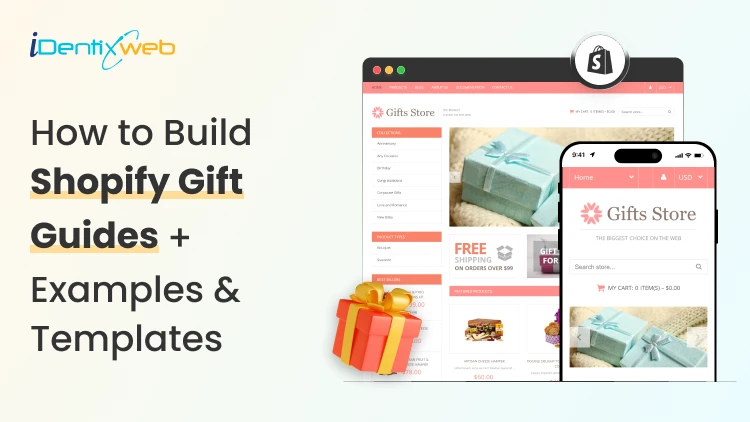
How to Build Shopify Gift Guides in 2026? + Examples & Templates
Imagine 2 weeks before Christmas, buyers are looking for gifts in your Shopify store. Customers have been scrolling for more than 15 minutes. They finally give up and leave without buying. What your customers need at this point is a Shopify gift guide. I've built gift guides for Shopify stores ranging from first-time launches to brands clearing seven figures in Q4. The pattern is always the same. Stores that build gift guides during the holiday season make the buying decision easier for customers. What follows is the full playbook: How to build a guide that converts, real store examples to copy, a free template you can use, and the cart customization most stores skip. What is a Shopify gift guide? A Shopify gift guide is a curated page that helps shoppers buy for someone else, not themselves. It groups your products by who they're for, what they cost, or what they signal. Why it works: Gift shoppers don't know what they want. They know who they're buying for, roughly what they can spend, and that they're running out of time. A good guide answers all three in one scroll. Holiday gift spending in the previous year averaged $890 per person in the USA, which is massive. Generally, when I create a holiday gift guide, I work on 5 types of guides. Five types of Shopify gift guides By recipient. For Her, For Him, For Kids, For Coworkers. Best for stores with a broad SKU mix. By price. Under $25, Under $50, Under $100, Splurge. Best for new stores with thin catalogs because it pads out a guide with what you already have. By interest. For foodies, For travellers, For home chefs. Best for niche or lifestyle brands. By occasion. Christmas, Mother's Day, Valentine's Day, Weddings. Best for stores that want one evergreen page, which they refresh each season. By format. Collection page (best for SEO and ongoing traffic), blog post (best for storytelling and shares), dedicated landing page (best for paid traffic), interactive gift finder quiz (best for stores with 50+ SKUs). Most stores I work for create Shopify gift guides by occasion. Holiday gift guides are the most popular ones. How to create a holiday gift guide on Shopify in 7 steps Step 1: Define who you're solving for The person stressed about buying a gift for their mother-in-law has different needs than someone shopping for their best friend. For example, you can write one sentence as the title of the guide: "My guide helps [specific buyer] find [specific kind of gift] without [specific stress]." Step 2: Pull last year's data For established stores, pull your best-sellers list, filter for low return rates and healthy margins. Those are your best picks to add to the guide. For new stores, pull category best-sellers from Shopify Trends, TikTok Shop, and Amazon Movers & Shakers in your niche. Match what's already moving. Step 3: Pick the right page type A Shopify collection page is good for SEO and long-term traffic. A blog post is best for sharing and email content. A landing page is the preferred choice for Meta and Google Shopping ads because you control the layout pixel-by-pixel. Build the right type of page first for your guide. Step 4: Write copy that sells the gift "100% organic cotton" tells me about the product. "The sweater she'll wear every Sunday until 2030" tells me about the gift. These are the good copies that sell your gift guide. Step 5: Design for thumb-scrolling Over 70% of sales on Shopify stores are mobile. Big images, two products per row max on mobile, sticky "Add to Cart," price visible above the fold for every product. Your Shopify gift guide should be accessible for mobile users. Step 6: Stack bundles, upsells, and a free gift offer Shoppers overspend on gifts during holidays. Bundles and upsells let them feel generous without overthinking. Free gift with purchase pushes them past your AOV target. I use iCart Cart Drawer Cart Upsell for the cart drawer on most builds because it shows the progress bar in real time ("You're $12 away from your free gift"), handles tiered rewards, and runs one-click upsells without sending shoppers to a separate page. Step 7: Promote across email, SMS, social, and ads A four-touch sequence outperforms a single launch blast every time. Tease 7 days out, launch, mid-campaign refresh with a different angle, last-call 48 hours before your shipping cutoff. Shopify gift guide examples worth stealing from Magic Spoon runs a holiday gift guide built around bundle pricing. You can add a "Gift the Box" section where every bundle includes a free gift message card. Copy this if you sell consumables like office supplies, food or educational products. Brooklinen creates the guide by recipient with category names like "For the Host" and "For the New Homeowner." You can move every product card to show a use case in two words on your gift guide page. Bombas runs a clean "Gifts Under $25" collection that also works as their entry-level upsell. What you can do is add a footer banner that says "Free gift wrapping over $50." This tiny detail can massively lift your AOV. A free Shopify gift guide template you can copy today Hero section Headline: "Gifts for the [recipient] who [characteristic]." Subhead: "Hand-picked. Ready in 2 days. Free shipping over $[X]." CTA: "Shop the guide." Filter bar (sticky) Shop by recipient | Shop by price | Shop by interest Featured picks row 3 hero products, badged "Our Top Pick" / "Sells Out Fast" / "New This Year." Category blocks (repeat 3–5 times) Block headline: "[Recipient or theme]." 6 products in a 3x2 grid on desktop, 2x3 on mobile. Price visible. One-line copy per product. Bundle highlight 2–3 bundles with anchor pricing ("Worth $120. Yours for $89."). Free gift with purchase callout Banner above the fold and inside the cart. "Spend $75, get a free [gift]." Email capture Mid-page: "Get last-call alerts before our shipping cutoff." FAQ block (with FAQ schema) 4–6 questions covering shipping, returns, gift wrap, gift messages. How does a Shopify free gift with purchase offer increase revenue? Free gift with purchase is the most underused strategy I use for Shopify stores. It's cheap to run, easy to set up, and gift shoppers love it because it feels like extra generosity for free. Three triggers worth setting up: Cart value threshold. "Spend $75, get a free gift wrap kit." Works because gift shoppers are already pushing past their personal AOV. A free add-on at $75 pulls $50 carts up. Specific product trigger. "Buy any candle, get a free matchbook." Best for hero products you want to push. Tiered. "$50 unlocks a free sample. $100 unlocks the sample plus a tote." Tiered offers turn the cart into a game. For setup, Shopify's native rules cover basic triggers, but the cleanest execution I've seen comes from cart-drawer apps that show the offer in real time. I use iCart Cart Drawer Cart Upsell for most guides because it handles gift-with-purchase rules without sending shoppers to a separate page. The progress bar alone moves AOV more than any banner I've tested. Mistakes I see Shopify stores make with gift guides Launching late: If you are creating a Shopify gift guide for Christmas, make sure you build it by November 1. I see a lot of stores creating guides in December. It affects their conversions. No price filter. A shopper with a $30 budget will not scroll past three $200 products to find your $25 candle. Make sure to add a price filter at the top. Hero image of the products: If you are creating a bundle, make sure to show images of the separate products along with a hero image of the products altogether. No shipping cutoff on the page. Gift buyers are calendar-driven. They want the gifts on specific dates, for example, on Christmas Day. Shipping cutoff helps merchants set realistic expectations for delivery. Removing the guide after the holidays. Pivot the guide to "self-gifting" or "post-holiday treats". This way, you get another 10 days of revenue from the same page. When to launch your Shopify gift guide? For new stores, Christmas is a good start. It's the easiest one to ship and the highest revenue. Launch your guide at least 2 months before the big date. Below are some of the busiest holidays that I would recommend creating a holiday gift guide for. Christmas and Hanukkah: live by November 1, push hard from November 20 through December 18 Valentine's Day: live by January 15, push February 1 through February 12 Mother's Day: live by April 15, push the week of Father's Day: live by late May Back-to-school: live by late July Create your first gift guide this week The brands that win on Shopify with guides are ones that make gifting feel obvious. A simple collection page, a price filter that actually works, and a free gift offer that pushes shoppers past their default cart size will definitely increase your holiday sales. FAQs 1. What is a Shopify gift guide? A Shopify gift guide is a curated page on your store that groups products by recipient, price, interest, or occasion to help shoppers buy for someone else. You can build one as a collection page, blog post, landing page, or interactive quiz, depending on your catalog size and traffic source. 2. How to create a holiday gift guide? Pick your audience first, pull your best-selling products from analytics, and group them into 3–5 clear categories like price tiers or recipient types. Build it as a Shopify collection page or landing page with mobile-first design, bundle offers, and a free gift with purchase callout to lift AOV. Launch your gift guide at least 2 months prior to the holiday. 3. How to create a Christmas gift guide for shoppers? Build it around the three questions every Christmas shopper asks: who is this for, what can I spend, and will it arrive in time. Add a sticky filter bar with recipient and price options, show your shipping cutoff date on the hero section and in the cart, and bundle gift wrap or gift notes directly into the page.
6 Min • 23 May 2026
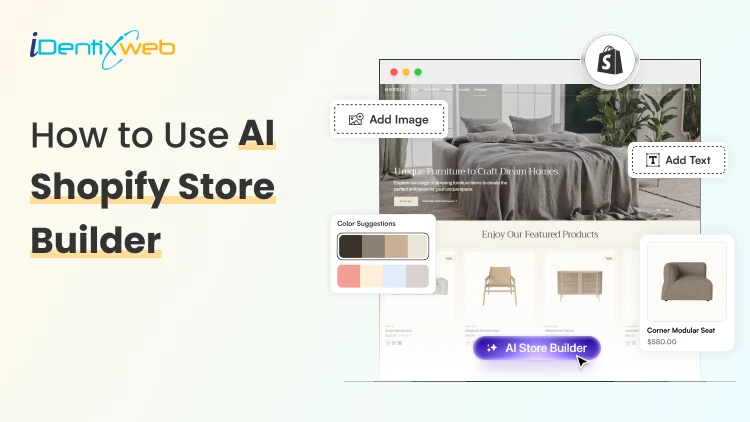
How to Use AI Shopify Store Builder to Create Your Store in Minutes
Setting up a Shopify store used to take days figuring out your theme, writing product descriptions, organizing collections, and making everything look professional. But with the AI Shopify store builder, all of that is changing fast. Today, merchants are launching complete, polished stores in a matter of minutes, not days. If you're a Shopify merchant exploring how AI can do the heavy lifting for you, you're in the right place. In this guide, we'll walk you through everything. What Is AI Shopify Store Builder? Shopify AI Store Builder is an AI-powered ecommerce website generator by Shopify that helps users create a Shopify storefront in seconds using a simple text prompt. Instead of manually designing a website, users describe their business idea; for example, “minimalist skincare brand for sensitive skin” and the AI automatically generates a complete online store layout with branding, homepage sections, colors, images, and marketing copy. Key features include: AI-generated store designs Automatic homepage creation Mobile-responsive layouts Built-in branding suggestions Editable themes inside Shopify Fast setup process Step-by-Step: How to Use an AI Shopify Store Builder Step 1 - Open the Shopify AI Store Builder Go to the Shopify AI Store Builder Page A “Generate” button Step 2 - Write Your Store Prompt Now you will see a short text input field. The AI uses a short description (roughly 100 characters) to generate your store. Add your prompt in that field and click on “Generate” button. Step 4 - Review the Generated Store Designs In the next step, you can describe your store and Shopify typically generates several variations/themes. You can see multiple store designs from which you can select any one. Step 5 - Choose the Best Design Select the design closest to your brand vision and click on choose this design button. Remember: You can edit everything later Focus on structure first Don’t obsess over perfection yet After selection: Shopify creates your actual store The AI-generated theme gets added automatically Step 6 - Create Your Shopify Account If you are not logged in yet enter your email & password. Or if you are new to Shopify create your Shopify account. Step 7 - Enter the Shopify Admin Dashboard After signup, you’ll land inside the Shopify admin panel and you can see your AI-generated storefront is now installed. Step 8 - Customize Your Theme You can now customize your theme by and change the colors, sections, layouts, text, font styles, etc as per your choice. Step 9 - Replace AI Placeholder Content This is one of the most important steps. Replace Placeholder images, AI-generated text, Demo products, Generic messaging with Real product photos, Real product descriptions & actual pricing. Remember AI gives you a starting structure; not a finished brand. Step 10 - Add Products After settin up add your products in your store and add the product details like price, inventory, vendor name, etc. Step 11 - Set Up Navigation Go to Online Store > Navigation and create main menu like home, shop, about, contact & footer menus as per your need. Step 12 - Configure Payments Go to Settings > Payments and add your payment methods. Test payments before launch. Tips to Maximize Your AI-Built Store Once your AI store builder for Shopify has done the initial setup, here are the strategies that separate a mediocre AI store from a high-converting one: 1. Personalize Your AI-Generated Copy The AI gives you a draft. Your job is to make it sound like YOU. Add your brand story, your "why," and specific benefits that only your products offer. Customers connect with authenticity, not generic text. 2. Invest in Great Product Photography This is the single biggest driver of conversions that AI cannot do for you. Studies show that 75% of online shoppers rely on product photos when making a purchase decision. (Source: BigCommerce.com). Use natural lighting, multiple angles, and lifestyle shots. 3. Build a Smart Cart Experience Once your AI-built store is live, the next step is maximizing every sale. iCart Cart Drawer & Cart Upsell lets you add product upsells, cross-sells, free shipping progress bars, and promotional announcements directly in your cart drawer all without touching code. Merchants using iCart report an average 20-30% increase in average order value (AOV). 4. Speed-Test Your Store AI-built themes can sometimes add unnecessary scripts. Run your store through Google PageSpeed Insights and aim for a score above 70 on mobile. A 1-second delay in load time can reduce conversions. 5. Set Up Email Capture From Day One Your AI store builder may suggest a pop-up or footer email form. Use it. Building your email list from launch is one of the smartest marketing moves you can make. Tools like Klaviyo integrate seamlessly with Shopify. Conclusion The emergence of the AI Shopify store builder is genuinely one of the most exciting developments in ecommerce in recent years. What used to require weeks of design work, significant budget, or deep technical knowledge can now be scaffolded in minutes. The merchants who win are the ones who use the AI Shopify store builder to save time on the setup, then invest that saved time into what really matters: knowing their customers, telling their brand story authentically, and continuously optimizing their store's performance. Frequently Asked Questions 1. What is the best AI Shopify store builder available right now? The best AI store builder for Shopify depends on your needs. Shopify Magic (native) is the most accessible and comes included with your Shopify plan. For advanced design control, GemPages AI and Instant Page Builder are popular choices. For pure content generation, tools like Jasper AI or ChatGPT integrated with Shopify can be powerful. Start with Shopify Magic and expand from there. 2. Can I build a Shopify store completely with AI, without any coding? Yes, absolutely. A Shopify AI store builder is specifically designed to be no-code. You won't need to write a single line of code to use Shopify Magic or most third-party AI builder tools. Shopify's platform itself is built for non-developers. 3. How long does it take to build a Shopify store with AI? The initial AI-generated store structure can be ready in as little as 5 to 15 minutes. However, adding your own product photos, reviewing content, configuring payments and shipping, and doing final testing typically takes 2 to 4 hours for a simple store. A more complex store with many products may take a full day. 4. Does an AI-built Shopify store rank on Google? An AI-built store can absolutely rank on Google, but it requires ongoing SEO work beyond the initial AI setup. Shopify Magic configures basic meta tags, but you'll need to create a solid content strategy, get backlinks, and optimize your product pages for target keywords. Consider working with an 5. What is Shopify Magic and how is it different from a standalone AI store builder? Shopify Magic is Shopify's native AI feature suite embedded directly in the Shopify admin. It helps with product descriptions, email subject lines, FAQ suggestions, and more. Standalone AI Shopify store builders (like GemPages AI) are third-party apps that focus specifically on design and page building. Both can work together.
10 Min • 21 May 2026
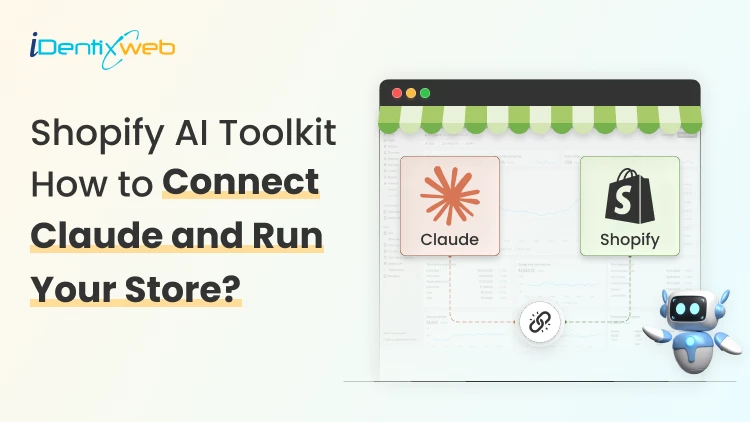
How to Connect Claude to Shopify in Minutes? Run Your Store 10X Faster.
The first time I connected Claude to one of my clients’ Shopify stores. I typed "how many products do I have?" and got the answer back in seconds, straight from my live store. I got the whole Claude Shopify setup done in under 10 minutes on the Shopify store. In this guide, let me walk you through what the Shopify AI Toolkit actually is, why it's a big deal for store owners, how to wire Claude up step by step, and what you can do once it's running. What Is the Shopify AI Toolkit? The Shopify AI Toolkit is a free, open-source tool from Shopify that lets AI assistants like Claude talk to your store directly. Shopify released it in April 2026, and it uses something called MCP, or Model Context Protocol. MCP is like a USB cable for AI. Just as a USB lets your phone plug into any laptop, MCP lets Claude plug into Shopify, WordPress, Slack, and other tools. One protocol, many connections. When I first plugged Claude into stores, the shift was instant. I stopped opening the Shopify admin for small questions. I just asked Claude. Stock levels, product counts, and order details, and I got all the answers within seconds. Why Connect Claude to Shopify in the first place? Here's what changes once the Claude AI Shopify connection is live: No more tab-hopping. Ask Claude about products, orders, or inventory without opening admin. Get real data without technical knowledge: No SQL and no learning curve. Faster fixes: Need to spot products with low stock? One prompt in Claude and you are done. Safety built in: You control what Claude can see and do. It has a read-only default if you want it that way. A real example from my store: I asked Claude, "How many products are in my store?" It pulled the live data, showed me five products, and matched what I saw in admin exactly. Small test, but it proved the system was working. What do you need before you connect Claude to Shopify? Quick checklist: A Shopify store on any plan The Claude desktop app is installed on your computer (MCP doesn't work on the web version) Around 10 minutes Copy-paste skills That's it. If you can follow these steps, you can easily connect Claude to Shopify. Automate Your Products Recommendations Without Claude Before connecting your store to Claude, you can easily automate your product recommendations with iCart's AI-powered recommendations. AI-powered product recommendations drive high sales with better targeted product discovery, improved shopper experience, and reduced cart abandonment rate. Most carts only show products... iCart can show revenue-boosting offers. Try Free Till 100 Orders How to connect Claude to Shopify: Step-by-Step setup Step 1: Open your Shopify dev dashboard Log in to your Shopify store. In the top-right corner of your admin, you'll see a small code icon. Click it. That takes you to your developer dashboard. Step 2: Create a new dev app Head to the Apps section and hit Create app. Name it something simple. I called mine "Claude." Click create. Don't worry, you're not building a real app. You're just creating a token that lets Claude read your store. Step 3: Set your API scopes Scopes decide what Claude can see and do. You can either paste a full list of scopes or pick them from the menu. My honest take for new store owners: start with read-only scopes. That way, Claude can answer questions but can't change anything in your store. If you want Claude to make changes later, like updating product tags or descriptions, you'll need to add write scopes for those specific areas. A small heads-up: if you paste scopes, watch the formatting. I had a few flagged as invalid the first time. Easy fix, just clean up the syntax. Contact a developer if you are not well-versed in this. Step 4: Release and install the app Hit Release. You can skip the version name and message. Shopify fills those in automatically. Now click Install app, select your store, and confirm. You'll see your new app under the Apps section of your admin. That's the green light. Step 5: Grab your client ID and secret Go into the app's Settings. You'll see two things: a Client ID and a Client Secret. Copy both. Paste them somewhere safe, like a notes app, a password manager, or anywhere you can grab them in a minute. Step 6: Configure Claude's MCP File Open the Claude desktop app. Go to Settings → Developer. You'll see a section for local MCP servers with an Edit Config button. Click it. A JSON file will open in your default text editor. You're going to add a small block that tells Claude how to connect to your store. The structure looks like this: { "mcpServers": { "shopify": { "command": "npx", "args": ["-y", "@shopify/dev-mcp@latest"], "env": { "SHOPIFY_CLIENT_ID": "your-client-id-here", "SHOPIFY_CLIENT_SECRET": "your-client-secret-here", "SHOPIFY_STORE_DOMAIN": "your-store.myshopify.com" } } } } Drop in your Client ID, Client Secret, and store domain in the right slots. Save the file and close the editor. Step 7: Restart and test Fully quit Claude. Do not minimize, or close the window. Actually, quit the app so it reloads with the new config. Reopen Claude. Start a new chat. Click the Plus icon to check your tools and connectors. If everything went right, you'll see Shopify listed there. Now run a test prompt. Try this one: “How many products are in my store?” Claude will ask for permission to use the Shopify tool. Allow it. Within a few seconds, you'll get a clean answer pulled straight from your live store. If it matches what's in your admin, you're done. Congrats. Claude is officially talking to Shopify. I have created a detailed breakdown on how to get your products discovered on ChatGPT in 2026. How to verify the connection actually works? Three test prompts I run on every new setup: A count question: "How many products do I have?" or "How many orders did I get this month?" A specific product question: "What's the price of [product name]?" An inventory check: "Which products have fewer than 10 units in stock?" If all three return real data from your store, the connection is solid. If one fails, the next section will help. Troubleshooting common Claude Shopify connection issues Invalid scope names Usually, a typo or wrong format when pasting scopes. Re-check the list against Shopify's docs or pick them from the menu instead. Shopify doesn't show under connectors You probably didn't fully quit Claude. Force-quit the app and reopen it. The JSON file won't save Check for missing commas, mismatched brackets, or stray characters. Even one wrong character breaks the file. "Authentication failed" error Nine times out of ten, the Client ID and Secret got swapped. Double-check which is which. Store domain format Use the .myshopify.com version, not your custom domain. So mystore.myshopify.com, not mystore.com. What can you do once Claude is connected to Shopify? Here's where it gets fun. Real things I use Claude for daily: Pulling product counts, inventory levels, and customer lists without opening admin Asking order questions in plain English ("show me my last 10 orders") Spotting low-stock products before they sell out Getting GraphQL queries written for me when I'm building something custom Running bulk tasks with write access on updating tags, fixing descriptions, and creating drafts Getting quick store insights without opening a single report A few things Claude can't do yet, so your expectations stay grounded: It won't run your Facebook or Google ads It won't process payments or refunds (yet) It can't replace your theme editor for visual design work Read-only vs Read-write: Which access should you give Claude? Read-only. Claude can see your store data, but can't change anything. Perfect for analysis, reports, and questions. Start here every time. Read-write. Claude can make actual changes. Update products, edit descriptions, modify tags. Powerful, but you need to trust your prompts. One bad instruction and Claude might do something you didn't expect. My personal rule for any new store: stay read-only for the first two weeks. Get comfortable with how Claude answers. Then add write scopes one area at a time, like products first, then inventory, then customers. Claude code Shopify: For store owners who code (or want to) If you've ever opened a terminal, there's a second way to use Claude with Shopify: Claude Code. Claude Code is the terminal-based version of Claude. It's faster for theme work, bulk operations, and anything that touches code. One command installs the Shopify dev MCP for Claude Code: claude mcp add --transport stdio shopify-dev-mcp -- npx -y @shopify/dev-mcp@latest Run that in your terminal, and you're connected. When should you use which? The chat app is friendlier if you're not technical. Claude Code for Shopify is better when you're editing theme files, running mass updates, or building something custom. Most store owners I know stick with the chat app for daily tasks. Is it safe to connect Claude to your Shopify Store? Yes, it is. Here's what you need to know: MCP runs locally on your machine. Your data isn't being sent to some random server. Your tokens stay in your config file. Claude only uses them when you ask it to. Use a separate dev app for each AI tool. Don't reuse the same token for Claude, ChatGPT, and Cursor. Keep them isolated. Rotate your secret if a teammate leaves or if you suspect a leak. It takes 30 seconds in Shopify. Always start read-only. I'll keep saying this because it matters. Connect Claude to Shopify right away You now have Claude wired into your Shopify store, a safe scope setup, and a few test prompts that prove the pipe works. The hard part is done. Run one real task today. Ask Claude something you'd normally open an admin for. Watch how fast it answers. That's the moment you realize how much time you've been losing. The Claude Shopify setup is just the beginning. The Shopify AI Toolkit is going to grow. New tools, new capabilities, deeper store control, all of it is coming. Store owners who start now will be miles ahead of the ones still clicking through five menus to update a product description. FAQs 1. How to connect Claude to Shopify? Create a dev app inside your Shopify admin, grab the Client ID and Secret, then paste them into Claude's MCP config file under Settings → Developer. Restart Claude, and you'll see Shopify show up in your connectors. The full walkthrough takes under 10 minutes. 2. Is it free to connect Shopify to Claude AI? Yes, the Shopify AI Toolkit itself is free and open-source. You'll just need a Shopify store (any plan works) and the Claude desktop app, which has a free tier you can use to test the setup before upgrading. 3. How to connect Claude to Shopify? Create a dev app inside your Shopify admin, grab the Client ID and Secret, then paste them into Claude's MCP config file under Settings → Developer. Restart Claude, and you'll see Shopify show up in your connectors. The full walkthrough takes under 10 minutes. 4. Is it free to connect Shopify to Claude AI? Yes, the Shopify AI Toolkit itself is free and open-source. You'll just need a Shopify store (any plan works) and the Claude desktop app, which has a free tier you can use to test the setup before upgrading. 5. What is Shopify’s AI toolkit? Shopify AI Toolkit is a free, open-source tool that connects AI assistants like Claude directly to your Shopify store using MCP (Model Context Protocol). It lets you ask questions, pull data, and run store tasks in plain English instead of clicking through admin menus. Shopify launched it in April 2026, and it works with Claude, Cursor, VS Code, and a few other AI tools.
Sajini Annie John
6 Min • 12 July 2023
5818 Views
Sajini Annie John
6 Min • 5 July 2023
6189 Views
Sajini Annie John
6 Min • 30 June 2023
5061 Views
Sajini Annie John
6 Min • 29 June 2023
5842 Views
Sajini Annie John
5 Min • 23 June 2023
6940 Views
Sajini Annie John
6 Min • 22 June 2023
5890 Views
Sajini Annie John
3 Min • 16 June 2023
7093 Views
![The Success Story of “Gippsland Eggs” with Stellar Delivery Date & Pickup [Case Study]](https://www.identixweb.com/wp-content/uploads/2023/09/image_2023_08_11T11_49_00_861Z.png "The Success Story of “Gippsland Eggs” with Stellar Delivery Date & Pickup [Case Study]")
Sajini Annie John
3 Min • 15 June 2023
5922 Views
Sajini Annie John
4 Min • 9 June 2023
6670 Views

Adrija Milan
6 Min • 6 June 2023
6035 Views
![How Avanchy increased 73% of revenue in 30 days from iCart [Case Study]](https://www.identixweb.com/wp-content/uploads/2023/09/How-Avanchy-increased-73-of-revenue-in-30-days-from-iCart.png "How Avanchy increased 73% of revenue in 30 days from iCart [Case Study]")
Sajini Annie John
3 Min • 5 June 2023
5612 Views
Sajini Annie John
5 Min • 24 May 2023
6127 Views