




The first time I connected Claude to one of my clients’ Shopify stores. I typed "how many products do I have?" and got the answer back in seconds, straight from my live store.
I got the whole Claude Shopify setup done in under 10 minutes on the Shopify store. In this guide, let me walk you through what the Shopify AI Toolkit actually is, why it's a big deal for store owners, how to wire Claude up step by step, and what you can do once it's running.
What Is the Shopify AI Toolkit?
The Shopify AI Toolkit is a free, open-source tool from Shopify that lets AI assistants like Claude talk to your store directly. Shopify released it in April 2026, and it uses something called MCP, or Model Context Protocol.
MCP is like a USB cable for AI. Just as a USB lets your phone plug into any laptop, MCP lets Claude plug into Shopify, WordPress, Slack, and other tools. One protocol, many connections.
When I first plugged Claude into stores, the shift was instant. I stopped opening the Shopify admin for small questions. I just asked Claude. Stock levels, product counts, and order details, and I got all the answers within seconds.
Why Connect Claude to Shopify in the first place?
Here's what changes once the Claude AI Shopify connection is live:
- No more tab-hopping. Ask Claude about products, orders, or inventory without opening admin.
- Get real data without technical knowledge: No SQL and no learning curve.
- Faster fixes: Need to spot products with low stock? One prompt in Claude and you are done.
- Safety built in: You control what Claude can see and do. It has a read-only default if you want it that way.
A real example from my store: I asked Claude, "How many products are in my store?" It pulled the live data, showed me five products, and matched what I saw in admin exactly. Small test, but it proved the system was working.
What do you need before you connect Claude to Shopify?
Quick checklist:
- A Shopify store on any plan
- The Claude desktop app is installed on your computer (MCP doesn't work on the web version)
- Around 10 minutes
- Copy-paste skills
That's it. If you can follow these steps, you can easily connect Claude to Shopify.
Automate Your Products Recommendations Without Claude
Before connecting your store to Claude, you can easily automate your product recommendations with iCart's AI-powered recommendations.
AI-powered product recommendations drive high sales with better targeted product discovery, improved shopper experience, and reduced cart abandonment rate.
How to connect Claude to Shopify: Step-by-Step setup
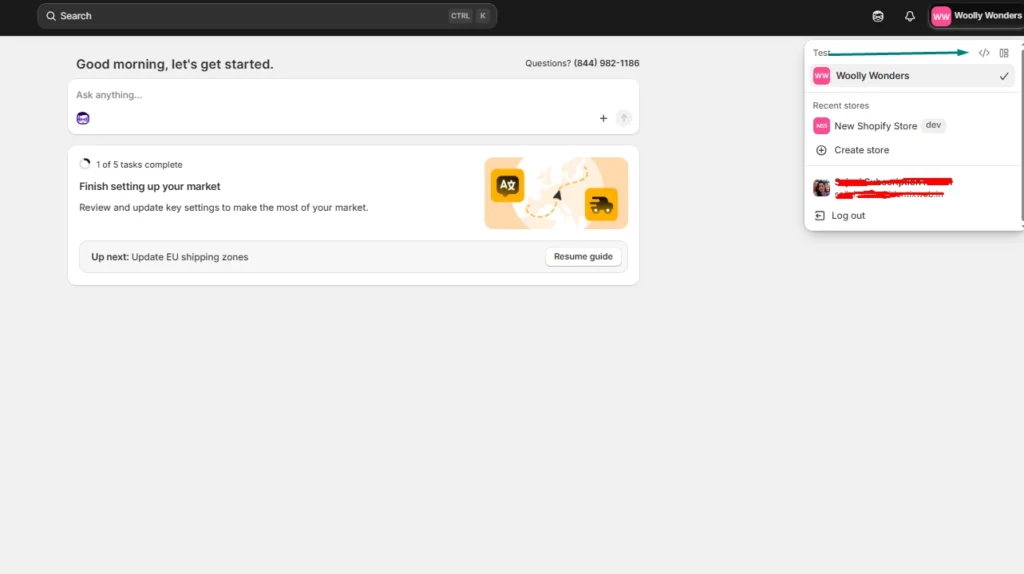
Step 1: Open your Shopify dev dashboard
Log in to your Shopify store. In the top-right corner of your admin, you'll see a small code icon. Click it. That takes you to your developer dashboard.
Step 2: Create a new dev app
Head to the Apps section and hit Create app. Name it something simple. I called mine "Claude." Click create.
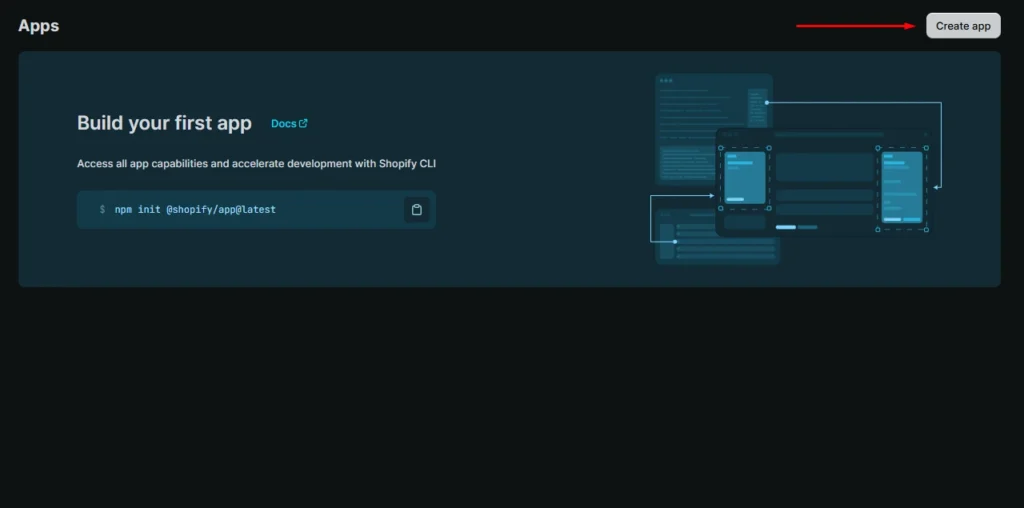
Don't worry, you're not building a real app. You're just creating a token that lets Claude read your store.
Step 3: Set your API scopes
Scopes decide what Claude can see and do. You can either paste a full list of scopes or pick them from the menu.
My honest take for new store owners: start with read-only scopes. That way, Claude can answer questions but can't change anything in your store.
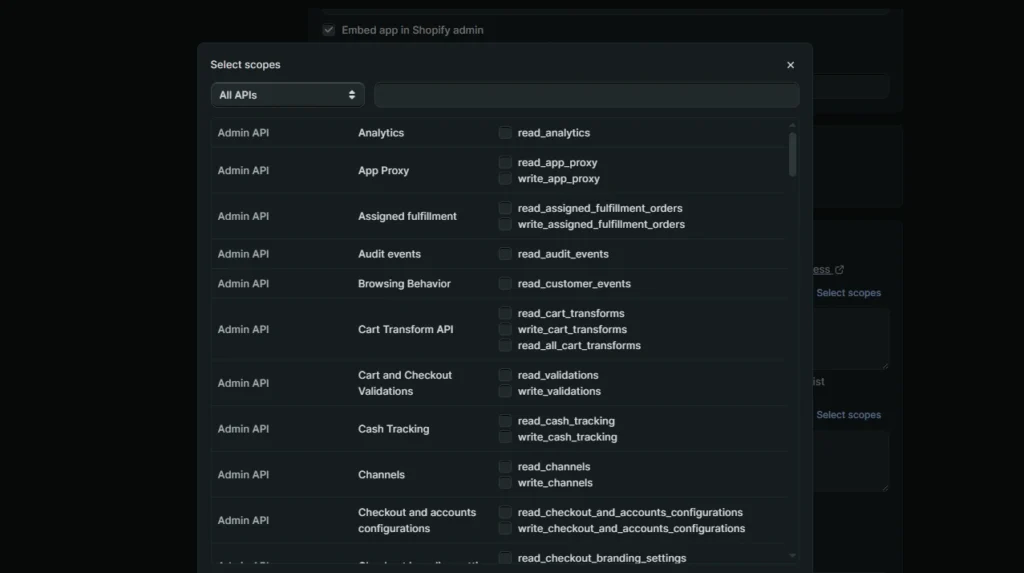
If you want Claude to make changes later, like updating product tags or descriptions, you'll need to add write scopes for those specific areas.
A small heads-up: if you paste scopes, watch the formatting. I had a few flagged as invalid the first time. Easy fix, just clean up the syntax. Contact a developer if you are not well-versed in this.
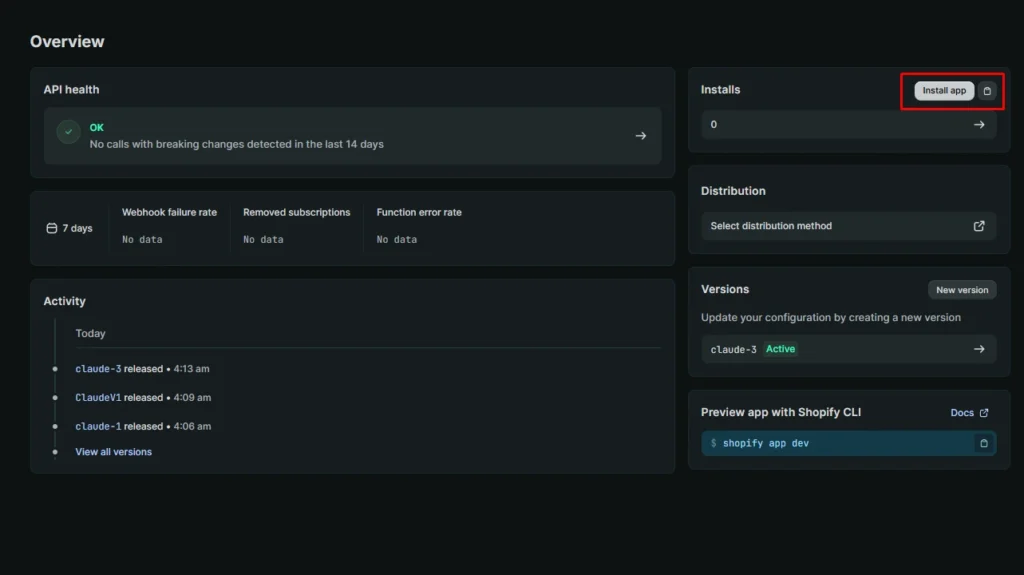
Step 4: Release and install the app
Hit Release. You can skip the version name and message. Shopify fills those in automatically.
Now click Install app, select your store, and confirm. You'll see your new app under the Apps section of your admin. That's the green light.
Step 5: Grab your client ID and secret
Go into the app's Settings. You'll see two things: a Client ID and a Client Secret.
Copy both. Paste them somewhere safe, like a notes app, a password manager, or anywhere you can grab them in a minute.
Step 6: Configure Claude's MCP File
Open the Claude desktop app. Go to Settings → Developer. You'll see a section for local MCP servers with an Edit Config button. Click it.
A JSON file will open in your default text editor. You're going to add a small block that tells Claude how to connect to your store.
The structure looks like this:
{
  "mcpServers": {
    "shopify": {
      "command": "npx",
      "args": ["-y", "@shopify/dev-mcp@latest"],
      "env": {
        "SHOPIFY_CLIENT_ID": "your-client-id-here",
        "SHOPIFY_CLIENT_SECRET": "your-client-secret-here",
        "SHOPIFY_STORE_DOMAIN": "your-store.myshopify.com"
      }
    }
  }
}
Drop in your Client ID, Client Secret, and store domain in the right slots. Save the file and close the editor.
Step 7: Restart and test
Fully quit Claude. Do not minimize, or close the window. Actually, quit the app so it reloads with the new config.
Reopen Claude. Start a new chat. Click the Plus icon to check your tools and connectors. If everything went right, you'll see Shopify listed there.
Now run a test prompt. Try this one:
“How many products are in my store?”
Claude will ask for permission to use the Shopify tool. Allow it. Within a few seconds, you'll get a clean answer pulled straight from your live store.
If it matches what's in your admin, you're done. Congrats. Claude is officially talking to Shopify.
How to verify the connection actually works?
Three test prompts I run on every new setup:
- A count question: "How many products do I have?" or "How many orders did I get this month?"
- A specific product question: "What's the price of [product name]?"
- An inventory check: "Which products have fewer than 10 units in stock?"
If all three return real data from your store, the connection is solid. If one fails, the next section will help.
Troubleshooting common Claude Shopify connection issues
Invalid scope names
Usually, a typo or wrong format when pasting scopes. Re-check the list against Shopify's docs or pick them from the menu instead.
Shopify doesn't show under connectors
You probably didn't fully quit Claude. Force-quit the app and reopen it.
The JSON file won't save
Check for missing commas, mismatched brackets, or stray characters. Even one wrong character breaks the file.
"Authentication failed" error
Nine times out of ten, the Client ID and Secret got swapped. Double-check which is which.
Store domain format
Use the .myshopify.com version, not your custom domain. So mystore.myshopify.com, not mystore.com.
What can you do once Claude is connected to Shopify?
Here's where it gets fun. Real things I use Claude for daily:
- Pulling product counts, inventory levels, and customer lists without opening admin
- Asking order questions in plain English ("show me my last 10 orders")
- Spotting low-stock products before they sell out
- Getting GraphQL queries written for me when I'm building something custom
- Running bulk tasks with write access on updating tags, fixing descriptions, and creating drafts
- Getting quick store insights without opening a single report
A few things Claude can't do yet, so your expectations stay grounded:
- It won't run your Facebook or Google ads
- It won't process payments or refunds (yet)
- It can't replace your theme editor for visual design work
Read-only vs Read-write: Which access should you give Claude?
Read-only. Claude can see your store data, but can't change anything. Perfect for analysis, reports, and questions. Start here every time.
Read-write. Claude can make actual changes. Update products, edit descriptions, modify tags. Powerful, but you need to trust your prompts. One bad instruction and Claude might do something you didn't expect.
My personal rule for any new store: stay read-only for the first two weeks. Get comfortable with how Claude answers. Then add write scopes one area at a time, like products first, then inventory, then customers.
Claude code Shopify: For store owners who code (or want to)
If you've ever opened a terminal, there's a second way to use Claude with Shopify: Claude Code.
Claude Code is the terminal-based version of Claude. It's faster for theme work, bulk operations, and anything that touches code.
One command installs the Shopify dev MCP for Claude Code:
claude mcp add --transport stdio shopify-dev-mcp -- npx -y @shopify/dev-mcp@latest
Run that in your terminal, and you're connected.
When should you use which? The chat app is friendlier if you're not technical. Claude Code for Shopify is better when you're editing theme files, running mass updates, or building something custom. Most store owners I know stick with the chat app for daily tasks.
Is it safe to connect Claude to your Shopify Store?
Yes, it is. Here's what you need to know:
- MCP runs locally on your machine. Your data isn't being sent to some random server.
- Your tokens stay in your config file. Claude only uses them when you ask it to.
- Use a separate dev app for each AI tool. Don't reuse the same token for Claude, ChatGPT, and Cursor. Keep them isolated.
- Rotate your secret if a teammate leaves or if you suspect a leak. It takes 30 seconds in Shopify.
- Always start read-only. I'll keep saying this because it matters.
Connect Claude to Shopify right away
You now have Claude wired into your Shopify store, a safe scope setup, and a few test prompts that prove the pipe works. The hard part is done.
Run one real task today. Ask Claude something you'd normally open an admin for. Watch how fast it answers. That's the moment you realize how much time you've been losing.
The Claude Shopify setup is just the beginning. The Shopify AI Toolkit is going to grow. New tools, new capabilities, deeper store control, all of it is coming. Store owners who start now will be miles ahead of the ones still clicking through five menus to update a product description.
FAQs
1. How to connect Claude to Shopify?
Create a dev app inside your Shopify admin, grab the Client ID and Secret, then paste them into Claude's MCP config file under Settings → Developer. Restart Claude, and you'll see Shopify show up in your connectors. The full walkthrough takes under 10 minutes.
2. Is it free to connect Shopify to Claude AI?
Yes, the Shopify AI Toolkit itself is free and open-source. You'll just need a Shopify store (any plan works) and the Claude desktop app, which has a free tier you can use to test the setup before upgrading.
3. How to connect Claude to Shopify?
Create a dev app inside your Shopify admin, grab the Client ID and Secret, then paste them into Claude's MCP config file under Settings → Developer. Restart Claude, and you'll see Shopify show up in your connectors. The full walkthrough takes under 10 minutes.
4. Is it free to connect Shopify to Claude AI?
Yes, the Shopify AI Toolkit itself is free and open-source. You'll just need a Shopify store (any plan works) and the Claude desktop app, which has a free tier you can use to test the setup before upgrading.
5. What is Shopify’s AI toolkit?
Shopify AI Toolkit is a free, open-source tool that connects AI assistants like Claude directly to your Shopify store using MCP (Model Context Protocol). It lets you ask questions, pull data, and run store tasks in plain English instead of clicking through admin menus. Shopify launched it in April 2026, and it works with Claude, Cursor, VS Code, and a few other AI tools.


About the author
Vineet Nair
Vineet is an experienced content strategist with expertise in the ecommerce domain and a keen interest in Shopify. He aims to help Shopify merchants thrive in this competitive environment with technical solutions and thoughtfully structured content.