

Blog
Gather knowledge about the latest insights, updates, tips, and tricks in the Ecommerce industry.

5 Min • 20 March 2026
How Anua Unlocked 5X AOV Growth with iCart’s Smart Cart Features
delivery customization Challenges Solutions drive results Scale business delivery customization Challenges Solutions drive results Scale business delivery customization Challenges Solutions drive results Scale business delivery customization Challenges Solutions drive results Scale business Anua is a globally recognized Korean skincare brand known for its minimalist philosophy and focus on gentle yet effective formulations. Built on the idea of simplifying skincare routines, Anua develops products that deliver visible results while avoiding harsh or irritating components, making them suitable for sensitive skin types. Initially using a traditional full cart experience, Anua transitioned to iCart’s side cart solution in August 2025, to create a more seamless and engaging shopping journey. This shift allowed customers to easily explore complementary skincare products without disrupting their browsing flow, making it more intuitive to discover items that fit into a complete routine. By surfacing relevant recommendations directly within the cart, the brand enhanced product visibility across its range. Challenges Before implementing iCart’s side cart solution, Anua faced limitations with their existing full cart experience, which created friction in the customer journey. The traditional cart setup redirected users away from product pages, interrupting their browsing flow and reducing opportunities to explore additional products. As a skincare brand built around routines rather than single-item purchases, this made it difficult to effectively showcase complementary products and encourage customers to build complete regimens. Additionally, the lack of in-cart personalization and strategic upsell opportunities meant that customers were often unaware of related products that could enhance their skincare results. This limited the brand’s ability to increase average order value (AOV) and fully leverage its diverse product range. Anua needed a more dynamic and intuitive cart experience that could seamlessly introduce relevant recommendations while maintaining a smooth and engaging shopping journey. ❌ Cart Value Barriers Low average order value (AOV) due to single-item focus Most customers completed purchases with one primary product instead of building multi-step routines. Cart abandonment near shipping thresholds Customers were not clearly informed or motivated to reach free shipping or discount thresholds. Missed savings opportunities Customers were unaware of potential value in purchasing bundled routines or multiple complementary products. ❌ Absence of Progress-Based Incentives No free shipping or discount progress bar Customers were not motivated to increase their cart value due to lack of visible incentives. Missing tiered rewards system There were no structured milestones (e.g., “Spend more to unlock offers”), reducing upsell opportunities. ❌ Ineffective Cart UI/UX (Pre-Side Cart) Full-page cart disrupted shopping flowCustomers had to leave their browsing journey, increasing friction and drop-offs. No quick add/remove functionality Users couldn’t easily modify their cart or add suggested products without navigating away. Solution To overcome these challenges, Anua implemented iCart’s side cart solution to transform their traditional cart into a high-converting, interactive experience. By replacing the full-page cart with a seamless side cart, the brand ensured that customers could continue browsing while viewing their cart, significantly reducing friction in the shopping journey. Additionally, features like product recommendations & progress bars for free shipping and discounts motivated customers to increase their cart value. By combining personalization, incentive-driven messaging, and a user-friendly interface, Anua successfully turned their cart into a powerful revenue-driving touchpoint rather than just a checkout step. To maximize their cart effectiveness, they implemented two powerful features: ✅ Progress Bar with Multi-Reward Incentives Implemented a tiered progress bar to encourage higher cart value Customers are guided with a clear message like “Add $3.10 to unlock secret offer,” motivating them to continue adding products. Generated over $5M+ in revenue through incentive-driven cart progression Used product-based rewards to align with customer intent Instead of generic discounts, Anua incentivized purchases with relevant skincare items like Dark Spot Pads and mini serums. Built visual motivation for routine expansion As customers add products, they can clearly track progress toward unlocking multiple rewards, encouraging them to build a complete skincare routine. ✅ Product Recommendations Implemented “Frequently Bought Together” recommendations Customers adding a single product (e.g., toner) are shown complementary items like serums, moisturizers, or pads to complete their routine. Generated over 275K revenue through in-cart recommendations Encouraged full skincare regimen building Instead of isolated purchases, the cart suggests step-by-step product combinations aligned with common skincare routines. Increased product discovery at the final stage By surfacing relevant items directly in the cart, Anua ensured customers explore more of their catalog without leaving the checkout flow. Results Achieved in Last 180 Days 22932 Total Store Orders 45101 Total iCart Orders 5X iCart Generated AOV 65.70% Upsell Affected Conversion Rate These improvements reflect a clear shift in customer behavior on Anua’s store. Cart abandonment reduced as shoppers discovered complementary skincare products and felt encouraged to build complete routines. Engagement also increased, with customers interacting more with in-cart recommendations and exploring relevant product pairings. Results & Impact And...Results is Our Main Clarification By implementing iCart’s cart drawer, product recommendations, and progress bar, Anua transformed its cart into a high-performing conversion touchpoint. Shopping Experience Enhancement The improved cart experience encouraged customers to discover complementary products and understand the value of sustainable beauty routines. For instance, the clear presentation of subscription savings alongside one-time purchase options helped customers make more informed decisions about their long-term hair care needs. As Anua continues to optimize its cart experience, the brand is closely monitoring: Routine-based purchasing behavior - tracking how customers move from single items to multi-step regimens Engagement with in-cart recommendations - measuring interaction with suggested products Cart value progression - analyzing how incentives influence higher spending [related_cases_slider] Ready to Write Your Success Story? Try icart App Join successful businesses like Anua and Master your delivery scheduling Delight customers with precise timing Grow your special occasion orders Expand your delivery reach
Read Blog
12 Min • 14 September 2026
How to Migrate From Wix to Shopify: A Step-by-Step Guide for 2026
A Wix to Shopify migration can be handled manually with CSV files, through a migration app, or by hiring a Shopify expert. Before migrating, audit and back up your Wix store, choose the right migration method, and prepare products, customers, content, and URLs. After migration, rebuild store settings, set up 301 redirects, connect your domain, test checkout and tracking, and monitor SEO performance after launch. I've walked a lot of store owners through a Wix to Shopify migration. People expect the hard part to be moving products. It's not. The hard part is the stuff nobody warns you about: The image links that break The orders that won't import The redirects that decide whether you keep your Google rankings and much more. Get those right, and the move feels easy. Here's how to migrate from Wix to Shopify the way I do it on real projects. What actually transfers from Wix to Shopify (and what doesn't) Store data/featureTransfers to Shopify?What happensProductsYesMove through CSV or a migration appVariants, prices & SKUsYesCan be included with product dataCustomersYesNames, emails, addresses, and tags can be exported and importedProduct imagesPartlyWix exports image URLs, so images should be moved and re-hosted on ShopifyCollectionsNo, not directlyRecreate them in ShopifyOrder historyNot nativelyUse a migration app to import historical ordersTheme & designNoRebuild the storefront using a Shopify themeCustom codeNoRebuild or adapt it for ShopifyWix apps & settingsNoReplace them with Shopify apps or native featuresDiscount codesNoRecreate them in ShopifyProduct reviewsNot directlyMove them using a compatible reviews app such as Judge.me, Loox, or Yotpo Choosing your migration method: Manual, app, or expert Manual CSV migration This is free and gives you full control. You export from Wix, reformat the files to match Shopify's exact column headers, save them as UTF-8, and import. It works well for small catalogs, roughly under 500 products, if you're comfortable with a spreadsheet. A migration app Apps like Matrixify are the ones I choose for bulk work because they handle messy field mapping and let you catch errors before they hit your live store. For order history specifically, tools like LitExtension can automate what the CSV method can't. Hiring a migration agency This is an ideal choice for large or complex stores, or when downtime and lost rankings would cost you more than the project fee. A specialist maps URLs you didn't know were indexed and tests things you'd never think to check. If you'd rather hand it off, that's exactly what our Shopify store setup and migration service is for. Our developers handle the technical details carefully, making sure your store is moved and set up without disrupting how your business operates. How to migrate from Wix to Shopify step by step Step 1: Audit and back up your Wix store Before you move anything, take stock of what is currently on your Wix store. List your products, collections, customers, orders, pages, blog posts, reviews, apps, custom code, and any URLs that already get organic traffic or backlinks. Export copies of your products, contacts, and order data from Wix. I also recommend saving a list of your important URLs, page titles, meta descriptions, and other SEO data so you have something to compare against after migration. Step 2: Set up your Shopify account Build your Shopify store before you start moving data from Wix. Add your basic business information and familiarize yourself with the Shopify admin. Keep your existing Wix store live while you build and test the new store. Build your Shopify store in parallel so customers can continue shopping on Wix until the products, settings, redirects, and checkout are ready. Step 3: Choose your Wix to Shopify migration method The right migration method depends on how much data you have and how complicated your store is. For a smaller catalog, you can migrate Wix to Shopify manually using CSV files, while larger stores may be easier to handle with a migration app or a Shopify migration expert. Step 4: Migrate your products and images Export your products from Wix and prepare the CSV according to Shopify’s product format. Before importing, check how your product options are structured. Wix allows up to 6 product options, while Shopify allows up to 3 option types per product. Shopify supports up to 2,048 variants per product, so the bigger issue is usually how those variants are organized. If a product uses more than three options, you may need to restructure it or move supporting information into Shopify metafields. Product images also need extra attention. A few months ago, I was on a call with a home and kitchen store owner who had already moved her products from Wix and built her new Shopify store over the weekend. Everything looked ready, and she was about to take the Wix site offline. I asked her to check the product images first. The images looked fine, but Shopify was still importing them using URLs hosted through Wix. Taking the old store down too early could have interrupted that process. We kept Wix live until the images had been fully imported and checked the main product pages again before switching over. Since then, I’ve followed one simple rule: don’t take your Wix store offline until you’ve confirmed that your products and images have been successfully imported into Shopify. Before moving on, verify prices, SKUs, variants, inventory, descriptions, and images across a sample of your products. Step 5: Migrate customers and order history Export your customer data from Wix, reformat it using Shopify’s customer CSV template, and import it into the Customers section of your Shopify admin. Check names, email addresses, phone numbers, addresses, tags, and marketing consent carefully before importing. Wix and Shopify structure customer data differently, so even a small formatting issue can create incomplete records. Customer passwords won’t move to Shopify. This is less of a problem now because Shopify deprecated legacy customer accounts in 2026 in favor of passwordless customer accounts. Customers can sign in using a one-time code sent to their email, with additional options such as Shop and passkeys where available. Historical orders need a separate migration method. They don’t come across through Shopify’s standard customer CSV, so if you need old Wix orders inside Shopify, use a migration app such as Matrixify or a dedicated migration service. Step 6: Move pages, blogs, reviews, and other content Once your products and customer data are in place, move the content outside your catalog. For a smaller Wix site, pages and blog posts can often be recreated manually. If you have a large content library, a migration app can make the process faster. Don’t copy only the visible text. Re-upload any images that were hosted on Wix, update internal links so they point to the new Shopify URLs, and recreate important SEO elements such as meta titles, meta descriptions, headings, and image alt text. Reviews also need separate attention because they don’t move through Shopify’s standard product import. Check whether the Shopify review app you plan to use supports importing your existing Wix reviews before launch. Step 7: Build your Shopify theme and configure Store settings Your Wix design does not transfer directly to Shopify, so the storefront needs to be rebuilt using a Shopify theme. Then configure the settings that don't simply come across with your store data. Set up your payment provider, shipping methods and rates, taxes, policies, notifications, and any Shopify apps you need before opening the store to customers. Step 8: Set up Wix-to-Shopify 301 redirects Wix and Shopify use different URL structures, which means many of your existing URLs will change during migration. Create a URL plan that matches each important Wix page with the most relevant new Shopify page instead of sending everything to the homepage. In Shopify, you can create redirects under Content > Menus > View URL Redirects, or import redirects in bulk using a CSV file. Step 9: Connect or transfer your domain Once the Shopify store is ready, connect your existing domain so customers can continue using the same website address. If your domain is managed through Wix, you can update its DNS settings to point it to Shopify while continuing to manage the domain through Wix. You can also transfer an eligible domain to Shopify if you want to manage the domain, billing, and renewal from Shopify instead. Step 10: Test your Shopify store and go live Before launch, place test orders and go through the store exactly as a customer would. Check product pages, navigation, search, checkout, payments, shipping rates, taxes, inventory, discount codes, email notifications, mobile pages, and your most important 301 redirects. Important Wix to Shopify Migration issues 1. Data can change during migration If customers are still ordering from Wix while Shopify is being built, run a final check before launch so recent orders, customers, and inventory changes aren't missed. 2. Wix apps don't transfer Review features such as reviews, subscriptions, forms, loyalty programs, personalization, and marketing tools, then find Shopify replacements where necessary. 3. Protect your SEO Keep your important URLs, set up 301 redirects, update internal links, and make sure valuable pages haven't disappeared during the move. 4. Check your tracking Verify Google Analytics, Search Console, advertising pixels, conversion tracking, and other integrations after launch. Finally, don't delete your Wix store or migration files immediately. Keep access to the old data until you've confirmed that Shopify has everything you need. Protecting your SEO during a Wix to Shopify migration Wix and Shopify use completely different URL structures. Every indexed link breaks the moment you switch unless you redirect it. Here's how the URLs change. Wix products live at yourstore.com/product-page/product-name and Wix blog posts at yourstore.com/post/post-slug. Shopify forces its own prefixes. For example, products sit under /products/ and collections under /collections/. A page with the same name and identical content still gets a brand-new URL on Shopify. So before you go live, build a full map from every old Wix URL to its closest new Shopify URL. Set up a 301 redirect for each important page in your Shopify admin under Content > Menus > View URL Redirects. For a big catalog, upload them in bulk with a spreadsheet through Matrixify. A few rules I hold to on every project: Use 301 redirects, never 302s, because Shopify only supports permanent redirects here, and that's what passes your ranking signal. Avoid redirect chains, where an old URL points to a second URL that points to a third. Point every old URL straight to its final destination. Pay special attention to your blog. Blog posts are often the pages with the most backlinks pointing at them. Once you're live, carry over your title tags, meta descriptions, and image alt text, submit your new sitemap to Google Search Console, and watch for crawl errors for the first month. My full Shopify SEO migration guide covers the redirect and metadata workflow in more depth if you want the complete playbook. What it costs to migrate from Wix to Shopify The cost of moving from Wix to Shopify depends on how much data and custom work your store has. A simple DIY migration may only cost your Shopify subscription and your time. If your store has a large catalog, years of orders, custom features, or important SEO traffic, the cost can be higher because you may need a migration app or professional help. Migration is only one part of the total budget. Read my guide to how much it costs to build a Shopify website in 2026 for a broader cost breakdown. Planning your Wix to Shopify migration? A Wix to Shopify migration is easy once you have a plan. Build your Shopify store fully in parallel, re-host your images before you touch the Wix domain, and treat your 301 redirect as the most important task. If you'd rather not manage every step yourself, that's what a Shopify migration agency is for. Either way, do it in the right order, test everything, and you'll come out with a faster store and your rankings intact. FAQs 1. Is Wix cheaper than Shopify? Wix can be cheaper for smaller websites and basic online stores. Shopify is built specifically for ecommerce and includes more advanced selling features. Your actual cost on Shopify depends on the plan, apps, payment processing, and features your store needs. 2. Why do store owners move from Wix to Shopify? Many store owners move from Wix to Shopify when their ecommerce needs become more complex. Shopify is built specifically for commerce, with a dedicated checkout, Shop Pay, support for major payment methods, a large app ecosystem, and built-in tools for selling across channels such as Instagram, TikTok, Google, and Amazon. 3. Is Shopify like Wix? Shopify and Wix both let you build websites and sell online, but their primary focus is different. Wix is a website builder with basic ecommerce features, while Shopify is a dedicated commerce platform designed for businesses that want to sell and scale, both online and offline. 4. How to migrate from Wix to Shopify? You can migrate from Wix to Shopify by exporting your products and customers from Wix and importing them into Shopify using CSV files, Shopify’s Store Migration app where available, or a third-party migration app. For historical orders, Shopify recommends using apps such as LitExtension, Cart2Cart, EZ Importer, or MigrationPro, then rebuilding your storefront, setting up redirects, and testing products, checkout, shipping, payments, and SEO before making the Shopify store live. 5. Can you use Shopify with Wix? Yes. Shopify lets you create a Buy Button or product collection and embed it on a Wix website using Wix's HTML code element, allowing customers to purchase Shopify products from your Wix site.
10 Min • 21 August 2026
Shopify App Store Guidelines: Lessons for Merchants Building an App
Getting an app approved on the Shopify App Store starts long before you hit submit. The Shopify App Store guidelines shape how an app is built, authenticated, billed, designed, tested, marketed, and maintained after launch. If you are the merchant paying for that app, those guidelines should be your concern. After more than a decade around the Shopify app ecosystem, I have learned one lesson worth passing on to store owners: Merchants who only think about App Store requirements at the end of a build are the ones who end up with delays, rework, and surprise costs. The better move is to understand these standards before the first line of code. That way you can brief the project properly, ask your developer the right questions, and recognise finished work when you see it. This guide walks through the practical lessons I use when helping merchants get a Shopify app listed. Shopify App store guidelines are product requirements It is easy to treat Shopify's requirements as a checklist your developer ticks off at the end. I would encourage you to see them differently. Shopify evaluates whether an app is safe, functional, useful, clear for merchants, and compatible with the way its platform is designed to work. Its requirements cover policy, functionality, installation, security, billing, App Store listings, and category-specific functionality. Shopify can also update these requirements as its platform evolves. That means an app that passed review two years ago should not assume its old implementation is still enough. ⭐ The biggest lesson before I start: Compliance should be a part of the app development process. 1. Start with Shopify-native architecture A technically functional SaaS product does not automatically make a good Shopify app. A Shopify app needs to behave like part of Shopify. For new public apps, this starts with the platform itself. From April 1, 2025, new public apps must use the GraphQL Admin API rather than the legacy REST Admin API. One thing to watch on any build: teams often request more permissions than the core feature actually needs. That creates needless privacy exposure and raises flags during review. Shopify requires an app to request only the access scopes it needs to function, and sensitive scopes can need extra justification. When you go over the plan with your developer, ask exactly why each permission is on the list. The same principle applies to storefront apps. Apps that modify themes should use theme app extensions instead of directly modifying theme code. Shopify also expects clear setup instructions for app embeds and blocks. ⭐ The lesson: Build the app around Shopify’s architecture from the beginning. 2. Installation and billing should be core features It is natural for a build to pour most of its energy into the headline feature. Reviewers care just as much about everything around it, and installation is the first thing they touch. Shopify requires installation to begin from a Shopify-owned surface. OAuth should happen immediately after installation, and the merchant should land inside the app UI after accepting permissions. Here’s the complete journey I test: Install → OAuth → permissions → app UI → setup → uninstall → reinstall Ask your developer to run this on a clean development store, not the environment they have used for months, where old data can hide broken steps. Billing deserves similar testing. Apps distributed through the Shopify App Store generally need to use Shopify App Pricing or the Shopify Billing API for app charges. Merchants should also be able to move between plans without contacting support or reinstalling the app. Before submission, confirm the app has been tested for plan selection, upgrades, downgrades, subscription status, and usage charges where they apply. ⭐ Lesson: Insist that installation and billing get tested as carefully as the app's main features. A broken setup can stop the review on day one. 3. Build privacy and security before the review Do not take security lightly. If something happens, it is your store's reputation and your customers' data at risk. Apps need valid TLS/SSL certificates and secure authentication. Embedded apps should work without depending on third-party cookies. Shopify also expects the app to use session tokens correctly. Customer data requires even more attention. If your app needs access to protected customer data, determine that requirement early and apply for the appropriate access. Shopify evaluates whether requested customer information is genuinely required for the app’s functionality. I follow one simple lesson here: ⭐ The lesson here is this: If the app does not need a piece of data, do not collect it. It reduces technical risk, simplifies privacy management, and gives reviewers fewer unnecessary permissions to question. 4. Your listing is part of the product If you are launching a public app, the listing is part of the product. It is the first thing a prospective merchant reads before they trust your app with their store. The Shopify app store listing guidelines require the public listing to accurately represent what the app can actually do. Your name, pricing, screenshots, descriptions, supported languages, geographic restrictions, and claims all need to match the product. Avoid claims such as “the best,” “the first,” or “the only” unless Shopify’s requirements clearly allow and the statement can be substantiated. Testimonials and merchant reviews should not be inserted manually into listing content or images either. Images should focus on the actual product interface. Each image should add something new instead of repeating the same screen. This is also where more focus should be put on Shopify app store optimization. Shopify recommends an app card subtitle that explains merchant value, and the listing allows up to five relevant search terms, each a complete term with one clear idea. They specifically warns against forcing keywords into subtitles for search performance. I normally think about the merchant’s search intent: What problem are they trying to solve? What would they call that problem? What outcome does the app provide? Which features actually differentiate it? There is another reason listing quality matters in 2026. Shopify introduced app discovery through Sidekick. It can recommend, compare, and surface apps using information from App Store listings. Shopify advises developers to keep listing information accurate, clear, and structured for this experience. Your listing is now serving humans, App Store search, external search engines, and AI-assisted discovery. ⭐ The lesson here: Your app store listing should explain the app as clearly and accurately as the product itself. 5. Make the reviewer’s job easy Shopify requires a demo screencast showing onboarding and the core features described in the listing. Test credentials must remain valid and provide access to the complete feature set needed for review. I treat the reviewer like the app’s first merchant. Make sure the submission hands the reviewer: Clear installation instructions. Working test credentials. Exact steps required to activate important features. A concise screencast showing the full workflow. Notes explaining unusual configuration requirements. Any category-specific setup the reviewer needs. Then have someone test those instructions in a fresh store, ideally not the person who wrote them. The current Shopify app review process moves an app through 4 stages: Draft > Submitted > Reviewed > Published. An app that fails core requirements can be paused until fixes are submitted. Once the core requirements are satisfied, a reviewer can continue with deeper testing and request further changes. Shopify also now offers an AI self-review through its AI Toolkit. The tool can inspect a local codebase against App Store requirements that can be evaluated from code. It does not replace Shopify’s review team and cannot evaluate every live UX or listing requirement. ⭐ The lesson here: Give reviewers clear instructions, working credentials, and a complete path to test every important feature. 6. The most common rejections are often preventable I have experienced app rejection coming from a policy that is hard to understand. Usually, the causes are far less dramatic. Broken OAuth or installation flows. 404, 500, and other web errors. Inaccurate pricing. Billing implementation problems. Broken embedded behaviour. Missing testing instructions or credentials. Unfinished app functionality. Storefront apps that fail to use theme app extensions correctly. These are mostly QA problems. That is why a solid pre-submission check runs the app as a complete merchant journey rather than testing features in isolation. When you review a build, ask to see it run end to end, from install to uninstall. ⭐ The lesson here is: A thorough pre-submission QA check can prevent many of the issues that delay Shopify App Store approval. 7. Approval should be the starting line Publishing the app is a milestone, but it is not the end of development. Shopify continues to evaluate app quality. Performance, reliability, merchant experience, platform changes, API versions, privacy requirements, and listing accuracy need ongoing attention. If you are in this for the long run, ask your developer about Built for Shopify. Built for Shopify adds stricter quality standards around areas such as performance, integration, ease of use, safety, and proven merchant value. Qualifying apps can receive a badge, greater visibility, a search-ranking boost, and priority review for future apps from the developer. ⭐ The lesson here: Treat App Store approval as the beginning of ongoing improvement, not the final stage of app development. Here’s my complete guide on why merchants prefer Built for Shopify apps in 2026. What should merchants look for in a Shopify app development agency? If you are hiring an agency to turn an app idea into a Shopify product, ask deeper questions than “Can you build this feature?” Start by understanding what goes into Shopify custom app development. Ask the agency how they handle Shopify APIs, OAuth, billing, access scopes, protected customer data, app extensions, performance, App Store submissions, listing requirements, and post-launch API changes. An experienced Shopify app development team should be thinking about approval while the app architecture is still being discussed. Before making a hire, read my article on what to check before hiring a Shopify expert in 2026. Build for Shopify before you build for approval The biggest mistake I see merchants make is treating the Shopify App Store review as the final hurdle. It should shape the product from the start. Insist on Shopify-native APIs and installation that just works. Make sure billing is tested properly, customer data is protected, the listing is written around real value, and the reviewer is handed everything they need. Then keep improving after approval. That approach cuts avoidable rework and gets you something more valuable than an approved submission: a Shopify app that merchants can install, understand, and keep paying for. FAQs 1. What are the Shopify app store guidelines? Shopify App Store guidelines are the rules an app must follow to be listed on the Shopify App Store. They cover areas like security, functionality, billing, privacy, performance, and app listing content. 2. How much does it cost to develop a Shopify app? The cost depends on the app’s features, complexity, integrations, and whether it is a custom or public app. A simple app can cost a few thousand dollars, while a complex public app can require a much larger budget. 3. Can I build my own Shopify app? Yes. Shopify offers APIs, the Shopify CLI, App Bridge, and other tools for building an app. In practice it takes solid development knowledge across authentication, APIs, billing, webhooks, and security, so most merchants hire a developer, agency, or Shopify expert rather than building it in-house. 4. What are the different types of Shopify apps? The main types are public apps and custom apps. Public apps are built for multiple merchants, while custom apps are usually created for the specific needs of one merchant or organization.
10 Min • 27 August 2026
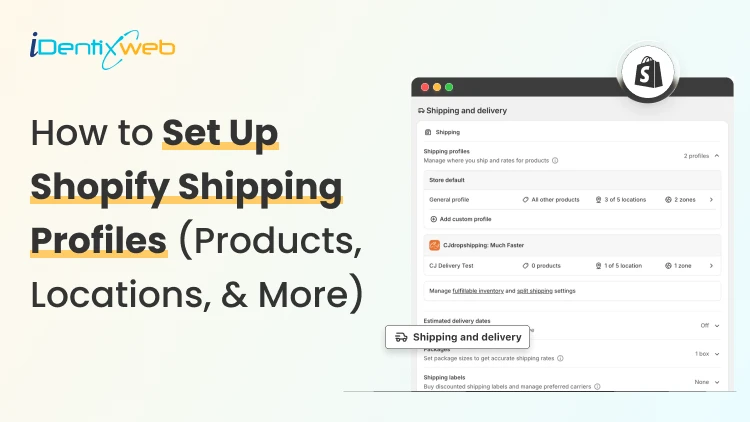
How to Set Up Shopify Shipping Profiles (Products, Locations, & More)
To set up a custom shipping profile in Shopify, go to Shopify Admin → Settings → Shipping and delivery → Shipping profiles → Add custom profile. Add the required products or variants, assign fulfillment locations, create shipping zones, and configure shipping rates based on your requirements. Custom shipping profiles help merchants manage different shipping rules for products like fragile, heavy, oversized, or region-specific items without affecting their entire catalog. Shipping gets complicated when you can't treat every product the same way. A T-shirt, glass vase, and 20-pound bag of pet food might all sit in the same Shopify store. But charging the same shipping rate for each can hurt your margins. Shopify shipping profiles solve this by grouping products with similar shipping needs. It controls where they ship from, where they can ship to, and what customers pay. This guide covers products, variants, fulfillment locations, shipping zones, rates, multiple warehouses, and the checkout issues merchants should test before going live. What Are Shopify Shipping Profiles? Shopify defines a shipping profile as a set of shipping rules for specific products and locations. Stores get a General shipping profile by default, while custom profiles handle products that need different rates. Shipping profileBest forWhat happensGeneral shipping profileProducts using the same shipping ratesProducts stay here unless moved to a custom profileCustom shipping profileFragile, oversized, heavy, or other special productsSelected products or variants get their own locations, zones, and rates Shopify currently allows up to 99 custom shipping profiles for stores using the shipping-profile system. A product or variant can belong to only one profile at a time. Adding it to another profile automatically removes it from the previous one. When do you need a custom shipping profile? You need a custom shipping profile when certain products need different shipping rules from the rest of your catalog. I will explain this better with a few examples below: Furniture or oversized products: Use a separate profile when these products need higher flat rates or special delivery charges. Fragile items: Create one when products such as glassware require extra packaging and higher shipping costs. Heavy products: Use a separate profile if shipping charges need to be calculated differently based on weight. Products sold only in selected regions: Use a separate profile when certain items should ship only to specific countries, states, or regions. Products with free shipping: Create a profile when only selected products should qualify for a $0 shipping rate. Products needing carrier-calculated rates: Use a separate profile when only certain products need live carrier rates instead of your standard flat rates. If most products follow the same shipping rules, keep them in the General shipping profile and create custom profiles only where there is a real difference in cost, location, or delivery requirement. What to prepare before setting up a shipping profile Before creating a profile, I normally map these four things. 1. Products Decide which products or variants genuinely need different shipping treatment. For example, a home decor store will keep cushions and small accessories in the General profile. They move large mirrors into a custom profile because they require protective packaging and higher shipping charges. 2. Fulfillment locations Check where the products are stocked and fulfilled. Locations can represent warehouses, retail stores, fulfillment partners, and other order origins. When a shipping profile is created, eligible online-fulfillment locations are added to it. Locations can share one location group when they use the same zones and rates, or be separated when shipping rules differ. 3. Shipping zones A shipping zone is a group of countries or regions that share shipping rates. You might create zones such as Domestic, Canada, Europe, or selected international countries. Want to sell internationally? Here’s my breakdown of international shipping on Shopify for merchants in 2026. 4. Shipping rates Shopify supports flat rates, order-value-based rates, weight-based rates, carrier or app-calculated rates, and free shipping. Shipping in Shopify can be complicated. Here are my top Shopify shipping strategies to increase sales in 2026. How to create a Shopify shipping profile step by step Step 1: Open Shipping and Delivery From the Shopify admin, go to: Settings > Shipping and delivery Under Shipping profiles, you will see the General profile and any existing custom profiles. Step 2: Create a custom shipping profile Click Add custom profile and enter a clear name, such as: Heavy Products Fragile Items Furniture Free Shipping Products US Warehouse Products Step 3: Add products or variants You can also see the Products section just below the Profile name section. A product or variant can belong to only one shipping profile at a time. This becomes especially useful when only certain variants need different shipping rules, while the rest of the product can stay in the General profile. For example, a merchant selling framed prints might keep the standard-size variants in the General profile. They will move only the oversized frame variant into a custom profile if it needs higher shipping charges, different packaging, or a different fulfillment method. Step 4: Configure fulfillment locations Review Fulfillment locations. If several warehouses should use the same zones and prices, keep them in the same location group. If one warehouse needs different rules, separate it. For example: New York: United States Each location group can have its own zones and rates. Step 5: Create shipping zones For each location group, click Add zone, name it, select the countries or regions, and click Done. For example, a US merchant may create a West Coast zone for California, Oregon, and Washington with a lower shipping rate. They may place Alaska and Hawaii in a separate zone because delivery there costs more. Separate zones help merchants charge rates that better reflect the actual cost of shipping to different regions. Build zones around actual delivery coverage and cost. If certain regions are significantly more expensive to serve, separate rates will be more practical. Step 6: Add shipping rates Inside each zone, click Add shipping option and choose the rate type. Flat rate: Charge one fixed amount, such as $7 for Standard Shipping. This works well when shipping costs are predictable. Order amount-based rate: Change shipping by cart value. A store could charge $8 below $50, $5 from $50 to $99.99, and offer free shipping from $100. Weight-based rate: Charge according to shipment weight. This suits food, hardware, liquids, bulk goods, and similar products. Make sure product weights are accurate, and your tiers cover the full expected weight range. Carrier or app-calculated rate: Let an eligible carrier or app calculate shipping from information such as weight, destination, and package details. Step 7: Save and test Click Save, then place test orders using realistic combinations: A product from the General profile A product from a custom profile Products from two profiles Products fulfilled from different locations Different domestic or international addresses Orders above and below free-shipping thresholds Free shipping can be a great tool to increase conversions. Here’s my complete guide to Shopify free shipping strategies for merchants. Need Help Configuring Your Shopify Shipping Settings? As product catalogs, fulfillment locations, shipping zones, and rate rules grow, managing everything accurately can become difficult. For example, a merchant may sell standard products from one warehouse, oversized items from another, and charge different rates for Alaska and Hawaii. If these rules are not configured properly, customers may see the wrong rate, duplicate charges, or no suitable shipping option at checkout. That’s where Identixweb can help. Our Shopify Store Settings Configuration service helps merchants configure complex shipping, payment, tax, and checkout settings so everything works correctly together. What happens when products come from different profiles? I get this question a lot. Under the current shipping-profile system, Shopify can combine shipping rates when an order contains products from different profiles or requires different location groups. Example: ProductProfile shipping rateT-shirt$4Fragile mug$7Possible combined charge$11 In this case, the customer may see an $11 shipping charge at checkout because Shopify is combining the applicable rates from both profiles. The setup may be technically correct, but the final charge can still feel high to the customer. That’s why merchants should test mixed-profile orders before going live, especially when customers commonly buy products from different profiles together. This helps confirm that the final shipping cost is reasonable and avoids unexpected checkout charges. Common Shopify shipping profile mistakes I see #1 Creating too many profiles This is the most common mistake I encounter with merchants. More profiles do not automatically improve shipping. Start with the General profile and add a custom profile only when a real cost, destination, or fulfillment difference exists. #2 Ignoring mixed-cart costs A rate that looks reasonable for one item but when the customer adds another item with a different profile, the shipping rates increase. Always test mixed carts before creating a profile. #3 Using inaccurate weights Weight-based and calculated rates depend on accurate product data. Incorrect weights can lead to inaccurate checkout charges. #4 Creating zones without checking markets A country appearing in a shipping zone is not enough if that country is not in an active market. Set up Shopify shipping profiles the right way A well-planned Shopify shipping profile helps merchants charge more accurate shipping rates without making fulfillment unnecessarily complicated. The key is to group products only when their shipping costs, destinations, or fulfillment requirements are genuinely different. Start simple, test mixed-product carts, review location-based rates, and update profiles whenever products, warehouses, or shipping costs change. A clean setup makes checkout easier for customers and shipping easier to manage as the store grows. FAQs 1. How to add products to a shipping profile in your Shopify store? Go to Settings > Shipping and delivery > Shipping profiles, open or create a custom profile, and select the products you want to add from the Products section. A product or variant can belong to only one shipping profile at a time, so adding it to a custom profile automatically removes it from its previous profile. 2. What is the difference between a general and custom shipping profile? The General shipping profile is Shopify's default profile and automatically applies to products that aren't assigned to a custom profile. A custom shipping profile is used when certain products need different shipping rates, zones, or fulfillment rules, such as fragile, heavy, or oversized items. 3. Can I offer free shipping for any selected products? Yes. To offer free shipping only on selected products, add those products to a custom shipping profile and create a flat shipping rate with the price set to $0 or enable free shipping for that rate. 4. Does shipping increase when customers buy two products in different shipping profiles? Yes. When products from different shipping profiles are purchased together, Shopify combines their applicable shipping rates and displays one total rate at checkout, which will make the final shipping charge higher. 5. Should I use flat or carrier-calculated shipping rates in Shopify? Use flat rates when shipping costs are predictable, and you want a simple, consistent checkout experience. Use carrier-calculated rates when costs vary significantly by destination, package weight, dimensions, or delivery speed.

Bhavesha Ghatode
7 Min • 29 August 2025
858 Views

Vineet Nair
10 Min • 29 August 2025
852 Views
![40+ Best Shopify Pet Store Examples You Need to See [2026]](https://www.identixweb.com/wp-content/uploads/2025/08/28-08-Thu-Blog-40-Best-Shopify-Pet-Store-Examples-You-Need-to-See-2025.webp "40+ Best Shopify Pet Store Examples You Need to See [2026]")
Vineet Nair
9 Min • 28 August 2025
1186 Views

Bhavesha Ghatode
6 Min • 28 August 2025
869 Views

Bhavesha Ghatode
6 Min • 27 August 2025
949 Views

Vineet Nair
7 Min • 27 August 2025
896 Views
![How to Add a Pop up on Shopify? + Best Pop up Examples [2025]](https://www.identixweb.com/wp-content/uploads/2025/08/27-08-Wed-Blog-How-to-Add-a-Popup-on-Shopify_-Best-Popup-Examples-2025-1.webp "How to Add a Pop up on Shopify? + Best Pop up Examples [2025]")
Vineet Nair
8 Min • 27 August 2025
995 Views
Bhavesha Ghatode
7 Min • 27 August 2025
1009 Views

Bhavesha Ghatode
16 Min • 26 August 2025
975 Views

Vineet Nair
11 Min • 26 August 2025
1135 Views

Bhavesha Ghatode
9 Min • 25 August 2025
1101 Views
![Broadcast Theme Shopify Review [2025]: Features and Ratings](https://www.identixweb.com/wp-content/uploads/2025/08/25-08-Mon-Blog-Broadcast-Shopify-Theme-Review-2025.webp "Broadcast Theme Shopify Review [2025]: Features and Ratings")
Vineet Nair
7 Min • 25 August 2025
1065 Views