



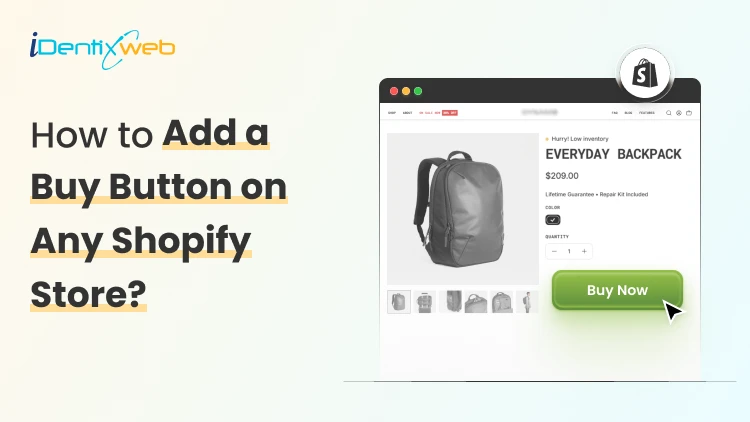

Add the Buy Button sales channel in your Shopify admin, create a button for a single product or a collection, then customize the layout and colors. Shopify generates an embed code that you copy and paste into your page's HTML. Save the page, refresh, and the button goes live.
You've got products ready to sell. But most of your traffic isn't on your storefront. It's in your blogs section, scrolling through your portfolio, or sitting in your newsletter.
That's the problem adding a buy button on Shopify solves. You sell where people already are, instead of waiting for them to come back to your product page.
I've added buy buttons to client blogs, one-page landing sites, and even email footers. They take minutes to set up, they're free on every plan, and they are fantastic for increasing conversions.
By the end of this guide, you'll have a working button you can drop onto any web page.
What is a Buy Button on Shopify?
A buy button on Shopify is a small piece of embeddable code that puts a checkout anywhere you want it. You paste it into a page, and a "Buy" or "Add to cart" button shows up.
Here's the flow:
The visitor clicks the button > a cart or checkout window opens > Shopify handles the payment. Your store does all the heavy lifting in the background.
It's a free sales channel on every Shopify plan, including the Starter plan at $1 per month for three months. You only pay your normal subscription and standard transaction costs.
A simple Shopify buy button example: a single product card with one image, a price, and an "Add to cart" button embedded in a blog post. You can also embed a full collection if you want to sell several items from one page.
Where to use a Shopify Buy Button?
The button works almost anywhere you can paste code. The spots that earn the most for store owners:
- Blog posts and content pages. Write about a product, then let readers buy it on the spot.
- Dedicated landing pages. Run an ad to a focused page with one product and one button.
- Portfolio and personal sites. Sell prints, gear, or merch without building a full store.
- Promotional emails and newsletters. Link a button straight to checkout for a launch or sale.
- Partner and affiliate websites. Let partners feature your products on their pages.
- Social bios and link-in-bio pages. Turn your most-clicked link into a sale.
Why should new stores use the Buy Button?
If you're just starting out, the buy button is one of the fastest ways to make your first sale.
You can sell before your full store is even finished. Got one product and a homepage? Embed a button, and you're live.
Drop-off goes down because buyers check out where they already are. Every extra click loses people, and the button removes a big one.
You get an omnichannel setup with zero extra tools. Same products, same inventory, more places to sell.
And the checkout is secure and Shopify-hosted. You don't touch payment data or worry about PCI compliance on your own site.
How to Add a Buy Button on Shopify: Step-by-Step
Three steps. Here's exactly how I do it every time.
Step 1: Add the Buy Button Sales Channel
First, turn on the channel inside your admin.
Go to Settings, click Sales channels, then add Buy Button from the list of available channels.
If you do not have it, you can go to the App Store and install ‘Buy Button’
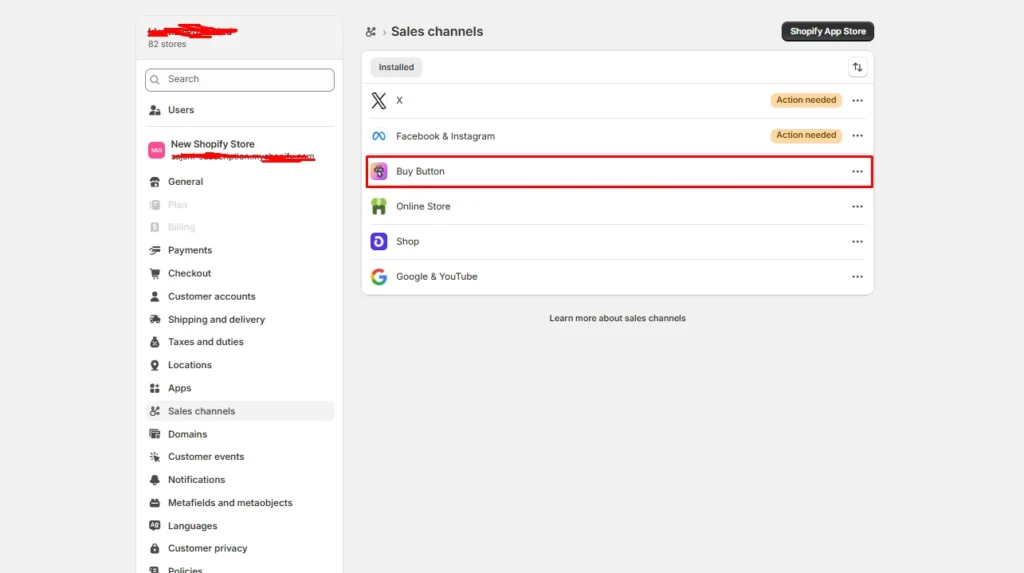
You only do this once. After that, the channel lives in your admin.
Step 2: Create Your Buy Button
Head to the Buy Button channel, click on Open app, and click Create a Buy Button.
You'll pick what to sell:
- Product buy button > For a focused, one-item button.
- Collection buy button > to feature a group of products on one page.
Now customize it. You control the layout style, the button action (open a cart or send buyers straight to checkout), and the appearance. I match the colors and fonts to the page it's going on, not my store, so it looks native.
For high-intent single products, I set the action to direct checkout. Fewer clicks, more sales.
Step 3: Copy the embed code onto your site
Once your button looks right, Shopify generates the embed code. Copy it.
Paste it into the HTML of your page wherever you want the button to appear. If you plan to use multiple buttons on the same site, the script tag only needs to load once per page, so keep that in mind to avoid slowing things down.
Save, refresh your page, and your Shopify buy now button is live.
Add a Shopify Buy Now Button to popular platforms
The embed code is just HTML, so it works on most website builders. Where to paste it on the big ones:
- WordPress: Use a Custom HTML block in the editor, or paste into a text widget.
- Wix: Add an Embed HTML element and drop the code in.
- Squarespace: Use a Code block on the page.
- Weebly or custom HTML sites: Paste directly into your page's HTML.
I have written breakdowns of Shopify vs alternatives. You can check them out below.
If your builder has any "embed code" or "custom HTML" element, the button will work there.
Shopify Buy Button App vs. Built-In Channel
Most store owners never need more than the native channel. But it's worth knowing when an app earns its place.
The built-in Buy Button channel is enough when you're selling standard products, want a clean checkout, and need it free.
A dedicated Shopify buy button app makes sense when you need things the native channel doesn't handle well: subscriptions and recurring billing, deeper styling control, or advanced cart behavior.
My take: start with the built-in channel. It's free and covers 90% of cases. Reach for an app only when you hit a real limit, not before.
Tips for Adding Buy Buttons to Real Stores
A few things I've learned the hard way:
- Style the button to match the host page, not your store. A button that clashes with the page gets ignored.
- Test the checkout on mobile before you publish. Most clicks come from phones, and that's where layout issues hide.
- Use direct checkout for single high-intent products, and a cart for multi-item collections.
- Keep one product per landing page. One product, one button, one decision.
Buy Button is the best way to boost conversions
A buy button on Shopify lets you sell on any page, no full store required. Turn on the channel, build the button, paste the code, and you're selling.
If you're a new store owner, start with one product and one page. Get the first sale, then add buttons everywhere your audience hangs out. Scroll back up to the step-by-step section and set yours up now.
FAQs
1. How does the Shopify buy button work?
The Buy Button is a snippet of embeddable code you paste onto any web page. When a visitor clicks it, a cart or checkout window opens, and Shopify processes the payment in the background. Your products, inventory, and orders stay synced to your store, so you manage everything from one admin.
2. How to add a Buy Button on Shopify to any webpage?
Add the Buy Button sales channel in your Shopify admin, create a button for a single product or a collection, then customize the layout and colors. Shopify generates an embed code that you copy and paste into your page's HTML. Save the page, refresh, and the button goes live.
3. What is an example of a Buy Button on Shopify?
A common example is a single product card embedded in a blog post, showing one image, the price, and an "Add to cart" button. You can also embed a full collection on a landing page to feature several products at once. Both pull directly from your store and open a Shopify-hosted checkout.
4. How much is the Shopify Buy Button app?
The Buy Button is free on every Shopify plan, including the Starter plan at $1 per month for 3 months. There's no separate fee for the channel itself. You only pay your regular Shopify subscription and standard transaction fees on each sale.

About the author
Vineet Nair
Vineet is an experienced content strategist with expertise in the ecommerce domain and a keen interest in Shopify. He aims to help Shopify merchants thrive in this competitive environment with technical solutions and thoughtfully structured content.