

Author: Jennifer Simon
Gather knowledge about the latest insights, updates, tips, and tricks in the Ecommerce industry.

5 Min • 20 March 2026
How Anua Unlocked 5X AOV Growth with iCart’s Smart Cart Features
delivery customization Challenges Solutions drive results Scale business delivery customization Challenges Solutions drive results Scale business delivery customization Challenges Solutions drive results Scale business delivery customization Challenges Solutions drive results Scale business Anua is a globally recognized Korean skincare brand known for its minimalist philosophy and focus on gentle yet effective formulations. Built on the idea of simplifying skincare routines, Anua develops products that deliver visible results while avoiding harsh or irritating components, making them suitable for sensitive skin types. Initially using a traditional full cart experience, Anua transitioned to iCart’s side cart solution in August 2025, to create a more seamless and engaging shopping journey. This shift allowed customers to easily explore complementary skincare products without disrupting their browsing flow, making it more intuitive to discover items that fit into a complete routine. By surfacing relevant recommendations directly within the cart, the brand enhanced product visibility across its range. Challenges Before implementing iCart’s side cart solution, Anua faced limitations with their existing full cart experience, which created friction in the customer journey. The traditional cart setup redirected users away from product pages, interrupting their browsing flow and reducing opportunities to explore additional products. As a skincare brand built around routines rather than single-item purchases, this made it difficult to effectively showcase complementary products and encourage customers to build complete regimens. Additionally, the lack of in-cart personalization and strategic upsell opportunities meant that customers were often unaware of related products that could enhance their skincare results. This limited the brand’s ability to increase average order value (AOV) and fully leverage its diverse product range. Anua needed a more dynamic and intuitive cart experience that could seamlessly introduce relevant recommendations while maintaining a smooth and engaging shopping journey. ❌ Cart Value Barriers Low average order value (AOV) due to single-item focus Most customers completed purchases with one primary product instead of building multi-step routines. Cart abandonment near shipping thresholds Customers were not clearly informed or motivated to reach free shipping or discount thresholds. Missed savings opportunities Customers were unaware of potential value in purchasing bundled routines or multiple complementary products. ❌ Absence of Progress-Based Incentives No free shipping or discount progress bar Customers were not motivated to increase their cart value due to lack of visible incentives. Missing tiered rewards system There were no structured milestones (e.g., “Spend more to unlock offers”), reducing upsell opportunities. ❌ Ineffective Cart UI/UX (Pre-Side Cart) Full-page cart disrupted shopping flowCustomers had to leave their browsing journey, increasing friction and drop-offs. No quick add/remove functionality Users couldn’t easily modify their cart or add suggested products without navigating away. Solution To overcome these challenges, Anua implemented iCart’s side cart solution to transform their traditional cart into a high-converting, interactive experience. By replacing the full-page cart with a seamless side cart, the brand ensured that customers could continue browsing while viewing their cart, significantly reducing friction in the shopping journey. Additionally, features like product recommendations & progress bars for free shipping and discounts motivated customers to increase their cart value. By combining personalization, incentive-driven messaging, and a user-friendly interface, Anua successfully turned their cart into a powerful revenue-driving touchpoint rather than just a checkout step. To maximize their cart effectiveness, they implemented two powerful features: ✅ Progress Bar with Multi-Reward Incentives Implemented a tiered progress bar to encourage higher cart value Customers are guided with a clear message like “Add $3.10 to unlock secret offer,” motivating them to continue adding products. Generated over $5M+ in revenue through incentive-driven cart progression Used product-based rewards to align with customer intent Instead of generic discounts, Anua incentivized purchases with relevant skincare items like Dark Spot Pads and mini serums. Built visual motivation for routine expansion As customers add products, they can clearly track progress toward unlocking multiple rewards, encouraging them to build a complete skincare routine. ✅ Product Recommendations Implemented “Frequently Bought Together” recommendations Customers adding a single product (e.g., toner) are shown complementary items like serums, moisturizers, or pads to complete their routine. Generated over 275K revenue through in-cart recommendations Encouraged full skincare regimen building Instead of isolated purchases, the cart suggests step-by-step product combinations aligned with common skincare routines. Increased product discovery at the final stage By surfacing relevant items directly in the cart, Anua ensured customers explore more of their catalog without leaving the checkout flow. Results Achieved in Last 180 Days 22932 Total Store Orders 45101 Total iCart Orders 5X iCart Generated AOV 65.70% Upsell Affected Conversion Rate These improvements reflect a clear shift in customer behavior on Anua’s store. Cart abandonment reduced as shoppers discovered complementary skincare products and felt encouraged to build complete routines. Engagement also increased, with customers interacting more with in-cart recommendations and exploring relevant product pairings. Results & Impact And...Results is Our Main Clarification By implementing iCart’s cart drawer, product recommendations, and progress bar, Anua transformed its cart into a high-performing conversion touchpoint. Shopping Experience Enhancement The improved cart experience encouraged customers to discover complementary products and understand the value of sustainable beauty routines. For instance, the clear presentation of subscription savings alongside one-time purchase options helped customers make more informed decisions about their long-term hair care needs. As Anua continues to optimize its cart experience, the brand is closely monitoring: Routine-based purchasing behavior - tracking how customers move from single items to multi-step regimens Engagement with in-cart recommendations - measuring interaction with suggested products Cart value progression - analyzing how incentives influence higher spending [related_cases_slider] Ready to Write Your Success Story? Try icart App Join successful businesses like Anua and Master your delivery scheduling Delight customers with precise timing Grow your special occasion orders Expand your delivery reach
Read Blog
10 Min • 12 August 2026
PIM for Shopify: Benefits, Costs & Best Tools for Merchants
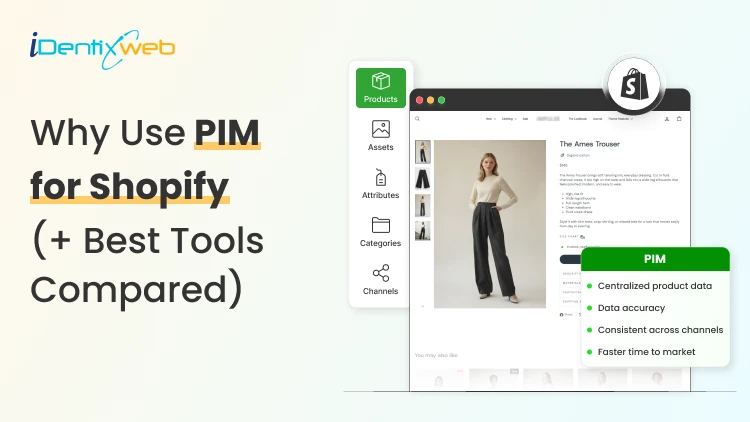
PIM (Product Information Management) for Shopify is a centralized system that helps merchants manage, enrich, and distribute accurate product data across Shopify, marketplaces, and other sales channels. It improves data consistency, reduces missing product information, supports faster catalog updates, lowers return risks, and strengthens multi-channel selling. Popular PIM options for Shopify include Plytix, Sales Layer, Apimio, Jasper PIM, Akeneo, Salsify, inRiver, and Pimcore. Most Shopify stores lose sales because the information around their products is inconsistent or confusing to customers. A PIM for Shopify fixes that by giving you one clean source of info for every title, spec, image, and attribute, then pushing it out everywhere you sell. Better product data helps you get more revenue, fewer returns, and products that actually show up when a shopper asks an AI what to buy. I'll walk you through what a PIM really does for a Shopify store, whether you need one yet, and what the good options cost in 2026. What is a PIM for Shopify? A PIM (product information management) system is a central hub where you create, enrich, and manage all your product data. For a Shopify store, a PIM sits alongside your admin and gives clean, complete, consistent product content into Shopify and out to marketplaces, feeds, and AI channels. Shopify already stores product data. A PIM is different because it's built for scale and structure. You get flexible attribute models, validation rules that catch missing or wrong fields, and digital asset management for images and videos. The reason store owners search for a PIM is that their catalog has grown, the channels multiplied, and keeping product data accurate has become difficult. How does better product information turn into more sales? 1. Fewer returns and refunds Returns are one of the first places where inconsistent product data starts eating into margins. The National Retail Federation estimates the average retail return rate at nearly 17%, with returns costing retailers close to $850 billion annually. Accurate sizing, specifications, images, and product descriptions reduce the gap between what customers expect and what they actually receive. 2. Higher conversion and less abandonment Incomplete product information can send shoppers directly to a competitor. Akeneo found that: 70% of consumers would choose a different product when information is missing. 65% would abandon the purchase completely. This is where a Product Information Management (PIM) system becomes useful. A PIM can enforce mandatory product attributes before a SKU is published. For example, every product can be required to include: Dimensions Materials Care instructions Product specifications Multiple product images Instead of relying on someone to notice missing information manually, the system helps prevent incomplete product listings from reaching the storefront. 3. Better Visibility in AI Shopping Channels In 2026, consistent product data matters beyond your Shopify storefront. It also affects how products appear in AI-powered shopping experiences. Shopify has expanded product discovery through channels such as: ChatGPT Perplexity Microsoft Copilot Google AI Mode These systems rely heavily on structured and complete product information to understand what a product is, who it is suitable for, and when it should be recommended. A product with: A vague description, missing GTIN, limited specifications, and a few structured attributes gives an AI shopping assistant far less information to work with. For a deeper understanding of how to rank in AI engines, read my breakdown on best practices for AEO in Shopify stores in 2026. Do you actually need a PIM for Shopify yet? A lot of Shopify stores don't need a standalone PIM. If you sell a few hundred products on one or two channels and your data is manageable, Shopify's native tools should be your choice. Shopify's metafields and metaobjects are the reason. Metafields let you add structured custom fields to products, variants, collections, and more, so you can store specs, size guides, and warranty details that Shopify's default fields don't cover. Metaobjects let you build reusable content objects, like a brand or a care guide, and connect them across many products. If you're not using them yet, here are a few of my guides and articles you can go through. Shopify metafields guide How to add product metafields Shopify metaobjects guide What to look for in a PIM for Shopify? Focus on five things: How does it connect to Shopify? How flexible is its data model? How well does it handle assets? How does it syndicate to channels? How does it keep data clean? Connection comes first, and it splits into two camps. Some PIMs offer a native Shopify integration or a listed Shopify app, so product data flows straight into your store with minimal setup. Others connect through a middleware layer or a third-party connector, which works but adds a moving part to maintain. If you search "PIM for Shopify app," you're looking for that first camp, and it's the smoother path for most stores that don't have a developer on call. Check the current Shopify App Store listing and recent reviews before you commit, since integrations and pricing change often. Beyond the connection, here's what actually matters: A flexible data model and taxonomy, so you can define the exact attributes your products need and enforce them. Data validation and governance, so incomplete or malformed data can't reach your storefront. Digital asset management for images and video, ideally with variant-level control. If you want icons and trust badges on product pages, our guide on displaying images with metafields shows the native version of the same idea. Channel syndication and localization, so one enriched record can publish to Shopify, marketplaces, feeds, and AI channels in the right format each time. Automation and AI enrichment to fill gaps, generate copy, and score data quality, which saves the most tedious hours. If a tool nails those five and connects cleanly to Shopify, it'll serve you far longer than one that just has a long feature list. A PIM Is Only as Good as Its Integration The value of a PIM also depends heavily on how well it connects with Shopify and the rest of a merchant's technology stack. When a native connection does not cover the required workflow, Identixweb develops custom Shopify integrations that help businesses connect product data and other systems around their specific operational requirements. Best PIM for Shopify in 2026 Plytix Plytix is a common starting point for growing brands because it offers a free tier for smaller catalogs and supports unlimited users. Its paid plans scale based on SKU requirements, making it suitable for businesses that expect their catalogs to grow over time. Akeneo Akeneo is designed for businesses that need advanced product information management across large catalogs, teams, markets, and languages. Salsify Salsify combines product information management with broader product experience and syndication capabilities, making it more suitable for brands distributing product data across multiple channels. Pimcore Pimcore supports sophisticated product data models and is often considered when businesses need greater flexibility around product information, digital assets, and other connected data. Sales Layer, Apimio, and Jasper PIM Sales Layer, Apimio, and Jasper PIM target a similar segment. They are generally suited to brands that need: Centralized product information Better product data consistency Multi-channel syndication Easier catalog management Shopify integration without a complex enterprise implementation What does a PIM for Shopify actually cost in 2026? PIM pricing in 2026 runs from free to well over $50,000 a year, and the plan name matters less than your catalog complexity. Most SaaS PIMs price by the number of SKUs, users, channels, and outputs, while enterprise platforms quote custom deals you won't see without a demo. Here's the rough shape of the market, based on current published pricing and PIM cost breakdowns from vendors like Plytix and Akeneo: Free and entry SaaS tiers cover small catalogs, often up to around 1,000 SKUs, with limited features. Good for testing the idea. Mid-market SaaS plans commonly start in the few-hundred-dollars-a-month range and scale with SKU count. Plytix, for example, publishes a Pro tier starting around $499 a month for larger catalogs, and other SaaS PIMs sit in a similar band. Enterprise platforms like Akeneo, Salsify, and inRiver don't publish full pricing. Budgeting guidance from these vendors points to five figures a year and up once services are added, and first-year totals can climb much higher with implementation. PIM for Shopify Plus and high-volume catalogs For Shopify Plus and high-volume stores, a PIM shifts from optional to close to essential, because the whole reason you're on Plus is scale, and scale is where manual product data breaks. The specific wins for a PIM on Shopify Plus: One source of truth across multiple Plus storefronts and regions, so a single edit propagates everywhere instead of being redone per store. Localization at scale, with translated attributes and region-specific data flowing to the right storefront automatically. B2B and wholesale support, where different buyers need different data, pricing, and catalogs from the same underlying products. Governance and workflows, so a team of merchandisers, marketers, and suppliers can all contribute without corrupting the catalog. How to roll out a PIM the right way? To close out this blog, here's the sequence I'd follow: Audit your current data first. Pull your catalog, find the gaps, the duplicates, and the inconsistencies. You'll fix these no matter which tool you pick, so do it before you buy. Design your attribute model before importing anything. Decide the fields every product must have, the allowed values, and the rules. A governed model is what keeps a PIM clean six months later. Start with a pilot, not the whole catalog. Migrate one category or your best-sellers, get the Shopify sync working end-to-end, and confirm the data lands correctly on your storefront and channels. Assign ownership. Someone has to own product data quality, or the system slowly drifts back to the mess you were escaping. Then scale. Roll out category by category, syndicate to your channels, and layer in automation and AI enrichment once the foundation is solid. FAQs 1. What is PIM for Shopify? A PIM system for Shopify is software that centralizes, organizes, and manages product data such as titles, descriptions, specifications, images, variants, and attributes before syncing it to your Shopify store and other sales channels. It is useful for merchants with large catalogs because it helps maintain accurate, consistent product information across channels. 2. Is Shopify a PIM system? No. Shopify stores and manages product data, and its metafields and metaobjects add structured custom fields, but it lacks the multi-channel syndication of a dedicated PIM. For a single store with a small catalog, native Shopify is often enough. For large catalogs across many channels, a PIM will help. 3. What is the best PIM for Shopify? For most small and mid-sized stores, Plytix, Sales Layer, or Apimio fit well and connect to Shopify easily. For large, complex catalogs, enterprise platforms like Akeneo, Salsify, or inRiver are a better choice. 4. Do I need a PIM system for Shopify multi-channel selling? If you have thousands of SKUs, multiple variants of products, and content that is localized and sold across global markets, you need a PIM system for Shopify multi-channel selling.
11 Min • 15 September 2026
How to Migrate WooCommerce to Shopify in 2026 Without Losing Orders or SEO
Migrating from WooCommerce to Shopify can be done through Shopify’s Store Migration app, CSV imports, third-party migration tools, or a custom API setup. Products, customers, and selected order data can move, while themes, plugins, and URLs need rebuilding or redirecting. After migration, configure payments, shipping, taxes, and checkout, test orders and key store functions, and verify and monitor SEO. Moving from WooCommerce to Shopify involves more than transferring your products. You’ll also need to migrate customer and order data, recreate key store features, maintain important URLs, and make sure your search rankings are not affected during the move. If you're moving from WooCommerce to Shopify in 2026, keeping your existing store running while you prepare, migrate, and test the new Shopify store can help prevent data loss and launch-day issues. This guide walks through the migration process, with particular attention to products, customers, orders, functionality, redirects, and SEO. Why do store owners migrate from WooCommerce to Shopify? Most people we consult aren't unhappy with WooCommerce. It is a very capable e-commerce platform. They move because managing hosting, plugin updates, security, and ongoing maintenance becomes increasingly time-consuming. Shopify is a hosted platform, so hosting and much of the underlying maintenance are handled for you. Features such as Shop Pay, Shopify POS, and its app ecosystem can also simplify day-to-day operations. If you're still weighing it up, my WooCommerce vs Shopify guide walks you through the complete comparison. What moves when you migrate WooCommerce to Shopify Not everything in a WooCommerce store is migrated in the same way. Products, customers, and some order data can be transferred, while themes and plugins need to be rebuilt or replaced, and existing URLs need to be redirected. DataWhat happens during migrationProducts and variantsStore Migration app, CSV import, or a migration appCustomersCustomer CSV, Store Migration app, or a migration appOrdersMigration app or the Shopify API onlyReviewsA reviews app like Judge.me, Loox, or YotpoBlog posts and pagesMatrixify, or copied over by handCouponsA migration app, or rebuilt in DiscountsTheme and designRebuilt on a Shopify themePluginsReplaced with Shopify apps or native featuresURLsNew format, so you need 301 redirects What to do before you move from WooCommerce to Shopify Back up everything. Use your host's backup or a plugin like UpdraftPlus to perform a full data export. Record your URLs and traffic. Export your top landing pages from Google Search Console for the last 90 days. You'll need them for redirects. List every active plugin. These can become Shopify apps or native settings, depending on the functionality it was used for in your store. Check your product attributes. Shopify allows three options per product. Flag anything using four or more. Review and clean your data. Remove duplicate or outdated records where appropriate, review discontinued products, and standardize complicated variant names before importing your data. How to migrate from WooCommerce to Shopify step by step 1. Build your Shopify store Set up your Shopify store, but keep your WooCommerce store live while you work. You still need the old store for checking data, URLs, images, and functionality during the migration. Shopify lets you select WooCommerce during signup. It also creates a starter theme based on your existing store URL. The generated theme uses Dawn and recreates parts of your current storefront. 2. Decide what you are moving and how Make a list of everything that needs to move: products, variants, customers, historical orders, reviews, pages, blog content, discounts, and any other store data you still use. Then choose the migration method for each. Shopify's Store Migration app is currently in early access for certain stores and can import WooCommerce products from the original WooCommerce CSV. For everything else, you can use Shopify CSV imports where supported, a third-party migration tool like Cart2Cart or LitExtension, a custom API migration, or a Shopify migration agency. If you cannot manage the move, Identixweb can handle the migration for you. Our Shopify migration service helps move your store data, rebuild required functionality, map redirects, review SEO risks, and test the new Shopify store before launch. 3. Export and prepare your WooCommerce data WooCommerce has a built-in CSV exporter for products under Products > All Products > Export. You can choose the products, columns, categories, and whether to include custom metadata in the export. What happens next depends on your migration method. The Store Migration app will accept the WooCommerce product CSV without reformatting it. If you use Shopify's product CSV importer, the WooCommerce columns need to be mapped to Shopify's format first. For customers, export their data and format it using Shopify’s Customer CSV template. Import them through Shopify Admin > Customers > Import. Historical orders need a migration app such as Matrixify, LitExtension, or Ablestar WooCommerce Importer. This is because Shopify does not offer a native order CSV importer. 4. Migrate products, customers, and orders in that order Move your products first, customers second, and historical orders last. We recommend this sequence so imported orders can connect to the right products and customers. Validate each data set immediately after importing it rather than waiting until the entire migration is complete. After the product import, compare prices, SKUs, variants, inventory, weights, images, and descriptions against WooCommerce. Shopify specifically recommends reviewing product data after import because incorrect data like prices can affect the store immediately. 5. Rebuild your storefront and replace WooCommerce plugins Your WooCommerce theme does not become a Shopify theme, and your WordPress plugins do not become Shopify apps. Build the storefront on a Shopify theme and recreate the parts of your WooCommerce setup that customers actually use. Go through the plugin list you made earlier and match each important function with a Shopify feature, app, or custom solution. Don't migrate plugins one-to-one. Instead, identify what each WooCommerce plugin does and determine whether the same functionality can be handled by Shopify's native features, an app, or a custom solution. 6. Set up payments, shipping, taxes, and checkout Set up your locations, shipping zones and rates, payment provider, tax settings, checkout preferences, store policies, fulfillment process, and customer notifications. Don't assume your WooCommerce settings can simply be copied to Shopify. Review each payment, shipping, tax, checkout, and fulfillment setting based on how the new store will operate. 7. Testing Before launch, test the Shopify store from the customer's perspective. Place test orders, check successful and failed payments, refunds, cancellations, fulfillment, customer emails, navigation, search, forms, product variants, discount codes, and shipping rates. 8. Run a final data check and switch the domain If your WooCommerce store remained open during the migration, check for products, customers, and orders created after your first transfer. Compare record counts and spot-check important orders before you switch traffic to Shopify. Once the Shopify store is ready, connect or transfer your existing domain and make Shopify the live storefront. After the switch, test your old URLs again to make sure the redirects reach the correct Shopify pages rather than returning 404 errors. How to migrate products from WooCommerce to Shopify The best migration method depends on your catalog size, product complexity, and the data you need to preserve. You can use Shopify's supported migration options, CSV imports, a third-party migration tool, or an API-based migration. WooCommerce columnShopify columnNameTitleDescriptionBody (HTML)Attribute 1 name/value (s)Option1 Name / Option1 ValueSKUVariant SKURegular priceVariant PriceStockVariant Inventory QtyWeight (lbs)Variant Grams (multiply by 453.6)ImagesImage Src WooCommerce can hold several attribute values in one cell. Shopify wants one option value per row, so each variant needs its own line. Shopify also raised the cap to 2,048 variants per product, so catalogs with lots of sizes and colors fit easily now. The limit of three options per product didn't change. If a product uses four attributes, move the extras into product metafields or use a product options app. Watch your images too. Product images are imported from their WordPress URLs, so keep the old site online until the import finishes. Images inside descriptions still point at your WordPress server. Matrixify can move them into Shopify Files, or they'll break when you cancel hosting. How to migrate orders from WooCommerce to Shopify Shopify's native CSV import can't handle orders, and the Store Migration app skips them too. You'll need a migration app like Matrixify, LitExtension, Ablestar, or Cart2Cart, or a custom build on the Shopify API. Order history is worth moving. Your team keeps a full buying history for support, returns, and reporting. But the export can fool you. A few months ago, I was on a call with a store owner. He sells coffee gear and has run WooCommerce for about eight years. He wanted every order moved, and he'd already done the export himself. His file had around 1,900 orders. His dashboard showed more than 11,000. He assumed the export had timed out. His export plugin hadn't been updated in years and was still reading WooCommerce's old order tables. We dropped the plugin and pulled orders through the WooCommerce API with a migration app. The counts matched on the first run. We also talked about what he actually needed. Failed checkouts from earlier years weren't helping anyone. We completed and refunded orders from the last three years, kept his original order numbers, and archived a full export of the rest. Before the real import, we switched off staff order notifications. Otherwise, his inbox would have taken thousands of "new order" emails in one afternoon. A few rules I follow on every order migration: Filter by status and date. Decide which order statuses and date ranges you actually need before importing historical orders. Silence notifications first. Prevent staff from receiving thousands of new-order emails during the import. Account for guest orders. Guest shoppers may not exist as customer records in WooCommerce, so check how your chosen migration method handles customer information stored against guest orders. Plan for order numbers. Check how your migration method handles existing WooCommerce order numbers and how new Shopify order numbers will be generated. Protect your SEO with a 301 redirect map Your URLs will change, and there's no way around it. Shopify uses fixed paths, so a clean 301 redirect map is what protects your traffic. WooCommerce URLShopify URL/product/mug//products/mug/product-category/mugs//collections/mugs/about//pages/about/pourover//blogs/news/pourover Keep your product slugs identical to your Shopify handles, so each redirect is a simple prefix swap. Build the map from a site crawl plus your Search Console export. Import it in bulk under Content > Menus > View URL redirects. Cover blog posts and category pages, not just products. Missed blog URLs are the gap I see most often. After launch, submit your sitemap and watch Search Console for 404s. Migrate your store, not the issues A meaningful WooCommerce to Shopify migration is a chance to clean up old data, replace unnecessary plugins, and simplify your store setup. It also makes sure customers and search engines land where they should after the switch. If your store has years of order history, custom WooCommerce functionality, a large catalog, or organic traffic, treat the migration as a proper project. FAQs 1. How to migrate from WooCommerce to Shopify? Create your Shopify store, export and prepare your WooCommerce data, then migrate products, customers, and historical orders using Shopify’s supported import options or a migration app. After that, rebuild your storefront, replace WooCommerce plugins, configure payments and shipping, set up 301 redirects, test the store, and switch your domain to Shopify. 2. How to import products from WooCommerce to Shopify? Export your products from WooCommerce > Products > Export as a CSV file. You can import that file using Shopify’s Store Migration app, or reformat the data to Shopify’s product CSV structure and upload it through Shopify Admin > Products > Import. 3. Should I move from WooCommerce to Shopify? Consider moving to Shopify if you want a hosted ecommerce platform where hosting, maintenance, and the technical infrastructure are managed for you. If you depend heavily on WordPress, need backend customization, or want direct control over hosting and code, WooCommerce is a better fit. 4. How much will it cost to migrate my store from WooCommerce to Shopify? There is no fixed migration cost because it depends on your product count, customers, historical orders, functionality, design work, apps, and SEO requirements. DIY migrations can use CSV imports and migration tools at relatively low cost, while the charges of apps such as Matrixify and Ablestar depend on the data being migrated. 5. Can WooCommerce work together with Shopify? Yes, but WooCommerce and Shopify don't natively operate as one shared ecommerce backend. You can, for example, add Shopify Buy Buttons to a WordPress site or use third-party integrations to sync selected products, inventory, customers, or orders between the two platforms.

10 Min • 31 July 2026
Grow Your Store With Shopify Referral Codes? (Generate, Distribute & Track)
Shopify merchants can run creator affiliate programs through Shopify Collabs, which generates affiliate links and discount codes, tracks attributed sales, and manages commissions. For customer referrals, merchants can manually create a unique discount code for each referrer, add minimum-spend and usage limits, and track resulting orders through discount reports. Automated customer rewards, referral sharing, fraud controls, and advanced attribution generally require a dedicated referral app. A Shopify referral code is one of the cheapest acquisition channels most stores never use. I have set these up for stores doing 40 orders a month and stores doing 4,00, and the setup is far less technical than merchants expect. Here is how referral works in your admin right now, what processes need an app, and how to track whether any of it is making you money. What Is a Shopify referral code? A Shopify referral code is a discount code tied to one specific person, so you know exactly who sent each new customer. A generic code like SUMMER20 tells you nothing about who shared it. A referral code like SAM-15 tells you Sam brought that order in. A referral code can be implemented as a Shopify discount code, but referral platforms may use unique links, customer accounts, or tracking methods. The key difference is that a referral identifier connects the sale to a specific referrer. I will explain the three formats that get mixed up. Referral code. An alphanumeric string the shopper types at checkout. Works for podcasts, in-person events, WhatsApp, and anywhere a link cannot travel. Referral link. A unique URL that attributes visits or purchases to a referrer. A Shopify shareable discount link can automatically apply the discount, while referral apps may use cookies, URL parameters, account matching, or other attribution methods. Discount code. The broad category both of the above sit inside. Run both formats. Links convert better because there is no typing. If you are new to this, my walkthrough on how to create a discount code on Shopify covers the base settings you will need before any of this works. Does Shopify have a referral program? Shopify has no built-in customer-to-customer referral program where your buyers refer their friends. It does have two programs that reward people for referring new merchants to Shopify. One native app that handles affiliate-style referral codes for your store. Three separate things carry the word "referral" in this ecosystem, and merchants confuse them weekly: 1. The Shopify affiliate program This program is for creators, who refer new merchants to Shopify. Eligible affiliates can earn up to $150 USD for a qualified merchant who moves to a full-price Basic, Grow, or Advanced plan. The merchant must start a free trial within 30 days of the qualifying affiliate click, and Shopify currently allows up to 125 days from the start of the trial for the referral to become eligible. The minimum withdrawal balance is $10, reporting and payments are handled through Impact, and Shopify says applications are generally reviewed within five business days. 2. The Shopify partner program This program is for developers, designers, agencies, app companies, and other commerce professionals. Earnings vary by activity and may include merchant-referral revenue share, app or theme revenue, and service income. 3. Your own referral program This is where existing customers refer friends to your store. Shopify’s native discounts and store credit can support a small manual pilot. But an automated customer-to-customer referral program requires an app or custom development. The native tools for merchants Shopify Collabs Shopify Collabs is Shopify's own affiliate marketing app, and it generates unique discount codes and tracking links per creator, tracks the sales attributed to each one, and pays them out. It is available on every Shopify plan except Starter and Retail. Shopify does not charge a monthly Collabs subscription fee, but it currently charges a 2.9% processing fee on automatic commission payments. You can invite creators directly, run an open access program with an instant commission offer, or publish an application page on your online store. If you are eligible for Shopify Flow, you can wire Collabs into automated workflows. For the broader creator strategy, see my guide on finding influencers with Shopify Collabs for merchants. . Native store credit Store credit is a first-party feature in your admin, switched on by default. You issue credit from any customer profile. It applies automatically at checkout for signed-in customers. I see these four limits for this: It only works with new customer accounts. Only the full balance can be applied. Customers cannot spend part of it. The cap is under $15,000 USD per customer account. For stores created on or after May 12, 2025, third-party transaction fees apply to the portion of an order paid with store credit. Plus, stores using Shopify Payments are exempt. Bulk unique code generation Shopify supports bulk unique redeem codes through its Admin API and through third-party bulk-discount apps. In the standard Shopify Admin, merchants can create individual discount codes and export discount data. If you need hundreds or thousands of advocate-specific codes, I would advise using a bulk-discount app or a custom API workflow. How to generate Shopify referral codes (Manual method) Step 1: Choose a discount type Go to Shopify Admin > Discounts > Create discount, then select Amount off products or Amount off orders. Step 2: Create the referral code Under Method, select Discount code and enter a memorable code such as SAM20. Set the discount value, minimum purchase amount, and limit it to one use per customer. Step 3: Save and share Save the discount and send the code to the referrer. You can later track orders and sales generated through that code. Method 2: Shopify Collabs for creator and affiliate referrals Install Collabs. Build your brand profile, set your commission structure as a percentage or a flat amount, decide which products qualify, and publish. Codes and links generate per creator automatically. Attribution is handled by Shopify, so your revenue reporting stays simple. This is best for stores where creators, not customers, drive word of mouth. Method 3: A referral app Referral-app pricing varies more than the monthly subscription alone suggests. Compare order limits, advocate limits, referral revenue fees, fraud controls, integrations, and reward automation before choosing an app. I have compared the main options in detail in my roundup of the best Shopify referral apps in 2026. How to distribute Shopify referral codes Here’s how I distribute Shopify referral codes. Order confirmation page. Peak excitement and zero friction. One line and a copy button works here. Post-delivery email. Post-delivery email. Send it after customers have had enough time to experience the product. This may be seven to ten days for some products, but longer purchase and evaluation cycles may require different timing. Customer account page. Permanent place for the code so people can find it again without digging through email. Packaging insert with a QR code. Physical inserts convert well because the product is in their hands. My guide on creating Shopify QR codes covers the free native options. For email and SMS sequencing, my breakdown of Shopify marketing automation tools covers what to use at each store size.. How to track Shopify referral code performance Discount reports Go to Analytics > Reports, then look for sales by discount report. Shows orders, revenue, and average order value per discount. Compare referral-driven AOV against your store average. Four numbers I always watch: Participation rate. Percentage of customers who claim a code. Share rate. How many of those actually share it? Referral conversion rate. Percentage of referred visitors who buy. Referral CAC. Total rewards paid divided by referred orders. Compare it to your paid ad CAC directly. How to set rewards that do not make losses? Rewards that benefit the referred friend, or both participants, can outperform referrer-only incentives in some situations. Shared rewards will make the recommendation feel more helpful, but the best structure depends on your audience, margins, and product. A one-sided reward makes the referrer feel like they are profiting off a friend. For example, on a $60 order with a 55% gross margin, a 20% friend discount leaves approximately $21 in gross profit before the referrer reward and other costs. After assigning a $20 store-credit reward, the first order is close to break-even before payment fees, shipping, returns, app charges, and support costs. I set these three margin rules: Add a minimum order value so referrals cannot be redeemed on your cheapest SKU. Pay the referrer in store credit, not cash. The reward returns to you. Check your discount combination settings. Shopify lets codes stack with automatic discounts, and a stacked referral code plus a seasonal promo can wipe out a full order's margin. My guide on Shopify discount combinations covers how to set these rules safely. Start small and scale what works A Shopify referral program does not need $200 monthly software. The first thing I would do is to create ten manual codes for your ten best customers and watch the discount report for 30 days. If referred customers convert at a decent rate and your referral CAC beats your ad CAC, the case for a proper app makes itself. A simple referral setup with clear promotion and regular measurement can outperform a more expensive platform that customers rarely see or use. FAQs 1. How can Shopify users set up a referral program? Install a referral app from the Shopify App Store, then configure the user reward, incentive, eligibility rules, sharing methods and fraud controls. Shopify’s native discount tools can create promotional codes, but a referral app is required for unique referral links, automatic rewards, attribution and performance reporting. 2. Is there a referral code for Shopify? Shopify does not offer a referral code that gives every new merchant a discount on a Shopify plan. Approved Shopify Affiliates receive a unique referral link through the Shopify Affiliate Program, while merchants can create their own customer referral codes using Shopify Discounts or a referral app. 3. How to generate referral codes for Shopify? From the Shopify admin, go to Discounts, select Create discount, choose the discount type and enter or generate a code. Set the reward value, eligible products or customers, minimum purchase requirement, usage limit and expiry date. Use a referral app when every user needs a unique code and automated reward tracking. 4. Which is the best referral app for Shopify? ReferralCandy is a strong, dedicated option for referral and affiliate campaigns with attribution, tiered rewards, fraud protection and multiple reward types. Smile is another app that is better suited to merchants who want referrals combined with loyalty points and VIP tiers. 5. Does Shopify have a referral program? Yes. Shopify operates an Affiliate Program through which approved affiliates share unique links and earn commissions for qualified merchants. However, Shopify does not provide a built-in customer refer-a-friend program for individual stores, so merchants must use a referral app or manage codes manually through Shopify Discounts.

Jennifer Simon
November 9, 2022
4825 Views