




Migrating from WooCommerce to Shopify can be done through Shopify’s Store Migration app, CSV imports, third-party migration tools, or a custom API setup. Products, customers, and selected order data can move, while themes, plugins, and URLs need rebuilding or redirecting. After migration, configure payments, shipping, taxes, and checkout, test orders and key store functions, and verify and monitor SEO.
Moving from WooCommerce to Shopify involves more than transferring your products. You’ll also need to migrate customer and order data, recreate key store features, maintain important URLs, and make sure your search rankings are not affected during the move.
If you're moving from WooCommerce to Shopify in 2026, keeping your existing store running while you prepare, migrate, and test the new Shopify store can help prevent data loss and launch-day issues.
This guide walks through the migration process, with particular attention to products, customers, orders, functionality, redirects, and SEO.
Why do store owners migrate from WooCommerce to Shopify?
Most people we consult aren't unhappy with WooCommerce. It is a very capable e-commerce platform. They move because managing hosting, plugin updates, security, and ongoing maintenance becomes increasingly time-consuming.
Shopify is a hosted platform, so hosting and much of the underlying maintenance are handled for you. Features such as Shop Pay, Shopify POS, and its app ecosystem can also simplify day-to-day operations.
What moves when you migrate WooCommerce to Shopify
Not everything in a WooCommerce store is migrated in the same way.
Products, customers, and some order data can be transferred, while themes and plugins need to be rebuilt or replaced, and existing URLs need to be redirected.
| Data | What happens during migration |
| Products and variants | Store Migration app, CSV import, or a migration app |
| Customers | Customer CSV, Store Migration app, or a migration app |
| Orders | Migration app or the Shopify API only |
| Reviews | A reviews app like Judge.me, Loox, or Yotpo |
| Blog posts and pages | Matrixify, or copied over by hand |
| Coupons | A migration app, or rebuilt in Discounts |
| Theme and design | Rebuilt on a Shopify theme |
| Plugins | Replaced with Shopify apps or native features |
| URLs | New format, so you need 301 redirects |
What to do before you move from WooCommerce to Shopify
- Back up everything. Use your host's backup or a plugin like UpdraftPlus to perform a full data export.
- Record your URLs and traffic. Export your top landing pages from Google Search Console for the last 90 days. You'll need them for redirects.
- List every active plugin. These can become Shopify apps or native settings, depending on the functionality it was used for in your store.
- Check your product attributes. Shopify allows three options per product. Flag anything using four or more.
- Review and clean your data. Remove duplicate or outdated records where appropriate, review discontinued products, and standardize complicated variant names before importing your data.
How to migrate from WooCommerce to Shopify step by step
1. Build your Shopify store
Set up your Shopify store, but keep your WooCommerce store live while you work.
You still need the old store for checking data, URLs, images, and functionality during the migration.
Shopify lets you select WooCommerce during signup. It also creates a starter theme based on your existing store URL. The generated theme uses Dawn and recreates parts of your current storefront.
2. Decide what you are moving and how
Make a list of everything that needs to move: products, variants, customers, historical orders, reviews, pages, blog content, discounts, and any other store data you still use.
Then choose the migration method for each.
Shopify's Store Migration app is currently in early access for certain stores and can import WooCommerce products from the original WooCommerce CSV.
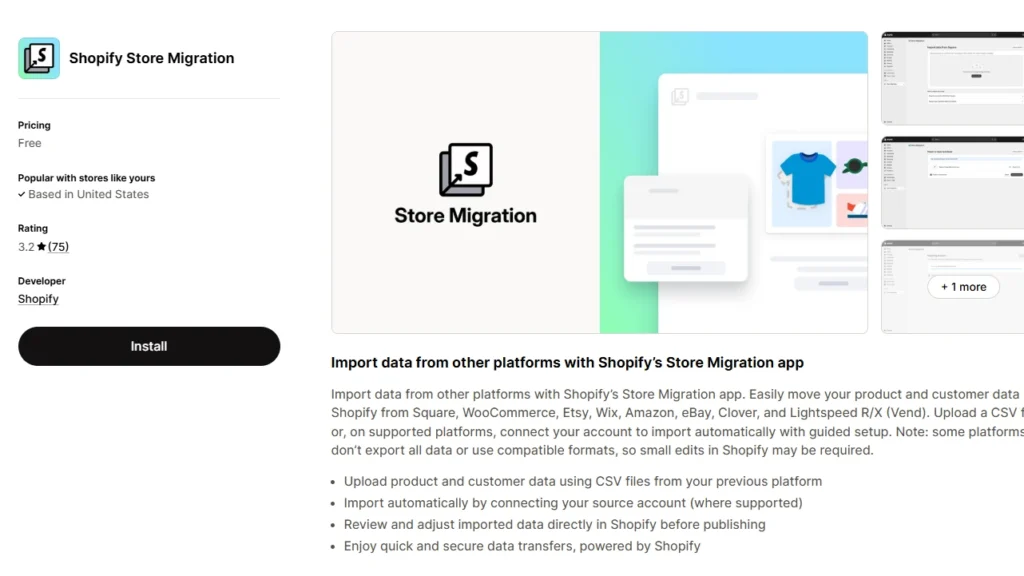
For everything else, you can use Shopify CSV imports where supported, a third-party migration tool like Cart2Cart or LitExtension, a custom API migration, or a Shopify migration agency.
If you cannot manage the move, Identixweb can handle the migration for you. Our Shopify migration service helps move your store data, rebuild required functionality, map redirects, review SEO risks, and test the new Shopify store before launch.
3. Export and prepare your WooCommerce data
WooCommerce has a built-in CSV exporter for products under Products > All Products > Export.
You can choose the products, columns, categories, and whether to include custom metadata in the export.
What happens next depends on your migration method.
The Store Migration app will accept the WooCommerce product CSV without reformatting it. If you use Shopify's product CSV importer, the WooCommerce columns need to be mapped to Shopify's format first.
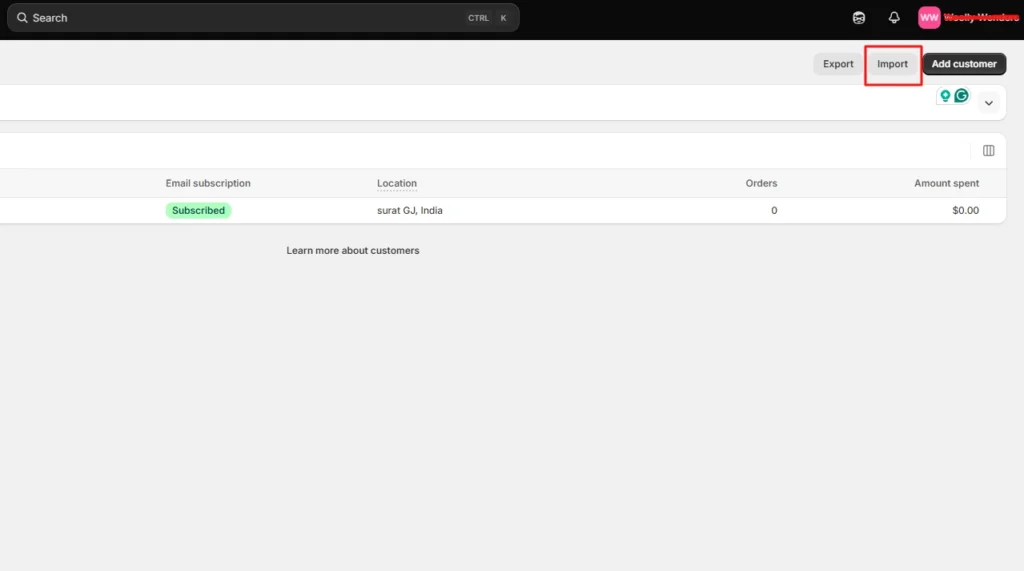
For customers, export their data and format it using Shopify’s Customer CSV template. Import them through Shopify Admin > Customers > Import.
Historical orders need a migration app such as Matrixify, LitExtension, or Ablestar WooCommerce Importer. This is because Shopify does not offer a native order CSV importer.
4. Migrate products, customers, and orders in that order
Move your products first, customers second, and historical orders last. We recommend this sequence so imported orders can connect to the right products and customers.
Validate each data set immediately after importing it rather than waiting until the entire migration is complete. After the product import, compare prices, SKUs, variants, inventory, weights, images, and descriptions against WooCommerce.
Shopify specifically recommends reviewing product data after import because incorrect data like prices can affect the store immediately.
5. Rebuild your storefront and replace WooCommerce plugins
Your WooCommerce theme does not become a Shopify theme, and your WordPress plugins do not become Shopify apps.
Build the storefront on a Shopify theme and recreate the parts of your WooCommerce setup that customers actually use.
Go through the plugin list you made earlier and match each important function with a Shopify feature, app, or custom solution.
Don't migrate plugins one-to-one. Instead, identify what each WooCommerce plugin does and determine whether the same functionality can be handled by Shopify's native features, an app, or a custom solution.
6. Set up payments, shipping, taxes, and checkout
Set up your locations, shipping zones and rates, payment provider, tax settings, checkout preferences, store policies, fulfillment process, and customer notifications.
Don't assume your WooCommerce settings can simply be copied to Shopify. Review each payment, shipping, tax, checkout, and fulfillment setting based on how the new store will operate.
7. Testing
Before launch, test the Shopify store from the customer's perspective.
Place test orders, check successful and failed payments, refunds, cancellations, fulfillment, customer emails, navigation, search, forms, product variants, discount codes, and shipping rates.
8. Run a final data check and switch the domain
If your WooCommerce store remained open during the migration, check for products, customers, and orders created after your first transfer.
Compare record counts and spot-check important orders before you switch traffic to Shopify.
Once the Shopify store is ready, connect or transfer your existing domain and make Shopify the live storefront. After the switch, test your old URLs again to make sure the redirects reach the correct Shopify pages rather than returning 404 errors.
How to migrate products from WooCommerce to Shopify
The best migration method depends on your catalog size, product complexity, and the data you need to preserve. You can use Shopify's supported migration options, CSV imports, a third-party migration tool, or an API-based migration.
| WooCommerce column | Shopify column |
| Name | Title |
| Description | Body (HTML) |
| Attribute 1 name/value (s) | Option1 Name / Option1 Value |
| SKU | Variant SKU |
| Regular price | Variant Price |
| Stock | Variant Inventory Qty |
| Weight (lbs) | Variant Grams (multiply by 453.6) |
| Images | Image Src |
WooCommerce can hold several attribute values in one cell. Shopify wants one option value per row, so each variant needs its own line.
Shopify also raised the cap to 2,048 variants per product, so catalogs with lots of sizes and colors fit easily now.
The limit of three options per product didn't change. If a product uses four attributes, move the extras into product metafields or use a product options app.
Watch your images too. Product images are imported from their WordPress URLs, so keep the old site online until the import finishes.
Images inside descriptions still point at your WordPress server. Matrixify can move them into Shopify Files, or they'll break when you cancel hosting.
How to migrate orders from WooCommerce to Shopify
Shopify's native CSV import can't handle orders, and the Store Migration app skips them too. You'll need a migration app like Matrixify, LitExtension, Ablestar, or Cart2Cart, or a custom build on the Shopify API.
Order history is worth moving. Your team keeps a full buying history for support, returns, and reporting. But the export can fool you.
A few months ago, I was on a call with a store owner. He sells coffee gear and has run WooCommerce for about eight years. He wanted every order moved, and he'd already done the export himself.

His file had around 1,900 orders. His dashboard showed more than 11,000.
He assumed the export had timed out. His export plugin hadn't been updated in years and was still reading WooCommerce's old order tables.
We dropped the plugin and pulled orders through the WooCommerce API with a migration app. The counts matched on the first run.
We also talked about what he actually needed. Failed checkouts from earlier years weren't helping anyone. We completed and refunded orders from the last three years, kept his original order numbers, and archived a full export of the rest.
Before the real import, we switched off staff order notifications. Otherwise, his inbox would have taken thousands of "new order" emails in one afternoon.
A few rules I follow on every order migration:
- Filter by status and date. Decide which order statuses and date ranges you actually need before importing historical orders.
- Silence notifications first. Prevent staff from receiving thousands of new-order emails during the import.
- Account for guest orders. Guest shoppers may not exist as customer records in WooCommerce, so check how your chosen migration method handles customer information stored against guest orders.
- Plan for order numbers. Check how your migration method handles existing WooCommerce order numbers and how new Shopify order numbers will be generated.
Protect your SEO with a 301 redirect map
Your URLs will change, and there's no way around it. Shopify uses fixed paths, so a clean 301 redirect map is what protects your traffic.
| WooCommerce URL | Shopify URL |
| /product/mug/ | /products/mug |
| /product-category/mugs/ | /collections/mugs |
| /about/ | /pages/about |
| /pourover/ | /blogs/news/pourover |
Keep your product slugs identical to your Shopify handles, so each redirect is a simple prefix swap.
Build the map from a site crawl plus your Search Console export. Import it in bulk under Content > Menus > View URL redirects.
Cover blog posts and category pages, not just products. Missed blog URLs are the gap I see most often. After launch, submit your sitemap and watch Search Console for 404s.
Migrate your store, not the issues
A meaningful WooCommerce to Shopify migration is a chance to clean up old data, replace unnecessary plugins, and simplify your store setup. It also makes sure customers and search engines land where they should after the switch.
If your store has years of order history, custom WooCommerce functionality, a large catalog, or organic traffic, treat the migration as a proper project.
FAQs
1. How to migrate from WooCommerce to Shopify?
Create your Shopify store, export and prepare your WooCommerce data, then migrate products, customers, and historical orders using Shopify’s supported import options or a migration app. After that, rebuild your storefront, replace WooCommerce plugins, configure payments and shipping, set up 301 redirects, test the store, and switch your domain to Shopify.
2. How to import products from WooCommerce to Shopify?
Export your products from WooCommerce > Products > Export as a CSV file. You can import that file using Shopify’s Store Migration app, or reformat the data to Shopify’s product CSV structure and upload it through Shopify Admin > Products > Import.
3. Should I move from WooCommerce to Shopify?
Consider moving to Shopify if you want a hosted ecommerce platform where hosting, maintenance, and the technical infrastructure are managed for you. If you depend heavily on WordPress, need backend customization, or want direct control over hosting and code, WooCommerce is a better fit.
4. How much will it cost to migrate my store from WooCommerce to Shopify?
There is no fixed migration cost because it depends on your product count, customers, historical orders, functionality, design work, apps, and SEO requirements. DIY migrations can use CSV imports and migration tools at relatively low cost, while the charges of apps such as Matrixify and Ablestar depend on the data being migrated.
5. Can WooCommerce work together with Shopify?
Yes, but WooCommerce and Shopify don't natively operate as one shared ecommerce backend. You can, for example, add Shopify Buy Buttons to a WordPress site or use third-party integrations to sync selected products, inventory, customers, or orders between the two platforms.



About the author
Vineet Nair
Vineet is an experienced content strategist with expertise in the ecommerce domain and a keen interest in Shopify. He aims to help Shopify merchants thrive in this competitive environment with technical solutions and thoughtfully structured content.