Author: Sajini Annie John
Gather knowledge about the latest insights, updates, tips, and tricks in the Ecommerce industry.

5 Min • 20 March 2026
How Anua Unlocked 5X AOV Growth with iCart’s Smart Cart Features
delivery customization Challenges Solutions drive results Scale business delivery customization Challenges Solutions drive results Scale business delivery customization Challenges Solutions drive results Scale business delivery customization Challenges Solutions drive results Scale business Anua is a globally recognized Korean skincare brand known for its minimalist philosophy and focus on gentle yet effective formulations. Built on the idea of simplifying skincare routines, Anua develops products that deliver visible results while avoiding harsh or irritating components, making them suitable for sensitive skin types. Initially using a traditional full cart experience, Anua transitioned to iCart’s side cart solution in August 2025, to create a more seamless and engaging shopping journey. This shift allowed customers to easily explore complementary skincare products without disrupting their browsing flow, making it more intuitive to discover items that fit into a complete routine. By surfacing relevant recommendations directly within the cart, the brand enhanced product visibility across its range. Challenges Before implementing iCart’s side cart solution, Anua faced limitations with their existing full cart experience, which created friction in the customer journey. The traditional cart setup redirected users away from product pages, interrupting their browsing flow and reducing opportunities to explore additional products. As a skincare brand built around routines rather than single-item purchases, this made it difficult to effectively showcase complementary products and encourage customers to build complete regimens. Additionally, the lack of in-cart personalization and strategic upsell opportunities meant that customers were often unaware of related products that could enhance their skincare results. This limited the brand’s ability to increase average order value (AOV) and fully leverage its diverse product range. Anua needed a more dynamic and intuitive cart experience that could seamlessly introduce relevant recommendations while maintaining a smooth and engaging shopping journey. ❌ Cart Value Barriers Low average order value (AOV) due to single-item focus Most customers completed purchases with one primary product instead of building multi-step routines. Cart abandonment near shipping thresholds Customers were not clearly informed or motivated to reach free shipping or discount thresholds. Missed savings opportunities Customers were unaware of potential value in purchasing bundled routines or multiple complementary products. ❌ Absence of Progress-Based Incentives No free shipping or discount progress bar Customers were not motivated to increase their cart value due to lack of visible incentives. Missing tiered rewards system There were no structured milestones (e.g., “Spend more to unlock offers”), reducing upsell opportunities. ❌ Ineffective Cart UI/UX (Pre-Side Cart) Full-page cart disrupted shopping flowCustomers had to leave their browsing journey, increasing friction and drop-offs. No quick add/remove functionality Users couldn’t easily modify their cart or add suggested products without navigating away. Solution To overcome these challenges, Anua implemented iCart’s side cart solution to transform their traditional cart into a high-converting, interactive experience. By replacing the full-page cart with a seamless side cart, the brand ensured that customers could continue browsing while viewing their cart, significantly reducing friction in the shopping journey. Additionally, features like product recommendations & progress bars for free shipping and discounts motivated customers to increase their cart value. By combining personalization, incentive-driven messaging, and a user-friendly interface, Anua successfully turned their cart into a powerful revenue-driving touchpoint rather than just a checkout step. To maximize their cart effectiveness, they implemented two powerful features: ✅ Progress Bar with Multi-Reward Incentives Implemented a tiered progress bar to encourage higher cart value Customers are guided with a clear message like “Add $3.10 to unlock secret offer,” motivating them to continue adding products. Generated over $5M+ in revenue through incentive-driven cart progression Used product-based rewards to align with customer intent Instead of generic discounts, Anua incentivized purchases with relevant skincare items like Dark Spot Pads and mini serums. Built visual motivation for routine expansion As customers add products, they can clearly track progress toward unlocking multiple rewards, encouraging them to build a complete skincare routine. ✅ Product Recommendations Implemented “Frequently Bought Together” recommendations Customers adding a single product (e.g., toner) are shown complementary items like serums, moisturizers, or pads to complete their routine. Generated over 275K revenue through in-cart recommendations Encouraged full skincare regimen building Instead of isolated purchases, the cart suggests step-by-step product combinations aligned with common skincare routines. Increased product discovery at the final stage By surfacing relevant items directly in the cart, Anua ensured customers explore more of their catalog without leaving the checkout flow. Results Achieved in Last 180 Days 22932 Total Store Orders 45101 Total iCart Orders 5X iCart Generated AOV 65.70% Upsell Affected Conversion Rate These improvements reflect a clear shift in customer behavior on Anua’s store. Cart abandonment reduced as shoppers discovered complementary skincare products and felt encouraged to build complete routines. Engagement also increased, with customers interacting more with in-cart recommendations and exploring relevant product pairings. Results & Impact And...Results is Our Main Clarification By implementing iCart’s cart drawer, product recommendations, and progress bar, Anua transformed its cart into a high-performing conversion touchpoint. Shopping Experience Enhancement The improved cart experience encouraged customers to discover complementary products and understand the value of sustainable beauty routines. For instance, the clear presentation of subscription savings alongside one-time purchase options helped customers make more informed decisions about their long-term hair care needs. As Anua continues to optimize its cart experience, the brand is closely monitoring: Routine-based purchasing behavior - tracking how customers move from single items to multi-step regimens Engagement with in-cart recommendations - measuring interaction with suggested products Cart value progression - analyzing how incentives influence higher spending [related_cases_slider] Ready to Write Your Success Story? Try icart App Join successful businesses like Anua and Master your delivery scheduling Delight customers with precise timing Grow your special occasion orders Expand your delivery reach
Read Blog
13 Min • 18 June 2026
Shopify Spring ’26 Edition: Which Updates Merchants Need to Act On?
Shopify dropped its Spring '26 Edition on June 17, 2026, and branded it "Everywhere" for good reason. Your products can now show up inside ChatGPT, Microsoft Copilot, Google AI Mode, and the Shop app, all without you touching a setting. Over 150 updates shipped in a single release, but only a handful are worth acting on immediately. And one of them is a hard deadline you cannot miss if you want your checkout to keep working after June 30. Here is the practical breakdown. What Is the Shopify Spring '26 Edition? Shopify releases two major product showcases each year under the "Editions" label. Spring '26 is the ninth Edition overall, and it launched on June 17, 2026. The theme is simple: if you are on Shopify, your products get there first, wherever commerce goes next. The 150+ updates span agentic commerce, Sidekick, marketing automation, checkout, payments, point of sale, analytics, B2B, and developer tooling. Some updates are enabled automatically. Others require action on your end. A few are gated behind Advanced or Plus plans. For context on where things stood before this release, see my breakdown of the Shopify Winter '26 Edition released just before this. Shopify Catalog & UCP: Your Products Are Discoverable by AI Image Source: Shopify Two pieces of infrastructure power the "Everywhere" theme: Shopify Catalog and the Universal Commerce Protocol (UCP). Shopify Catalog is a global, structured product database spanning billions of products across millions of merchants. UCP, co-developed with Google, is the open standard that gives AI agents one shared language to communicate with merchants, covering everything from product discovery to checkout, including discounts, subscription terms, and special conditions. Both are live for eligible Shopify merchants by default. Here is the part most guides will skim past: enabled and optimized are not the same thing. Your products are in Catalog by default, but whether an AI agent surfaces them over a competitor's depends entirely on your data quality. Shopify states that AI searches powered by clean Catalog data convert at roughly 2x the rate of searches using scraped data. New in this Edition: The Catalog API now supports Sign in with Shop, so signed-in shoppers see personalized results. Developers have also gained access to bulk lookup and image search endpoints. The Knowledge Base feature is the most underreported update in Spring '26 for me. It lives in the Agentic Storefronts section of your Admin. Shopify now shows you the questions AI agents are actively asking about your brand, things like retail locations, bulk ordering terms, and customer service policies, and lets you fill in the answers directly. I recommend that merchants spend a few minutes here to improve how AI assistants describe your business to potential buyers. Understanding the broader role AI in ecommerce plays in 2026 gives useful context for why getting this right matters beyond just Shopify's own channels. Sidekick Gets Smarter Across Every Device Image Source: Shopify Sidekick has expanded significantly in Spring '26. Three updates are worth knowing about in practical terms. Sidekick App Extensions connect third-party tools directly to Sidekick. Over 15 partner apps are supported at launch, including Klaviyo, Loop, Judge.me, and Smile. Instead of switching between your Shopify Admin and a separate Klaviyo dashboard to check campaign performance, you ask Sidekick and get the answer in one place. Sidekick Pulse powers the redesigned Admin home. It analyzes your store's sales, traffic, and inventory data in the background and surfaces your next best actions proactively. Sidekick on more devices is now live across every screen in the Shopify app. Merchants can use typing or voice to make changes to their online store from a phone. Sidekick now runs on Apple Watch as well, so quick business lookups work without opening a screen. For a closer look at getting real value from the tool, my guide on how to use Shopify Sidekick covers every use case. Campaign Autopilot Image Source: Shopify Campaign Autopilot is Shopify's structural answer to that problem. It runs paid and organic campaigns across Facebook, Instagram, Shop, and email using your store's commerce data to optimize results within the guardrails you set. ▶ Shop Campaigns has also expanded. It now reaches ChatGPT, Pinterest, and the open web through Microsoft Monetize. You can set custom bids for specific customer segments, like new versus lapsed buyers, and all billing lands on your Shopify invoice. More channels are coming soon, including Microsoft Advertising, ChatGPT Ads, and Snapchat. A new AI sales associate lives inside Shopify Inbox. It answers buyer questions, suggests products, and handles order inquiries using your catalog, inventory, and store policies. Shoppers who sign in with Shop get personalized recommendations in the chat window. ▶ WhatsApp is now a native marketing channel inside Shopify Messaging. Consent management sits alongside email and SMS, making it easier to keep your messaging preferences organized in one place. If you are already running paid campaigns for your Shopify store, Campaign Autopilot fits naturally into a broader multi-channel strategy. Shop Pay Goes Beyond Shopify Stores Image Source: Shopify Shop Pay expanding outside of Shopify is another big structural shift in Spring '26 for me. Any brand on any platform can now offer Shop Pay at checkout, gaining access to a Shopify-stated network of 250M+ shoppers and one-click purchasing. Shopify is positioning its wallet, sign-in, and payments infrastructure as the checkout layer for commerce across the internet. ▶ Sign in with Shop reinforces that direction. A buyer's profile, purchase history, and saved details follow them across surfaces, and builders can integrate the same trusted sign-in into any experience they create. For merchants operating beyond their Shopify storefront, like selling through a separate website or marketplace, activating Shop Pay there is now an option worth exploring. On the Shopify side, managed payment methods is a latest update in this edition. Shopify Payments now dynamically reorders payment options at checkout to surface whatever method is most likely to convert for that specific buyer, rather than showing a fixed list. My guide on Shopify Shop Pay covers how enabling it affects checkout conversion for merchants who haven't set it up yet. The Checkout Redesign Is Live on Every Plan Right Now The Spring '26 checkout redesign is mobile-first and available across all plans immediately. This is where things got interesting while I read the latest edition, specifically the three new Shopify updates. Ship and pick up in one checkout solves a problem omnichannel merchants have lived with for years. Before Spring '26, a customer who wanted to ship one item and collect another in-store had to place two separate orders. That is gone now. For any merchant with a physical location and an online store, enabling this should be a priority. Unified branding means you set your logo, colors, and typography once, and it applies consistently across checkout, customer account pages, and sign-in screens. The "set once, applies everywhere" model is a trust-and-cohesion win merchants can ship without developer support. 365-day customer account sessions reduce the friction of being signed out between visits, making it easier for returning customers to pick up where they left off. My guide to Shopify checkout optimization covers the additional steps worth layering on top of the redesign to push conversion further. POS v11: Shopify's Fastest In-Store Update Yet POS v11 is Shopify's fastest-ever point of sale. Shopify states that staff save over a minute on complex cart transactions. On a busy trading day with a line at the register, that time difference is meaningful. The cart now stays visible throughout the entire transaction. Discounts, edits, and customer lookups open in a side panel so staff never lose their place. Multi-select on line items allows bulk edits without repeated taps. Customer search is faster across the board. Returns, exchanges, and new sales can all be processed within a single cart using modular workflows. That removes a genuine source of friction for retail staff managing mixed transactions. ▶ New hardware: The Verifone Victa Mobile scans barcodes, takes card payments, and doubles as a countertop terminal when docked to a tablet. It is currently in Early Access for pre-order in the US and Canada. Analytics That Tell You What to Act On Most merchants are not short on data. The harder problem is knowing which numbers deserve a response. Spring '26 addresses that gap directly inside Shopify Analytics. ▶ Daily insights flag the trends worth your attention each day. Metric annotations explain why a specific number moved, removing much of the guesswork about sudden changes. You can set metric targets and track progress against them inside the platform. New visualization types have been added too: scatter plots, radar charts, bubble charts, and sunbursts. Paired with Sidekick Pulse, your Admin home now opens with recommendations drawn from your actual store data. Shopify Flow can now query sales, traffic, and inventory using ShopifyQL and trigger follow-up actions based on those results. For merchants comfortable with Flow, the automation possibilities have expanded. My Shopify analytics guide covers the core metrics worth tracking and how to use that data to make decisions that actually move revenue. Rollouts: Native A/B Testing Is Now Built Into Shopify Storefront testing has required third-party apps for years. Rollouts change that. It gives merchants native A/B testing for themes, checkout configurations, and customer account setups, all managed inside the Admin. You can also schedule a publish for a specific time without staying up late to flip the switch manually. For any merchant paying for a standalone A/B testing app, Rollouts is a direct cost replacement. More importantly, your test data sits inside Shopify's ecosystem alongside conversion and revenue reporting. A tool is not a strategy, though. Someone still needs to decide what is worth testing and interpret the results clearly. The Agentic Plan: A New Option for Businesses Not on Shopify Spring '26 introduces a standalone Agentic plan for businesses that are not on Shopify's main platform. These merchants can now sync their product catalog to Shopify Catalog and sell through AI channels and the Shop app without migrating their existing setup. For current Shopify merchants, the relevant implication is that the Catalog ecosystem is growing. More sellers joining means more data for AI agents to work with, and more reasons for those agents to prioritize Catalog-powered results. 1 Deadline You Cannot Miss: Shopify Scripts Ends June 30, 2026 Shopify Scripts stops running on June 30, 2026. Any checkout customizations still built on Scripts will break after that date. The replacement is Shopify Functions, and the migration needs to happen before the deadline. If your store uses Scripts to apply discounts, control shipping options, or run any checkout logic, those customizations will silently stop working the moment Scripts is shut off. Auditing what your store runs on Scripts and getting the migration scheduled now is the only responsible move. Checkout logic that fails mid-promotion is the worst time to find out about a deadline you missed. What You Should Actually Do First? Spring '26 ships 150+ updates. Prioritizing realistically matters more than trying to act on everything at once. Here is where most merchants should start. Clean up your product data. Shopify Catalog feeds every AI channel, and incomplete listings will not surface well against competitors with clean data. Start with titles, descriptions, dimensions, and variant attributes. This is the highest-leverage action in this entire edition. Fill in your Knowledge Base. Find the Agentic Storefronts section in your Admin, check the Knowledge Base, and answer the questions AI agents are already asking about your brand. It takes minutes and directly improves how AI assistants describe your business. Handle the Shopify Scripts migration immediately. If Scripts is running in your store, migrate to Shopify Functions before June 30, 2026. Enable unified branding and ship-and-pickup. Both are live on all plans and require no developer support. Start Campaign Autopilot on one channel. Set conservative guardrails, measure results, then expand. Connect Sidekick to your third-party apps. If you use Klaviyo, Loop, or any of the 15+ launch partners, connect them through Sidekick App Extensions. Reviewing your Shopify pricing plan is also worth doing now. Some Spring '26 features are restricted to certain plans and an upgrade might unlock more value than an additional app would. FAQs 1. What is the Shopify Spring '26 Edition? Shopify Spring '26 Edition is Shopify's twice-yearly product showcase, launched on June 17, 2026, with over 150 updates. Themed "Everywhere," it focuses on agentic commerce, Shopify Catalog, the Universal Commerce Protocol, AI-powered marketing through Campaign Autopilot, a redesigned checkout, POS v11, expanded payments, B2B expansion, and new analytics tools. 2. What is Shopify Catalog and do I need to set it up? Shopify Catalog is a global structured product database that AI agents search to find and recommend products. Eligible Shopify merchants are included by default, so no manual setup is required. 3. What is the Universal Commerce Protocol (UCP)? UCP is an open standard Shopify co-developed with Google. It gives AI agents a shared language to communicate with merchants, covering product discovery, cart building, and checkout in a standardized way. Shopify merchants are UCP-enabled by default, meaning any surface built on UCP can incorporate your checkout rules and discounts automatically. 4. What is the Shopify Scripts deadline, and what happens if I miss it? Shopify Scripts stops running on June 30, 2026. Any checkout customizations still using Scripts will stop working after that date. Merchants need to migrate those customizations to Shopify Functions before the deadline. Check your Admin now to confirm whether your store uses Scripts. 5. Is Campaign Autopilot available on all Shopify plans? Campaign Autopilot is currently in early access. Check your Admin for current availability on your plan. Shop Campaigns, which now includes ChatGPT, Pinterest, and Microsoft Monetize as surfaces, has broader general availability. 6. Can any brand now use Shop Pay, even without a Shopify store? Yes. Brands on any ecommerce platform can offer Shop Pay at checkout through Shopify's simplified onboarding. Access to a Shopify-stated network of 250M+ shoppers and one-click purchasing comes with it. 7. What is the Agentic plan announced in Spring '26? The Agentic plan is a new standalone option for businesses not on Shopify's platform. It lets them sync their product catalog to Shopify Catalog and sell through AI channels and the Shop app without migrating their existing store setup. 8. What changed in Shopify POS with Spring '26? POS v11 is Shopify's fastest-ever point of sale. It saves staff over a minute on complex cart transactions, keeps the cart visible throughout the transaction, supports returns and exchanges in one cart, and introduces the Verifone Victa Mobile as new hardware in Early Access for the US and Canada. 9. How does the ship-and-pickup in one checkout work? Previously, customers who wanted to ship some items and pick up others had to place two separate orders. Spring '26 fixes this. One cart now supports mixed fulfillment within a single checkout session. The feature is available on all plans.
10 Min • 25 June 2026
Get Instant Sales with QR Codes for Your Shopify Store (Best Methods to Add)
A customer scanning a code on your packaging or printed flyer can land on a pre-loaded checkout in seconds. I have added a QR code in the Shopify store in under two minutes, and Shopify now offers more native options than ever before. Whether you want a free Shopify QR code generator, a product-specific Shopcode, or a dynamic code with full scan analytics, I have covered every QR code Shopify merchants need in 2026. What makes a QR code Shopify's most underused growth tool? A QR code for Shopify is a scannable 2D barcode that links customers directly to a specific page in your store. It can be a product listing, a pre-loaded checkout, or a discount landing page. Every modern smartphone reads one through the camera app with no additional download required. The numbers back this up. A GS1 US consumer survey found that 79% of shoppers are more likely to purchase a product with a scannable QR code. For Shopify merchants specifically, the opportunity is clear. Every QR code Shopify merchants place in the physical world is a direct link to a sale. There are two types of QR codes you should know about before choosing a method: Static QR codes encode a fixed URL. Once printed, the destination cannot be changed. Good for permanent product pages. Dynamic QR codes point to a redirect URL you control. You can update the destination without reprinting, and you get scan analytics, including scans, unique visitors, and location data. Method 1: Free Shopify QR code generator Shopify's free QR code generator lets you create a code in about 60 seconds with no Shopify account required. Enter a URL, your email address, and the tool sends you a downloadable code file. Best for: Quick one-off codes for your homepage, a specific product page, a sale collection, or a campaign URL. Key limitation: These are static codes. Once printed, the destination URL is locked. If the URL changes, you need to reprint. Steps: Go to Shopify's free QR code generator. Select your content type. The four options are website URL, phone number, SMS, and plain text. Website URLs are the most useful for store traffic. Paste your destination URL: product page, collection, homepage, or discount URL. Enter your email address. Click Send QR code. Download from your inbox and deploy. The code never expires and has no scan limit. For a single campaign or permanent signage, this Shopify QR code generator's free option is all you need. Method 2: Shopcodes, Shopify's native QR code creator Shopcodes is Shopify's native QR code creator. Of all the Shopify QR code creator options available, Shopcodes is the most tightly integrated. Unlike the free generator, Shopcodes ties codes to specific products and lets you attach a discount code to the scan destination. Best for: Product-specific codes that send customers straight to a product page or a pre-loaded checkout. Key limitation: Shopcodes generates standard codes with limited visual customization. You cannot add brand colors or logos to the code itself. Steps to install and create a Shopcode: From your Shopify admin, go to Apps and search for Shopcodes. Click Install, then Install app. Open the Shopcodes app and click Create Shopcode. Enter an internal title for the code. Under Scan Destination, choose one of the following: > Link to a product page: Send the customer to the product listing. > Link to checkout page with product in cart: Skips browsing entirely and puts the product in the customer's cart. If you selected checkout, optionally choose a specific variant. To attach a discount code, select one from the Discount section. Note: the discount attachment option only appears when you select the checkout destination, not the product page option. Click Save, then Download. Downloaded codes come as a zip file containing a PNG for digital use and an SVG for print. For events, packaging inserts, or pop-up displays, the SVG is the version to give your printer. Method 3: Third-Party Shopify QR code generator apps When you need dynamic codes, bulk generation, or UTM tracking that flows into Google Analytics, I would always suggest a third-party app. Best for: Marketing campaigns with multiple destinations, branded packaging, and bulk code creation across a large product catalog. Here are three Shopify QR code apps that I have tried and tested. o2o – QR Codes Unlimited: Dynamic codes with customizable branding, bulk creation, discount integration, and detailed scan analytics. Free plan available. Spice QR Codes Generator: All codes are dynamic by default. Automatically generates UTM codes so scans show up correctly in Google Analytics. Also adds QR codes to invoices, packing slips, and post-purchase emails automatically. QodeVault QR Code Generator: Built for merchants who need bulk generation and real-time scan analytics across large catalogs. For more on building a high-converting page that captures traffic after the scan, read my guide on Shopify product page optimization for merchants. Shopify gift card QR code Every Shopify gift card automatically generates a unique QR code identifier. When a customer receives a digital gift card by email, Shopify adds a unique QR identifier into the card that can be scanned at POS. Here is how the Shopify gift card QR code works: A customer purchases or receives a digital gift card from your store. Shopify emails the gift card with a redemption code and, if you have activated Apple Wallet Passes, an Add to Apple Wallet button. The Apple Wallet pass displays your store information, the gift card's active balance, and a unique QR code. At your physical store or event, staff can scan the QR code using a 2D scanner or the camera on an iPad running Shopify POS. How to activate Apple Wallet Passes for your gift cards: Go to Shopify Admin > Settings > Payments. Scroll to the Apple Wallet Passes section and click Customize. Check Activate Apple Wallet Passes for gift cards. Optionally, customize the text, colors, and banner image that appear on the pass. Click Save. For a complete guide to setting up gift cards and understanding how they work, see my guide on how Shopify gift cards work in 2026. 6 high-converting ways to use QR codes in your store 1. Product packaging for repeat purchases Place a QR code on your packaging that links to a pre-loaded checkout with the same product in the cart. Attach a discount code to the Shopcode to reward repeat purchases. Shopcode app handles this natively. Check out my complete guide to creating a discount code in Shopify in 2026. 2. Pop-up events and in-person markets Running an event with limited stock on hand? Place a QR code at your booth that links to the full product collection on your Shopify store. Customers who want a different size or color can order on the spot without you needing to carry every variant. Shopify POS handles the in-person sales, and the QR code handles overflow orders. My detailed guide to Shopify POS covers how to set up the hardware and sync inventory across both channels. 3. Printed flyers and direct mail for discount campaigns Flyers and direct mail benefit from QR codes because they eliminate the need to type a URL. Customers can scan the code, and the discount is already applied at checkout. Merchants can use a dynamic code from a third-party app, so they can update the destination if a campaign extends or the discount changes. 4. Store window displays to sell after hours A "Scan to shop" QR code in your window display lets your store make sales even when the doors are closed. Anyone walking by who stops to look can scan and browse the full collection on their phone. Display a dynamic QR code here so you can change the destination for seasonal campaigns. 5. Out-of-stock products to capture interest When a product runs out, place a QR code near it or on any empty shelf display. Link it to a waitlist form or to similar in-stock products. The interested shopper does not have to leave empty-handed. You capture the intent instead of losing it. To wrap it up, here are the QR code best practices I use Minimum print size: A QR code needs to be at least 2 cm x 2 cm to scan reliably. For large format signage, size up proportionally. Smaller codes on packaging should still meet the minimum. Quiet zone: Keep a clear white border around the code equal to at least four modules (the small squares that make up the code). Contrast: A high contrast between the dark modules and the background is required. The safest option I have experience with is a dark code on a light background. Avoid reversing it to light on dark unless your code generator tests for readability. Add a CTA near every code: "Scan to shop," "Scan for 15% off," or "Scan to reorder" tells the customer why they should scan. Test on multiple devices before printing: Print a test copy at actual size and scan it with at least two different phones. What scans perfectly on a high-end device can fail on an older one. Use UTM parameters for trackability: Add UTM source, medium, and campaign tags to your destination URL. Dynamic QR code apps handle this automatically. For static codes, build the UTM URL manually using Google's Campaign URL Builder before generating the code. FAQs 1. Are Shopify QR codes free? Yes. Shopify has a free QR Code Generator that anyone can use, and it allows unlimited usage with no hidden costs or limitations. For Shopify merchants, the official Shopcodes app is also free 2. How do I create a QR code in Shopify? For a general QR code, use Shopify’s free QR Code Generator, select the data type like website URL, phone number, SMS, or plain text, add the details, enter your email, and generate the code. For a product-based QR code inside Shopify, install Shopcodes, go to Apps > Shopcodes > Create Shopcode, choose whether it should open the product page or checkout with the product in cart, then download the QR code. 3. Does Shopify have a QR code? Yes. Shopify has Shopcodes, an official Shopify app that creates scannable QR codes connected to specific products. These QR codes can send customers to a product page or directly to checkout, and Shopify also supports scan and conversion tracking through Shopify Analytics. 4. What is the best free Shopify QR code generator? Shopify's own free QR code generator tool is the easiest option. It is completely free, requires no account, and delivers the code to your email in under a minute. The only limitation is that it creates static code. For dynamic codes with scan analytics, you will need the Shopcodes app or a third-party Shopify QR code generator app. 5. What is a Shopify gift card QR code? Every Shopify digital gift card includes a unique QR identifier that can be scanned at Shopify POS. When you activate Apple Wallet Passes in Shopify Settings, gift card emails include an "Add to Apple Wallet" button. The wallet pass displays the balance and a QR code that staff can scan to apply the gift card at checkout. 6. Are Shopify QR codes dynamic or static? Shopify's free QR code generator creates static codes only. Shopcodes creates static codes tied to a specific product destination. Third-party apps like o2o and Spice QR Codes Generator create dynamic codes by default, which means you can update the destination URL after printing and track scan analytics. 7. Can I track who scans my Shopify QR code? With dynamic QR codes from third-party apps, you get scan data including total scans, unique scanners, scan timing, and geographic data. Shopcodes provides a basic analytics report inside your Shopify admin, showing scans and conversions. Static codes from the free Shopify QR code generator tool provide no native tracking.
6 Min • 1 July 2026
A Practical Guide to Selling Jewelry on Shopify: Upsells & Post Purchase Tricks
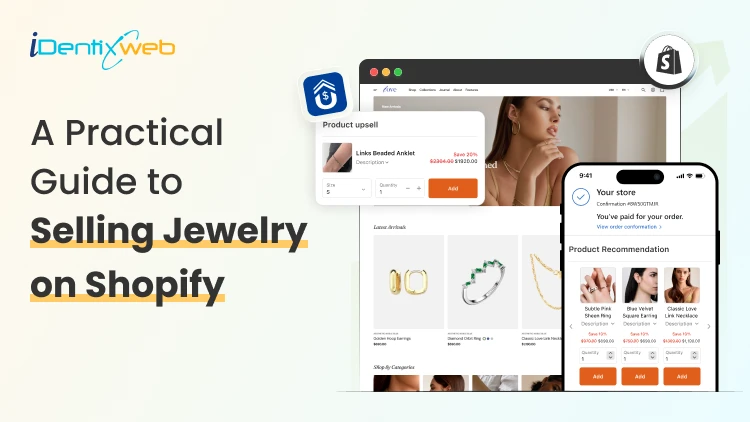
Selling Jewelry on Shopify is one of the most practical ways to turn a creative product into a scalable online business. Jewelry is visual, emotional, gift-friendly, and highly personal, which makes it a strong category for ecommerce. But at the same time, jewelry buyers need trust before they purchase. They want clear product images, metal details, size guidance, return policies, secure checkout, and a shopping experience that feels premium. In this guide, we will cover the complete process of Selling Jewelry on Shopify, including store setup, product presentation, marketing, upsells, and post-purchase tricks that can help you get more value from every order. How to sell jewelry on Shopify Step 1: Choose a Clear Jewelry Niche Most competitor blogs start with niche selection, and for good reason. Shopify’s own jewelry business guide also lists finding a niche, researching trends, defining the brand, sourcing products, taking product photos, building the store, marketing, and scaling as core steps. Your niche helps customers understand why they should buy from you instead of another store. A general jewelry store can work, but a focused brand is easier to position. You can build your niche around: Minimal everyday jewelry Premium gold-plated jewelry Handmade or artisan jewelry Bridal and engagement jewelry Personalized name necklaces Men’s bracelets and chains Spiritual, cultural, or zodiac jewelry Affordable luxury jewelry Stackable rings and bracelets Gift-ready jewelry for birthdays, anniversaries, and weddings Many Shopify jewelry stores perform better when they sell around a lifestyle, not just a product. For example, instead of saying “We sell rings,” your brand can say “Everyday stackable rings for modern women.” That instantly creates a clearer customer image. Step 2: Build a Brand That Feels Trustworthy Jewelry is not an impulse product for every customer. Some products may be affordable, but buyers still care about quality, material, packaging, skin safety, durability, and returns. Your brand identity should answer these concerns before the customer asks. Create a strong brand foundation with: A clear brand story Consistent logo, colors, and typography Premium product photography Detailed product descriptions Easy-to-find policies Customer reviews Gift packaging details Care instructions Authentic product videos For jewelry Shopify stores, trust is part of the design. A clean homepage, elegant product cards, visible reviews, and a simple navigation structure can make the store feel more premium. Your brand should also define what makes your jewelry different. Is it handmade? Tarnish-resistant? Waterproof? Customizable? Ethically sourced? Gift-ready? Designed for daily wear? These details help customers justify the purchase. Step 3: Select the Right Shopify Theme Competitor blogs often include theme recommendations because jewelry stores depend heavily on visuals. A good theme should make your products feel premium without slowing down the site. BOGOS also includes themes, product media, collections, apps, homepage optimization, marketing, store examples, and FAQs in its Shopify jewelry guide structure. When choosing a Shopify theme for a jewelry store, look for: Large product image support Mobile-first product pages Quick view option Video support Product filtering Collection-focused layout Lookbook or lifestyle image sections Sticky add-to-cart Recently viewed products Cross-sell sections Fast loading speed If you are just starting, Dawn can work well as a free theme. For premium jewelry brands, choose a theme with stronger visual storytelling, editorial sections, and better collection layouts. The best Shopify jewelry stores do not overload the homepage. They guide customers through clear sections like new arrivals, bestsellers, gifts under a certain price, personalized jewelry, and occasion-based collections. Step 4: Create Product Pages That Sell Your product page is where trust and desire meet. Nivoda’s guide on Shopify jewelry sales recommends rich product descriptions that go beyond basic specs and include craftsmanship, stone quality, carat weight, origin, and care instructions to support both SEO and buyer confidence. For Selling Jewelry on Shopify, every product page should include: Product name with material or style Clear pricing Multiple high-quality images Short product benefit summary Metal, stone, plating, size, and weight details Size guide Care instructions Shipping and return details Warranty or guarantee information Customer reviews Gift packaging details Related products A weak product description says: “This is a gold necklace for women.” A stronger description says: “Designed for everyday layering, this 18k gold-plated necklace adds a minimal shine to workwear, party outfits, and casual looks. Its lightweight chain makes it comfortable for daily wear, while the gift-ready packaging makes it a thoughtful choice for birthdays and anniversaries.” The second version gives style, usage, occasion, and gifting value. That is what helps customers imagine the product in their life. Step 5: Organize Collections Around Buying Intent Do not create collections only by product type. Jewelry shoppers often search by occasion, price, material, and recipient. Useful collection ideas include: Rings Necklaces Earrings Bracelets Anklets Personalized jewelry Gifts for her Gifts for him Wedding jewelry Minimal jewelry Gold jewelry Silver jewelry Jewelry under $50 New arrivals Bestsellers Stackable sets This type of collection structure helps both users and SEO. It also gives you more opportunities to create targeted landing pages for paid ads and email campaigns. Step 6: Use Post-Purchase Tricks That Feel Natural Post-purchase upsells work because the customer has already trusted your brand. They have completed the hardest step: placing the first order. Now you can offer something that improves their purchase. Shopify’s developer documentation notes that thank you and order status pages appear at the end of checkout and can be customized using checkout UI extensions. Here are some post-purchase tricks for jewelry Shopify stores: 1. Offer Matching Products If someone buys earrings, offer the necklace from the same collection. If someone buys a pendant, offer the matching chain. 2. Promote Gift Packaging Jewelry is often bought as a gift. Offer premium packaging, greeting cards, or custom notes after purchase. 3. Add Jewelry Care Products Offer polishing cloths, storage boxes, anti-tarnish pouches, or cleaning kits. 4. Use Limited-Time Offers Carefully Countdown timers can work, but avoid making the offer feel cheap. Use wording like “Add this matching piece before your order is packed.” 5. Offer a Second Piece at a Small Discount For stackable rings or bracelets, offer a second piece with a small discount. This works well because stacking jewelry looks better in pairs or sets. 6. Promote Bestsellers If the original product does not have a perfect match, recommend a bestseller from the same price range. These small offers can turn a single-product order into a larger order without interrupting checkout. Use SellMore to Increase AOV After Checkout Once a customer buys jewelry, the buying journey does not have to end. This is where SellMore Post Purchase Upsell can be useful for Shopify merchants who want to increase average order value without disturbing the original checkout flow. SellMore helps merchants show upsell offers on pages such as the post-purchase page, thank you page, order status page, and checkout page for Shopify Plus stores. Sell More After Every Sale Show irresistible one-click post purchase upsells at the right moment that converts.
Sajini Annie John
March 27, 2026
169 Views
Sajini Annie John
June 10, 2022
7310 Views
Sajini Annie John
April 22, 2026
118 Views
Sajini Annie John
April 22, 2026
117 Views
Sajini Annie John
March 26, 2026
183 Views
Sajini Annie John
April 16, 2026
125 Views
Sajini Annie John
April 16, 2026
119 Views
Sajini Annie John
April 15, 2026
134 Views
Sajini Annie John
April 15, 2026
138 Views
Sajini Annie John
April 14, 2026
142 Views
Sajini Annie John
April 14, 2026
153 Views
Sajini Annie John
March 31, 2026
167 Views