

Shopify Insights for Smarter Ecommerce Growth
Explore actionable ecommerce tips, Shopify how-to guides, industry trends, and proven strategies built around the challenges merchants face every day.

10 Min • 12 November 2026
Shopify for Handmade Goods: How to Sell Craft Items in 2026
You make things by hand. Now you want a place to sell them where the brand, the customers, and the profit stay with you. Shopify for handmade goods does that well, whether you pour soy candles or stitch leather wallets. As a Shopify agency, we’ve worked with merchants who now run successful businesses. Many of them started by selling handmade goods from home. Shopify even has a dedicated page for selling handcrafts. But is it worth it? For most makers who want their own brand and customer list, yes. Here’s why, and how to set it up. Can You Sell Handmade Items on Shopify? Yes. Shopify has no rule that limits handmade products. You can sell one-of-a-kind pieces, small batches, personalized orders, craft kits, and even digital patterns from the same store. Shopify is a store builder, so there's no handmade review process at all. You can mix handmade pieces with supplies or printed merch if it fits your brand. A few limits still apply. Shopify's Acceptable Use Policy bans certain products in every store. Some handmade categories also carry their own rules where you sell. Cosmetics, candles, food, and children's items often need specific labels, safety testing, or permits. Check your local rules before launch. Our guide to laws and regulations every Shopify seller should know is a good starting checklist. Why Shopify for Handmade Goods Works in 2026 Shopify works for handmade goods because you keep control of your brand, your margins, and your buyers. You pay a monthly plan and card processing. Use Shopify Payments, and there's no extra transaction fee on top. Demand is there too. IMARC Group puts the US handicrafts market at USD 372.05 billion in 2026. They credit part of that growth to shoppers who want unique, handmade, and artisan products. Here's what makes the platform practical for makers right now: Shopify now allows up to 2,048 variants per product for every merchant. Size, color, finish, and engraving combos can all live on one product page. Shopify POS lets you sell at craft fairs and pop-up markets using the same stock count as your website. Since March 2026, Shopify's Agentic Storefronts can show products from eligible stores inside ChatGPT, Microsoft Copilot, and Google's AI Mode. You manage it all from your Shopify admin. Every buyer's email belongs to you. Repeat orders don't depend on a marketplace algorithm. Does Shopify Make Products for You? No. Shopify doesn't make, stock, or ship products. It runs your storefront, checkout, payments, and orders. Making the product is on you or a production partner you choose. You have three practical routes: Make everything yourself. Every piece is truly handmade, and your brand story rests on it. Add print on demand for extras. Apps like Printify and Printful print and ship items such as totes or mugs after an order comes in. Shopify itself doesn't print or ship them. Keep these separate from your handmade line so buyers know what they're getting. Stock other brands with Shopify Collective. If you're eligible, you can sell products from other Shopify brands. Someone else still makes them. A merchant who wanted to open a handmade Shopify store A year ago, a merchant came to us who cut and stitched leather wallets by hand in a spare room after work. He'd sold a few to friends and had a small Etsy shop. His first question on our call was simple: "Does Shopify make the wallets, or do I?" We told him Shopify would run the store and he'd keep doing the making. Next, we looked at his plan. He wanted to launch with 30 designs in six leather colors. Making 180 combinations by hand would have meant months of work before his first sale. So we suggested a leaner launch: Five core designs. Initials embossing as a paid option on each product page. A clear "made to order, ships in 5 to 7 days" note near the Add to Cart button. We kept his Etsy shop open for discovery and connected it to Shopify with a sync app. For the branded totes he wanted at local markets, we pointed him to a print-on-demand partner. His launch was smaller than he first pictured. But it was also a store he could run alone, with promises he could keep to his customers. How to Start Selling Handmade Items on Shopify Start small, price for your time, and build product pages that show how each piece is made. The six steps below follow the order we use when we set up a handmade store for a client. 1. Pick a focused first collection Launch with a handful of pieces you can make well and repeat. A tight catalog is easier to photograph, price, and restock. Add new designs once you know what sells. 2. Price for your time, not just materials Add up materials, packaging, and your hours at a fair hourly rate. On top of that, add overhead, platform fees, and your profit margin. Many new makers skip the labor time and end up working for free. If the final price feels high for the customers, your photos and story need to show why it's worth it. 3. Choose your Shopify plan Most makers start on the Basic plan. In the US, it's $29 a month billed yearly or $39 billed monthly, and prices vary by country. Upgrade later when your sales justify lower card rates. Read our guide to Shopify pricing plans, which breaks down each tier. 4. Pick a theme built for a craft store A Shopify craft store needs room for stories, close-up photos, and process shots. Shopify's free Craft theme was made for this, with sections designed to bring craftsmanship to life. Here's our walkthrough of the Shopify Craft theme. Horizon, Shopify's newer free theme, is a solid pick if you want a more modern base. 5. Write product pages that show the making Handmade buyers want to see the hands behind the product. Show the process, the materials, the exact size, and care instructions. Say upfront that each piece varies slightly. Natural light and a plain background go a long way. Use the words buyers actually search for in product titles and descriptions. "Hand-thrown ceramic mug" is much better than "Homemade Mug" every time. Our Shopify SEO guide walks through the rest. 6. Set up personalization and made-to-order Add custom text fields, swatches, or file uploads so buyers can personalize their order. Our guide on adding product personalization in Shopify compares Shopify's own options with apps. If you make in batches, set up preorders on Shopify and show the production time on every product page. Adding clear lead times stops most "where's my order?" emails from customers. One last thing before launch. Weigh each item packed, not bare, so your shipping rates come out right. A handwritten thank-you note costs almost nothing and makes the order feel personal. Shopify vs Etsy for Handmade Sellers Etsy gives you instant traffic. Shopify gives you ownership. Most growing makers end up using both. Etsy's reach is real. The marketplace reported about 88 million active buyers in its Q3 2026 shareholder letter. You pay for that reach on every order, though. In the US, Etsy charges a 6.5% transaction fee, a $0.20 listing fee, and payment processing of 3% plus $0.25. Shopify and Etsy Fee at a Glance FeeEtsyShopify (Basic plan)Monthly planNone$29 billed yearly or $39 monthlyListing fee$0.20 per listingNoneTransaction fee6.5% of the order totalNone with Shopify PaymentsPayment processing3% plus $0.25Card rate set by your plan On Shopify, you pay a plan fee plus card processing. The tradeoff is that you bring your own traffic through search, social, email, and in-person sales. Read more about the Etsy vs. Shopify comparison to choose between the two. Our guide on how to integrate Etsy with Shopify also covers how to sync both platforms. 3 Handmade Shopify Stores to Learn From These three handmade Shopify stores sell very different crafts, and each one does something worth copying. Popov Leather: handmade leather goods Popov Leather makes belts, wallets, and bags by hand in its workshop in Nelson, British Columbia. It started as a basement hobby with early sales on Etsy. Today, a full workshop team sells through its own Shopify store. Most wallets can be laser-engraved with a name or initials. Every piece carries a lifetime guarantee, and customer photo reviews back up the quality. East Fork: handmade pottery East Fork makes pottery in Asheville, North Carolina, with regional materials. Their pottery is made by humans and reduction-fired in Asheville. Their product pages help buyers know exactly where each item comes from. The company always sells its standard colors but releases limited-edition seasonal colors to keep customers coming back for more. Pura Vida Bracelets: artisan-made jewelry Pura Vida Bracelets began in 2010, when two friends met bracelet makers in Costa Rica and chose to partner with them. Handmade string bracelets are still the heart of the brand, which moved from Magento to Shopify Plus as it grew. The strategy that works for them is the monthly Bracelet Club subscription, which turns one-time buyers into repeat customers. Getting Your Handmade Business Live on Shopify Shopify for handmade goods works best when you treat your store as a home base. Etsy, markets, and social media can feed it, but your store holds the brand and the customer list. Start with a small collection, price for your time, and let your product pages tell the story. Rather spend your hours making than configuring? Talk to our experts who can handle the Shopify store setup while you focus on the craft. FAQs 1. Is Shopify good for handmade goods? Yes. Shopify suits makers who want their own brand, customer data, and pricing control. It doesn't bring built-in traffic like Etsy, so plan how you'll market the store from day one. 2. How much does it cost to start a handmade Shopify store? The Basic plan costs $29 a month billed yearly or $39 monthly in the US. Also budget for a domain, card processing on each sale, packaging, and any paid apps you add. 3. Can I sell on Shopify and Etsy at the same time? Yes, and many makers do. Use a third-party sync app to keep inventory and orders aligned, since Shopify's Marketplace Connect no longer takes new Etsy connections. 4. Do I need a business license to sell handmade items on Shopify? It depends on where you live and what you sell. Shopify lets individuals open a store, but your city, state, or country may require a license or tax registration. Food, cosmetics, and children's products usually have extra rules. 5. Can you sell handmade items on Shopify? Yes. Shopify has no rules that limit handmade products. You can sell one-of-a-kind pieces, small batches, personalized orders, and craft kits from your own store. There’s no handmade review process like the one on Etsy, but it's always better to check your local rules before you launch. 6. Does Shopify make products for you? No. Shopify runs your storefront, checkout, payments, and orders. It doesn’t make, stock, or ship products. As a handmade seller, you make your own pieces. For extras like printed totes or mugs, a print-on-demand app such as Printify or Printful can make and ship them after each order.
Read Blog

10 Min • 29 October 2026
Shopify Editions Fall 2026: What’s New in the Exponential Edition
Shopify Editions Fall 2026 went live on October 28, 2026, under the name "Exponential." The Fall '26 Editions page lists 222 updates across 11 categories, from AI agents and Sidekick to POS, payments, and developer tools. The timing is deliberate. Adobe expects US online holiday spending to reach $275.1 billion this season, with traffic from AI tools up 130% year over year. Most of the Fall '26 updates are built for that shift. What Is Shopify Editions Fall 2026? The Fall '26 Edition is Shopify's newest product release, announced on October 28, 2026. Shopify named it "Exponential" because every merchant, shopper, and developer on the platform makes the network stronger for the next one. Agentic commerce, payments, and developer tooling get the most attention. Vanessa Lee, Shopify's VP of Product, summed it up in the official announcement. "Every merchant that joins Shopify benefits from every other merchant that has ever been on Shopify." Here's how the 222 updates split by category: CategoryUpdatesDeveloper57Payments30Operations23Retail (POS)20Fulfillment19Agentic16Online store16Sidekick12Shop11Merchandising9Marketing9 Some features are live now. Others carry "coming soon" or "early access" labels, so check the admin before planning around any single feature. Shopify Editions 2026: How Fall '26 Fits the Year Shopify shipped three Editions in the 2026 cycle. Each one moved merchants a step closer to selling wherever shoppers use AI. Winter '26 "Renaissance" (December 10, 2025): 150+ updates, including Sidekick Pulse, SimGym, Rollouts, and Agentic Storefronts. Identixweb covered it in this Winter '26 Edition breakdown. Spring '26 "Everywhere" (June 17, 2026): 150+ updates, led by Shopify Catalog, the Universal Commerce Protocol, and Campaign Autopilot. The full recap sits in the Spring '26 Edition guide. Fall '26 "Exponential" (October 28, 2026): 222 updates listed on the Editions page. Agents can now complete checkout, Sidekick has been rebuilt, and network data powers fraud defense and discovery. Shopify Editions News: Agentic Checkout Leads the Fall Release The biggest Shopify Editions news this fall is checkout inside AI agents. Shoppers can find a product, approve the purchase, and pay with Shop Pay without leaving the chat. Orders still land in the merchant's admin with the customer's name, email, and shipping details. shop.md turns ChatGPT, Claude, or any other agent into a personal shopper. It searches more than a billion products, checks out with Shop Pay, and tracks orders. Shop Pay now works inside Muse from Meta, Claude Duet, Grok Bot, and Instinct. Google Search, AI Mode, and the Gemini app can sell products with checkout powered by Shopify. Compare-at-price flow to AI shopping agents through Shopify Catalog, so markdowns show up with no extra setup. Shopify connectors work with nine agents, so merchants can manage orders and inventory from ChatGPT, Copilot, Gemini, Perplexity, and others. Shopper behavior backs the push. Salesforce forecasts that 20% of 2026 holiday ecommerce traffic will come from AI chat agents. WebMCP makes every store ready for agents WebMCP tools now run on every Liquid and Hydrogen storefront and checkout. Browser agents get structured data to search products, update carts, and finish checkout once the buyer approves. Merchants don't need to install anything. The checkout tools went live on September 28, a month ahead of the Edition. Catalog eligibility and the knowledge base A new admin view shows whether a store qualifies for Shopify Catalog, the data source ChatGPT, Copilot, Meta, and other agents use. It also links to fixes for anything in the way. The knowledge base, under Sales channels > Agentic, lets merchants approve what agents learn about return windows and shipping. Nothing Shopify drafts reaches an agent until the merchant publishes it. Sidekick, Canvas, and the Redesigned Admin Sidekick was rebuilt for Fall '26. It can now run calculations, write code, search the web, and remember what a merchant teaches it. Every change needs the merchant's approval. Usage is climbing fast. Daily Sidekick sessions grew 4.2x year over year, and Sidekick made more than 25 million theme edits in the first half of 2026. It can now apply several changes from one approved plan, edit draft orders, and explain why a payout came in lower. Canvas shows the entire store on one surface. Merchants can edit it directly or ask Sidekick for anything from a small tweak to a full redesign. Canvas is in early access, and Shopify says stores go from no theme to launch 20% faster with it. Here’s our guide to Shopify Sidekick use cases for every merchant. New Theme Architecture: What It Changes for Storefront Builds Page structure now lives inside the Liquid template instead of a separate JSON file. Themes get blocks, typed contracts, partial updates, markdown files that guide AI agents, and Tailwind styling built in. Our team saw the problem this solves during a Horizon rebuild. After the Summer '25 Edition introduced Horizon themes and nested theme blocks, the team moved a client's product page onto the new framework. The merchant loved it. Size guides, care notes, and FAQ blocks could be rearranged in the theme editor with no developer ticket. The developers had a harder time. Each page was split between a JSON template and a tree of section and block files. Reviewing one product page meant opening several files and piecing them together. Handing the build to a second developer took a full walkthrough call. The Fall '26 architecture closes that gap. A developer, or a coding agent, can now read a whole page from top to bottom in one file. Shopify also now delivers only the CSS each page uses, so pages load faster. Hydrogen has been rebuilt to work with any framework, and Vercel Shop gives headless teams a ready Next.js template. Payments, Fraud, and Checkout Updates Payments got 30 updates, the most of any merchant category. The headline is Shopify Protect, a set of fraud and dispute tools that learns from signals across millions of stores. Shopify Payments stops more than 12,000 high-risk payments every minute, at no extra cost. High-risk orders are now blocked before payment is authorized. The Shopify Protect Rule Builder lets merchants write fraud rules and test them against past orders. AI drafts chargeback responses for each bank, and carrier proof of delivery attaches to disputes automatically. Seven local payment methods joined Shopify Payments: Alipay, WeChat Pay, MB WAY, OXXO, Satispay, Scalapay, and GrabPay. Checkout gets a tiled payment layout and custom fields for gift messages or delivery instructions. Apple Pay in any browser is coming soon. Shopify Managed Markets now offers prices that include duties and taxes with flat-rate shipping, and Shopify says brands saw 50% higher international conversion. For the basics, see our guide on Shopify fraud protection tips. POS, Shop App, and Marketing Highlights POS can now recognize more store customers who've paid with Shopify Payments elsewhere. A known customer at the counter has over 60% higher lifetime value than an unknown one. Carts sync across POS devices, and staff can open a known customer's abandoned online cart at the register. Universal Checkout on Shop lets shoppers buy from several brands in one cart, and Shop now has a web home at shop.com. Campaign Autopilot adds Microsoft Advertising, Snapchat, and SEO, with X Ads coming soon. Shop Campaigns expands to over 35 new markets. Shop Promise eligibility grew 20x, and badged products rank higher in Shop search and Shopify Catalog. Shopify Messaging adds WhatsApp automations and a ready-to-send Black Friday email campaign. Shopify now supports 13 more languages, including Bengali, Gujarati, Marathi, Tamil, and Telugu. Storefronts can now launch in Arabic, Hebrew, or Urdu. Developer and App Deadlines to Watch Two deadlines can break features on live stores if teams ignore them. Script tags. Since October 1, 2026, apps can't create or update storefront script tags. On March 1, 2027, Shopify will stop loading them, per the script tag deprecation notice. Apps must move to app embed blocks or web pixels. Expiring access tokens. All public apps must use expiring offline access tokens by January 1, 2027. Apps still on old tokens will hit authentication errors. Developers also get an app security check in the Shopify CLI and IP restrictions for API calls. Merchants should ask app vendors now whether these migrations are done. What to Act On Before The Holiday Season 2026 Not every update needs action this month. Focus on discovery, checkout, and fraud during peak traffic. Run the Shopify Catalog eligibility check and clear anything it flags. Review and publish the knowledge base facts agents will see. Set compare prices on sale items so agents show the markdown. Bundle the BFCM theme, discount, and catalog changes into one Rollout with automatic rollback. Turn on Shopify Protect tools and review risk rules before traffic spikes. Confirm no installed app still depends on script tags. Most store owners don’t have spare hours for these admin changes this close to peak season. Identixweb’s Shopify store setup and management team can take care of Catalog fixes, Rollout setup, and app checks while merchants focus on selling. What's Next After Shopify Editions Fall 2026 Shopify reports Q3 2026 results on November 3, 2026, its first earnings update since the Edition launched. Several features are still marked as coming soon, including Apple Pay in any browser and a store audit log. Shopify hasn't announced the next Edition date. One gap stands out for us: B2B. Only two of the 222 items mention B2B directly. Wholesale brands that need quoting or approval workflows will still rely on apps or custom builds. Shopify Editions Fall 2026 points in one clear direction. Stores need clean product data, published policies, and a checkout agents can complete. Merchants who tighten those basics before Black Friday will see the payoff first. FAQs 1. When was Shopify Editions Fall 2026 released? Shopify released the Fall '26 Edition, called "Exponential," on October 28, 2026. 2. How many updates are in the Shopify Fall '26 Edition? The Editions page lists 222 updates across 11 categories. Developer is the largest category with 57, followed by Payments with 30. 3. What’s new in the Shopify Editions Fall 2026? Major updates include Shop Pay checkout inside AI agents and WebMCP tools that let browser agents shop any store. Sidekick was rebuilt to write code and search the web, and Canvas lets merchants redesign a store with it. Shopify Protect brings new fraud and chargeback tools. 4. What is Shopify Canvas? Canvas is a design surface that shows a whole store on one screen. Merchants edit it directly or through Sidekick. It's currently in early access. 5. Do merchants need to set up WebMCP? No. WebMCP tools run by default on every Liquid and Hydrogen storefront and checkout. 6. Which AI agents support Shop Pay checkout? Shop Pay works in Muse from Meta, Claude Duet, Grok Bot, and Instinct. Shoppers can also use shop.md with ChatGPT, Claude, and other agents. 7. Which Fall ‘26 updates should I act on before Black Friday? Start with the updates tied to discovery, checkout, and fraud. Run the Shopify Catalog eligibility check, publish knowledge base facts, and compare at prices on sale items. After that, turn on Shopify Protect tools and group BFCM themes and discount changes into one Rollout. 8. Will the script tag and access token changes affect my store? Only if an installed app still relies on them. Apps can no longer create or update script tags, and Shopify stops loading them on March 1, 2027. Any widget or tracking code still using them will stop working. Public apps must also switch to expiring access tokens by January 1, 2027, while custom apps aren’t affected. Merchants should ask each app vendor to confirm both migrations are done.
10 Min • 27 August 2026
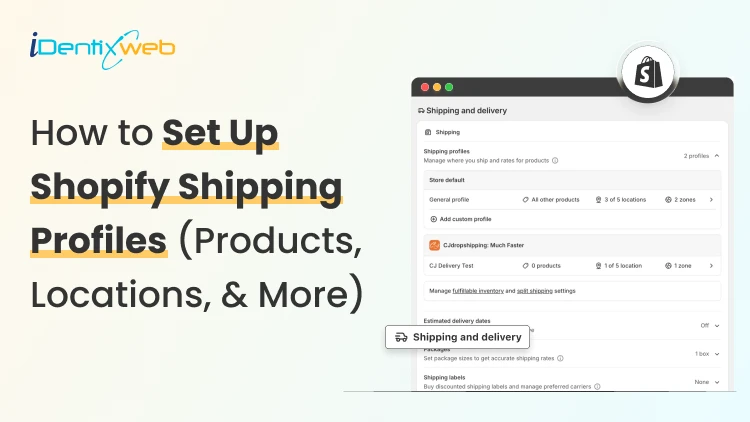
How to Set Up Shopify Shipping Profiles (Products, Locations, & More)
To set up a custom shipping profile in Shopify, go to Shopify Admin → Settings → Shipping and delivery → Shipping profiles → Add custom profile. Add the required products or variants, assign fulfillment locations, create shipping zones, and configure shipping rates based on your requirements. Custom shipping profiles help merchants manage different shipping rules for products like fragile, heavy, oversized, or region-specific items without affecting their entire catalog. Shipping gets complicated when you can't treat every product the same way. A T-shirt, glass vase, and 20-pound bag of pet food might all sit in the same Shopify store. But charging the same shipping rate for each can hurt your margins. Shopify shipping profiles solve this by grouping products with similar shipping needs. It controls where they ship from, where they can ship to, and what customers pay. This guide covers products, variants, fulfillment locations, shipping zones, rates, multiple warehouses, and the checkout issues merchants should test before going live. What Are Shopify Shipping Profiles? Shopify defines a shipping profile as a set of shipping rules for specific products and locations. Stores get a General shipping profile by default, while custom profiles handle products that need different rates. Shipping profileBest forWhat happensGeneral shipping profileProducts using the same shipping ratesProducts stay here unless moved to a custom profileCustom shipping profileFragile, oversized, heavy, or other special productsSelected products or variants get their own locations, zones, and rates Shopify currently allows up to 99 custom shipping profiles for stores using the shipping-profile system. A product or variant can belong to only one profile at a time. Adding it to another profile automatically removes it from the previous one. When do you need a custom shipping profile? You need a custom shipping profile when certain products need different shipping rules from the rest of your catalog. I will explain this better with a few examples below: Furniture or oversized products: Use a separate profile when these products need higher flat rates or special delivery charges. Fragile items: Create one when products such as glassware require extra packaging and higher shipping costs. Heavy products: Use a separate profile if shipping charges need to be calculated differently based on weight. Products sold only in selected regions: Use a separate profile when certain items should ship only to specific countries, states, or regions. Products with free shipping: Create a profile when only selected products should qualify for a $0 shipping rate. Products needing carrier-calculated rates: Use a separate profile when only certain products need live carrier rates instead of your standard flat rates. If most products follow the same shipping rules, keep them in the General shipping profile and create custom profiles only where there is a real difference in cost, location, or delivery requirement. What to prepare before setting up a shipping profile Before creating a profile, I normally map these four things. 1. Products Decide which products or variants genuinely need different shipping treatment. For example, a home decor store will keep cushions and small accessories in the General profile. They move large mirrors into a custom profile because they require protective packaging and higher shipping charges. 2. Fulfillment locations Check where the products are stocked and fulfilled. Locations can represent warehouses, retail stores, fulfillment partners, and other order origins. When a shipping profile is created, eligible online-fulfillment locations are added to it. Locations can share one location group when they use the same zones and rates, or be separated when shipping rules differ. 3. Shipping zones A shipping zone is a group of countries or regions that share shipping rates. You might create zones such as Domestic, Canada, Europe, or selected international countries. Want to sell internationally? Here’s my breakdown of international shipping on Shopify for merchants in 2026. 4. Shipping rates Shopify supports flat rates, order-value-based rates, weight-based rates, carrier or app-calculated rates, and free shipping. Shipping in Shopify can be complicated. Here are my top Shopify shipping strategies to increase sales in 2026. How to create a Shopify shipping profile step by step Step 1: Open Shipping and Delivery From the Shopify admin, go to: Settings > Shipping and delivery Under Shipping profiles, you will see the General profile and any existing custom profiles. Step 2: Create a custom shipping profile Click Add custom profile and enter a clear name, such as: Heavy Products Fragile Items Furniture Free Shipping Products US Warehouse Products Step 3: Add products or variants You can also see the Products section just below the Profile name section. A product or variant can belong to only one shipping profile at a time. This becomes especially useful when only certain variants need different shipping rules, while the rest of the product can stay in the General profile. For example, a merchant selling framed prints might keep the standard-size variants in the General profile. They will move only the oversized frame variant into a custom profile if it needs higher shipping charges, different packaging, or a different fulfillment method. Step 4: Configure fulfillment locations Review Fulfillment locations. If several warehouses should use the same zones and prices, keep them in the same location group. If one warehouse needs different rules, separate it. For example: New York: United States Each location group can have its own zones and rates. Step 5: Create shipping zones For each location group, click Add zone, name it, select the countries or regions, and click Done. For example, a US merchant may create a West Coast zone for California, Oregon, and Washington with a lower shipping rate. They may place Alaska and Hawaii in a separate zone because delivery there costs more. Separate zones help merchants charge rates that better reflect the actual cost of shipping to different regions. Build zones around actual delivery coverage and cost. If certain regions are significantly more expensive to serve, separate rates will be more practical. Step 6: Add shipping rates Inside each zone, click Add shipping option and choose the rate type. Flat rate: Charge one fixed amount, such as $7 for Standard Shipping. This works well when shipping costs are predictable. Order amount-based rate: Change shipping by cart value. A store could charge $8 below $50, $5 from $50 to $99.99, and offer free shipping from $100. Weight-based rate: Charge according to shipment weight. This suits food, hardware, liquids, bulk goods, and similar products. Make sure product weights are accurate, and your tiers cover the full expected weight range. Carrier or app-calculated rate: Let an eligible carrier or app calculate shipping from information such as weight, destination, and package details. Step 7: Save and test Click Save, then place test orders using realistic combinations: A product from the General profile A product from a custom profile Products from two profiles Products fulfilled from different locations Different domestic or international addresses Orders above and below free-shipping thresholds Free shipping can be a great tool to increase conversions. Here’s my complete guide to Shopify free shipping strategies for merchants. Need Help Configuring Your Shopify Shipping Settings? As product catalogs, fulfillment locations, shipping zones, and rate rules grow, managing everything accurately can become difficult. For example, a merchant may sell standard products from one warehouse, oversized items from another, and charge different rates for Alaska and Hawaii. If these rules are not configured properly, customers may see the wrong rate, duplicate charges, or no suitable shipping option at checkout. That’s where Identixweb can help. Our Shopify Store Settings Configuration service helps merchants configure complex shipping, payment, tax, and checkout settings so everything works correctly together. What happens when products come from different profiles? I get this question a lot. Under the current shipping-profile system, Shopify can combine shipping rates when an order contains products from different profiles or requires different location groups. Example: ProductProfile shipping rateT-shirt$4Fragile mug$7Possible combined charge$11 In this case, the customer may see an $11 shipping charge at checkout because Shopify is combining the applicable rates from both profiles. The setup may be technically correct, but the final charge can still feel high to the customer. That’s why merchants should test mixed-profile orders before going live, especially when customers commonly buy products from different profiles together. This helps confirm that the final shipping cost is reasonable and avoids unexpected checkout charges. Common Shopify shipping profile mistakes I see #1 Creating too many profiles This is the most common mistake I encounter with merchants. More profiles do not automatically improve shipping. Start with the General profile and add a custom profile only when a real cost, destination, or fulfillment difference exists. #2 Ignoring mixed-cart costs A rate that looks reasonable for one item but when the customer adds another item with a different profile, the shipping rates increase. Always test mixed carts before creating a profile. #3 Using inaccurate weights Weight-based and calculated rates depend on accurate product data. Incorrect weights can lead to inaccurate checkout charges. #4 Creating zones without checking markets A country appearing in a shipping zone is not enough if that country is not in an active market. Set up Shopify shipping profiles the right way A well-planned Shopify shipping profile helps merchants charge more accurate shipping rates without making fulfillment unnecessarily complicated. The key is to group products only when their shipping costs, destinations, or fulfillment requirements are genuinely different. Start simple, test mixed-product carts, review location-based rates, and update profiles whenever products, warehouses, or shipping costs change. A clean setup makes checkout easier for customers and shipping easier to manage as the store grows. FAQs 1. How to add products to a shipping profile in your Shopify store? Go to Settings > Shipping and delivery > Shipping profiles, open or create a custom profile, and select the products you want to add from the Products section. A product or variant can belong to only one shipping profile at a time, so adding it to a custom profile automatically removes it from its previous profile. 2. What is the difference between a general and custom shipping profile? The General shipping profile is Shopify's default profile and automatically applies to products that aren't assigned to a custom profile. A custom shipping profile is used when certain products need different shipping rates, zones, or fulfillment rules, such as fragile, heavy, or oversized items. 3. Can I offer free shipping for any selected products? Yes. To offer free shipping only on selected products, add those products to a custom shipping profile and create a flat shipping rate with the price set to $0 or enable free shipping for that rate. 4. Does shipping increase when customers buy two products in different shipping profiles? Yes. When products from different shipping profiles are purchased together, Shopify combines their applicable shipping rates and displays one total rate at checkout, which will make the final shipping charge higher. 5. Should I use flat or carrier-calculated shipping rates in Shopify? Use flat rates when shipping costs are predictable, and you want a simple, consistent checkout experience. Use carrier-calculated rates when costs vary significantly by destination, package weight, dimensions, or delivery speed.
12 Min • 18 September 2026
Squarespace to Shopify Migration: A Step-by-Step Guide From Someone Who Has Done This Before
Migrating from Squarespace to Shopify requires auditing your existing store, exporting and formatting data, importing products and customers, rebuilding the storefront, replacing apps. You also need to set up payments and shipping, map old URLs, create SEO redirects, test checkout and customer flows, and monitoring traffic, sales, and technical issues after launch. A Squarespace store can take you far, but many businesses eventually reach a point where they need more ecommerce flexibility, advanced features, and room to scale. That is when Shopify becomes a natural next step. But migrating from Squarespace to Shopify is not just about copying products from one store to another. A successful migration involves data mapping, storefront rebuilding, URL redirects, customer and order data, app replacements, SEO checks, and thorough testing before launch. The important part is getting the order right. Some decisions need to be made before you export your data, while others can create problems if they are left until after the new Shopify store goes live. This guide walks through the Squarespace to Shopify migration process step by step, including what to prepare, what needs to be transferred or rebuilt, what to check before launch, and what to monitor after your Shopify store is live. Common methods to migrate from Squarespace to Shopify There is no single migration method that works for every Squarespace store. The right approach depends on your catalog size, the type of data you need to move, your existing integrations, and how much of the new Shopify store needs to be rebuilt. CSV export and import CSV export and import is the method I recommend for most small and mid-size stores. You can export your products, customers, and orders from Squarespace, reformat the files to match Shopify's templates, then import them through your Shopify admin. Third-party migration apps Third-party migration apps like Migration Pro can automate this process. I always tell people to double-check compatibility first. Shopify's own free Store Migration app currently also supports platforms like WooCommerce, Wix, Etsy, Square, and Squarespace. Hiring an agency For larger catalogs, complex stores, or businesses that cannot risk downtime, hiring a Shopify migration agency can make the transition smoother. An experienced team handles data migration, SEO redirects, app setup, testing, and launch support while ensuring your store moves without losing important customer and business data. If you want experts to handle the entire process, Identixweb’s Shopify migration services help businesses move from platforms like Squarespace, WooCommerce, Wix, and other custom platforms with minimal disruption. A Squarespace migration is more than a data transfer A migration isn't always about fixing a poorly performing store. A business may already be generating sales and still reach a point where its existing platform makes growth or day-to-day management harder. For example, just recently I had a conversation with a store with a growing catalog. They needed more control over its ecommerce functionality, checkout experience, integrations, or customer journey. In that situation, simply reproducing the existing website on Shopify misses part of the purpose of the migration. The migration should begin by identifying the parts of the existing store that need to be preserved, the functionality that needs to be recreated, and the areas that can be improved during the rebuild. That means reviewing the store structure, mapping important URLs, identifying integrations and customer workflows, and deciding what should be migrated as-is versus redesigned for Shopify. This is why it is useful to approach a Squarespace to Shopify migration as a controlled store rebuild, not just a platform switch. How to migrate from Squarespace to Shopify step by step Step 1: Audit your Squarespace store before migrating Before exporting anything, create a complete inventory of your existing Squarespace store. Make a list of your products, collections, pages, blog posts, images, customer data, and important URLs. This helps you separate three things: What needs to be migrated What needs to be rebuilt What can be removed or improved It is also the right time to remove outdated products or content that you no longer want to carry forward. Step 2: Create your Shopify store and prepare the setup Create your Shopify account and configure the basic settings before importing any data. Set up your store preferences, payment methods, shipping settings, taxes, and customer account options. This is also a good time to select a Shopify theme and plan how your new storefront will be structured. Your Squarespace design will not transfer automatically, so having a clear layout plan makes the rebuilding process much easier. Step 3: Export your Squarespace store data Squarespace allows you to export important store data that can be moved to Shopify. Depending on your store setup, this may include: Product information Customer details Order records Website content Blog posts Export these files carefully and keep a backup of your original Squarespace data before making any changes. Step 4: Format your data for Shopify Shopify uses a different structure than Squarespace, so exported data needs some cleanup before importing. Product fields need to be mapped correctly, including converting Squarespace product URLs into Shopify Handles, restructuring categories into Shopify product types or collections, and converting product weights into Shopify’s required gram format. Take time to review product titles, descriptions, variants, images, and inventory details before importing. Step 5: Import your products into Shopify Once your product data is ready, upload the CSV file through Shopify Admin under Products > Import. Avoid publishing products immediately. Import them as drafts first so you can review everything before customers see them. Check product images, pricing, variants, inventory, and descriptions carefully. Check: Product images Pricing Variants Inventory Product descriptions Product types and collections URLs and handles If you are migrating a large catalog, it is also useful to review a sample of imported products across different product types rather than checking only a few similar products. This can help uncover mapping problems that may affect only certain products or variants. Step 6: Migrate customers, orders, and reviews Product migration is the easiest part. Customer accounts, order history, and reviews require additional attention. Customer information can be imported into Shopify from Customers > Import. Note: Passwords cannot be transferred because platforms store them differently. Customers may need to activate their accounts again after migration. Squarespace reviews cannot be directly exported, so you will need a Shopify review app to rebuild your social proof. Historical orders also require third-party migration tools because Shopify does not support direct order imports through a standard CSV file. Step 7: Rebuild your Shopify storefront and pages Your Squarespace theme will not move to Shopify, which means your storefront design needs to be recreated. Rebuild important pages such as your homepage, product pages, collection pages, about page, and contact pages. Choose a Shopify theme that matches your brand style and customize it based on your customer journey. This is a good opportunity to improve your navigation, page speed, and conversion elements instead of creating an exact copy of your old store. Step 8: Install essential Shopify apps and configure features One of Shopify’s biggest advantages is its app ecosystem. After rebuilding your store, install the tools your business needs to improve customer experience and sales. Depending on your requirements, this may include: Product reviews Email marketing Search and filtering Upsells and cross-sells Loyalty programs Analytics tools The right apps can help replace missing Squarespace functionality and add features that support your store’s growth. Step 9: Set up SEO redirects and check search visibility SEO is one of the most important parts of any migration. Squarespace and Shopify use different URL structures, so old links need to be redirected properly. Create a redirect map that connects your existing Squarespace URLs with their new Shopify URLs. Transfer important metadata, review indexed pages, and check that your high-traffic pages have a matching destination on Shopify. Step 10: Test everything before launching Before switching your domain, test your entire Shopify store as a customer would. Check: Product pages Search functionality Cart and checkout flow Payment methods Shipping rates Mobile experience Customer account access Redirects Place test orders and fix any issues before making your Shopify store live. A careful launch checklist can prevent problems that affect customers after migration. Coming from a different platform instead of Squarespace? The migration process changes depending on the platform you're moving from. If you're migrating to Shopify from another ecommerce platform, explore these related guides: Wix to Shopify migration WooCommerce to Shopify migration BigCommerce to Shopify migration Post-migration tips: Issues to solve after moving from Squarespace to Shopify Launching the Shopify store is not the end of the migration. The first few weeks are important for identifying issues that only become visible once real customers and search engines interact with the new site. Fix broken links and missing redirects One of the most common issues after migration is broken URLs. Since Squarespace and Shopify use different URL structures, some old pages may return 404 errors if redirects are not set up properly. Check your most visited pages, product URLs, and blog links. Create redirects for missing pages and regularly monitor Google Search Console for crawl errors. Don't only check whether a redirect exists. Make sure it points to the most relevant equivalent page rather than sending every old URL to the homepage. Check product data and images Even after a successful product import, some details may not transfer perfectly. Review your product catalog for missing images, incorrect variants, pricing errors, inventory mismatches, or formatting issues. For larger catalogs, use a sample-based review across different product types and then investigate any patterns you find. This is often more efficient than manually checking every field on every product. Review checkout and payment settings A change in platform can affect your checkout configuration. Test the complete buying journey, including adding products to cart, applying discount codes, selecting shipping options, making payments, and receiving order confirmation emails. Check your payment gateways, tax settings, and shipping rates to avoid issues for real customers. Rebuild missing features from Squarespace Some features available on your Squarespace store will not exist by default in Shopify. Identify any missing functionality and replace it with Shopify apps or custom solutions. This could include product reviews, advanced search, subscriptions, loyalty programs, bundles, or upselling features. The goal isn't to recreate every feature automatically. It is to make sure the new Shopify store supports the customer and business workflows that actually matter. Optimize your Shopify store after migration A migration is also an opportunity to improve your store instead of simply recreating your old website. Review your product pages, navigation, mobile experience, and conversion elements. Use Shopify’s ecosystem to add features that improve customer experience, such as cart upsells, personalized recommendations, and better product discovery. Monitor traffic and sales performance Keep tracking your store performance after launch. Compare your Shopify data with your previous Squarespace metrics to identify changes in traffic, conversion rate, and customer behavior. A temporary fluctuation is normal after migration, but consistent drops usually indicate issues with SEO, tracking, user experience, or technical setup. If performance drops, check SEO redirects, indexing, tracking, site speed, product availability, checkout functionality, and the customer experience before assuming the platform itself is responsible. Planning your Squarespace to Shopify migration? A successful Squarespace to Shopify migration is less about moving everything as quickly as possible and more about controlling what changes along the way. Start with a store audit. Map your data before importing it, rebuild the storefront around your current requirements, plan your redirects before launch, and test the customer journey before switching your domain. For straightforward stores, much of the process can be handled in-house. Larger catalogs, custom functionality, complex integrations, or stores with significant organic traffic may benefit from specialist migration support. Identixweb helps businesses plan and execute Shopify migrations, including data migration, storefront rebuilding, SEO redirects, integrations, testing, and post-launch support. FAQs 1. Why do store owners migrate from Squarespace to Shopify? Store owners move from Squarespace to Shopify when their ecommerce requirements become more complex. Common reasons include access to a broader app ecosystem, more flexibility for ecommerce functionality, greater control over the customer journey, international selling capabilities, and more options for extending the store as the business grows. 2. How do I migrate from Squarespace to Shopify? Start by auditing your Squarespace store and backing up your data. Export the information that needs to be transferred, prepare it for Shopify's data structure, import your products and customer information, rebuild your storefront, configure required functionality, and create redirects for important URLs. Before switching your domain, test the store, checkout, payment methods, redirects, and customer-facing functionality. 3. Will I lose my SEO rankings when I migrate Squarespace to Shopify? A platform migration does not automatically mean you will lose your rankings, but changes to URLs, content, internal links, indexing, and site structure can affect organic visibility. Create redirects for important old URLs, preserve valuable content and metadata, check your new site's indexing, and monitor Google Search Console and organic traffic after launch. 4. Can I migrate my Squarespace reviews to Shopify? No. Squarespace does not support exporting reviews. You will need to rebuild that section using an app like Judge.me, Loox, or Yotpo. 5. How much does it cost to migrate from Squarespace to Shopify? The cost depends on how much data needs to be transferred, the size of the catalog, the complexity of the storefront, custom functionality, integrations, SEO requirements, and whether the migration is handled in-house or by a professional team. A straightforward DIY migration may involve little more than your time and Shopify's own costs, while a complex migration can require development, design, data migration, SEO, and testing work. 6. What are the different methods to migrate from Squarespace to Shopify? You can migrate from Squarespace to Shopify manually using CSV exports and imports, use a third-party migration app, or hire a Shopify migration agency to handle the process end-to-end. The right method depends on your catalog size, store complexity, custom functionality, and how much of the migration you want to manage yourself.
Sajini Annie John
July 31, 2020
7250 Views

Sajini Annie John
April 9, 2020
6187 Views
Sajini Annie John
December 11, 2019
7866 Views
Sajini Annie John
December 9, 2019
13365 Views
Sajini Annie John
December 4, 2019
12484 Views
Sajini Annie John
November 6, 2019
8603 Views
Sajini Annie John
October 10, 2019
14236 Views