




Migrating from Squarespace to Shopify requires auditing your existing store, exporting and formatting data, importing products and customers, rebuilding the storefront, replacing apps. You also need to set up payments and shipping, map old URLs, create SEO redirects, test checkout and customer flows, and monitoring traffic, sales, and technical issues after launch.
A Squarespace store can take you far, but many businesses eventually reach a point where they need more ecommerce flexibility, advanced features, and room to scale.
That is when Shopify becomes a natural next step.
But migrating from Squarespace to Shopify is not just about copying products from one store to another. A successful migration involves data mapping, storefront rebuilding, URL redirects, customer and order data, app replacements, SEO checks, and thorough testing before launch.
The important part is getting the order right. Some decisions need to be made before you export your data, while others can create problems if they are left until after the new Shopify store goes live.
This guide walks through the Squarespace to Shopify migration process step by step, including what to prepare, what needs to be transferred or rebuilt, what to check before launch, and what to monitor after your Shopify store is live.
Common methods to migrate from Squarespace to Shopify
There is no single migration method that works for every Squarespace store. The right approach depends on your catalog size, the type of data you need to move, your existing integrations, and how much of the new Shopify store needs to be rebuilt.
CSV export and import
CSV export and import is the method I recommend for most small and mid-size stores.
You can export your products, customers, and orders from Squarespace, reformat the files to match Shopify's templates, then import them through your Shopify admin.
Third-party migration apps
Third-party migration apps like Migration Pro can automate this process. I always tell people to double-check compatibility first.
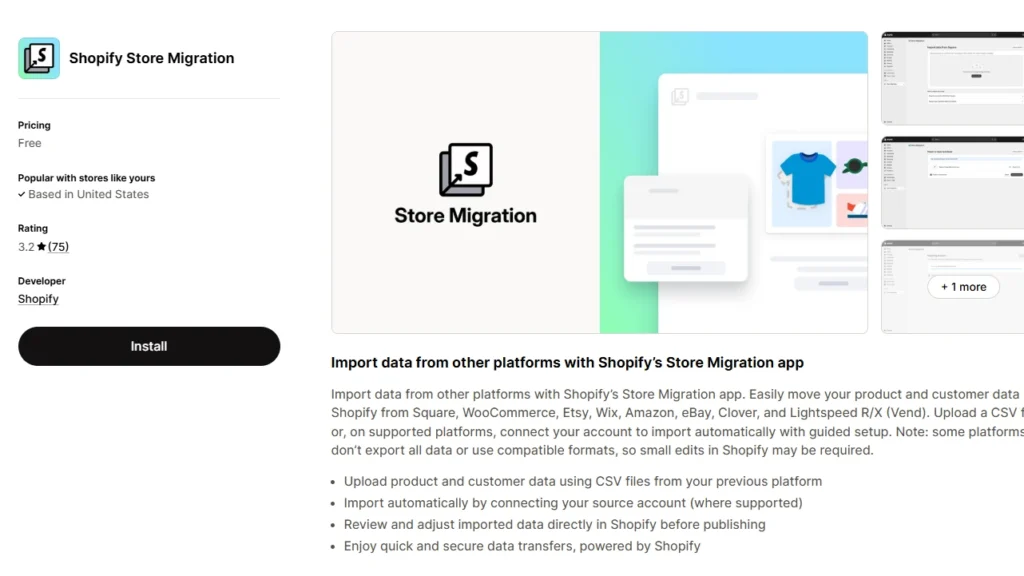
Shopify's own free Store Migration app currently also supports platforms like WooCommerce, Wix, Etsy, Square, and Squarespace.
Hiring an agency
For larger catalogs, complex stores, or businesses that cannot risk downtime, hiring a Shopify migration agency can make the transition smoother.
An experienced team handles data migration, SEO redirects, app setup, testing, and launch support while ensuring your store moves without losing important customer and business data.
If you want experts to handle the entire process, Identixweb’s Shopify migration services help businesses move from platforms like Squarespace, WooCommerce, Wix, and other custom platforms with minimal disruption.
A Squarespace migration is more than a data transfer
A migration isn't always about fixing a poorly performing store. A business may already be generating sales and still reach a point where its existing platform makes growth or day-to-day management harder.
For example, just recently I had a conversation with a store with a growing catalog. They needed more control over its ecommerce functionality, checkout experience, integrations, or customer journey. In that situation, simply reproducing the existing website on Shopify misses part of the purpose of the migration.

The migration should begin by identifying the parts of the existing store that need to be preserved, the functionality that needs to be recreated, and the areas that can be improved during the rebuild.
That means reviewing the store structure, mapping important URLs, identifying integrations and customer workflows, and deciding what should be migrated as-is versus redesigned for Shopify.
This is why it is useful to approach a Squarespace to Shopify migration as a controlled store rebuild, not just a platform switch.
How to migrate from Squarespace to Shopify step by step
Step 1: Audit your Squarespace store before migrating
Before exporting anything, create a complete inventory of your existing Squarespace store.
Make a list of your products, collections, pages, blog posts, images, customer data, and important URLs.
This helps you separate three things:
- What needs to be migrated
- What needs to be rebuilt
- What can be removed or improved
It is also the right time to remove outdated products or content that you no longer want to carry forward.
Step 2: Create your Shopify store and prepare the setup
Create your Shopify account and configure the basic settings before importing any data.
Set up your store preferences, payment methods, shipping settings, taxes, and customer account options.
This is also a good time to select a Shopify theme and plan how your new storefront will be structured.
Your Squarespace design will not transfer automatically, so having a clear layout plan makes the rebuilding process much easier.
Step 3: Export your Squarespace store data
Squarespace allows you to export important store data that can be moved to Shopify. Depending on your store setup, this may include:
- Product information
- Customer details
- Order records
- Website content
- Blog posts
Export these files carefully and keep a backup of your original Squarespace data before making any changes.
Step 4: Format your data for Shopify
Shopify uses a different structure than Squarespace, so exported data needs some cleanup before importing.
Product fields need to be mapped correctly, including converting Squarespace product URLs into Shopify Handles, restructuring categories into Shopify product types or collections, and converting product weights into Shopify’s required gram format.
Take time to review product titles, descriptions, variants, images, and inventory details before importing.
Step 5: Import your products into Shopify
Once your product data is ready, upload the CSV file through Shopify Admin under Products > Import.
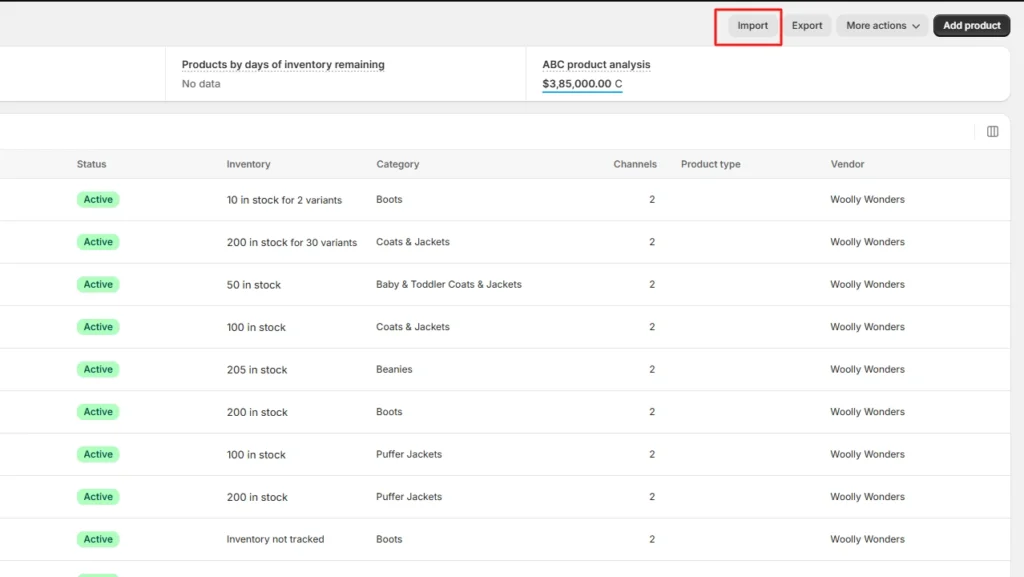
Avoid publishing products immediately. Import them as drafts first so you can review everything before customers see them. Check product images, pricing, variants, inventory, and descriptions carefully.
Check:
- Product images
- Pricing
- Variants
- Inventory
- Product descriptions
- Product types and collections
- URLs and handles
If you are migrating a large catalog, it is also useful to review a sample of imported products across different product types rather than checking only a few similar products. This can help uncover mapping problems that may affect only certain products or variants.
Step 6: Migrate customers, orders, and reviews
Product migration is the easiest part. Customer accounts, order history, and reviews require additional attention.
Customer information can be imported into Shopify from Customers > Import.
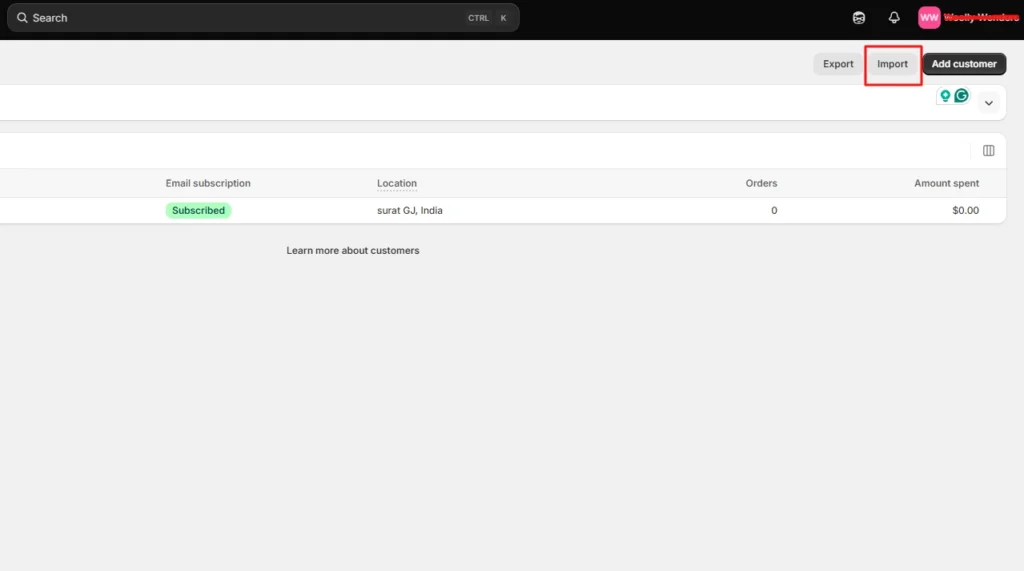
Note: Passwords cannot be transferred because platforms store them differently. Customers may need to activate their accounts again after migration.
Squarespace reviews cannot be directly exported, so you will need a Shopify review app to rebuild your social proof.
Historical orders also require third-party migration tools because Shopify does not support direct order imports through a standard CSV file.
Step 7: Rebuild your Shopify storefront and pages
Your Squarespace theme will not move to Shopify, which means your storefront design needs to be recreated.
Rebuild important pages such as your homepage, product pages, collection pages, about page, and contact pages. Choose a Shopify theme that matches your brand style and customize it based on your customer journey.
This is a good opportunity to improve your navigation, page speed, and conversion elements instead of creating an exact copy of your old store.
Step 8: Install essential Shopify apps and configure features
One of Shopify’s biggest advantages is its app ecosystem. After rebuilding your store, install the tools your business needs to improve customer experience and sales.
Depending on your requirements, this may include:
- Product reviews
- Email marketing
- Search and filtering
- Upsells and cross-sells
- Loyalty programs
- Analytics tools
The right apps can help replace missing Squarespace functionality and add features that support your store’s growth.
Step 9: Set up SEO redirects and check search visibility
SEO is one of the most important parts of any migration. Squarespace and Shopify use different URL structures, so old links need to be redirected properly.
Create a redirect map that connects your existing Squarespace URLs with their new Shopify URLs.
Transfer important metadata, review indexed pages, and check that your high-traffic pages have a matching destination on Shopify.
Step 10: Test everything before launching
Before switching your domain, test your entire Shopify store as a customer would.
Check:
- Product pages
- Search functionality
- Cart and checkout flow
- Payment methods
- Shipping rates
- Mobile experience
- Customer account access
- Redirects
Place test orders and fix any issues before making your Shopify store live. A careful launch checklist can prevent problems that affect customers after migration.
Coming from a different platform instead of Squarespace?
The migration process changes depending on the platform you're moving from. If you're migrating to Shopify from another ecommerce platform, explore these related guides:
Post-migration tips: Issues to solve after moving from Squarespace to Shopify
Launching the Shopify store is not the end of the migration. The first few weeks are important for identifying issues that only become visible once real customers and search engines interact with the new site.
Fix broken links and missing redirects
One of the most common issues after migration is broken URLs. Since Squarespace and Shopify use different URL structures, some old pages may return 404 errors if redirects are not set up properly.
Check your most visited pages, product URLs, and blog links. Create redirects for missing pages and regularly monitor Google Search Console for crawl errors.
Don't only check whether a redirect exists. Make sure it points to the most relevant equivalent page rather than sending every old URL to the homepage.
Check product data and images
Even after a successful product import, some details may not transfer perfectly.
Review your product catalog for missing images, incorrect variants, pricing errors, inventory mismatches, or formatting issues.
For larger catalogs, use a sample-based review across different product types and then investigate any patterns you find. This is often more efficient than manually checking every field on every product.
Review checkout and payment settings
A change in platform can affect your checkout configuration.
Test the complete buying journey, including adding products to cart, applying discount codes, selecting shipping options, making payments, and receiving order confirmation emails.
Check your payment gateways, tax settings, and shipping rates to avoid issues for real customers.
Rebuild missing features from Squarespace
Some features available on your Squarespace store will not exist by default in Shopify.
Identify any missing functionality and replace it with Shopify apps or custom solutions.
This could include product reviews, advanced search, subscriptions, loyalty programs, bundles, or upselling features.
The goal isn't to recreate every feature automatically. It is to make sure the new Shopify store supports the customer and business workflows that actually matter.
Optimize your Shopify store after migration
A migration is also an opportunity to improve your store instead of simply recreating your old website. Review your product pages, navigation, mobile experience, and conversion elements.
Use Shopify’s ecosystem to add features that improve customer experience, such as cart upsells, personalized recommendations, and better product discovery.
Monitor traffic and sales performance
Keep tracking your store performance after launch.
Compare your Shopify data with your previous Squarespace metrics to identify changes in traffic, conversion rate, and customer behavior.
A temporary fluctuation is normal after migration, but consistent drops usually indicate issues with SEO, tracking, user experience, or technical setup.
If performance drops, check SEO redirects, indexing, tracking, site speed, product availability, checkout functionality, and the customer experience before assuming the platform itself is responsible.
Planning your Squarespace to Shopify migration?
A successful Squarespace to Shopify migration is less about moving everything as quickly as possible and more about controlling what changes along the way.
Start with a store audit. Map your data before importing it, rebuild the storefront around your current requirements, plan your redirects before launch, and test the customer journey before switching your domain.
For straightforward stores, much of the process can be handled in-house. Larger catalogs, custom functionality, complex integrations, or stores with significant organic traffic may benefit from specialist migration support.
Identixweb helps businesses plan and execute Shopify migrations, including data migration, storefront rebuilding, SEO redirects, integrations, testing, and post-launch support.
FAQs
1. Why do store owners migrate from Squarespace to Shopify?
Store owners move from Squarespace to Shopify when their ecommerce requirements become more complex. Common reasons include access to a broader app ecosystem, more flexibility for ecommerce functionality, greater control over the customer journey, international selling capabilities, and more options for extending the store as the business grows.
2. How do I migrate from Squarespace to Shopify?
Start by auditing your Squarespace store and backing up your data. Export the information that needs to be transferred, prepare it for Shopify's data structure, import your products and customer information, rebuild your storefront, configure required functionality, and create redirects for important URLs. Before switching your domain, test the store, checkout, payment methods, redirects, and customer-facing functionality.
3. Will I lose my SEO rankings when I migrate Squarespace to Shopify?
A platform migration does not automatically mean you will lose your rankings, but changes to URLs, content, internal links, indexing, and site structure can affect organic visibility. Create redirects for important old URLs, preserve valuable content and metadata, check your new site's indexing, and monitor Google Search Console and organic traffic after launch.
4. Can I migrate my Squarespace reviews to Shopify?
No. Squarespace does not support exporting reviews. You will need to rebuild that section using an app like Judge.me, Loox, or Yotpo.
5. How much does it cost to migrate from Squarespace to Shopify?
The cost depends on how much data needs to be transferred, the size of the catalog, the complexity of the storefront, custom functionality, integrations, SEO requirements, and whether the migration is handled in-house or by a professional team. A straightforward DIY migration may involve little more than your time and Shopify's own costs, while a complex migration can require development, design, data migration, SEO, and testing work.
6. What are the different methods to migrate from Squarespace to Shopify?
You can migrate from Squarespace to Shopify manually using CSV exports and imports, use a third-party migration app, or hire a Shopify migration agency to handle the process end-to-end. The right method depends on your catalog size, store complexity, custom functionality, and how much of the migration you want to manage yourself.




About the author
Vineet Nair
Vineet is an experienced content strategist with expertise in the ecommerce domain and a keen interest in Shopify. He aims to help Shopify merchants thrive in this competitive environment with technical solutions and thoughtfully structured content.