

Author: Sajini Annie John
Gather knowledge about the latest insights, updates, tips, and tricks in the Ecommerce industry.

5 Min • 20 March 2026
How Anua Unlocked 5X AOV Growth with iCart’s Smart Cart Features
delivery customization Challenges Solutions drive results Scale business delivery customization Challenges Solutions drive results Scale business delivery customization Challenges Solutions drive results Scale business delivery customization Challenges Solutions drive results Scale business Anua is a globally recognized Korean skincare brand known for its minimalist philosophy and focus on gentle yet effective formulations. Built on the idea of simplifying skincare routines, Anua develops products that deliver visible results while avoiding harsh or irritating components, making them suitable for sensitive skin types. Initially using a traditional full cart experience, Anua transitioned to iCart’s side cart solution in August 2025, to create a more seamless and engaging shopping journey. This shift allowed customers to easily explore complementary skincare products without disrupting their browsing flow, making it more intuitive to discover items that fit into a complete routine. By surfacing relevant recommendations directly within the cart, the brand enhanced product visibility across its range. Challenges Before implementing iCart’s side cart solution, Anua faced limitations with their existing full cart experience, which created friction in the customer journey. The traditional cart setup redirected users away from product pages, interrupting their browsing flow and reducing opportunities to explore additional products. As a skincare brand built around routines rather than single-item purchases, this made it difficult to effectively showcase complementary products and encourage customers to build complete regimens. Additionally, the lack of in-cart personalization and strategic upsell opportunities meant that customers were often unaware of related products that could enhance their skincare results. This limited the brand’s ability to increase average order value (AOV) and fully leverage its diverse product range. Anua needed a more dynamic and intuitive cart experience that could seamlessly introduce relevant recommendations while maintaining a smooth and engaging shopping journey. ❌ Cart Value Barriers Low average order value (AOV) due to single-item focus Most customers completed purchases with one primary product instead of building multi-step routines. Cart abandonment near shipping thresholds Customers were not clearly informed or motivated to reach free shipping or discount thresholds. Missed savings opportunities Customers were unaware of potential value in purchasing bundled routines or multiple complementary products. ❌ Absence of Progress-Based Incentives No free shipping or discount progress bar Customers were not motivated to increase their cart value due to lack of visible incentives. Missing tiered rewards system There were no structured milestones (e.g., “Spend more to unlock offers”), reducing upsell opportunities. ❌ Ineffective Cart UI/UX (Pre-Side Cart) Full-page cart disrupted shopping flowCustomers had to leave their browsing journey, increasing friction and drop-offs. No quick add/remove functionality Users couldn’t easily modify their cart or add suggested products without navigating away. Solution To overcome these challenges, Anua implemented iCart’s side cart solution to transform their traditional cart into a high-converting, interactive experience. By replacing the full-page cart with a seamless side cart, the brand ensured that customers could continue browsing while viewing their cart, significantly reducing friction in the shopping journey. Additionally, features like product recommendations & progress bars for free shipping and discounts motivated customers to increase their cart value. By combining personalization, incentive-driven messaging, and a user-friendly interface, Anua successfully turned their cart into a powerful revenue-driving touchpoint rather than just a checkout step. To maximize their cart effectiveness, they implemented two powerful features: ✅ Progress Bar with Multi-Reward Incentives Implemented a tiered progress bar to encourage higher cart value Customers are guided with a clear message like “Add $3.10 to unlock secret offer,” motivating them to continue adding products. Generated over $5M+ in revenue through incentive-driven cart progression Used product-based rewards to align with customer intent Instead of generic discounts, Anua incentivized purchases with relevant skincare items like Dark Spot Pads and mini serums. Built visual motivation for routine expansion As customers add products, they can clearly track progress toward unlocking multiple rewards, encouraging them to build a complete skincare routine. ✅ Product Recommendations Implemented “Frequently Bought Together” recommendations Customers adding a single product (e.g., toner) are shown complementary items like serums, moisturizers, or pads to complete their routine. Generated over 275K revenue through in-cart recommendations Encouraged full skincare regimen building Instead of isolated purchases, the cart suggests step-by-step product combinations aligned with common skincare routines. Increased product discovery at the final stage By surfacing relevant items directly in the cart, Anua ensured customers explore more of their catalog without leaving the checkout flow. Results Achieved in Last 180 Days 22932 Total Store Orders 45101 Total iCart Orders 5X iCart Generated AOV 65.70% Upsell Affected Conversion Rate These improvements reflect a clear shift in customer behavior on Anua’s store. Cart abandonment reduced as shoppers discovered complementary skincare products and felt encouraged to build complete routines. Engagement also increased, with customers interacting more with in-cart recommendations and exploring relevant product pairings. Results & Impact And...Results is Our Main Clarification By implementing iCart’s cart drawer, product recommendations, and progress bar, Anua transformed its cart into a high-performing conversion touchpoint. Shopping Experience Enhancement The improved cart experience encouraged customers to discover complementary products and understand the value of sustainable beauty routines. For instance, the clear presentation of subscription savings alongside one-time purchase options helped customers make more informed decisions about their long-term hair care needs. As Anua continues to optimize its cart experience, the brand is closely monitoring: Routine-based purchasing behavior - tracking how customers move from single items to multi-step regimens Engagement with in-cart recommendations - measuring interaction with suggested products Cart value progression - analyzing how incentives influence higher spending [related_cases_slider] Ready to Write Your Success Story? Try icart App Join successful businesses like Anua and Master your delivery scheduling Delight customers with precise timing Grow your special occasion orders Expand your delivery reach
Read Blog
8 Min • 24 July 2026
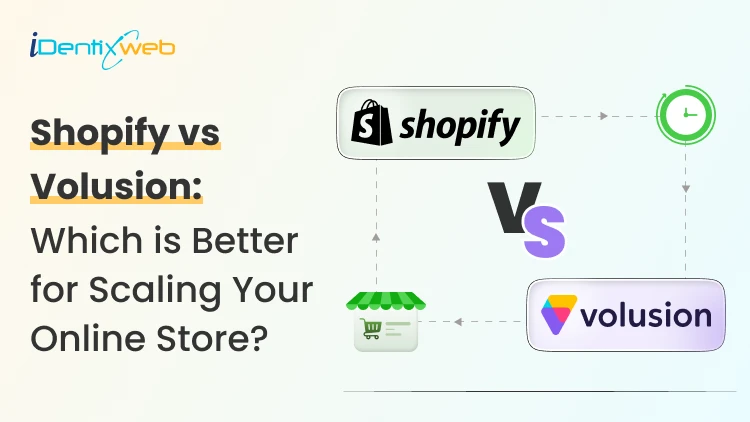
Shopify vs Volusion: The Full 2026 Comparison (And Where BigCommerce Fits In)
Shopify is a much better choice as compared to Volusion because of its superior features. Shopify offers unlimited products, a much larger app and theme ecosystem, stronger POS tools, and no GMV-based sales caps. Volusion is suitable for smaller stores that prefer simpler operations. Shopify vs Volusion comes up constantly when store owners start comparing ecommerce platforms. The gap between them has only gotten wider in 2026. Volusion still works for a small, specific type of merchant. Shopify has spent the past year adding AI-driven selling tools, a much bigger app store, and pricing built for real growth. I'll walk through pricing, features, and reliability for both platforms, and I'll show you exactly where BigCommerce lands if you're weighing all three. Shopify vs Volusion at a glance If you want the short version: Shopify is the better pick for almost every new store in 2026. Volusion still makes sense for merchants already running on it who don't want the hassle of switching or who genuinely need its low-transaction-fee structure at low sales volume. Here's the quick breakdown before we get into details. #ShopifyVolusionBigCommerceStarting price$39/mo ($29 annual)$35/mo$39/mo ($29 annual)Product limitUnlimited, all plans100 on entry planUnlimited, all plansPlatform transaction feesYes, unless using Shopify PaymentsNo gateway maintenance fee with preferred providers; 1.25%–0.35% on non-preferred gateways, depending on plan 0% with Embedded Payment Providers; 2%, 1% or 0.6% with Open Payment Providers, depending on plan App marketplace16,000+ apps84 marketplace listings, including integrations and services1,200+ appsSales cap per planNoneYes, by GMVYes, by GMV Shopify vs Volusion pricing compared Shopify costs more upfront. It does remove the sales caps that Volusion's plans have. Volusion is cheaper at the entry level and skips platform transaction fees entirely, but it locks lower tiers behind strict yearly revenue limits. Here's how the current plans stack up. Shopify Plans in 2026 PlanMonthly costAnnual costNotesStarter$5/moN/ABuy Button and social selling only, no full storefrontBasic$39/mo$29/moFull store, unlimited productsGrow$105/mo$79/moFormerly called the "Shopify" planAdvanced$399/mo$299/moLower card rates, more staff accountsPlusFrom $2,300/mo3-year termEnterprise checkout and B2B tools If you want a complete pricing breakdown, my guide to Shopify pricing breaks down which plan actually fits your store size. Volusion pricing in 2026 PlanMonthly costMax GMV/yearProduct limitStaff accountsPersonal$35/mo$50K1001Professional$79/mo$100K5,0005Business$299/mo$400KUnlimited15PrimeCustomUnlimitedUnlimitedUnlimited Pricing changes over time on every platform, so treat these numbers as a snapshot and confirm current rates before you commit. Volusion vs Shopify vs BigCommerce: Where does BigCommerce fit? BigCommerce sits in an interesting spot between the two. It matches Shopify's unlimited products and staff accounts, but it shares Volusion's feature of capping plans by yearly sales volume. If you're deciding between Shopify, Volusion, or BigCommerce, BigCommerce is usually the pick for merchants who want more built-in functionality and don't mind installing fewer apps overall. BigCommerce pricing in 2026 PlanMonthly costAnnual costGMV thresholdCore$39/mo$29/moAuto-upgrades above $30KGrowth$105/mo$79/moAuto-upgrades above $100KScale$399/mo$299/mo0.9% overage above $33,333/moPerformanceCustom pricingStarts at $1,499/month, billed annually Custom BigCommerce added a new Open Payment Provider Fee on self-service plans: 2% on Core, 1% on Growth, and 0.6% on Scale, charged on orders processed through a gateway outside its approved list (Stripe, PayPal/Braintree, Adyen, and Checkout.com are exempt). I don’t think BigCommerce's old "we never charge transaction fees" pitch against Shopify fully holds anymore unless you stick to an approved processor. I cover the full breakdown in my BigCommerce vs Shopify comparison if you want to weigh it against Shopify specifically. Features compared: Apps, payments, themes, and POS Shopify's app ecosystem is the biggest gap between all three platforms. Shopify's App Store now lists more than 16,000 apps. Volusion has more than 80 native integrations. BigCommerce lands in the middle with over 1,000+ marketplace apps and stronger native features that reduce how many apps you need in the first place. I noted a few other differences as well: > Payment gateways Shopify integrates with more than 100 payment providers. BigCommerce supports over 130 payment solutions, including 21 Embedded Payment Providers that avoid its Open Payment Provider Fee. Volusion also supports several established gateways. > Point of sale Shopify has the most developed POS ecosystem, with hardware you can buy directly and a POS Pro add-on for multi-location retail. Volusion's POS support exists but is far less polished. > Themes Shopify has the largest overall theme ecosystem, with 1,000+ free and premium themes. BigCommerce offers a smaller selection of free and paid themes, while Volusion provides 24 no-cost themes but has a more limited overall third-party theme ecosystem. Platform reliability and company history Shopify is publicly traded, has been profitable for several years, and continues investing heavily in its platform. Volusion filed for Chapter 11 in 2020 and was acquired by Newfold Digital, the company behind Bluehost and HostGator, in 2021. It's continued operating since under new leadership, and it's still PCI DSS compliant with a full security program in place, but that history is worth knowing if platform longevity factors into your decision. BigCommerce is also publicly traded and posted its first full year of GAAP profitability in 2026, which gives it a similar stability profile to Shopify. None of this means Volusion is unsafe to build on today. It means you're choosing a platform with a smaller team and a narrower recovery margin if things go wrong again. Shopify, Volusion, or BigCommerce: Which one is better? Choose Shopify if: You're starting a new store and want the largest app and theme selection. You plan to sell through multiple channels. You want built-in POS for a physical retail location. You expect meaningful growth and don't want a sales cap slowing you down. Pick Volusion if: Your sales volume is modest and predictable, and avoiding transaction fees matters more than app selection. You don't need a built-in blog or a large third-party app catalog. Choose BigCommerce if: You want more features built in in exchange for installing fewer apps. Your store has strong B2B or wholesale requirements. You're comfortable managing GMV thresholds and the new payment provider fee structure. Migrating to Shopify in 2026 If you are on Volusion and planning to migrate to Shopify, it’s easier than most merchants expect. You'll want to export your product catalog, customer records, and order history from Volusion, then map that data into Shopify's format before import. Rebuilding your theme and setting up 301 redirects for every changed URL protects the SEO equity you've already built. Most small to mid-sized stores complete this in two to four weeks. I've written a full walkthrough covering migrating from Volusion to Shopify step by step, from backup through launch. If BigCommerce is the platform you're leaving instead, my BigCommerce to Shopify migration guide covers that path in the same level of detail. The bottom line Shopify vs Volusion isn't really a close contest anymore. Shopify wins on apps, themes, payment flexibility, and growth. On the other hand, BigCommerce is a legitimate alternative if you want more built-in in exchange for a smaller app catalog. Volusion still has a place for merchants already comfortable there or who do not want transaction-fee-free sales. Whichever direction you go, run the numbers on your actual sales volume and app needs before committing. The up-front price rarely tells the whole story. FAQs 1. How to migrate from Volusion to Shopify? Export your products and customer records from Volusion, format them using Shopify’s CSV templates, and import them into your new Shopify store. For order history, custom fields or a large catalogue, use a Shopify migration app, then rebuild your theme, configure payments and shipping. Add 301 redirects and test the store before transferring your domain. 2. Who is Shopify's biggest competitor? WooCommerce is Shopify’s biggest competitor when measured by overall website adoption. BigCommerce is one of Shopify’s closest direct competitors in the hosted SaaS ecommerce market because both provide managed hosting, built-in commerce tools and plans for growing and enterprise businesses. 3. How much does it cost to migrate to Shopify? Shopify does not charge a fixed migration fee. A small store can migrate manually with CSV files at no additional cost beyond its subscription, which starts at $39 per month or $29 per month with annual billing. Migration apps will charge according to the number of products, customers and orders transferred, while Shopify Partners set their own prices for custom migrations. 4. Is Shopify better than Volusion in 2026? For most ecommerce businesses, Shopify is a better choice because it supports unlimited products across its main plans and offers more than 16,000 apps for extending store functionality. Volusion is a good fit for smaller stores, but its lower plans limit the number of products you can sell and how much revenue your store can generate
8 Min • 31 July 2026
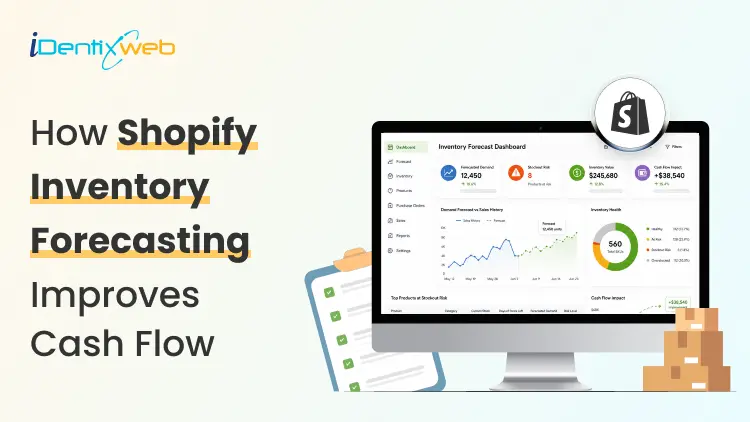
Complete Guide to Shopify Inventory Forecasting to Manage Cash Flow (+ Tools)
Shopify inventory forecasting is the process of estimating how much stock each product will need and when it should be reordered using sales history, supplier lead times, promotions, and current inventory levels. Accurate forecasting helps merchants avoid stockouts, reduce excess inventory, and keep more cash available for business expenses. Tools such as Sidekick, Prediko, Inventory Planner, and Assisty can automate inventory forecasting. If your ROI feels lower even when sales are good, your stock is usually the reason. Cash you've spent on inventory is cash you can't spend on ads, payroll, or the next order. Shopify inventory forecasting is working out how much stock you need and when to order it, so less of your money sits on a shelf. One thing worth knowing before anything else: Stocky, the free forecasting and purchase order app that came with Shopify POS Pro, stops working on August 31, 2026. If you order stock through Stocky, you've got a few weeks to sort out a replacement. What is Shopify inventory forecasting? Shopify inventory forecasting means predicting how many units of each product you'll sell over a future period. You use your sales history, supplier lead times, and whatever promotions you have planned. What you're after isn't the forecast itself. It's a list of purchase orders with dates and amounts against them. A forecast that never turns into an order hasn't done anything for you. Forecasting is really a cash question This is my philosophy: Stock is the biggest cheque you write and the slowest one to come back. You pay a deposit today, pay the balance six weeks later, pay duty when it lands, and only then do the units start selling. Every forecasting choice you make is a choice about how long your money is stuck. Two numbers tell you whether that's under control. Your cash conversion cycle The cash conversion cycle counts the days between paying your supplier and getting paid by your customer. CCC = Days Inventory Outstanding + Days Sales Outstanding − Days Payables Outstanding Days Inventory Outstanding is (Average inventory ÷ COGS) × 365. If you hold $120,000 of stock on average against $480,000 of annual COGS, that's 91 days. Days Sales Outstanding is quick for a normal Shopify store, since Shopify Payments in the US settles in about 2 to 5 business days. It climbs once you add wholesale on Net 30 or marketplaces with their own payout cycles. Days Payables Outstanding is how long your supplier lets you wait. On Net 30, that's 30. So: 91 + 3 − 30 = 64 days. Your money is tied up for a bit over two months on every dollar you put into stock. Most DTC brands land somewhere between 60 and 120 days, and under 60 is doing well. Pull these reports before you do anything else Go to Analytics > Reports and filter by Inventory. I look at four main reports here for forecasting. ABC product analysis grades every variant by how much revenue it brings in. A-grade products are the ones making up 80% of your revenue, B-grade the next 15%, C-grade the last 5%. It's worth knowing that the window is fixed for the last 28 days and you can't change it. If you sell seasonal products, run it at a few different points in the year instead of trusting one snapshot. Products by days of inventory remaining gives you days of stock left per variant, worked out from your average daily sales over the last 28 days. This is the best way to spot what's going to run out before your next delivery lands. Products by sell-through rate shows what share of available stock you sold in a period. There's about a two-day processing delay on it, so the newest data you can see is never today's. Month-end inventory value multiplies cost per item by ending quantity, which gives you your inventory cash position over time, and it's the number you need for the DIO calculation above. For a full walk-through of every report and what the columns mean, see my guide on how to pull a Shopify inventory report in 2026. How to do a Shopify inventory forecast? Clean up your sales history first Sales history and demand history aren't the same thing. Take out days when a product was out of stock, because zero sales that day tells you about your supply, not your demand. Check your product codes while you're in there. If one product exists under three different SKUs because of an old migration, you're splitting one demand pattern into three weak ones, and every forecast after that will be wrong. My guide on setting up SKUs in Shopify covers a naming system that survives growth. Split the catalogue with ABC Don't treat every product the same. Pull the ABC report and give each grade a different level of attention. A-grade products get looked at weekly and get tight reorder points. B-grade products get a monthly check. C-grade products get simple rules and a look every quarter. Create cash calendar Here’s something I do. Take each purchase order you're planning and put its payments on a calendar with real dates against them. An overseas order has four separate payments going out: the supplier deposit, often 30% up front, the balance when it ships, the freight, and then duty and customs when it lands. Lay twelve weeks out in a spreadsheet, one row per payment, and put your expected Shopify payouts in as money coming in. If any week goes red, you move an order, split it, or go back to your supplier about terms. Doing that once a month heads off nearly every cash crunch I see. Pre-orders flip the timing in your favour, since you're collecting money before you place the supplier order. You also get a real demand signal instead of a guess, which is worth almost as much. My walkthrough on setting up pre-orders on Shopify covers the setup and the apps. AI inventory forecasting on Shopify AI inventory forecasting on Shopify uses machine learning to find patterns across your sales history and outside signals that a spreadsheet formula would miss. It handles hundreds of products at once, retrains itself as new sales come in, and picks a different model per product without you telling it to. A model can spot that a product spikes three weeks after a particular campaign, or that two of your products eat into each other, without you knowing to look for it. Where I see it failing is bad data. Feed it sales history full of stockout periods, untracked variants and missing cost figures, and you'll get numbers that are wrong. Clean the inputs first. Sidekick sits in your admin. It can answer stock questions, flags what needs reordering and drafts the PO. It won't replace a proper demand planning tool if your forecasting is genuinely complicated. Inventory forecasting tools worth looking at in 2026 Prediko is a Shopify-native tool with SKU-level twelve-month forecasts, a buying table that tells you what to restock, a purchase order calendar and raw materials tracking. Pricing scales with your GMV from around $49 a month. Good fit for growing DTC brands. Inventory Planner This is a free-to-install app by Sage with usage-based pricing after that. It is strong on multi-location planning and automated replenishment. Cogsy This app is built around scenario modelling rather than one forecast. You can see where your stock lands under different growth assumptions. Assisty Assisty has AI forecasting and automated PO generation. Often the pick for people who want something that works without a long setup project. My guide to building a Shopify tech stack covers how the inventory category fits in your app stack. Where to start with forecasting in 2026 Shopify inventory forecasting gets much less complicated once you stop treating it as a math problem. Pull your ABC report and your days-of-stock report. Work out your cash conversion cycle. Redo safety stock on your ten biggest products. Most stores free up a decent chunk of money from that alone. FAQs 1. How to fix inventory not tracked in Shopify? Open Shopify Admin > Products, select the product or variant, and enable Track quantity in the Inventory section. Assign the correct stocking location, enter the available quantity, and save. For multiple products, use Products > Inventory or the bulk editor to enable tracking. 2. How do I add inventory to my Shopify store? Go to Products > Inventory, choose the relevant location, and enter the stock amount using Set to or Adjust by. You can also update quantities from an individual product or variant page, or import inventory in bulk using a CSV file. 3. Which is the best Shopify forecasting app? Prediko is currently a strong all-round option for growing Shopify brands, offering AI sales forecasting, purchase orders, inventory transfers, bundle planning, reports, and integrations with warehouses and 3PLs. Assisty is another great option with forecast demand with AI to predict future sales. 4. How much does Shopify forecasting cost? Shopify’s native demand-forecasting assistance through Sidekick costs nothing because Sidekick is included with Shopify plans. However, features and usage limits can vary. Dedicated forecasting apps cost extra; for example, Prediko currently starts at $49 per month, while simpler tools such as Assisty start at $19 per month. 5. Is Shopify good for inventory management? Yes. Shopify is suitable for most small and growing retailers. This is because it supports inventory tracking, location-based stock levels, adjustments, transfers, purchase orders, suppliers, sell-through reporting, and inventory-remaining insights.
9 Min • 4 August 2026
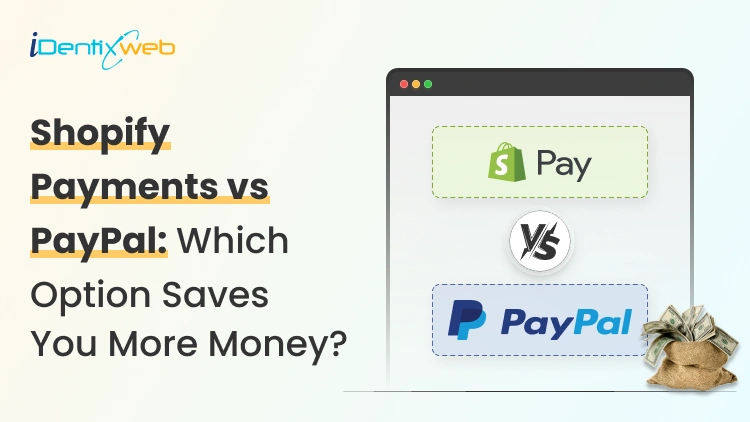
Shopify Payments vs PayPal: Which One Will Cost You Less in 2026?
The difference between Shopify Payments and PayPal can look tiny on a pricing page. Across hundreds or thousands of orders, it can become a serious operating cost. I have seen merchants focus only on the processing rate while overlooking Shopify’s additional transaction fees, PayPal’s pricing structure, currency conversion, and dispute costs. This comparison breaks down the numbers that matter in 2026 so you can see which option protects more of your margin. Shopify Payments vs PayPal: The short answer Shopify Payments is cheaper per order in almost every scenario. It is also the only way to avoid Shopify's extra transaction fee. PayPal costs more but brings buyers who will not enter a card number in a store they have never heard of. This is how I always use both these options. Shopify Payments as your processor with PayPal switched on as a wallet option. Shopify Payments vs PayPal Comparison ComparisonShopify Payments: Card paymentsPayPal Wallet through Shopify PaymentsOnline processing rateStandard cards: 2.9% + 30¢ on Basic, 2.7% + 30¢ on Grow, and 2.5% + 30¢ on Advanced. Premium cards cost 3.5%, 3.3%, and 3.1% + 30¢, respectively. International cards add 1%.Starting at 3.49% + 49¢ on Basic, Grow, and Advanced.Additional transaction feeNone None when PayPal is offered through Shopify Payments. PayPal transactions are excluded from Shopify’s third-party transaction fee when Shopify Payments is active. Dispute or chargeback fee$15 USD, returned if the merchant wins the chargeback.$15 for a standard dispute and $30 for a high-volume dispute.Currency conversion1.5% for US Shopify Payments stores when the payment currency differs from the payout currency.3% for PayPal Wallet through Shopify Payments in the United States. “Around 3% to 4%” is unnecessarily vague for this specific integration.AvailabilityShopify’s current supported-country page lists 40 countries and regions, not 39.PayPal Wallet through Shopify Payments is available only in the United States and France. What Shopify Payments actually costs in 2026 Shopify Payments has no monthly fee and no setup cost. You pay a card processing rate that drops as you move up plans. Shopify Payments Fees Basic: From 2.9% + 30¢ Grow: From 2.7% + 30¢ Advanced: From 2.5% + 30¢ Plus: From 2.25% + 30¢ Chargebacks: Shopify Payments charges US merchants $15 when a customer files a chargeback. The disputed amount and fee are deducted from your account, but both are returned if the card issuer rules in your favour. Shopify lets you submit evidence through the admin, although the final decision is made by the customer’s bank, not Shopify. If you have not activated it yet, my walkthrough on setting up Shopify Payments covers the eligibility checks and bank verification steps. What PayPal actually charges? PayPal’s Fees PayPal and Venmo payments: 3.49% + $0.49 Cards through PayPal Checkout: 2.99% + $0.49 Expanded Checkout card processing: 2.89% + $0.29 PayPal Pay Later: 4.99% + $0.49 International commercial payments: Additional 1.5% Chargebacks and disputes: PayPal account and guest-checkout transactions generally carry a $15 standard dispute fee, which rises to $30 for merchants classified as high-volume dispute sellers. Unbranded credit and debit card transactions can instead carry a $20 chargeback fee, so the cost is not the same across every PayPal payment type. Shopify Payments vs PayPal credit card fees on a real order Let me explain this with a simple example. Take a $75 order, US buyer, US store, Basic plan. Through Shopify Payments: $75 × 2.9% = $2.18, plus 30¢, for a total of $2.48. You keep $72.52. Through PayPal Checkout: $75 × 3.49% = $2.62, plus 49¢, for a total of $3.11. You keep $71.89. The difference is only 63 cents, but if you run 1,000 orders a month, it is $630, or $7,560 a year. There is a scenario where PayPal is better on price, and it is narrow: high-value orders where the percentage matters more than the fixed fee, processed as cards through Expanded Checkout at 2.89% + 29¢. For most Shopify stores selling physical goods at normal price points, that is not the setup you are running. PayPal checkout vs Shopify Payments: Which is better for conversions? PayPal earns its fee with a specific type of buyer. Someone who has never heard of your brand, is shopping on a phone, and does not want to type a 16-digit card number into a store they found through an ad. For that shopper, the PayPal button is the reason the order happens at all. Shopify Payments has Shop Pay. This stores card and shipping details across the Shopify network and lets returning buyers check out in one tap. My guide to Shop Pay as a checkout solution goes deeper on how it fits alongside other wallets. What I would not do is treat the payment method as the only checkout variable. Most stores lose orders to unexpected shipping costs, forced account creation, and slow pages. If your abandonment rate is high, work through the common Shopify checkout mistakes before you start adding gateways. Payouts and cash flow Shopify Payments is faster and more predictable for most established stores. PayPal is faster if you have a PayPal balance and slower to your bank. Payouts will arrive in a Shopify Balance account within one business day of the transaction processing date. New merchants can wait up to five business days. Standard bank payouts run 2 to 5 business days in the US, longer in the UK and EU. PayPal money hits your PayPal balance immediately. Getting it to your bank takes another 1 to 3 days, or you pay a fee for instant transfer. New accounts are where both methods lag. A brand new PayPal account can hold funds for up to 21 days. A high-risk limitation can take 180 days. Shopify has a similar onboarding window. It takes up to 21 calendar days between your first sale and your first payout. My advice is to keep both active. Disputes and chargebacks Shopify wins this one clearly. It charges $15 per chargeback, and PayPal charges $20, and high-dispute accounts get bumped to $30 with no refund. Shopify Protect offers free chargeback protection against fraudulent and unrecognized chargebacks on eligible orders. When an order is marked "Protected," Shopify covers the disputed amount and the chargeback fee automatically, without you filing a response. The conditions are strict and worth reading before you count on it: US-based merchants using Shopify Payments only Shop Pay orders exclusively, not standard Shopify Payments checkout Physical products, fulfilled within the required window, with valid tracking from a supported carrier. It will not cover every dispute. It covers the expensive category well, and it costs nothing to turn on. PayPal counters with Seller Protection, and orders paid through PayPal Wallet on Shopify Payments are eligible for it. The dispute process runs differently, though. You get 20 days to resolve an inquiry with the customer directly before PayPal steps in funds are held during that window, and once a decision is made, you cannot appeal it. Payment Setup Is Part of the Bigger Picture Payment setup also needs to be considered as part of the wider Shopify store configuration. Identixweb helps merchants with Shopify store settings configuration, including payments, checkout, shipping and taxes, so these elements work together properly before the store starts processing orders. Where each one genuinely wins Shopify Payments wins on cost, chargeback, reporting, and operational simplicity. It is the right default for any store in a supported country. PayPal wins on reach. Shopify Payments covers 39 countries and regions. PayPal operates in over 200 countries. If your store is registered in India, Brazil, the UAE, Nigeria, Pakistan, or Indonesia, Shopify Payments wins easily. If you need a third-party gateway, PayPal is one of the stronger ones available. PayPal also wins on buyer familiarity in specific markets and categories. High-consideration purchases, first-time buyers from paid social, and cross-border orders all convert better when a recognised wallet is on the page. If neither fits your situation cleanly, our roundup of the best payment methods for Shopify merchants covers more options. FAQs 1. Does Shopify Payments accept PayPal? Yes, but the setup depends on your country. In the United States and France, PayPal Wallet is integrated directly into Shopify Payments. In other supported countries, PayPal is connected separately through PayPal Express Checkout. 2. Is PayPal better than Shopify? Shopify is an ecommerce platform with its own payment processor, while PayPal is primarily a payment provider. For most Shopify merchants, Payments works better as the primary processor because payments, payouts, disputes, and reporting stay inside Shopify. PayPal remains valuable as an additional checkout option for customers who prefer it. 3. How to add PayPal to Shopify Payments? For US and French stores using Shopify Payments, PayPal is available through the integrated PayPal Wallet rather than the Additional payment methods section. In other countries, go to Settings > Payments > Additional payment methods > PayPal > Complete setup, then sign in to PayPal and approve the connection. 4. How to collect PayPal payments on Shopify? Activate PayPal Wallet or PayPal Express Checkout, after which eligible customers can select PayPal during checkout and pay using their PayPal balance, bank account, or card. US and French PayPal Wallet transactions are managed and paid out through Shopify Payments, while PayPal Express transactions are managed through the connected PayPal account. 5. Is Shopify cheaper than PayPal? For US online payments, Shopify Payments is generally cheaper per transaction. Standard card rates currently start at 2.9% + 30¢ on Basic and decrease on higher plans, while PayPal Wallet rates start at 3.49% + 49¢. Shopify also charges a monthly platform subscription, so the lower-cost option depends on the store’s plan, payment mix, and sales volume. 6. How much does Shopify charge for Payments? For US stores, Shopify Payments’ standard online card rates are currently 2.9% + 30¢ on Basic, 2.7% + 30¢ on Grow, and 2.5% + 30¢ on Advanced. Shopify Plus receives negotiated or more competitive rates. There is no separate setup or monthly Shopify Payments fee beyond the Shopify subscription. 7. How do I avoid Shopify transaction fees? Use Shopify Payments instead of a direct third-party card processor to avoid Shopify’s additional third-party transaction fee. PayPal Express and manual methods are also excluded when Shopify Payments is active.
Sajini Annie John
June 22, 2023
6008 Views
![How Avanchy increased 73% of revenue in 30 days from iCart [Case Study]](https://www.identixweb.com/wp-content/uploads/2023/09/How-Avanchy-increased-73-of-revenue-in-30-days-from-iCart.png "How Avanchy increased 73% of revenue in 30 days from iCart [Case Study]")
Sajini Annie John
June 5, 2023
5767 Views
Sajini Annie John
May 22, 2023
7491 Views

Sajini Annie John
April 21, 2023
6299 Views
Sajini Annie John
March 10, 2023
7095 Views

Sajini Annie John
March 3, 2023
6579 Views
Sajini Annie John
January 19, 2023
5727 Views

Sajini Annie John
November 3, 2022
5924 Views
Sajini Annie John
October 3, 2022
6303 Views

Sajini Annie John
September 12, 2022
7569 Views
Sajini Annie John
August 29, 2022
6266 Views
Sajini Annie John
July 22, 2022
7767 Views