Author: Sajini Annie John
Gather knowledge about the latest insights, updates, tips, and tricks in the Ecommerce industry.

5 Min • 20 March 2026
How Anua Unlocked 5X AOV Growth with iCart’s Smart Cart Features
delivery customization Challenges Solutions drive results Scale business delivery customization Challenges Solutions drive results Scale business delivery customization Challenges Solutions drive results Scale business delivery customization Challenges Solutions drive results Scale business Anua is a globally recognized Korean skincare brand known for its minimalist philosophy and focus on gentle yet effective formulations. Built on the idea of simplifying skincare routines, Anua develops products that deliver visible results while avoiding harsh or irritating components, making them suitable for sensitive skin types. Initially using a traditional full cart experience, Anua transitioned to iCart’s side cart solution in August 2025, to create a more seamless and engaging shopping journey. This shift allowed customers to easily explore complementary skincare products without disrupting their browsing flow, making it more intuitive to discover items that fit into a complete routine. By surfacing relevant recommendations directly within the cart, the brand enhanced product visibility across its range. Challenges Before implementing iCart’s side cart solution, Anua faced limitations with their existing full cart experience, which created friction in the customer journey. The traditional cart setup redirected users away from product pages, interrupting their browsing flow and reducing opportunities to explore additional products. As a skincare brand built around routines rather than single-item purchases, this made it difficult to effectively showcase complementary products and encourage customers to build complete regimens. Additionally, the lack of in-cart personalization and strategic upsell opportunities meant that customers were often unaware of related products that could enhance their skincare results. This limited the brand’s ability to increase average order value (AOV) and fully leverage its diverse product range. Anua needed a more dynamic and intuitive cart experience that could seamlessly introduce relevant recommendations while maintaining a smooth and engaging shopping journey. ❌ Cart Value Barriers Low average order value (AOV) due to single-item focus Most customers completed purchases with one primary product instead of building multi-step routines. Cart abandonment near shipping thresholds Customers were not clearly informed or motivated to reach free shipping or discount thresholds. Missed savings opportunities Customers were unaware of potential value in purchasing bundled routines or multiple complementary products. ❌ Absence of Progress-Based Incentives No free shipping or discount progress bar Customers were not motivated to increase their cart value due to lack of visible incentives. Missing tiered rewards system There were no structured milestones (e.g., “Spend more to unlock offers”), reducing upsell opportunities. ❌ Ineffective Cart UI/UX (Pre-Side Cart) Full-page cart disrupted shopping flowCustomers had to leave their browsing journey, increasing friction and drop-offs. No quick add/remove functionality Users couldn’t easily modify their cart or add suggested products without navigating away. Solution To overcome these challenges, Anua implemented iCart’s side cart solution to transform their traditional cart into a high-converting, interactive experience. By replacing the full-page cart with a seamless side cart, the brand ensured that customers could continue browsing while viewing their cart, significantly reducing friction in the shopping journey. Additionally, features like product recommendations & progress bars for free shipping and discounts motivated customers to increase their cart value. By combining personalization, incentive-driven messaging, and a user-friendly interface, Anua successfully turned their cart into a powerful revenue-driving touchpoint rather than just a checkout step. To maximize their cart effectiveness, they implemented two powerful features: ✅ Progress Bar with Multi-Reward Incentives Implemented a tiered progress bar to encourage higher cart value Customers are guided with a clear message like “Add $3.10 to unlock secret offer,” motivating them to continue adding products. Generated over $5M+ in revenue through incentive-driven cart progression Used product-based rewards to align with customer intent Instead of generic discounts, Anua incentivized purchases with relevant skincare items like Dark Spot Pads and mini serums. Built visual motivation for routine expansion As customers add products, they can clearly track progress toward unlocking multiple rewards, encouraging them to build a complete skincare routine. ✅ Product Recommendations Implemented “Frequently Bought Together” recommendations Customers adding a single product (e.g., toner) are shown complementary items like serums, moisturizers, or pads to complete their routine. Generated over 275K revenue through in-cart recommendations Encouraged full skincare regimen building Instead of isolated purchases, the cart suggests step-by-step product combinations aligned with common skincare routines. Increased product discovery at the final stage By surfacing relevant items directly in the cart, Anua ensured customers explore more of their catalog without leaving the checkout flow. Results Achieved in Last 180 Days 22932 Total Store Orders 45101 Total iCart Orders 5X iCart Generated AOV 65.70% Upsell Affected Conversion Rate These improvements reflect a clear shift in customer behavior on Anua’s store. Cart abandonment reduced as shoppers discovered complementary skincare products and felt encouraged to build complete routines. Engagement also increased, with customers interacting more with in-cart recommendations and exploring relevant product pairings. Results & Impact And...Results is Our Main Clarification By implementing iCart’s cart drawer, product recommendations, and progress bar, Anua transformed its cart into a high-performing conversion touchpoint. Shopping Experience Enhancement The improved cart experience encouraged customers to discover complementary products and understand the value of sustainable beauty routines. For instance, the clear presentation of subscription savings alongside one-time purchase options helped customers make more informed decisions about their long-term hair care needs. As Anua continues to optimize its cart experience, the brand is closely monitoring: Routine-based purchasing behavior - tracking how customers move from single items to multi-step regimens Engagement with in-cart recommendations - measuring interaction with suggested products Cart value progression - analyzing how incentives influence higher spending [related_cases_slider] Ready to Write Your Success Story? Try icart App Join successful businesses like Anua and Master your delivery scheduling Delight customers with precise timing Grow your special occasion orders Expand your delivery reach
Read Blog
11 Min • 30 June 2026
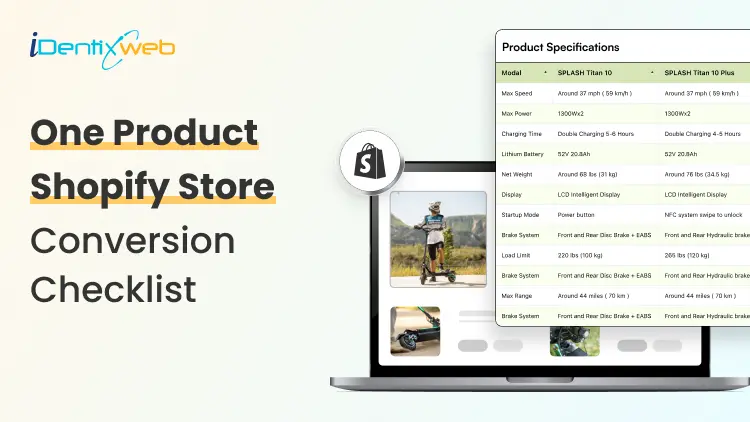
One Product Shopify Store Conversion Checklist for Better Sales
Running a one product Shopify store sounds simple. You sell one main product, build one focused landing page, and drive traffic to one clear offer. But simplicity does not automatically mean higher sales. In fact, a one-product store has less room for mistakes. If the product page is confusing, the offer is weak, the CTA is hidden, or the checkout experience feels risky, customers may leave without buying. A one product Shopify store works best when the full shopping journey is built around one goal: helping the customer understand why this product is worth buying now. This checklist will help you optimize your shopify single product store for better conversions, stronger customer trust, and higher average order value. What is a one product Shopify store? A one product Shopify store is a Shopify store that focuses on selling one main product instead of a large catalog. The product can have variants, bundles, accessories, refills, or add-ons, but the core business is built around one hero product. For example, your store may sell: One skincare device with different color options One fitness product with bundle packs One kitchen gadget with accessories One pet product with refill packs One digital product or subscription offer The biggest advantage of a one-product store is focus. You do not need to guide visitors through multiple categories or hundreds of product choices. Instead, you can create one strong sales journey around one product, one problem, and one solution. A well-built shopify single product store can convert well because it reduces decision fatigue and keeps the customer’s attention on one clear buying decision. Why conversion optimization matters more for one product stores In a multi-product store, a visitor may browse multiple categories, compare products, and still buy something else. But in a one product Shopify store, the customer either buys your main product or leaves. That makes conversion optimization more important. Every small detail matters, such as: How fast your page loads How clear your product promise is How strong your images are How visible your CTA button is How trustworthy your reviews look How easy checkout feels How well your offer handles objections 1. Make Your Above-the-Fold Section Clear The first screen of your store decides whether visitors stay or leave. When someone lands on your one product Shopify store, they should understand three things within a few seconds: What the product is What problem it solves Why they should care Your above-the-fold section should include: A clear headline A short benefit-driven subheading High-quality product image or video Product rating or trust badge Strong CTA button Price or offer highlight One key differentiator Avoid vague headlines like: “Upgrade Your Lifestyle Today” Instead, use a specific headline like: “Remove Pet Hair From Your Sofa in Seconds” This tells the customer exactly what the product does and why it matters. For a Shopify single product store, clarity is more powerful than cleverness. Your customer should not have to scroll or guess what you sell. 2. Use Product Images That Sell the Outcome Your product images should do more than show the product. They should show the value of the product. Strong product visuals include: Clean product shots Lifestyle images Before-and-after visuals Close-up detail shots Size comparison images Product-in-use photos Packaging images Short demo videos or GIFs If your product solves a visible problem, before-and-after images can be powerful. If your product has premium materials, show close-up textures. If your product is compact, show it in a real hand, bag, kitchen, desk, or bathroom setup. For a one product Shopify store, your visuals need to replace the in-store experience. Customers cannot touch the product, so your images must answer their doubts visually. 3. Promote the Right Upsell After Purchase With SellMore Once a customer buys your product, the sales journey does not have to end there. This is where post-purchase upselling can help. For a one product Shopify store, upselling needs to be simple and relevant. Since you sell one main product, your best upsell offers may include: Refill packs Product accessories Extended warranty Gift packaging Priority shipping Care kit Bundle upgrade Second item at a discount Subscription refill offer You can use SellMore Post Purchase Upsell to show one-click upsell, cross-sell, bundle, checkout, post-purchase, thank you page, and order status page offers. The app also includes upsell funnels, AI-driven recommendations, and detailed analytics to track offer performance. This is useful because the customer has already completed the main purchase. Instead of disturbing the buying decision before checkout, you can show a relevant add-on after the order is placed. 4. Write Benefit-First Product Copy A common mistake in one-product stores is writing only feature-based copy. Features explain what the product has. Benefits explain why the customer should care. Example: Feature: Made with stainless steelBenefit: Built to last longer and resist rust during daily use Feature: 10-hour battery lifeBenefit: Use it all day without charging again and again Your product page should include both, but the benefits should lead. For a Shopify single product store, your copy should feel like a guided sales conversation. It should answer the questions customers are already thinking but may not ask directly. 5. Add a Strong Product Story A one-product brand needs a story because the whole store is built around one offer. Your product story can answer: Why was this product created? What problem inspired it? Who is it made for? What makes it different? Why is it better than common alternatives? This does not need to be long. Even a short brand story can make your store feel more real. Example: “We created this product after seeing how many pet owners struggled with hair on clothes, sofas, and car seats. Most rollers worked once and then became useless. So we designed a reusable cleaner that works every day without waste.” This type of story gives customers a reason to connect emotionally with your product. It also makes your one product Shopify store feel less like a dropshipping page and more like a real brand. 6. Use One Main CTA Across the Page Your store should not confuse customers with too many actions. For a one-product store, the main action is usually: Buy Now Add to Cart Try It Today Get Yours Now Shop Now Use one main CTA style across your page. Keep it visible above the fold and repeat it after important sections. Best CTA placement: Hero section After benefits section After reviews After pricing or bundle section Near FAQs Sticky mobile bottom bar Avoid using too many competing buttons like “Learn More,” “Explore,” “Contact Us,” and “Read Blog” in the main sales flow. A one product Shopify store should guide visitors toward purchase, not distract them. 7. Build Trust Before Asking for the Sale Trust is one of the biggest conversion factors for a one product Shopify store. Because the store sells only one product, customers may ask: Is this product real? Will it work for me? Is the store trustworthy? What if I do not like it? How long will shipping take? Can I return it? Are the reviews genuine? Add trust signals throughout the page, not only at the bottom. Important trust elements include: Customer reviews Star ratings Video testimonials User-generated content Secure payment badges Money-back guarantee Clear return policy Shipping timeline Brand story Contact details FAQ section Real product images Do not hide important trust information. If shipping takes 5-8 days, say it clearly. If returns are available within 30 days, mention it near the CTA. If your product has a warranty, show it before checkout. 8. Add Reviews That Answer Real Objections Generic reviews like “Great product!” are not enough. Your reviews should answer objections. For example: “I thought it would be too small, but the size is perfect.” “Shipping took 5 days and the packaging was good.” “I have tried other products, but this one actually worked.” “The setup took less than two minutes.” “I bought one for myself and ordered another for my sister.” These reviews help new customers feel more confident because they answer practical doubts. Use different review formats: Text reviews Photo reviews Video reviews Before-and-after reviews Reviews by use case Reviews by customer type For a Shopify single product store, reviews should not just prove that people bought the product. They should prove that people got the result they expected. 9. Optimize Your Store for Mobile Buyers Most shoppers will likely view your store on mobile, especially if you run ads from Instagram, TikTok, Facebook, or YouTube Shorts. Your mobile experience should be fast, clean, and thumb-friendly. Mobile conversion checklist: CTA button is visible without zooming Product images load fast Text is easy to read Reviews are easy to scroll Sticky add-to-cart button is enabled Checkout buttons are easy to tap No popups blocking the screen Product price is visible Variant selection is simple FAQ accordion is easy to open Do not design only for desktop. Many one-product stores look beautiful on desktop but feel crowded on mobile. Check your page on a real phone before publishing. Scroll like a customer. Tap every button. Try adding the product to cart. Test checkout. If anything feels slow or confusing, fix it. 10. Improve Page Speed and Loading Experience Page speed directly affects conversions. A slow product page can increase bounce rate and reduce sales. For a one product Shopify store, speed matters even more because many visitors come from paid ads. Every slow-loading second can waste ad spend. Speed optimisation checklist: Compress images before uploading Use WebP images where possible Avoid too many third-party apps Remove unused scripts Use lightweight sections Limit autoplay videos Test your theme speed Avoid heavy sliders Use lazy loading for lower-page images Do not overload the store with animations just to make it look premium. A clean, fast-loading page usually converts better than a slow, fancy page. 11. Add Scarcity and Urgency Carefully Urgency can improve conversions, but fake urgency can damage trust. Good urgency examples: “Sale ends tonight” “Only 12 left in stock” “Order today for dispatch tomorrow” “Limited launch offer” “Free gift available for first 100 orders” Bad urgency examples: Countdown timer that resets every time Fake low-stock alerts “Only 3 left” for weeks Too many flashing banners Use urgency only when it is true. For a Shopify single product store, trust is more valuable than short-term pressure. Customers are more likely to buy when urgency feels real and the offer feels fair. 12. Keep Navigation Simple Your navigation should support conversion, not distract from it. For a one-product store, your menu can include: Product Reviews How It Works FAQs Track Order Contact Avoid adding too many links to blogs, collections, unrelated pages, or external profiles in the main navigation. Your homepage and product page may even be the same page. That is completely fine for a one product Shopify store if the page includes everything customers need to make a buying decision. The goal is simple: keep visitors moving toward checkout. FAQs About One Product Shopify Store Conversion 1. Is a One Product Shopify Store good for beginners? Yes, a one product Shopify store can be good for beginners because it is easier to manage than a large catalog store. However, the product page, offer, and marketing need to be strong because the entire store depends on one main product. 2. How do I increase sales on a shopify single product store? To increase sales on a Shopify single product store, improve your product images, headline, CTA, reviews, page speed, mobile layout, and checkout experience. You can also use post-purchase upsells to increase average order value after the first purchase. 3. What should a one-product store homepage include? It should include a clear hero section, product benefits, product images, reviews, pricing, FAQs, guarantee, shipping details, and a strong CTA. The page should guide customers from problem awareness to purchase without distractions. 4. Can I add upsells to a One Product Shopify Store? Yes, you can add upsells such as accessories, refills, warranties, bundles, gift packaging, or second-unit discounts. Post-purchase upsells work especially well because they appear after the customer completes the main order. 5. What is the biggest mistake in a shopify single product store? The biggest mistake is assuming one product means one simple page with very little information. Customers still need clear benefits, proof, trust signals, shipping details, return policy, and strong reasons to buy.
12 Min • 10 July 2026
An Expert’s Guide to Migrating From Volusion to Shopify in 10 Steps
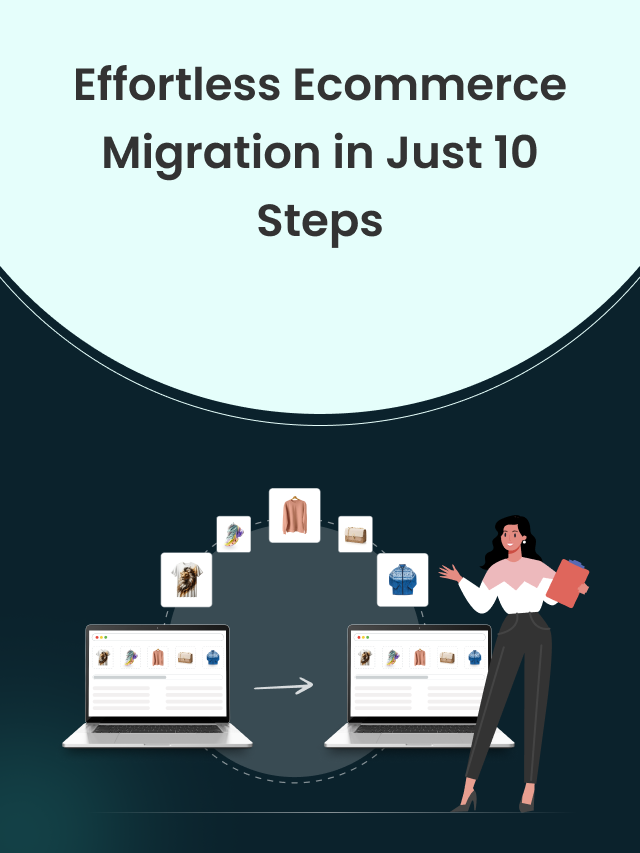
If you're planning to migrate Volusion to Shopify, you're joining a long line of store owners making the same call in 2026. My guide walks through exactly how to migrate from Volusion to Shopify, backup through launch, in 10 steps. Every step reflects Shopify's current platform: its higher variant limits, its built-in AI tools, and the apps that actually still support Volusion as a source cart. Why store owners are leaving Volusion for Shopify in 2026 Volusion still runs real stores, but its growth has stalled while Shopify's has not. A few concrete events explain why so many merchants are migrating from Volusion to Shopify right now, and none of this is marketing spin. In September 2019, attackers planted malicious code across roughly 6,589 Volusion-hosted stores that skimmed customer card data during checkout. Volusion confirmed the incident, notified affected merchants, and the stolen records later turned up for sale on the dark web. You can read about this incident here [Source] Volusion still runs a smaller app ecosystem and a shrinking base of active stores, while Shopify's app store has grown past 16,000 apps and now ships a major platform update, called an Edition, twice a year. None of this makes Volusion unusable today. It means the gap between the two platforms is wider in 2026 than it was a few years ago. Step 1: Audit and back up your Volusion store Back up every piece of store data before you touch anything else. Volusion keeps its export tools under Inventory, then Import/Export, in the admin dashboard. Export products, categories, customers, orders, and any content pages as CSV files. Check the row counts against what you see in the admin before moving on. Standard exports often skip embedded images, so pull your full media library separately over FTP. Grab your theme files too. You won't reuse them on Shopify, but they're a useful visual reference while you rebuild your design later. Before you move to step two, confirm you have: CSV exports of products, categories, customers, orders, and pages A full FTP download of your media and image library Exported files of your current theme and layout A list of every third-party app, script, or integration connected to your Volusion store Your domain registrar login. Store these backups in a local drive and a cloud folder. Step 2: Create your Shopify account and pick a plan Set up your Shopify account before you install any migration tool. Most tools need a live Shopify store to connect to. Match your plan to your order volume and catalog size for this year. Shopify's current lineup runs from Starter. This is built for social-only selling with no full storefront. Basic, Grow, and Advanced, and up to Plus are for larger, multi-brand, or B2B operations. My guide to Shopify pricing tracks the current rates and tells you which tier fits which stage of business. Once you pick a plan, set your store name, currency, time zone, and units of measurement to match your existing Volusion configuration. Install a free, lightweight theme for now. You'll pick your real theme in step seven, once you fill in your data, and you can see how it actually looks with real products. Step 3: Choose how you'll migrate Volusion to Shopify There are three realistic ways to migrate Volusion to Shopify: Do it yourself with CSV files Use a migration app Hire an agency. The right choice depends on your catalog size, budget, and how much risk you're willing to carry yourself. Shopify's own free Store Importer app doesn't include Volusion. So a Volusion migration always needs either a hand-built CSV import, a dedicated migration app, or outside help. Manual CSV migration This works if your catalog is small and simple, under a couple hundred products. You reformat your Volusion exports to match Shopify's product, customer, and order CSV templates, then upload them through Shopify's importer. It costs nothing but your time, and it gives you full control over every field along the way. A migration app I have tried both LitExtension and Cart2Cart. They are both available directly on the Shopify App Store. You connect your Volusion store, choose what you want to move, run a free demo, then launch the full migration while your Volusion store stays live. I would also advice to have a look at Matrixify if you're comfortable with spreadsheets.. A migration agency This is the only option if your store has a thousand products, custom integrations, or your SEO traffic is too valuable. If you want expert help instead of managing every technical step yourself, you can work with Shopify migration experts like Identixweb. Their team helps ecommerce brands migrate with a structured approach, so your store data, design, functionality, and SEO value are handled carefully during the transition. This option costs more than doing it yourself or using a migration app. But it also reduces the risk of broken data, missed redirects, checkout issues, and post-migration errors. MethodBest forTypical costHands-on timeManual CSVUnder 200 products, a simple catalogFree, your time onlyHighMigration app200 to a few thousand productsRoughly $100 to $500, more with add-onsLow to mediumAgencyLarge or complex catalogs, custom appsProject-based, varies by scopeVery low Step 4: Migrate your product catalog and collections Move products before anything else in your data set, since customers, orders, and reviews all reference product records behind the scenes. Whichever method you choose in step three, map every Volusion field to its Shopify equivalent. This includes title, description, SKU, price, weight, inventory quantity, images, and variants. Volusion categories become Shopify collections, and subcategories need to become tags or a nested collection structure Shopify raised its per-product variant limit to 2,048 in late 2025. This comes with a cap of three option types per product. Run a small test batch first. Ten to twenty products across different categories, checked field by field before you commit to the full catalog. Confirm that variant combinations, prices, and image order all landed correctly, and that product descriptions didn't pick up stray HTML from Volusion's editor. Step 5: Migrate customers, orders, and reviews Customer and order data carry more risk than product data. This is why I always plan for a few manual workarounds here. Volusion stores customer passwords in an encrypted format that Shopify can't read, so passwords never migrate directly. Your customers will need to reset their passwords the first time they log in to the new store. Order history moves more cleanly: order IDs, line items, totals, and status can all transfer. You should decide upfront whether to preserve your original order numbers or let Shopify assign new ones going forward. Product reviews need special handling too. Shopify doesn't ship with a native reviews feature, so migrated review content needs a reviews app installed and configured before the reviews themselves land anywhere a customer can actually see them. Confirm your review app of choice supports bulk import before you migrate, or you'll end up pasting reviews back in one at a time. Step 6: Configure payments, shipping, tax, & checkout Set up your store's operational settings before going live, since orders placed against unfinished settings create refunds. Turn on Shopify Payments if you're eligible in your country, since it removes the extra transaction fee Shopify charges when you use a third-party processor instead. My guide to setting up Shopify Payments will help you understand this tool better. Rebuild your shipping zones and rates to match what customers saw on Volusion. If Volusion was handling tax calculation for you automatically, confirm Shopify's tax settings are actually configured before your first sale. Checkout customization is limited on Basic, Grow, and Advanced, and opens up considerably on Plus. Don't upgrade your Shopify plan until you've confirmed you'll actually use it. Step 7: Rebuild your theme, design, and content pages Your Volusion theme won't transfer to Shopify in any form, so plan on rebuilding your design. Start from a free theme like Dawn if you want something fast, clean, and well-supported. My Dawn theme customization guide walks through the setup if you go that route. Rebuild your key content pages next: About, Contact, FAQ, shipping policy, return policy, and any blog content you migrated over earlier. These pages carry trust signals for both customers and Google, so don't leave them half-finished. This is also where Shopify's built-in AI tools genuinely save time. Sidekick can rewrite old product descriptions into something more current, generate SEO metadata, and suggest product tags from your images. It can also help you set up collections, draft policy pages, or answer platform questions. Both are free on every plan, so there's no real reason to skip them during a rebuild like this. Step 8: Protect your SEO with redirects and metadata Redirects are what stand between your migration and a traffic crash. Every URL on your Volusion store is about to change, whether you want it to or not. Shopify forces specific URL prefixes onto your content: products live under /products/, collections under /collections/, standalone pages under /pages/, and blog posts under /blogs/. So even a page with an identical name and identical content gets a new URL once it's on Shopify. Before launch, build a complete map from every old Volusion URL to its closest matching new Shopify URL. Set up 301 redirects for each one inside the admin. Shopify only supports 301 redirects through this feature, not 302s. Carry over your title tags, meta descriptions, header structure, and image alt text wherever you can. My full Shopify SEO migration guide covers the complete redirect and metadata workflow in more depth. Step 9: Test everything before you go live Test your new Shopify store with the same seriousness you'd give a brick-and-mortar store launch. Place real test orders using every payment method you plan to accept, on both mobile and desktop. Check that order confirmation emails arrive, inventory counts drop correctly after a purchase, and any subscription or upsell flow behaves the way it should. My guide to creating a Shopify inventory report is useful here too, since comparing inventory reports is the fastest way to catch a quantity mismatch. Step 10: Handle the first 30 days after launch Your work isn't done at launch. I have experienced that most of the problems that actually cost money show up in the first month. Watch Google Search Console daily for the first two weeks. Check for 404 errors, redirect issues, and any sudden drop in indexed pages. Submit your new Shopify sitemap the moment you go live. Keep an eye on checkout completion rates and shipping cost complaints. My 30-day post-launch migration checklist covers this exact window in more detail. Common Volusion to Shopify migration mistakes to avoid Skipping the backup: Merchants who skip a full backup are the ones who lose data when a migration happens. Forgetting encrypted passwords. Customers who can't log in on day one, with no warning email, will generate angry support tickets. Sending a two-line email would have prevented it. Incomplete redirects. A redirect map that covers products but forgets blog posts and old category pages leaves dozens of dead pages in your store. Launching without a test order. Pushing live without placing a real order first means you find checkout bugs after a customer already has. Ignoring third-party integrations. ERPs, email platforms, and custom scripts rarely move over automatically. Discovering that after launch is far more disruptive than checking beforehand. Rebuilding the theme last. Leaving design for the final weekend before launch almost always means shipping half-finished policy pages and a homepage nobody has proofread. Over to you… Volusion did its job for a long time, but 2026 store owners need a platform that keeps shipping new features. A well-planned Volusion to Shopify migration protects the data, customers, and SEO you've already built. Work through these 10 steps in order, and test everything in step nine before you touch your DNS settings. If you take these steps seriously, you can migrate Volusion to Shopify without losing momentum. Store owners who skip steps are usually the ones writing panicked posts in a Shopify forum a month later. FAQs 1. How long does it take to migrate from Volusion to Shopify? A small catalog with a few hundred products often takes a few days to a week using a migration app. Larger catalogs, custom integrations, or agency-led migrations can run several weeks once you include testing and SEO validation. 2. Will migrating from Volusion to Shopify hurt my SEO? It can cause a short-term dip if redirects or metadata are handled poorly. But it won't cause lasting damage if you map every URL, set up 301 redirects, and preserve your existing titles and descriptions. Most stores stabilize within a few weeks of a clean migration. 3. Can I keep my Volusion store running during the migration? Yes. Migration apps like LitExtension and Cart2Cart pull data from your live Volusion store without taking it offline. This way, you can keep selling right up until you switch your domain over to Shopify. 4. What happens to my customers' passwords when I migrate? They don't transfer. Volusion encrypts passwords in a way Shopify can't decode. So every customer needs to reset their password the first time they log in to your store. Send a heads-up email before launch to cut down on support tickets. 5. Do I need a developer to migrate Volusion to Shopify? Not necessarily. A small, simple catalog can move with a migration app and no code at all. A developer or agency becomes worth the cost once you're dealing with thousands of products, custom Volusion features, or an SEO footprint you can't afford to risk. 6. How much does a Volusion to Shopify migration cost? A DIY CSV migration costs nothing but your time. Migration apps typically run somewhere between $100 and $500 for a mid-sized catalog, more with add-ons like redirects or extended fields. Agency-led migrations are quoted per project based on scope.
8 Min • 11 July 2026
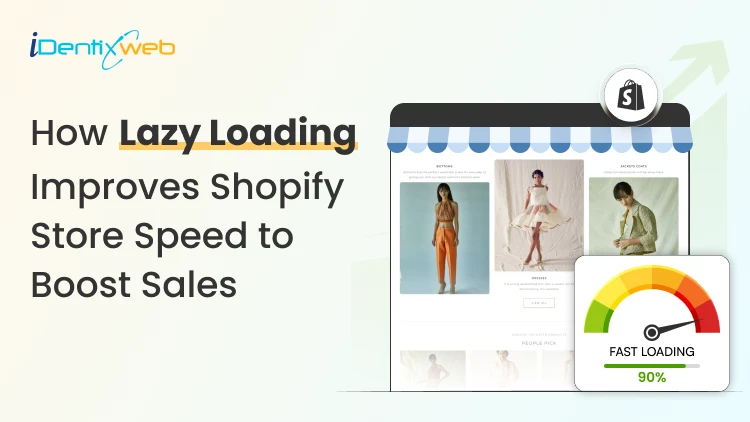
How to Enable Shopify Lazy Load (2026 Step-by-Step Guide)
Images are always the heaviest thing on a Shopify page. Loading every one of them the moment a page opens is what affects the store’s speed. Shopify lazy load is the fix. It tells the browser to download images only as a shopper scrolls toward them. The first screen loads fast, and your visitors stop staring at a blank layout. I have helped design enough Shopify stores to know the mistakes owners make during optimization. I will walk you through the whole thing the way I actually do it. You will learn what lazy loading is, how to check what your theme already does, and how to enable lazy loading in your store. What is lazy loading? Lazy loading is a technique that delays loading images, videos, and other heavy files until they are about to appear on screen. Instead of fetching every image the instant a page opens, the browser downloads only what a visitor can see, then pulls in the rest as they scroll. Less to download up front means a faster store speed and lower data usage, which matters most on mobile. When a page loads, the browser reads the HTML and queues every <img> tag for download. Grabbing all of them at once slows everything down. Lazy loading tells the browser to hold off on the images below the fold, the ones a shopper cannot see yet. One thing worth knowing is that you no longer need to be technical to enable lazy loading. But there are a few things I do before I add lazy loading in the store. First, check if your Shopify theme already lazy loads Most themes built on Online Store 2.0, including Dawn, Craft, Sense, and Refresh, ship with lazy loading on below-the-fold images by default. Adding it again on top duplicates the attribute. Here is the 20-second check I do: Open a collection or product page that has images below the fold. Right-click any image you have to scroll to reach, then click Inspect. Look at the <img> tag in the panel that opens. If you see lazyload and you did not add it yourself, your theme already handles it. Here's how I checked if lazy loading is enabled in the Shopify store, Houseplant. So if your theme is modern and you have already added lazy load, leave it alone. If you are on an older theme or building custom sections, here’s how you can set it up. How to set up Shopify lazy load in your theme? If your theme does not lazy load, or you are editing custom sections, you add the loading="lazy" attribute to the image tags in your Liquid files. The best method in 2026 is to render images with Shopify's image_tag filter, which handles lazy loading, responsive sizing, and dimensions for you. Whatever route you take, duplicate your theme first, so you have a safe rollback if something breaks. Go to Online Store > Themes, click Actions next to your live theme, and choose Duplicate. Work on this copy. To enable lazy loading in Shopify across the whole store, you edit the theme's section and snippet files. Go to Online Store > Themes > Actions > Edit code, then search your files for <img. Common places to look: snippets/card-product.liquid for the product cards used across collections and recommendations sections/featured-collection.liquid for homepage product rows sections/main-collection-product-grid.liquid for collection page grids Add loading="lazy" to the image tags that render below-the-fold content, then save and preview. For example: <img src="{{ section.settings.image | image_url: width: 800 }}" loading="lazy" alt="Product Image"> Pair lazy loading with correctly sized files too. My Shopify image size guide covers the dimensions that keep files light. Which images should you lazy load? The one rule that matters most: do not lazy load anything a shopper sees the instant the page opens. Below are the images you should definitely add the lazy load attribute. Product gallery images Recommended and recently viewed products Blog body images Footer images and badges Lazy loading and Core Web Vitals in 2026 Core Web Vitals are Google’s way of measuring how fast, stable, and responsive your Shopify store feels to visitors. Google currently measures three main Core Web Vitals: 1. Largest Contentful Paint (LCP) LCP measures how quickly the main content at the top of the page appears. This is often your hero banner, product image, or large heading. A good LCP score is under 2.5 seconds. Your main hero image should not be lazy-loaded because customers need to see it immediately. Instead, load the hero image normally and lazy-load images farther down the page. 2. Cumulative Layout Shift (CLS) CLS measures whether content unexpectedly moves while the page is loading. A good CLS score is under 0.1. For example, a customer may try to tap a product button, but an image suddenly loads above it and pushes the button downward. This creates a frustrating shopping experience. 3. Interaction to Next Paint (INP) INP measures how quickly your store responds after a customer clicks, taps, or interacts with something. A good INP score is under 200 milliseconds. Check your scores by visiting ‘pagespeed.web.dev’ and entering your store URL. What this means for your Shopify store Lazy loading works best when you: Load hero images and other above-the-fold content immediately. Lazy-load product images and content farther down the page. Add width and height values to prevent layout movement. Avoid loading too many large images at the same time. Test important pages after making changes. In my experience, collection pages often benefit the most because they usually contain many product images. Do you need a lazy load Shopify app? For images alone, you usually do not need an app. Native browser lazy loading works everywhere, and Shopify's image_tag filter applies it for you. Where a lazy load Shopify app earns its place is in bundling. The good ones compress files, add video facades, defer non-critical scripts, and fix Core Web Vitals. This is useful if you do not want to touch code. If you are weighing options, my guide on top Shopify tools for growth combines image optimization with speed fixes. My honest take after doing this for a living: reach for native lazy loading first, add a well-reviewed speed app only if you need the extra features. If you do want apps for this. I would recommend 3 that I have worked with. 1. Tiny SEO Speed Image Optimizer Tiny SEO offers lazy loading alongside image compression, resizing, alt-text optimization, broken-link management, and other SEO tools. It is a suitable option for merchants looking for an all-in-one image and store optimization app. 2. Avada AI SEO Suite Optimizer Avada combines lazy loading with image optimization, code minification, SEO audits, structured data, and redirects. It can be useful for merchants who want to improve both store speed and technical SEO from one dashboard. 3. WEBP Image Optimizer+Speed SEO This app compresses images, converts JPG and PNG files to WebP, and provides built-in lazy loading. It is worth considering if large image files are the main reason your product or collection pages load slowly. How to test that lazy loading is working Start with DevTools: Open a page with below-the-fold images, right-click, and choose Inspect. Go to the Network tab and, if you like, filter by Img. Refresh the page and scroll slowly from the top. If image requests fire as you scroll instead of all at once, lazy loading is working. I tested it on Netlfix.shop, which is Netflix’s merch store built on Shopify Get Shopify lazy load right Get lazy load in your Shopify store right by letting your theme and the image_tag filter handle the media. Check what your theme already does before you write a single line of code, test with DevTools and PageSpeed Insights. Reach for an app or a developer when you genuinely need more than images handled. FAQs 1. Does Shopify lazy load images by default? Most modern Online Store 2.0 themes apply loading="lazy" to below-the-fold images automatically. Older themes may not. To confirm, right-click an image you have to scroll to see, choose Inspect, and check the <img> tag for loading="lazy". 2. How to lazy load images in Shopify? Shopify themes usually support lazy loading through the loading="lazy" attribute or the Shopify image_tag Liquid filter. To add lazy loading manually, go to Shopify Admin → Online Store → Themes → … → Edit code, open the relevant section or snippet, and find the image code. Add loading="lazy" to a standard image tag—<img src="image.jpg" loading="lazy" width="800" height="600">—or use Shopify Liquid: {{ image | image_url: width: 800 | image_tag: loading: 'lazy' }} 3. What is lazy loading? Lazy loading is a technique that delays loading images and other media until they are close to appearing on the customer’s screen. It reduces the amount of content loaded initially, helping Shopify pages open faster and use less bandwidth. 4. Which is the best lazy load Shopify app? Tiny SEO Speed Image Optimizer is one of the best lazy-loading apps for Shopify because it combines smart lazy loading with image compression, resizing, alt-text optimization, and other speed features.

Sajini Annie John
August 17, 2023
5918 Views
Sajini Annie John
August 9, 2023
5878 Views
Sajini Annie John
July 28, 2023
5948 Views
Sajini Annie John
August 11, 2023
5779 Views
Sajini Annie John
July 26, 2023
6380 Views
Sajini Annie John
July 19, 2023
6875 Views
Sajini Annie John
July 12, 2023
5927 Views
Sajini Annie John
June 23, 2023
7136 Views
Sajini Annie John
July 5, 2023
6291 Views
Sajini Annie John
June 22, 2023
5970 Views

Sajini Annie John
June 16, 2023
7377 Views
![How Avanchy increased 73% of revenue in 30 days from iCart [Case Study]](https://www.identixweb.com/wp-content/uploads/2023/09/How-Avanchy-increased-73-of-revenue-in-30-days-from-iCart.png "How Avanchy increased 73% of revenue in 30 days from iCart [Case Study]")
Sajini Annie John
June 5, 2023
5711 Views