



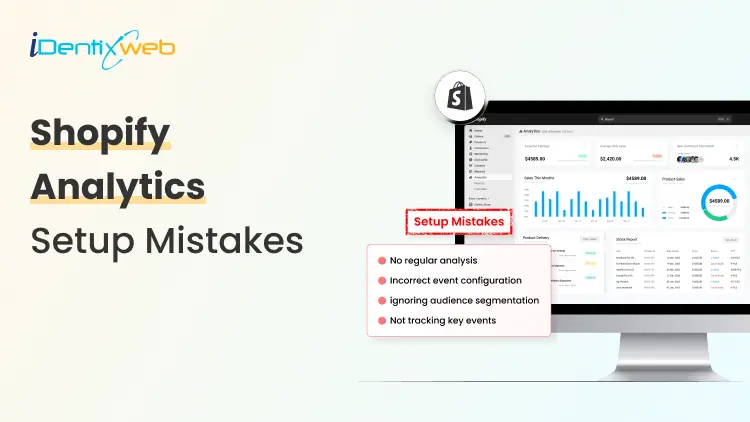
Here's something most Shopify merchants don't realize: your analytics can look completely normal while being completely wrong. Sessions populate. Revenue reports fill up. Everything seems fine. But underneath, tracking errors are quietly skewing every number you rely on. If you've ever wondered why your Shopify analytics and Google Analytics never seem to match, this is why. Let's fix it.
This guide breaks down the most common Shopify analytics setup mistakes; the ones that silently corrupt your data and cost you money.
Common Shopify Analytics Mistakes and How to Avoid Them
Mistake #1: Treating Shopify's Built-In Analytics as "Good Enough"
Shopify's native analytics dashboard is genuinely useful for surface-level reporting: total sales, sessions, top products, returning customer rate. For a brand-new store, it's plenty. But the moment you're running paid traffic, testing landing pages, or trying to understand why your conversion rate dropped last Tuesday, Shopify's native reports hit a ceiling fast.
The core limitation: Shopify analytics reports attribute everything to the last touchpoint before purchase. A customer who clicked a Pinterest ad three weeks ago, came back via email, then converted from a Google search? Shopify credits Google. That's not wrong, exactly, but it's deeply incomplete.
What merchants miss: Shopify's native dashboard also has no cross-device tracking, no funnel visualization, no event-level behavior data (scroll depth, video plays, add-to-cart timing), and no audience segmentation beyond basic purchase history.
The fix: Use Shopify's native analytics for what it's good at - operational reporting. For anything strategic, you need Google Analytics connected and properly configured. Think of them as complementary, not interchangeable.
Mistake #2: Installing the Google Analytics Shopify Integration Without Verifying It's Actually Working
This is the most common mistake on this entire list, and it's brutal because it looks like it's working.
You go to your Shopify admin, navigate to Online Store > Preferences, paste your GA4 Measurement ID, hit save, and see data flowing into Google Analytics within 24 hours. Setup complete, right?
What actually happens in a lot of stores:
- The base GA4 tag fires correctly on most pages, but the purchase event doesn't fire on the order confirmation page because the theme's checkout customization blocks it.
- The GA4 tag fires, but enhanced ecommerce events (view_item, add_to_cart, begin_checkout) are either missing or duplicated.
- The Measurement ID is correct, but the data stream settings in GA4 weren't configured, so key features like enhanced measurement are disabled.
- The integration was set up months ago, a theme update quietly broke the tag, and no one noticed because sessions data was still populating.
The fix: After setting up your Google Analytics Shopify connection, run a live verification. Open GA4's DebugView (Admin > DebugView), open your store in a separate browser tab, add a product to cart, and begin a checkout. You should see events populating in real time.
Mistake #3: Duplicate Tracking Tags Inflating Your Data
If Mistake #2 gives you missing data, Mistake #3 gives you the opposite problem - too much data that looks like success but is actually noise.
Duplicate tracking happens when the same tag fires twice on the same pageview or event. In GA4 terms, this means every session gets counted as two, every purchase fires twice, and your conversion rate doubles not because your store improved, but because you're counting everything twice.
The fix: Use Google Tag Manager's Tag Assistant Chrome extension or GA4's DebugView to audit which tags are firing on your key pages. In Shopify's theme code, search for your Measurement ID (format: G-XXXXXXXXXX) if it appears more than once in your liquid files or is present in both the theme code AND your GTM container, you have duplication. Remove one source.
Mistake #4: Skipping the Checkout Extensibility Migration
If your store is still running on Shopify's legacy checkout (pre-Checkout Extensibility), your purchase tracking is almost certainly broken or severely limited and this situation is only getting more urgent.
What this means for your data: Legacy checkout customizations using checkout.liquid don't support certain GA4 event firing methods. The purchase event either doesn't fire at all, fires without complete order data (missing revenue, item details, or quantity), or fires but can't be enhanced with customer data for better attribution.
The cascading effect: If your GA4 purchase events are incomplete, your Google Ads conversion tracking (which often uses GA4 as its source) is also wrong. Your ROAS calculations are wrong. Your Smart Bidding campaigns are optimizing toward incomplete signals. Your whole paid advertising engine is working from corrupted inputs.
The fix: Migrate to Checkout Extensibility if you haven't already. For GA4 specifically, use Shopify's native GA4 integration (which is Checkout Extensibility-aware) or a well-maintained app like Elevar or Littledata that handles server-side tracking to compensate for client-side limitations.
Mistake #5: Misattributing Shopify Email Marketing Traffic
When a customer clicks a link in your Shopify Email (or Klaviyo, or Omnisend) campaign and lands on your store, GA4 needs to know that traffic came from email. Without proper UTM parameters on those links, GA4 either:
- Attributes the session to "Direct" - because there's no referrer data it recognizes
- Attributes it to the ESP's domain - which is useless for channel analysis
The result: your email channel looks like it's underperforming, your direct traffic looks bizarrely high, and your channel-level ROAS calculations are completely misleading.
The fix: Tag every marketing email link with UTM parameters:
utm_source=klaviyo (or shopify-email, omnisend, etc.)
utm_medium=email
utm_campaign=your-campaign-name
utm_content=optional-link-identifier
Most ESPs have built-in UTM builders. In Klaviyo, it's under Account > Settings > UTM Tracking. In Shopify Email, you'll need to add them manually to links or use a URL builder. It takes 5 extra minutes per campaign and completely transforms the reliability of your channel attribution data.
The Shopify Analytics Setup Checklist
Before you close this tab, here's a quick reference for what a properly configured Shopify analytics setup should include:
Native Shopify Analytics:
✅ Shopify reports accessed regularly for operational metrics (sales, sessions, top products)
✅ Shopify Email and marketing campaigns tagged with UTMs
✅ Test orders excluded from reports (use Shopify's test gateway)
Google Analytics Shopify Integration:
✅ GA4 property created with correct data stream for your Shopify store URL
✅ Shopify's native GA4 integration active or GTM container with GA4 config tag (not both)
✅ Enhanced measurement enabled in GA4 data stream settings
✅ Internal traffic defined and filtered
✅ Cross-domain tracking configured if using external domains
✅ Purchase events verified in DebugView with complete ecommerce parameters
Google Ads & Conversion Tracking:
✅ Google Ads conversion action linked to GA4 purchase event (not just a standalone tag)
✅ Enhanced Conversions enabled and verified
✅ Attribution model reviewed and understood
Ongoing Maintenance:
✅ Post-update QA checklist run after every theme or app change
✅ Full analytics audit scheduled quarterly
✅ GA4 DebugView bookmarked for quick verification
Final Thought
The merchants who scale consistently aren't necessarily the ones with the biggest budgets or the best products. They're the ones who make better decisions and better decisions start with data you can actually trust.


About the author
Sajini Annie John
Meet Sajini, a seasoned technical content writer with a passion for e-commerce and expertise in Shopify. She is committed to helping online businesses to thrive through the power of well-crafted content.