Author: Katherine Crayon
Gather knowledge about the latest insights, updates, tips, and tricks in the Ecommerce industry.

5 Min • 20 March 2026
How Anua Unlocked 5X AOV Growth with iCart’s Smart Cart Features
delivery customization Challenges Solutions drive results Scale business delivery customization Challenges Solutions drive results Scale business delivery customization Challenges Solutions drive results Scale business delivery customization Challenges Solutions drive results Scale business Anua is a globally recognized Korean skincare brand known for its minimalist philosophy and focus on gentle yet effective formulations. Built on the idea of simplifying skincare routines, Anua develops products that deliver visible results while avoiding harsh or irritating components, making them suitable for sensitive skin types. Initially using a traditional full cart experience, Anua transitioned to iCart’s side cart solution in August 2025, to create a more seamless and engaging shopping journey. This shift allowed customers to easily explore complementary skincare products without disrupting their browsing flow, making it more intuitive to discover items that fit into a complete routine. By surfacing relevant recommendations directly within the cart, the brand enhanced product visibility across its range. Challenges Before implementing iCart’s side cart solution, Anua faced limitations with their existing full cart experience, which created friction in the customer journey. The traditional cart setup redirected users away from product pages, interrupting their browsing flow and reducing opportunities to explore additional products. As a skincare brand built around routines rather than single-item purchases, this made it difficult to effectively showcase complementary products and encourage customers to build complete regimens. Additionally, the lack of in-cart personalization and strategic upsell opportunities meant that customers were often unaware of related products that could enhance their skincare results. This limited the brand’s ability to increase average order value (AOV) and fully leverage its diverse product range. Anua needed a more dynamic and intuitive cart experience that could seamlessly introduce relevant recommendations while maintaining a smooth and engaging shopping journey. ❌ Cart Value Barriers Low average order value (AOV) due to single-item focus Most customers completed purchases with one primary product instead of building multi-step routines. Cart abandonment near shipping thresholds Customers were not clearly informed or motivated to reach free shipping or discount thresholds. Missed savings opportunities Customers were unaware of potential value in purchasing bundled routines or multiple complementary products. ❌ Absence of Progress-Based Incentives No free shipping or discount progress bar Customers were not motivated to increase their cart value due to lack of visible incentives. Missing tiered rewards system There were no structured milestones (e.g., “Spend more to unlock offers”), reducing upsell opportunities. ❌ Ineffective Cart UI/UX (Pre-Side Cart) Full-page cart disrupted shopping flowCustomers had to leave their browsing journey, increasing friction and drop-offs. No quick add/remove functionality Users couldn’t easily modify their cart or add suggested products without navigating away. Solution To overcome these challenges, Anua implemented iCart’s side cart solution to transform their traditional cart into a high-converting, interactive experience. By replacing the full-page cart with a seamless side cart, the brand ensured that customers could continue browsing while viewing their cart, significantly reducing friction in the shopping journey. Additionally, features like product recommendations & progress bars for free shipping and discounts motivated customers to increase their cart value. By combining personalization, incentive-driven messaging, and a user-friendly interface, Anua successfully turned their cart into a powerful revenue-driving touchpoint rather than just a checkout step. To maximize their cart effectiveness, they implemented two powerful features: ✅ Progress Bar with Multi-Reward Incentives Implemented a tiered progress bar to encourage higher cart value Customers are guided with a clear message like “Add $3.10 to unlock secret offer,” motivating them to continue adding products. Generated over $5M+ in revenue through incentive-driven cart progression Used product-based rewards to align with customer intent Instead of generic discounts, Anua incentivized purchases with relevant skincare items like Dark Spot Pads and mini serums. Built visual motivation for routine expansion As customers add products, they can clearly track progress toward unlocking multiple rewards, encouraging them to build a complete skincare routine. ✅ Product Recommendations Implemented “Frequently Bought Together” recommendations Customers adding a single product (e.g., toner) are shown complementary items like serums, moisturizers, or pads to complete their routine. Generated over 275K revenue through in-cart recommendations Encouraged full skincare regimen building Instead of isolated purchases, the cart suggests step-by-step product combinations aligned with common skincare routines. Increased product discovery at the final stage By surfacing relevant items directly in the cart, Anua ensured customers explore more of their catalog without leaving the checkout flow. Results Achieved in Last 180 Days 22932 Total Store Orders 45101 Total iCart Orders 5X iCart Generated AOV 65.70% Upsell Affected Conversion Rate These improvements reflect a clear shift in customer behavior on Anua’s store. Cart abandonment reduced as shoppers discovered complementary skincare products and felt encouraged to build complete routines. Engagement also increased, with customers interacting more with in-cart recommendations and exploring relevant product pairings. Results & Impact And...Results is Our Main Clarification By implementing iCart’s cart drawer, product recommendations, and progress bar, Anua transformed its cart into a high-performing conversion touchpoint. Shopping Experience Enhancement The improved cart experience encouraged customers to discover complementary products and understand the value of sustainable beauty routines. For instance, the clear presentation of subscription savings alongside one-time purchase options helped customers make more informed decisions about their long-term hair care needs. As Anua continues to optimize its cart experience, the brand is closely monitoring: Routine-based purchasing behavior - tracking how customers move from single items to multi-step regimens Engagement with in-cart recommendations - measuring interaction with suggested products Cart value progression - analyzing how incentives influence higher spending [related_cases_slider] Ready to Write Your Success Story? Try icart App Join successful businesses like Anua and Master your delivery scheduling Delight customers with precise timing Grow your special occasion orders Expand your delivery reach
Read Blog
5 Min • 28 May 2026
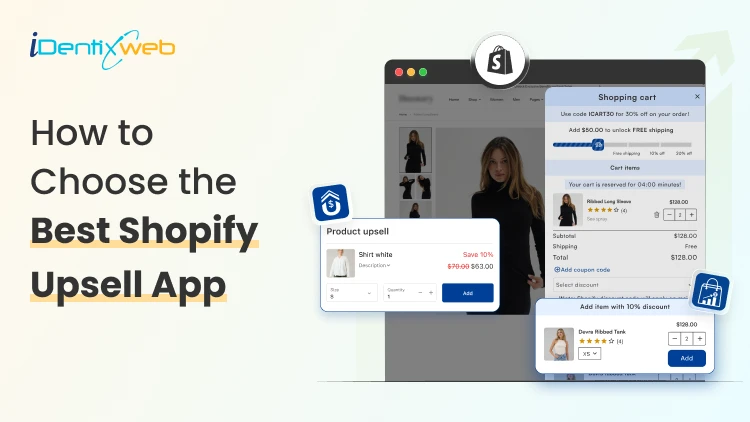
How to Choose the Best Shopify Upsell App for Your Store (9 Decision Factors That Impact ROI)
Are you making the most out of every single visitor that comes to your store? Most Shopify merchants focus almost entirely on getting more traffic. But the real revenue lever? It's often right there in your existing checkout flow, hidden in plain sight. That's exactly where the best Shopify upsell app comes in. But here's the catch: not every Shopify upsell app is built the same. In this guide, we will see 9 key decision factors that separate a high-ROI upsell app from one that just sits there collecting dust. The 9 Decision Factors That Determine ROI From Your Shopify Upsell App Before you install any app from the Shopify App Store, run it through these 9 filters. They're the factors that will determine whether your upsell app earns its keep or just adds noise to your store. Decision FactorWhat It MeansWhy It Impacts ROIUpsell PlacementWhere offers appear (cart, product, post-purchase)Wrong placement = ignored offersTrigger LogicRules that fire an upsell offerIrrelevant triggers = poor conversionsAOV ImpactAverage order value lift potentialCore ROI metric - track weeklyA/B TestingAbility to test offer variantsNo testing = leaving money on tableAnalyticsRevenue, CTR, conversion reportingBlind decisions without good dataStore SpeedPage load impact after app installSlow store = higher bounce rateDesign CustomizationMatch your brand look and feelJarring UI reduces trust & CTRPricing ModelFlat fee vs revenue shareRevenue share hurts at scaleSupport QualityResponse time and helpfulnessBad support = expensive downtime 1. Upsell Placement Options Placement is everything. An upsell shown at the wrong moment feels like an interruption. Shown at the right moment, it feels like a helpful suggestion. The best Shopify upsell apps give you multiple placement options: Product page upsells (before add-to-cart) Cart drawer or cart page upsells Checkout page upsells (available with Shopify Plus) Post-purchase / Thank You page upsells Order status page upsells For most stores, in-cart and post-purchase placements deliver the highest conversion rates because shoppers are already committed to buying. So, if you want a better app for that then you can try iCart & SellMore app because compared to other apps it is affordable and at the same time these apps provide multiple features to boost AOV & conversions. 2. Trigger Logic & Targeting Rules Showing the right upsell to the right customer at the right time is the whole game. A Shopify upsell app with smart trigger logic lets you set rules like: Show this upsell only when Cart contains Product X Trigger this offer when cart value exceeds $50 Display this bundle only to first-time visitors Upsell Product B specifically to buyers of Product A The more granular the targeting, the better your conversion rate. Apps with basic "show to everyone" logic will always underperform compared to apps that let you build conditional, product-specific rules. Irrelevant upsells don't just fail to convert, they actively annoy customers. 3. AOV Impact Your Average Order Value (AOV) is the clearest indicator of how well your upsell strategy is working. When evaluating an app, check its case studies and Shopify App Store reviews specifically for mentions of AOV improvement. Real merchant results are more reliable than vendor marketing claims. 4. A/B Testing Capabilities Even the best upsell offer can be made better. A/B testing lets you compare two versions of an upsell and see which one converts more. Without A/B testing, you're essentially guessing. With it, you're making data-driven decisions that compound over time. Ask these questions before choosing an app: Does the app support split testing of upsell offers? Can you test different placements against each other? Are test results presented clearly in a dashboard? 5. Analytics & Reporting Revenue is the goal, but you need data to get there reliably. The best Shopify upsell apps give you a clean dashboard showing: Total upsell revenue generated Click-through rate (CTR) on each offer Conversion rate by offer and placement AOV before and after upsell implementation Top-performing offers and products An app with great analytics allows you to double down on what works and cut what doesn't 6. Store Speed Impact Here's something merchants often overlook: upsell apps run JavaScript on your store. A poorly coded app can add hundreds of milliseconds to your page load time and that adds up fast. Before installing any app, check: GTmetrix or PageSpeed Insights scores after installation Whether the app uses lazy loading for its scripts Reviews on the Shopify App Store mentioning speed/performance 7. Design Customization Upsell popups and widgets that look out of place are a trust signal problem. Shoppers are sharp, they notice when something looks bolted on. The best Shopify upsell apps give you: Custom color, font, and button styling Fully responsive mobile design Control over popup timing and animation Drag-and-drop or code-level layout editing Always check if the app has design customization options before committing. 8. Pricing Model Most Shopify upsell apps charge in one of two ways: a flat monthly fee, or a percentage of the revenue generated through the app. Both models have tradeoffs. ModelBest ForWatch Out ForFlat Monthly FeePredictable costs, scales well at high revenueFixed cost even during slow monthsRevenue ShareLow upfront risk for new storesGets expensive fast as revenue grows 9. Support Quality Even the best-coded Shopify apps occasionally run into issues like theme conflicts, display bugs, feature questions. Responsive, knowledgeable support is what separates a minor hiccup from a full revenue-impacting outage. Before choosing an app, check: Average response time mentioned in reviews Whether live chat or email support is available If there's a help documentation library How the developer responds to negative reviews in the App Store Final Thoughts: Choosing the Best Shopify Upsell App Run every shortlisted app through the 9 decision factors in this guide - placement, trigger logic, AOV impact, A/B testing, analytics, speed, design, pricing, and support. Those 9 filters will cut through the noise and point you to the right choice.

10 Min • 10 June 2026
Shopify SEO Migration: How to Move Platforms Without Losing Rankings (2026)
A Shopify SEO migration scares most store owners for one reason: ▶ They have seen sites lose months of organic traffic after a replatform. I have run enough of these to tell you the platform is rarely the problem. Traffic drops because URLs change, redirects get missed, and on-page signals quietly disappear during the move. Get those three right and your rankings hold, they even climb as well if you continue with best SEO practices. In this guide I will walk you through exactly how to migrate to Shopify without losing SEO, the mistakes that lose rankings, and the steps I follow on every project. What a Shopify SEO migration actually is? A Shopify SEO migration is the process of moving your store to Shopify while keeping your search rankings, indexed pages, and organic traffic intact. It covers your: URL structure Redirects Content, metadata & structured data In my experience, protecting search equity is where most Shopify SEO migrations succeed or fail. When you change platforms, almost every URL changes too. Search engines have those old URLs indexed and ranked. If they hit a dead page instead of the right new one, rankings for that page slide. SEO work for Migrating to Shopify work is really about controlling that handoff so Google updates its index to your new URLs without losing the trust your old pages built. Common SEO mistakes during a Shopify SEO migration Most ranking loss comes from a short list of avoidable errors. The platform gets blamed, but the damage is almost always self-inflicted during planning. Here are the common SEO mistakes I see on Shopify migrations and how to dodge them. No URL inventory before launch. You cannot redirect pages you never recorded. Skip the crawl and you will miss orphan pages that still earn traffic. Incomplete or wrong redirects. A redirect map that covers products but forgets blog posts, collections, or old filtered URLs leaves dozens of dead pages behind. Redirect chains. Old URL points to URL B, which points to URL C. Chains slow crawling and loses link equity. Point old straight to final. Lost metadata. Titles, meta descriptions, H1s, and alt text often get regenerated by the new theme. Rankings depend on those signals matching. Launching without testing. Pushing live with no staging review means you discover broken redirects after Google already crawled them. Forgetting the sitemap and Search Console. A new site that never resubmits its sitemap takes far longer to get recrawled. Avoid these six and you have removed most of the risk. The rest is execution. Shopify migration SEO best practices: a step-by-step plan The safest way to protect SEO ranking from migrating to Shopify is to treat it as a controlled site move. Below is the exact sequence I use, and it holds up whether you are coming from WooCommerce, Magento, or BigCommerce. ▶ Here’s a complete breakdown of BigCommerce to Shopify migration for beginners. ▶ I have also created complete guide on Magento to Shopify migration for beginners. 1. Crawl and inventory every URL Start by capturing every page that currently exists and ranks. Crawl the full site with Screaming Frog or Sitebulb and pull title tags, H1s, meta descriptions, word count, and status codes into one spreadsheet. Cross-reference that crawl against your XML sitemap, Google Analytics top pages, and Google Search Console so you catch orphan pages the crawler would miss. This master sheet becomes the backbone of the whole Shopify SEO migration. 2. Map old URLs to new Shopify URLs Build a one-to-one map of every old URL to its new Shopify destination. Shopify forces certain prefixes into URLs, so even pages with the same name change paths. Knowing how to migrate to Shopify SEO URLs means accepting those structural changes and matching each old path to the closest, most relevant new page rather than a generic homepage. A rough sense of Shopify's structure: Products live under /products/ Collections live under /collections/ Blog posts live under /blogs/blog-name/post-name Static pages live under /pages/ Keep your handles short and descriptive while you map. A slug like /products/leather-wallet beats a bloated auto-generated one. 3. Set up 301 redirects Use 301 redirects for every changed URL, because a 301 tells Google the move is permanent and passes nearly all of the page's ranking power to the new URL. A 302 is temporary and does not carry that equity, so avoid it for a Shopify SEO migration. Import your redirect list in the Shopify admin under Online Store, then Navigation, then URL Redirects, and prioritize your highest-value pages first: Top collections, best-selling products, and blog posts that pull organic traffic. For a deeper walkthrough, my Shopify migration checklist breaks down the 30-day QA I run after every go-live. 4. Preserve metadata, headings, and content Carry over your title tags, meta descriptions, H1s, body content, and image alt text exactly. These are direct ranking signals, and a theme that regenerates them with generic text will erase years of optimisation. Spot-check your top 20 pages by hand after import to confirm the on-page elements survived the move. 5. Rebuild structured data and replace SEO apps Your old platform's SEO plugins do not come with you. If you relied on Yoast, RankMath, or a Magento SEO module, plan replacements like Yoast SEO for Shopify or Smart SEO, and make sure product, review, and article schema is reapplied. Shopify themes handle canonicals and basic schema natively, so do not pile on apps for jobs the theme already does. Here’s my step-by-step Shopify SEO guide that covers which on-page elements matter most once you are live. 6. Test everything on a staging build first Validate the new store before Google checks it. Run a fresh crawl of the staging site, check that redirects resolve in one hop, confirm canonicals point to the right URLs, and verify no important pages carry an accidental noindex tag. Catching it after Google recrawls will cost you rankings. 7. Launch, submit your sitemap, and monitor Search Console Go live, then immediately submit your new XML sitemap in Google Search Console and request indexing for key pages. Watch the Coverage and Pages reports daily for the first two weeks for 404s, redirect errors, and crawl anomalies. Fast detection is the difference between a small dip and a real decline. Migration can go wrong without experts Schedule a Free Strategy Call The Shopify URL reality nobody warns you about Shopify will not let you match your old URLs perfectly, and that is fine. The forced /collections/, /products/, /pages/, and /blogs/ prefixes mean your paths will change even when page names stay identical. Accept it, redirect cleanly, and Google adapts. A few Shopify-specific limits worth knowing before launch: Shopify only creates 301 redirects through the admin, not 302s, which is what you want for a migration. You cannot redirect a URL that is still live. The destination has to exist and the old path has to be free. Shopify carries query parameters through redirects, so a redirect on /products/old also catches /products/old?variant=123. When you later edit a product, collection, or page handle, Shopify offers a "Create a URL redirect" checkbox. Always tick it. How long until traffic recovers? Expect some movement, then recovery. Any time URLs change there is a short-term wobble while Google recrawls and reassigns equity. Smaller sites usually settle within a few weeks; large catalogues can take a couple of months to fully stabilise. The size of the dip tracks how clean your redirects and on-page preservation were. A tidy one-to-one redirect map with intact metadata recovers fast. A patchy map with missing pages recovers slowly, if at all. Recovery is a measure of migration quality. Don't ignore AI for Shopify SEO migration in 2026 To protect SEO ranking from migrating to Shopify in 2026, treat AI search engines as part of the equation. AI crawlers from tools like Google's AI Overviews, ChatGPT, and Perplexity follow the same redirects and read the same structured data your pages serve. Broken redirects and missing schema cost you visibility in AI answers exactly the way they cost you in classic search. Keep your schema markup intact through the move, make sure your most authoritative pages still resolve cleanly, and confirm your FAQ and product structured data survives import. A migration done well for traditional SEO is already most of the way to staying visible in AI-driven results. Want to rank in AI search engines? Here’s my AEO guide for Shopify owners to rank their storefronts in AI search engines. Migrate to Shopify without losing SEO A Shopify SEO migration is easy when you control the variables. Inventory every URL, map old to new, redirect with 301s, preserve your on-page signals, test on staging, then watch Search Console closely after launch. Do those things and you migrate to Shopify without losing SEO, often coming out faster and cleaner than the store you left. If your catalogue is large or your old store has heavy custom logic, the redirect mapping alone can run into thousands of rows, and that is where a careful hand matters most. If you would rather hand it off, Identixweb's Shopify migration services team handles the URL mapping, redirects, and SEO preservation end to end. FAQs 1. Will migrating to Shopify hurt my SEO? It can cause a short-term dip because URLs change, but it will not cause lasting loss if you redirect properly. With clean 301 redirects and preserved metadata, most sites recover within a few weeks to a couple of months and some improve. 2. What are the most common SEO mistakes during a Shopify migration? Skipping a full URL inventory, building incomplete redirects, creating redirect chains, losing title tags and meta descriptions, launching without testing, and forgetting to resubmit the sitemap. 3. How do I migrate to Shopify without losing SEO? Crawl and record every existing URL, map each one to its new Shopify URL, set up 301 redirects, preserve all on-page elements, rebuild structured data, test on staging, then submit your sitemap and monitor Search Console after launch. 4. Do I have to change my URLs when moving to Shopify? Yes. Shopify forces prefixes like /products/ and /collections/ into paths, so even pages with the same name change URLs. The fix is a complete 301 redirect map from every old path to the right new one. 5. How long does it take to recover rankings after a Shopify migration? Small stores usually stabilize within a few weeks. Large catalogues can take up to a couple of months. The cleaner your redirects and metadata preservation, the faster the recovery. 6. Should I keep my old site live during the migration? Keep it accessible until you have confirmed the domain points to Shopify and your redirects resolve correctly. A short overlap gives you a safety net to verify everything before fully cutting over.
9 Min • 5 June 2026
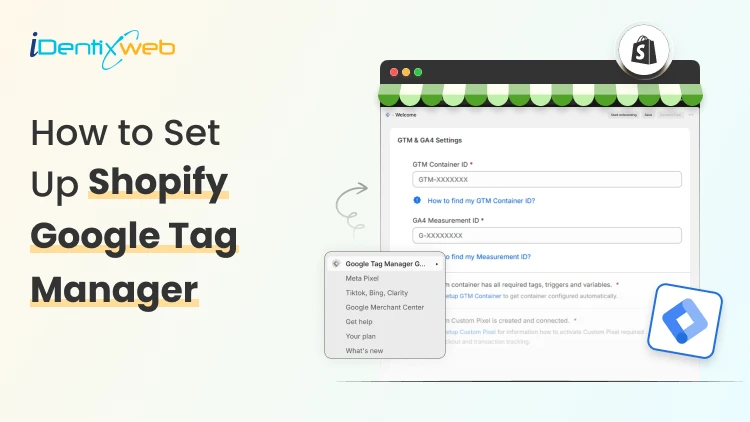
How to Add Google Tag Manager to Shopify in Just 4 Steps (Track Everything in 2026)
You pasted your GTM snippet into Shopify, saw it fire on your homepage, and assumed you were done. Then you checked your purchase data and found nothing. Sales were happening, but your conversion tags were silent. That gap is the single most common mistake I see when installing Google Tag Manager in Shopify, and it got worse in 2026. The old method of dropping one GTM code block into your theme still loads the container on storefront pages. It no longer fires on checkout or the thank-you page. So you can add Google Tag Manager in Shopify in five minutes and still miss the only event that pays your bills: the purchase Here is the short answer. To connect Google Tag Manager to Shopify correctly today, you need two installs working together. GTM goes in your theme code for storefront tracking, and a separate Custom Pixel handles checkout and purchase events inside Shopify's sandboxed environment. Custom Pixels are available on all Shopify plans, including Basic, Shopify, Advanced, and Plus. You do not need Shopify Plus. I'll walk you through the full setup, show you exactly where to add the Google Tag Manager code in Shopify, and help you verify nothing is double-counting before you trust the numbers. What Changed in 2026 With Google Tag Manager in Shopify For years, the standard approach was simple. Paste your GTM container into theme.liquid, and Plus merchants paste a second copy into checkout.liquid. In February 2023, Shopify announced that checkout.liquid is deprecated, moving to a new foundation for checkout and accounts that is more secure, upgrade-safe, and customized using apps. The replacement is Checkout Extensibility, and tracking now runs through Custom Pixels instead of injected scripts. The deadline matters. Shopify Plus merchants had until August 28, 2025, to migrate, and non-Plus merchants had until August 26, 2026. If your checkout pages have not been upgraded, your Custom Pixel will not fire on checkout or thank-you pages, and your purchase data will stay incomplete. Why the change? Checkout used to allow arbitrary scripts, which created security and performance risks. The new model runs your tracking code in a sandboxed iframe. It is safer, but it means your old single-snippet setup no longer covers the full customer journey. GTM vs GA: Know the difference People mix these two up constantly, and it leads to broken setups. Google Analytics is the tool that provides reports about activity in your store. Google Tag Manager is a tool that triggers your tracking codes based on defined rules. GTM is the container. It holds and fires your tags. GA4 is one of the things it can fire. Adding Google Analytics to Google Tag Manager in addition to using Shopify's built-in integration can result in duplicate tracking. If you have already connected GA4 through Shopify's native integration and then also fire GA4 through GTM, you will double-count everything. Pick one path per tag. I'll come back to this when we verify the setup. If you are optimizing your store beyond just tracking, you should check out my Ultimate Shopify SEO Guide for 2026. The above breakdown will help you measure your content and conversion strategy. Don't Want to Touch Code? We'll Handle the Whole Setup Our Shopify development team installs and configures GTM correctly across your storefront and checkout, no guesswork on your end. Your Store Is Leaking Data. We'll Fix That Schedule a Free Strategy Call How to add Google Tag Manager code in Shopify: Step-by-step Step 1: Create Your GTM Container Go to tagmanager.google.com and sign in with your Google account. Create an account, name your container after your store, and set the target platform to Web. Accept the terms, and GTM hands you two code snippets: One for the <head> and one right after the opening <body> tag. Copy your container ID too. It looks like GTM-XXXXXXX. If you already have a container, skip ahead to Step 2. Step 2: Add the GTM code to your theme This covers your storefront: product pages, collections, cart, blog posts, everything before checkout. In your Shopify admin, go to Online Store > Themes > Edit code. Open the theme.liquid file in the Layout folder. Paste the first GTM snippet immediately after the opening <head> tag, and paste the second snippet immediately after the opening <body> tag. Save. That answers the "where to add Google Tag Manager code in Shopify" question for the storefront half. But you are only halfway done. Step 3: Add a custom pixel for checkout and purchases The theme code stops at checkout. To track checkout and purchase events, you create a Custom Pixel. Go to Settings > Customer events in your admin and click Add custom pixel. Name it something clear, like "GTM Checkout." Inside the pixel, you load GTM and subscribe to Shopify's standard customer events, pushing them to the data layer. Shopify gives you the event subscription pattern directly. You subscribe to standard events like product_viewed, and when the event triggers, it pushes the event to the dataLayer. Here is the shape of that code: analytics.subscribe("checkout_completed", (event) => {window.dataLayer = window.dataLayer || [];window.dataLayer.push({event: "purchase",transaction_id: event.data.checkout.order.id,value: event.data.checkout.totalPrice.amount,currency: event.data.checkout.currencyCode});}); Step 4: Consider the Google & YouTube App If your priority is Google Ads conversion tracking rather than full custom GTM control, Shopify and Google recommend a managed route. Shopify is deprecating mechanisms like checkout.liquid and additional scripts, and recommends migrating your tags to the Google-developed Google & YouTube app on Shopify. The app handles the migration for you and preserves your measurement through the checkout upgrade. For merchants who want granular control over every tag and trigger, the manual GTM-plus-Custom-Pixel route above gives you more flexibility. For merchants who mostly run Google Ads, the app is less to maintain. Where to add Google Tag Manager code in Shopify GTM in Shopify lives in two places. The theme.liquid install covers storefront pages. The Custom Pixel covers checkout and the thank-you page. Storefront code does not reach checkout, and the Custom Pixel does not reach your storefront. One critical caution. Do not fire the same conversion from both locations. Some merchants add GTM to their theme.liquid file and also install it as a Custom Pixel, which is a common configuration error. If your purchase tag exists in both, every sale counts twice. Keep storefront events in the theme container and checkout events in the pixel. How to verify your GTM setup fires correctly? Open GTM's Preview mode and connect it to your store URL. Browse a few product pages and confirm your storefront tags fire. The harder test is checkout. Because the pixel runs sandboxed, you verify it differently. Place a real test order. Open GA4 DebugView and your browser's DevTools Network tab, filtered for the collect request. You want to see exactly one purchase event with a stable transaction ID. Two purchase events mean you have a duplicate firing somewhere, usually from running both Shopify's native GA4 integration and a GTM-based GA4 tag at once. Check the transaction ID specifically. If it changes on page refresh, your deduplication will fail, and you will inflate conversions. A stable order ID is what keeps your reporting honest. If you are testing checkout behavior, here’s a complete breakdown of Shopify checkout upsell strategies for merchants. Also, read these breakdowns GTM is one tool in a larger SEO and conversion measurement ecosystem. You might also find these topics relevant: How to Improve SEO on Shopify: Once you have GTM firing correctly, use the data to identify which pages and products drive traffic and conversions. SEO improvements compound when informed by real user behavior. Shopify A/B Testing Guide: With GTM tracking reliably, run controlled experiments on your store. GTM tags fire the same way regardless of variant, so your test results stay clean. How to Reduce Shopify Customer Acquisition Cost: GTM feeds data to Google Ads, which in turn helps you measure and optimize CAC. The feedback loop only works if GTM is set up correctly. Shopify Sales Funnel Guide: Understanding your full funnel (awareness → consideration → conversion) starts with accurate event tracking in GTM. Without it, you can't measure funnel leakage. Connect Google Tag Manager to Shopify the right way The Google Tag Manager Shopify setup is no longer a single paste-and-forget snippet in 2026. It is a theme install for your storefront and a Custom Pixel for checkout. Get those two pieces talking, and your conversion data finally matches your actual sales. Run your test order today. Open GA4 DebugView, place one order, and confirm a single purchase event fires with a stable transaction ID. If it does, your tracking is sound, and you can start building the tags that actually grow the store. FAQs 1. What is GTM in Shopify? GTM in Shopify means Google Tag Manager, a tool that lets you manage tracking codes like GA4, Google Ads, Meta Pixel, TikTok Pixel, and other scripts from one place instead of adding each code manually to your theme. 2. Do I need Google Tag Manager for Shopify? You don’t need GTM for every Shopify store; Shopify’s built-in Google Analytics / Google channel setup is enough for many basic stores, and you can use its built-in Google Analytics integration to avoid duplicate tracking. But GTM is useful if you run multiple ad platforms, need custom event tracking, or want more control over tags. 3. Where to add Google Tag Manager code in Shopify? For the current Shopify setup, the recommended method is Shopify Admin → Settings → Customer events → Custom pixel, especially if you want GTM to work with modern Shopify checkout/customer events. Google’s normal GTM install uses one code in the <head>, and one after the opening <body>, but Shopify’s GTM custom pixel method is different from simply pasting code into theme.liquid. 4. How to add Google Tag Manager code in Shopify? Go to Google Tag Manager → Admin → Install Google Tag Manager, copy the code Shopify asks for, then in Shopify go to Settings → Customer events → Add custom pixel, paste the GTM custom pixel code, save it, and connect the pixel. After that, test it using Shopify Pixel Helper or GTM preview mode to make sure events are firing correctly.

Katherine Crayon
March 24, 2023
5959 Views