




A Wix to Shopify migration can be handled manually with CSV files, through a migration app, or by hiring a Shopify expert. Before migrating, audit and back up your Wix store, choose the right migration method, and prepare products, customers, content, and URLs. After migration, rebuild store settings, set up 301 redirects, connect your domain, test checkout and tracking, and monitor SEO performance after launch.
I've walked a lot of store owners through a Wix to Shopify migration. People expect the hard part to be moving products. It's not.
The hard part is the stuff nobody warns you about:
- The image links that break
- The orders that won't import
- The redirects that decide whether you keep your Google rankings and much more.
Get those right, and the move feels easy. Here's how to migrate from Wix to Shopify the way I do it on real projects.
What actually transfers from Wix to Shopify (and what doesn't)
| Store data/feature | Transfers to Shopify? | What happens |
| Products | Yes | Move through CSV or a migration app |
| Variants, prices & SKUs | Yes | Can be included with product data |
| Customers | Yes | Names, emails, addresses, and tags can be exported and imported |
| Product images | Partly | Wix exports image URLs, so images should be moved and re-hosted on Shopify |
| Collections | No, not directly | Recreate them in Shopify |
| Order history | Not natively | Use a migration app to import historical orders |
| Theme & design | No | Rebuild the storefront using a Shopify theme |
| Custom code | No | Rebuild or adapt it for Shopify |
| Wix apps & settings | No | Replace them with Shopify apps or native features |
| Discount codes | No | Recreate them in Shopify |
| Product reviews | Not directly | Move them using a compatible reviews app such as Judge.me, Loox, or Yotpo |
Choosing your migration method: Manual, app, or expert
Manual CSV migration
This is free and gives you full control. You export from Wix, reformat the files to match Shopify's exact column headers, save them as UTF-8, and import.
It works well for small catalogs, roughly under 500 products, if you're comfortable with a spreadsheet.
A migration app
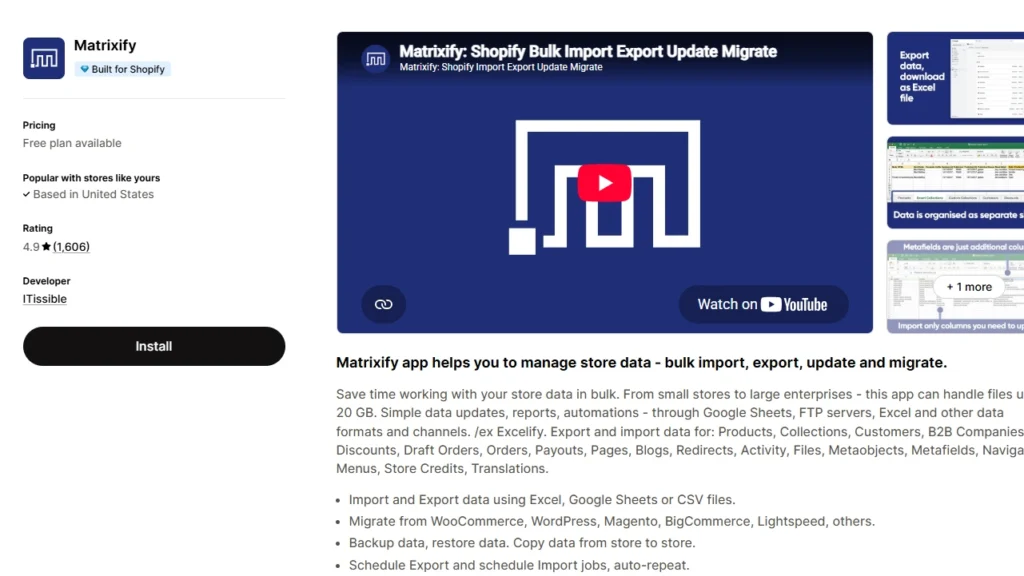
Apps like Matrixify are the ones I choose for bulk work because they handle messy field mapping and let you catch errors before they hit your live store.
For order history specifically, tools like LitExtension can automate what the CSV method can't.
Hiring a migration agency
This is an ideal choice for large or complex stores, or when downtime and lost rankings would cost you more than the project fee.
A specialist maps URLs you didn't know were indexed and tests things you'd never think to check.
If you'd rather hand it off, that's exactly what our Shopify store setup and migration service is for. Our developers handle the technical details carefully, making sure your store is moved and set up without disrupting how your business operates.
How to migrate from Wix to Shopify step by step
Step 1: Audit and back up your Wix store
Before you move anything, take stock of what is currently on your Wix store. List your products, collections, customers, orders, pages, blog posts, reviews, apps, custom code, and any URLs that already get organic traffic or backlinks.
Export copies of your products, contacts, and order data from Wix. I also recommend saving a list of your important URLs, page titles, meta descriptions, and other SEO data so you have something to compare against after migration.
Step 2: Set up your Shopify account
Build your Shopify store before you start moving data from Wix. Add your basic business information and familiarize yourself with the Shopify admin.
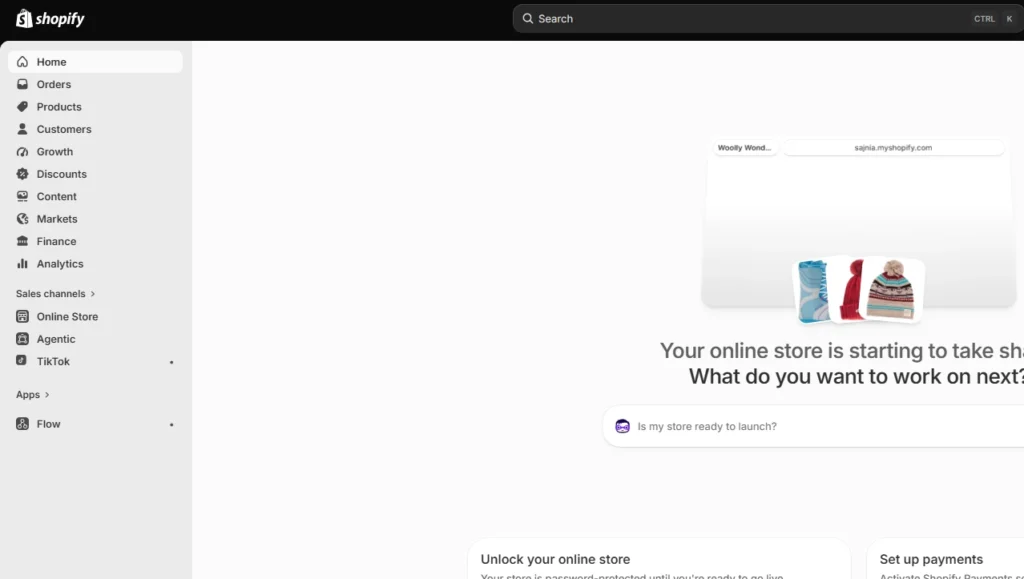
Keep your existing Wix store live while you build and test the new store.
Build your Shopify store in parallel so customers can continue shopping on Wix until the products, settings, redirects, and checkout are ready.
Step 3: Choose your Wix to Shopify migration method
The right migration method depends on how much data you have and how complicated your store is.
For a smaller catalog, you can migrate Wix to Shopify manually using CSV files, while larger stores may be easier to handle with a migration app or a Shopify migration expert.
Step 4: Migrate your products and images
Export your products from Wix and prepare the CSV according to Shopify’s product format. Before importing, check how your product options are structured.
Wix allows up to 6 product options, while Shopify allows up to 3 option types per product. Shopify supports up to 2,048 variants per product, so the bigger issue is usually how those variants are organized. If a product uses more than three options, you may need to restructure it or move supporting information into Shopify metafields.
Product images also need extra attention.
A few months ago, I was on a call with a home and kitchen store owner who had already moved her products from Wix and built her new Shopify store over the weekend. Everything looked ready, and she was about to take the Wix site offline.

I asked her to check the product images first.
The images looked fine, but Shopify was still importing them using URLs hosted through Wix. Taking the old store down too early could have interrupted that process.
We kept Wix live until the images had been fully imported and checked the main product pages again before switching over.
Since then, I’ve followed one simple rule: don’t take your Wix store offline until you’ve confirmed that your products and images have been successfully imported into Shopify.
Before moving on, verify prices, SKUs, variants, inventory, descriptions, and images across a sample of your products.
Step 5: Migrate customers and order history
Export your customer data from Wix, reformat it using Shopify’s customer CSV template, and import it into the Customers section of your Shopify admin.
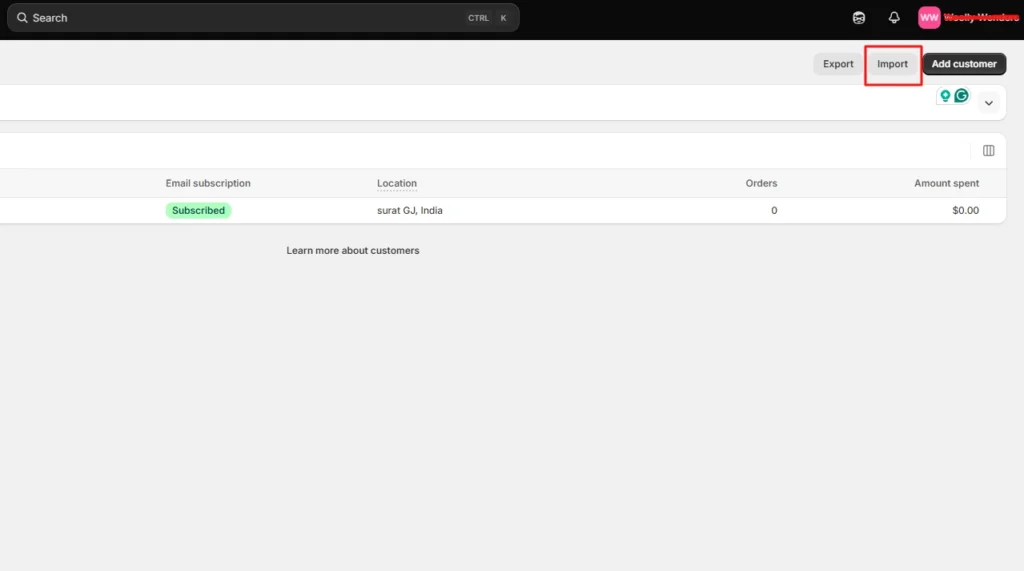
Check names, email addresses, phone numbers, addresses, tags, and marketing consent carefully before importing. Wix and Shopify structure customer data differently, so even a small formatting issue can create incomplete records.
Customer passwords won’t move to Shopify. This is less of a problem now because Shopify deprecated legacy customer accounts in 2026 in favor of passwordless customer accounts.
Customers can sign in using a one-time code sent to their email, with additional options such as Shop and passkeys where available.
Historical orders need a separate migration method. They don’t come across through Shopify’s standard customer CSV, so if you need old Wix orders inside Shopify, use a migration app such as Matrixify or a dedicated migration service.
Step 6: Move pages, blogs, reviews, and other content
Once your products and customer data are in place, move the content outside your catalog.
For a smaller Wix site, pages and blog posts can often be recreated manually. If you have a large content library, a migration app can make the process faster.
Don’t copy only the visible text. Re-upload any images that were hosted on Wix, update internal links so they point to the new Shopify URLs, and recreate important SEO elements such as meta titles, meta descriptions, headings, and image alt text.
Reviews also need separate attention because they don’t move through Shopify’s standard product import. Check whether the Shopify review app you plan to use supports importing your existing Wix reviews before launch.
Step 7: Build your Shopify theme and configure Store settings
Your Wix design does not transfer directly to Shopify, so the storefront needs to be rebuilt using a Shopify theme.
Then configure the settings that don't simply come across with your store data.
Set up your payment provider, shipping methods and rates, taxes, policies, notifications, and any Shopify apps you need before opening the store to customers.
Step 8: Set up Wix-to-Shopify 301 redirects
Wix and Shopify use different URL structures, which means many of your existing URLs will change during migration.
Create a URL plan that matches each important Wix page with the most relevant new Shopify page instead of sending everything to the homepage.
In Shopify, you can create redirects under Content > Menus > View URL Redirects, or import redirects in bulk using a CSV file.
Step 9: Connect or transfer your domain
Once the Shopify store is ready, connect your existing domain so customers can continue using the same website address.
If your domain is managed through Wix, you can update its DNS settings to point it to Shopify while continuing to manage the domain through Wix.
You can also transfer an eligible domain to Shopify if you want to manage the domain, billing, and renewal from Shopify instead.
Step 10: Test your Shopify store and go live
Before launch, place test orders and go through the store exactly as a customer would.
Check product pages, navigation, search, checkout, payments, shipping rates, taxes, inventory, discount codes, email notifications, mobile pages, and your most important 301 redirects.
Important Wix to Shopify Migration issues
1. Data can change during migration
If customers are still ordering from Wix while Shopify is being built, run a final check before launch so recent orders, customers, and inventory changes aren't missed.
2. Wix apps don't transfer
Review features such as reviews, subscriptions, forms, loyalty programs, personalization, and marketing tools, then find Shopify replacements where necessary.
3. Protect your SEO
Keep your important URLs, set up 301 redirects, update internal links, and make sure valuable pages haven't disappeared during the move.
4. Check your tracking
Verify Google Analytics, Search Console, advertising pixels, conversion tracking, and other integrations after launch.
Finally, don't delete your Wix store or migration files immediately. Keep access to the old data until you've confirmed that Shopify has everything you need.
Protecting your SEO during a Wix to Shopify migration
Wix and Shopify use completely different URL structures. Every indexed link breaks the moment you switch unless you redirect it.
Here's how the URLs change. Wix products live at yourstore.com/product-page/product-name and Wix blog posts at yourstore.com/post/post-slug.
Shopify forces its own prefixes. For example, products sit under /products/ and collections under /collections/. A page with the same name and identical content still gets a brand-new URL on Shopify.
So before you go live, build a full map from every old Wix URL to its closest new Shopify URL.
Set up a 301 redirect for each important page in your Shopify admin under Content > Menus > View URL Redirects. For a big catalog, upload them in bulk with a spreadsheet through Matrixify.
A few rules I hold to on every project:
- Use 301 redirects, never 302s, because Shopify only supports permanent redirects here, and that's what passes your ranking signal.
- Avoid redirect chains, where an old URL points to a second URL that points to a third. Point every old URL straight to its final destination.
- Pay special attention to your blog. Blog posts are often the pages with the most backlinks pointing at them. Once you're live, carry over your title tags, meta descriptions, and image alt text, submit your new sitemap to Google Search Console, and watch for crawl errors for the first month.
What it costs to migrate from Wix to Shopify
The cost of moving from Wix to Shopify depends on how much data and custom work your store has. A simple DIY migration may only cost your Shopify subscription and your time.
If your store has a large catalog, years of orders, custom features, or important SEO traffic, the cost can be higher because you may need a migration app or professional help.
Planning your Wix to Shopify migration?
A Wix to Shopify migration is easy once you have a plan.
Build your Shopify store fully in parallel, re-host your images before you touch the Wix domain, and treat your 301 redirect as the most important task.
If you'd rather not manage every step yourself, that's what a Shopify migration agency is for. Either way, do it in the right order, test everything, and you'll come out with a faster store and your rankings intact.
FAQs
1. Is Wix cheaper than Shopify?
Wix can be cheaper for smaller websites and basic online stores. Shopify is built specifically for ecommerce and includes more advanced selling features. Your actual cost on Shopify depends on the plan, apps, payment processing, and features your store needs.
2. Why do store owners move from Wix to Shopify?
Many store owners move from Wix to Shopify when their ecommerce needs become more complex. Shopify is built specifically for commerce, with a dedicated checkout, Shop Pay, support for major payment methods, a large app ecosystem, and built-in tools for selling across channels such as Instagram, TikTok, Google, and Amazon.
3. Is Shopify like Wix?
Shopify and Wix both let you build websites and sell online, but their primary focus is different. Wix is a website builder with basic ecommerce features, while Shopify is a dedicated commerce platform designed for businesses that want to sell and scale, both online and offline.
4. How to migrate from Wix to Shopify?
You can migrate from Wix to Shopify by exporting your products and customers from Wix and importing them into Shopify using CSV files, Shopify’s Store Migration app where available, or a third-party migration app. For historical orders, Shopify recommends using apps such as LitExtension, Cart2Cart, EZ Importer, or MigrationPro, then rebuilding your storefront, setting up redirects, and testing products, checkout, shipping, payments, and SEO before making the Shopify store live.
5. Can you use Shopify with Wix?
Yes. Shopify lets you create a Buy Button or product collection and embed it on a Wix website using Wix's HTML code element, allowing customers to purchase Shopify products from your Wix site.



About the author
Vineet Nair
Vineet is an experienced content strategist with expertise in the ecommerce domain and a keen interest in Shopify. He aims to help Shopify merchants thrive in this competitive environment with technical solutions and thoughtfully structured content.