

The Timer Widget in SellMore adds a countdown timer to your widgets, creating urgency that encourages shoppers to make quicker purchasing decisions, potentially increasing your conversions. You can easily enable the timer with a checkbox and customize its duration, placement, and behavior once it expires, allowing you to tailor it to your store's needs. You can set the timer for durations of 10 minutes, 30 minutes, or 1 hour, depending on the urgency you want to create.
Place the timer above or below the widget for optimal visibility, and choose what happens when the timer expires, such as hiding the widget or displaying a message. It's recommended to keep timers short for maximum impact and to test the expiry behavior before going live to ensure a smooth customer experience.
In this article, you will learn how the timer works, what each setting does, and how to get the best results from it.
How This Feature Works
The Timer feature is available on every SellMore widget. You can turn it on with a single checkbox, then control how long it runs, where it sits, and what happens once it hits zero.
Once you enable it, customers see a live countdown. This creates urgency and encourages them to check out before time runs out.
Feature Settings Explained
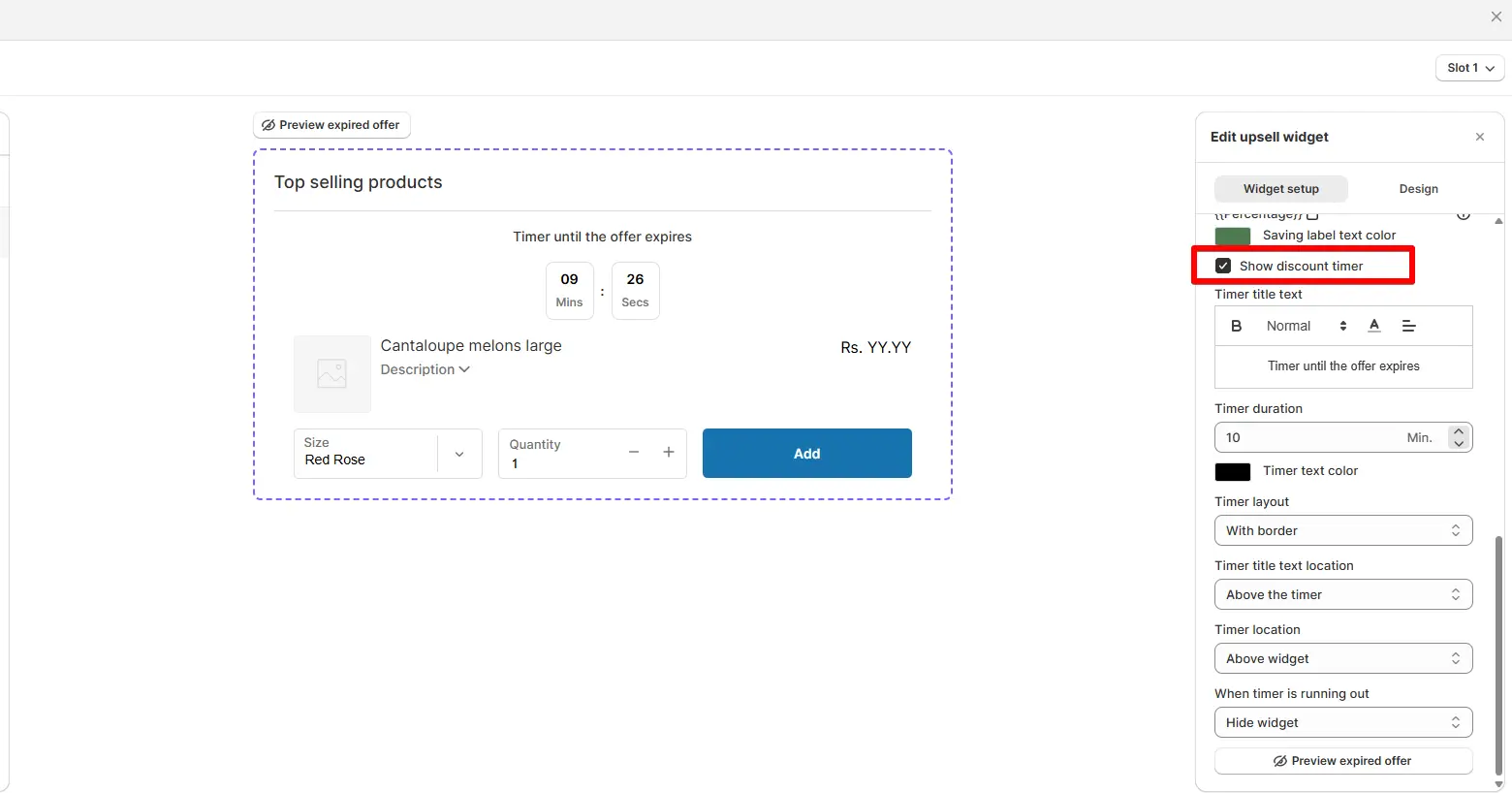
Show Discount Timer Toggle
Show Discount Timer Toggle
This option turns the timer on or off. When checked, the timer is visible to your customers. When unchecked, it stays hidden.
Turn it on whenever you want to highlight a limited-time offer.
Timer Duration Select
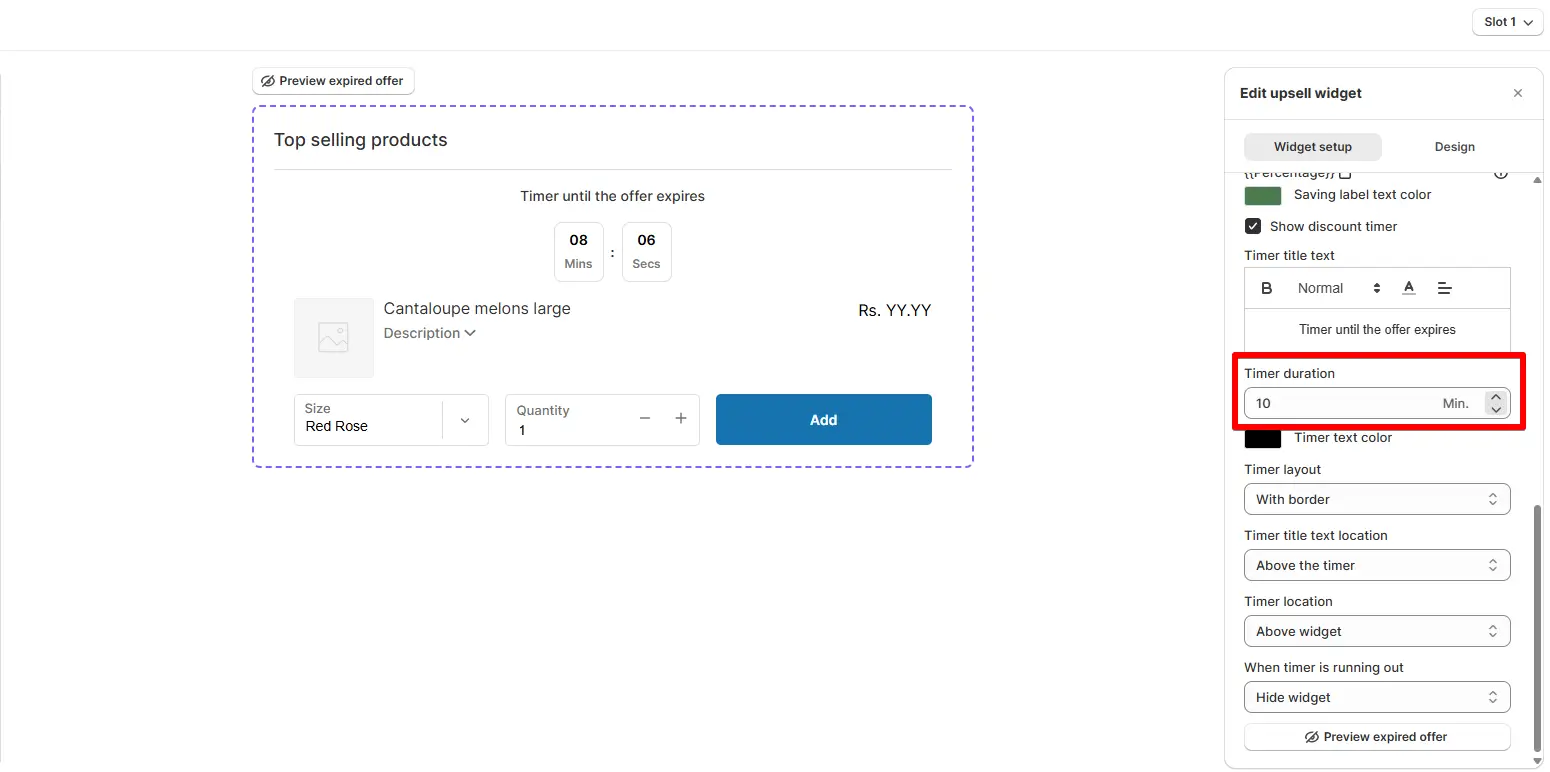
Timer Duration Select
This setting sets how long the timer runs before it expires. You can choose:
- 10 minutes — best for fast-moving flash sales
- 30 minutes — a balanced option for most stores
- 1 hour — gives shoppers more time to decide
A shorter timer creates more urgency. A longer timer gives customers more breathing room to decide.
Timer Placement Select
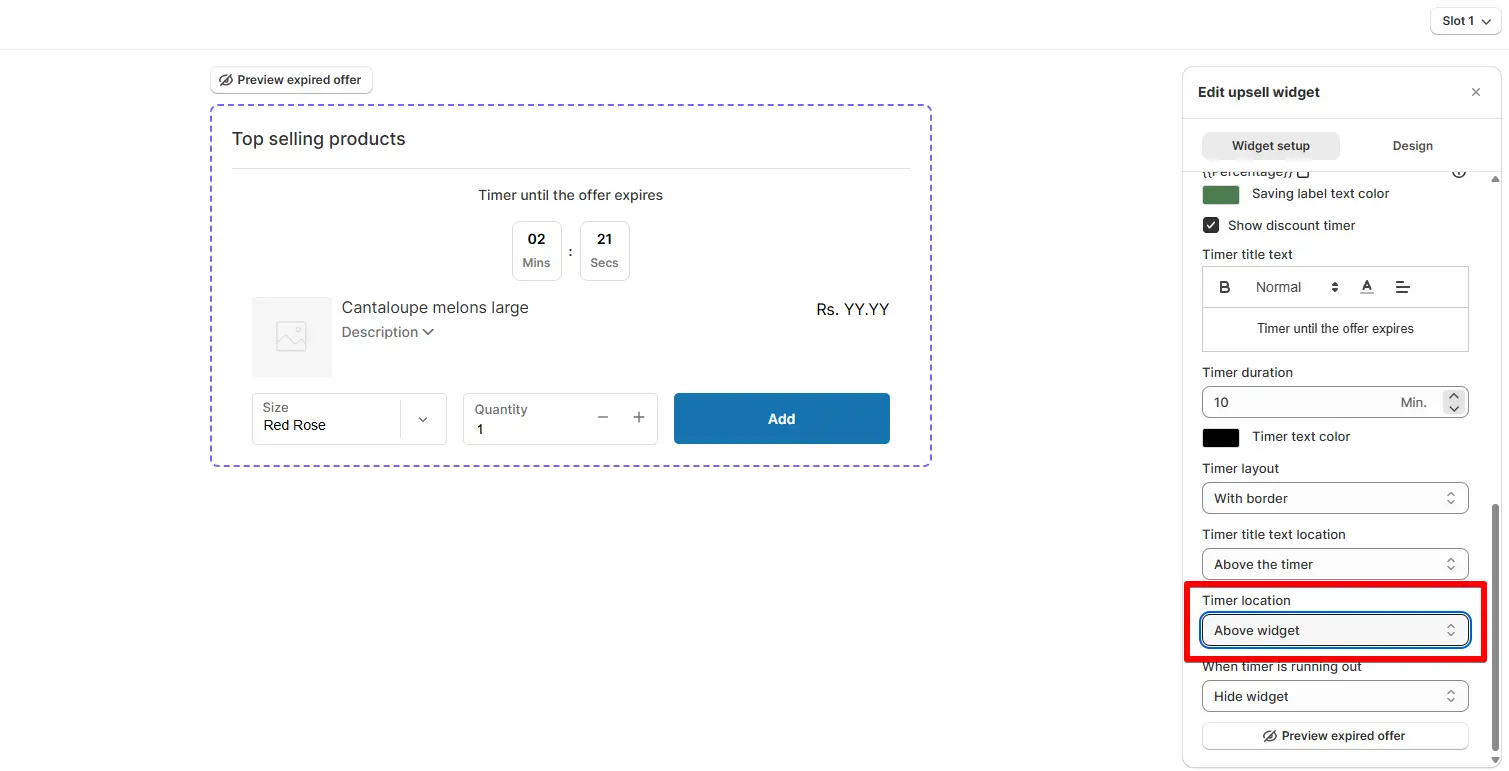
Timer Placement Select
This setting controls where the timer appears inside your widget. You can place it:
- Above Widget — shows the timer at the top for better visibility
- Below Widget — shows the timer at the bottom for a cleaner look
On Timer Expiry Select
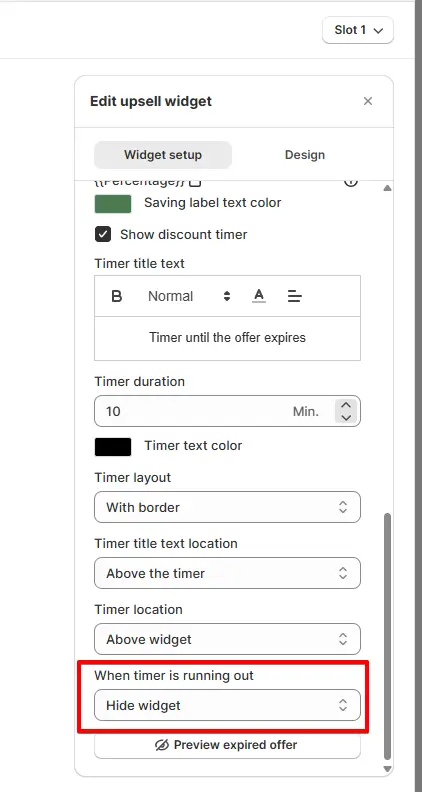
On Timer Expiry Select
This setting defines what happens once the timer reaches zero. You can choose:
- Hide Widget — removes the entire widget from view
- Show Message & Hide Widget — shows a short message, then hides the widget
- Hide Timer — only the timer disappears, the widget stays
- Reset Timer — the timer automatically starts over
Expiry Message Text
If you choose “Show Message & Hide Widget,” you can set the text customers see when the offer ends. For example, you might use “This offer has expired!”
Common Use Cases
Checkout Discounts
Run a limited-time discount timer on the checkout page to push shoppers toward completing their order.
Post-Purchase Upsells
Add a countdown to your Thank You page to encourage a quick add-on purchase.
Flash Sales
Use a short countdown to create excitement around a fast, time-boxed sale.
Seasonal Campaigns
Pair the timer with holiday or seasonal offers to boost urgency during peak shopping periods.
Tips & Best Practices
2. Place it above the widget — this keeps the countdown visible right away.
3. Match your store’s look — pick a timer layout that fits your theme.
4. Avoid long timers — a countdown that runs too long loses its sense of urgency.
5. Preview expiry behavior first — always test what happens when the timer hits zero before you publish.


