

The Survey Widget in SellMore Post Purchase Upsell allows you to collect valuable customer feedback at various stages of the shopping journey, such as during checkout, post-purchase, or on order status pages. You can create different types of survey questions, including rating scales, single choice, multiple choice, short text, and dropdown options, to gain insights into customer satisfaction and preferences. To effectively use the Survey Widget, keep surveys concise with 3–5 questions, ask one question at a time, and strategically place them to capture relevant feedback.
Regularly review responses to identify trends and act on customer suggestions to enhance your store. Remember, once a survey response is submitted, it cannot be edited, but customers can fill out additional surveys on different pages.
In this guide, you’ll learn how to create different types of survey questions, where to display them, and how to use customer responses to improve your store.
How This Feature Works
The Survey Widget lets you ask customers questions in five different ways. Choose the type that works best for each question you want to ask.
Where You Can Add Surveys
You can place survey widgets on these post-purchase pages:
- Checkout Page — for Shopify Plus stores only
- Post Purchase Page — immediately after purchase
- Thank You Page — to get initial reactions
- Order Status Page — later in the customer journey
Feature Settings Explained
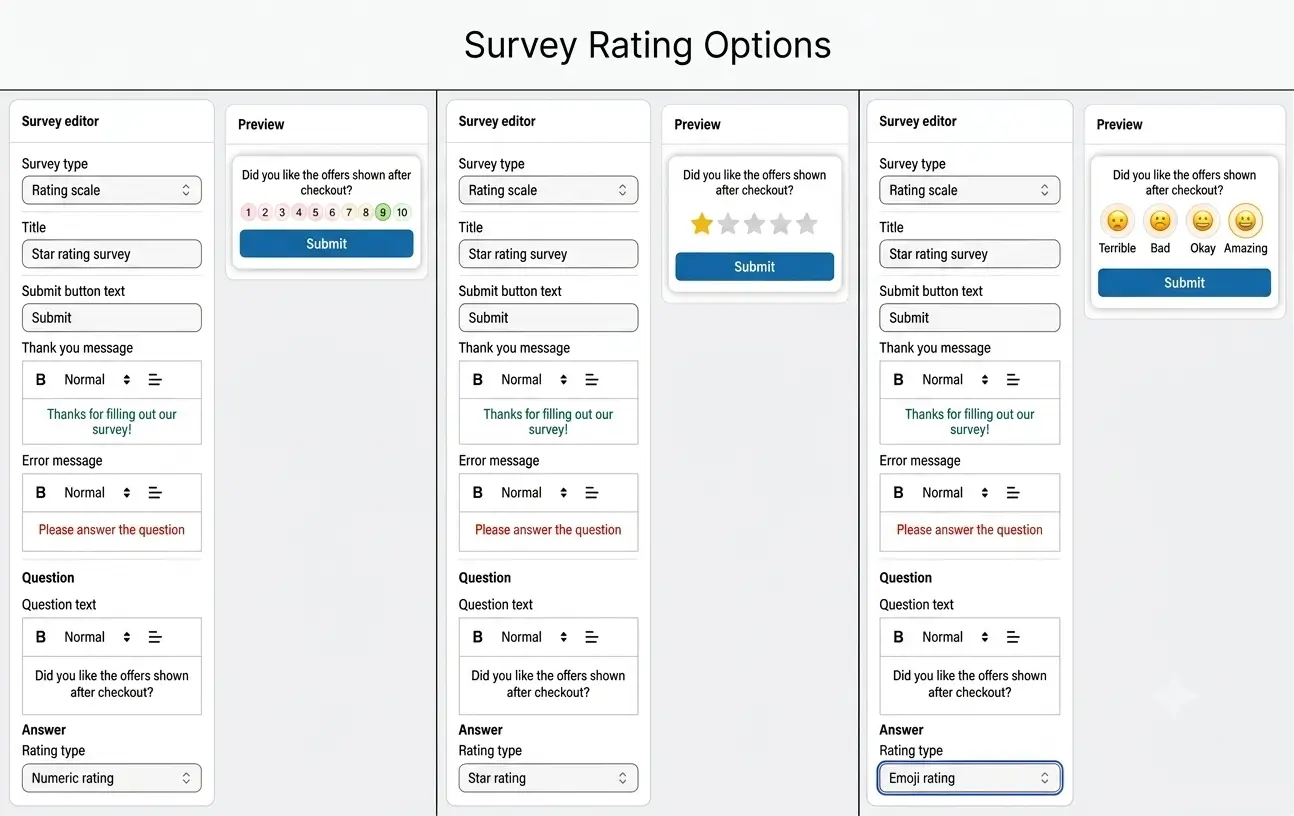
Rating Scale Questions Question Type
Question Text Text
The main question you want customers to answer. Keep it short and clear.
Scale Type Star or Emoji or Numbers
Choose between emoji faces (😞 to 😄) for visual feedback or a numbered scale (1–10) for simplicity.
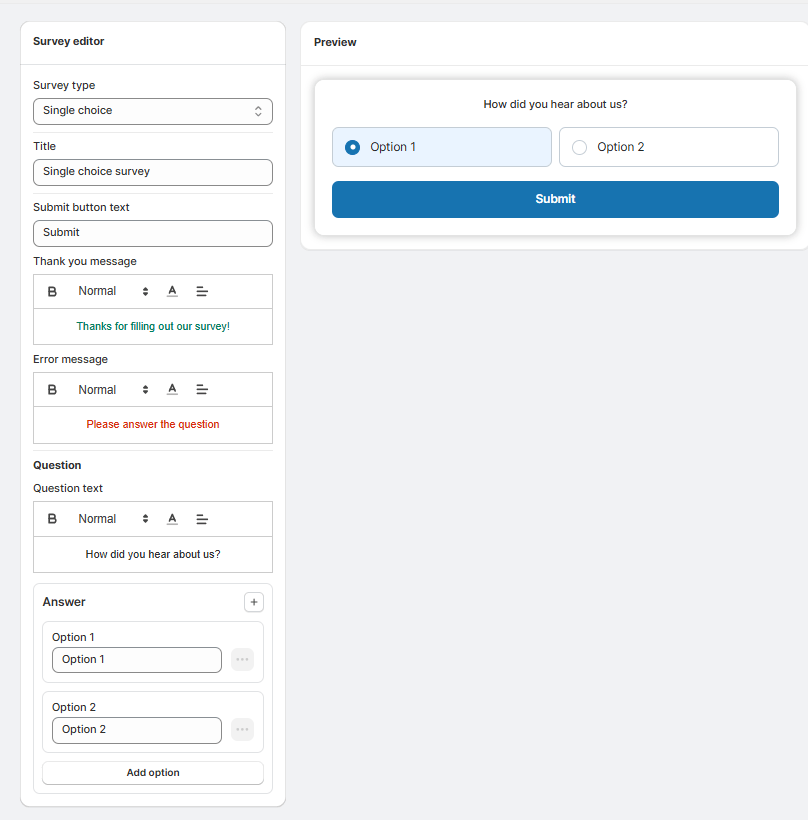
Single Choice Questions Question Type
Question Text Text
Ask a question that has one clear best answer for each customer.
Answer Options List
Add each option as a separate radio button choice. Customers can only pick one.
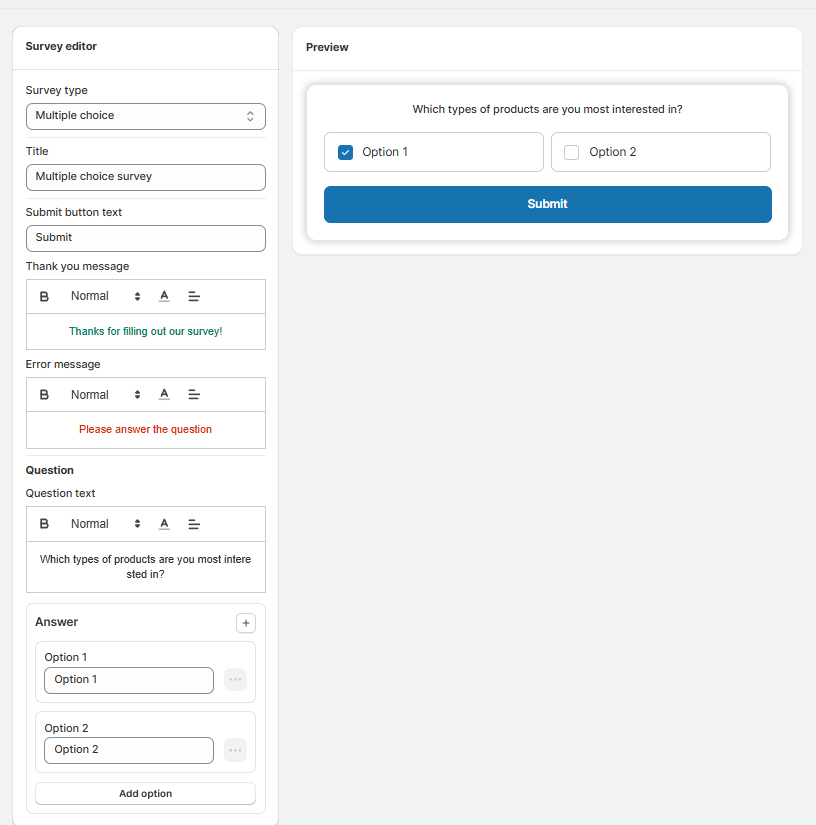
Multiple Choice Questions Question Type
Question Text Text
Ask a question where customers might have more than one relevant answer.
Answer Options List
Add each option as a checkbox. Customers can select as many as apply to them.
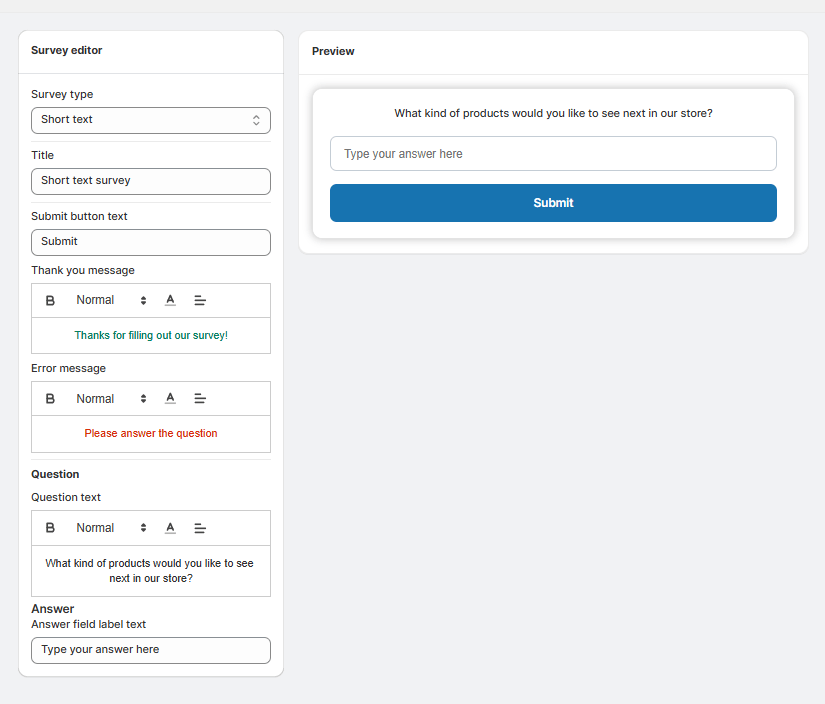
Short Text Questions Question Type
Question Text Text
Ask an open-ended question for detailed customer feedback.
Placeholder Text Text
Optional hint text that shows inside the text box before the customer types.
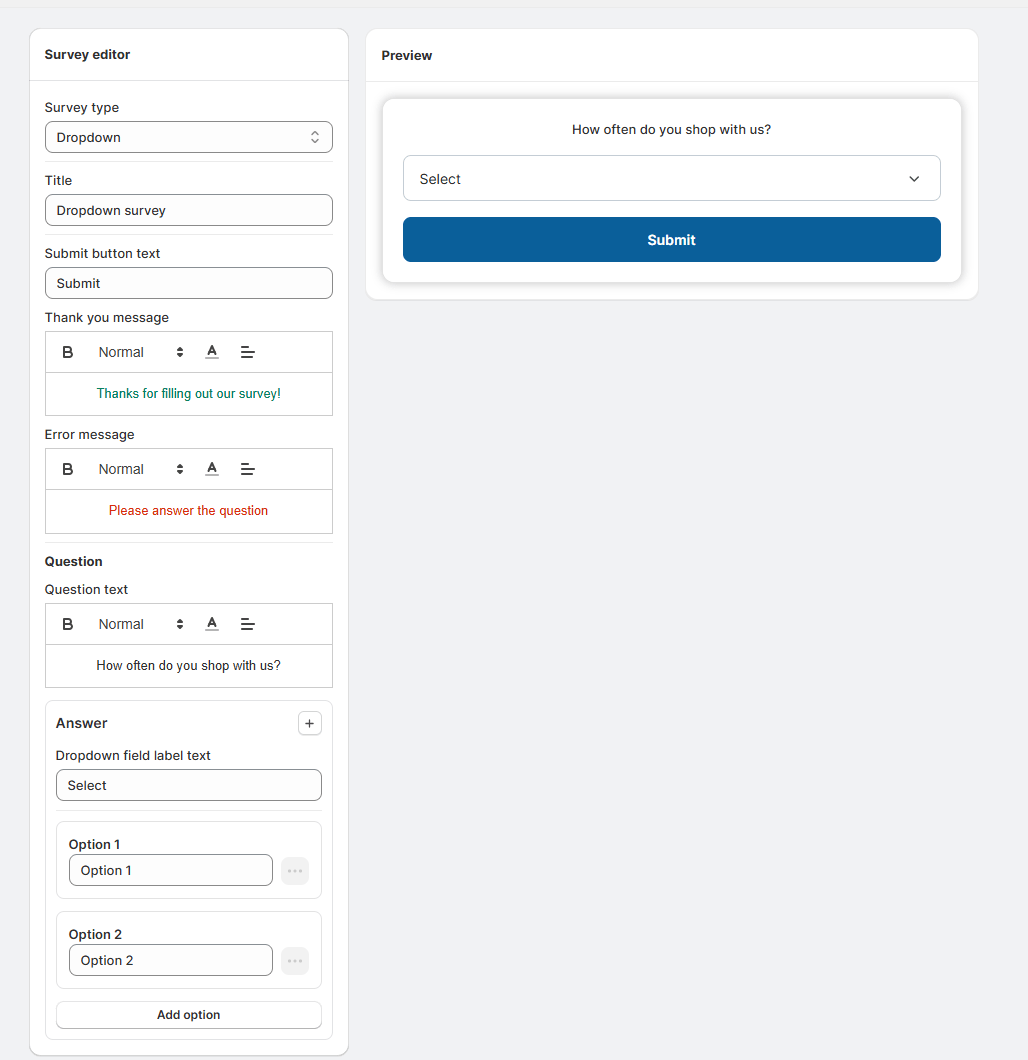
Dropdown Questions Question Type
Question Text Text
The question you want to ask.
Answer Options List
Add each option to the dropdown menu. Customers click to expand and pick one.
Common Use Cases
Measure Customer Satisfaction
Use a rating scale right after purchase to capture immediate reactions before customers leave your store.
Learn Product Interests
Ask multiple choice questions to understand which product types your customers prefer most.
Gather Feature Ideas
Use short text questions to collect detailed suggestions for how you can improve your store.
Track Repeat Purchases
Ask customers how often they shop with you using a dropdown to segment your audience.
Understand Offer Reception
Rate how much customers liked the offers shown after checkout to refine your upsell strategy.
Collect Shipping Feedback
On the order status page, ask if customers are satisfied with delivery speed and packaging quality.
Tips & Best Practices
2. Ask one thing per question — Never combine two questions into one. “Did you like the product and the price?” should be two separate questions.
3. Use the right question type — Rating scales for satisfaction, multiple choice to learn interests, text fields for detailed feedback.
4. Place strategically — Put satisfaction questions on the thank you page. Put product interest questions on post-purchase pages where you show offers.
5. Review responses regularly — Set aside time weekly to read text feedback and spot trends in other answers. Use insights to improve your offers.
6. Act on feedback — When customers suggest something, implement it or explain why you can’t. Shows you’re listening.


