

The Settings page in SellMore allows you to manage the app’s activation status, configure post-purchase settings in Shopify, and tag orders from upsell offers. You can enable or disable the app, which requires adding or removing the app block in your Shopify theme. Additionally, to display upsell offers after checkout, you must set SellMore as your post-purchase app in Shopify Admin under Settings and Checkout. To tag orders generated through upsells, check the box for tagging and enter your preferred tag, such as sellmore_upsell.
This will help you track upsell-driven revenue effectively. Ensure the app is enabled, configured correctly, and that tracking tags are applied to maximize your upsell strategy. If you need assistance, you can reach out to the support team via email or live chat.
The Settings page in SellMore allows you to control the app’s activation status, configure post-purchase app settings in Shopify, and tag orders generated through upsell offers.
Let’s go through each section to ensure everything is set up properly for your store.
App Status
This option lets you enable or disable the SellMore app.
- Click the Enable button to activate the app.
- You’ll be redirected to the Theme Editor, where you can add the required app block for SellMore to function properly.
- If you choose to disable the app later, you’ll again be redirected to the Theme Editor to remove the app block.

Set SellMore as your post-purchase app
To show upsell offers after checkout, Shopify requires you to assign SellMore as your post-purchase app.
If SellMore isn’t configured yet, you’ll see this message:
“SellMore is not currently set up as your post-purchase page app on Shopify.”
You’ll also see a yellow badge labeled Not SellMore and a button that says “I’ve done this” – which you can click to verify once you’ve completed setup.
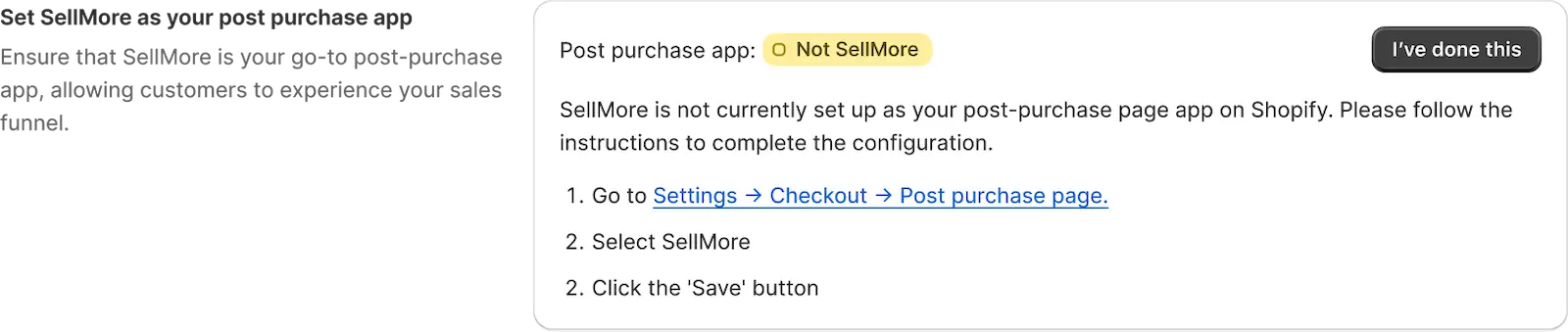
How to set SellMore as your post-purchase app:
- Go to Shopify Admin → Settings → Checkout → Post-purchase page
- From the radio options, select SellMore
- Click the Save button

Once set, customers will start seeing post-purchase offers based on your configured funnels.
Order actions – Tag orders with upsells
This section allows you to tag orders generated through SellMore upsells. This is helpful if you want to track which orders came from upsell offers.
- Simply check the box that says “Tag orders generated by upsell.”
- Enter your preferred tag (e.g., sellmore_upsell) in the input field.

Tags will automatically be applied to relevant orders, helping you identify upsell-driven revenue easily.
Summary
The Settings page ensures your SellMore app is active, correctly configured with Shopify, and optimized for order tracking. Be sure to enable the app, assign it as your post-purchase provider, and add tracking tags to unlock the full power of your upsell strategy.
Need help?
If you need any help while configuring the settings, feel free to email us or live chat with our support team — we’re always here to assist you!